Download and fill tracking log entry template
After adding the tracking log setting, you can start completing the log entries to maintain a clear record of regulatory documents and their submissions, approvals, and updates throughout the clinical trial. Tracking logs support compliance, audit readiness, and effective oversight across all study sites.
In CTMS, to facilitate the tracking log entry import and ensure your imported file is compliant with the system requirements, you can download the needed tracking log entry template and complete it offline to then import it to the system flawlessly.
Important
The tracking log template export is only available for the single-form tracking log. For the multiform tracking logs of the Regulatory Documents type, the template export is unavailable.
-
Access the study management page in one of the following ways:
-
In the CTMS application header, select the DASHBOARD tab and then select the study dashboard of your interest.
 Figure 1. Accessing study management from dashboard
-
In the CTMS application header, select the STUDY MANAGEMENT tab. Then from the Study Data List table, select the study name of your interest.
 Figure 2. Accessing study management from study data list
-
-
On the page that opens, from the left pane, select Tracking Log. Then from the expanded menu, select the name of the previously added tracking log.
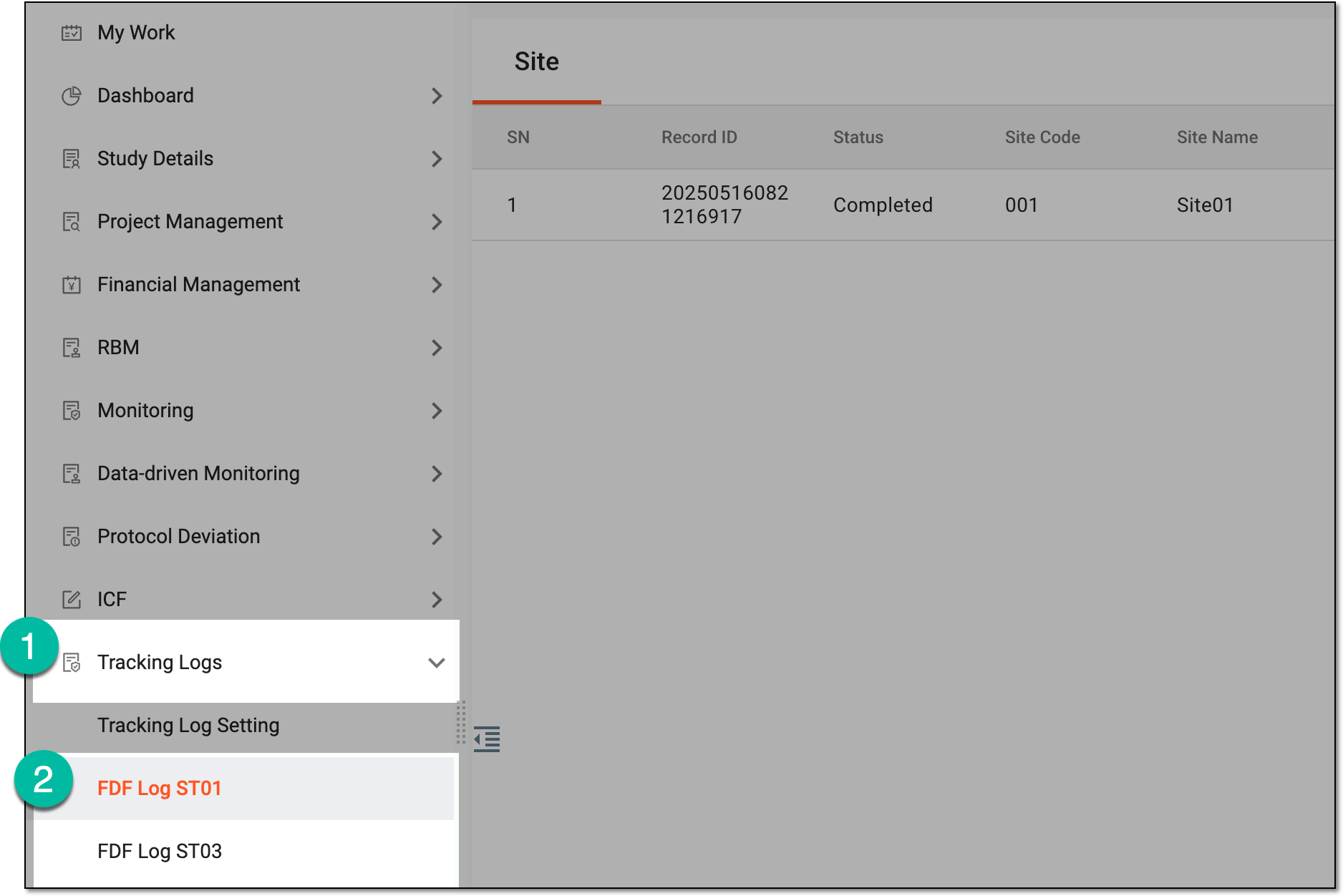 Figure 3. Accessing tracking log
-
From the workspace toolbar of the tracking log page that opens, select Download Template
 .
.Tip
In the single-form tracking log, based on the level of the tracking log selected upon setting, the Site, Study, or both tabs are available. Regardless of the tab number, the template is exported as a single XLSX file with multiple sheets for the available levels.
 Figure 4. Downloading tracking log entry template
-
Once the XLSX file is downloaded and saved on your computer, open the file and complete the available sheets as follows:
-
Index: represents the summary of the downloaded tracking log template—the pertinent study details, filter conditions applied to the exported template, and export details, such as time of the operation and the operator.
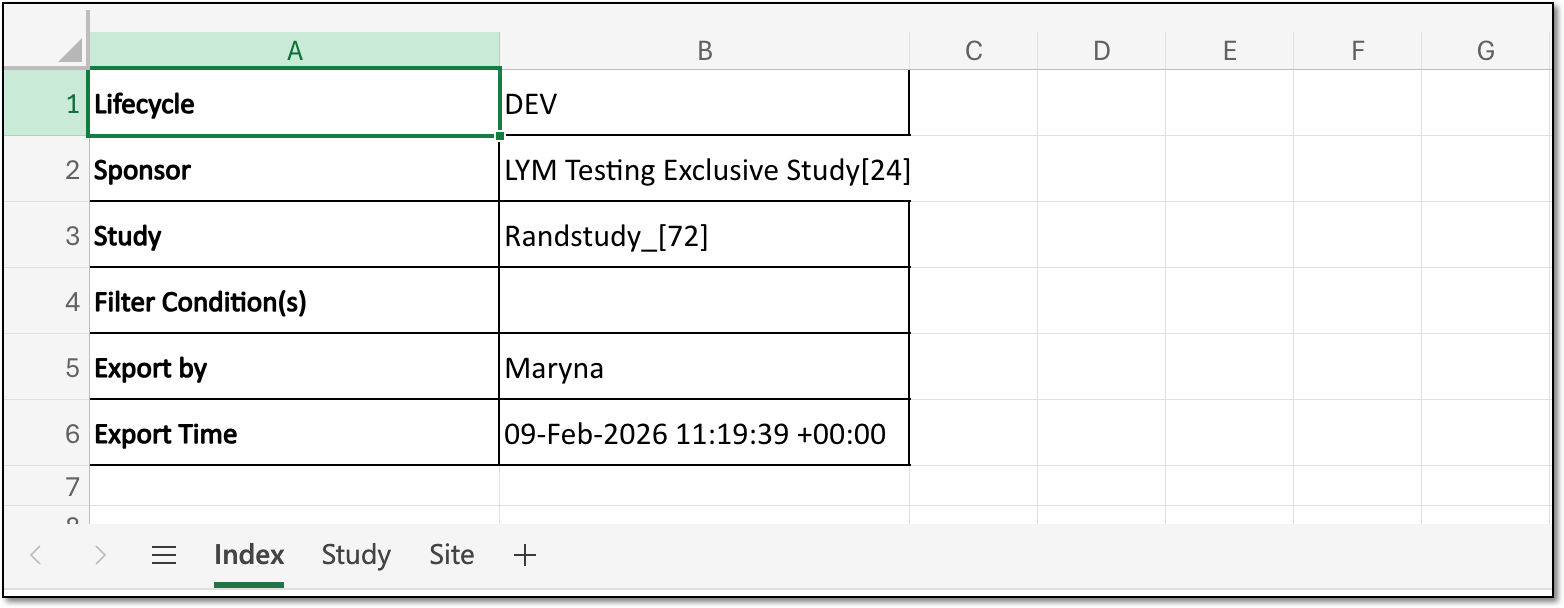 Figure 5. Analyzing index sheet in tracking log template file
-
Study: complete the details by filling all the cells with the respective study-level data.
Tip
This sheet is only available if the tracking log for which the template was exported has a study-level tab in CTMS.
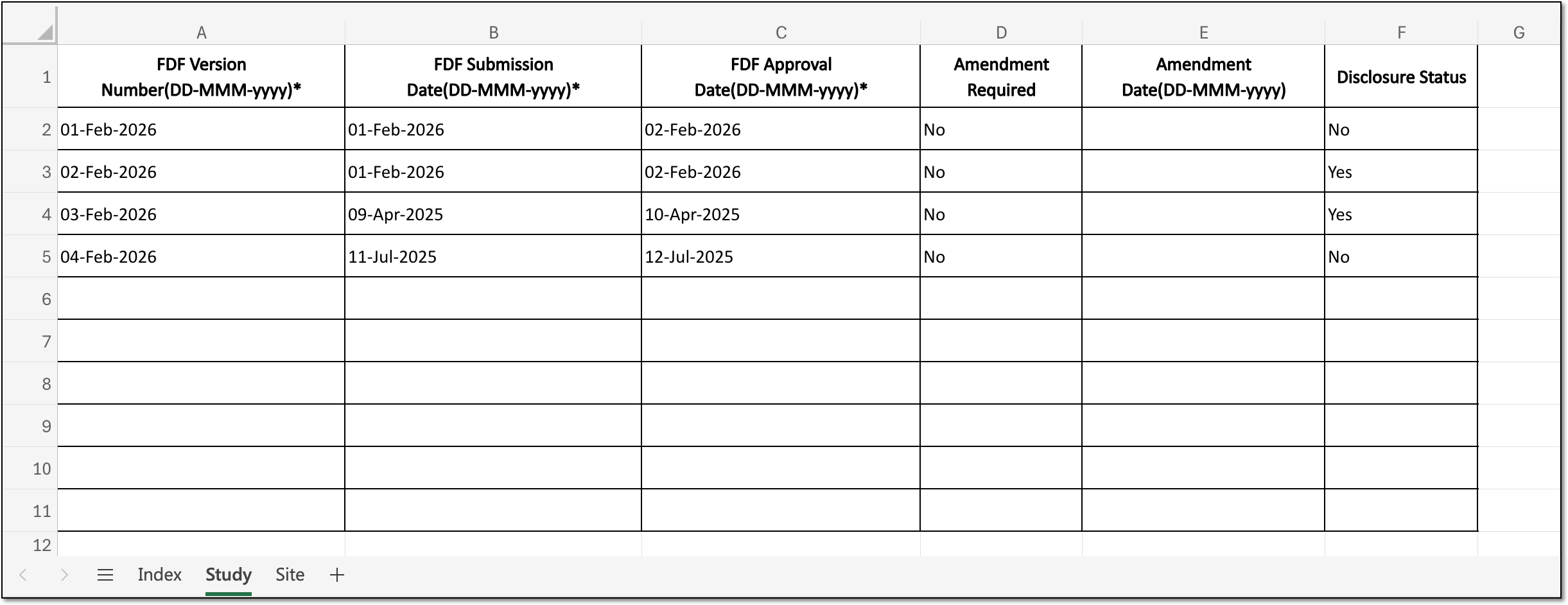 Figure 6. Completing study sheet in tracking log template file
-
Site: complete the details by filling all the cells with the respective site-level data.
Tip
This sheet is only available if the tracking log for which the template was exported has a site-level tab in CTMS.
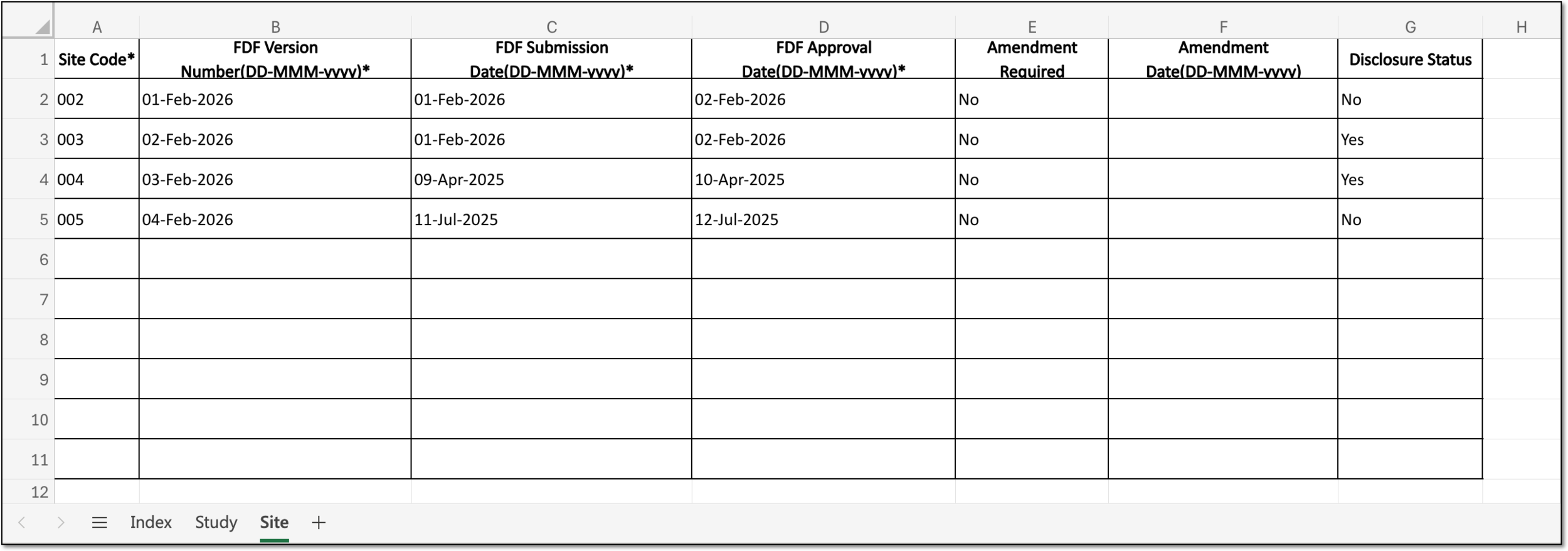 Figure 7. Completing site sheet in tracking log template file
-
Once all sheets are completed and the file saved, you are ready to import the tracking log entries to CTMS.