Activate/Inactivate tracking log entry
This functionality is used to manage the status of individual entries within a tracking log. Activating an entry makes it visible and available for tracking, while inactivating it hides the entry from regular view without deleting it. This helps maintain a clean and current log while preserving historical data for reference or audit purposes.
Important
Note that you can only access and update the tracking log if you have been granted the write permission for the corresponding log.
-
Access the study management page in one of the following ways:
-
In the CTMS application header, select the DASHBOARD tab and then select the study dashboard of your interest.
 Figure 1. Accessing study management from dashboard
-
In the CTMS application header, select the STUDY MANAGEMENT tab. Then from the Study Data List table, select the study name of your interest.
 Figure 2. Accessing study management from study data list
-
-
On the page that opens, from the left pane, select Tracking Log. Then from the expanded menu, select the name of the previously added tracking log.
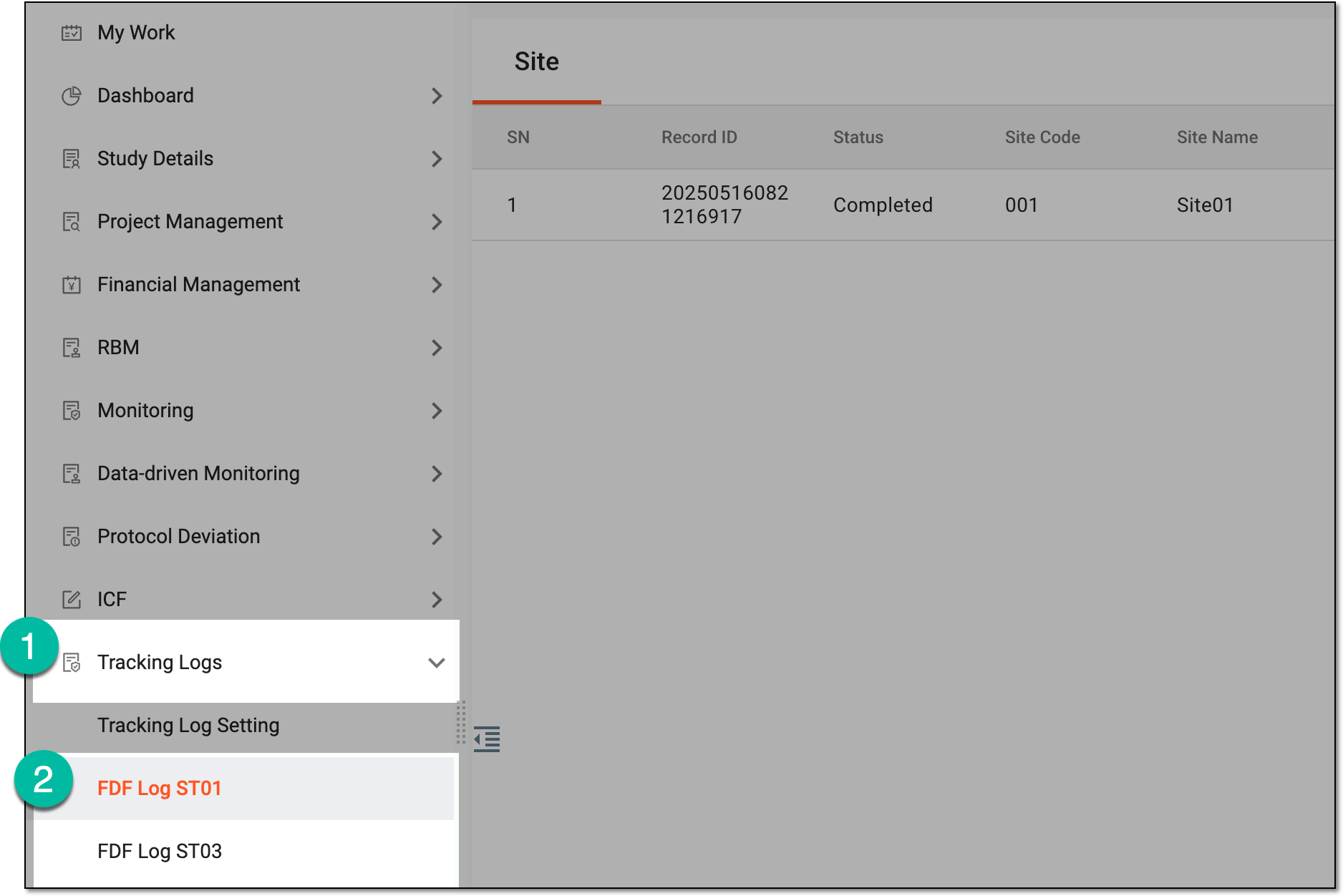 Figure 3. Accessing tracking log
-
On the page that opens, do one the following:
-
In the single-form tracking log, based on the level of the tracking log selected upon setting, the Site, Study, or both tabs are available. Select the needed tab to access the entry list.
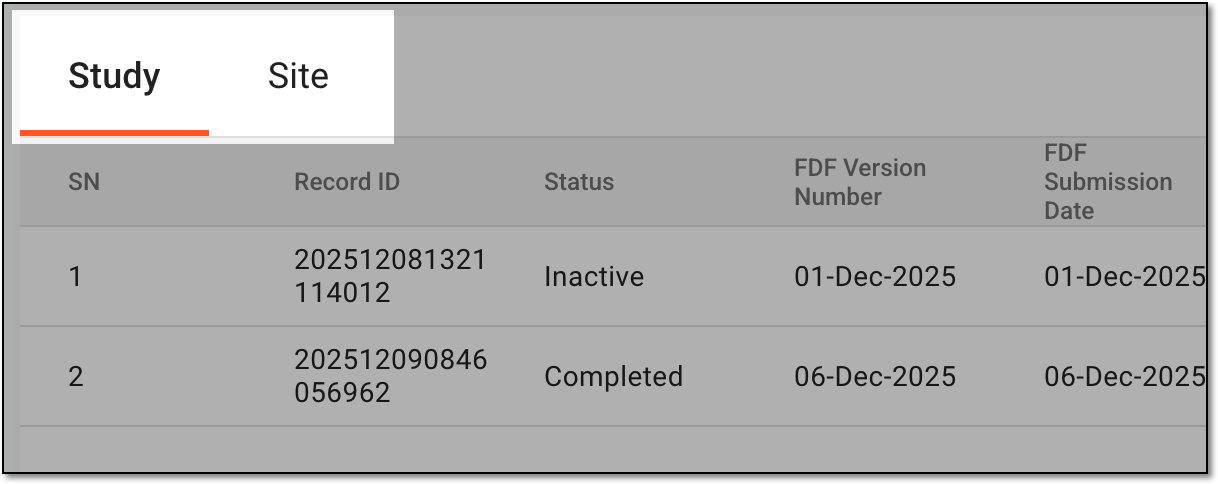 Figure 4. Selecting tab to access entry list
-
In the multiform tracking log, select the needed form to access the entry list.
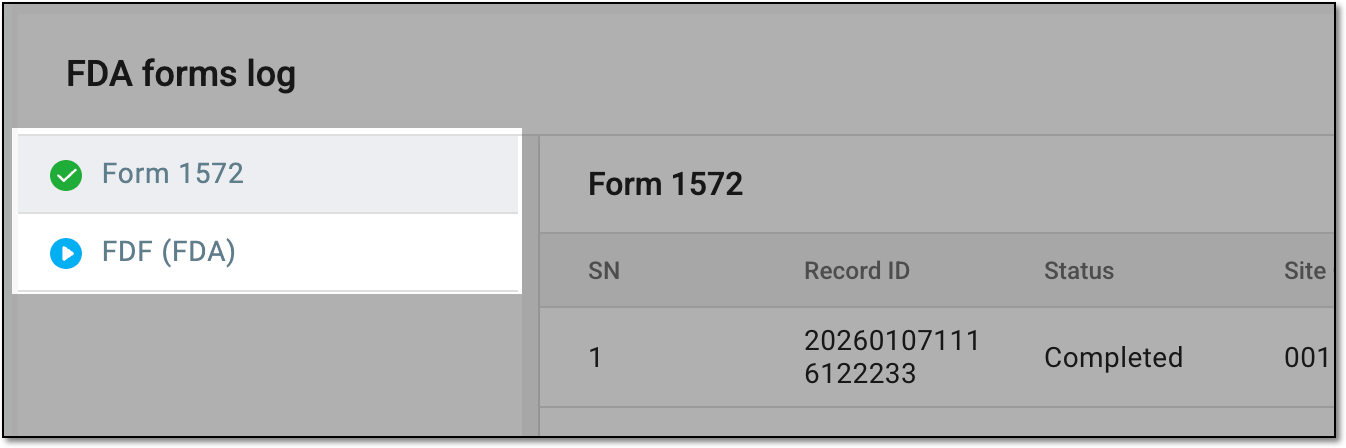 Figure 5. Selecting form to access entry list
-
-
In the resulting tracking log entry list, locate the entry you need to activate or inactivate.Then from the Action(s) column next to the needed log entry, select Activate
 or Inactivate
  .
. Figure 6. Activating or inactivating tracking log entry
-
In the Reason dialog that appears, enter the reason for activation or inactivation of the regulatory document log entry and select
 to confirm your action.
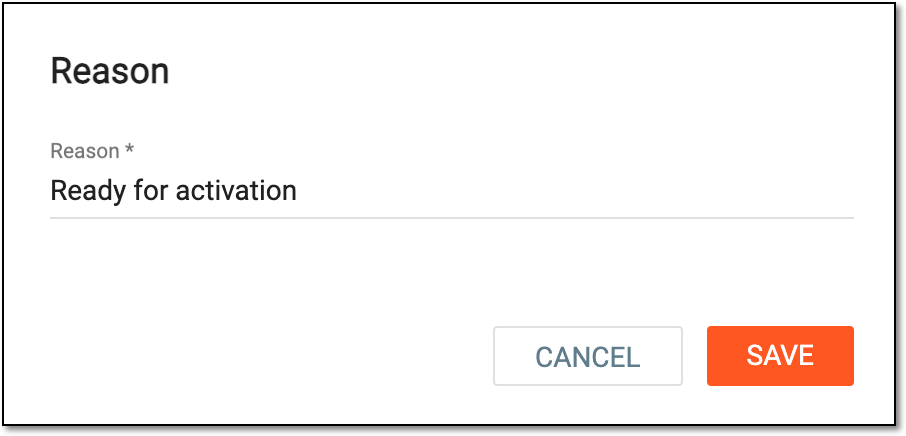 Figure 7. Providing reason for inactivation
Once you have saved your changes, the tracking log entry is activated or inactivated as per your action.