Lock/Unlock tracking log entry
Using the Lock feature, you can control edit access to individual entries within a tracking log. Locking an entry secures it from further changes either by users or by the system, ensuring data integrity once the information is finalized. Unlocking allows authorized users or the system to make necessary updates if revisions are required. This functionality helps maintain accurate and audit-ready records throughout the clinical trial.
For instance, the tracking log entry was made for the Form 1572 signature, and the site's subinvestigator name was recorded as "John A." by autopopulating this data from the site profile information in CTMS. Then the entry is locked to preserve the recorded data. After that, the subinvestigator at the site was replaced by "Jane B." Due to the tracking log entry being locked, the change of the subinvestigator is not reflected in it, and the record states "John A." This way, it is preserved in the tracking log that "John A." signed the Form 1572 document at a certain site and on a certain date.
If or when the tracking log entry is unlocked, the system autopopulates the current data from the site profile, and the name of the subinvestigator becomes "Jane B."
-
Access the study management page in one of the following ways:
-
In the CTMS application header, select the DASHBOARD tab and then select the study dashboard of your interest.
 Figure 1. Accessing study management from dashboard
-
In the CTMS application header, select the STUDY MANAGEMENT tab. Then from the Study Data List table, select the study name of your interest.
 Figure 2. Accessing study management from study data list
-
-
On the page that opens, from the left pane, select Tracking Log. Then from the expanded menu, select the name of the previously added tracking log.
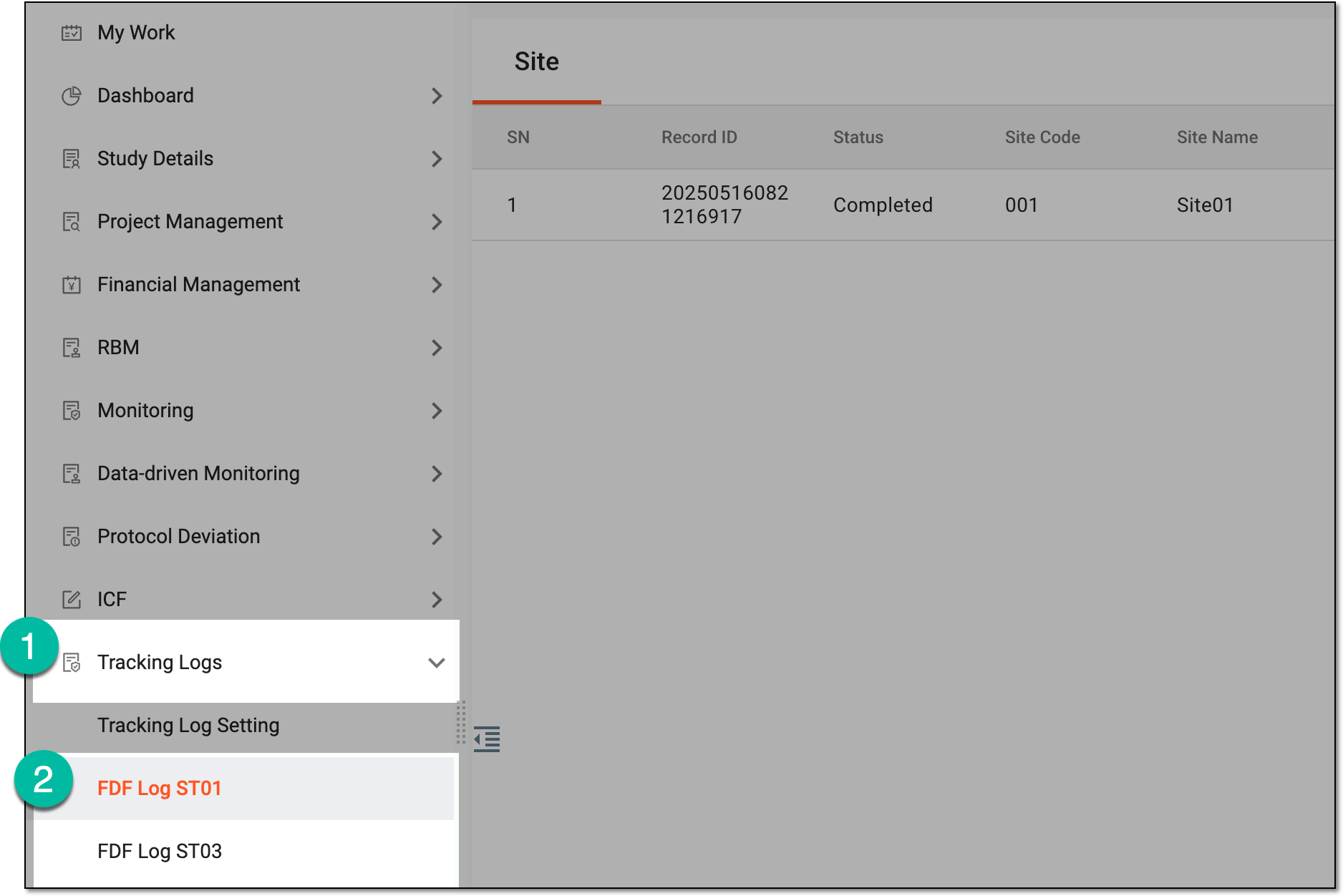 Figure 3. Accessing tracking log
-
On the page that opens, do one the following:
-
In the single-form tracking log, based on the level of the tracking log selected upon setting, the Site, Study, or both tabs are available. Select the needed tab to access the entry list.
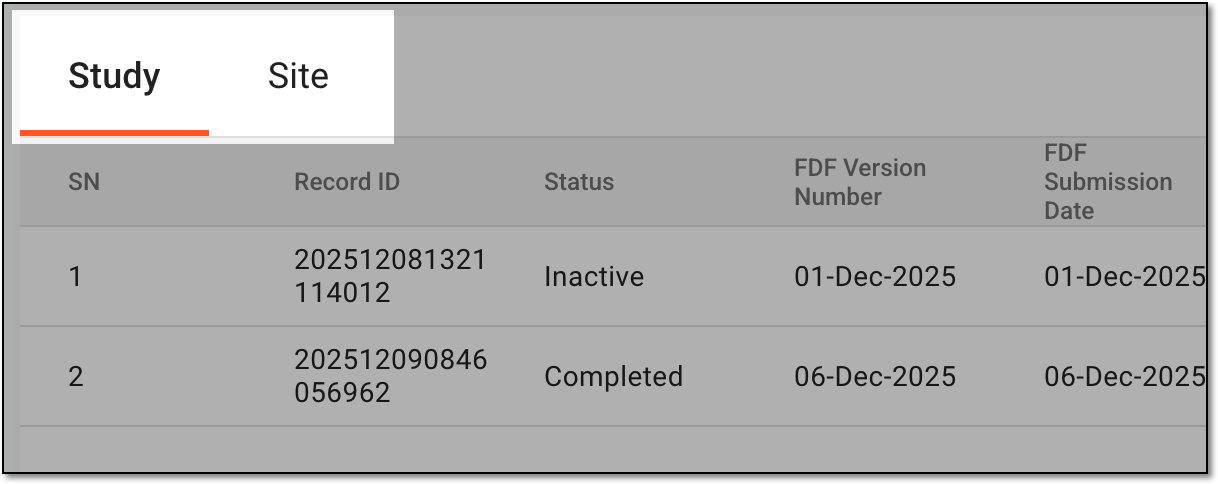 Figure 4. Selecting tab to access entry list
-
In the multiform tracking log, select the needed form to access the entry list.
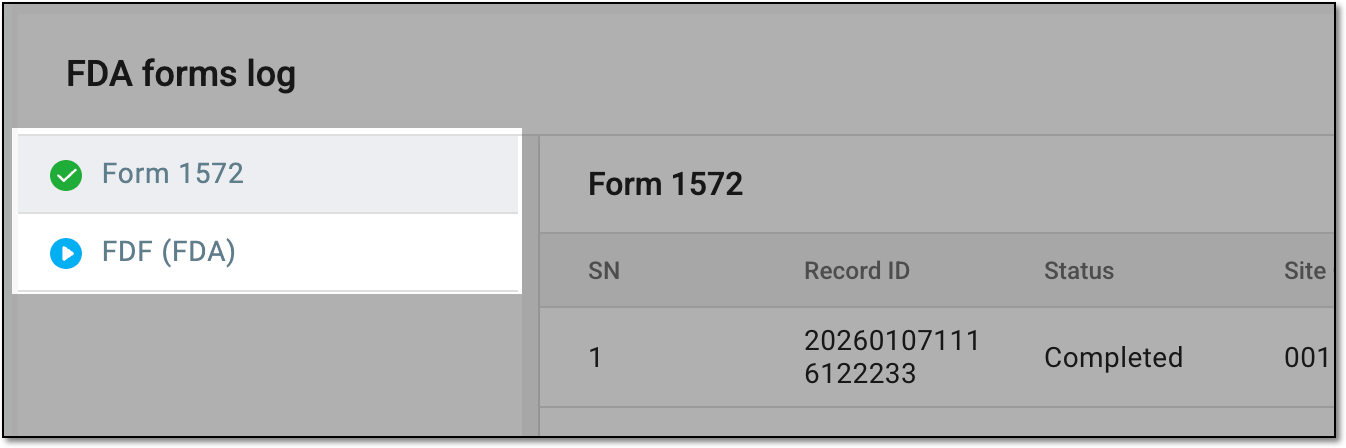 Figure 5. Selecting form to access entry list
-
-
In the resulting tracking log entry list, next to the needed entry, from the Action(s) column, select More
 and then one of the following:
-
Lock
 : to lock the entry and prevent it from amendments or any interactions.
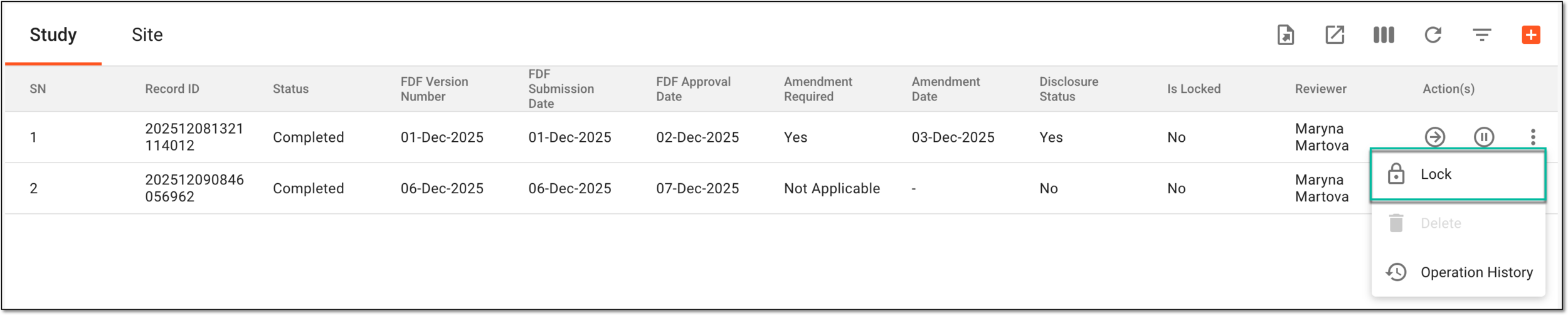 Figure 6. Locking tracking log entry
-
Unlock
 : to unlock the entry and allow amendments and other interactions.
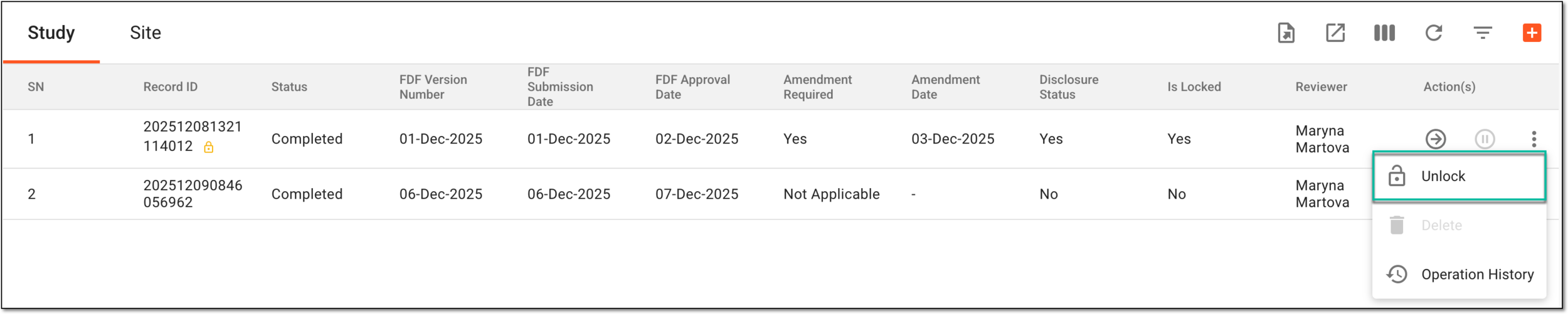 Figure 7. Unlocking tracking log entry
-
Once the respective option is selected, the tracking log entry is locked or unlocked as per your action.