Export tracking log entries
In CTMS, the tracking log entries can be exported to your computer for convenient review, sharing, or backup. This helps maintain an offline copy of the data and supports reporting, documentation, and audit requirements.
Important
Note that you can only access and export the tracking log entries if you have been granted the write permission for the corresponding log.
-
Access the study management page in one of the following ways:
-
In the CTMS application header, select the DASHBOARD tab and then select the study dashboard of your interest.
 Figure 1. Accessing study management from dashboard
-
In the CTMS application header, select the STUDY MANAGEMENT tab. Then from the Study Data List table, select the study name of your interest.
 Figure 2. Accessing study management from study data list
-
-
On the page that opens, from the left pane, select Tracking Log. Then from the expanded menu, select the name of the previously added tracking log.
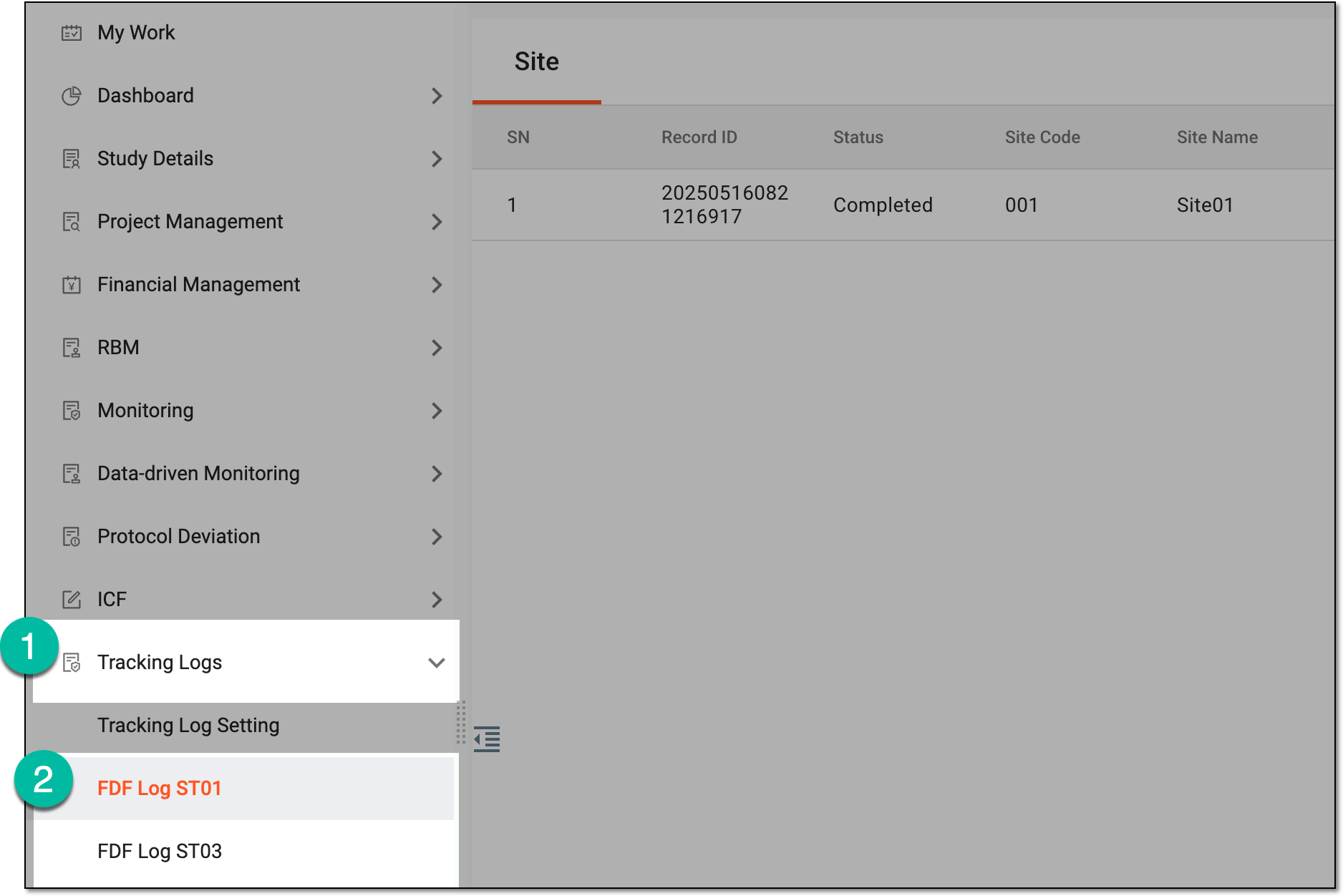 Figure 3. Accessing tracking log
-
On the page that opens, do one the following:
-
In the single-form tracking log, based on the level of the tracking log selected upon setting, the Site, Study, or both tabs are available. Select the needed tab to access the entry list.
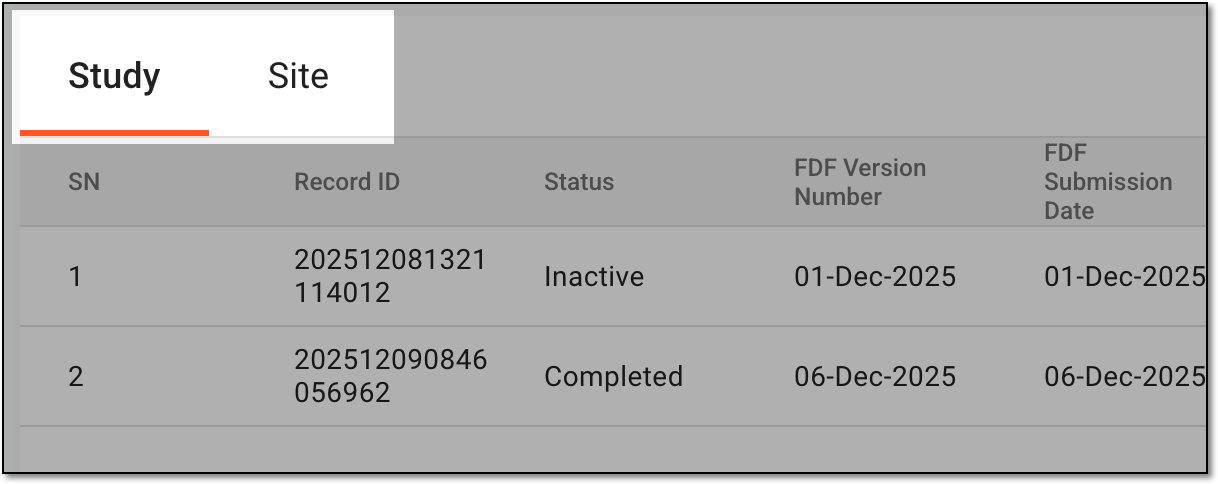 Figure 4. Selecting tab to access entry list
-
In the multiform tracking log, select the needed form to access the entry list.
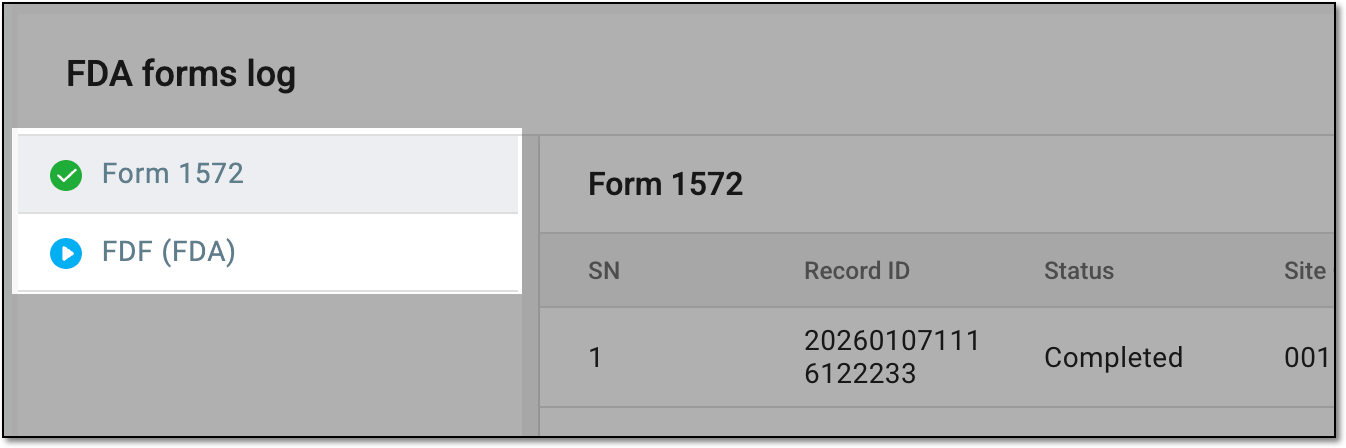 Figure 5. Selecting form to access entry list
-
-
In the resulting tracking log entry list, from the workspace toolbar, select Export
 and then one of the following:
-
Export All: to extract the data for both site- and study-level tracking log entries.
-
Export Current Level: to extract the data only for the currently selected tab that represents either site- or study-level tracking log entries.
 Figure 6. Exporting tracking log entry data
-
-
In the downloads widget that appears, view your download progress. Select the widget to open the My Downloads dialog.
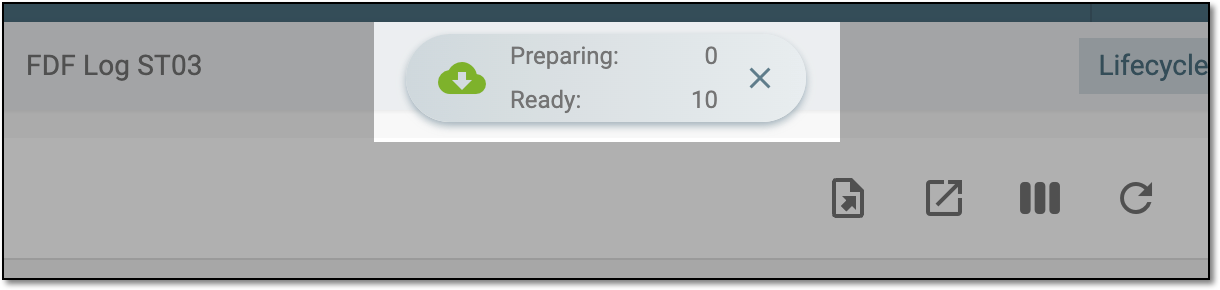 Figure 7. Downloads widget for tracking log entries
-
In the My Downloads dialog that opens, you can find the following tabs:
-
Preparing: lists all the files whose export is in progress, and they are not yet ready for download. Wait until the needed file moves to the Download is Ready tab.
-
Download is Ready: lists the files whose export is complete, and they can be downloaded to your computer by selecting
 .
.
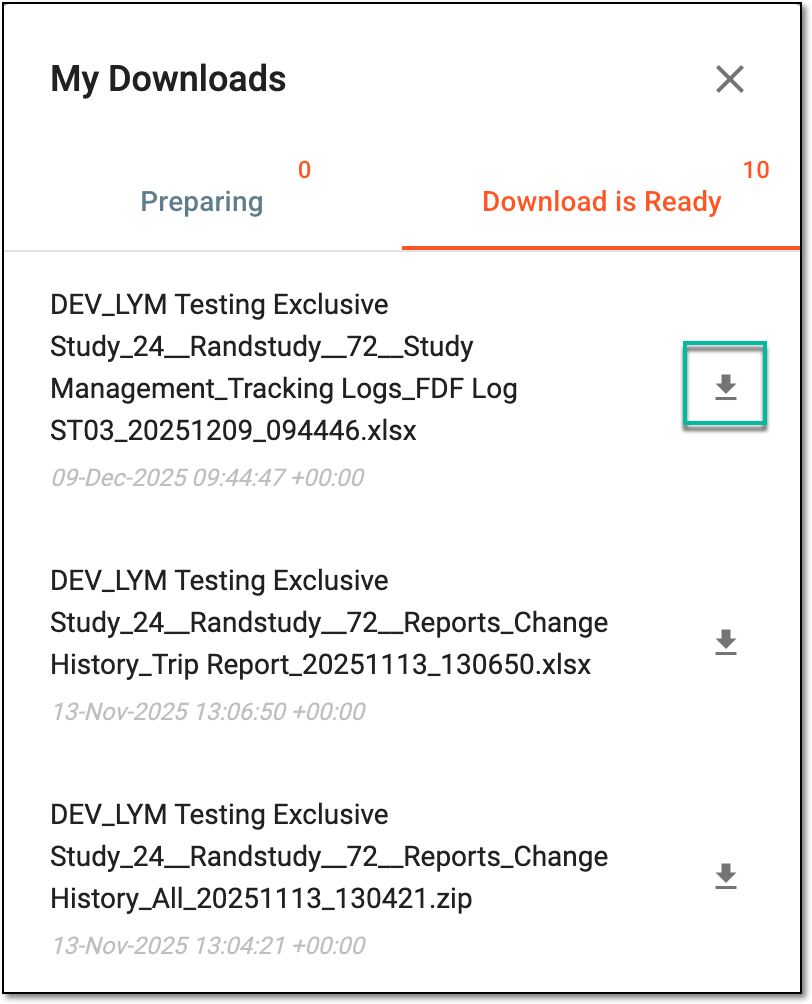 Figure 8. Downloading exported tracking log entries
-
Once downloaded and saved, the tracking log entry data in the XLSX format becomes available on your computer.
Tip
The extracted file version is saved in the system and can be accessed from Export History  .
.
