Manage related documents for tracking log entry
In CTMS, it can be configured to autofetch data to the tracking log and make a respective log entry when a certain regulatory document is uploaded for site personnel.
When maintaining tracking logs with entries autocreated by the system based on the site personnel documents, you can manage the related documents directly from the tracking log—see the list of already connected ones, add more documents as related, or remove the existing associations. This functionality makes it easier for the clinical research associates (CRAs) and other users in charge to trace, establish, or discard the connection of the log record to the document for which it was made. It becomes especially handy if multiple files are uploaded for the same staff and there is a need to sort out the tracking log to avoid inconsistencies or even regulatory breaches.
-
Access the study management page in one of the following ways:
-
In the CTMS application header, select the DASHBOARD tab and then select the study dashboard of your interest.
 Figure 1. Accessing study management from dashboard
-
In the CTMS application header, select the STUDY MANAGEMENT tab. Then from the Study Data List table, select the study name of your interest.
 Figure 2. Accessing study management from study data list
-
-
On the page that opens, from the left pane, select Tracking Log. Then from the expanded menu, select the name of the previously added tracking log.
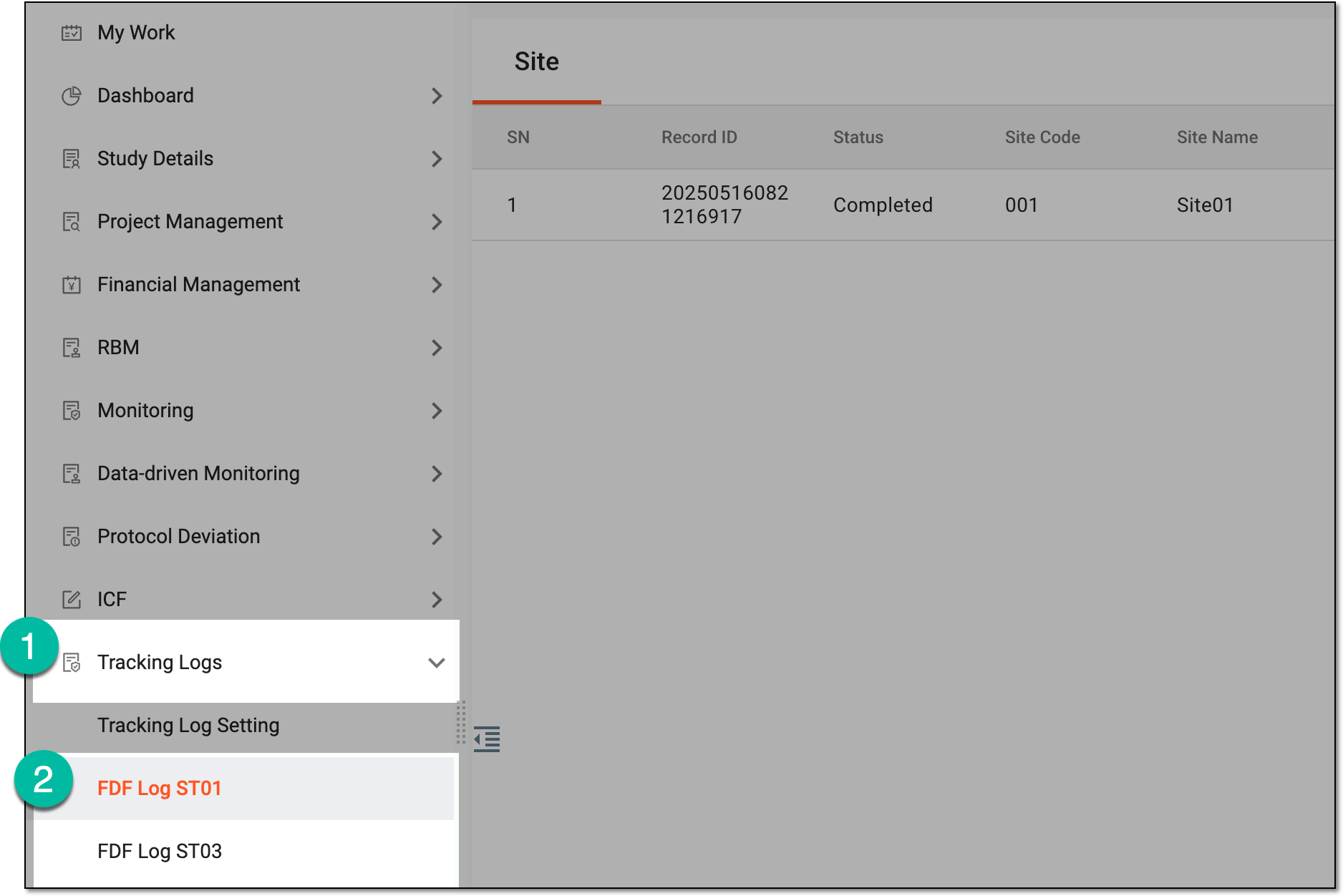 Figure 3. Accessing tracking log
-
On the page that opens, select the needed form to access the respective documentation tracking list.
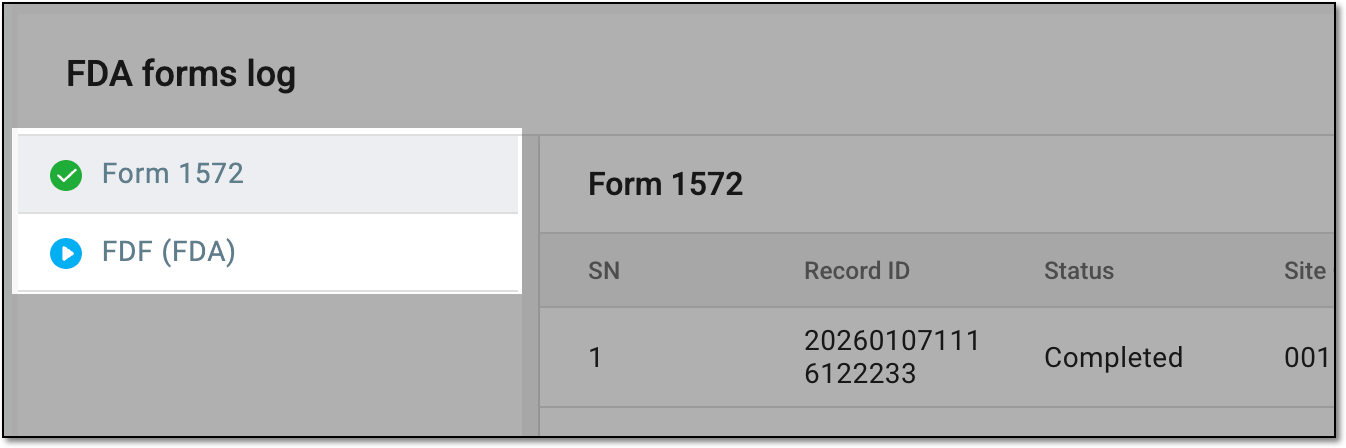 Figure 4. Selecting form to access entry list
-
In the resulting tracking log entry list, next to the required entry, from the Action(s) column, select More
 > Related Documents
  .
.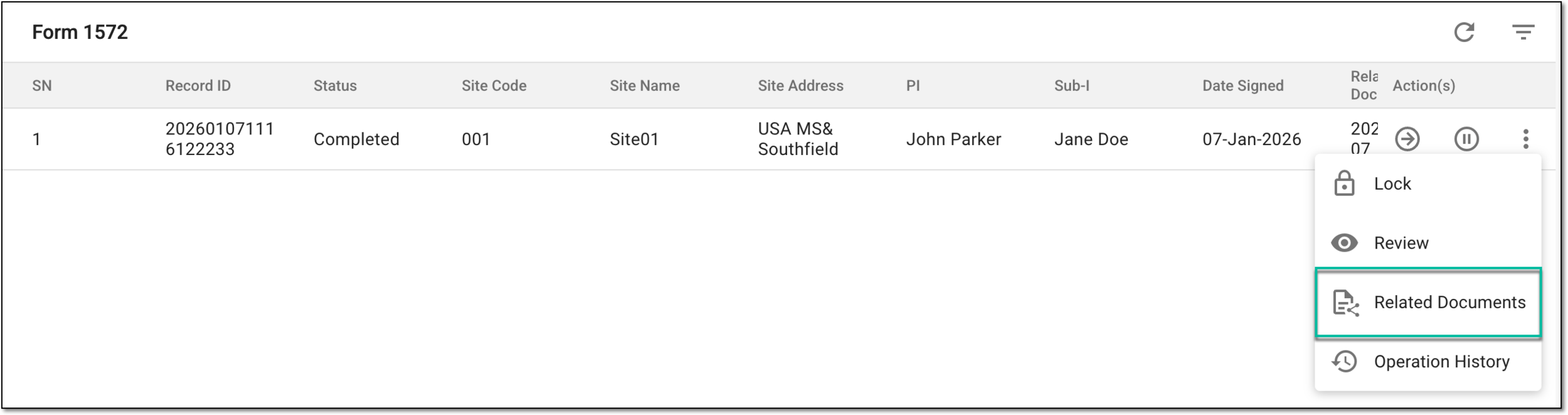 Figure 5. Selecting option to access related document list
-
In the Related Documents dialog that opens, manage the relation between the log entry and the documents as follows.
In the table, check the details of the documents currently associated with the tracking log entry. These are the documents associated automatically (as their upload triggered the log entry creation) and the documents associated manually.
Tip
You can use the Document ID and TMF ID values to locate the document in the File Management or Essential Documents storage of the eTMF system.
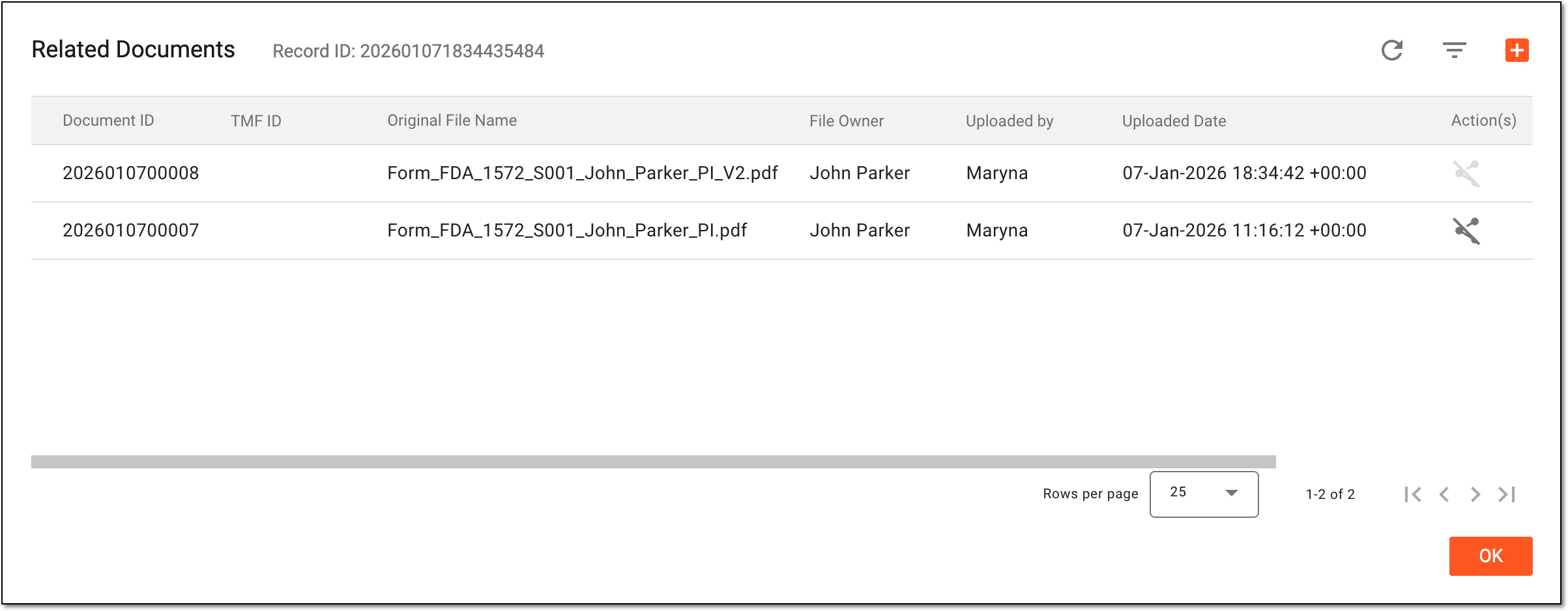 Figure 6. Checking existing list of associated documents
-
From the workspace toolbar, select New Item
 .
.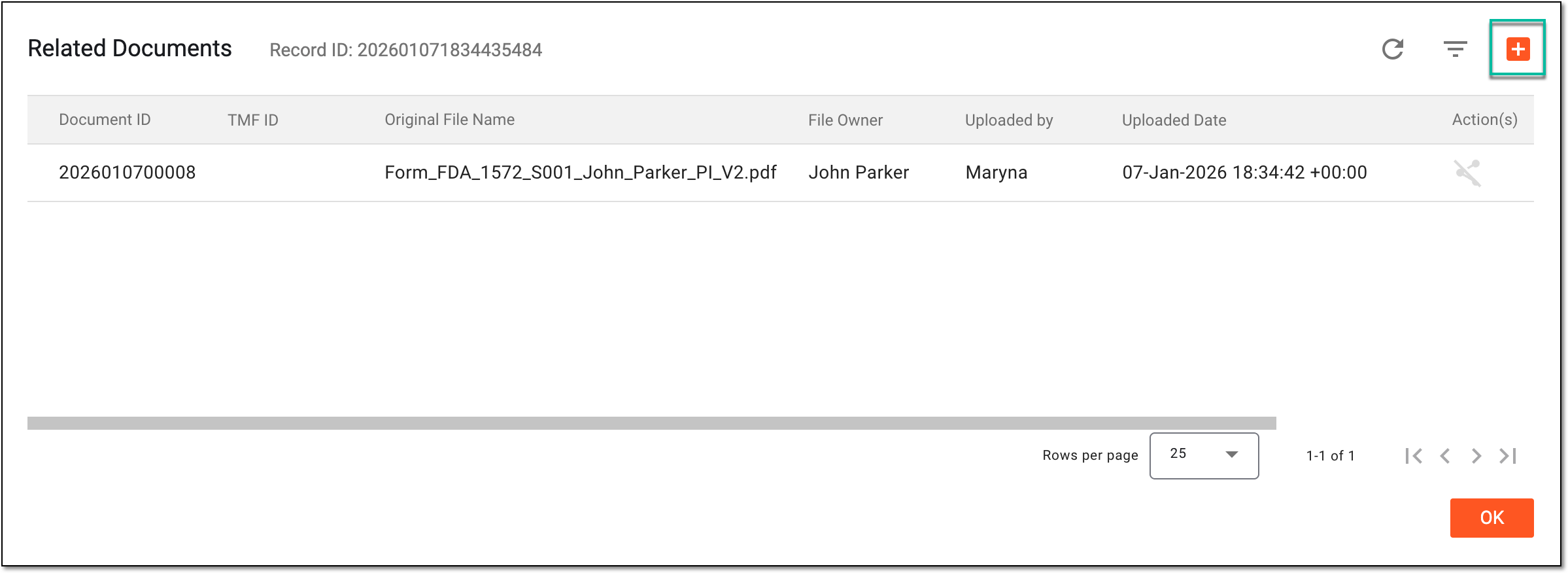 Figure 7. Selecting ption to add new association with document
-
In the Add Related Documents, from the list of all the documents of the same category uploaded for the respective site personnel, select the checkboxes next to those that must be associated with the log entry. Then select
 .
.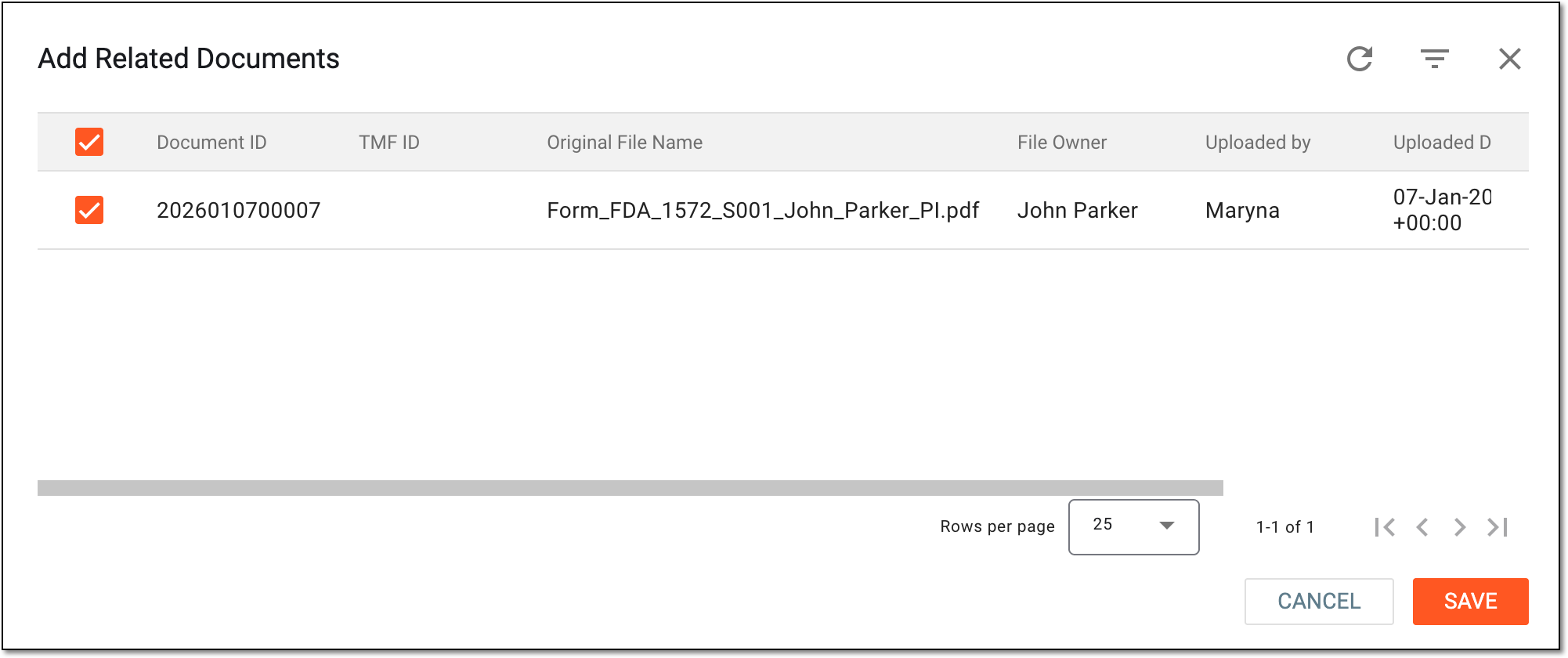 Figure 8. Selecting document to associate
-
From the list of associated documents, locate the one that must be disassociated from the log entry and next to it, select Remove Association
 .
.Tip
You cannot remove the association with the document based on which the log entry was created. Only the manually associated documents can be removed.
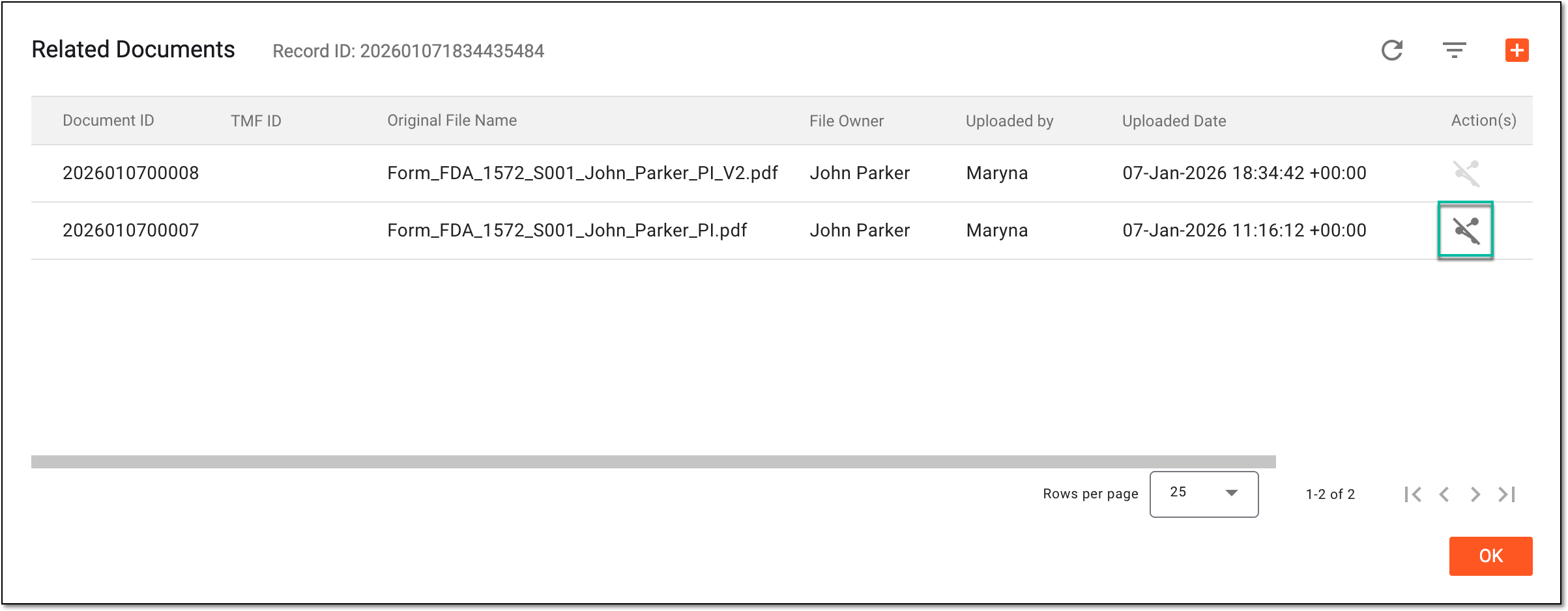 Figure 9. Removing association with documents
-
In the Reason dialog that appears, enter the comment to justify the document disassociation. Then select
to
proceed.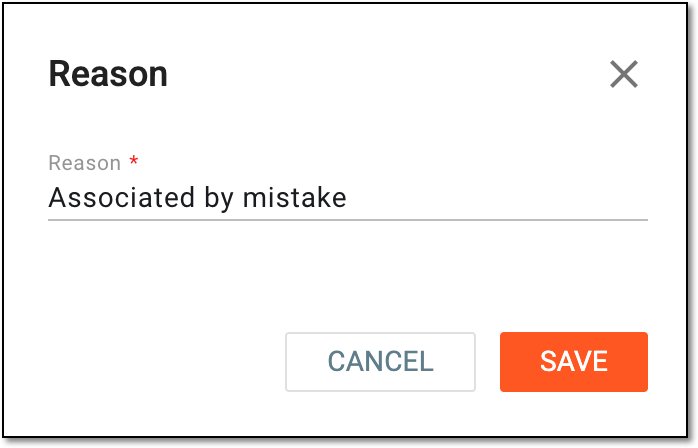 Figure 10. Providing reason for disassociation
-
You have managed the list of associated documents for the tracking log entry as needed. You can now select  to close the dialog and return to the tracking log entry
list.
to close the dialog and return to the tracking log entry
list.