Add depot to study
A depot is a warehouse that is used to store and distribute items (drugs) to another destination (other depots or sites) in the course of a study. In CTMS, you can add depots to your study to establish business relations with certain storage facilities for drug distribution purposes.
The depots added to the study in CTMS can then be managed via the IWRS application for drug maintenance and distribution to sites.
-
Access the study management page in one of the following ways:
-
In the CTMS application header, select the DASHBOARD tab and then select the study dashboard of your interest.
 Figure 1. Accessing study management from dashboard
-
In the CTMS application header, select the STUDY MANAGEMENT tab. Then from the Study Data List table, select the study name of your interest.
 Figure 2. Accessing study management from study data list
-
-
From the left pane of the study page that opens, select Study Details > Depot List.
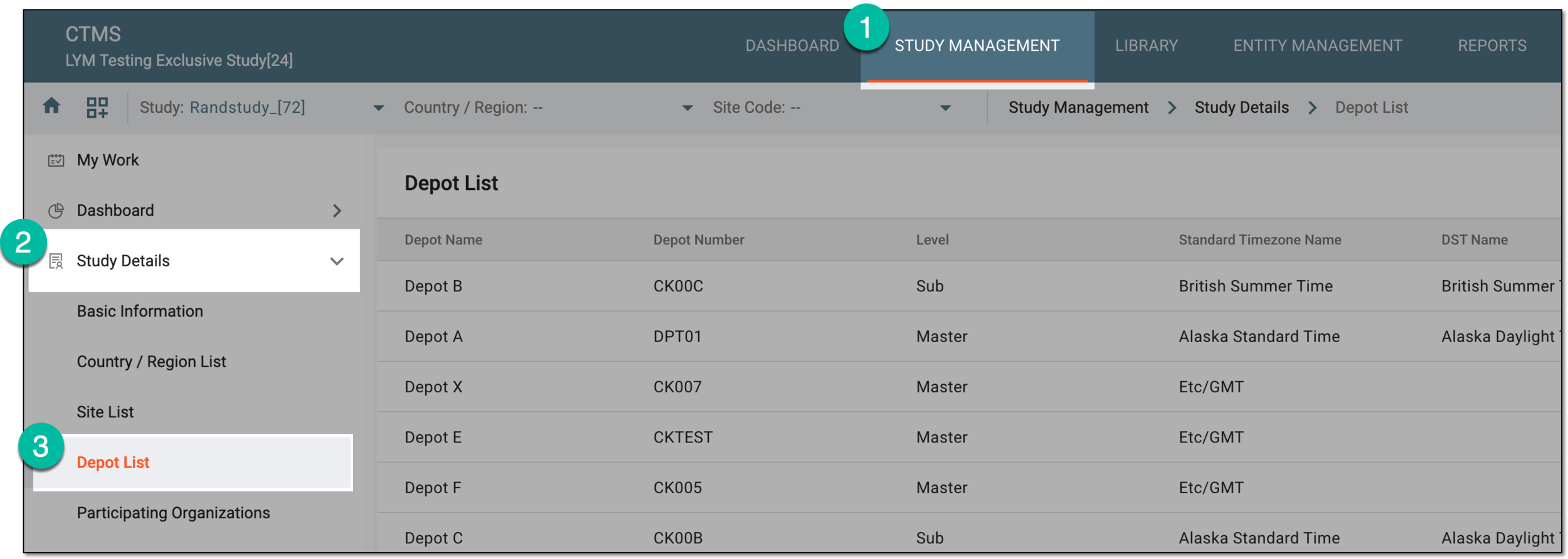 Figure 3. Accessing study depots
-
On the Depot List page, from the workspace toolbar, select New Item
 .
.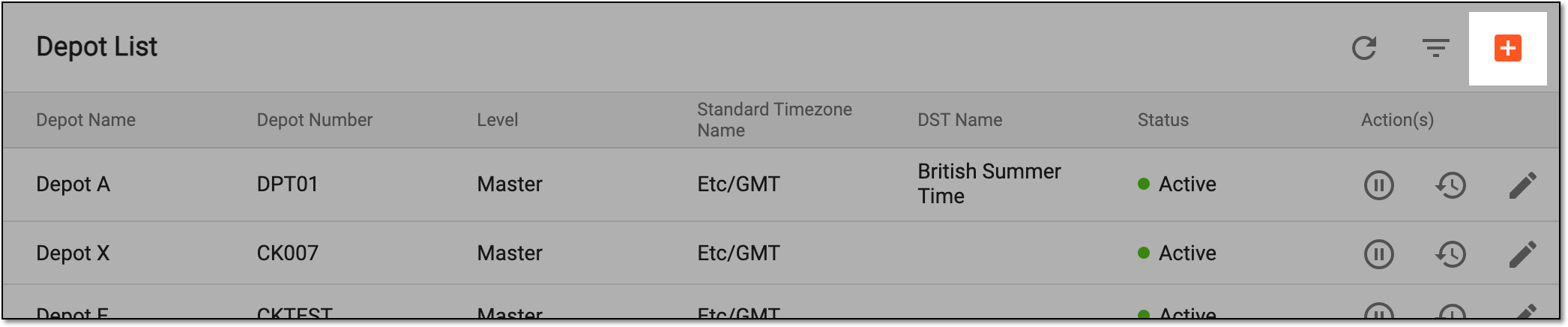 Figure 4. Selecting to add depot to study
-
In the New dialog that opens, fill in the fields as suggested in the following table.
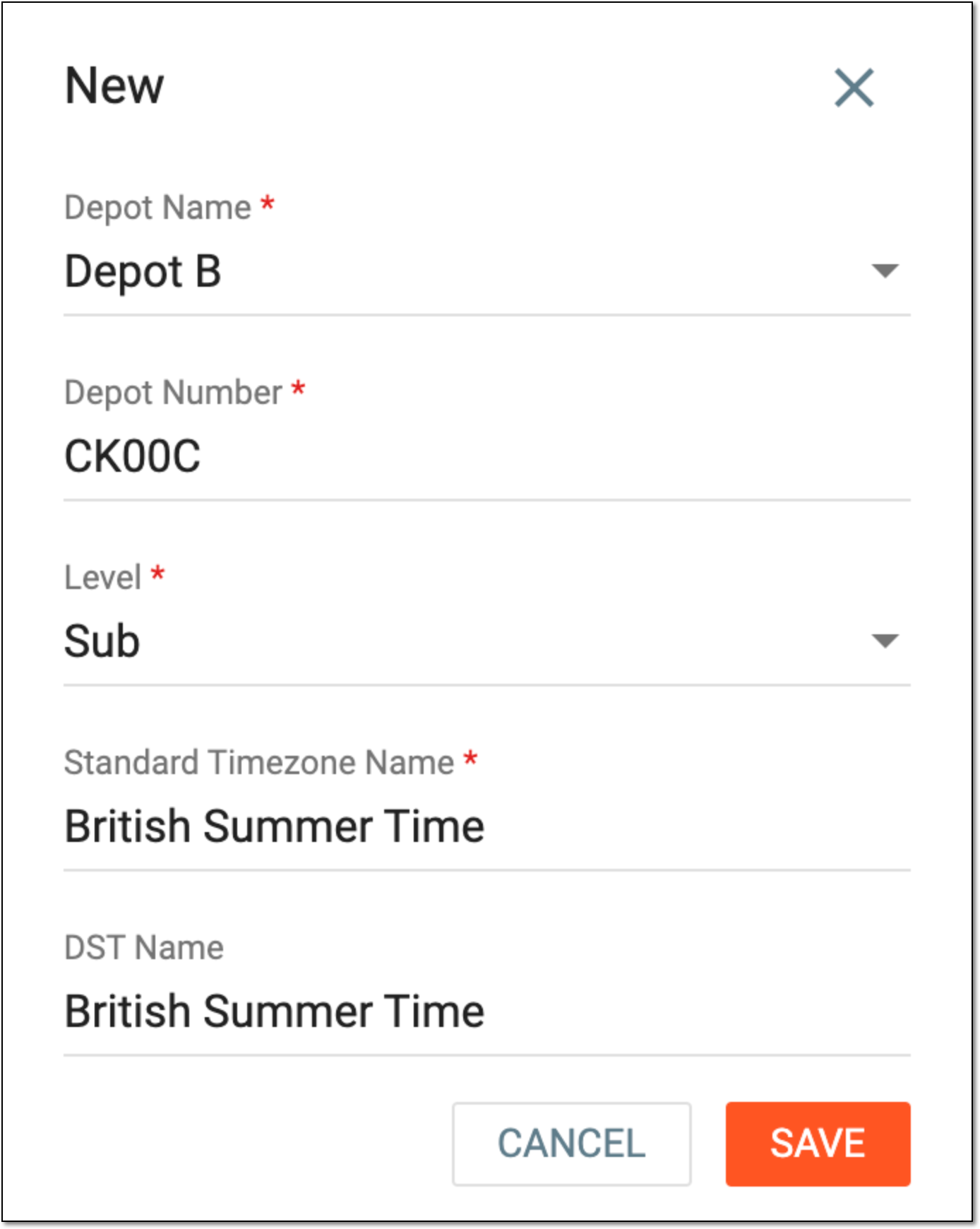 Figure 5. Adding depot to study
Tip
In the following table, mandatory elements are marked with an asterisk (*).
Element
Details
Depot Name*
Select the depot name from the list of the previously configured ones.
Depot Number*
Enter the unique number to identify the created depot among other study sites.
Level*
Expand the dropdown menu and select the relevant depot level (Master or Sub).
The depot-level selection has no system logic but with it, you can mark which depot is the main one—Master—in your logistic chain, and which is the subsidiary—Sub.
Standard Timezone Name*
Select the standard timezone of your depot location.
DST Name
Select the daylight saving timezone for your depot.
SAVE
Select
 to save the implemented changes.
CANCEL
Select
 to discard the changes without saving.
Once saved, the depot is added to the study and can be viewed in the Depot List table.
Important
You cannot delete depots from a study, but if the depot is no longer needed or should be temporarily disabled, you can inactivate it.