Key risk indicator (KRI)
Key Risk Indicator (KRI) refers to the specific EDC parameters that are used to monitor the overall risk associated with the clinical trial. The KRIs are carefully selected by the study team as they are designed to track critical aspects of the study that can potentially lead to issues with patient safety, data quality, or the overall success of the trial.
Each KRI is usually based on a set of predefined thresholds that indicate whether the trial is on track or if there are potential issues that need to be addressed.
For example, a KRI may be the number of adverse events reported, with a predefined threshold indicating when the number of adverse events has reached a high level that potentially can pose a risk to patient safety.
Other KRIs may include data quality metrics such as the completeness and accuracy of data collected, patient recruitment rates, and protocol compliance. By monitoring these KRIs, the study team can quickly identify potential issues and take corrective actions to mitigate risks and keep the trial on track.
The following sections explain various features you can use to manage the KRIs.
Key Risk Indicator (KRI) refers to the specific EDC parameters that are used to monitor the overall risk associated with the clinical trial. The KRIs are carefully selected by the study team as they are designed to track critical aspects of the study that can potentially lead to issues with patient safety, data quality, or the overall success of the trial.
You can add KRIs when you need to have new risk indicators to analyze the efficiency of the conducted study.
For example, some of the added risk indicators may analyze how soon the AE data has been entered into the system or the average elapsed time for visit completion.
-
Access the study management page in one of the following ways:
-
In the CTMS application header, select the DASHBOARD tab and then select the study dashboard of your interest.
 Figure 1. Accessing study management from dashboard
-
In the CTMS application header, select the STUDY MANAGEMENT tab. Then from the Study Data List table, select the study name of your interest.
 Figure 2. Accessing study management from study data list
-
-
On the study page that opens, in the left pane, select RBM > KRI.
-
Select the KRI List tab, from the workspace toolbar, select New Item
 .
.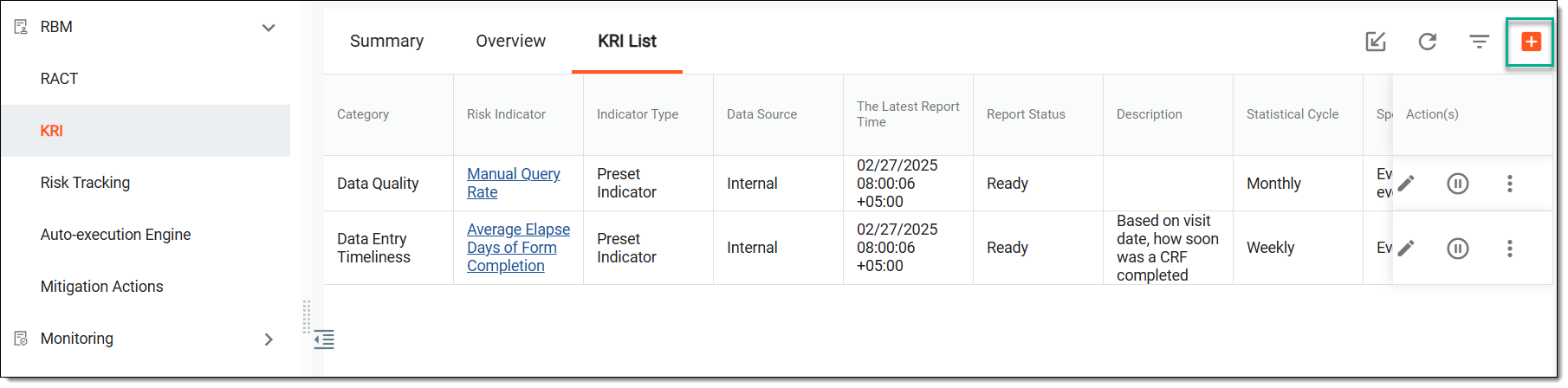 Figure 3. Adding new KRI
-
In the New dialog that opens, complete the fields as suggested in the following table.
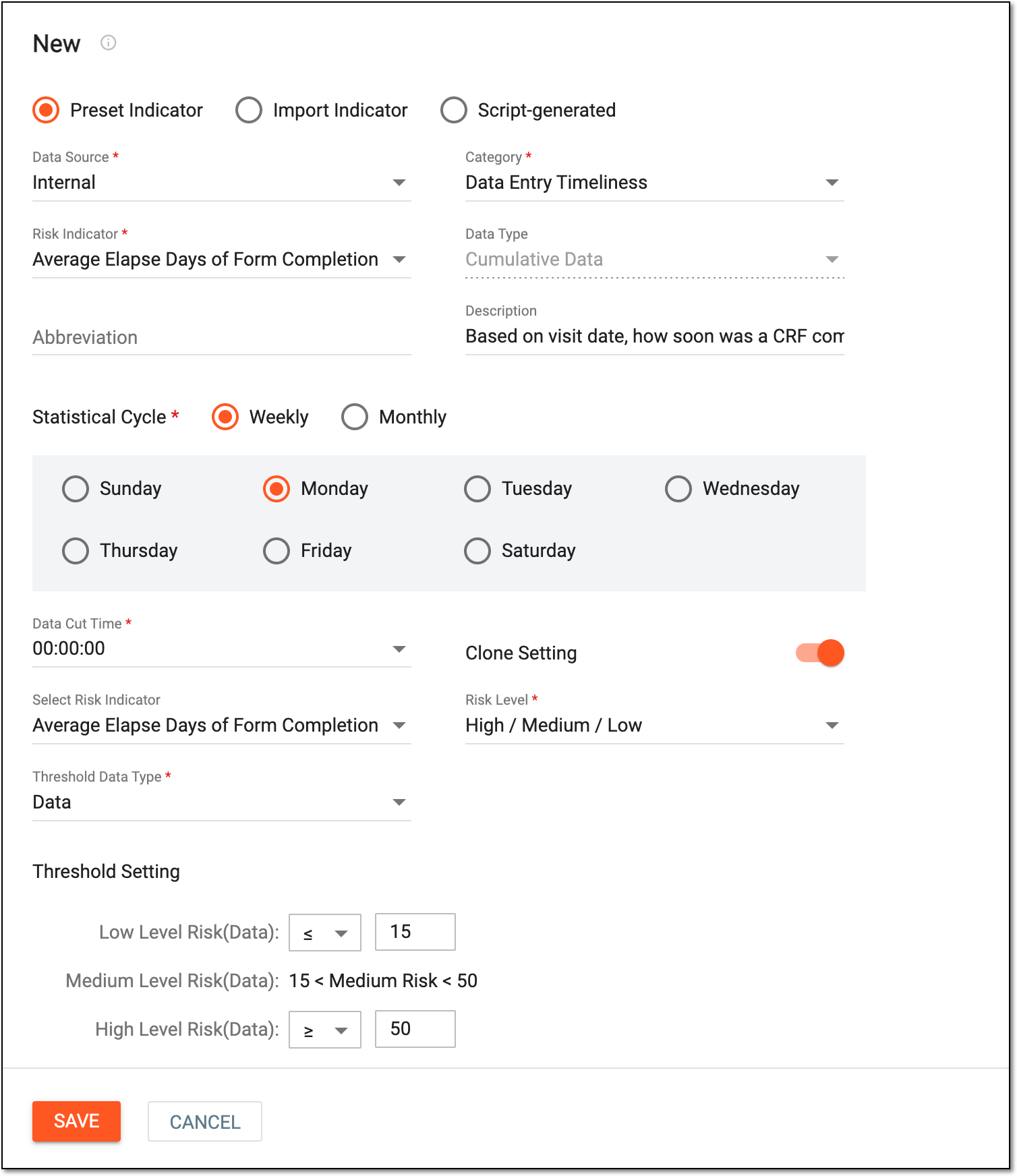 Figure 4. Configuring KRI
Tip
In the following table, mandatory elements are marked with an asterisk (*).
Element
Details
Select the option to indicate the type of KRI you want to create as follows:
-
Preset Indicator: select to create an internal KRI entity the data for which is to be pulled from the EDC application.
-
Import Indicator: select to create a KRI entity the data for which is to be pulled from an external source.
-
Script-generated: select to create a KRI entity the data for which is to be pulled from eTMF according to script-generated report configuration.
Data Source*
Select the source from where the data is to be pulled to generate the KRI statistics.
This field is only available for Preset Indicator and Script-generated KRI types.Category*
Select the category for the created KRI that reflects its purpose.
Use search to find the needed category faster.Risk Indicator*
Select one of the available risk indicators that define the created KRI. The availability of items in this field depends on the category selected previously.
Use search to find the needed risk indicator faster.Data Type
Represents the data type of the risk indicator which is Cumulative Data and it cannot be changed. This means that all the data accumulated over the specified period is to be assessed when analyzing the created KRI.
This field is only available for Preset Indicator and Script-generated KRI types.Abbreviation
Enter a short abbreviation that best characterizes the created KRI.
Description
Enter a meaningful description for the created KRI.
Statistical Cycle*
Select either Weekly or Monthly depending on how often you want the data statistics to be pulled for system analysis.
Data Cut Time
Specify the hour when the data is to be pulled for the created KRI. This setting is useful if, for example, the data is provided in different time zones on specific dates and it needs to be included in the KRI.
Clone Setting
Switch this toggle on if you want some KRI configuration to be copied from another existing KRI.
Select Risk Indicator
Select one of the available existing risk indicators whose setting you want to copy.
This field becomes available only if the Clone Setting toggle is switched
                                        on.
Risk Level*
Select risk levels that are to serve as threshold levels for KRI analytics.
Threshold Data Type*
From the dropdown list, select one of the options depending on how you want to calculate the threshold level: Data, Percent, Data and Percent, Data or Percent, or Standard Deviation.
Central Data Type
Select either Mean, Median, or Fixed Value depending on how you want to calculate the percentage of the threshold level.
This field becomes available if the Percent , Data and Percent, Data or Percent, Standard
                                        Deviation or option is selected previously.
Fixed Value
This field becomes available only if the Fixed Value option has been selected previously. Enter a fixed percentage value here depending on how you want to calculate the threshold level.
Threshold Setting
In this block, define the data and percentage value for the low and high threshold levels as follows:
-
Low Level Risk(Data): select either < (less than) or ≤ (less than or equal to) and then enter the value that cannot be surpassed to indicate that the risk level is low.
-
High Level Risk(Data): select either > (greater than) or ≥ (greater than or equal to) and then enter the value that must be surpassed to indicate that the risk level is high.
-
Low Level Risk(Percent): select either < (less than) or ≤ (less than or equal to) and then enter the percentage that cannot be surpassed to indicate that the risk level is low.
-
High Level Risk(Percent): select either > (greater than) or ≥ (greater than or equal to) and then enter the percentage that must be surpassed to indicate that the risk level is high.
SAVE
Select
 to confirm the KRI creation.
CANCEL
Select
 to cancel the KRI creation process.
 -
Once saved, the KRI becomes created. You can now view KRI statistics.
Key Risk Indicator (KRI) refers to the specific EDC parameters that are used to monitor the overall risk associated with the clinical trial. The KRIs are carefully selected by the study team as they are designed to track critical aspects of the study that can potentially lead to issues with patient safety, data quality, or the overall success of the trial.
You can view the statistical analysis for each KRI based on the data pulled from the EDC system. The EDC data is used to inform KRIs by providing real-time insights into the quality and completeness of the data collected. For example, KRIs related to data entry errors, missing data, or inconsistencies can be monitored using EDC data.
-
Access the study management page in one of the following ways:
-
In the CTMS application header, select the DASHBOARD tab and then select the study dashboard of your interest.
Figure 1. Accessing study management from dashboard
-
In the CTMS application header, select the STUDY MANAGEMENT tab. Then from the Study Data List table, select the study name of your interest.
Figure 2. Accessing study management from study data list
-
-
On the study page that opens, in the left pane, select RBM > KRI.
-
On the page that opens, from the toolbar, optionally select the country or site for which you want to view the KRI details. You can also change to another study here.
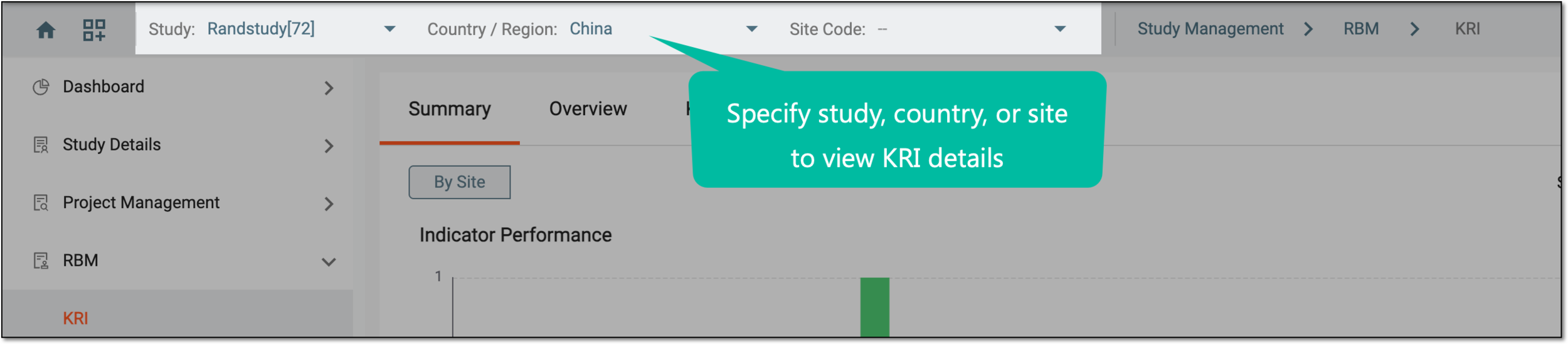 Figure 3. Selecting study, country, or site for KRI details
-
In the KRI List tab, in the Risk Indicator column next to the needed KRI, select the hyperlink.
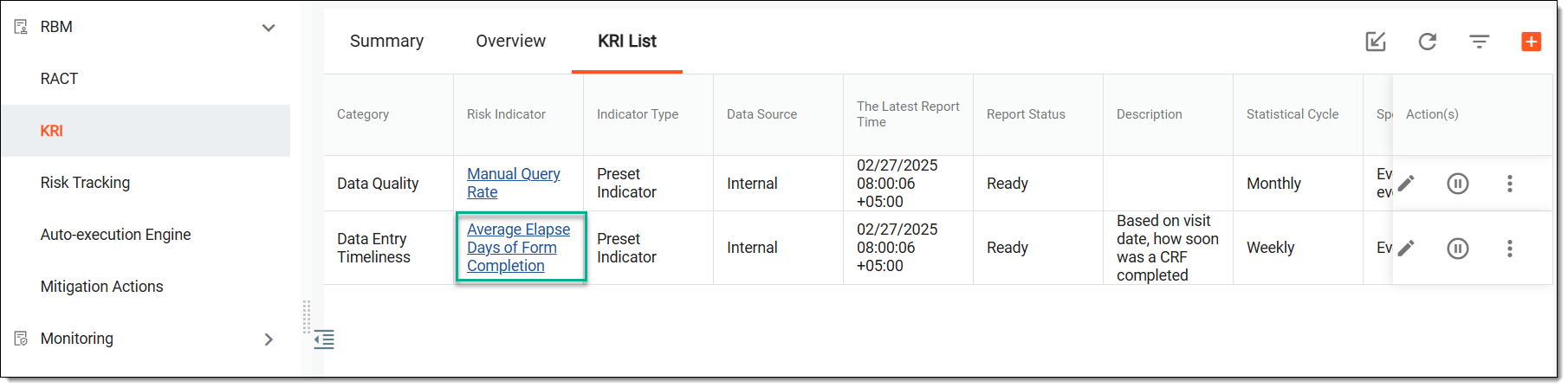 Figure 4. Accessing KRI statistics
-
On the page that opens, view the statistical data for the selected KRI for each trial site based on the data pulled from EDC.
Tip
If a certain country or site is selected from the toolbar, you can only see the sites that belong to that country or site.
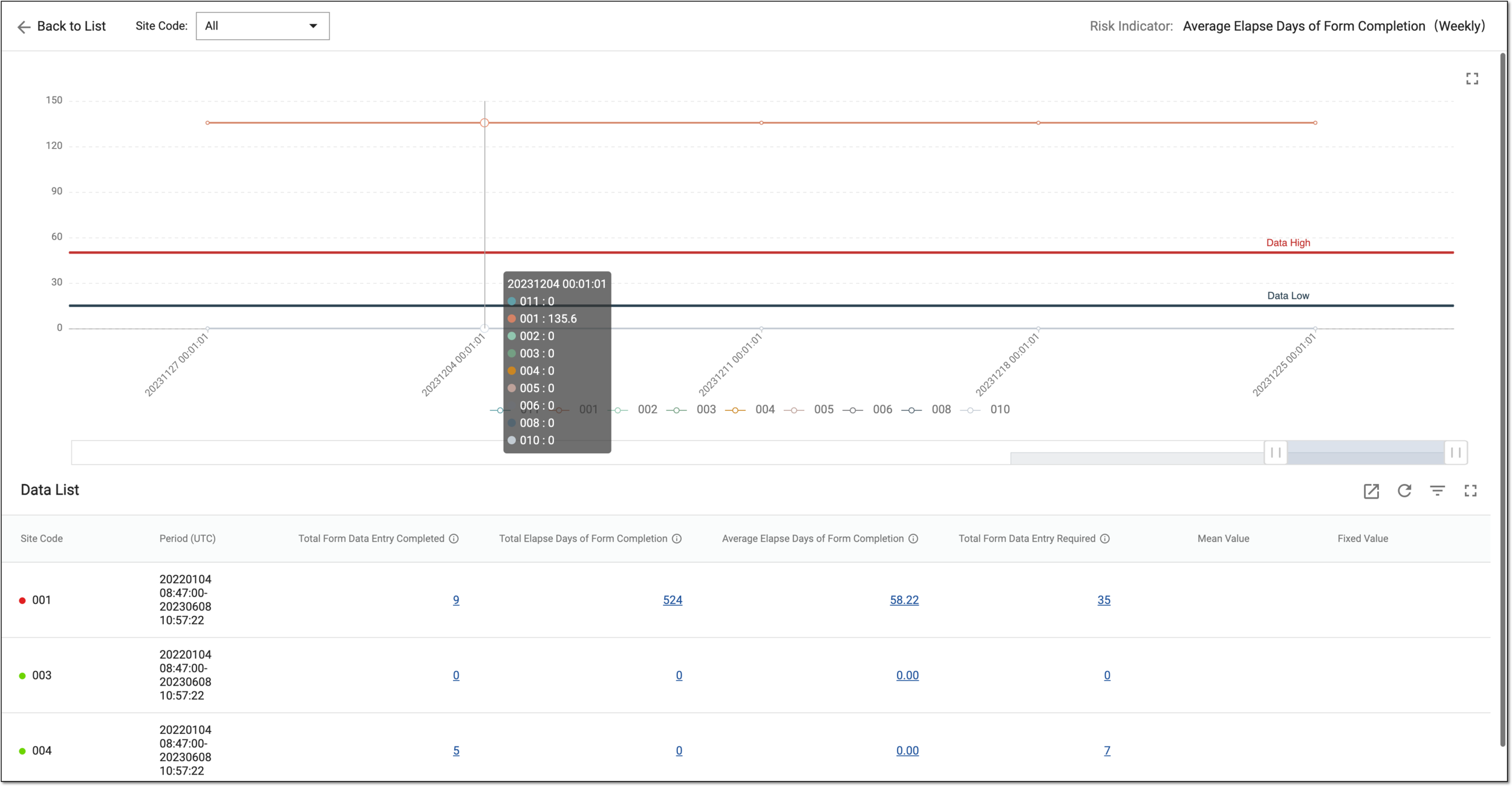 Figure 5. Viewing KRI statistics
-
From the corresponding columns of the Data List table, select the value to open the EDC data records in a separate dialog.
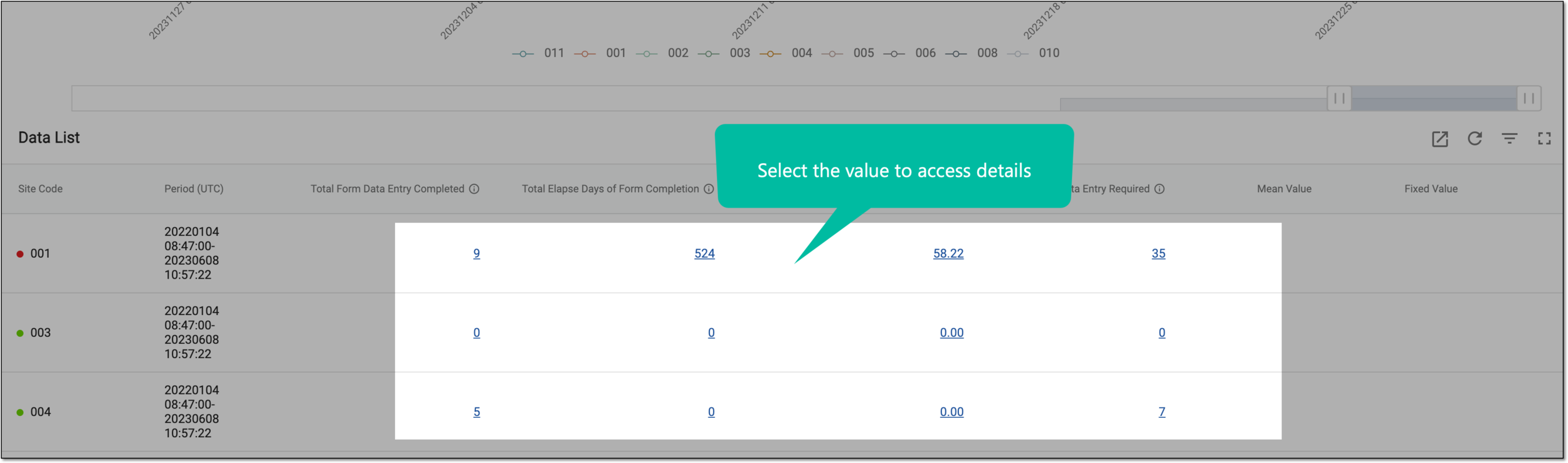 Figure 6. Accessing detailed data records
-
In the Details dialog that opens, analyze the details of the selected data record.
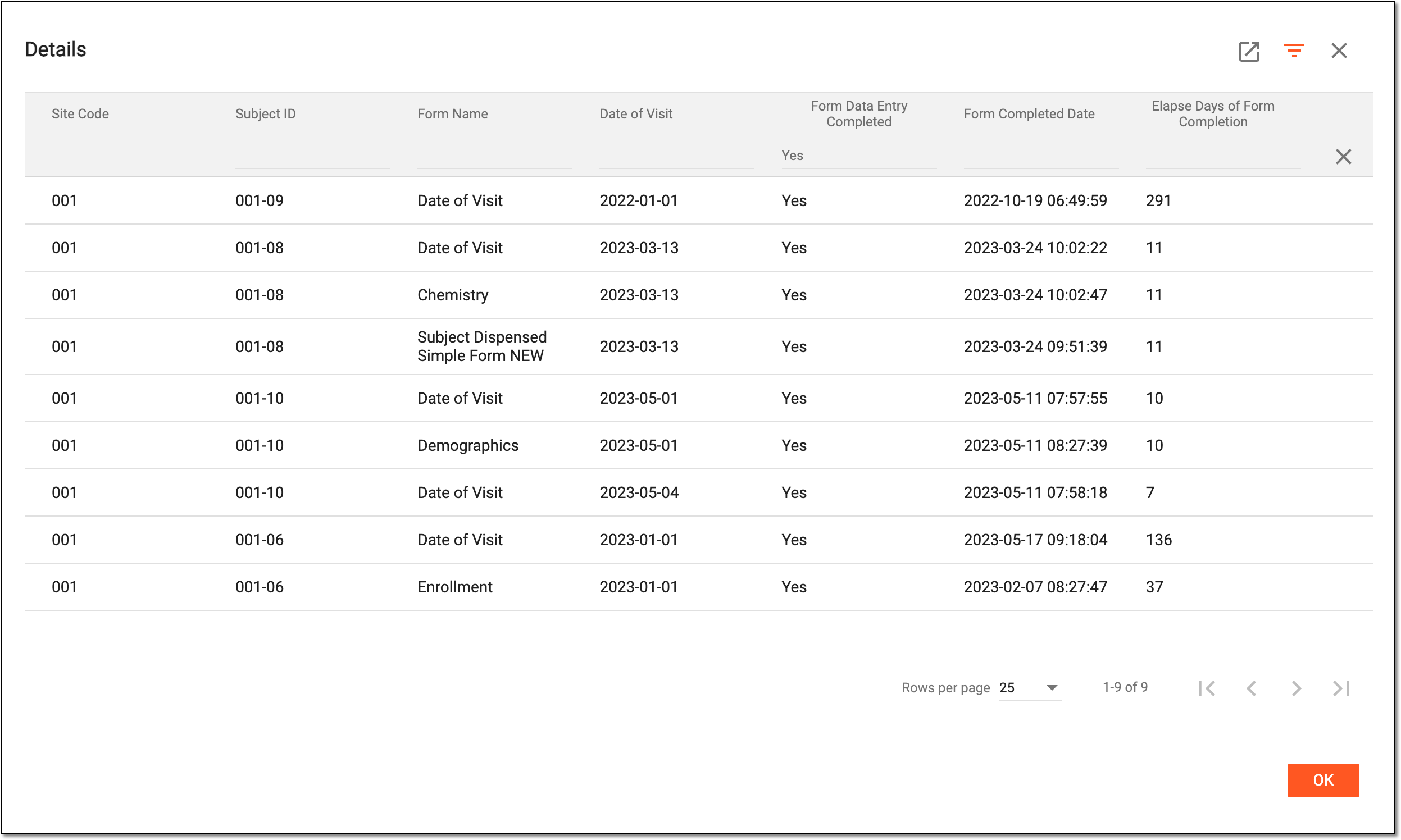 Figure 7. Viewing EDC records
You have analyzed the KRI statistics. You can also launch the autocalculation engine to pull the latest data from EDC.
Key Risk Indicator (KRI) refers to the specific EDC parameters that are used to monitor the overall risk associated with the clinical trial. The KRIs are carefully selected by the study team as they are designed to track critical aspects of the study that can potentially lead to issues with patient safety, data quality, or the overall success of the trial.
You can view the summary of KRI to get an overview of KRI performance across different sites, KRIs, or categories. It visually represents risk levels using color-coded indicators, helping the study team quickly identify areas that may require attention.
-
Access the study management page in one of the following ways:
-
In the CTMS application header, select the DASHBOARD tab and then select the study dashboard of your interest.
Figure 1. Accessing study management from dashboard
-
In the CTMS application header, select the STUDY MANAGEMENT tab. Then from the Study Data List table, select the study name of your interest.
Figure 2. Accessing study management from study data list
-
-
On the study page that opens, in the left pane, select RBM > KRI.
-
On the page that opens, from the toolbar, optionally select the country or site for which you want to view the KRI details. You can also change to another study here.
Figure 3. Selecting study, country, or site for KRI details
-
In the Summary tab, specify various parameters to view the desired data in the summary chart as explained in the following table.
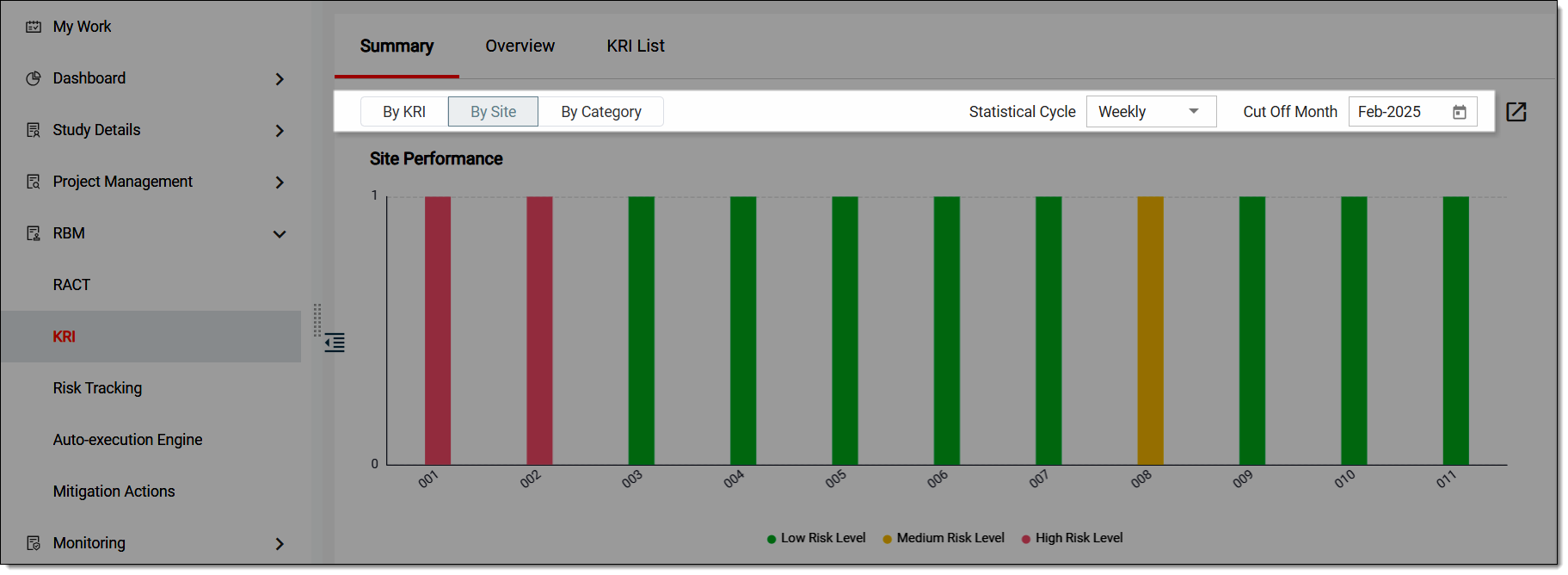 Figure 4. Specifying KRI summary parameters
Element
Details
By KRI
Select this tab to view performance trends for each KRI, helping assess how specific risk factors (like, data entry timeliness, query rates) impact the trial overall.
By Site
Select this tab to view risk levels at individual clinical trial sites, highlighting site-specific performance issues. This helps in identifying high-risk sites that may require intervention due to delays, data inconsistencies, or quality concerns.
If a certain country or site is selected from the toolbar, By Site is
                                        the only available option.
By Category
Select this tab to view KRI performance in broader risk categories (such as, data quality, patient safety, protocol adherence). This helps you get a more structured risk assessment and focus on specific areas of concern within the trial.
Statistical Cycle
Select the frequency at which KRI data is analyzed and reported (such as, Weekly, Monthly, or On-demand (custom duration)) determining how often risk metrics are updated and visualized in the system.
Cut Off Month
Select the date picker
 to specify the time period for which KRI data is displayed, ensuring that only relevant data up to the selected month and year
is included in the summary or analysis.
to specify the time period for which KRI data is displayed, ensuring that only relevant data up to the selected month and year
is included in the summary or analysis. -
Review the KRI summary chart. If required, you can also select a bar (a particular data insight) and in the panel that opens on the right, view charts related to the particular insight you selected to get more details.
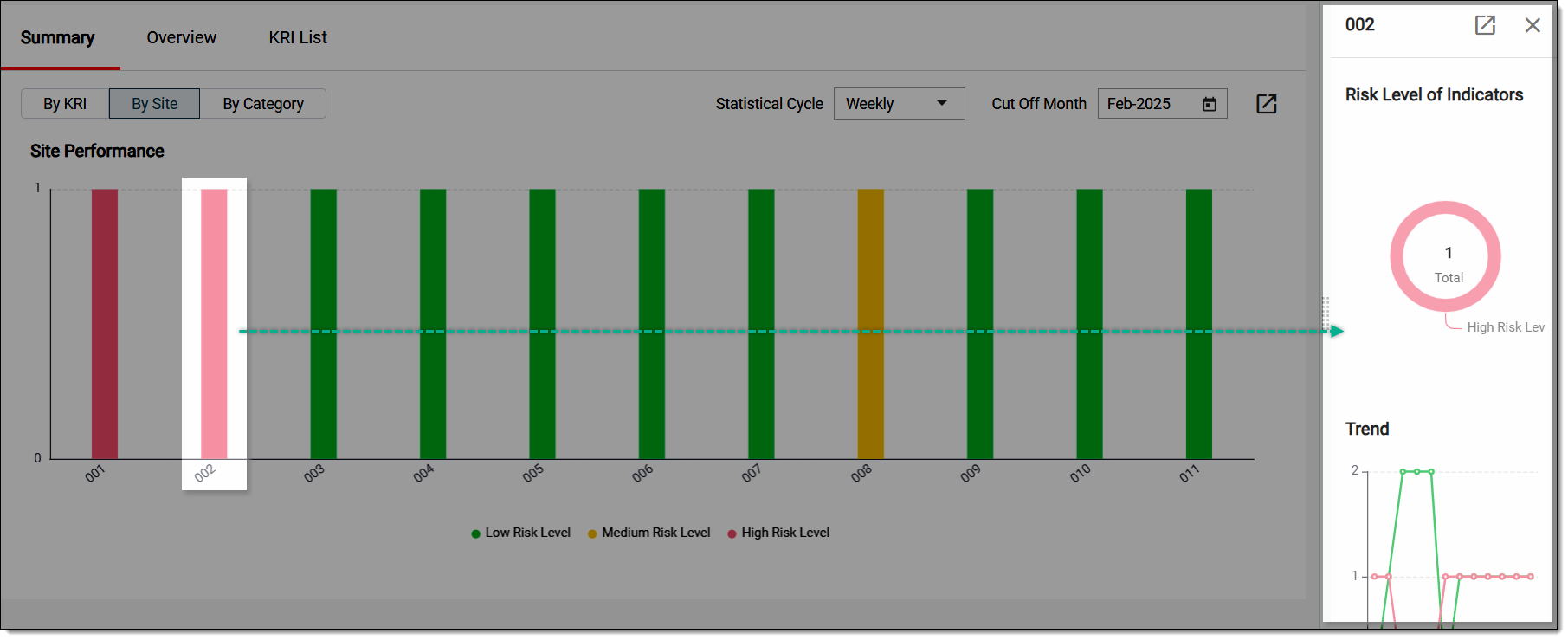 Figure 5. Reviewing KRI summary details
Tip
In the right panel, depending on the summary you are viewing, you get a few more options as well:
-
Export
 : upon selecting this option, a PDF file is downloaded that shows the
charts of the selected insight.
: upon selecting this option, a PDF file is downloaded that shows the
charts of the selected insight. -
Go to KRI Detail Page
 : select this option when you are
viewing the summary by KRI to instantly access and review the corresponding KRI statistics.
: select this option when you are
viewing the summary by KRI to instantly access and review the corresponding KRI statistics.
-
Once you have reviewed the summary, if required, you can update the KRI or launch the autocalculation engine to pull the latest data from EDC.
Key Risk Indicator (KRI) refers to the specific EDC parameters that are used to monitor the overall risk associated with the clinical trial. The KRIs are carefully selected by the study team as they are designed to track critical aspects of the study that can potentially lead to issues with patient safety, data quality, or the overall success of the trial.
In CTMS, you can get a detailed breakdown of Key Risk Indicator (KRI) metrics for each site, such as data entry timeliness, query rates, and other risk factors, helping the study team assess site performance and identify potential risks.
-
Access the study management page in one of the following ways:
-
In the CTMS application header, select the DASHBOARD tab and then select the study dashboard of your interest.
Figure 1. Accessing study management from dashboard
-
In the CTMS application header, select the STUDY MANAGEMENT tab. Then from the Study Data List table, select the study name of your interest.
Figure 2. Accessing study management from study data list
-
-
On the study page that opens, in the left pane, select RBM > KRI.
-
On the page that opens, from the toolbar, optionally select the country or site for which you want to view the KRI details. You can also change to another study here.
Figure 3. Selecting study, country, or site for KRI details
-
In the Overview tab, specify various parameters to view the desired data in the overvire chart as explained in the following table.
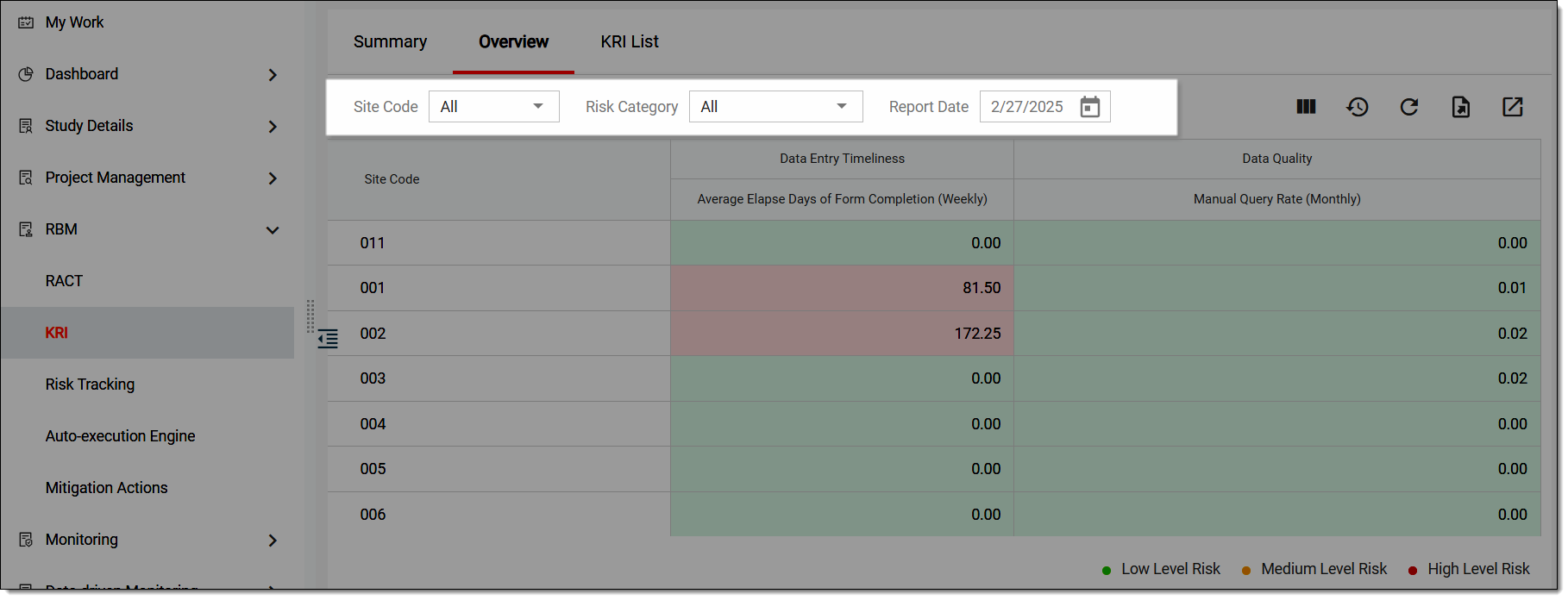 Figure 4. Specifying KRI overview parameters
Element
Details
Site Code
Select the unique code of the site for which you want to view the KRI overview chart.
Risk Category
Select an option to filter the data in the overview chart based on predefined risk categories.
Report Date
Select the date picker
to specify the date for which the KRI data is displayed, ensuring that you analyze the most relevant and up-to-date risk
information. -
Review the KRI overview chart. If required, you can also select a particular site and in the panel that opens on the right, view KRI overview chart for the site to get more details.
Also, you can select a value from the KRI column to instantly access and review the corresponding KRI statistics.
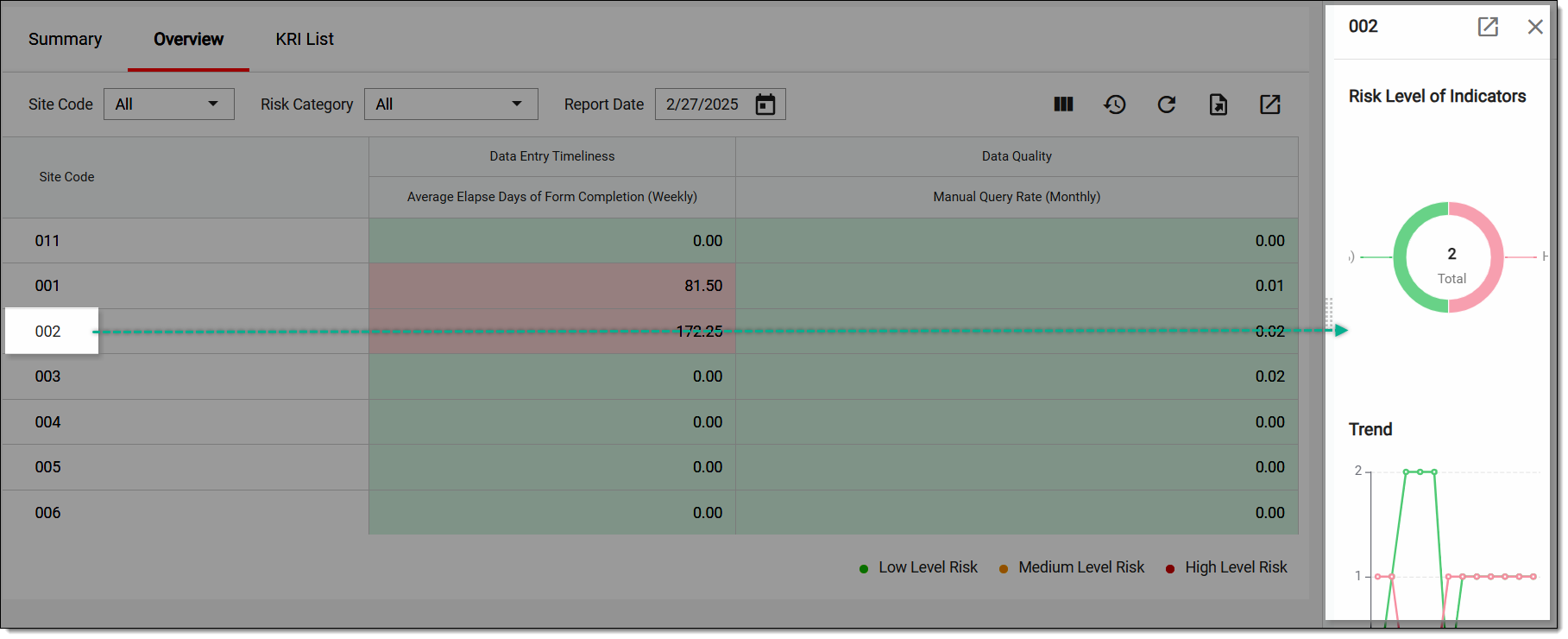 Figure 5. Reviewing KRI overview details
Tip
If a certain site is selected from the toolbar, individual KRI overview is unavailable. Select the study or country level to review the statistics.
In the right panel, select Export
to instantly download a PDF file to your computer
displaying the KRI overview chart for the site.
Once you have reviewed the overview chart, if required, you can update the KRI or launch the autocalculation engine to pull the latest data from EDC.
View KRI overview operation history
Key Risk Indicator (KRI) refers to the specific EDC parameters that are used to monitor the overall risk associated with the clinical trial. The KRIs are carefully selected by the study team as they are designed to track critical aspects of the study that can potentially lead to issues with patient safety, data quality, or the overall success of the trial.
Using the Operation History feature, you can view details of all actions performed to the KRI overview chart. This chart provides a detailed breakdown of KRI metrics for each site, helping the study team assess data entry timeliness and data quality.
-
Access the study management page in one of the following ways:
-
In the CTMS application header, select the DASHBOARD tab and then select the study dashboard of your interest.
Figure 1. Accessing study management from dashboard
-
In the CTMS application header, select the STUDY MANAGEMENT tab. Then from the Study Data List table, select the study name of your interest.
Figure 2. Accessing study management from study data list
-
-
On the study page that opens, in the left pane, select RBM > KRI.
-
In the Overview tab, from the workspace toolbar, select Operation History
 .
.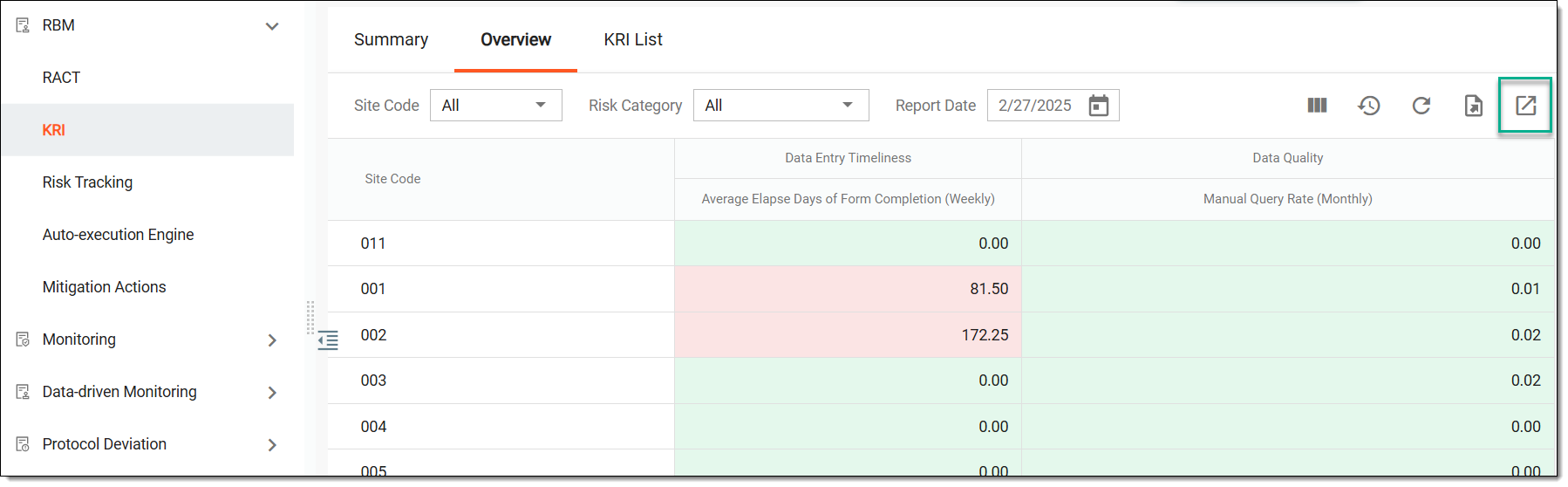 Figure 3. Accessing KRI overview operation history
-
The downloads widget appears showing the export progress. Select the widget to access exported files.
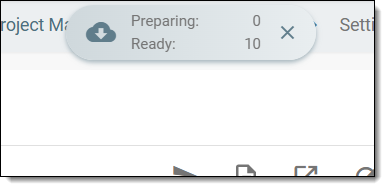 Figure 4. Downloads widget showing KRIs being exported
-
In the Operation History dialog that opens, view the list of user actions performed to the KRI overview chart.
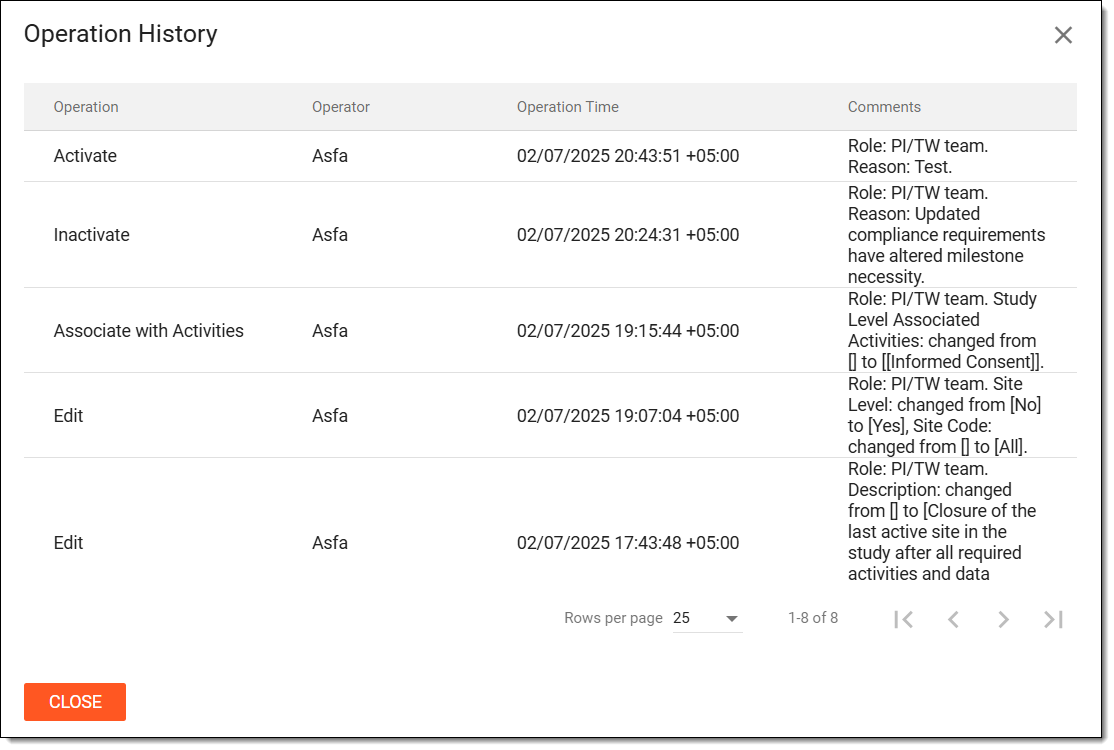 Figure 5. Viewing KRI overview operation history
Once viewed, select CLOSE to return to the KRI overview chart.
Key Risk Indicator (KRI) refers to the specific EDC parameters that are used to monitor the overall risk associated with the clinical trial. The KRIs are carefully selected by the study team as they are designed to track critical aspects of the study that can potentially lead to issues with patient safety, data quality, or the overall success of the trial.
The autocalculation engine can be triggered when you need to pull the most actual EDC data for the specific KRI in order to view the latest statistical data. Use this feature when you cannot wait for the next statistical cycle of KRI to be launched and you need the most recent EDC data immediately.
-
Access the study management page in one of the following ways:
-
In the CTMS application header, select the DASHBOARD tab and then select the study dashboard of your interest.
Figure 1. Accessing study management from dashboard
-
In the CTMS application header, select the STUDY MANAGEMENT tab. Then from the Study Data List table, select the study name of your interest.
Figure 2. Accessing study management from study data list
-
-
On the study page that opens, in the left pane, select RBM > KRI.
-
In the KRI List tab, next to the needed KRI, from the Action(s) column, select More
 > Launch Auto-calculation Engine
  .
.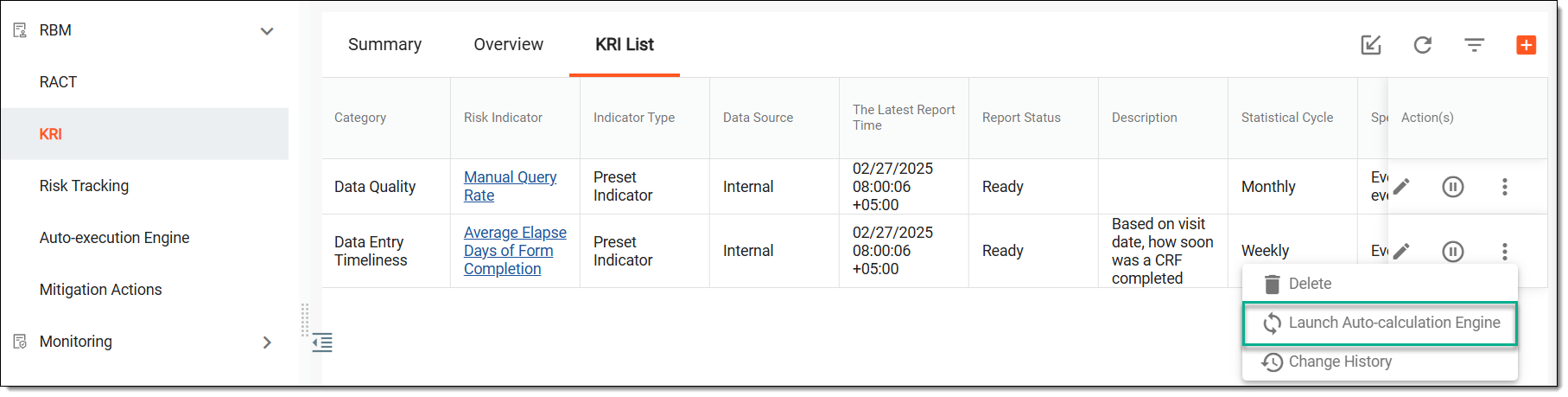 Figure 3. Launching autocalculation engine
Once selected, the report status of KRI changes to Updating which means that the data extraction has been initiated and you cannot modify this KRI. You can not proceed to adding KRI-driven assessment entities.
Key Risk Indicator (KRI) refers to the specific EDC parameters that are used to monitor the overall risk associated with the clinical trial. The KRIs are carefully selected by the study team as they are designed to track critical aspects of the study that can potentially lead to issues with patient safety, data quality, or the overall success of the trial. You can update the details of the existing KRIs if you need to introduce some changes to them.
-
Access the study management page in one of the following ways:
-
In the CTMS application header, select the DASHBOARD tab and then select the study dashboard of your interest.
Figure 1. Accessing study management from dashboard
-
In the CTMS application header, select the STUDY MANAGEMENT tab. Then from the Study Data List table, select the study name of your interest.
Figure 2. Accessing study management from study data list
-
-
On the study page that opens, in the left pane, select RBM > KRI.
-
In the KRI List tab, locate the needed KRI, and next to it, from the Action(s) column, select Edit
 .
.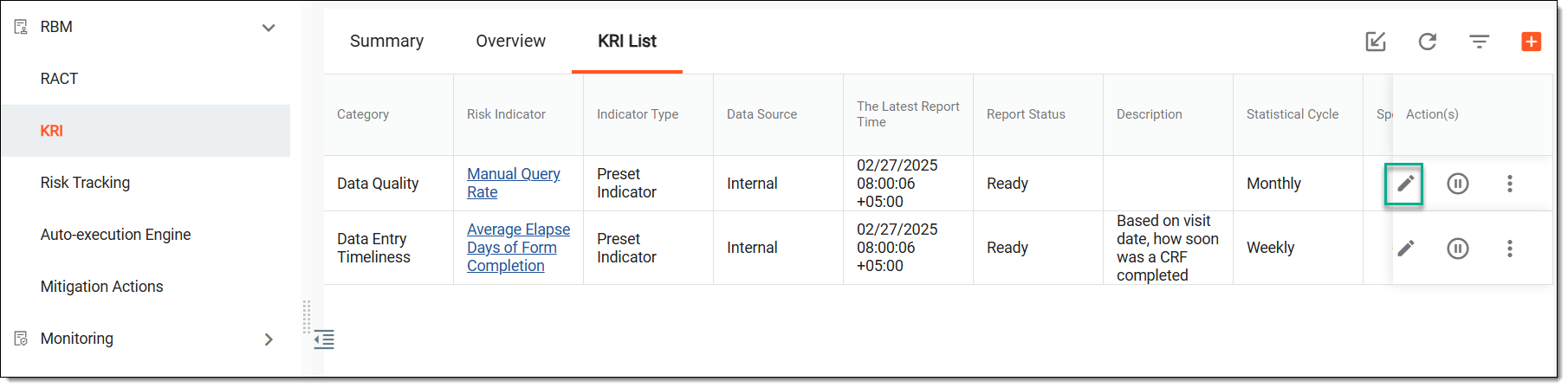 Figure 3. Accessing KRI editing
-
In the Edit dialog that appears, update the corresponding fields as explained in the following table.
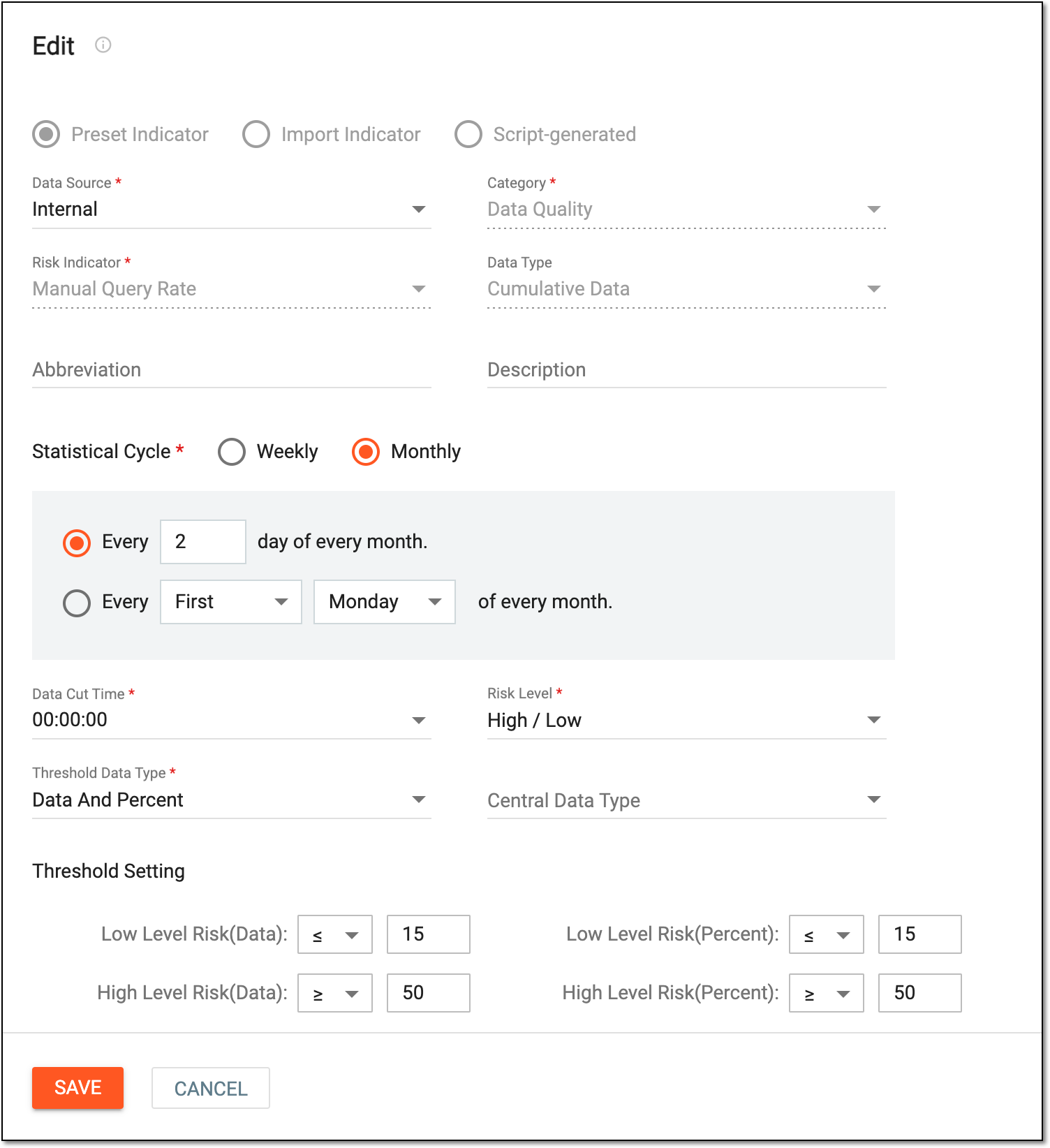 Figure 4. Editing KRI
Tip
In the following table, mandatory elements are marked with an asterisk (*).
Element
Details
Represents the type of KRI selected upon configuration:
-
Preset Indicator: the data for the KRI is pulled from the EDC application.
-
Import Indicator: the data for the KRI is pulled from an external source.
-
Script-generated: the data for the KRI is pulled from eTMF according to script-generated report configuration.
Data Source*
Select the source from where the data is to be pulled to generate the KRI statistics.
This field is only available for Preset Indicator and Script-generated KRI types.Category*
Select the category for the created KRI that reflects its purpose.
Use search to find the needed category faster.Risk Indicator*
Select one of the available risk indicators that define the created KRI. The availability of items in this field depends on the category selected previously.
Use search to find the needed risk indicator faster.Data Type
Represents the data type of the risk indicator which is Cumulative Data and it cannot be changed. This means that all the data accumulated over the specified period is to be assessed when analyzing the created KRI.
This field is only available for Preset Indicator and Script-generated KRI types.Abbreviation
Enter a short abbreviation that best characterizes the created KRI.
Description
Enter a meaningful description for the created KRI.
Statistical Cycle*
Select either Weekly or Monthly depending on how often you want the data statistics to be pulled for system analysis.
Data Cut Time
Specify the hour when the data is to be pulled for the created KRI. This setting is useful if, for example, the data is provided in different time zones on specific dates and it needs to be included in the KRI.
Clone Setting
Switch this toggle on if you want some KRI configuration to be copied from another existing KRI.
Select Risk Indicator
Select one of the available existing risk indicators whose setting you want to copy.
This field becomes available only if the Clone Setting toggle is switched on.Risk Level*
Select risk levels that are to serve as threshold levels for KRI analytics.
Threshold Data Type*
From the dropdown list, select Data or Percent or both types depending on how you want to calculate the threshold level.
Central Data Type
This field becomes available only if the Percent option has been selected previously. Select either Mean, Median, or Fixed Value depending on how you want to calculate the percentage of the threshold level.
Fixed Value
This field becomes available only if the Fixed Value option has been selected previously. Enter a fixed percentage value here depending on how you want to calculate the threshold level.
Threshold Setting
In this block, define the data and/or percentage value for the low and high threshold levels.
SAVE
Select
to implement your changes.CANCEL
Select
to dismiss your changes without saving. -
Once done, KRI becomes updated. You can now view the KRI statistics according to updated configurations.
Key Risk Indicator (KRI) refers to the specific EDC parameters that are used to monitor the overall risk associated with the clinical trial. The KRIs are carefully selected by the study team as they are designed to track critical aspects of the study that can potentially lead to issues with patient safety, data quality, or the overall success of the trial.
You can activate or inactivate a KRI to manage risk monitoring effectively throughout a clinical trial. Active KRIs help track critical factors impacting patient safety, data quality, or trial success, while inactive KRIs are those no longer needed for monitoring.
-
Access the study management page in one of the following ways:
-
In the CTMS application header, select the DASHBOARD tab and then select the study dashboard of your interest.
Figure 1. Accessing study management from dashboard
-
In the CTMS application header, select the STUDY MANAGEMENT tab. Then from the Study Data List table, select the study name of your interest.
Figure 2. Accessing study management from study data list
-
-
On the study page that opens, in the left pane, select RBM > KRI.
-
In the KRI List tab, locate the needed KRI, and next to it, from the Action(s) column, select Activate
 to reactivate an inactive KRI. Or, select Inactivate
  to deactivate a KRI.
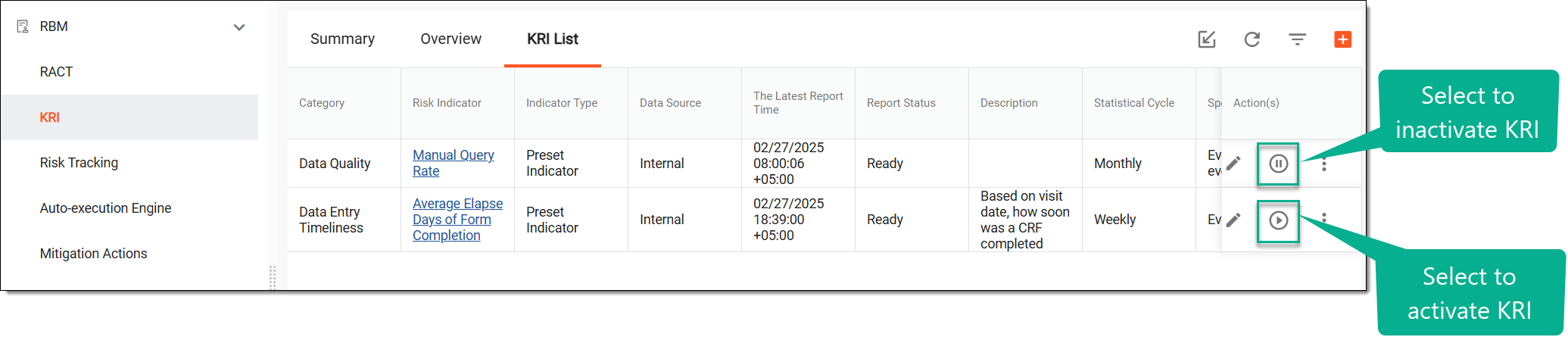 Figure 3. Accessing option to activate or inactivate KRI
-
In the Reason dialog that appears, enter the reason for activating or inactivating the KRI. Then select SAVE.
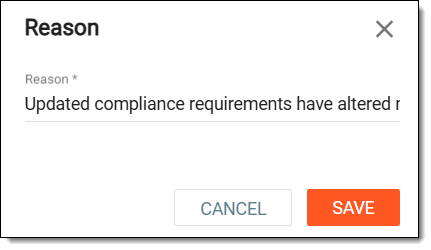 Figure 4. Entering reason to inactivate milestone
Once saved, the KRI is activated or inactivated.
Key Risk Indicator (KRI) refers to the specific EDC parameters that are used to monitor the overall risk associated with the clinical trial. The KRIs are carefully selected by the study team as they are designed to track critical aspects of the study that can potentially lead to issues with patient safety, data quality, or the overall success of the trial. Each KRI has a history of actions done by CTMS users with it. It also shows the time pertinent to all operations and the type of operations that have been performed with each history record.
-
Access the study management page in one of the following ways:
-
In the CTMS application header, select the DASHBOARD tab and then select the study dashboard of your interest.
Figure 1. Accessing study management from dashboard
-
In the CTMS application header, select the STUDY MANAGEMENT tab. Then from the Study Data List table, select the study name of your interest.
Figure 2. Accessing study management from study data list
-
-
On the study page that opens, in the left pane, select RBM > KRI.
-
In the KRI List tab, next to the required KRI, from the Action(s) column, select More
> Change History .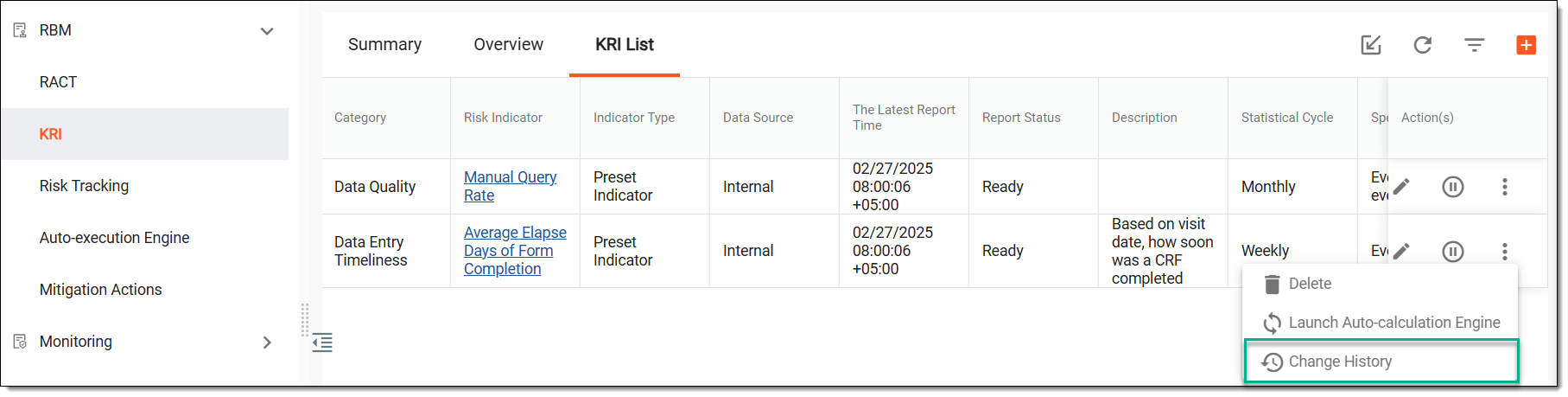 Figure 3. Accessing change history
-
In the dialog that opens, view the operation history and threshold change status for the selected KRI.
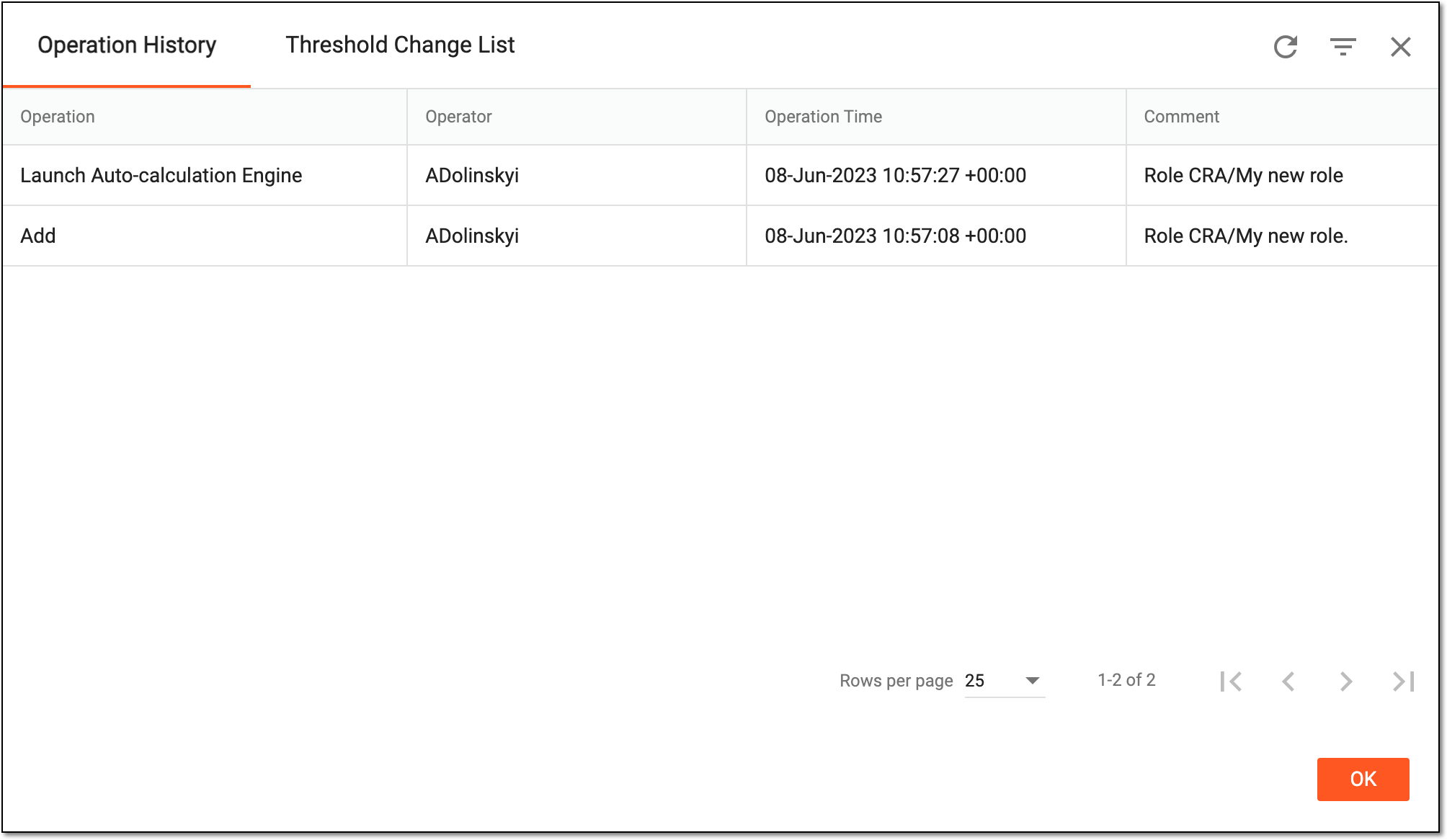 Figure 4. Viewing KRI change history
Once viewed, select  to close the dialog. You can now proceed to adding KRI-driven assessment entities.
Key Risk Indicator (KRI) refers to the specific EDC parameters that are used to monitor the overall risk associated with the clinical trial. The KRIs are carefully selected by the study team as they are designed to track critical aspects of the study that can potentially lead to issues with patient safety, data quality, or the overall success of the trial. You can delete KRIs that are no longer required.
Important
You cannot delete a KRI that is added to the risk assessment. Instead, consider inactivating such KRI if irrelevant.
-
Access the study management page in one of the following ways:
-
In the CTMS application header, select the DASHBOARD tab and then select the study dashboard of your interest.
Figure 1. Accessing study management from dashboard
-
In the CTMS application header, select the STUDY MANAGEMENT tab. Then from the Study Data List table, select the study name of your interest.
Figure 2. Accessing study management from study data list
-
-
On the study page that opens, in the left pane, select RBM > KRI.
-
In the KRI List tab, next to the needed KRI, from the Action(s) column, select More
> Delete  .
.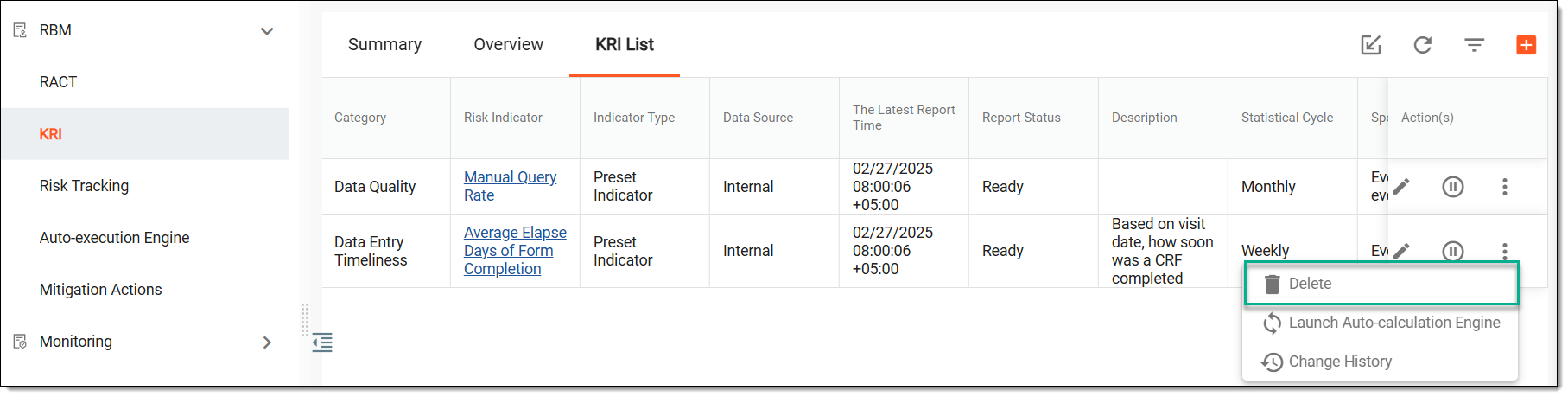 Figure 3. Deleting KRI
-
In the confirmation dialog that appears, select DELETE to confirm your action.
 Figure 4. Confirming deletion
Once selected, KRI is deleted. You can now add a new KRI if needed.
Key Risk Indicator (KRI) refers to the specific EDC parameters that are used to monitor the overall risk associated with the clinical trial. The KRIs are carefully selected by the study team as they are designed to track critical aspects of the study that can potentially lead to issues with patient safety, data quality, or the overall success of the trial.
You can instantly add multiple KRIs in the system by importing an Excel file listing the required KRIs.
-
Access the study management page in one of the following ways:
-
In the CTMS application header, select the DASHBOARD tab and then select the study dashboard of your interest.
Figure 1. Accessing study management from dashboard
-
In the CTMS application header, select the STUDY MANAGEMENT tab. Then from the Study Data List table, select the study name of your interest.
Figure 2. Accessing study management from study data list
-
-
On the study page that opens, in the left pane, select RBM > KRI.
-
In the KRI List tab, from the workspace toolbar, select Import
 .
.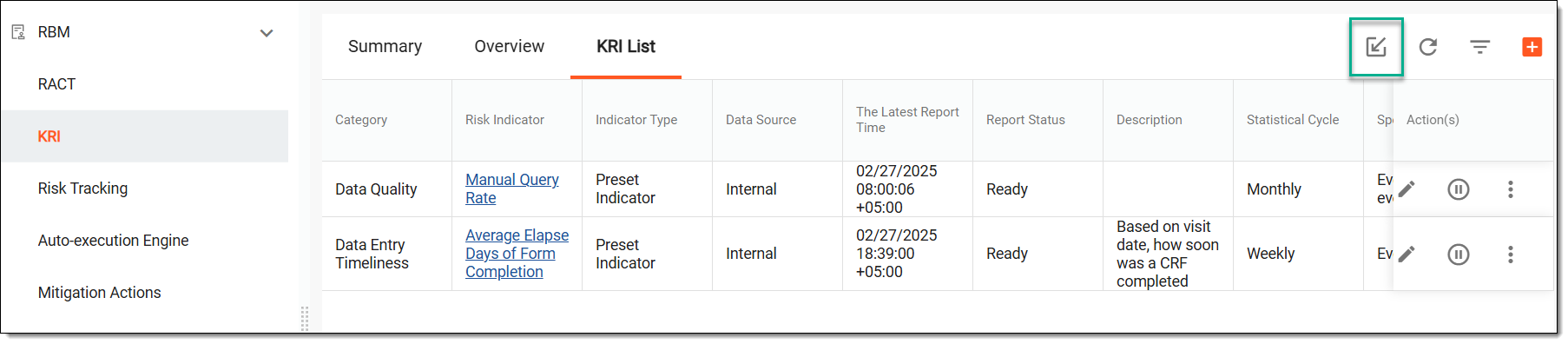 Figure 3. Importing KRIs
-
From your computer, select the Excel file containing the KRIs.
Once selected, the KRIs from the Excel file are imported into the system and shown in the KRI List tab.
Key Risk Indicator (KRI) refers to the specific EDC parameters that are used to monitor the overall risk associated with the clinical trial. The KRIs are carefully selected by the study team as they are designed to track critical aspects of the study that can potentially lead to issues with patient safety, data quality, or the overall success of the trial.
If required, you can export KRIs from the system to review and analyze risk parameters offline.
-
Access the study management page in one of the following ways:
-
In the CTMS application header, select the DASHBOARD tab and then select the study dashboard of your interest.
Figure 1. Accessing study management from dashboard
-
In the CTMS application header, select the STUDY MANAGEMENT tab. Then from the Study Data List table, select the study name of your interest.
Figure 2. Accessing study management from study data list
-
-
On the study page that opens, in the left pane, select RBM > KRI.
-
Select any of the following tabs:
-
Summary: provides an overview of KRI performance across different sites, KRIs, or categories.
-
Overview: provides a detailed breakdown of KRI metrics for each site, helping the study team assess data entry timeliness and data quality.
-
KRI List: provides a comprehensive view of all KRIs used for monitoring risk factors in a clinical trial. From this tab, you can export the KRI list or KRI reports as needed.
-
-
In the selected tab, from the workspace toolbar, select Export
.Figure 3. Exporting KRIs
-
The downloads widget appears showing the export progress. Select the widget to access exported files.
Figure 4. Downloads widget showing KRIs being exported
-
In the My Downloads dialog that appears, in the Download is Ready tab, select
 next to the required exported file.
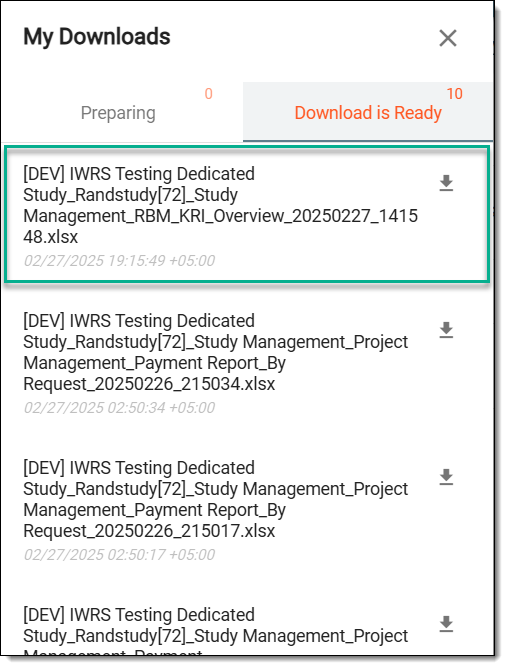 Figure 5. Downloading KRI report
Once selected, the desired list of KRIs or KRI report is downloaded as an XLSX file to your computer.
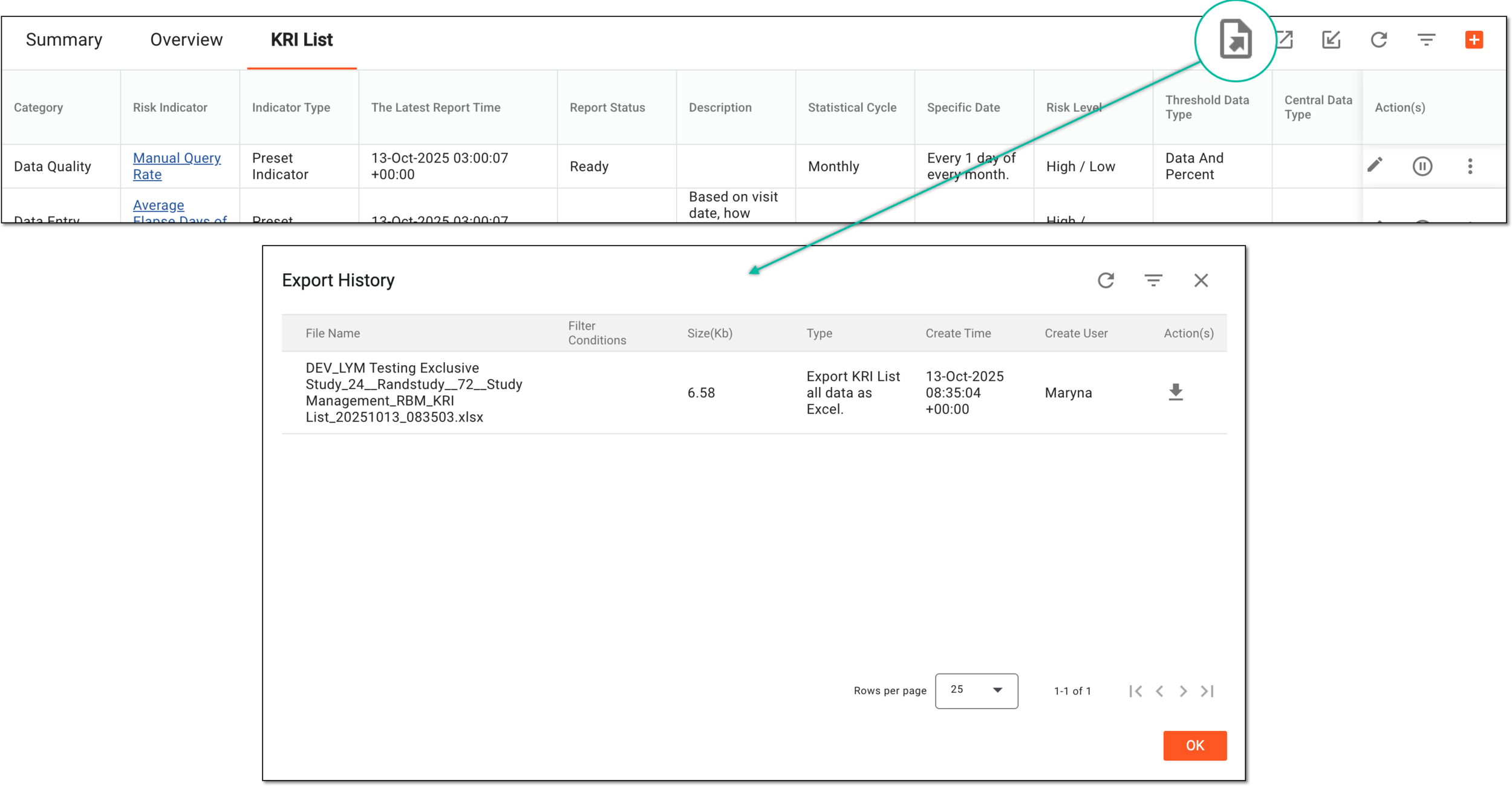
The exported file version is saved in the system and can be accessed from Export History  .
.