Risk tracking
The process of risk tracking typically begins with the assessment of potential risks in preparing the study design, patient population, and treatment regimen. Risks can include adverse events, such as side effects from the study drug or medical device, as well as operational risks, such as delays in recruitment or data management issues.
Once risks have been identified, they are evaluated based on their severity and likelihood of occurrence. This allows CRAs to prioritize risks and develop strategies for mitigating them. Strategies may include adjusting the study protocol, implementing additional safety monitoring measures, or developing contingency plans in case of an adverse event or other risk events.
In the following sections, you can learn how to track and manage the risks for your study.
The process of risk tracking typically begins with the assessment of potential risks in preparing the study design, patient population, and treatment regimen. Risks can include adverse events, such as side effects from the study drug or medical device, as well as operational risks, such as delays in recruitment or data management issues. KRI-driven assessment entities can be added to track the risk assessment and mitigation processes within a single page.
In CTMS, you can add a risk assessment entity that covers one or multiple risk indicators for tracking.
-
Access the study management page in one of the following ways:
-
In the CTMS application header, select the DASHBOARD tab and then select the study dashboard of your interest.
 Figure 1. Accessing study management from dashboard
-
In the CTMS application header, select the STUDY MANAGEMENT tab. Then from the Study Data List table, select the study name of your interest.
 Figure 2. Accessing study management from study data list
-
-
On the study page that opens, in the left pane, select RBM > Risk Tracking.
-
Above the KRI Driven Assessment table that appears, on the workspace toolbar, select New Item
 .
. Figure 3. Accessing option to add KRI-driven assessment entity
-
In the dialog that appears, at the Select KRIs stage, select the needed risk indicators as explained in the following table.
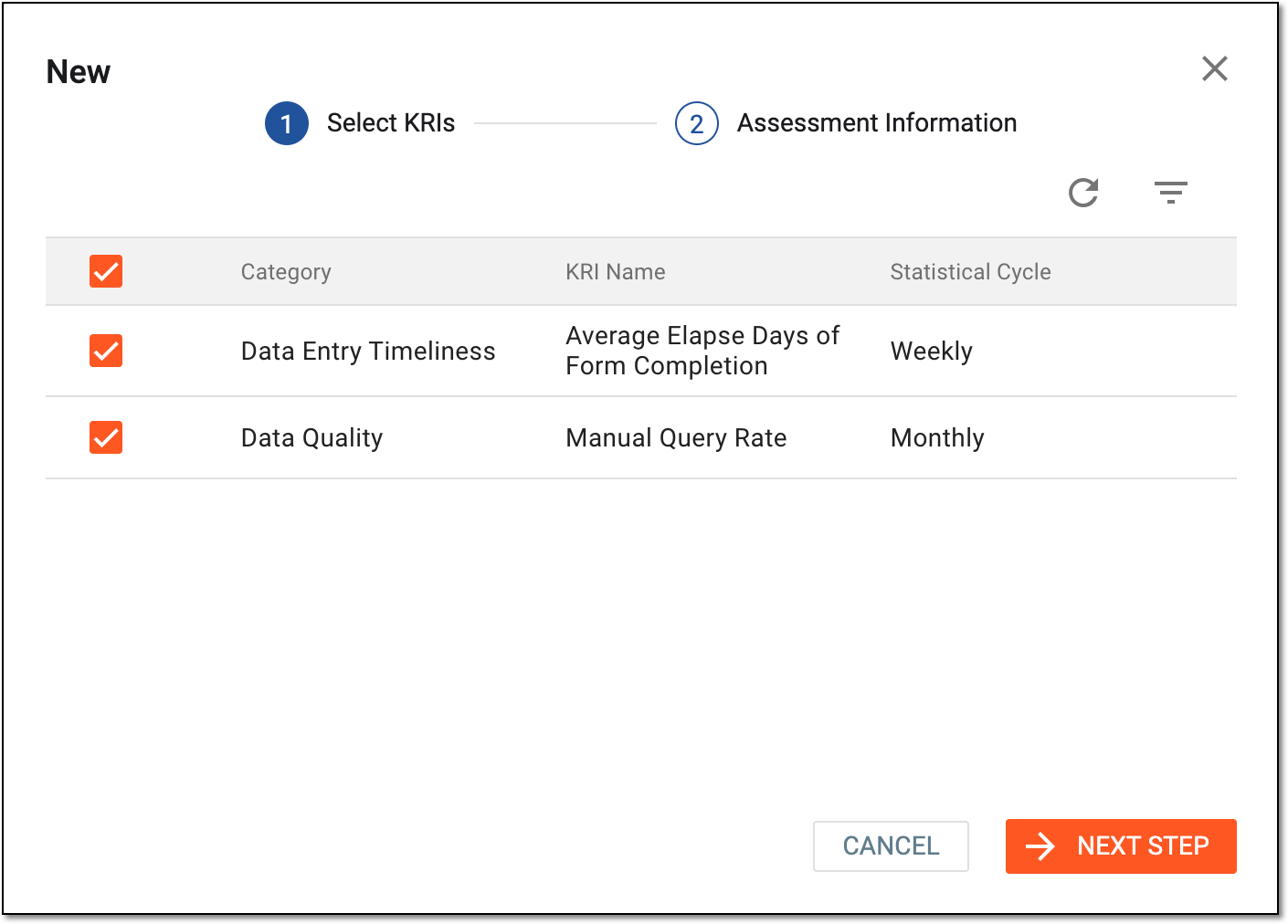 Figure 4. Selecting KRIs for assessment
Element
Details
Multiselect
Select the checkboxes next to the KRIs that you want to be tracked in the assessment.
Category*
Represents the KRI category that reflects its purpose.
Risk Indicator*
Represents the risk indicators added to your study.
Statistical Cycle*
Represents the frequency at which risk indicator data is evaluated and reported.
NEXT STEP
Select
 to proceed to providing assessment information.
CANCEL
Select
 to dismiss the KRI-driven assessment entity creation process.
 -
At the Assessment Information stage, provide the details as suggested in the following table.
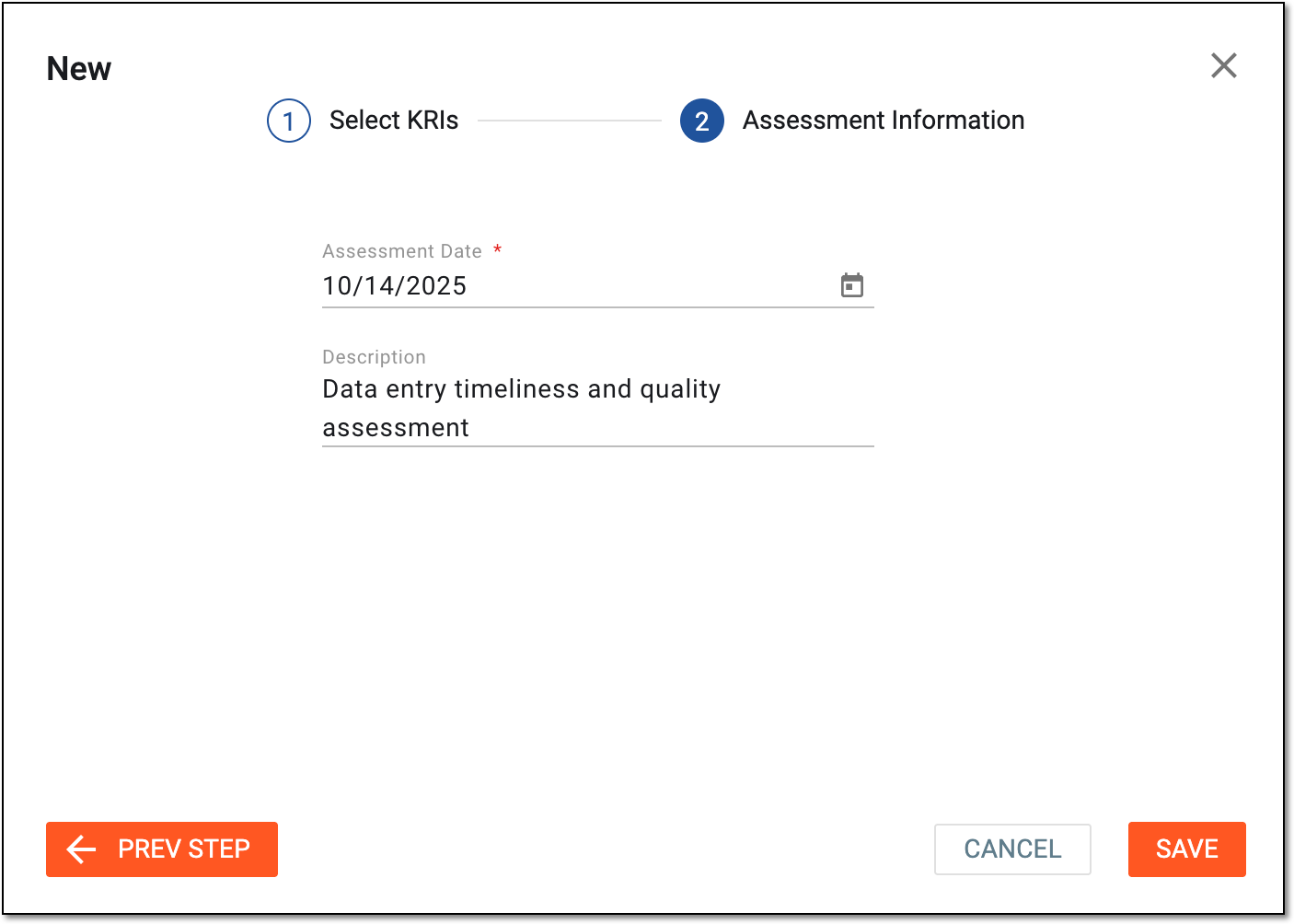 Figure 5. Providing assessment information
Tip
In the following table, mandatory elements are marked with an asterisk (*).
Element
Details
Assessment Date*
Select the date category for the created KRI-driven assessment to start.
Description
Enter any details you find useful to provide along with the assessment for additional information.
SAVE
Select
 to implement the changes.
PREV STEP
Select
 to return to the KRI selection stage.
CANCEL
Select
to dismiss the KRI-driven assessment entity creation process.
Once saved, the KRI-driven assessment entity becomes added. You can now configure risk assessment details.
The process of risk tracking typically begins with the assessment of potential risks in preparing the study design, patient population, and treatment regimen. Risks can include adverse events, such as side effects from the study drug or medical device, as well as operational risks, such as delays in recruitment or data management issues.
After adding a KRI-driven assessment entity, you can start configuring risk assessment details for it. Each assessment is aimed at identifying, analyzing, and evaluating potential risks associated with the study conduct, such as the timely completion of the CRF form for the AE data entry. After each risk is assessed, the mitigation plan must be developed and implemented to explain how the added risks can be addressed.
Important
You cannot configure the details of the locked KRI-driven assessment entity.
-
Access the study management page in one of the following ways:
-
In the CTMS application header, select the DASHBOARD tab and then select the study dashboard of your interest.
Figure 1. Accessing study management from dashboard
-
In the CTMS application header, select the STUDY MANAGEMENT tab. Then from the Study Data List table, select the study name of your interest.
Figure 2. Accessing study management from study data list
-
-
On the study page that opens, in the left pane, select RBM > Risk Tracking.
-
In the KRI Driven Assessment table that appears, in the ID column next to the needed entity, select the hyperlink.
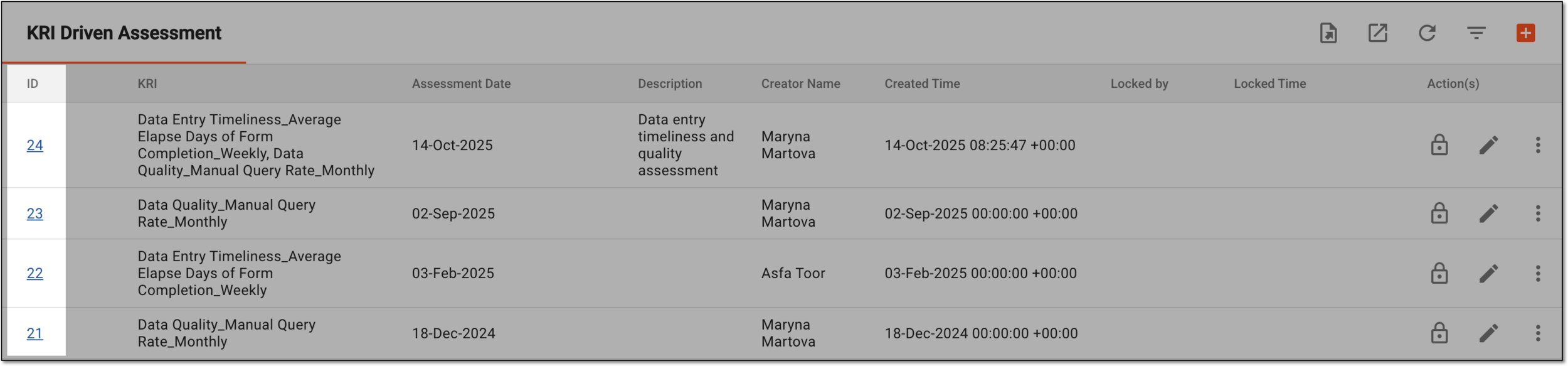 Figure 3. Accessing risk assessment
-
On the page that opens, complete the fields as suggested in the following table.
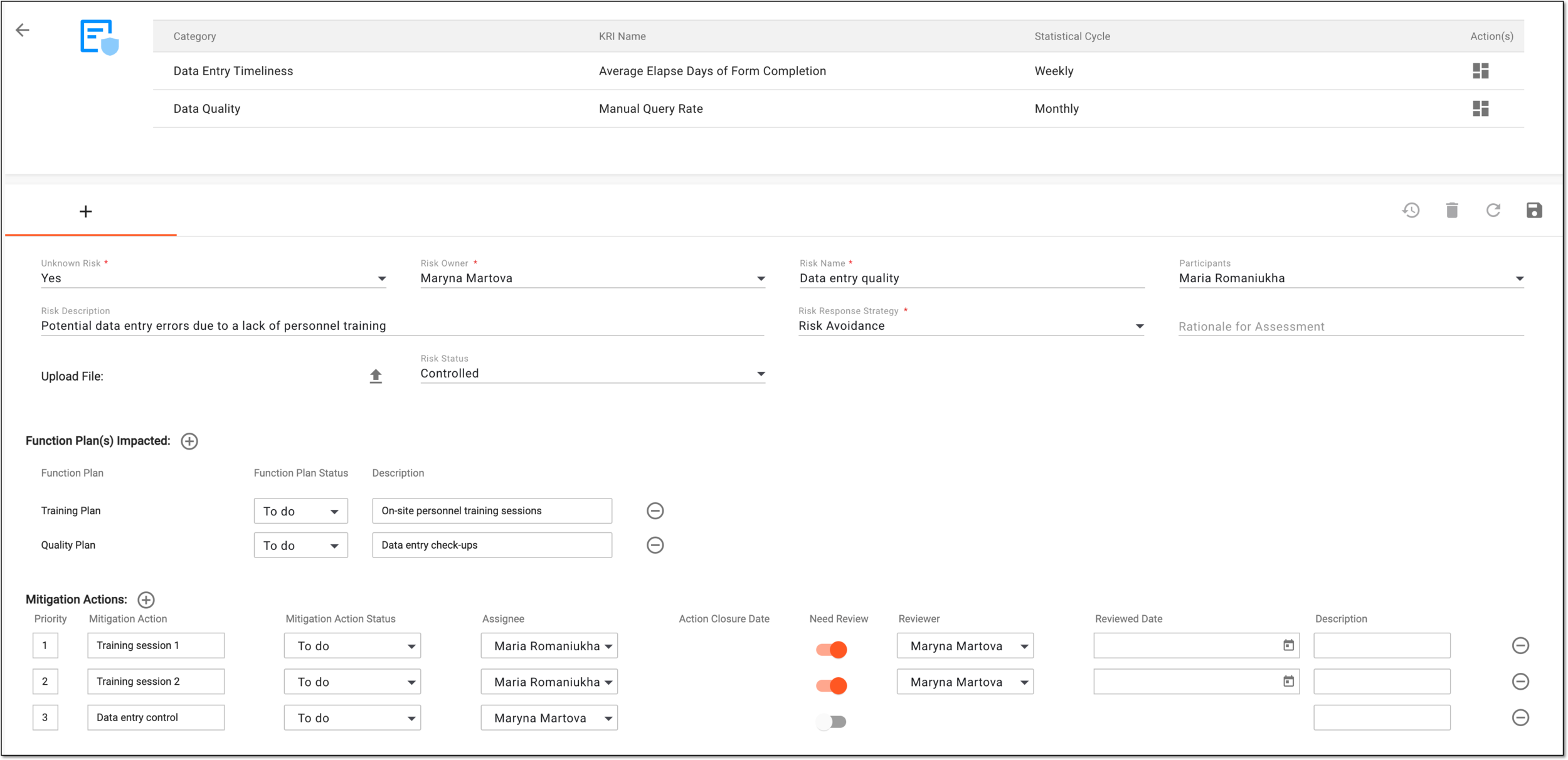 Figure 4. Adding risk assessment details
Tip
In the following table, mandatory elements are marked with an asterisk (*).
Element
Details
KRI list
Category
Represents the KRI category that reflects its purpose.
KRI Name
Represents the risk indicators added to your assessment.
Statistical Cycle
Represents the frequency at which risk indicator data is evaluated and reported.
Info
Select
 next to each indicator to access the the KRI statistics details.
Assessment details
Unknown Risk*
Select either Yes or No depending on whether the created risk has already been discovered or it is a potential risk.
Risk Owner*
From the dropdown list, select the user in charge of the created risk assessment entity.
Risk Name*
Enter a descriptive name for the risk assessment entity.
Participants
Select users who are related to the created risk assessment entity.
Risk Description
Enter a meaningful description for the created risk assessment entity.
Risk Response Strategy*
Select a strategy that is to be executed in response to the discovered risk.
The options available for selection are populated from the data elements added to the Risk Response
                                        Strategy dictionary via Library > Reference Data.
Rationale for Assessment
Enter a description of the assessment that has been performed in response to the registered risk.
Upload File
Select
 in this field to upload an attachment for the created risk assessment entity.
Risk Status
Select the most current status of the assessed risk.
The options available for selection are populated from the data elements added to the Risk Status
                                        dictionary via Library > Reference Data.
Function Plan(s) Impacted
New
Select
 to open a list and select the function plans that are impacted as a result of the identified risk. Then, select SAVE.
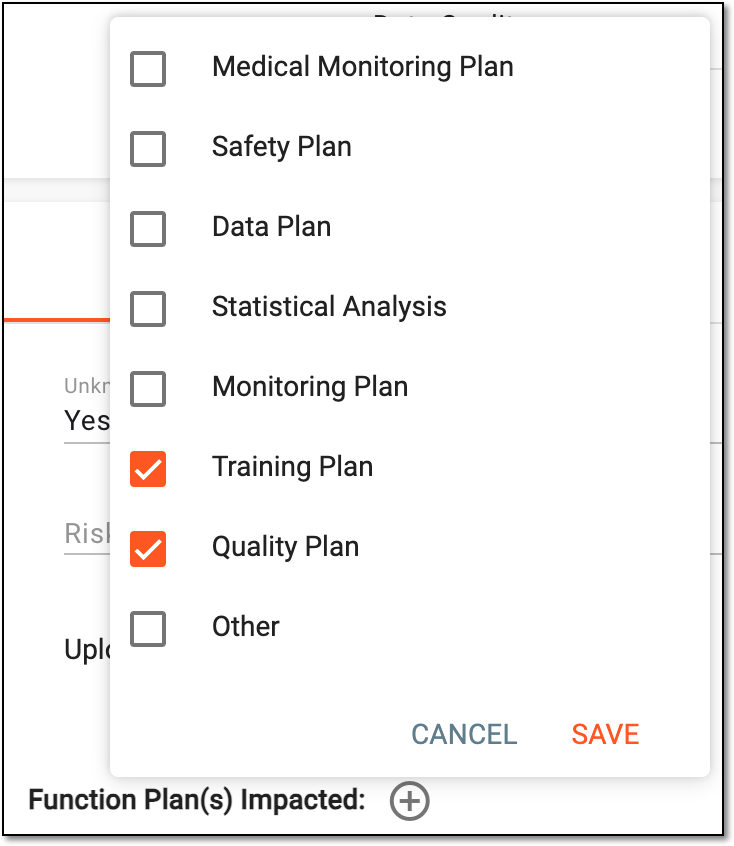 Figure 5. Selecting affected function plans
Once saved, a separate row is added for each selected function plan, in which you can enter additional details for each plan.
Adding multiple affected plans enhances understanding of how the risk impacts different operational areas.
Function Plan
Displays the name of the function plan selected previously.
Function Plan Status
Select the current status of the function plan, such as To Do, Doing, or Done.
Description
Enter any additional details explaining how the risk impacts the function plan.
Delete
Select
 next to a function plan row to remove the one that was added accidentally or is no longer required.
Mitigation Actions
New
Select
to insert a row in the Mitigation Actions table to add details for an activity to be taken in response to the
assessed risk..The actions added in here are also populated and can be managed in the Mitigation Actions tab.Priority
Enter a number indicating the urgency level of the mitigation action, such as "1" signifies the utmost priority, followed by "2," and so on.
Mitigation Action
Enter a name for the action taken to mitigate or manage the risk.
Mitigation Action Status
Select the current status of the mitigation action, such as To Do, Doing, or Done.
Assignee
Select the person responsible for executing the mitigation action.
Action Closure Date
Select the expected or actual date when the mitigation action is completed.
Need Review
Switch the toggle to indicate whether the mitigation action requires further review.
Reviewer
Select the person responsible for reviewing the effectiveness of the mitigation action.
Reviewed Date
Select the date when the mitigation action was reviewed.
Description
Enter any additional details regarding the mitigation action.
Delete
Select
next to a mitigation action row to remove it if the action was added accidentally or is no longer required.Save
From the workspace toolbar, select
 to save the risk assessment.
Add
Next to the saved risk assessment name, select
 to add a new one.
Operation History
From the workspace toolbar, select
 to view the log of actions performed with each risk assessment.
Delete
From the workspace toolbar, select
 to delete the created risk assessment.
Refresh
From the workspace toolbar, select
 to refresh the page with the created risk assessment.
Once saved, the risk assessment is configured. You can now proceed to creating the auto-execution task.
In CTMS, you can edit the previously added risk assessment entities that require adjustment of the risk indicators for tracking or other details.
Important
You cannot edit the locked KRI-driven assessment entity.
-
Access the study management page in one of the following ways:
-
In the CTMS application header, select the DASHBOARD tab and then select the study dashboard of your interest.
Figure 1. Accessing study management from dashboard
-
In the CTMS application header, select the STUDY MANAGEMENT tab. Then from the Study Data List table, select the study name of your interest.
Figure 2. Accessing study management from study data list
-
-
On the study page that opens, in the left pane, select RBM > Risk Tracking.
-
In the KRI Driven Assessment table that appears, next to the assessment, select Edit
 .
. Figure 3. Selecting option to edit KRI-driven assessment entity
-
In the dialog that appears, update the details as follows:
-
At the Select KRIs stage, edit the risk indicator selection as needed. The KRI details here are identical to those explained in the table of the Add KRI-driven assessment entity section.
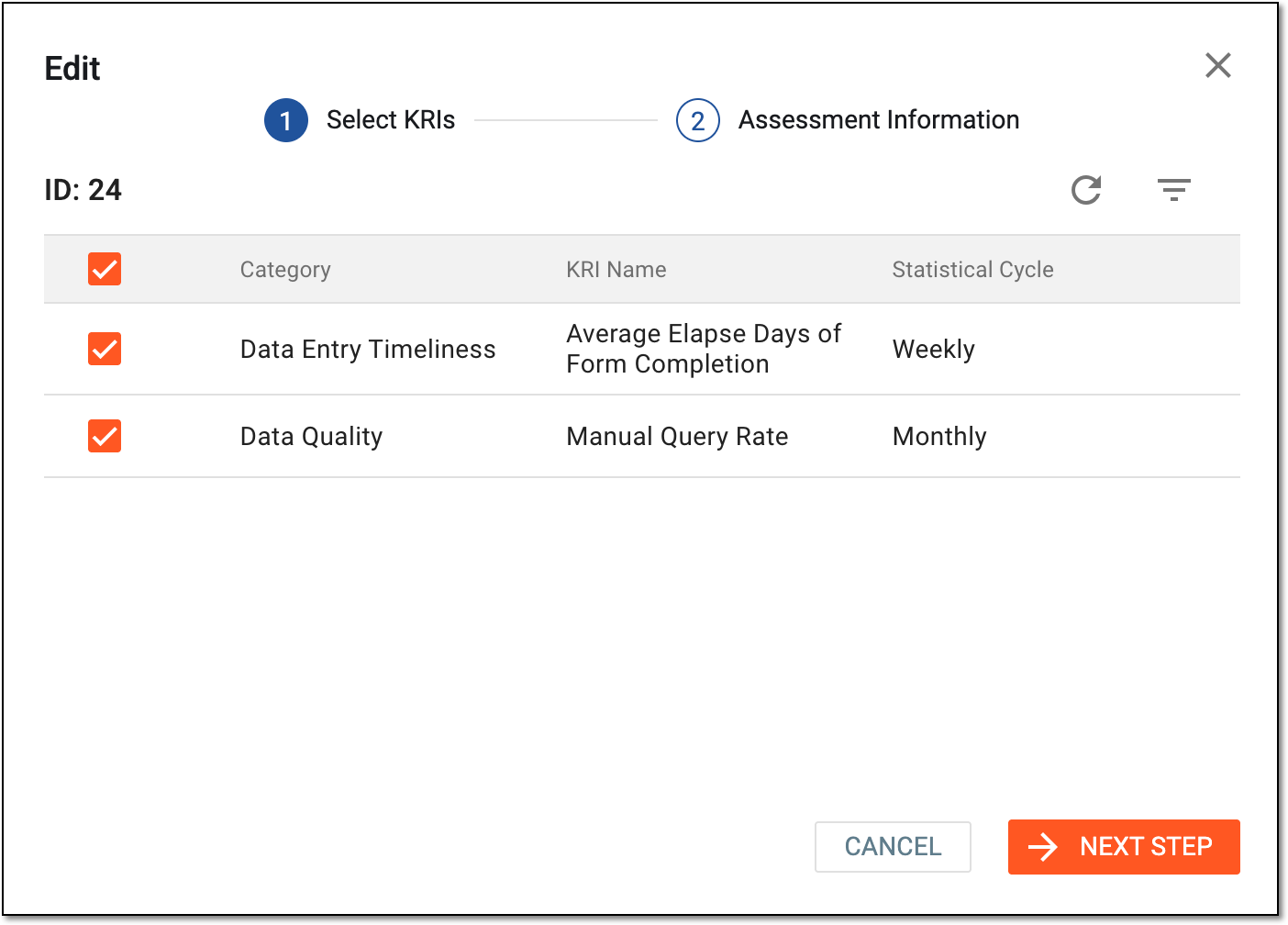 Figure 4. Editing selected KRIs for assessment
-
At the Assessment Information stage, update the details as needed. These details are identical to those explained in the table of the Add KRI-driven assessment entity section.
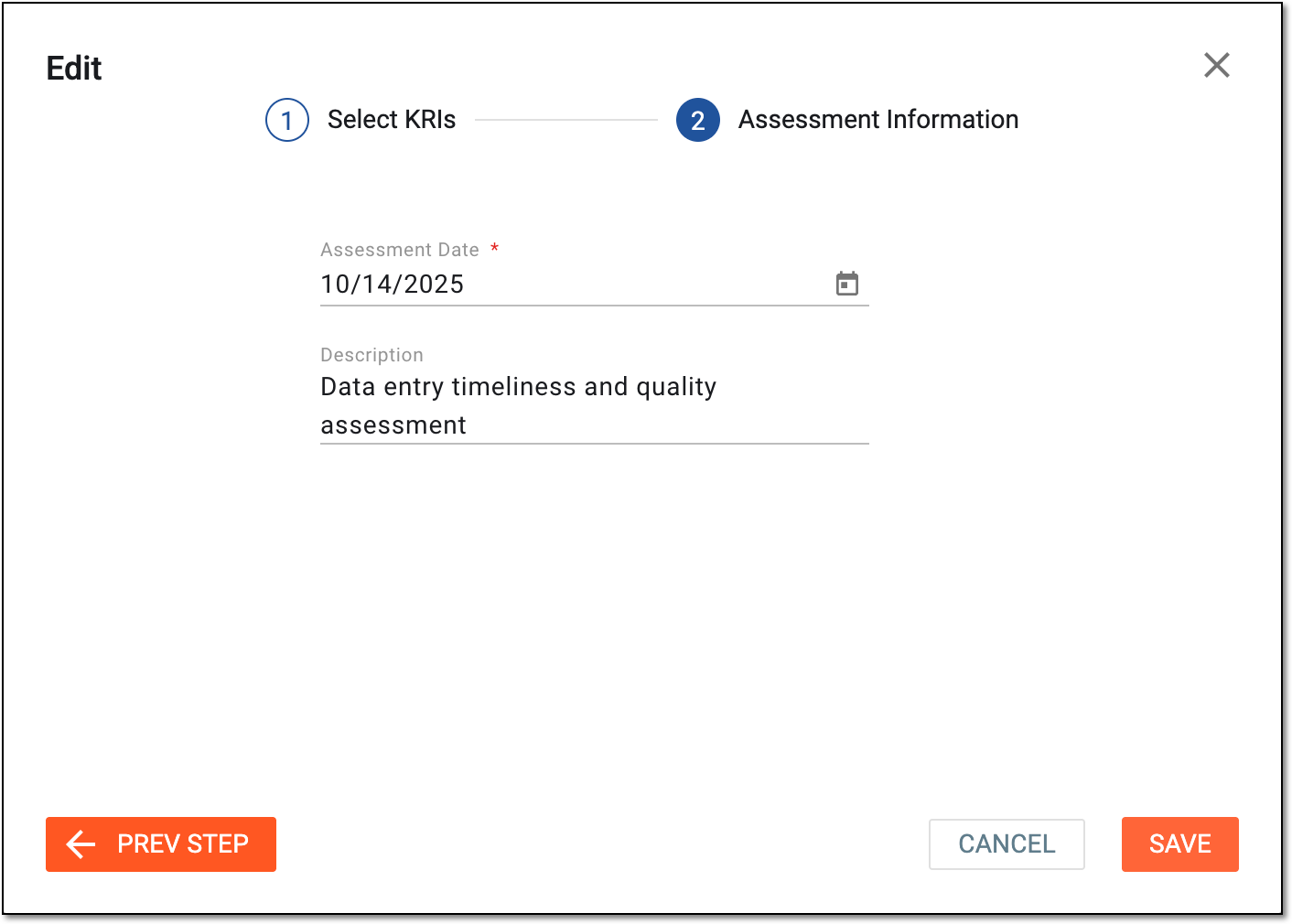 Figure 5. Updating assessment information
-
-
Select
to implement the changes.
Once saved, the KRI-driven assessment entity is updated. You can also adjust the risk assessment details.
The process of risk tracking typically begins with the assessment of potential risks in preparing the study design, patient population, and treatment regimen. Risks can include adverse events, such as side effects from the study drug or medical device, as well as operational risks, such as delays in recruitment or data management issues. You can lock KRI-driven assessment entities when you want to disable the editing or addition of risk assessment entities.
-
Access the study management page in one of the following ways:
-
In the CTMS application header, select the DASHBOARD tab and then select the study dashboard of your interest.
Figure 1. Accessing study management from dashboard
-
In the CTMS application header, select the STUDY MANAGEMENT tab. Then from the Study Data List table, select the study name of your interest.
Figure 2. Accessing study management from study data list
-
-
On the study page that opens, in the left pane, select RBM > Risk Tracking.
-
In the KRI Driven Assessment table that appears, select Lock
 next to the needed
KRI-driven assessment entity to lock it, or select Unlock
next to the needed
KRI-driven assessment entity to lock it, or select Unlock  next to the locked KRI-driven assessment entity to unlock it.
 Figure 3. Selecting options to lock or unlock KRI-driven assessment entity
Once selected, the KRI-driven assessment entity becomes locked or unlocked. You cannot edit the locked entity or configure its details until unlocked.
The process of risk tracking typically begins with the assessment of potential risks in preparing the study design, patient population, and treatment regimen. Risks can include adverse events, such as side effects from the study drug or medical device, as well as operational risks, such as delays in recruitment or data management issues. You can track all changes made to a KRI-driven assessment over time to ensure transparency and review past decisions for better risk management and compliance tracking.
-
Access the study management page in one of the following ways:
-
In the CTMS application header, select the DASHBOARD tab and then select the study dashboard of your interest.
Figure 1. Accessing study management from dashboard
-
In the CTMS application header, select the STUDY MANAGEMENT tab. Then from the Study Data List table, select the study name of your interest.
Figure 2. Accessing study management from study data list
-
-
On the study page that opens, in the left pane, select RBM > Risk Tracking.
-
In the KRI Driven Assessment table that appears, next to the assessment, select More
 > Operation History
  .
. Figure 3. Accessing operation history of KRI-driven assessment
-
In the Operation History dialog that opens, view the list of user actions that have been performed on the selected assessment.
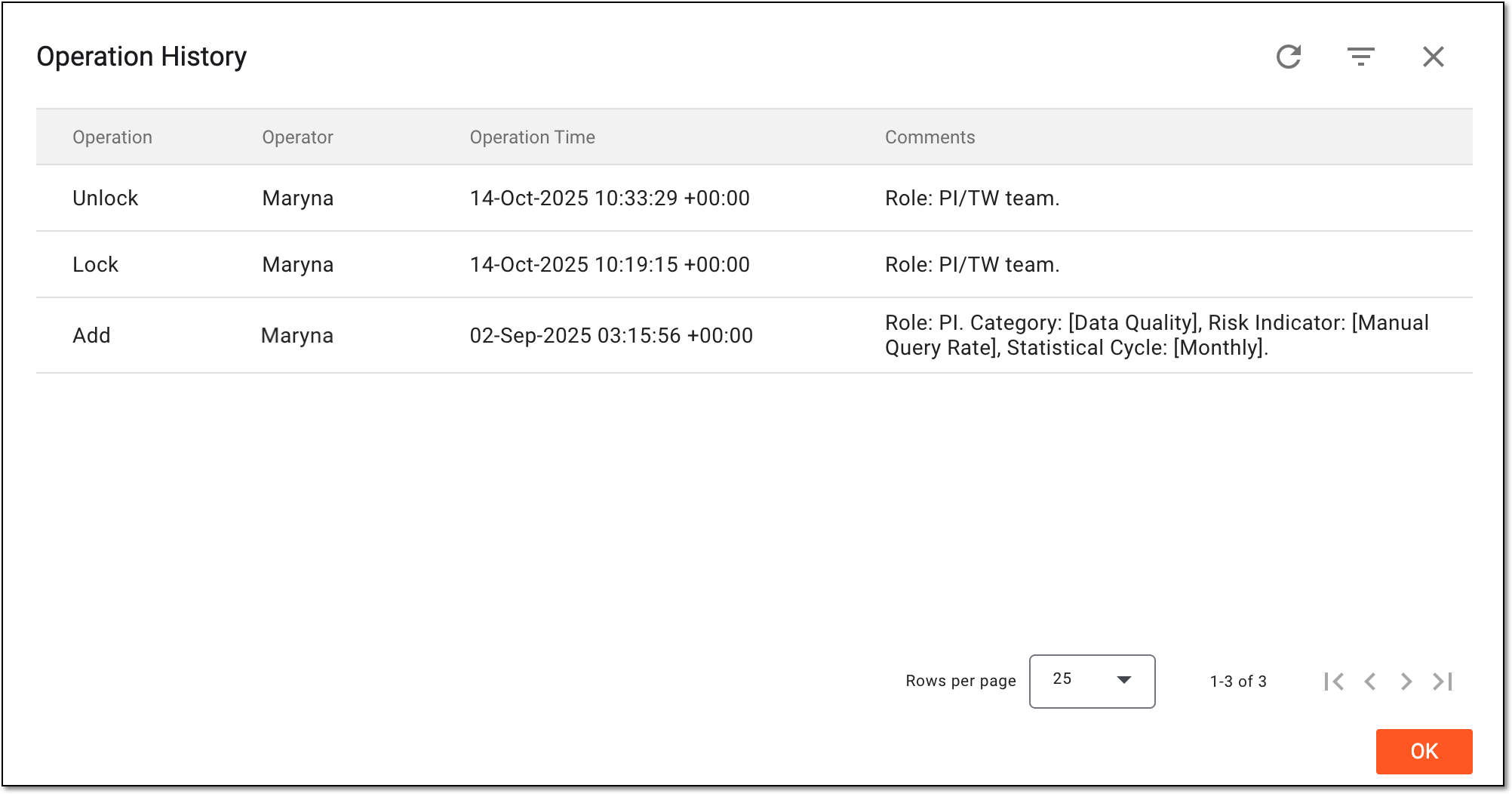 Figure 4. Viewing operation history of KRI-driven assessment
Once viewed, select OK to close the Operation History dialog and return to the KRI Driven Assessment table.
The process of risk tracking typically begins with the assessment of potential risks in preparing the study design, patient population, and treatment regimen. Risks can include adverse events, such as side effects from the study drug or medical device, as well as operational risks, such as delays in recruitment or data management issues. You can remove KRI-driven assessment entities that are no longer required.
-
Access the study management page in one of the following ways:
-
In the CTMS application header, select the DASHBOARD tab and then select the study dashboard of your interest.
Figure 1. Accessing study management from dashboard
-
In the CTMS application header, select the STUDY MANAGEMENT tab. Then from the Study Data List table, select the study name of your interest.
Figure 2. Accessing study management from study data list
-
-
On the study page that opens, in the left pane, select RBM > Risk Tracking.
-
In the KRI Driven Assessment table that appears, next to the needed KRI-driven assessment entity, select More
> Delete . Figure 3. Selecting option to delete assessment
-
In the Reason dialog that appears, provide the argument for the risk assessment deletion and select
to confirm your
action.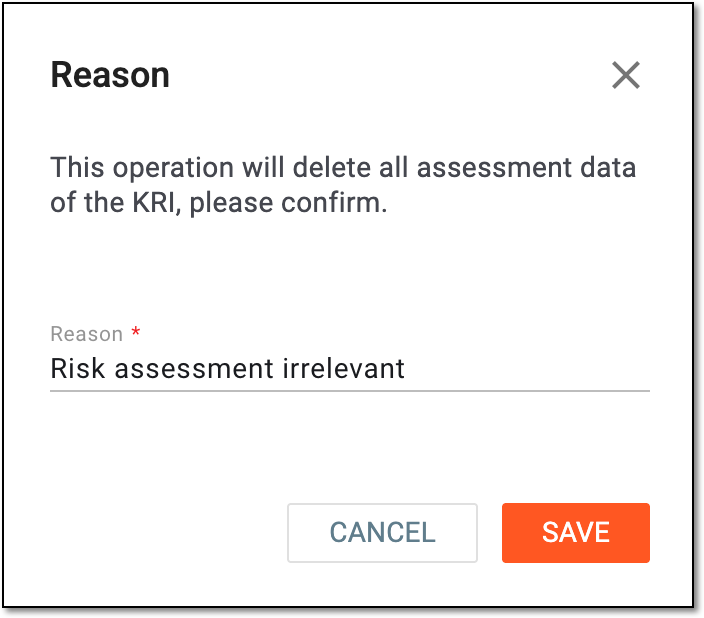 Figure 4. Providing reason for risk assessment deletion
Once confirmed, the KRI-driven assessment entity is deleted.
In CTMS, the complete list of KRI-driven assessment entities or a compilation of all the configured assessment details available in the CTMS system can be extracted to your computer for sharing with stakeholders or other business purposes.
-
Access the study management page in one of the following ways:
-
In the CTMS application header, select the DASHBOARD tab and then select the study dashboard of your interest.
Figure 1. Accessing study management from dashboard
-
In the CTMS application header, select the STUDY MANAGEMENT tab. Then from the Study Data List table, select the study name of your interest.
Figure 2. Accessing study management from study data list
-
-
On the study page that opens, in the left pane, select RBM > Risk Tracking.
-
On the KRI Driven Assessment page that opens, from the workspace toolbar, select Export
 and then one of the following:
-
Export Data List: to export the list of the KRI-driven assessment entities in the XLSX format.
-
Export Assessment Details: to export a compilation (ZIP) of detailed information files (XLSX) of each KRI-driven assessment entity.
 Figure 3. Selecting option to export KRI-driven assessment data
-
-
In the downloads widget that appears, view your download progress. Select the widget to open the My Downloads dialog.
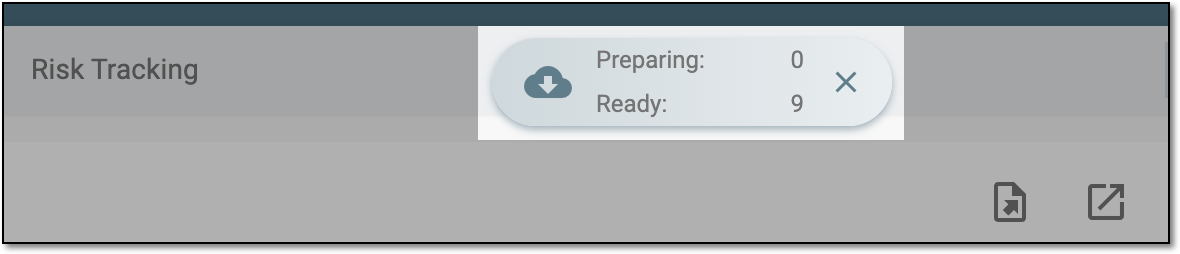 Figure 4. Downloads widget for KRI-driven assessment list
-
In the My Downloads dialog that opens, you can find the following tabs:
-
Preparing: lists all the files whose export is in progress, and they are not yet ready for download. Wait until the needed file moves to the Download is Ready tab.
-
Download is Ready: lists the files whose export is complete, and they can be downloaded to your computer by selecting
 .
.
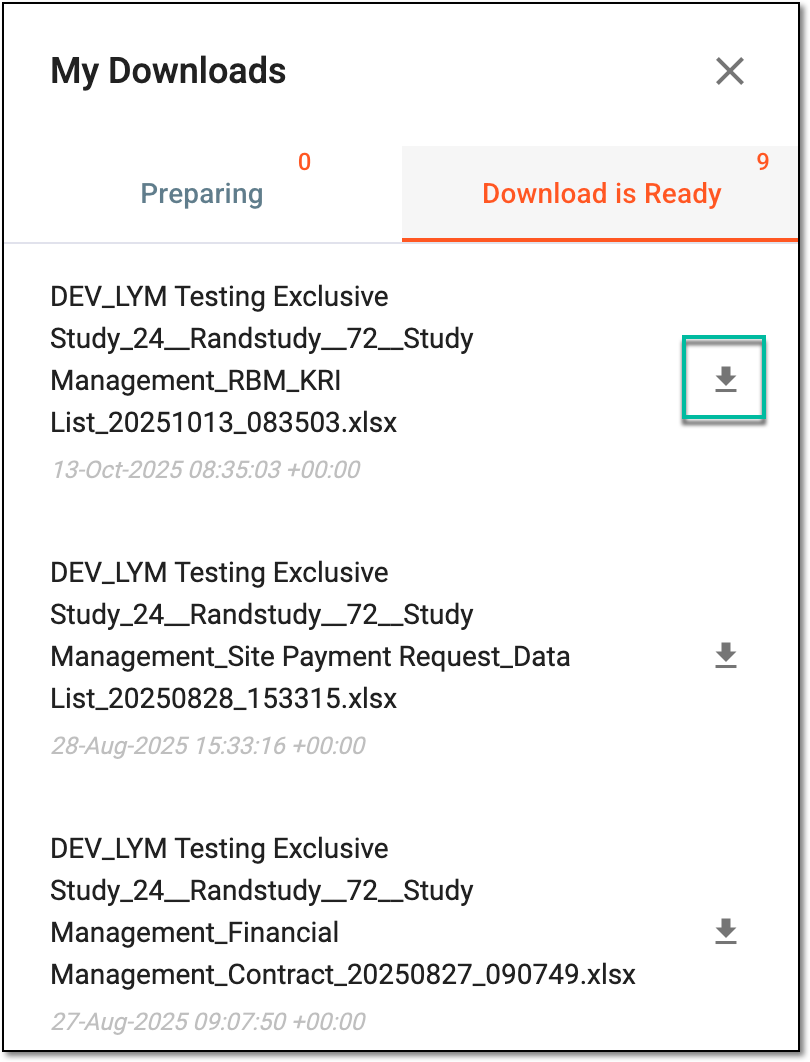 Figure 5. Downloading extracted KRI-driven assessment data
-
Once downloaded and saved, the selected version of the KRI-driven assessment data becomes available on your computer.
Tip
The extracted file version is saved in the system and can be accessed from Export History  .
.
