Add autoexecution task
In CTMS, you can create autoexecution tasks to trigger background system analytics of the specific Key Risk Indicator (KRI) data, and based on the outcome, do one of the following:
-
Generate a corresponding monitoring visit to address the detected KRI fluctuations. Usually, these autoexecution tasks are configured to generate monitoring visits when the risk level of a corresponding KRI is either medium or high. This means that the visit must take place in order to check the rising risks at the trial site and start developing a mitigation plan to overcome those risks. A responsible person for the generated visit is the one added to the human resources for corresponding sites.
-
Send the alert email to notify the dedicated personnel of the specific KRI trend fluctuations, risk levels, or other changes. Automating the notification procedure eliminates human error, reduces time for trigger event detection, and prevents delays in further reaction to risks.
-
Access the study management page in one of the following ways:
-
In the CTMS application header, select the DASHBOARD tab and then select the study dashboard of your interest.
 Figure 1. Accessing study management from dashboard
-
In the CTMS application header, select the STUDY MANAGEMENT tab. Then from the Study Data List table, select the study name of your interest.
 Figure 2. Accessing study management from study data list
-
-
From the left pane of the study page that opens, select RBM > Auto-execution Engine.
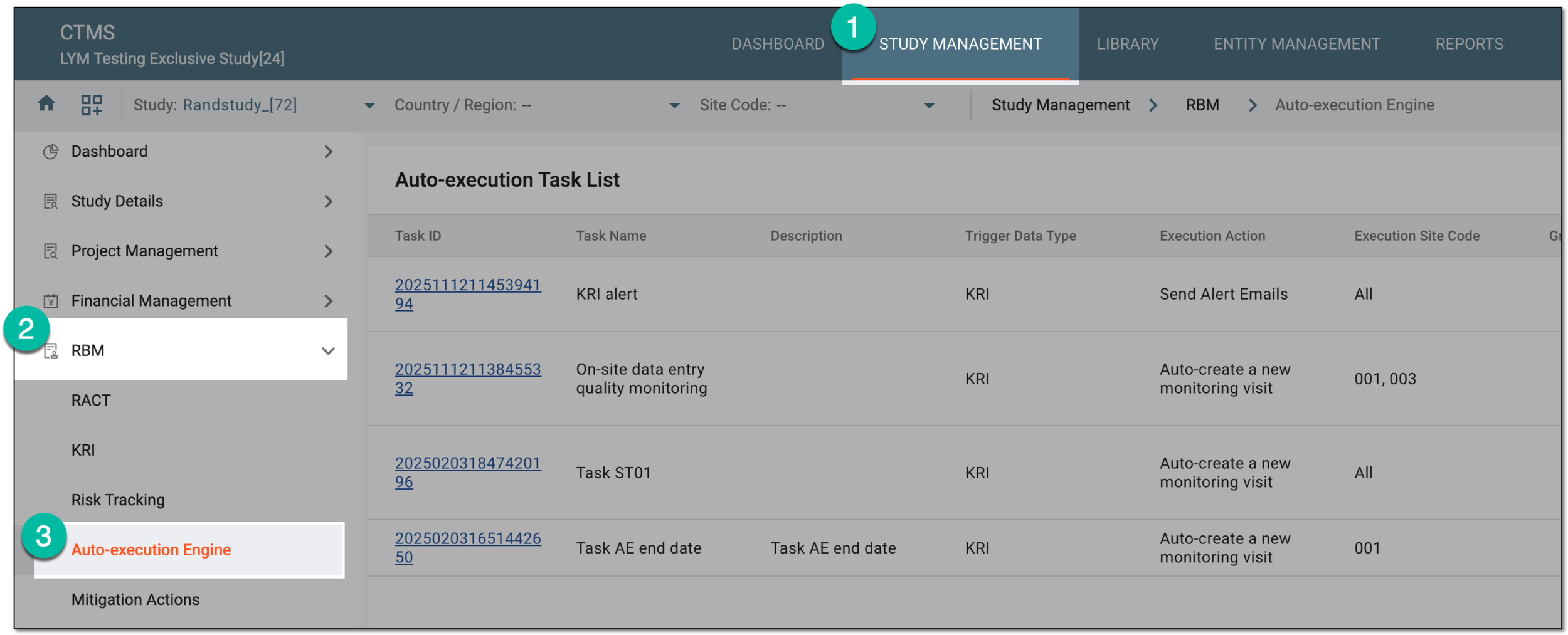 Figure 3. Accessing autoexecution engine
-
From the workspace toolbar of the Auto-execution Task List table that appears, select New Item
 .
.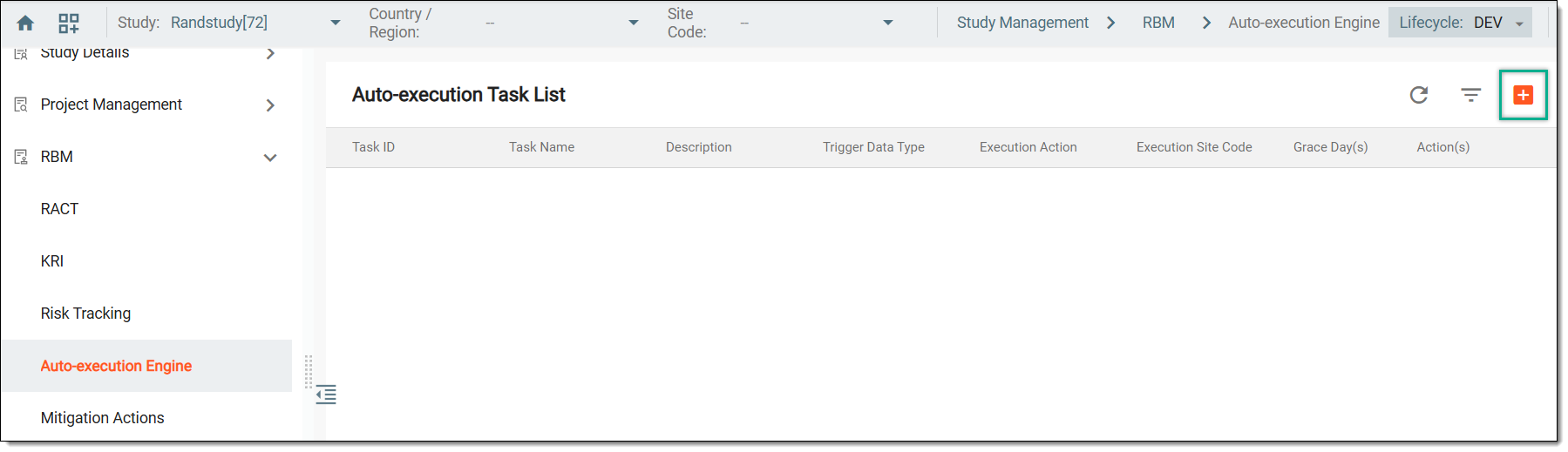 Figure 4. Selecting option to add task
-
On the page that opens, based on the task you need to create, follow one of the following instructions to complete the form.
To add the task to automatically create a monitoring visit whenever the risk levels of selected KRIs reach the set conditions, complete the form as suggested in the following table.
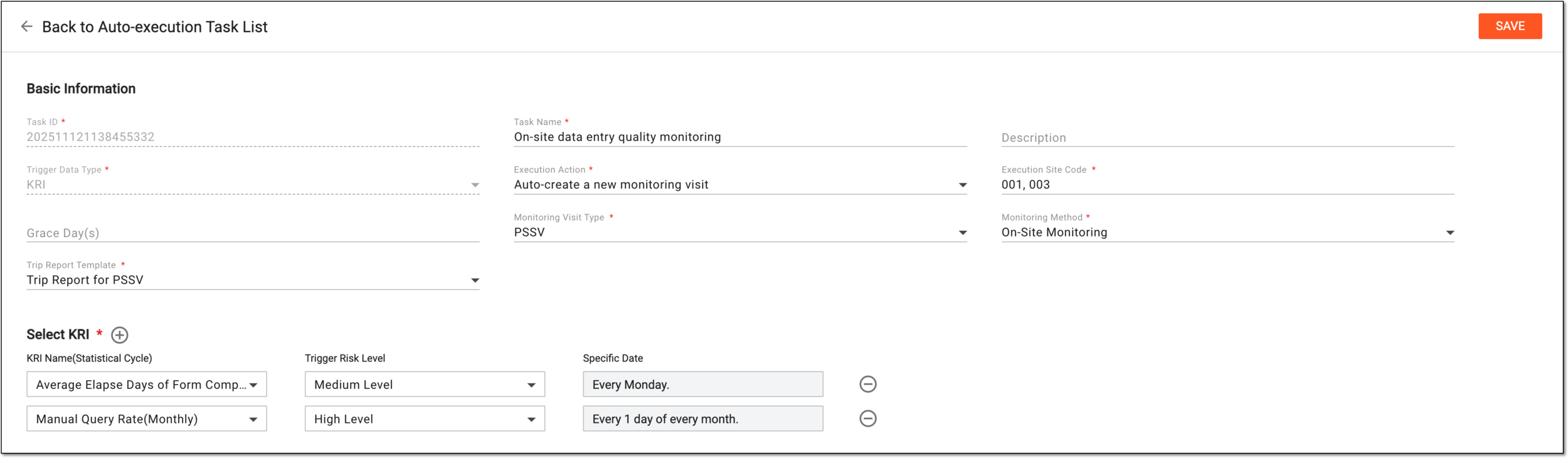 Figure 5. Adding task to create monitoring visit
Tip
In the following table, mandatory elements are marked with an asterisk (*).
Element
Details
Task ID*
This field is disabled by default and it represents a unique ID of the created autoexecution task.
Task Name*
Enter a unique name for the created autoexecution task.
Description
Enter a meaningful description for the created autoexecution task.
Trigger Data Type*
This field is disabled by default and it indicates that the KRI data is to be used to trigger the created autoexecution task.
Execution Action*
Select Auto-create a new monitoring visit in this field so that once the selected KRIs are indicated, the monitoring visit is automatically generated in CTMS.
Refer to the Add task to send KRI alert email instructions to learn more
                                        about another type of autoexecution task.
Execution Site Code*
Select the field and in the menu that appears, turn on the toggle to apply the task to all sites or turn it off to choose specific sites where the task should be applied.
Grace Day(s)
Enter the number of days that can pass after the criteria for the task are met without immediately generating the monitoring visit. Postponing the monitoring visit creation provides the flexibility to allow the study teams to resolve the issue within the specified timeframe.
Monitoring Type*
Select the type of monitoring visit for the created task.
Monitoring Method*
Select the method of monitoring for the created task.
Trip Report Template*
Select the monitor template according to which a trip report for the generated visit is to be populated.
Select KRI*
KRI Name(Statistical Cycle)
Select the KRI being monitored determining how often the KRI is evaluated.
Trigger Risk Level
Select the risk threshold that activates the task, such as High Level means the task will be triggered when the selected KRI reaches a high-risk status.
Specific Date
Specify the schedule for when the system should check and execute the action.
Add Content
Select
 to add a new row for defining an additional KRI that must trigger the task.
Remove
Select
 to remove an accidentally added KRI.
SAVE
Select
 to confirm the creation of the autoexecution task.
Back to Auto-execution Task List
Select
 to go back to Auto-execution Task List without saving your changes.
To add the task to automatically send an email to notify the responsible staff on the selected KRIs, complete the form as suggested in the following table.
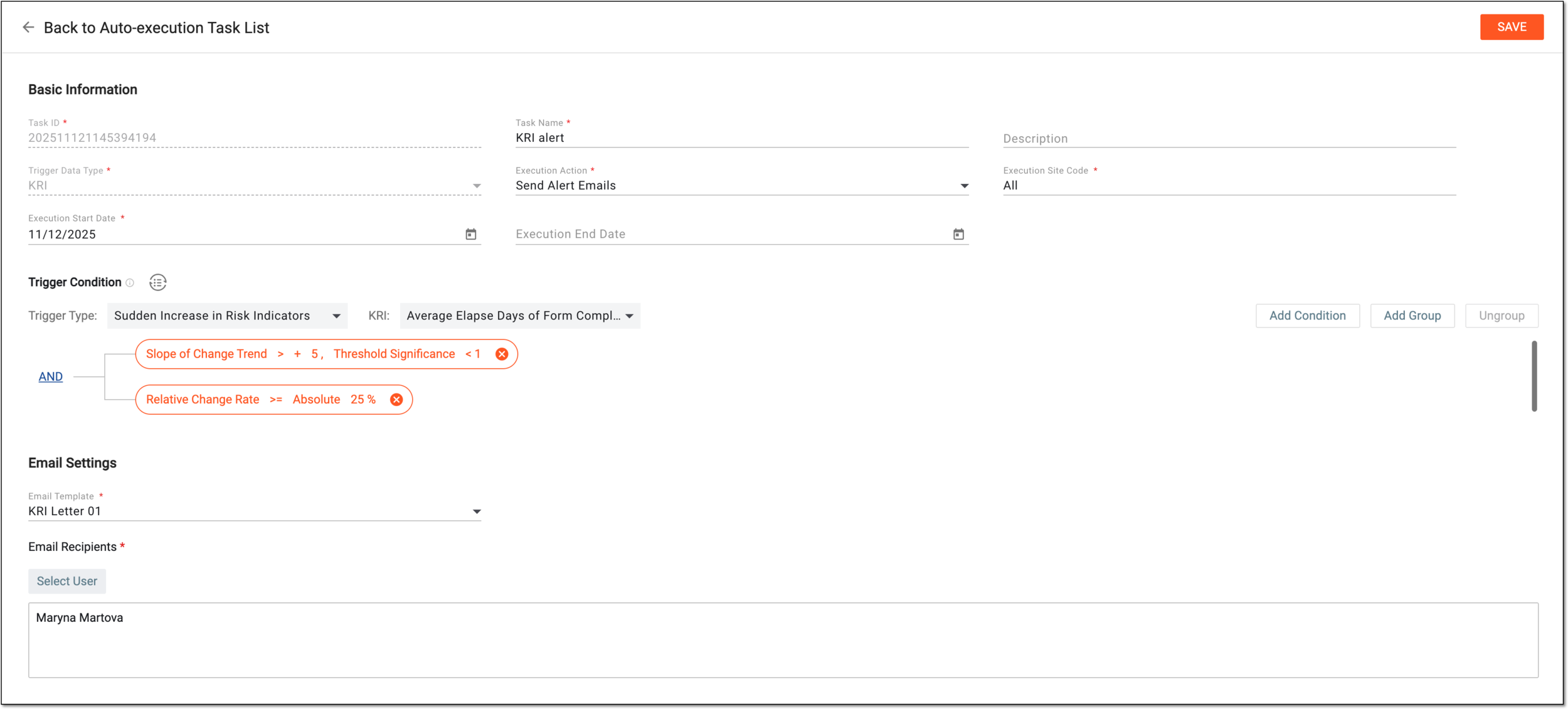 Figure 6. Adding task to send KRI alert emails
Tip
In the following table, mandatory elements are marked with an asterisk (*).
Element
Details
Task ID*
This field is disabled by default and it represents a unique ID of the created autoexecution task.
Task Name*
Enter a unique name for the created autoexecution task.
Description
Enter a meaningful description for the created autoexecution task.
Trigger Data Type*
This field is disabled by default and it indicates that the KRI data is to be used to trigger the created autoexecution task.
Execution Action*
Select Send Alert Emails in this field so that once the set trigger conditions are met, the system sends out the alert email to the responsible personnel.
Refer to the Add task to create monitoring visit instructions to learn more
                                        about another type of autoexecution task.
Execution Site Code*
Select the field and in the menu that appears, turn on the toggle to apply the task to all sites or turn it off to choose specific sites where the task should be applied.
Execution Start Date*
Select the date when the autoexecution task must start running in the system. This provides flexibility to plan future risk tracking tasks.
Execution End Date
Select the date when the autoexecution task must stop running in the system. This provides flexibility to plan the termination of risk tracking tasks.
Trigger Condition
Convert Text
If you prefer entering trigger conditions in text format rather than building a diagram, select
 to open the Convert
Text dialog. In the Trigger Expression field, use variables in braces to outline the conditions that once met trigger the alert email.
to open the Convert
Text dialog. In the Trigger Expression field, use variables in braces to outline the conditions that once met trigger the alert email.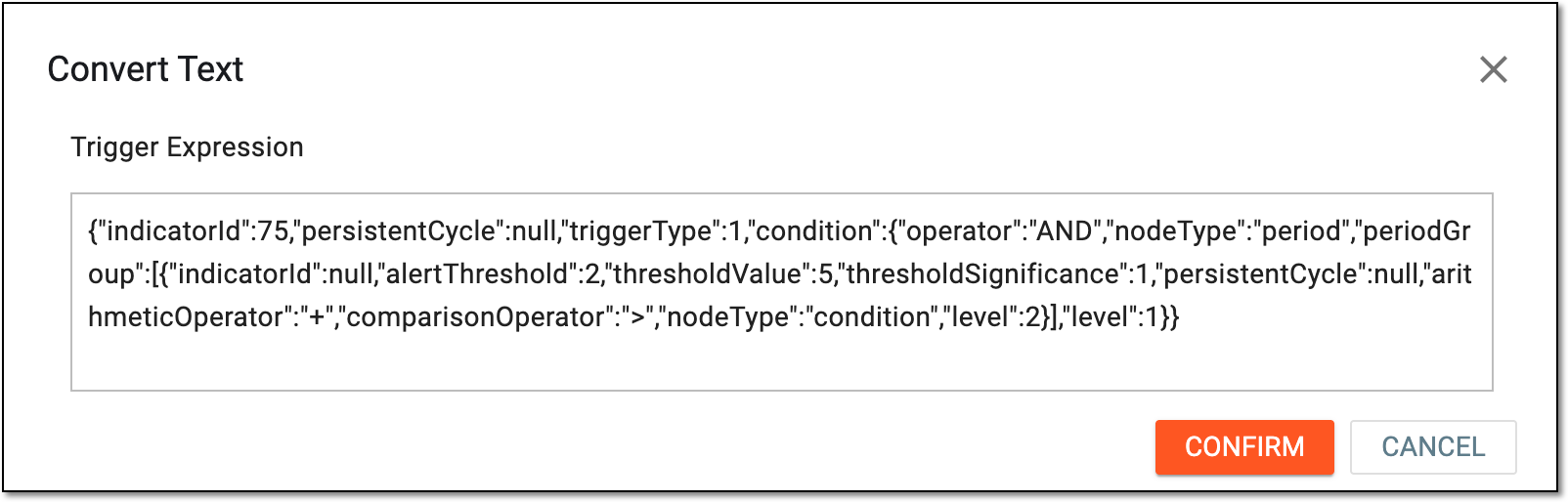 Figure 7. Configuring trigger conditions in text editor
Trigger Type
Select one of the following trigger types:
-
Sudden Increase in Risk Indicators: the KRI has not reached the high-risk threshold; however, a sudden and rapid increase potentially indicates a worsening trend.
-
KRIs Hit the High/Medium Risk Thresholds: the KRI reached the threshold levels defined for it.
-
Persistent Medium-High Risk Levels without Improvement: the KRI remains in the medium to high risk levels without effective improvement measures.
-
Multiple Indicators Simultaneously Deteriorating (Composite Risk): multiple KRIs across different categories or closely related indicators simultaneously show adverse changes.
-
Risk Trend Analysis Warnings: historical data or predictive models indicate a significant risk deterioration in the future.
KRI
Select the KRI, whose change in trend or risk levels (based on the selected trigger type) should result in sending the alert email.
Add Condition
Select
 to add a condition field. From the dropdown menus of each field, select the options that you want to set as trigger conditions.
Upon selection of some values, the additional fields may appear to specify the pertinent conditions.
to add a condition field. From the dropdown menus of each field, select the options that you want to set as trigger conditions.
Upon selection of some values, the additional fields may appear to specify the pertinent conditions.Add Group
Select
 to add a set of conditions to act as one within the general scheme. Configure your group following the same logic as for the standalone
condition.
to add a set of conditions to act as one within the general scheme. Configure your group following the same logic as for the standalone
condition.Absolute Change
Select this option and then indicate the trigger condition by specifying the threshold level for KRI changes of the selected trigger type.
 Figure 8. Setting absolute change condition
Slope of Change Trend
Select this option and then indicate the trigger condition by specifying the threshold level and significance for KRI changes of the selected trigger type.
 Figure 9. Setting slope of change trend condition
Relative Change Rate
Select this option and then indicate the trigger condition by specifying the threshold level in percentage for KRI changes of the selected trigger type.
 Figure 10. Setting relative change rate condition
Ungroup
Use this button to remove the grouping and convert to standalone conditions. To do this, select the grouped conditions on the diagram, then click
 .
Once done, the fields in the selected group are no longer interdependent.
.
Once done, the fields in the selected group are no longer interdependent.AND/OR
When more than one field is added, the AND and OR operator is used to make the conditions equal or alternate, respectively. Simply click the current operator to choose its value—AND or OR.

Select the red check mark next to the condition field to save its values.

Select the deletion symbol next to the unsaved condition field or group to remove it from the diagram.

Select the red cross symbol next to the saved condition field to remove it from the diagram.
Email Settings
Email Template*
Select the preconfigured email template to outline the contents of the letter to be sent out according to this alert.
Email Recipients*
Click
 to expand the list of users and choose the ones to whom the email notification must be sent when the alert triggers.
SAVE
Select
to confirm the creation of the autoexecution task.Back to Auto-execution Task List
Select
to go back to Auto-execution Task List without saving your changes. -
Once saved, the autoexecution task is created.