Edit autoexecution task
The autoexecution tasks added to CTMS to trigger for a certain event—monitoring visit creation or KRI email notification—can be edited to adjust them to your evolving business needs.
-
Access the study management page in one of the following ways:
-
In the CTMS application header, select the DASHBOARD tab and then select the study dashboard of your interest.
 Figure 1. Accessing study management from dashboard
-
In the CTMS application header, select the STUDY MANAGEMENT tab. Then from the Study Data List table, select the study name of your interest.
 Figure 2. Accessing study management from study data list
-
-
From the left pane of the study page that opens, select RBM > Auto-execution Engine.
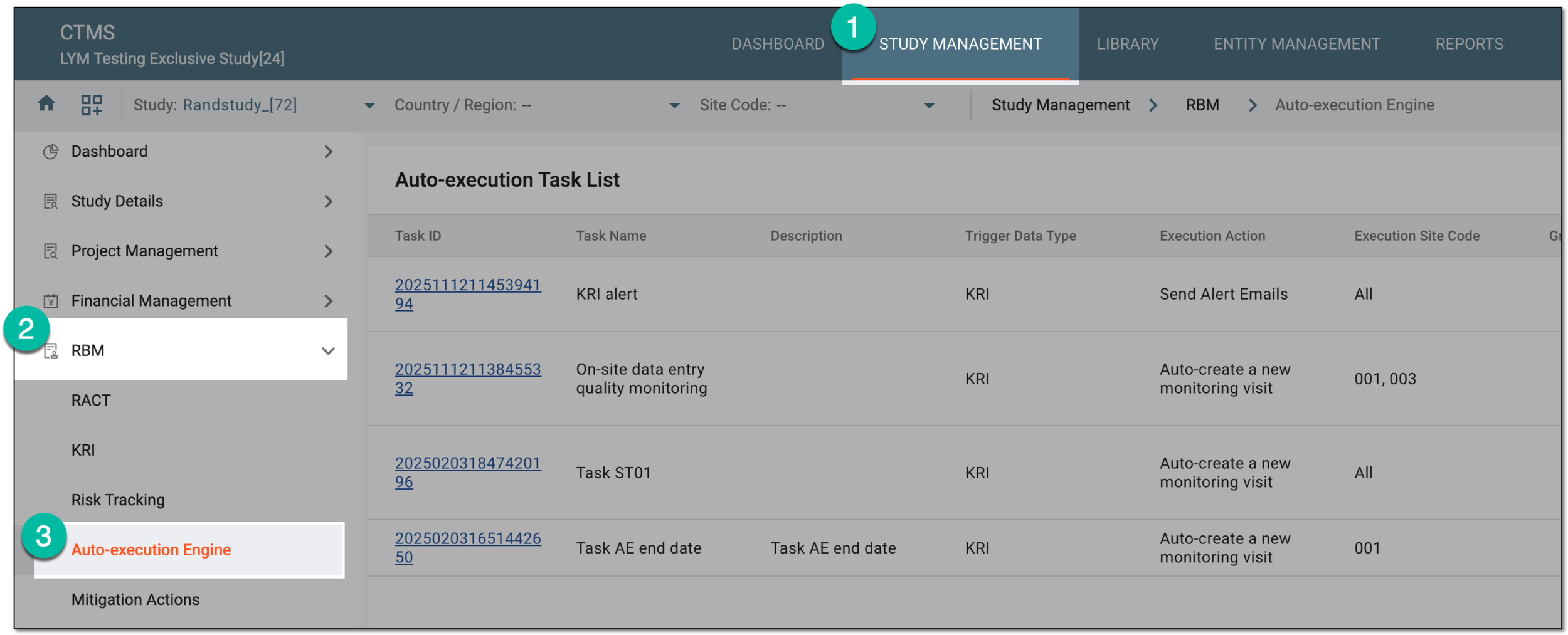 Figure 3. Accessing autoexecution engine
-
In the Auto-execution Task List table that appears, select Edit
 next to the
needed autoexecution task.
next to the
needed autoexecution task.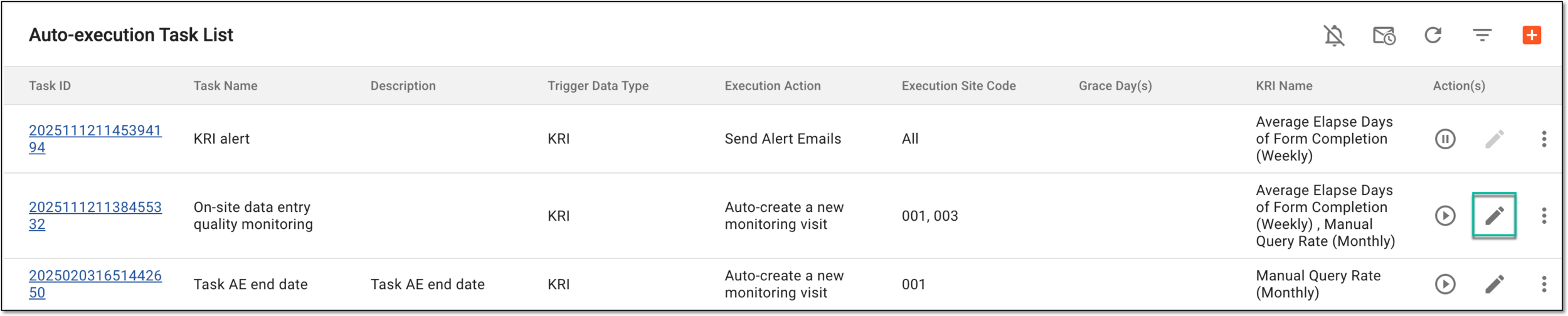 Figure 4. Accessing option to edit task
-
On the page that opens, update the task details based on its type as follows:
-
For the monitoring visit creation tasks, update the fields as explained in the table of the Add autoexecution task section.
Tip
The Task ID, Trigger Data Type, and Execution Action fields are not editable as they are set once upon the task creation.
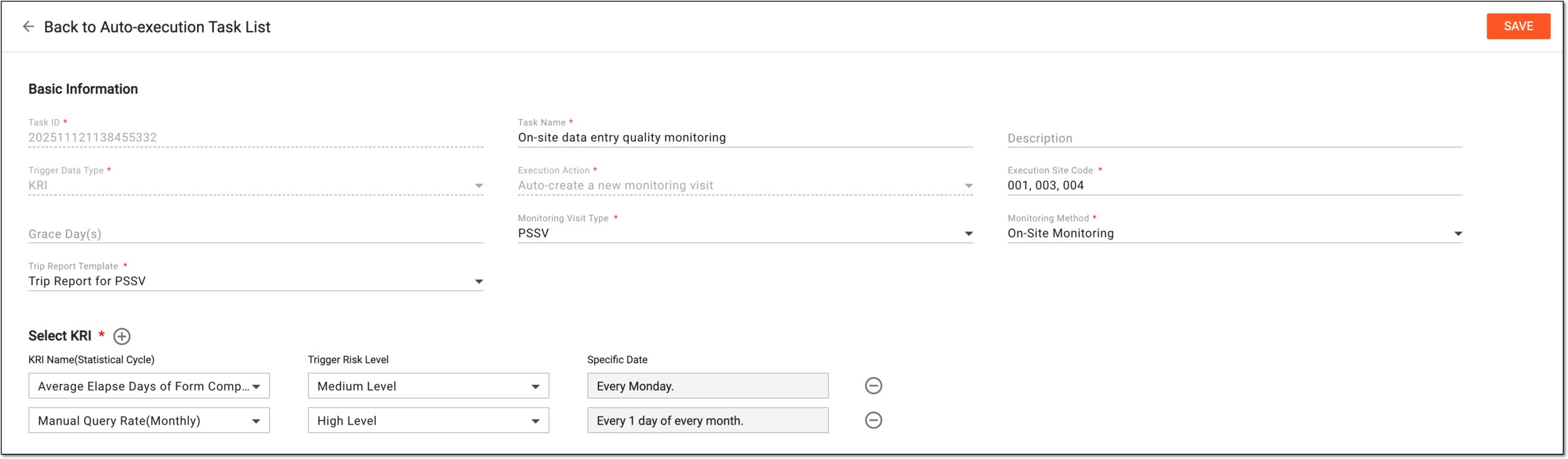 Figure 5. Editing monitoring visit creation task
-
For the KRI email notification tasks, update the fields as explained in the table of the Add autoexecution task section.
Tip
The Task ID and Trigger Data Type fields are not editable as they are set once upon the task creation.
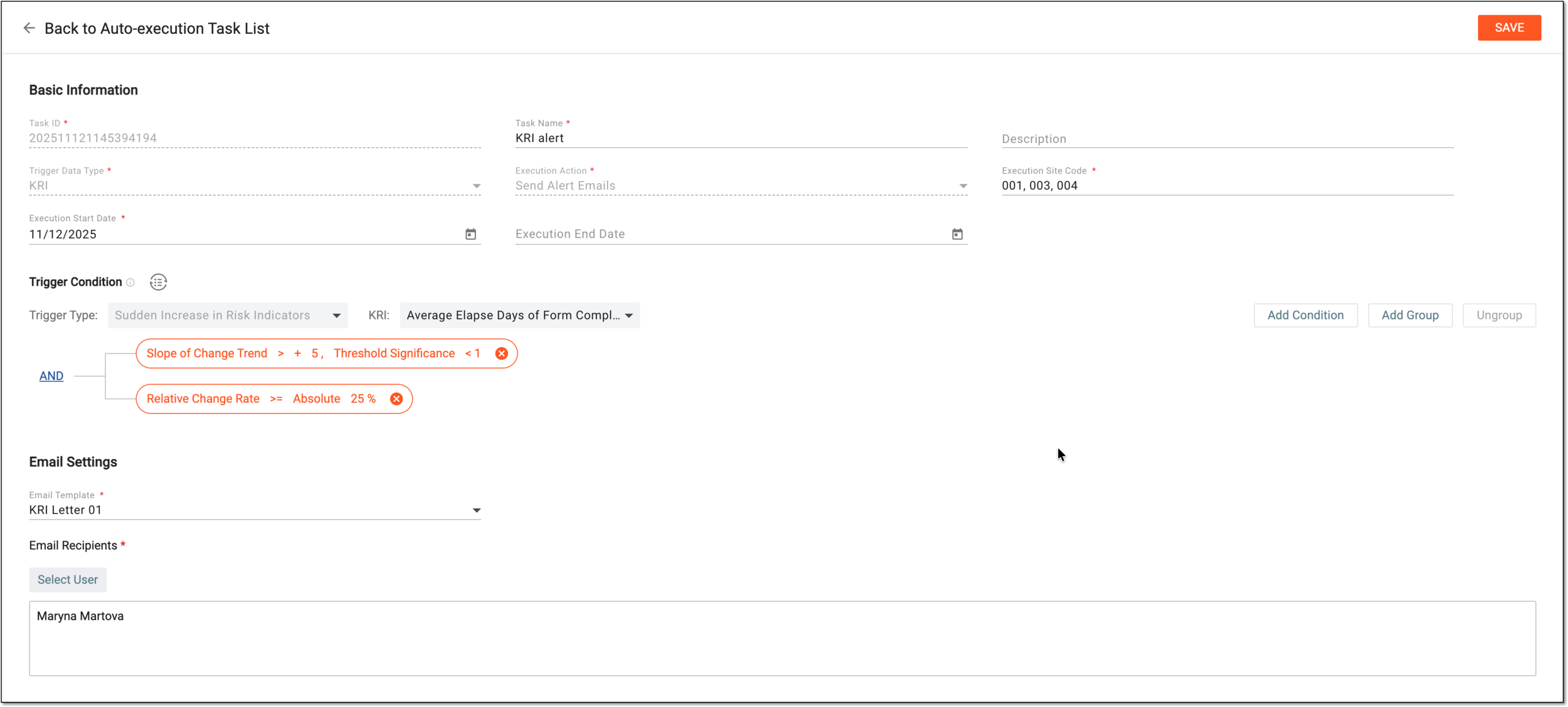 Figure 6. Editing KRI email notification task
-
Once done, the autoexecution task is updated. You can now edit a monitoring visit after it has been generated.