Activate/Inactivate autoexecution task
The autoexecution tasks added to CTMS to trigger for a certain event—monitoring visit creation or KRI email notification—must be active to start executing as configured. You can use activation and inactivation functionality to temporarily halt or reinstate the task triggering according to your business needs.
-
Access the study management page in one of the following ways:
-
In the CTMS application header, select the DASHBOARD tab and then select the study dashboard of your interest.
 Figure 1. Accessing study management from dashboard
-
In the CTMS application header, select the STUDY MANAGEMENT tab. Then from the Study Data List table, select the study name of your interest.
 Figure 2. Accessing study management from study data list
-
-
From the left pane of the study page that opens, select RBM > Auto-execution Engine.
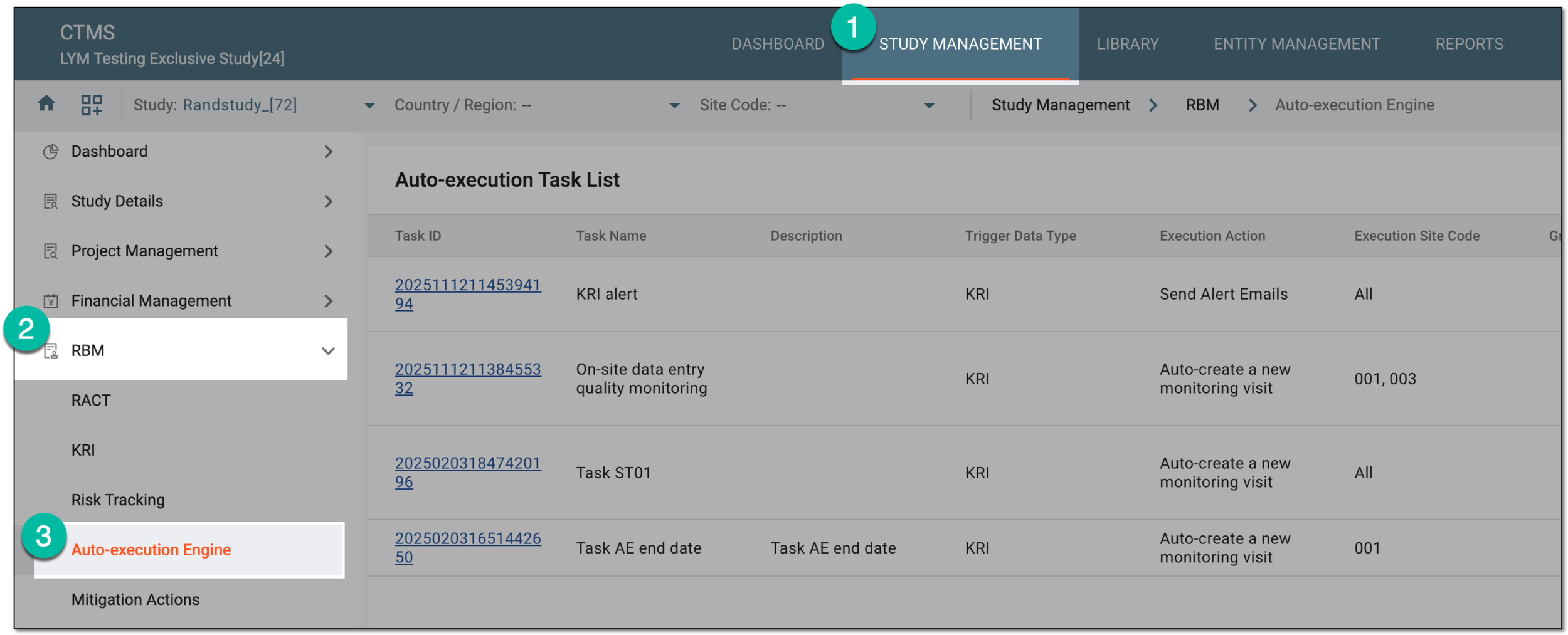 Figure 3. Accessing autoexecution engine
-
In the Auto-execution Task List table that appears, select Inactivate
 next to
the autoexecution task in order to deactivate it. Or select Activate
next to
the autoexecution task in order to deactivate it. Or select Activate  next to the inactive autoexecution task in order to
activate it.
next to the inactive autoexecution task in order to
activate it.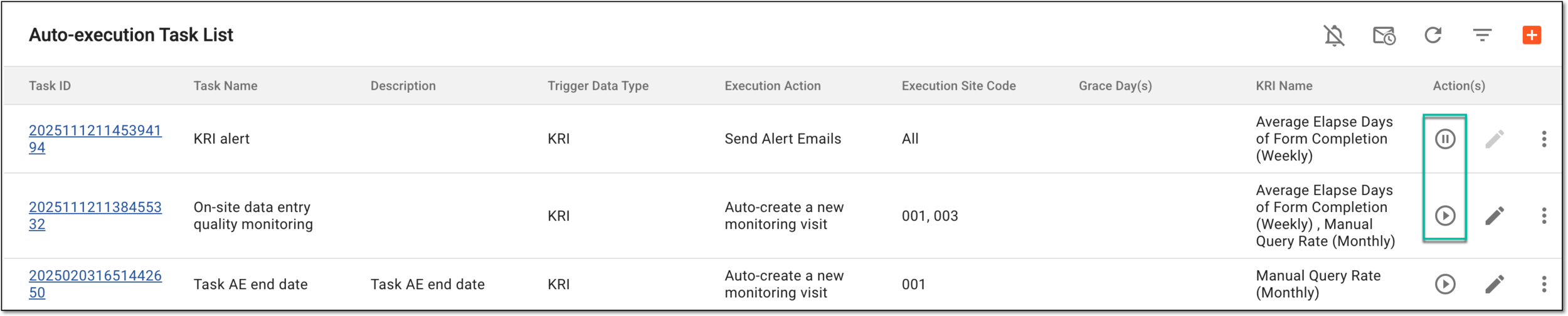 Figure 4. Activating and inactivating autoexecution task
-
If you are inactivating the active task, then in the Reason dialog that appears, provide the details to justify your action. Then select
 .
.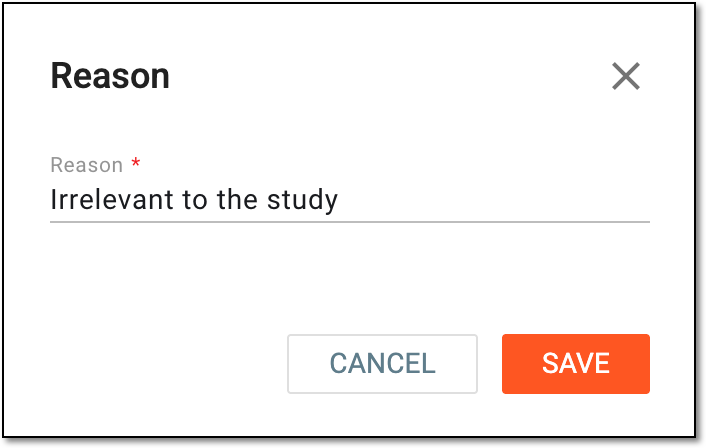 Figure 5. Providing reason for task inactivation
Once confirmed, the autoexecution task is activated or inactivated. Active tasks start running according to their schedule.