View reference items of autoexecution task
The autoexecution tasks added to CTMS to trigger for a certain event—monitoring visit creation or KRI email notification—can be edited to adjust them to your evolving business needs.
For the autoexecution tasks that resulted in creation of monitoring visits, you can refers to the list of such visits in a separate dialog so you know how many of them have already been generated and analyze their details.
-
Access the study management page in one of the following ways:
-
In the CTMS application header, select the DASHBOARD tab and then select the study dashboard of your interest.
 Figure 1. Accessing study management from dashboard
-
In the CTMS application header, select the STUDY MANAGEMENT tab. Then from the Study Data List table, select the study name of your interest.
 Figure 2. Accessing study management from study data list
-
-
From the left pane of the study page that opens, select RBM > Auto-execution Engine.
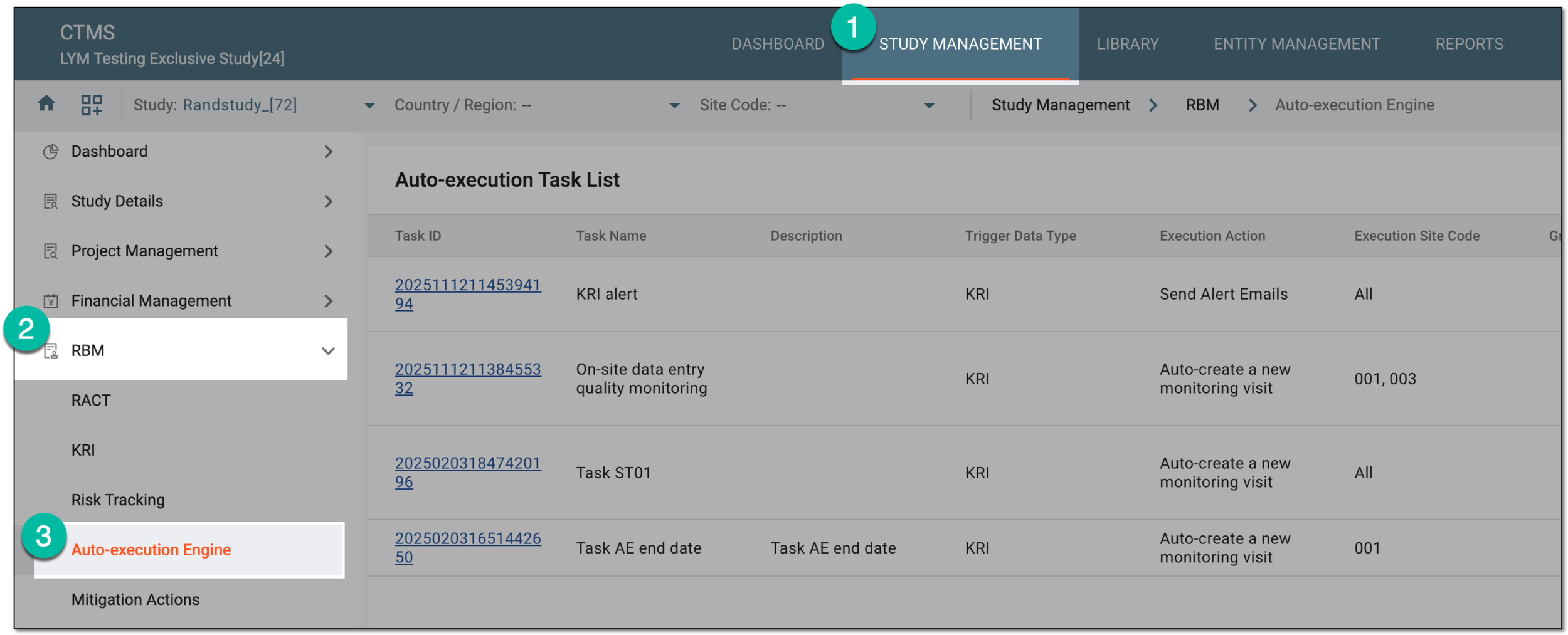 Figure 3. Accessing autoexecution engine
-
In the Auto-execution Task List table that appears, next to the needed task, select More
 > Reference Items
  .
.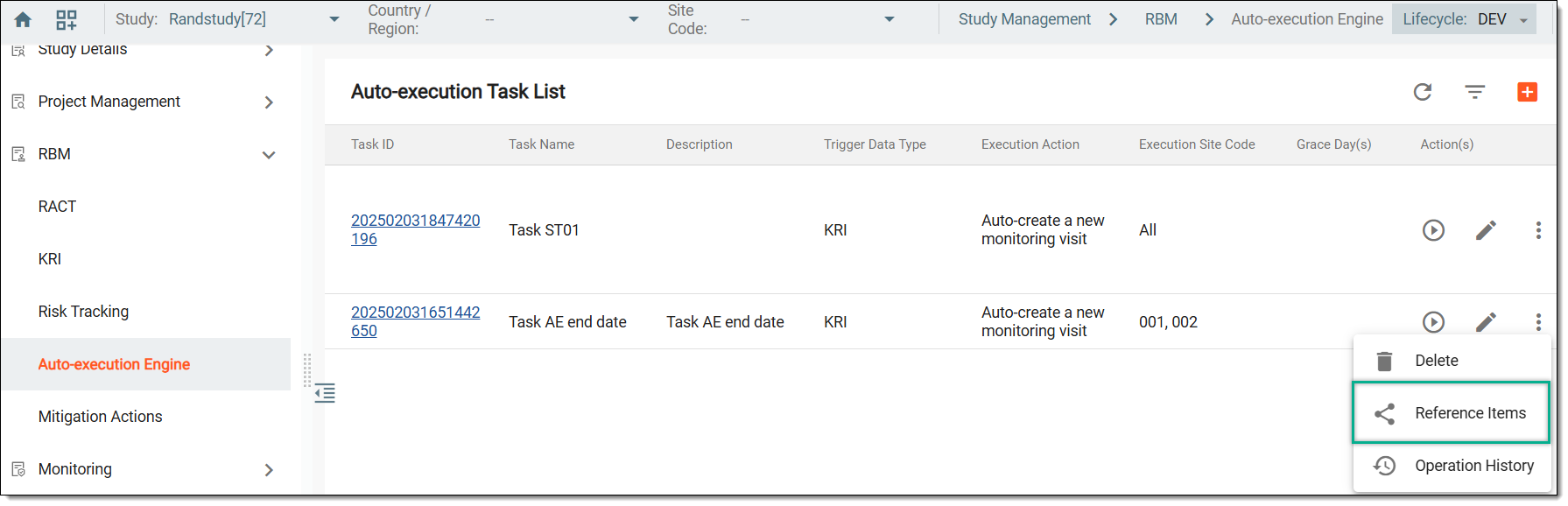 Figure 4. Accessing reference items of task
-
In the Reference Items dialog that appears, view the full list of monitoring visits that have been generated based on the selected autoexecution task.
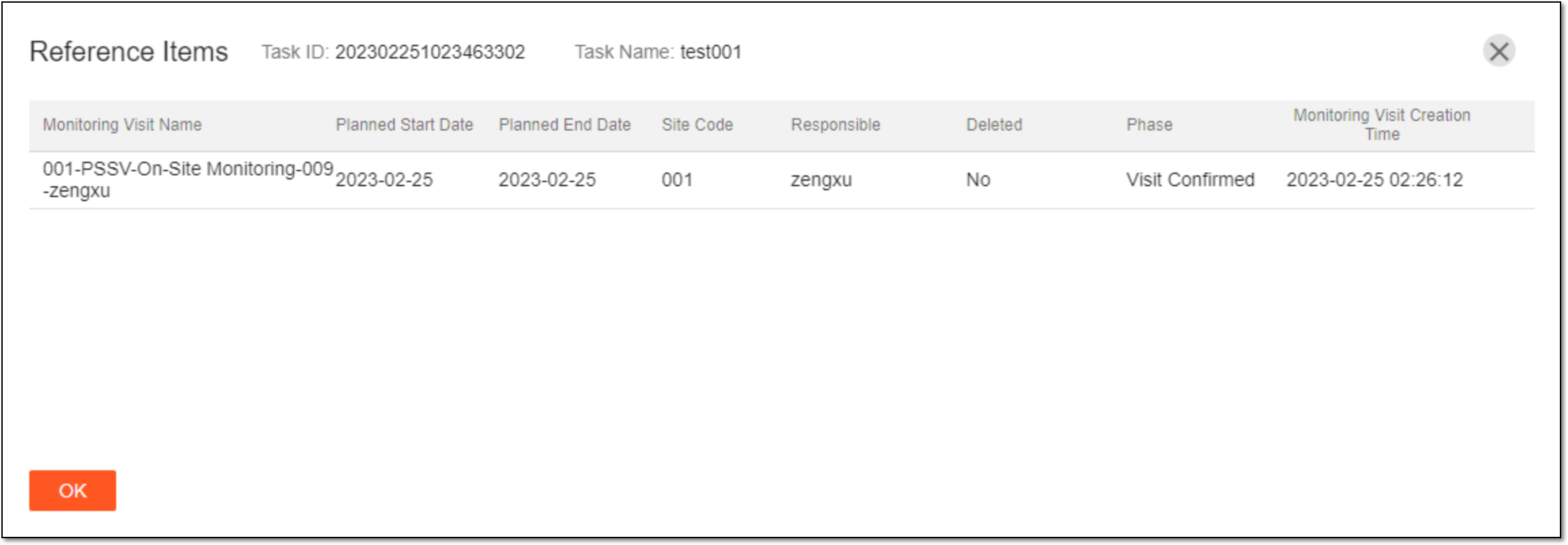 Figure 5. Viewing reference items of autoexecution task
Once viewed, select  to close the Reference Items dialog.