Analyze operation history of autoexecution task
The autoexecution tasks added to CTMS to trigger for a certain event—monitoring visit creation or KRI email notification—can be modified in the course of a clinical trial. It is vital to keep record of such changes for compliance and traceability reasons. The operation history provides an exhaustive, structured log of events, helping you trace what they were, who performed them, and when.
-
Access the study management page in one of the following ways:
-
In the CTMS application header, select the DASHBOARD tab and then select the study dashboard of your interest.
 Figure 1. Accessing study management from dashboard
-
In the CTMS application header, select the STUDY MANAGEMENT tab. Then from the Study Data List table, select the study name of your interest.
 Figure 2. Accessing study management from study data list
-
-
From the left pane of the study page that opens, select RBM > Auto-execution Engine.
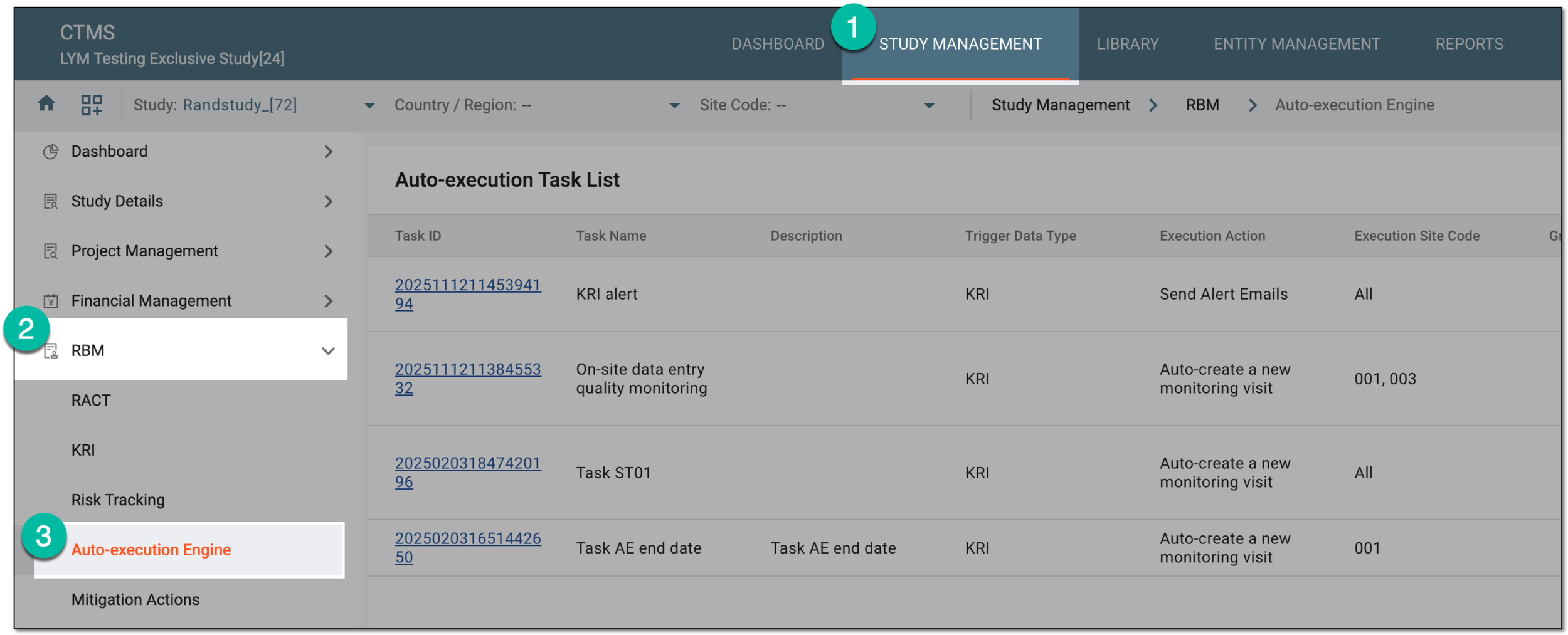 Figure 3. Accessing autoexecution engine
-
In the Auto-execution Task List table that appears, next to the needed autoexecution task, select More
 > Operation History
  .
. Figure 4. Accessing operation history of autoexecution task
-
In the Operation History dialog that opens, analyze the details of all the actions performed with the autoexecution task from its creation and up to date.
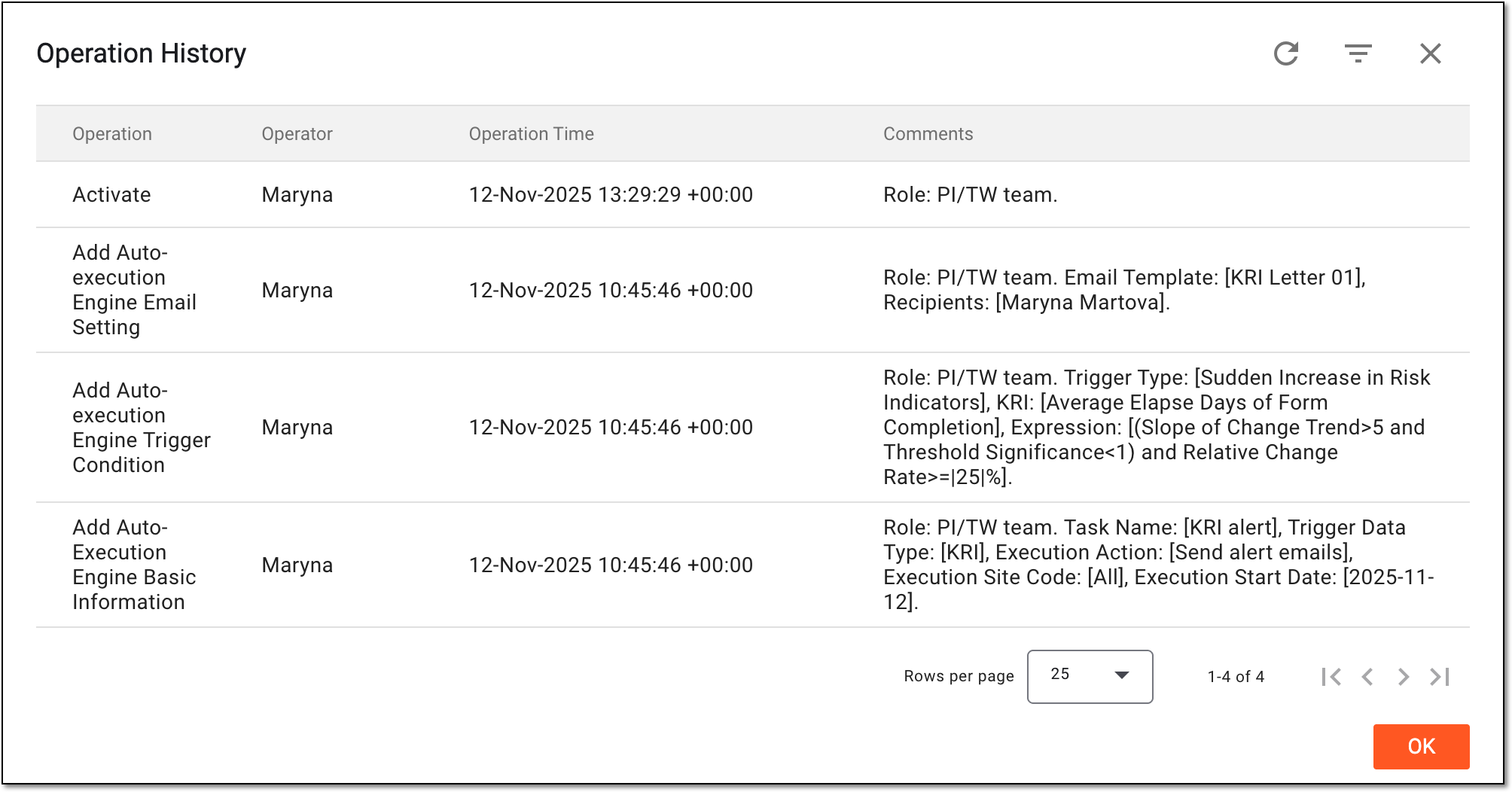 Figure 5. Analyzing operation history of autoexecution task
You have analyzed the operation history for the autoexecution task. You can now select OK to close the dialog and return to Auto-execution Task List.