Check execution log for KRI alert task
In CTMS, you can create an autoexecution task to trigger an alert email and notify the dedicated personnel of the specific Key Risk Indicator (KRI) occurrences, such as trend changes, risk level fluctuations, and so on.
Each time the system runs the task, it checks if the set trigger conditions are met, and if yes, then the alert email is sent to the responsible users. The history of all the executions, as well as the details of the conditions that triggered the alert, are recorded and can be accessed in CTMS.
-
Access the study management page in one of the following ways:
-
In the CTMS application header, select the DASHBOARD tab and then select the study dashboard of your interest.
 Figure 1. Accessing study management from dashboard
-
In the CTMS application header, select the STUDY MANAGEMENT tab. Then from the Study Data List table, select the study name of your interest.
 Figure 2. Accessing study management from study data list
-
-
From the left pane of the study page that opens, select RBM > Auto-execution Engine.
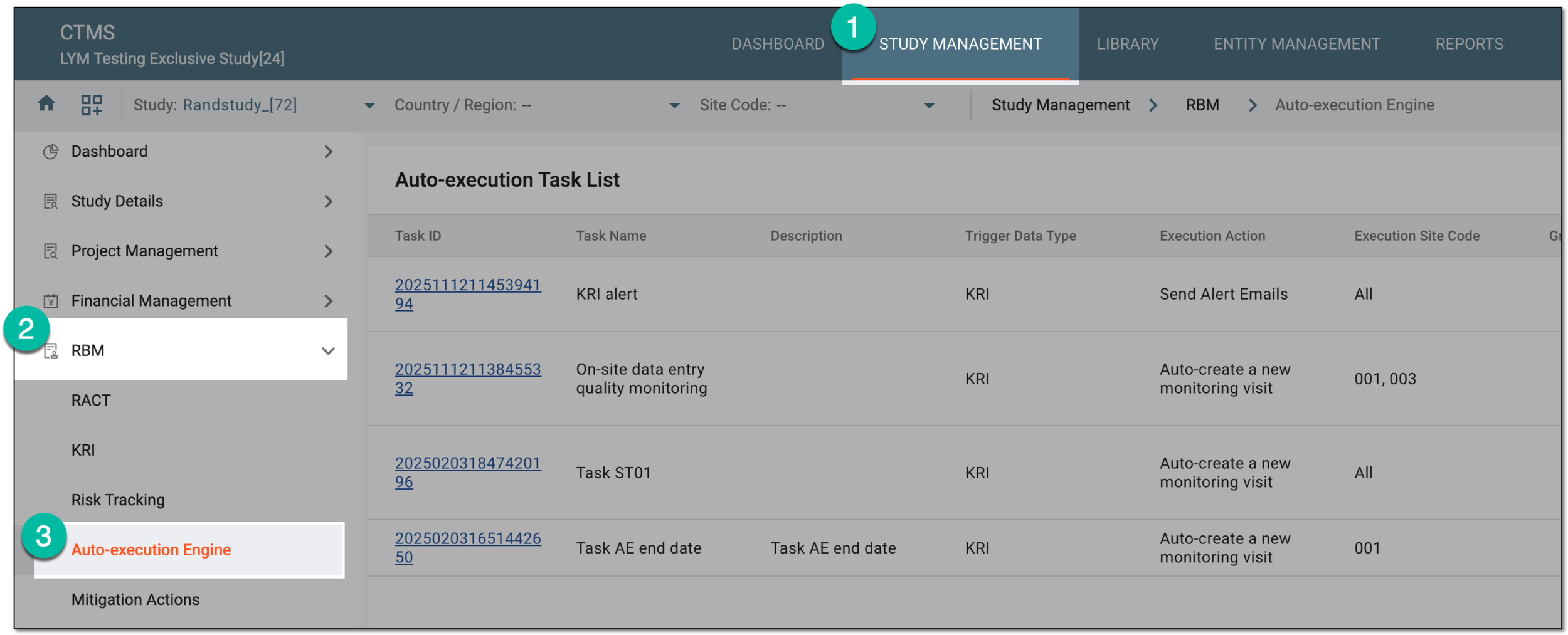 Figure 3. Accessing autoexecution engine
-
In the Auto-execution Task List table that appears, next to the needed autoexecution task, select More
 > Execution Log
  .
.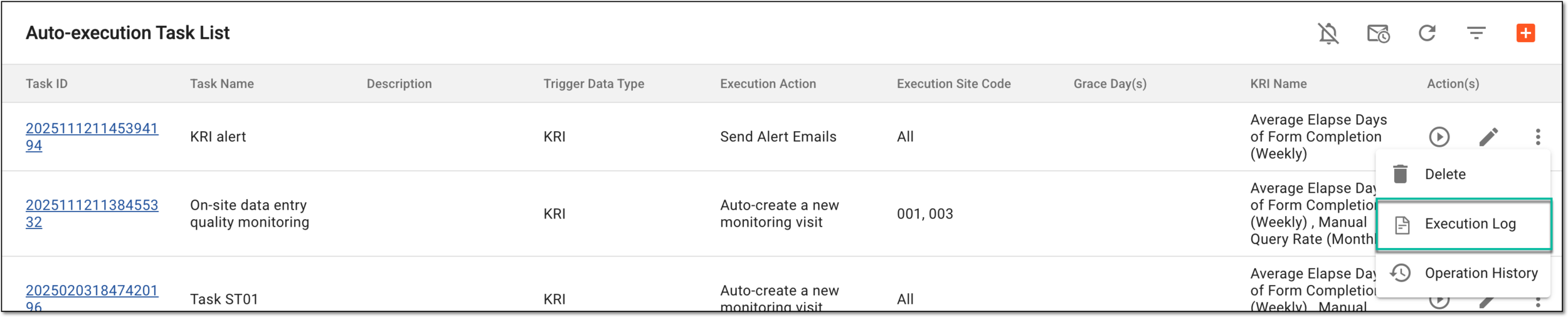 Figure 4. Accessing execution log for KRI alert task
-
On the Execution Log page that opens, check the complete record of all executions at different time, their trigger conditions, and whether they resulted in sending the alert email.
 Figure 5. Checking execution log for KRI alert task
-
Next to the execution log record whose details you want to analyze, from the Action(s) column, select Execution Details
 .
. -
In the Execution Details dialog that opens, at the top, you can see the time when the task was executed. In the table, you can analyze the details of KRI statistics per site according to the set trigger conditions of the executed task.
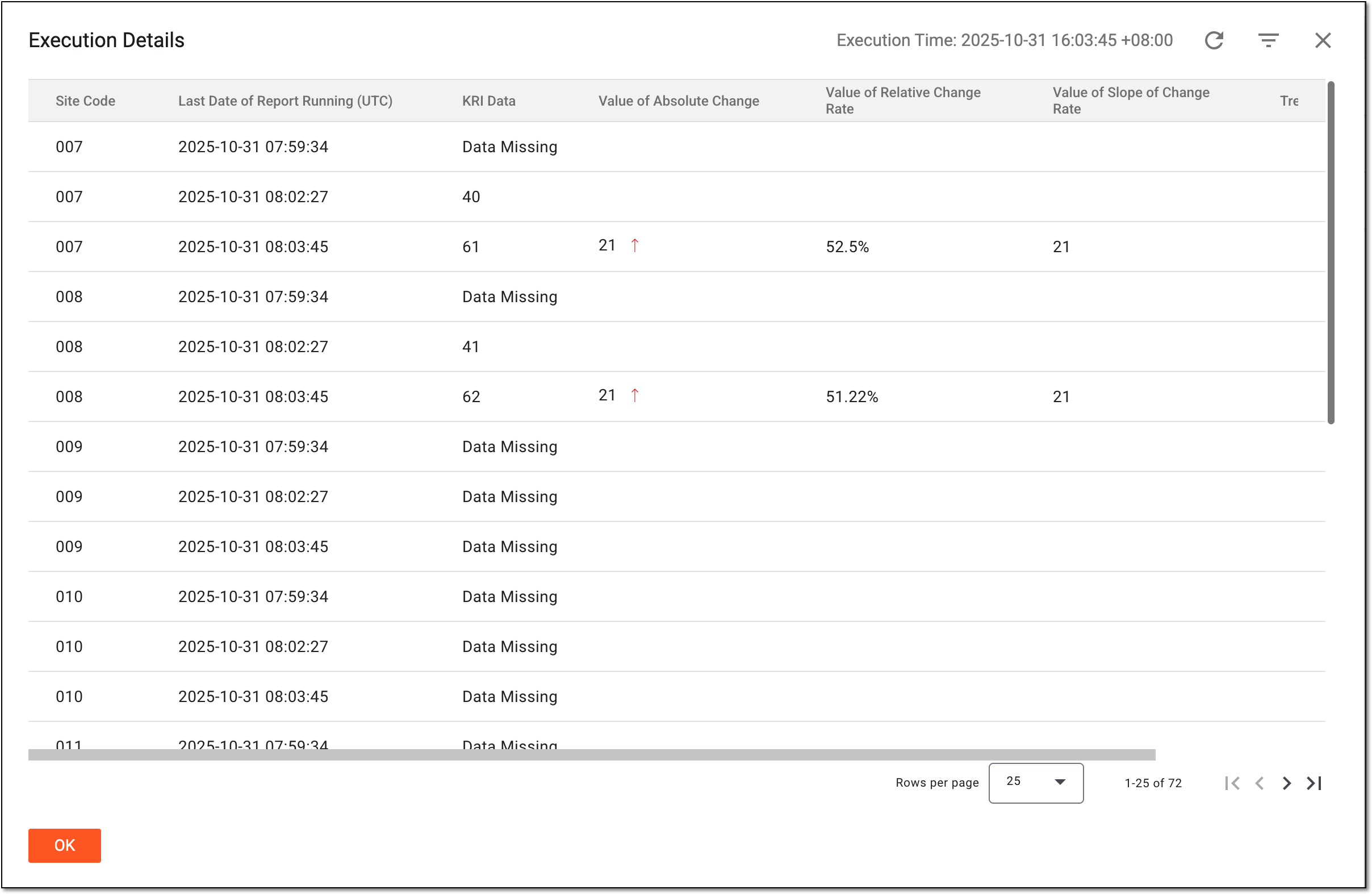 Figure 6. Analyzing execution details
You have checked the log of KRI alert task executions and studied the details of the specific execution.