Mitigation actions
Mitigation actions are crucial for risk management, enabling the tracking and oversight of actions taken to address identified risks. These actions are designed to proactively minimize risk impact through targeted corrective or preventive measures. By ensuring operational stability, regulatory compliance, and overall efficiency, mitigation actions play a vital role in effective risk management. Assigning responsibility to risk owners, monitoring progress, and prioritizing tasks ensures that risks are systematically managed and resolved in a timely manner.
In the Mitigation Actions subtab, the actions are fetched and listed from the risk assessment conducted as part of the KRI-driven evaluation. This tab provides a centralized view of all mitigation actions so you can conveniently manage them as explained in the following sections.
Managing mitigation actions is a crucial component of risk management, enabling the tracking and oversight of actions taken to address identified risks. These actions are designed to proactively minimize risk impact through targeted corrective or preventive measures.
Important
Note that under the Mitigation Actions subtab, you cannot create a mitigation action; you can only manage it. These actions are added and associated with the risks assessed in the Risk Tracking subtab.
-
Access the study management page in one of the following ways:
-
In the CTMS application header, select the DASHBOARD tab and then select the study dashboard of your interest.
 Figure 1. Accessing study management from dashboard
-
In the CTMS application header, select the STUDY MANAGEMENT tab. Then from the Study Data List table, select the study name of your interest.
 Figure 2. Accessing study management from study data list
-
-
On the study page that opens, in the left pane, select RBM > Mitigation Actions.
-
In the Mitigation Actions table, view the mitigation action details in the columns and manage them as explained in the following table.
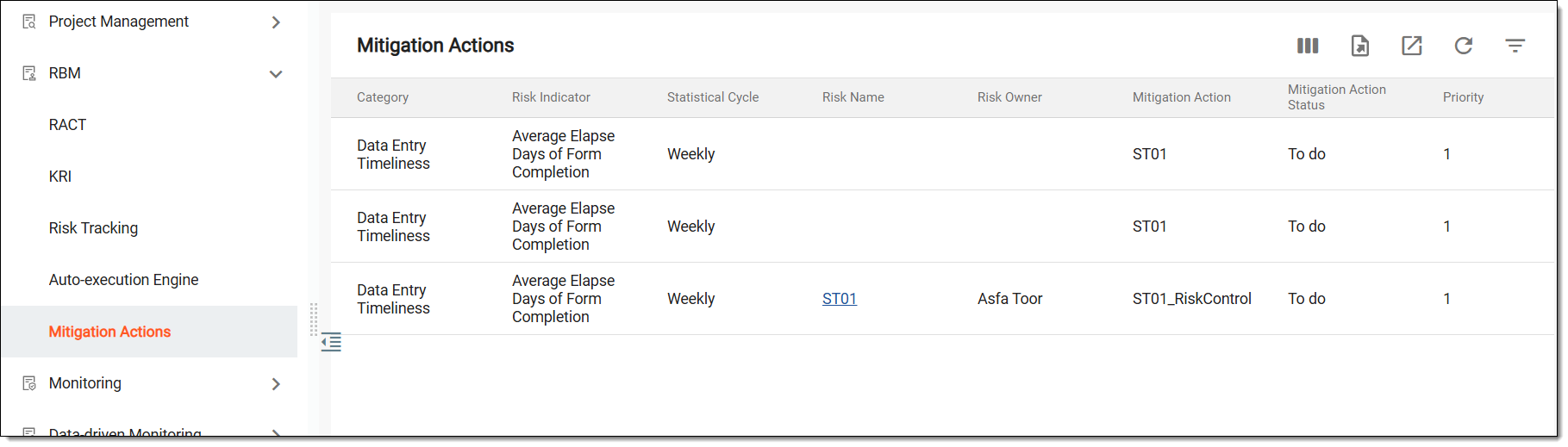 Figure 3. Managing mitigation actions
Column
Details
Category
Displays the category for the created KRI-driven assessment entity that reflects its purpose as defined while adding the entity.
Risk Indicator
Displays the available risk indicators that define the created KRI-driven assessment entity.
Statistical Cycle
Displays the frequency at which risk indicator data is evaluated and reported.
Risk Name
Displays the name of the risk assessment entity to which the mitigation action is associated. Upon selecting the link, you are redirected to the risk assessment where you can manage the risk.
Risk Owner
Displays the owner of the created risk assessment entity.
Mitigation Action
Displays the name of the action taken to mitigate or manage the risk.
Mitigation Action Status
Displays the current status of the mitigation action, such as To Do, Doing, or Done.
Priority
Displays a value indicating the urgency level of the mitigation action, such as 1 signifies the utmost priority, followed by 2, and so on.
Assignee
Displays the person responsible for executing the mitigation action.
Action Closure Date
Displays the expected or actual date when the mitigation action is completed.
Need Review
Indicates whether the mitigation action requires further review.
Reviewer
Displays the person responsible for reviewing the effectiveness of the mitigation action.
Reviewed Date
Displays the date when the mitigation action was reviewed.
Description
Displays any additional details regarding the mitigation action.
Once the mitigation action details are reviewed and the action is managed, the risks are proactively minimized, avoided, and resolved.
Mitigation actions are a crucial component of risk management, enabling the tracking and oversight of actions taken to address identified risks. These actions are designed to proactively minimize risk impact through targeted corrective or preventive measures.
Important
Note that under the Mitigation Actions subtab, you cannot create a mitigation action; you can only manage it. These actions are added and associated with the risks assessed in the Risk Tracking subtab.
You can export the mitigation actions to generate and download a comprehensive report of all mitigation actions recorded in the system. The exported data can be used for audits, reporting, or further evaluation to enhance the effectiveness of risk mitigation strategies.
-
Access the study management page in one of the following ways:
-
In the CTMS application header, select the DASHBOARD tab and then select the study dashboard of your interest.
Figure 1. Accessing study management from dashboard
-
In the CTMS application header, select the STUDY MANAGEMENT tab. Then from the Study Data List table, select the study name of your interest.
Figure 2. Accessing study management from study data list
-
-
On the study page that opens, in the left pane, select RBM > Mitigation Actions.
-
In the Mitigation Actions table, from the workspace toolbar, select Export .
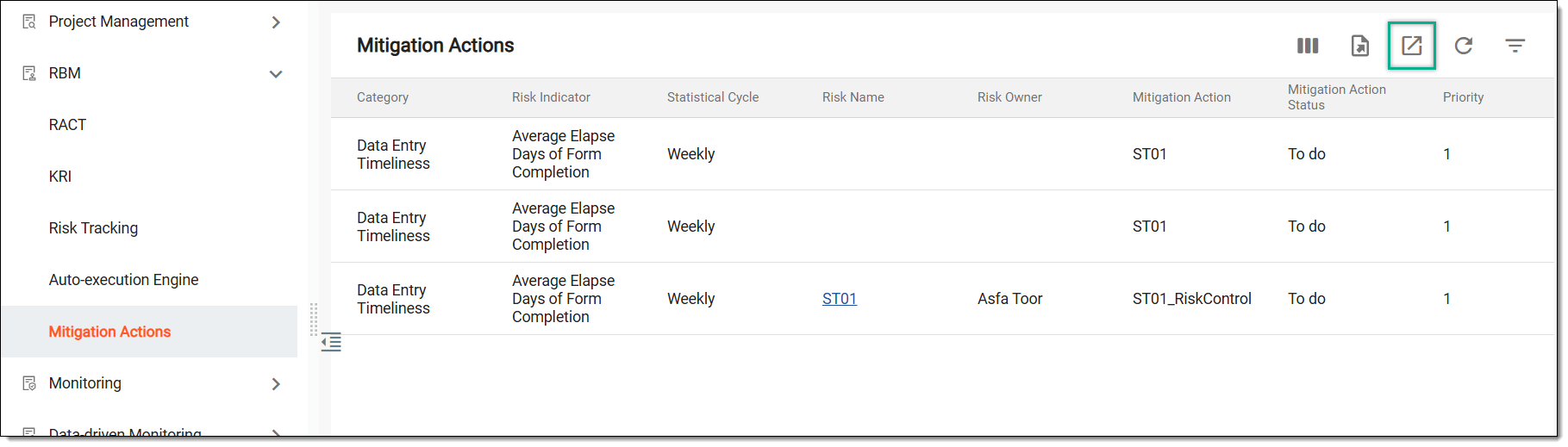 Figure 3. Exporting mitigation actions
-
The downloads widget appears showing the export progress. Select the widget to access exported files.
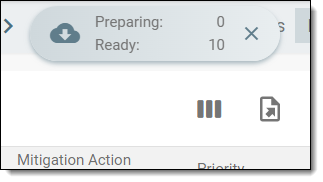 Figure 4. Download widget showing mitigation actions being exported
-
In the My Downloads dialog that appears, in the Download is Ready tab, select
 next to the required exported file.
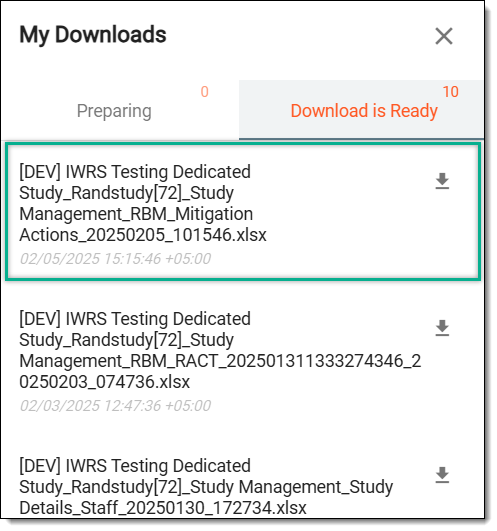 Figure 5. Downloading mitigation actions
Once selected, the list of mitigation actions is downloaded as an XLSX file to your computer.