Silencing alerts for sites
In CTMS, you can create autoexecution tasks to trigger alert emails and notify the dedicated personnel of the specific Key Risk Indicator (KRI) occurrences—trend changes, risk level fluctuations, and so on—at the study sites.
If there are sites whose KRI data should be excluded from calculating the statistics for alert emails, you can add them to the Silence Alerts list. Having a separate list of sites with silenced alerts ensures easy and clear management of data calculation in case you need to check the reasoning, see attachments, edit the details, or remove the site from the list.
The details of the Silence Alerts list you can find explained in the following table.

|
Element |
Details |
|
|---|---|---|
|
Site Code |
Represents the unique identifier of the site that is currently excluded from the statistics tracking according to the autoexecution tasks. |
|
|
Execution Action |
Represents the type of the autoexecution task for which the site is excluded from the statistics tracking. Currently, only the Send Alert Emails task type is available here. |
|
|
Reason |
Represents the reason why the site is added to the silenced list and excluded from the statistics tracking. |
|
|
Attachments |
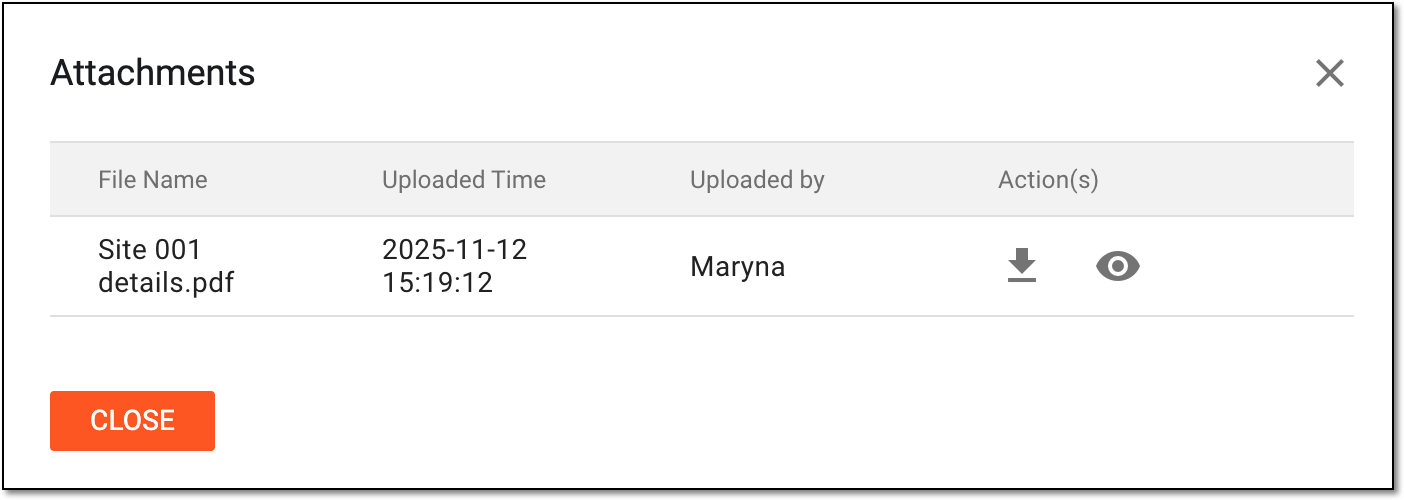
Represents the number of attached files that define the reason or support in any way the site's exclusion from the statistics tracking. Selecting this number opens the Attachments dialog, where you can check the complete list of uploaded documents, as well as use the
Preview
Figure 2. Checking attachment list
|


If any sites are not intended for KRI tracking, or you do not need to alert the dedicated personnel of this site's risk indicator fluctuations, you can exclude the site from statistical analysis by adding them to the silenced alert list.
-
Access the study management page in one of the following ways:
-
In the CTMS application header, select the DASHBOARD tab and then select the study dashboard of your interest.
 Figure 1. Accessing study management from dashboard
-
In the CTMS application header, select the STUDY MANAGEMENT tab. Then from the Study Data List table, select the study name of your interest.
 Figure 2. Accessing study management from study data list
-
-
From the left pane of the study page that opens, select RBM > Auto-execution Engine.
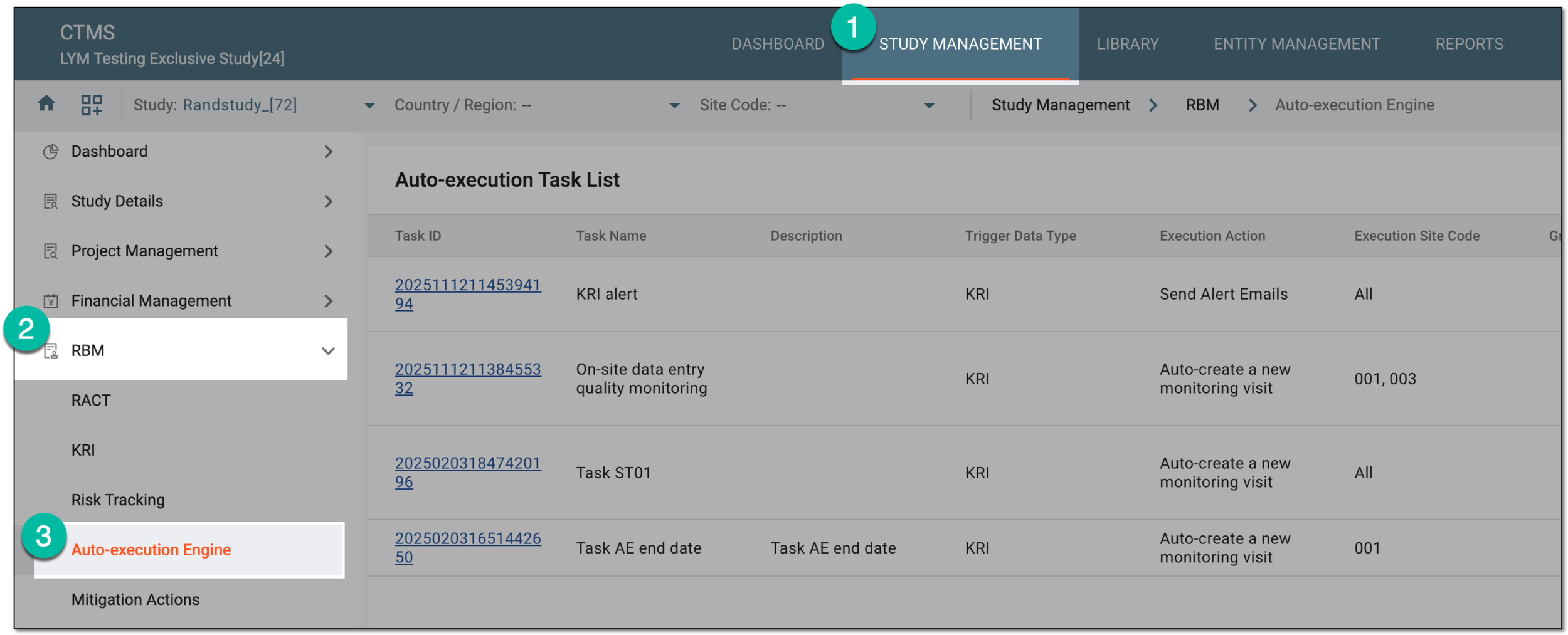 Figure 3. Accessing autoexecution engine
-
From the workspace toolbar of the Auto-execution Task List table that appears, select Silence Alerts
 .
. Figure 4. Accessing alert silencing functionality
-
On the Silence Alerts page that appears, from the workspace toolbar, select New
 .
. Figure 5. Selecting option to add alert silencing for site
-
In the New dialog that opens, add the site for alert silencing as explained in the following table.
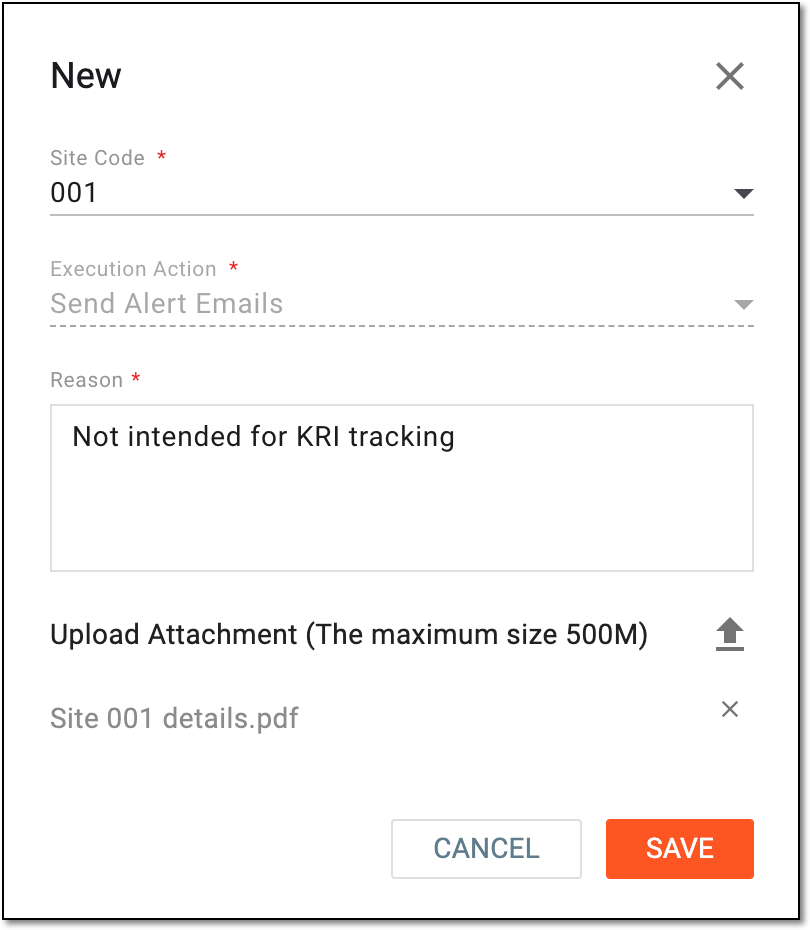 Figure 6. Silencing alerts for site
Tip
In the following table, mandatory elements are marked with an asterisk (*).
Element
Details
Site Code*
Select the code of the site that you want to exclude from the statistics tracking according to the alert tasks configured in the autoexecution engine.
Execution Action*
Represents the type of the autoexecution task for which the site is excluded from the statistics tracking; Send Alert Emails is selected by default and cannot be changed.
Reason*
Enter the reason to justify the decision to exclude the selected site from the statistics tracking.
Upload Attachment (The maximum size 500M)
Select
 to attach a file that in any way supports or justifies the decision to exclude the selected site from the statistics tracking.
SAVE
Select
 to implement the changes.
CANCEL
Select
 to close the dialog and discard the changes without saving.
Once saved, the selected site is added to the list and its statistical data is no longer tracked according to the configured alert tasks.
In CTMS, you can create autoexecution tasks to trigger alert emails and notify the dedicated personnel of the specific Key Risk Indicator (KRI) occurrences—trend changes, risk level fluctuations, and so on—at the study sites.
If there are any sites that were excluded from the statistics tracking according to the configured alert tasks, you can include them back by removing such sites from the Silence Alerts list.
-
Access the study management page in one of the following ways:
-
In the CTMS application header, select the DASHBOARD tab and then select the study dashboard of your interest.
Figure 1. Accessing study management from dashboard
-
In the CTMS application header, select the STUDY MANAGEMENT tab. Then from the Study Data List table, select the study name of your interest.
Figure 2. Accessing study management from study data list
-
-
From the left pane of the study page that opens, select RBM > Auto-execution Engine.
Figure 3. Accessing autoexecution engine
-
From the workspace toolbar of the Auto-execution Task List table that appears, select Silence Alerts
.Figure 4. Accessing alert silencing functionality
-
In the Silence Alerts list that appears, locate the site that you want to include into the statistics tracking according to configured alert tasks. Then from the Action(s) column next to it, select Delete
 .
. Figure 5. Selecting option to delete site from alert silencing list
-
In the Reason dialog that opens, enter the reason to justify your action. Then select
.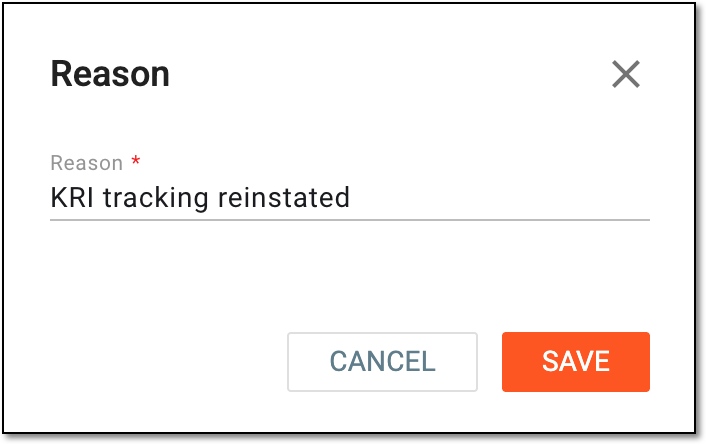 Figure 6. Providing reason to enable site alerts
Once saved, the site is removed from the list and its statistical data is now tracked according to the configured alert tasks. Once the task is run and the trigger conditions are met at the site, the alert email is sent to the dedicated personnel.
If any sites are not intended for KRI tracking, or you do not need to alert the dedicated personnel of this site's risk indicator fluctuations, you can exclude the site from statistical analysis by adding the sites to the silenced alert list.
Once added, there can be cases that you need to update the details, such as change the reasoning or attach the files pertinent to the site.
-
Access the study management page in one of the following ways:
-
In the CTMS application header, select the DASHBOARD tab and then select the study dashboard of your interest.
Figure 1. Accessing study management from dashboard
-
In the CTMS application header, select the STUDY MANAGEMENT tab. Then from the Study Data List table, select the study name of your interest.
Figure 2. Accessing study management from study data list
-
-
From the left pane of the study page that opens, select RBM > Auto-execution Engine.
Figure 3. Accessing autoexecution engine
-
From the workspace toolbar of the Auto-execution Task List table that appears, select Silence Alerts
.Figure 4. Accessing alert silencing functionality
-
In the Silence Alerts list that appears, locate the site whose details you need to update. Then from the Action(s) column next to it, select Edit
 .
. Figure 5. Selecting option to edit site on silenced list
-
In the Edit dialog that opens, update the site details as needed. These details are identical to the ones explained in the table of the Add site to silenced alert list section.
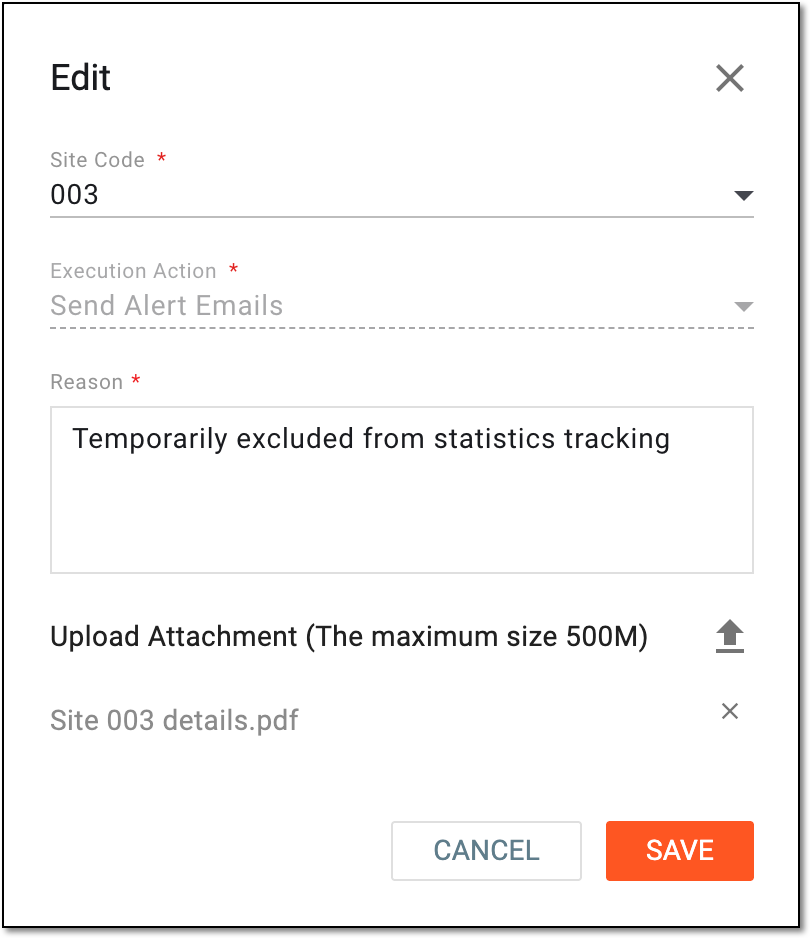 Figure 6. Editing details for site on silenced list
-
Select
to implement the changes.
Once saved, the selected site details are updated.
If any sites are not intended for KRI tracking, or you do not need to alert the dedicated personnel of this site's risk indicator fluctuations, you can exclude the site from statistical analysis by adding them to the silenced alert list.
In the course of a clinical trial, various modifications can be made to the silenced alert list, and it is vital to keep record of such changes for compliance and traceability reasons. The operation history provides an exhaustive, structured log of events, helping you trace what they were, who performed them, and when.
-
Access the study management page in one of the following ways:
-
In the CTMS application header, select the DASHBOARD tab and then select the study dashboard of your interest.
Figure 1. Accessing study management from dashboard
-
In the CTMS application header, select the STUDY MANAGEMENT tab. Then from the Study Data List table, select the study name of your interest.
Figure 2. Accessing study management from study data list
-
-
From the left pane of the study page that opens, select RBM > Auto-execution Engine.
Figure 3. Accessing autoexecution engine
-
From the workspace toolbar of the Auto-execution Task List table that appears, select Silence Alerts
.Figure 4. Accessing alert silencing functionality
-
On the Silence Alerts page that appears, from the workspace toolbar, select Operation History
 .
. Figure 5. Accessing operation history for silenced alert list
-
In the Operation History dialog that opens, analyze the details of all the actions performed with the silenced alert list, such as adding, removing, or editing sites.
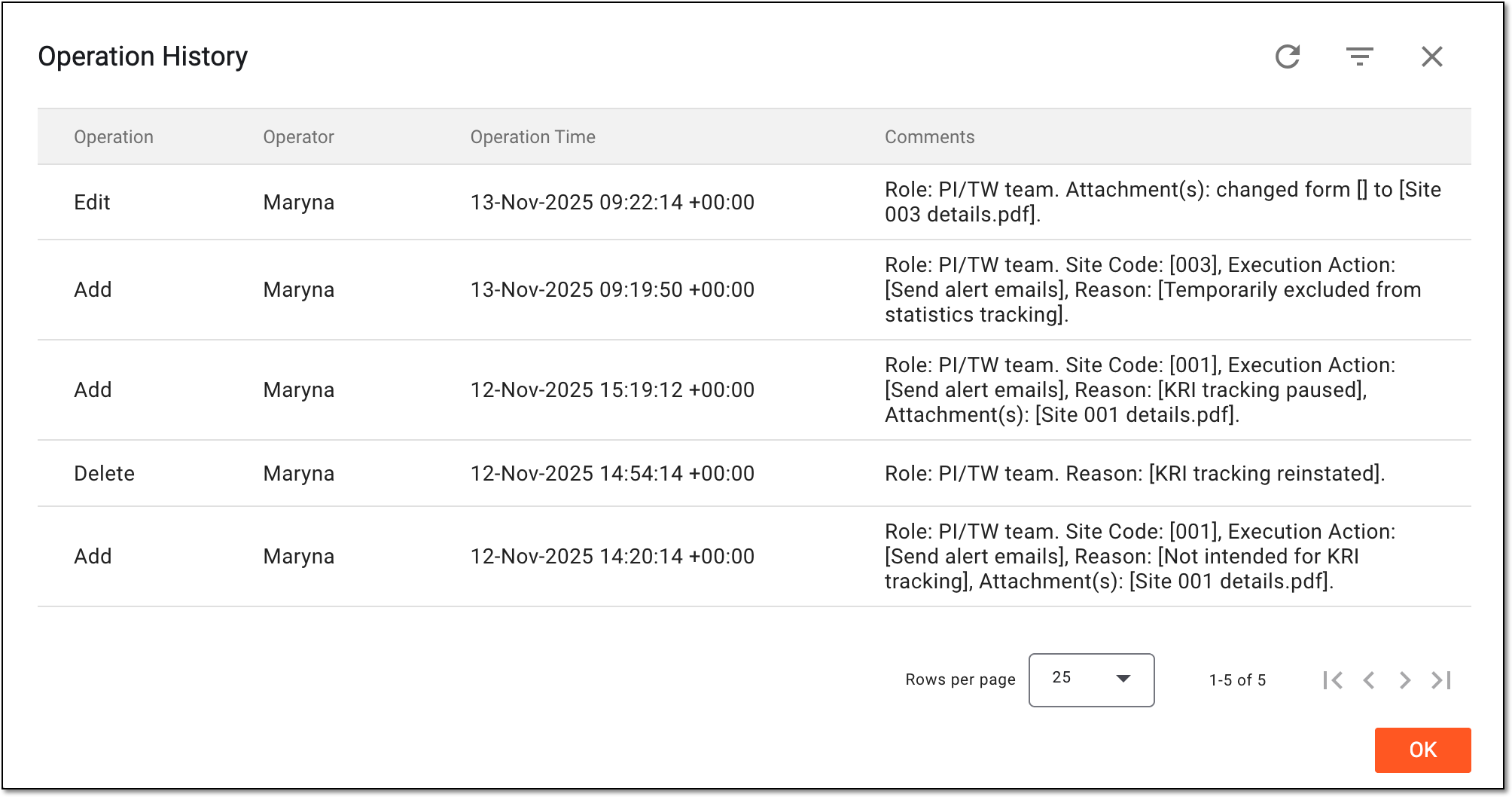 Figure 6. Analyzing operation history for silenced alert list
You have analyzed the operation history for the silenced alert list. You can now select OK to close the dialog and return to the Silence Alerts page.