Check mail history for KRI alerts
In CTMS, you can create autoexecution tasks to trigger alert emails and notify the dedicated personnel of the specific Key Risk Indicator (KRI) occurrences—trend changes, risk level fluctuations, and so on—at the study sites.
All the emails sent to users according to configured KRI alert tasks are saved by the CTMS system to Mail History for traceability. You can review the log of sent emails and familiarize yourself with their contents at any time.
-
Access the study management page in one of the following ways:
-
In the CTMS application header, select the DASHBOARD tab and then select the study dashboard of your interest.
 Figure 1. Accessing study management from dashboard
-
In the CTMS application header, select the STUDY MANAGEMENT tab. Then from the Study Data List table, select the study name of your interest.
 Figure 2. Accessing study management from study data list
-
-
From the left pane of the study page that opens, select RBM > Auto-execution Engine.
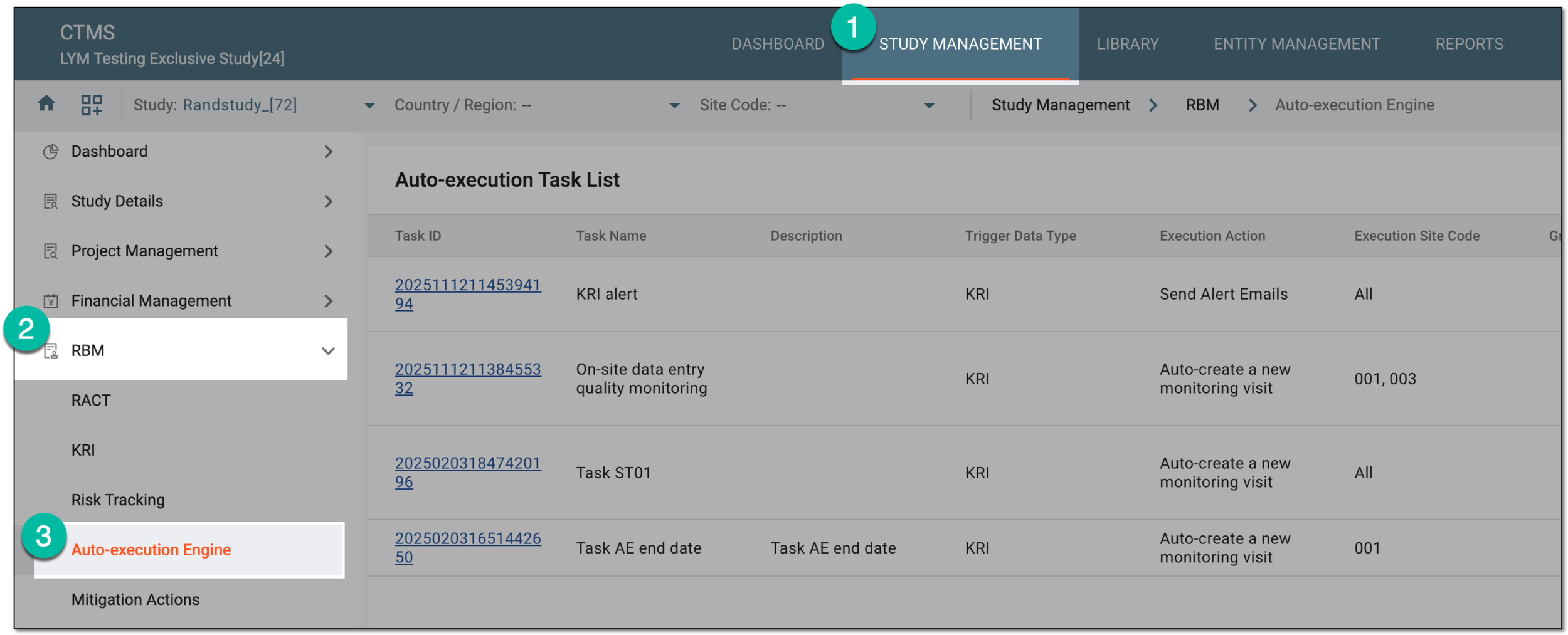 Figure 3. Accessing autoexecution engine
-
From the workspace toolbar of the Auto-execution Task List table that appears, select Mail History
 .
. Figure 4. Accessing task mail history
-
On the Mail History page that opens, analyze the complete log of sent alert emails or use the Preview
 and Download
  options to familiarize yourself with the needed email's contents.
 Figure 5. Analyzing task alert mail history
You have checked the complete history of emails sent according to executed KRI alert tasks.
Export mail history for KRI alerts
In CTMS, you can create autoexecution tasks to trigger alert emails and notify the dedicated personnel of the specific Key Risk Indicator (KRI) occurrences—trend changes, risk level fluctuations, and so on—at the study sites.
The complete list of emails sent to users according to configured KRI alert tasks can be extracted as the XLSX file to your computer for sharing with stakeholders or other business purposes.
-
Access the study management page in one of the following ways:
-
In the CTMS application header, select the DASHBOARD tab and then select the study dashboard of your interest.
Figure 1. Accessing study management from dashboard
-
In the CTMS application header, select the STUDY MANAGEMENT tab. Then from the Study Data List table, select the study name of your interest.
Figure 2. Accessing study management from study data list
-
-
From the left pane of the study page that opens, select RBM > Auto-execution Engine.
Figure 3. Accessing autoexecution engine
-
From the workspace toolbar of the Auto-execution Task List table that appears, select Mail History
.Figure 4. Accessing task mail history
-
On the Mail History page that opens, from the workspace toolbar, select Export
 .
. Figure 5. Selecting option to export mail history for KRI alerts
-
In the downloads widget that appears, view your download progress. Select the widget to open the My Downloads dialog.
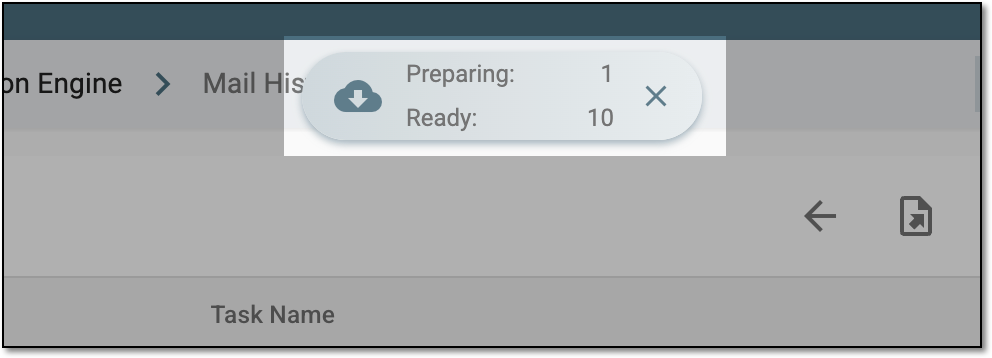 Figure 6. Downloads widget for mail history for KRI alerts
-
In the My Downloads dialog that opens, you can find the following tabs:
-
Preparing: lists all the files whose export is in progress, and they are not yet ready for download. Wait until the needed file moves to the Download is Ready tab.
-
Download is Ready: lists the files whose export is complete, and they can be downloaded to your computer by selecting
.
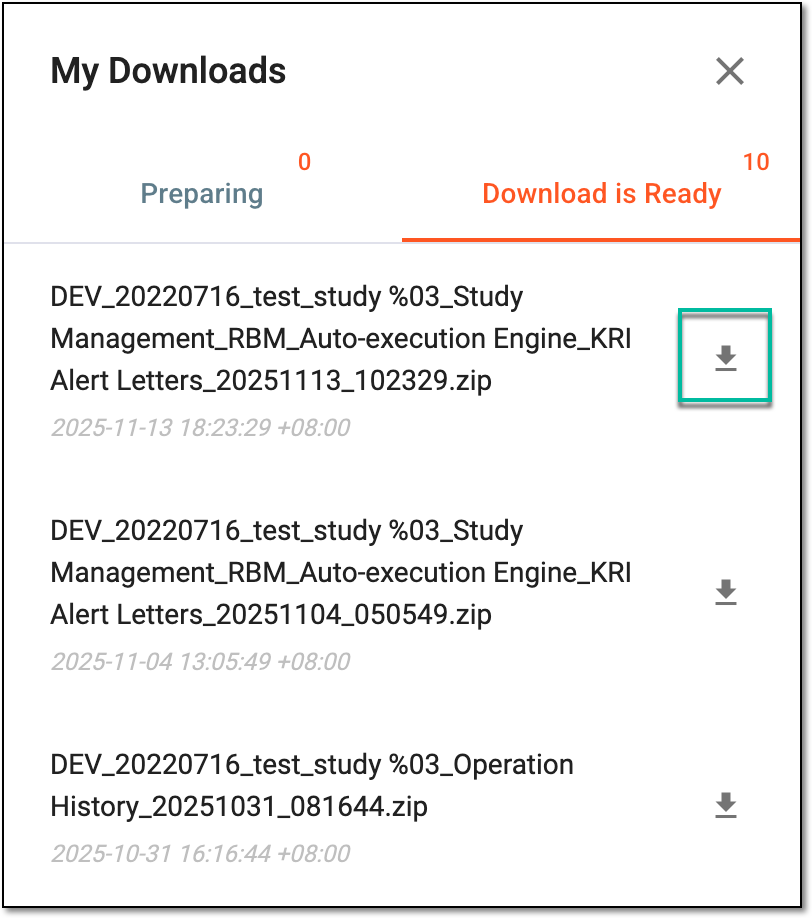 Figure 7. Downloading extracted mail history data
-
Once downloaded and saved, the mail history for KRI alert tasks becomes available on your computer in the XLSX format.
Tip
The extracted file version is saved in the system and can be accessed from Export History  .
.
