Risk assessment and categorization tool (RACT)
The Risk Assessment and Categorization Tool (RACT) feature is used in clinical trials to identify, assess, and categorize potential risks that may impact study operations. It helps study teams systematically evaluate risk factors based on predefined assessment criteria, ensuring proactive risk management.
The following sections explain how you can use this feature to conduct structured risk assessments for different study areas.
In CTMS, you can add a new risk assessment under the RACT (Risk Assessment and Categorization Tool) to document and evaluate potential risks in a clinical trial. Identifying and categorizing risks helps in addressing potential challenges and ensuring that the study stays on track.
-
Access the study management page in one of the following ways:
-
In the CTMS application header, select the DASHBOARD tab and then select the study dashboard of your interest.
 Figure 1. Accessing study management from dashboard
-
In the CTMS application header, select the STUDY MANAGEMENT tab. Then from the Study Data List table, select the study name of your interest.
 Figure 2. Accessing study management from study data list
-
-
On the study page that opens, in the left pane, expand RBM > RACT.
-
On the RACT List page that appears, from the workspace toolbar, select New Item
 .
.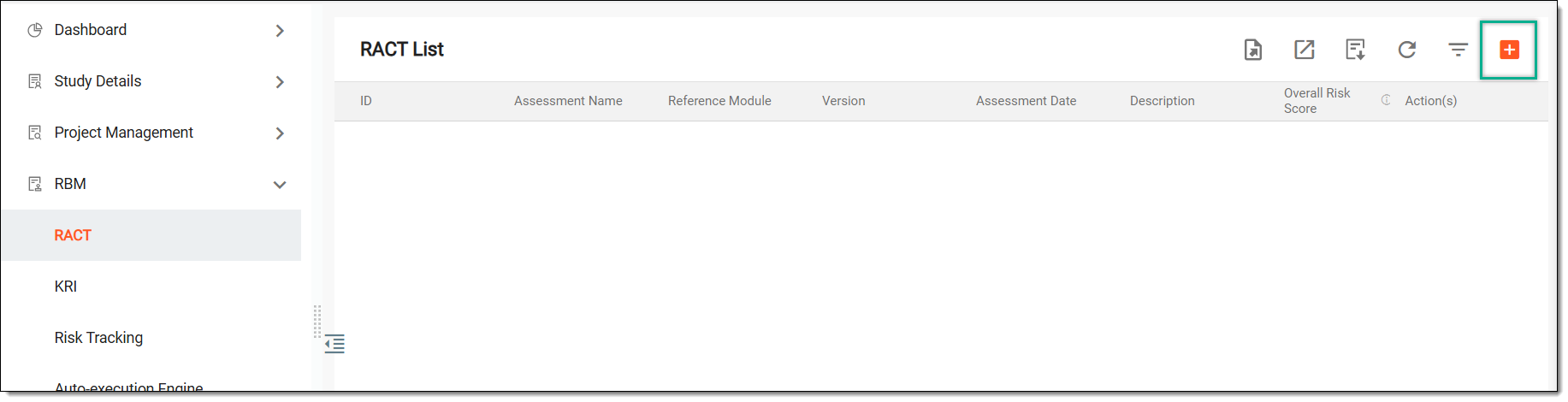 Figure 3. Selecting option to add new risk assessment
-
In the form that appears, provide basic details of the risk assessment as explained in the following table.
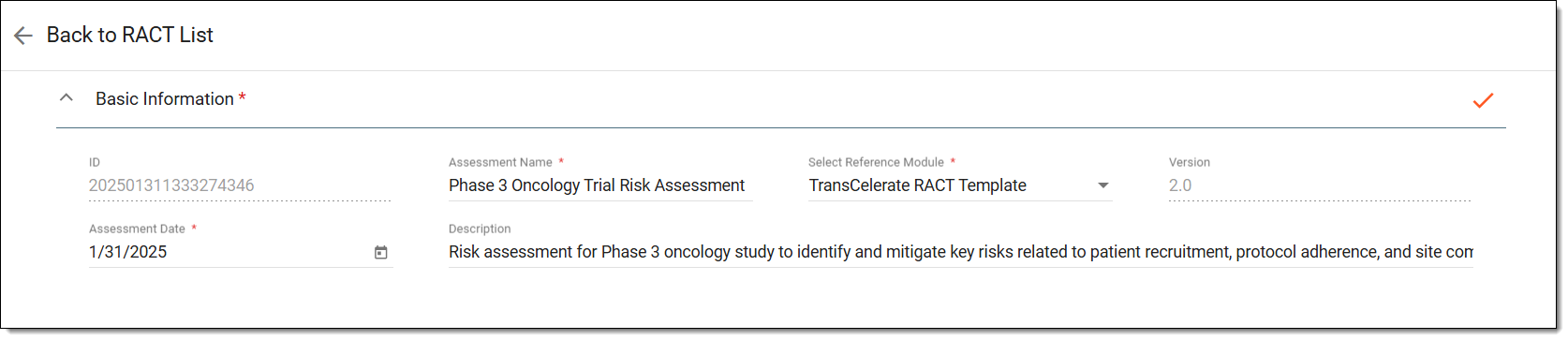 Figure 4. Adding risk assessment. Basic information
Tip
In the following table, mandatory elements are marked with an asterisk (*).
Element
Details
ID
Represents a unique identifier for the risk assessment entry, automatically assigned by the system.
Assessment Name*
Enter a descriptive name for the risk assessment, typically related to the study phase, type, or specific risk evaluation.
Select Reference Module*
Select one of the following predefined template or framework used for the assessment:
-
TransCelerate RACT Template: a predefined template added by the EDETEK administrators.
-
Customization: a custom template you want to use for the risk assessment.
Upload*
If you have selected the option to use a custom template in the previous field, then here, select
 to upload the template you want to use for the risk assessment from your computer.
Version
Indicates the version of the predefined template selected as a reference module, helping track updates and ensure consistency in assessments.
Assessment Date*
Select the date picker icon
 to choose the date when the risk assessment is conducted or recorded.
Description
Enter a brief summary of the risk assessment, explaining its focus, scope, or key considerations.
Save
Select
 to save your changes and create the new assessment.
If required, you can proceed with the risk assessment configurations right after saving the basic information. Otherwise, you can configure the risk assessment later as well.
Back to RACT List
Select
 to go back to the RACT List table.
 -
Once your changes are saved, you can go back to the RACT List table and view the newly added risk assessment.
In CTMS, a new risk assessment can be added under the RACT (Risk Assessment and Categorization Tool) to document and evaluate potential risks in a clinical trial.
Once created, the assessment can be configured by defining participants responsible for risk management, selecting evaluation criteria with relevant questions, and setting scoring thresholds for risk levels. These configurations are initially based on the selected template or reference module but can be customized as needed to align with specific study requirements.
-
Access the study management page in one of the following ways:
-
In the CTMS application header, select the DASHBOARD tab and then select the study dashboard of your interest.
Figure 1. Accessing study management from dashboard
-
In the CTMS application header, select the STUDY MANAGEMENT tab. Then from the Study Data List table, select the study name of your interest.
Figure 2. Accessing study management from study data list
-
-
On the study page that opens, in the left pane, select RBM > RACT.
-
On the RACT List page that appears, next to the required risk assessment, from the Action(s) column, select Edit
 .
.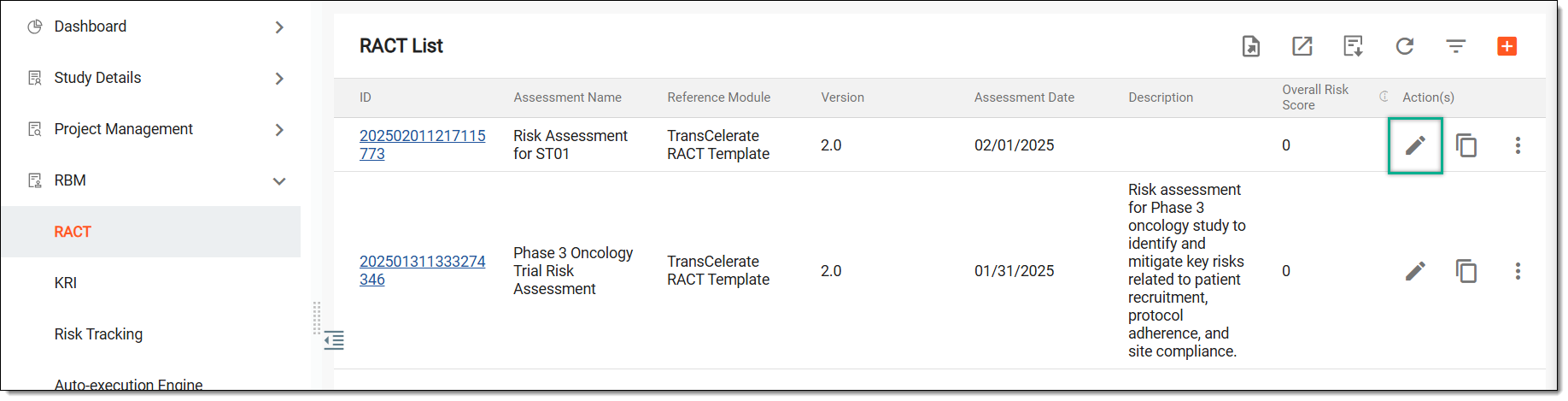 Figure 3. Selecting option to configure risk assessment
-
In the form that appears, you can either update the basic information of the risk assessment as explained in the table of the Add risk assessment section or proceed with the following configurations.
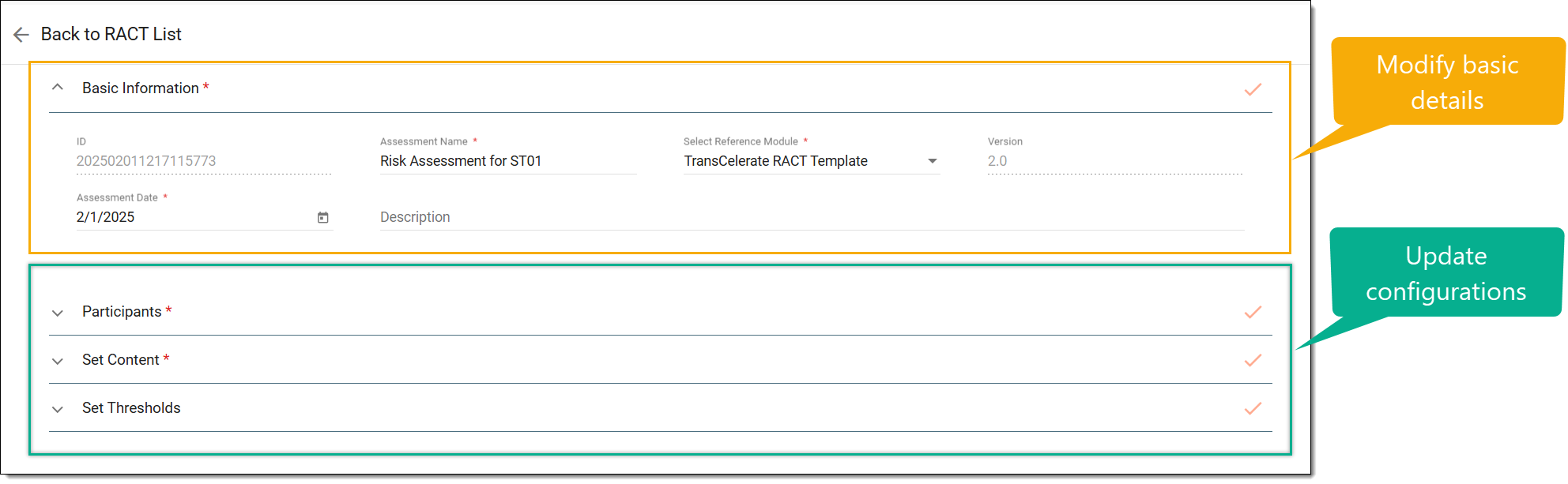 Figure 4. Configuring risk assessment
Add the individuals involved in conducting, reviewing, or managing the risk assessment process for the clinical trial as explained in the following table.
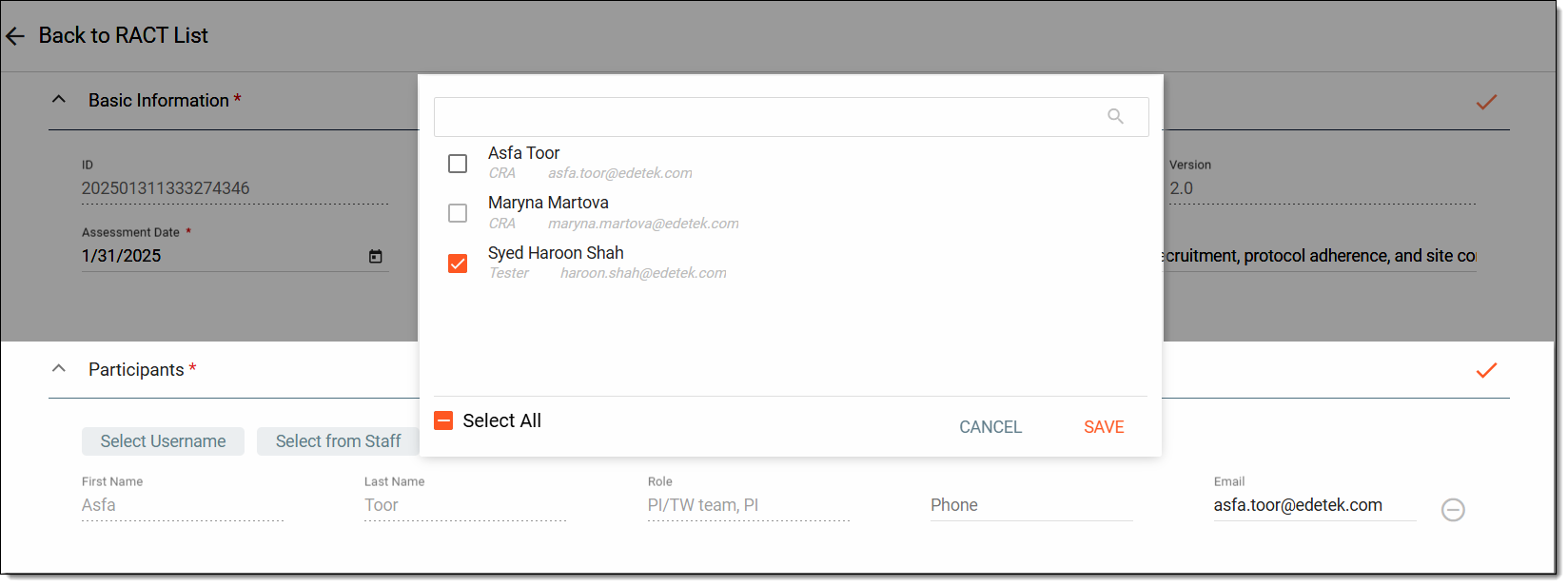 Figure 5. Adding risk assessment. Participants
Tip
In the following table, mandatory elements are marked with an asterisk (*).
Element
Details
Select Username
Select to open a dialog in which you can either type or scroll to search the existing user in the system. Then, select the checkbox next to the user you want to add as a participant in the risk assessment process. Once the users are selected, select SAVE.
You can also click the Select All checkbox in this dialog to instantly choose all the users as participants in the risk assessment process.
If required, modify the phone and email addresses of the added participants.
Select from Staff
Select to open a dialog in which you can either type or scroll to search for an existing staff member in the system. Then, select the checkbox next to the staff member you want to add as a participant in the risk assessment process. Once the users are selected, select SAVE.
You can also click the Select All checkbox in this dialog to instantly choose all the users as participants in the risk assessment process.
If required, modify the phone and email addresses of the added participants.
Save
Select
to save your changes, add the selected participants, and proceed to the next stage.Remove
Next to an added participant, select
 to remove a user you may have selected accidentally.
You cannot remove the user creating the risk assessment who is added as the default participant.Back to RACT List
Select
to go back to the RACT List table with your current changes saved.This block shows the selected template contents including specific risk assessment criteria for a clinical trial consisting of predefined categories, objectives, and weighted questions that help evaluate potential risks.
Choose the risk assessment criteria you want to set by selecting the questions you want to keep and removing the unwanted ones as explained in the following table.
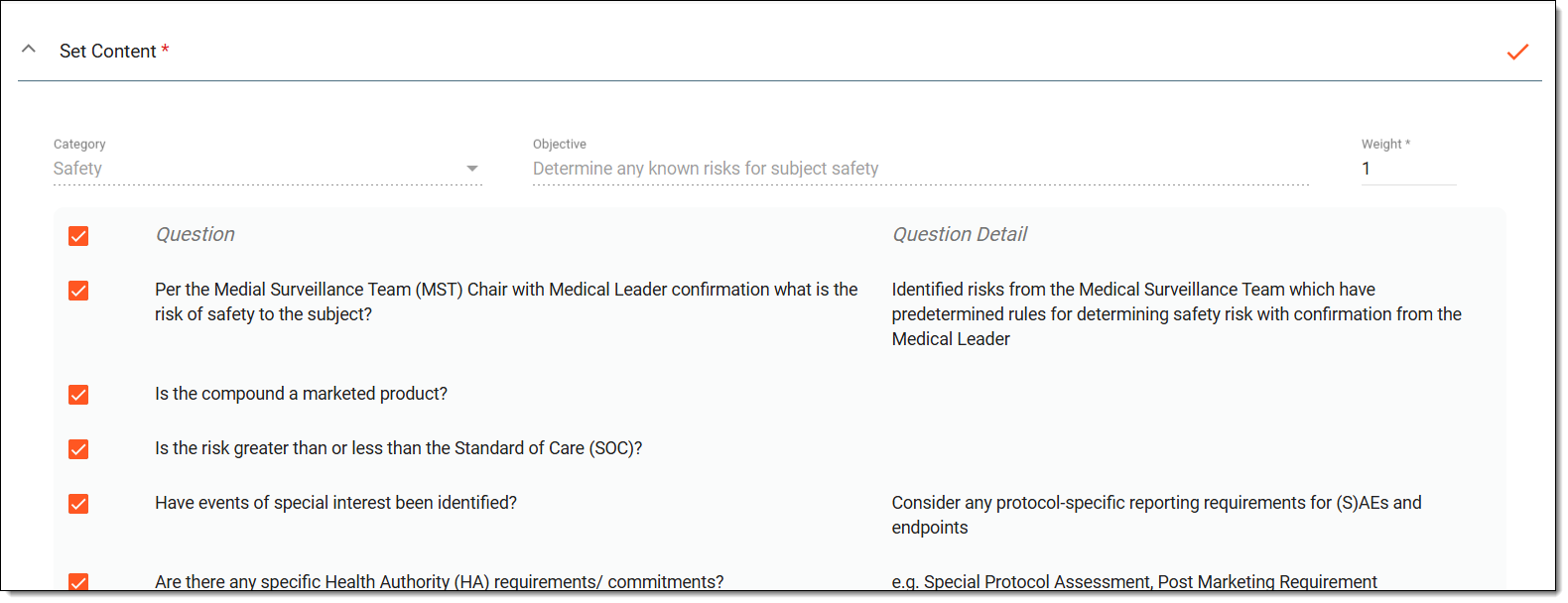 Figure 6. Adding risk assessment. Set content
Tip
In the following table, mandatory elements are marked with an asterisk (*).
Element
Details
Category
Displays the risk domain being assessed, such as safety, subject population, and so on.
Objective
Displays the goal of the assessment, such as identifying known risks related to subject safety.
Weight
Enter a numerical value indicating the importance of each question in the overall risk assessment.
Questions
Displays specific risk-related questions and their details used to evaluate different aspects of the study. Select the checkbox next to the questions you want to keep in the assessment.
Delete
Hover over the questions block and select
 to remove the entire category of questions from your risk assessment.
Save
Select
to save your changes, set the defined risk assessment criteria, and proceed to the next stage.Back to RACT List
Select
to go back to the RACT List table with your current changes saved.Define the scoring criteria for risk levels based on different risk factors helping standardize the classification of risks across categories and overall study assessments as explained in the following table.
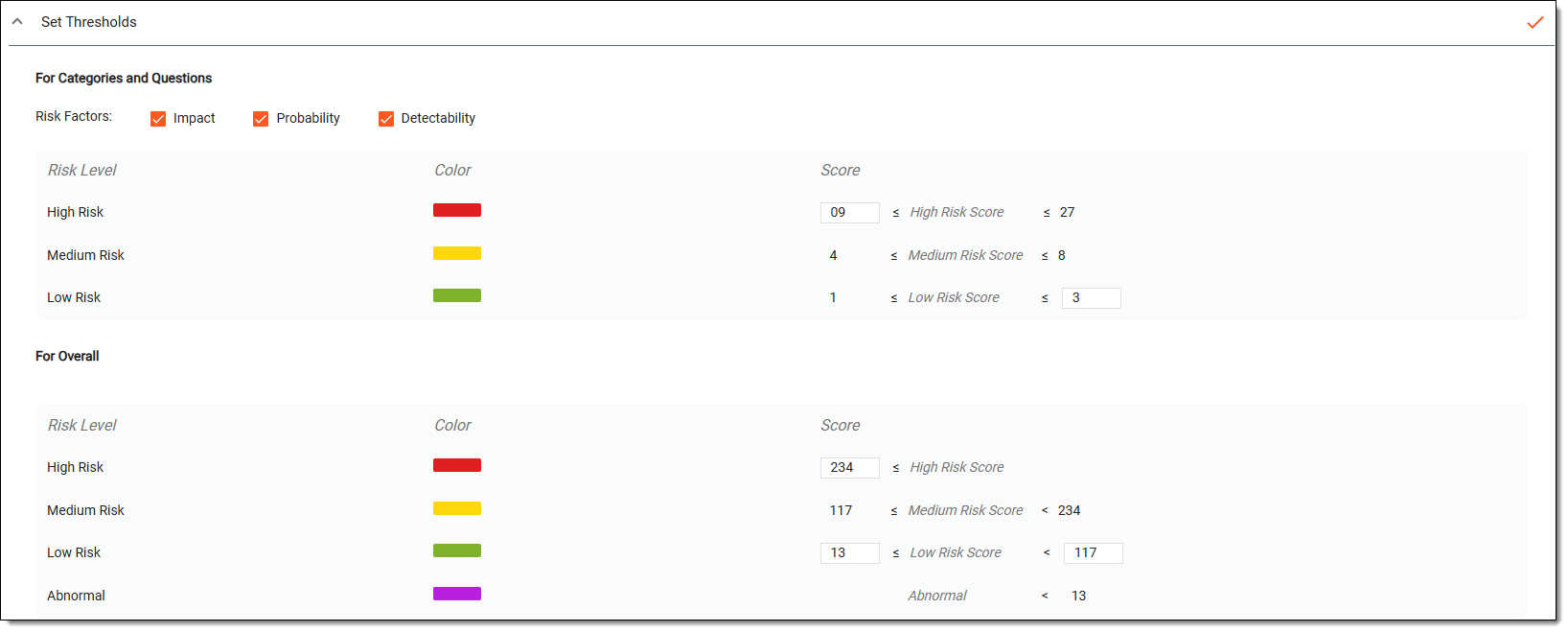 Figure 7. Adding risk assessment. Set thresholds
Tip
In the following table, mandatory elements are marked with an asterisk (*).
Element
Details
For Categories and Questions
These thresholds categorize individual risks within specific study areas, such as safety, subject population, and so on.
Risk Factors
Select the risk factors that contribute to determining the overall risk score for each category and question:
-
Impact: indicates the severity or consequence of a risk event if it occurs causing significant disruptions to the study, such as patient safety concerns, regulatory non-compliance, or major protocol deviations.
-
Probability: signifies the likelihood or frequency of the risk occurring. A high-probability risk is one that is very likely to happen, whereas a low-probability risk is rare but possible.
-
Detectability: signifies the ability to identify or detect a risk before it causes harm. A risk with low detectability is difficult to identify in advance, increasing its potential impact. A risk with high detectability can be easily monitored and managed.
Your selection of the risk factors impacts the value ranges in the following high, medium, and low-risk fields.High Risk
Define a range specifying a significant potential risk that may require immediate attention or mitigation.
Medium Risk
Represents a moderate risk that should be monitored and managed but may not require immediate action.
Low Risk
Define a range indicating a minimal risk that is unlikely to impact the study significantly.
For Overall
The overall risk score is a cumulative evaluation of all individual categories and question scores, determining the general risk level of the study.
High Risk
Define the range where the study is at significant risk, requiring urgent mitigation strategies.
Medium Risk
Indicates the presence of moderate risks that require monitoring.
Low Risk
Define the range indicating study has minimal risks, with no immediate concerns.
Abnormal
Define the range specifying the risk score is unexpectedly low, which may indicate missing or inaccurate data.
Save
Select
to save your changes.Back to RACT List
Select
to go back to the RACT List table with your current changes saved. -
Once your changes are saved and you go back to the RACT List table, you can view the updated risk assessment.
In CTMS, evaluating risks involves reviewing and scoring potential risks in a clinical trial. This includes assessing the risk questions and other configurations in the selected template or reference module. By systematically evaluating risks, study teams can identify critical issues, implement mitigation strategies, and ensure informed decision-making throughout the trial.
-
Access the study management page in one of the following ways:
-
In the CTMS application header, select the DASHBOARD tab and then select the study dashboard of your interest.
Figure 1. Accessing study management from dashboard
-
In the CTMS application header, select the STUDY MANAGEMENT tab. Then from the Study Data List table, select the study name of your interest.
Figure 2. Accessing study management from study data list
-
-
On the study page that opens, in the left pane, select RBM > RACT.
-
In the RACT List table, select the ID of the risk assessment you want to evaluate.
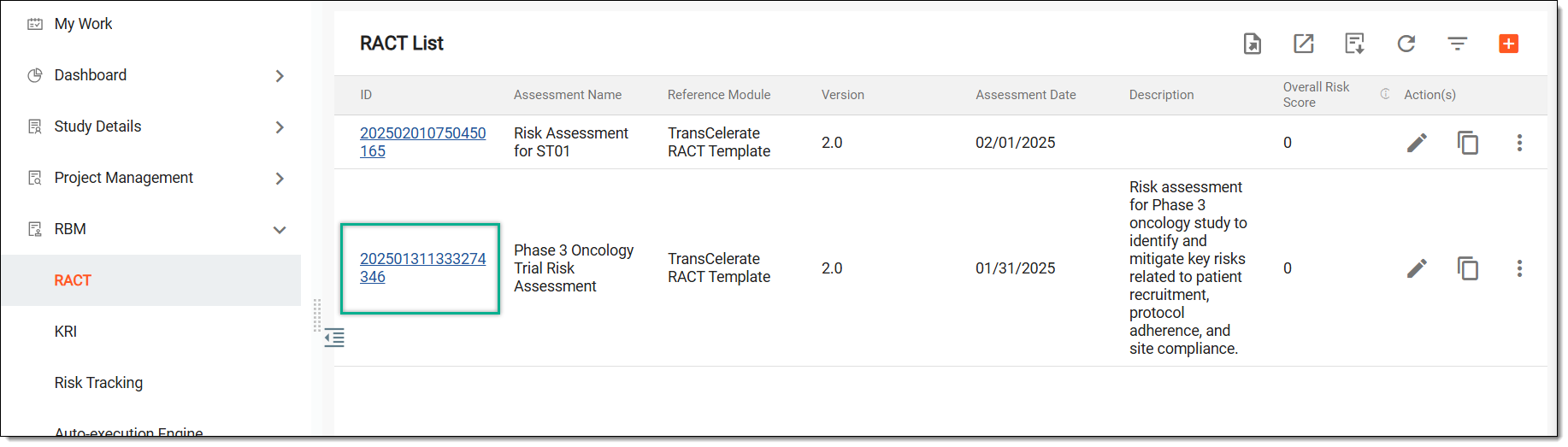 Figure 3. Selecting option to evaluate risk assessment
-
On the page that opens, from the Category pane on the right, select the risk domain being assessed, such as safety, subject population, and so on.
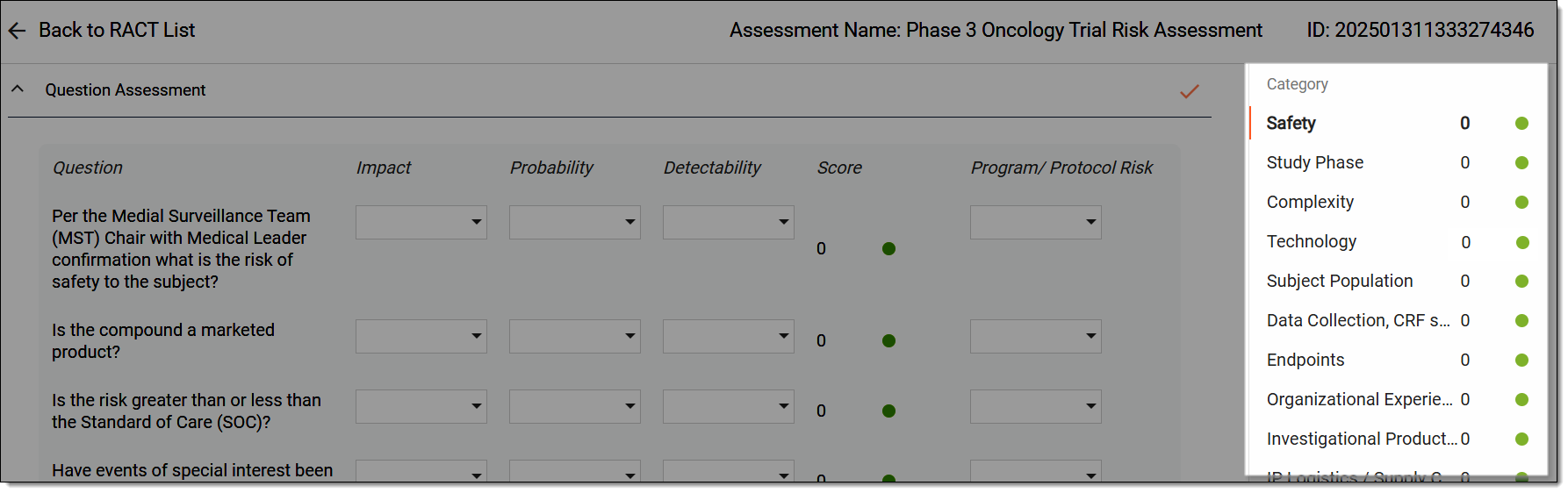 Figure 4. Selecting category to assess
-
For the selected category, evaluate the following risk assessment sections.
Lists the questions configured in the template selected or uploaded for your risk assessment. Evaluate the questions in a specific category as explained in the following table.
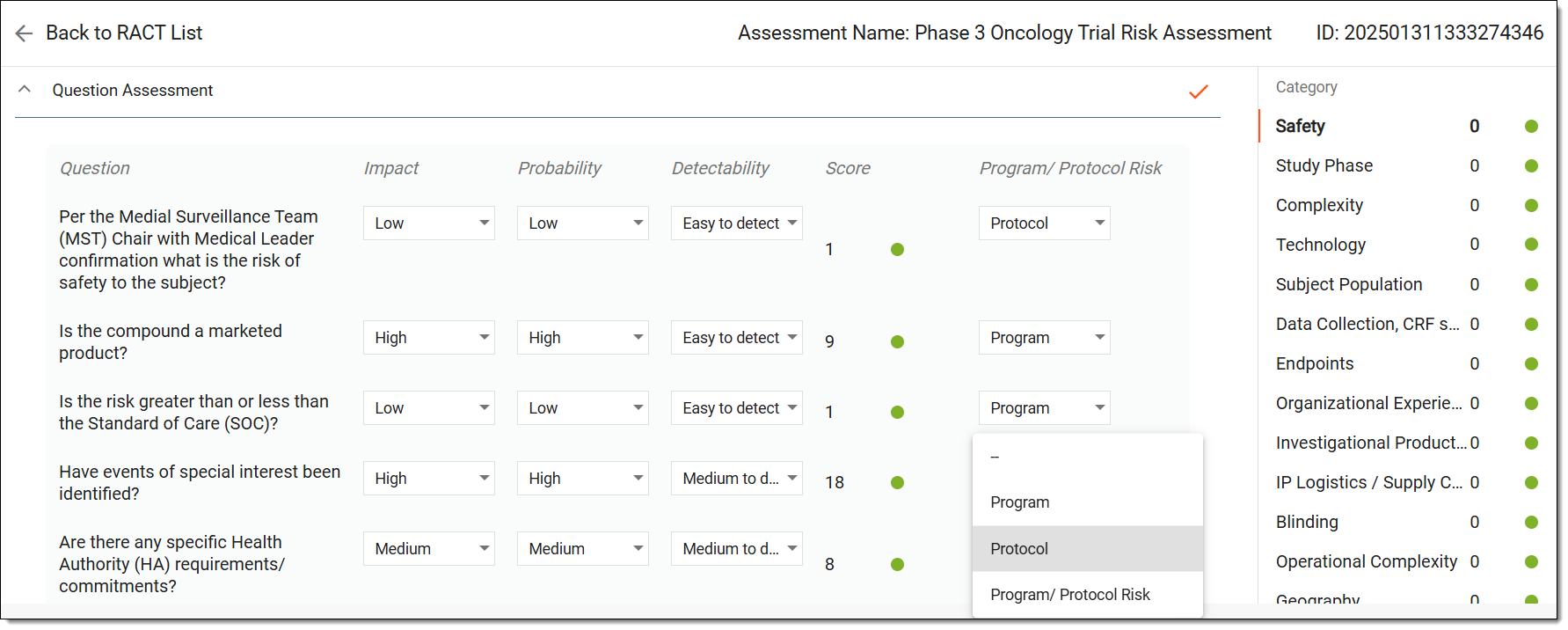 Figure 5. Assessing questions
Element
Details
Question
Represents a predefined risk-related query used to assess different aspects of the study.
Impact
Select a value (typically including the Low, Medium, or High options) that specifies the severity of a risk if it occurs, where a high impact means the risk could cause significant issues.
Probability
Select a value (typically including the Low, Medium, or High options) that assesses the likelihood of the risk occurring, where a high probability requires more attention and proactive mitigation strategies.
Detectability
Select a value that determines how easily the risk can be identified before it causes harm. The options typically range from Easy to detect to Difficult to detect, where a low detectability score increases the overall risk severity.
Score
Displays an automatically calculated score based on the Impact, Probability, and Detectability values. Higher scores indicate greater risk severity, guiding prioritization for mitigation.
Also, based on the threshold values defined for risk indication, different colors appear next to the scores to represent the risk level associated with the assigned score. Typically, these colors are:
-
🟢: indicates that the assigned score falls within the low-risk range.
-
🟡: represents a moderate level of risk that requires monitoring.
-
🔴: highlights a significant risk that demands immediate attention.
Program/Protocol Risk
Select a value indicating the risk based on whether it affects the overall program, a specific protocol, or both.
Save
Select
to save your changes.Back to RACT List
Select
to go back to the RACT List table with your current changes saved. Otherwise, you can also
proceed to assess the next section if needed.Evaluate risks at a category level, considering overall impact, likelihood, and detectability within a study as explained in the following table.
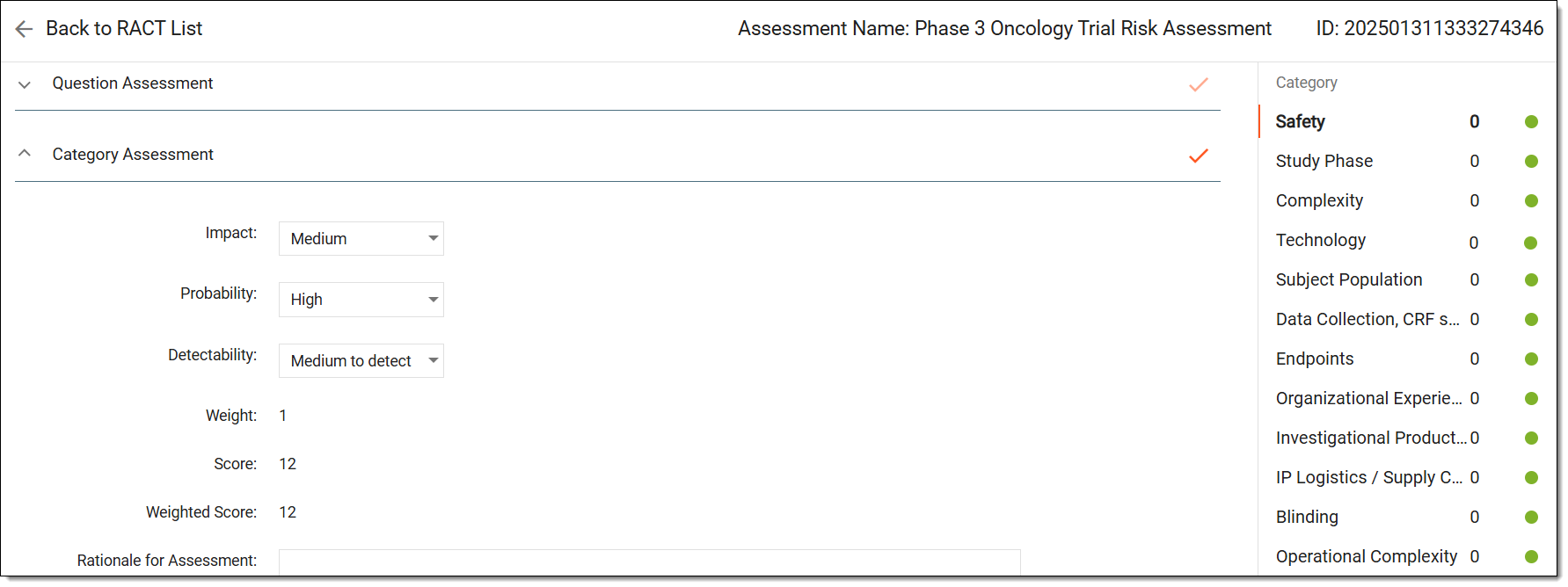 Figure 6. Assessing category
Element
Details
Impact
Select a value (typically including the Low, Medium, or High options) that specifies the severity of a risk if it occurs, where a high impact means the risk could cause significant issues in the category overall.
Probability
Select a value (typically including the Low, Medium, or High options) that assesses the likelihood of the risk occurring, where a high probability requires more attention and proactive mitigation strategies for the category.
Detectability
Select a value that determines how easily the risk can be identified before it causes harm. The options typically range from Easy to detect to Difficult to detect, where a low detectability score increases the overall risk severity in the category.
Weight
Displays an automatically calculated importance factor to the category, influencing the final risk score based on the Impact, Probability, and Detectability values. Higher weight means the category has a greater influence on the overall risk assessment.
Score
Displays an automatically calculated score based on the Impact, Probability, and Detectability values. Higher scores indicate greater risk severity, guiding prioritization for mitigation.
Also, based on the threshold values defined for risk indication, different colors appear next to the scores to represent the risk level associated with the assigned score. Typically, these colors are:
-
🟢: indicates that the assigned score falls within the low-risk range.
-
🟡: represents a moderate level of risk that requires monitoring.
-
🔴: highlights a significant risk that demands immediate attention.
Weighted Score
Displays an automatically calculated score based on the assigned weight, giving a more precise risk evaluation.
Rationale for Assessment
Enter a justification for the assigned risk levels based on study-specific factors specifying why a specific Impact, Probability, and Detectability value was chosen.
Function Plan(s) Impacted
Select the study management plans affected by the identified risk.
Mitigation Actions
Enter strategies to reduce or control the risk, ensuring proactive management.
Suggestions
Turn the toggle on or off to control whether system-generated recommendations are displayed for risk mitigation. When enabled, the system provides automated guidance based on the assigned Impact, Probability, and Detectability values.
Save
Select
to save your changes.Back to RACT List
Select
to go back to the RACT List table with your current changes saved. -
Once your changes are saved, the system preserves your risk assessment evaluation and data.
In CTMS, you can duplicate an existing risk assessment. This saves time by reusing risk questions, scores, and mitigation strategies instead of creating them from scratch. It helps keep risk evaluations consistent across studies while allowing edits to fit specific study needs.
-
Access the study management page in one of the following ways:
-
In the CTMS application header, select the DASHBOARD tab and then select the study dashboard of your interest.
Figure 1. Accessing study management from dashboard
-
In the CTMS application header, select the STUDY MANAGEMENT tab. Then from the Study Data List table, select the study name of your interest.
Figure 2. Accessing study management from study data list
-
-
On the study page that opens, in the left pane, select RBM > RACT.
-
In the RACT List table, locate the assessment you want to copy, and next to it, from the Action(s) column, select Copy
 .
.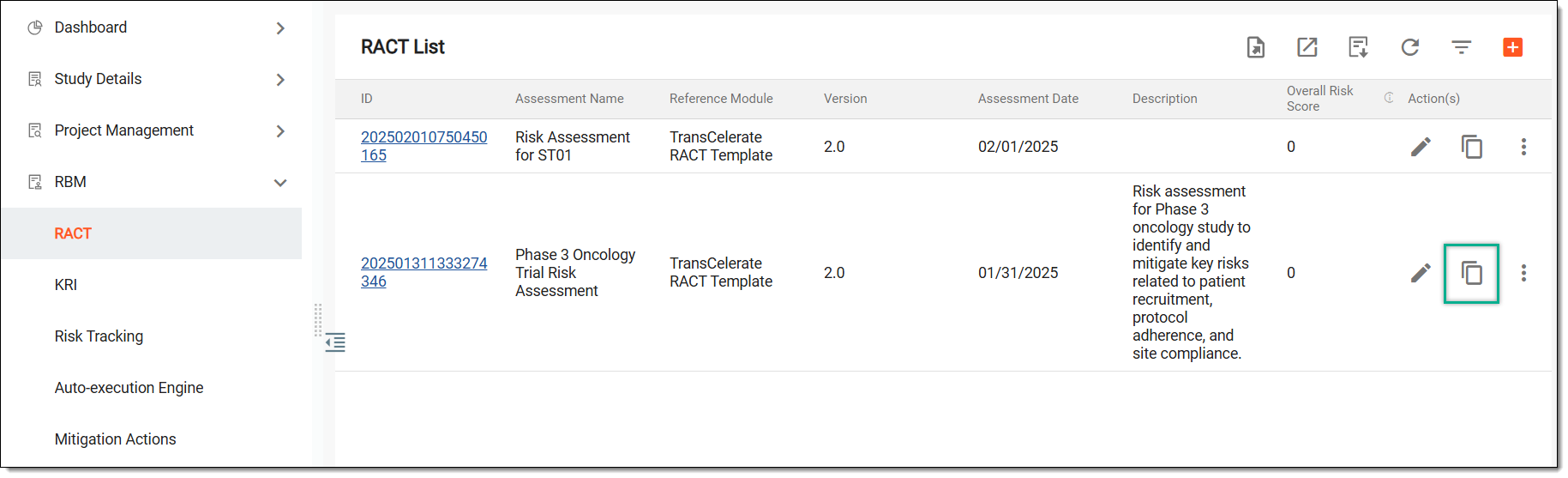 Figure 3. Copying risk assessment
Once selected, the system instantly creates a copy and it appears in the RACT List table. You can now proceed to configure the risk assessment as needed.
Risk assessment in clinical trials is the process of identifying, evaluating, and managing potential risks that could impact the study’s success, patient safety, or regulatory compliance. In CTMS, you can track all changes made to a risk assessment over time. This helps maintain transparency, ensures accountability, and allows users to review past decisions for better risk management.
-
Access the study management page in one of the following ways:
-
In the CTMS application header, select the DASHBOARD tab and then select the study dashboard of your interest.
Figure 1. Accessing study management from dashboard
-
In the CTMS application header, select the STUDY MANAGEMENT tab. Then from the Study Data List table, select the study name of your interest.
Figure 2. Accessing study management from study data list
-
-
On the study page that opens, in the left pane, select RBM > RACT.
-
In the RACT List table, locate the assessment you want to copy, and next to it, from the Action(s) column, select More
 > Operation History
  .
.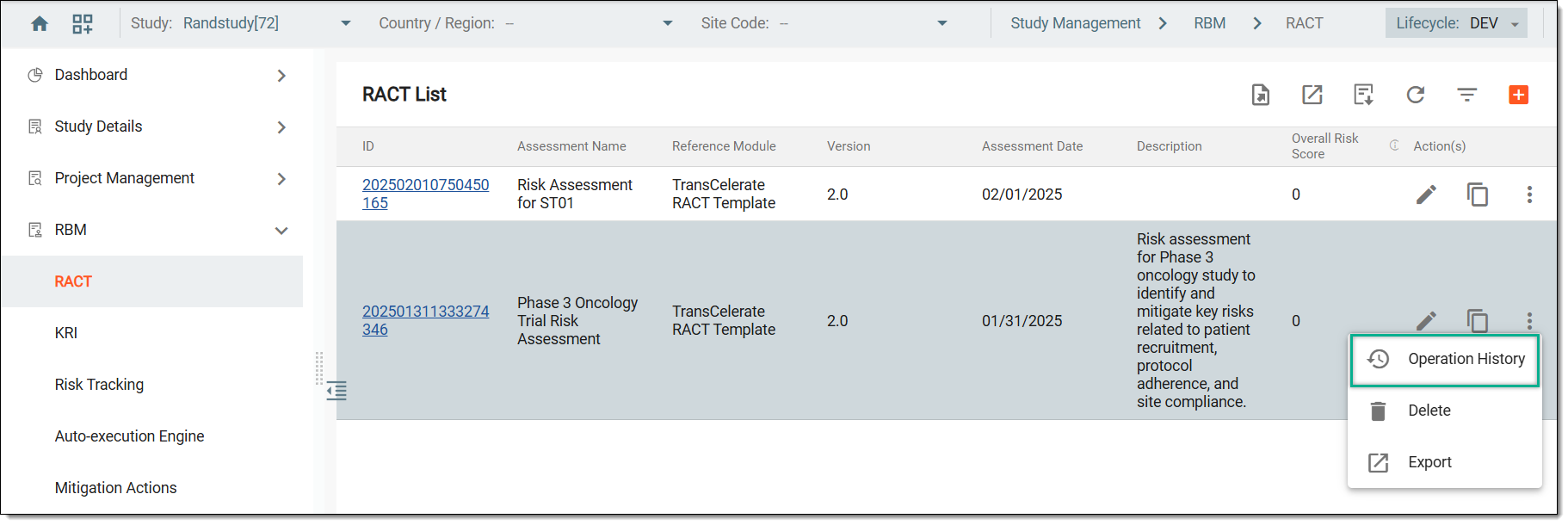 Figure 3. Accessing risk assessment operation history
-
In the Operation History dialog that opens, view the list of user actions that have been performed with the selected risk assessment.
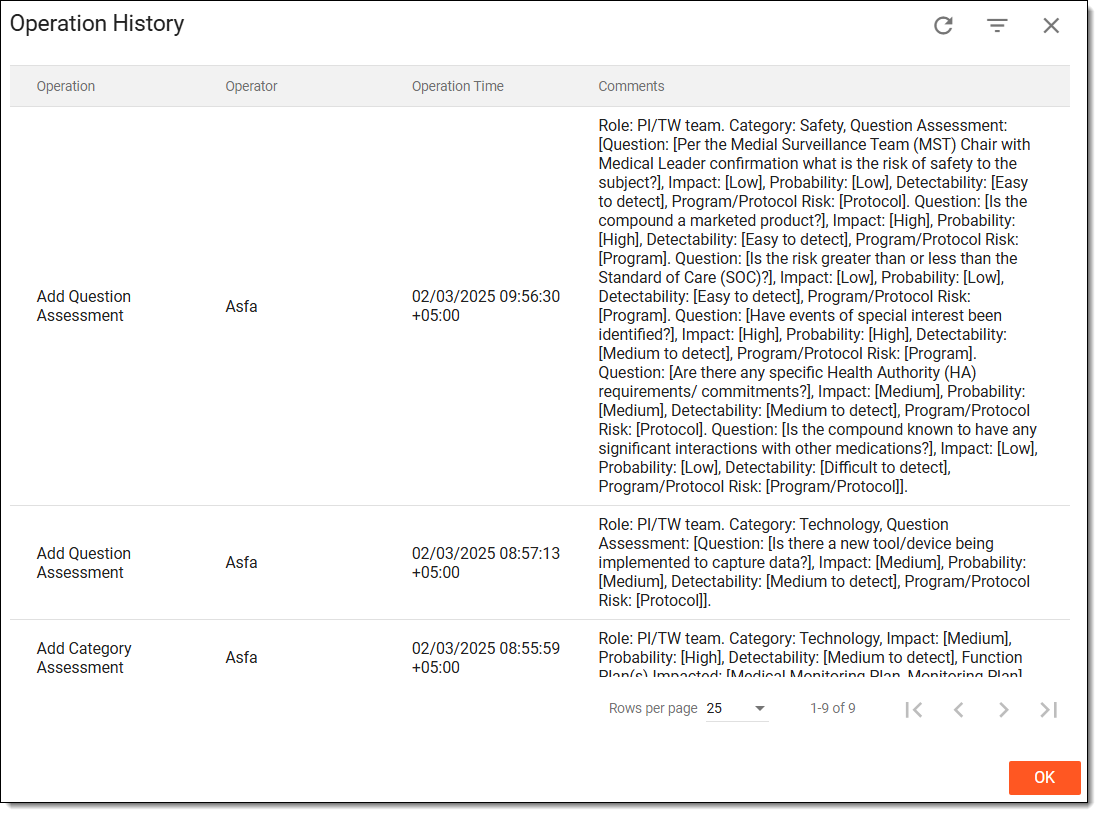 Figure 4. Viewing risk assessment operation history
Once viewed, select OK to close the Operation History dialog and go back to the RACT List table.
In CTMS, you can download risk assessment data for reporting, analysis, or documentation purposes. This helps in sharing risk evaluations with stakeholders, maintaining records for audits, and ensuring compliance with regulatory requirements.
-
Access the study management page in one of the following ways:
-
In the CTMS application header, select the DASHBOARD tab and then select the study dashboard of your interest.
Figure 1. Accessing study management from dashboard
-
In the CTMS application header, select the STUDY MANAGEMENT tab. Then from the Study Data List table, select the study name of your interest.
Figure 2. Accessing study management from study data list
-
-
On the study page that opens, in the left pane, select RBM > RACT.
-
In the RACT List table, do one of the following:
-
From the workspace toolbar, select Export
 to export all the risk assessments.
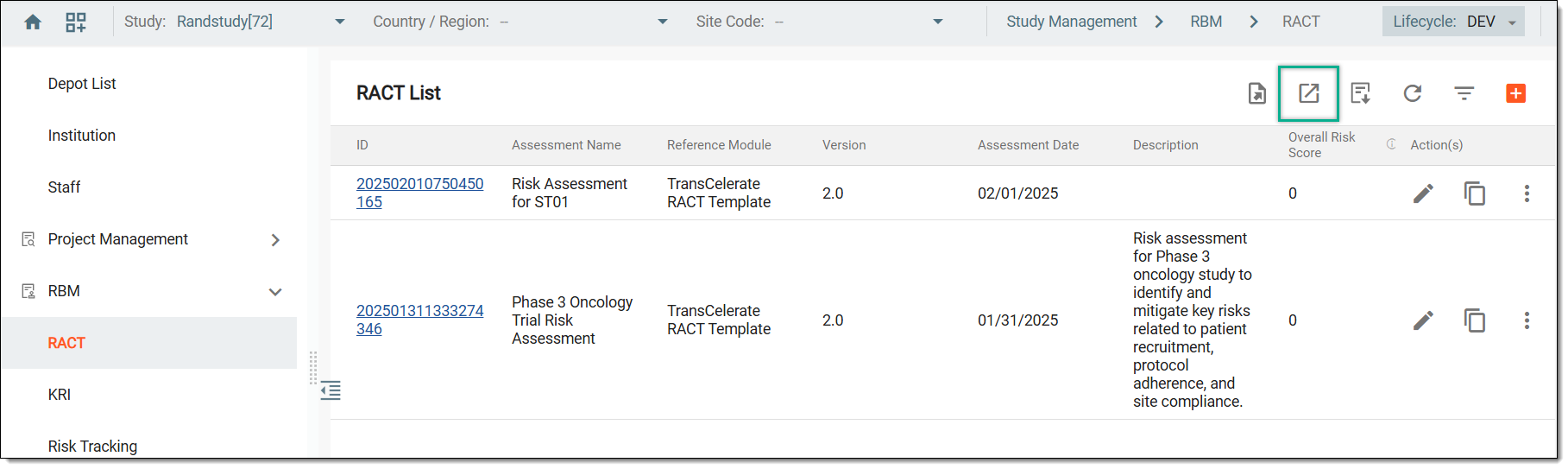 Figure 3. Selecting option to export all risk assessments
-
Next to the required risk assessment, from the Action(s) column, select More
> Export .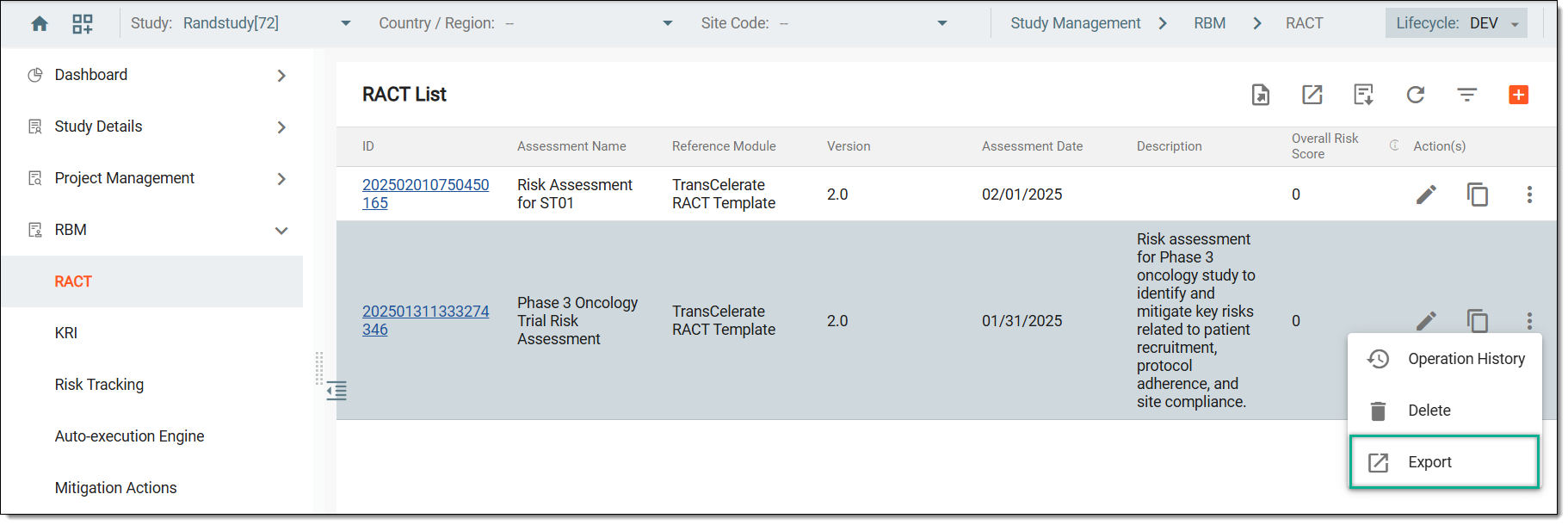 Figure 4. Selecting option to export risk assessment
-
-
The downloads widget appears showing the export progress. Select the widget to access the exported files.
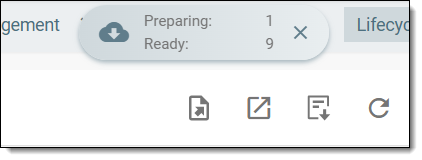 Figure 5. Download widget showing risk assessment being exported
-
In the My Downloads dialog that appears, in the Download is Ready tab, select
 next to the required exported file.
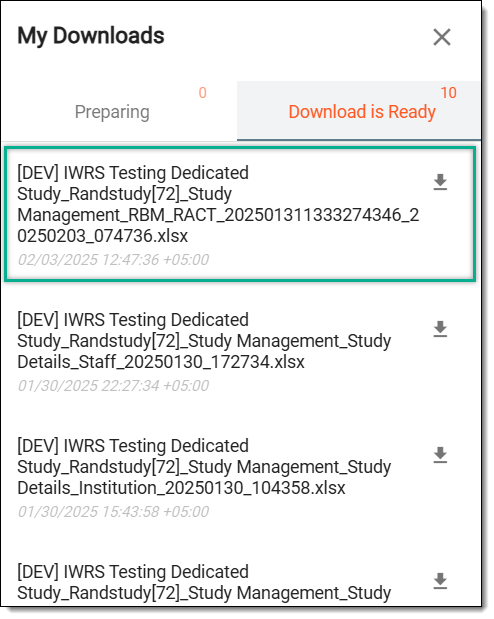 Figure 6. Downloading risk assessment
Once selected, the list of risk assessments is downloaded as an XLSX file to your computer.
In CTMS, you can download a system-defined risk assessment template that includes standardized risk evaluation criteria, such as questions, impact, probability, and detectability, ensuring a consistent approach across studies. Also, you can download a blank template to cater to unique risk assessment criteria and then, upload your custom template as a reference module for your risk assessment.
-
Access the study management page in one of the following ways:
-
In the CTMS application header, select the DASHBOARD tab and then select the study dashboard of your interest.
Figure 1. Accessing study management from dashboard
-
In the CTMS application header, select the STUDY MANAGEMENT tab. Then from the Study Data List table, select the study name of your interest.
Figure 2. Accessing study management from study data list
-
-
On the study page that opens, in the left pane, select RBM > RACT.
-
In the RACT List table, from the workspace toolbar, select Download Template
 .
. -
In the dropdown menu that appears, select one of the following options:
-
Download TransCelerate Template
: to download the system-defined template with the risk assessment criteria and
evaluation questions defined. -
Download Blank Template
: to download a blank template for preparing a unique risk assessment template with
custom criteria and evaluation questions.
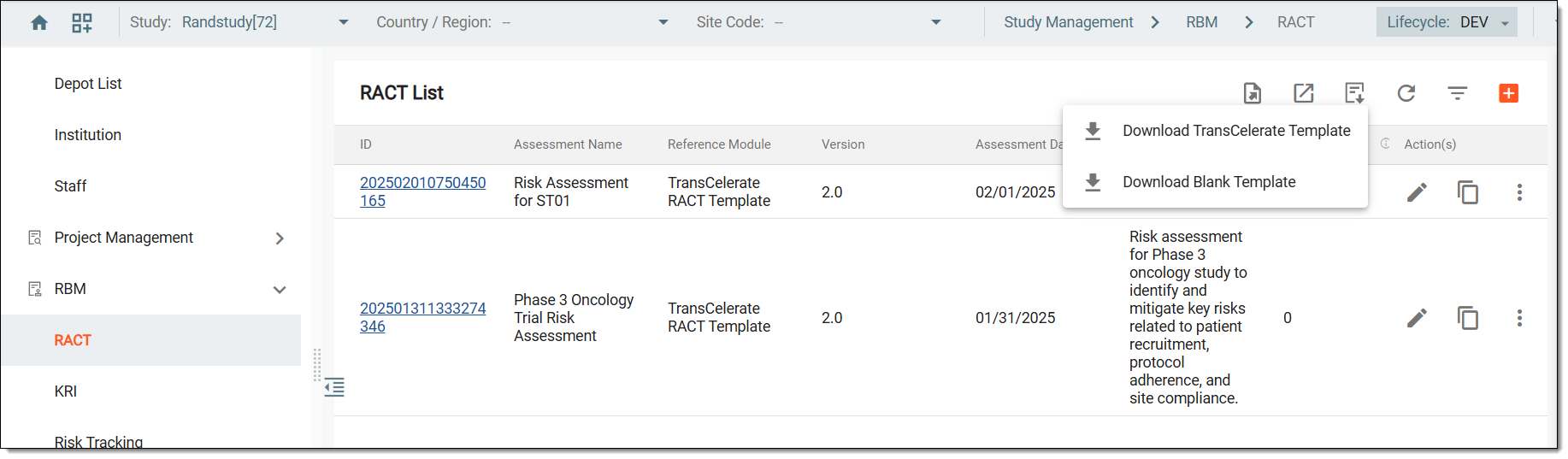 Figure 3. Downloading risk assessment template
-
Once selected, the system instantly downloads the selected template in the XLSX format.
In CTMS, you can delete a risk assessment that is no longer needed or was created by mistake. This helps keep the system organized by removing outdated or duplicate assessments.
-
Access the study management page in one of the following ways:
-
In the CTMS application header, select the DASHBOARD tab and then select the study dashboard of your interest.
Figure 1. Accessing study management from dashboard
-
In the CTMS application header, select the STUDY MANAGEMENT tab. Then from the Study Data List table, select the study name of your interest.
Figure 2. Accessing study management from study data list
-
-
On the study page that opens, in the left pane, select RBM > RACT.
-
In the RACT List table, locate the assessment you want to delete, and next to it, from the Action(s) column, select More
> Delete .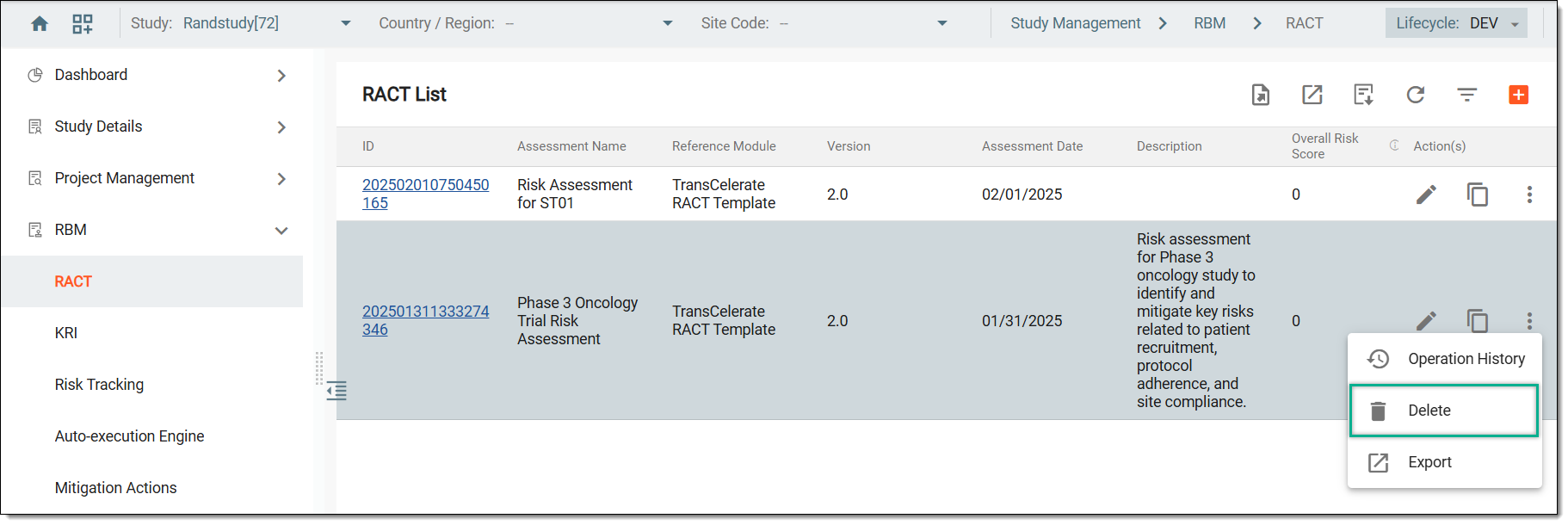 Figure 3. Selecting option to delete risk assessment
-
In the Reason dialog that opens, describe the reason for deleting the risk assessment. Then, select SAVE.
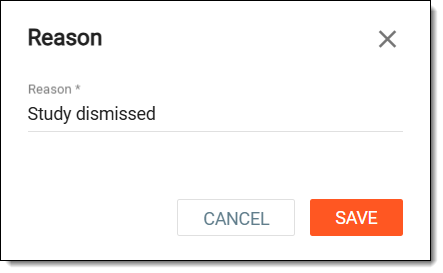 Figure 4. Entering reason to delete risk assessment
Once saved, the risk assessment is deleted from the system.