Hard-lock study in EDC
In EDC, from the Study Summary page, you can view the summary of all the visits, their statuses, and queries for your study as well as disable study manipulation with the Hardlock functionality.
Hard-locking the study, you cease all the editing, data entry, query management, and other processes with study data. This is the final lock that closes all the processes within your study in the EDC application. Usually, the hard lock is applied when all the data is collected and properly reviewed as the study protocol suggests preparing data packages for regulatory authorities.
Important
To hard-lock the study, the following preconditions must be met:
-
You have the highest access level granted via the ADMIN application.
-
All the forms, visits, subjects, and sites of your study are softlocked.
-
In the EDC application header, select the STUDY INFO tab.
-
On the page that opens, in the left pane, select Metrics > Study Summary.
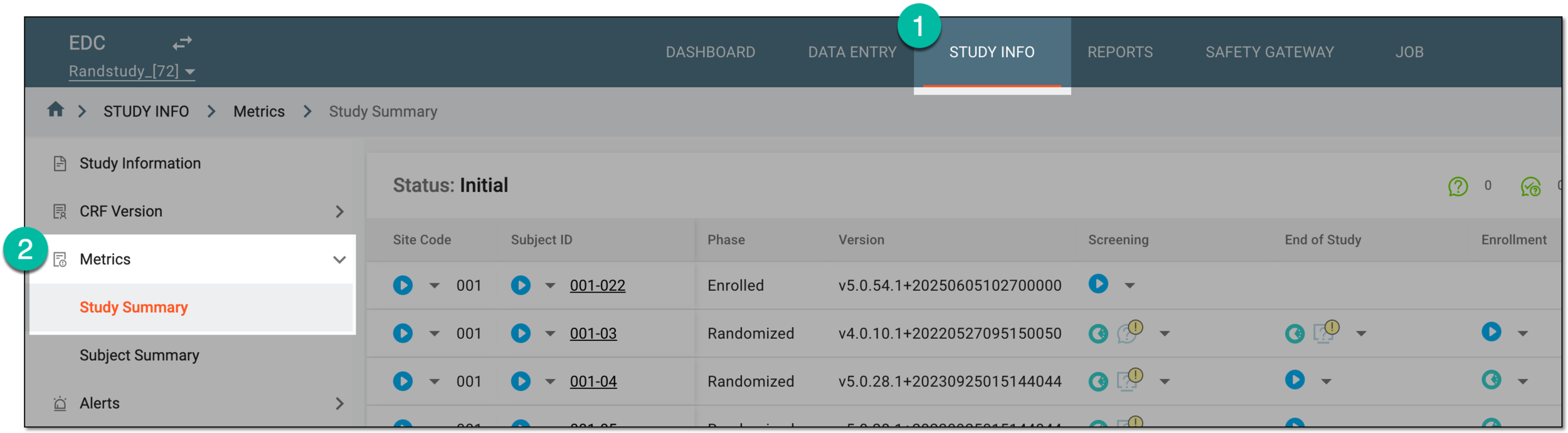 Figure 1. Accessing study summary
-
On the page that opens, on the workspace toolbar, select Hardlock
 .
. Figure 2. Selecting to hard-lock study
Important
The Hardlock button is missing from the workspace toolbar if the study is locked. It happens if the CRF version is being upgraded for the study and the corresponding lock icon is shown on the application header. To unlock the study, use the Unlock option from the CRF Version page.
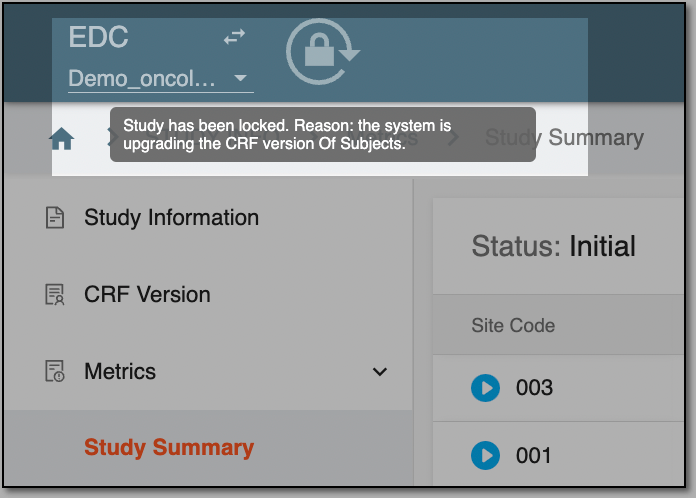 Figure 3. Locked study due to CRF upgrades
-
In the confirmation dialog that opens, confirm the action.
Important
If there are forms, visits, subjects, or sites that are not softlocked, the respective error message prompts you on it. You can do the following to resolve the issue:
-
Go to the DATA ENTRY tab and soft-lock site or soft-lock subject forms.
-
Go to the Study Summary page and perform the soft lock in batch by changing visit, subject, or site statuses.
-
Go to the Subject Summary page and perform the soft lock by changing visit statuses.
-
Upon confirmation, the study is hard-locked within EDC. Users can no longer enter or edit data, open queries, create visits, or perform any other actions.