View study summary
In EDC, with the Study Summary functionality, you can view the summary of all the visits, their statuses, and queries for your study to have a better grasp of its flow at all times. The table you see on the Study Summary page is organized by sites and subjects.
-
In the EDC application header, select the STUDY INFO tab.
-
On the page that opens, in the left pane, select Metrics > Study Summary.
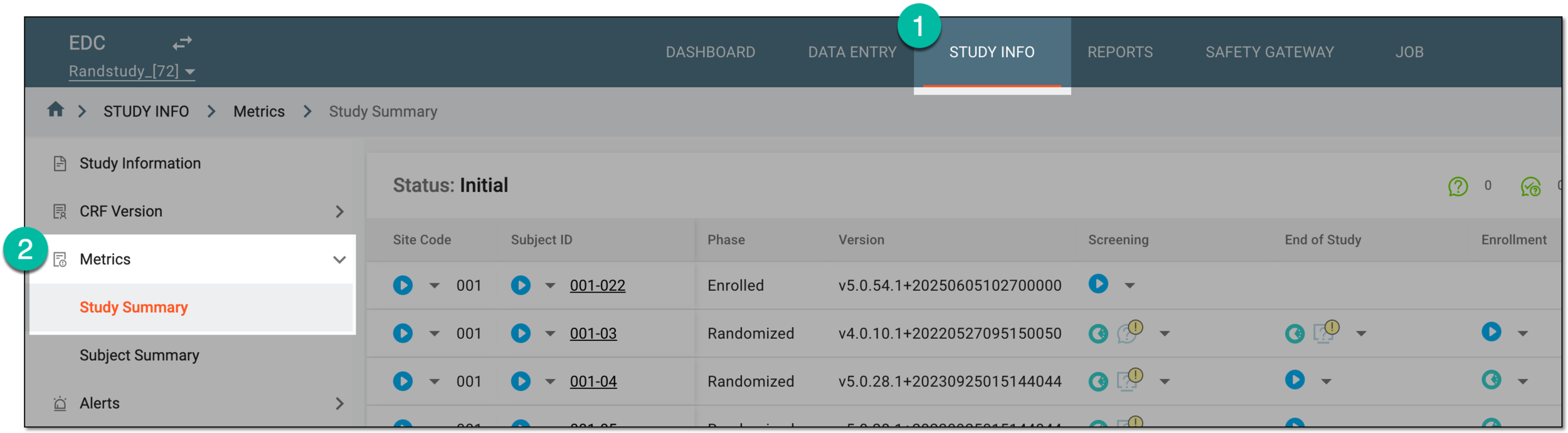 Figure 1. Accessing study summary
-
On the Study Summary page, explore the details of subject visits as explained in the following table.
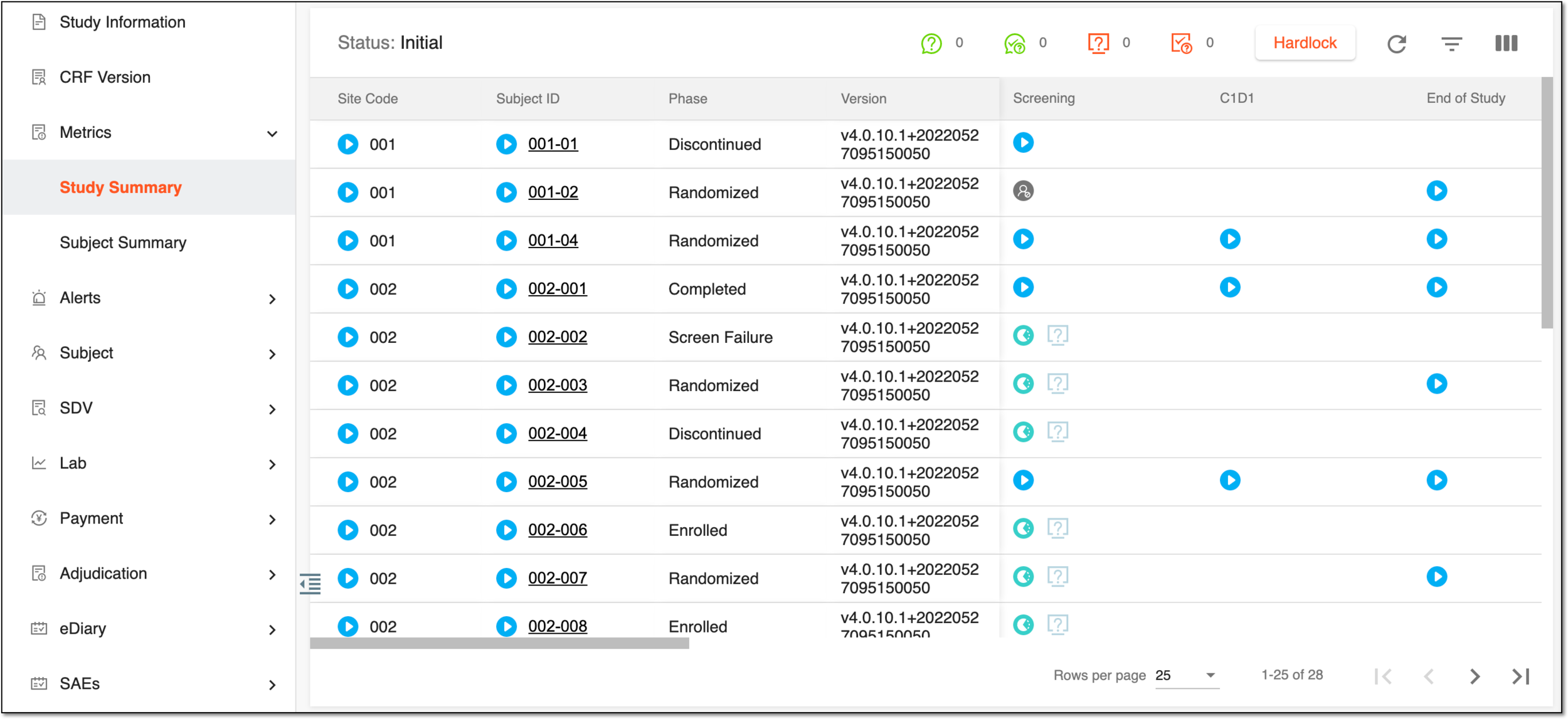 Figure 2. Study summary page
Element
Details
Static columns
The first four columns of the table are static and represent the basic values for the study visit tracking values such as the following.
Site Code
Represents the unique code of the site and the icon that reflects the current site status.
Right-click the site to softlock or unsoftlock it.
To softlock the site, the status of all visits and forms at this site must be DM Review or other statuses that follow this one.Subject ID
Represents the unique ID of the subject and the icon that reflects the current subject status. The following actions are available:
-
Select the subject ID value to open the Subject Summary page with detailed information on the subject visits and their statuses.
-
Right-click the subject ID value to see the available options and activate/inactivate, change status, or softlock the subject.
To softlock the subject, the status of all visits and forms at this site must be DM Review or other statuses that follow this one.
To softlock the site, the status of all visits and forms at this site must be DM Review or other statuses that follow this one.Phase
Represents the current phase of the subject (Enrolled, Randomized, Completed, and so on).
The subject phase change is performed from the DATA ENTRY > Subject List page.Version
Represents the CRF version number that is currently used to collect and store subject data.
Dynamic columns
The dynamic columns of the table follow the static ones and represent the visits within the study, their current statuses, and queries if there are any. These columns are study-specific as all the visits are designed for each study individually in SD based on the protocol requirements.
Select the status value in any of the respective columns and in the dropdown menu, see the available options to change the visit, subject, or site status.
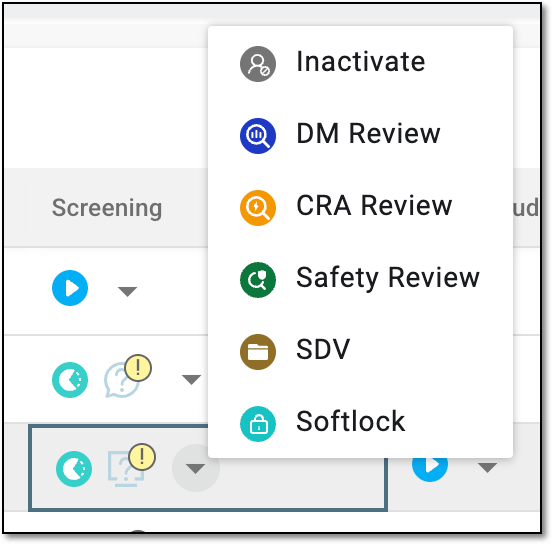 Figure 3. Changing visit status
-
You have viewed the study summary details.
A specific phase that a subject has to complete in the course of a clinical trial to move further to the next phase. For instance, Screening, Enrolled, Randomized, and others.
 |
In eClinical, subject phases are designed individually for each study via the SD application, although they are referenced in others, like IWRS or EDC.
A specialized document in a clinical trial designed to collect the subject data.
See also eCRF.
An eClinical application that provides functionality to design and configure a study (clinical trial), namely to configure CRFs, set subject phases, visits, and others.
The application supports the design of the CDSIC ODM-compliant electronic CRFs to support EDC and eDiary data collection and management.
Get to know all the possibilities of the app with the comprehensive SD User Guide.
In a clinical trial, a document that describes the objectives, design, methodology, statistical considerations, and aspects related to the organization of a study.