Change visit, subject, or site status from study metrics
The status change means you can change the review status, soft lock, or provide your signature for the visits, subjects, and sites before hard locking the study. The review statuses available here depend on which stages of review are configured as required for your study data, such as data manager's (DM), clinical research associate's (CRA), or principal investigator's (PI) review, safety review, and so on.
The status flow is similar to what you can perform under the DATA ENTRY tab, only here, you can do this in batch on the visit or subject level.
For instance, you can change the Screening visit status to DM Review and by doing so, all the completed forms of this visit acquire the same status.
Another example is that when you change the subject's status to DM Review, the statuses of all the completed visits of this subject also change to DM Review.
Important
The actions availability and dependencies are configured for your study and sites under the Status Configuration functionality of EDC.
-
In the EDC application header, select the STUDY INFO tab.
-
On the page that opens, in the left pane, select Metrics > Study Summary.
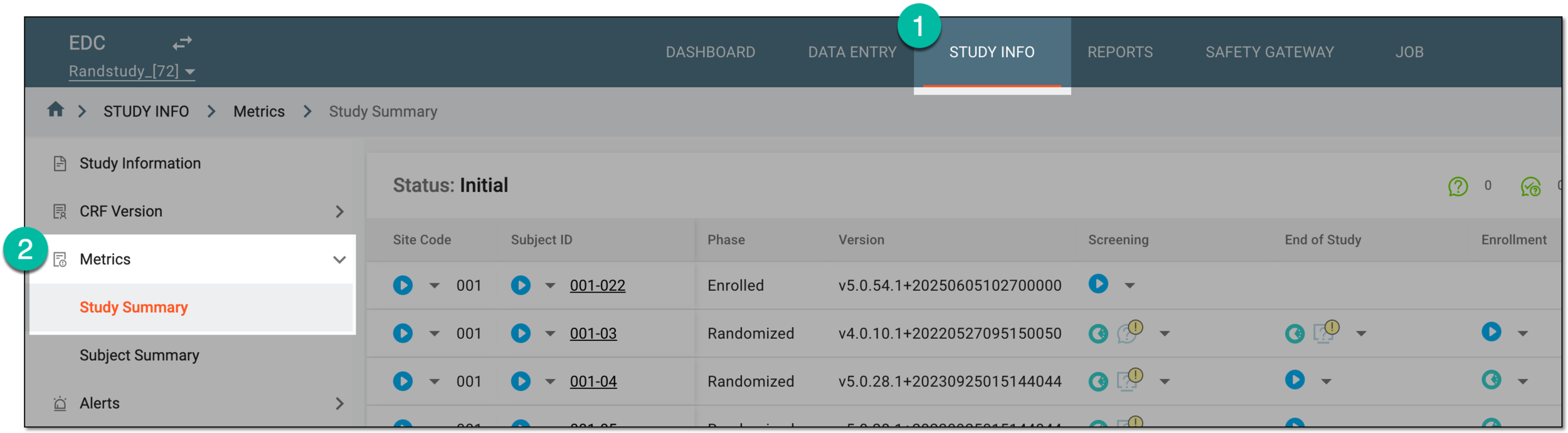 Figure 1. Accessing study summary
-
In the table that appears, locate the visit, subject, or site for which you want to change status, apply soft or hard lock, or provide a signature. Then select the status and from the dropdown list of available options, select the needed one.
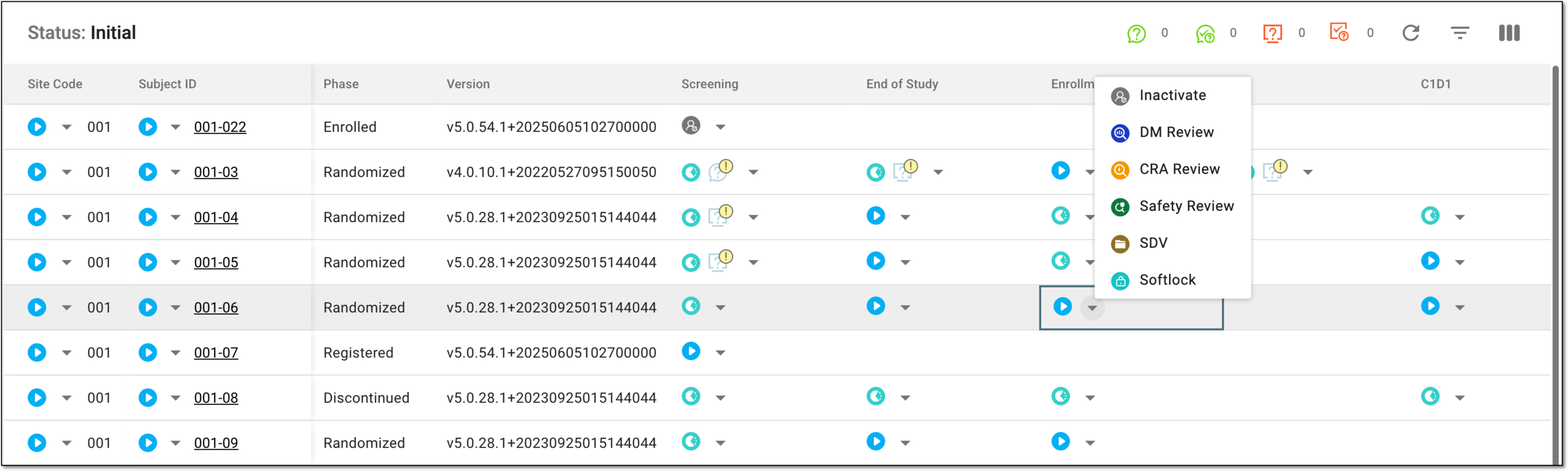 Figure 2. Changing status
Tip
Hover over the status icon to see its legend or address the icon list section of the Quick panel for more information on all the icons you see in EDC.
-
In the Confirm dialog that appears, select
 to proceed with your performed operation.
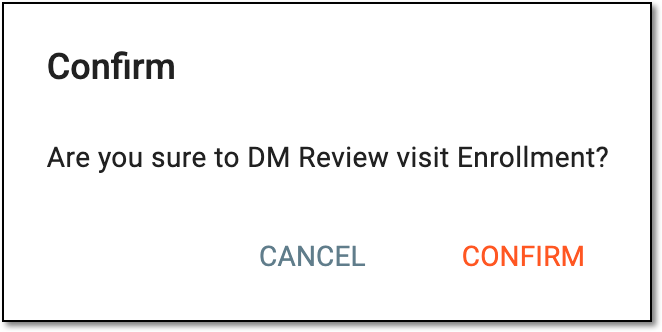 Figure 3. Confirming review status change
-
For the signature operation, in the Enter User Signing Password Information dialog that appears, provide your electronic signature details as explained in the following table.
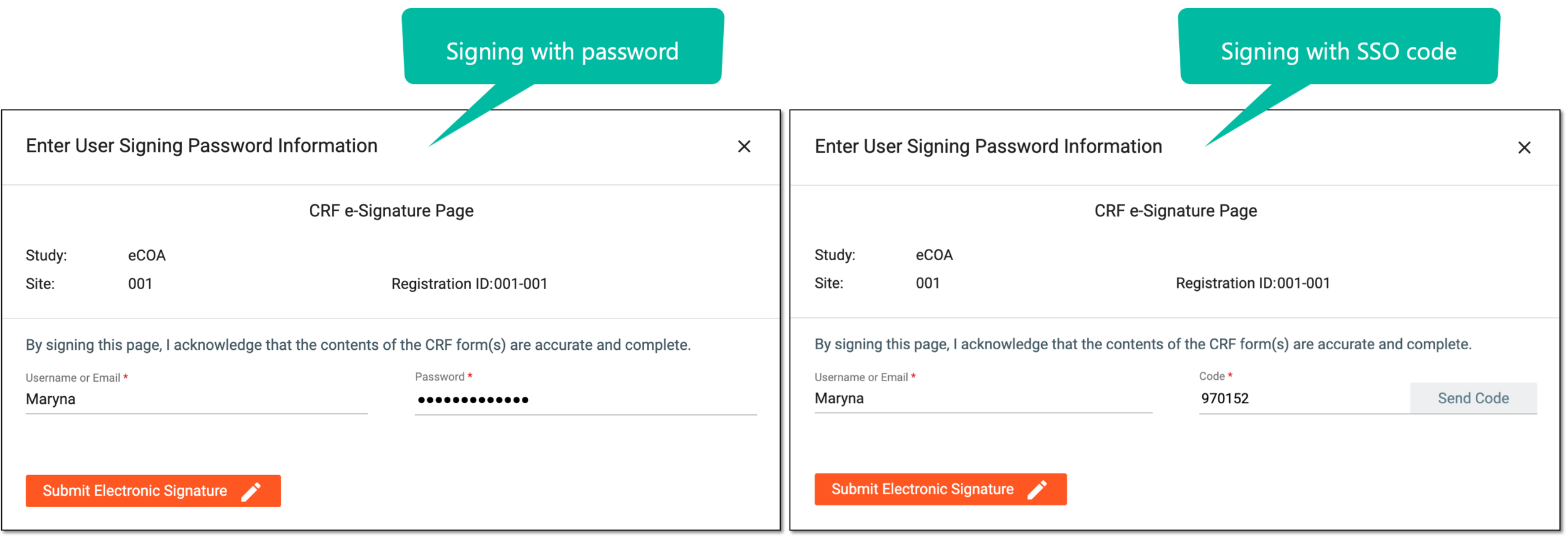 Figure 4. Providing electronic signature
Tip
In the following table, mandatory elements are marked with an asterisk (*).
Element
Details
Username or Email*
Enter your username or email that you use to log in to the eClinical applications.
Send Code
Select
 to send the temporary PIN code to your email for which the SSO method is configured.
The button is only available if you use the authorization method via SSO.Code*
Enter the temporary PIN code that you received via email.
The field is only available if you use the authorization method via SSO.Password*
Enter the password that you use to log in to the eClinical applications.
The field is only available if you use the authorization method by providing your login and password.Submit Electronic Signature
Select
 to confirm your action with your signature and save the implemented changes.
Select this icon to discard your action, close the dialog, and return to the Study Summary page.
Important
For security, the system logs you out after three failed attempts to confirm your identity with a password or code.
Once confirmed, the status of the visit, subject, or site is changed.