View subject summary
In EDC, with the Subject Summary functionality, you can view the summary of all the visits, their forms, and queries for each subject individually to have a better grasp of the study flow at all times.
Tip
You can also access the Subject Summary page by selecting the Subject ID value in the table grid of the Study Summary page. Upon selecting, on the page that opens, you can view the data of the selected subject.
-
In the EDC application header, select the STUDY INFO tab.
-
On the page that opens, in the left pane, select Metrics > Subject Summary.
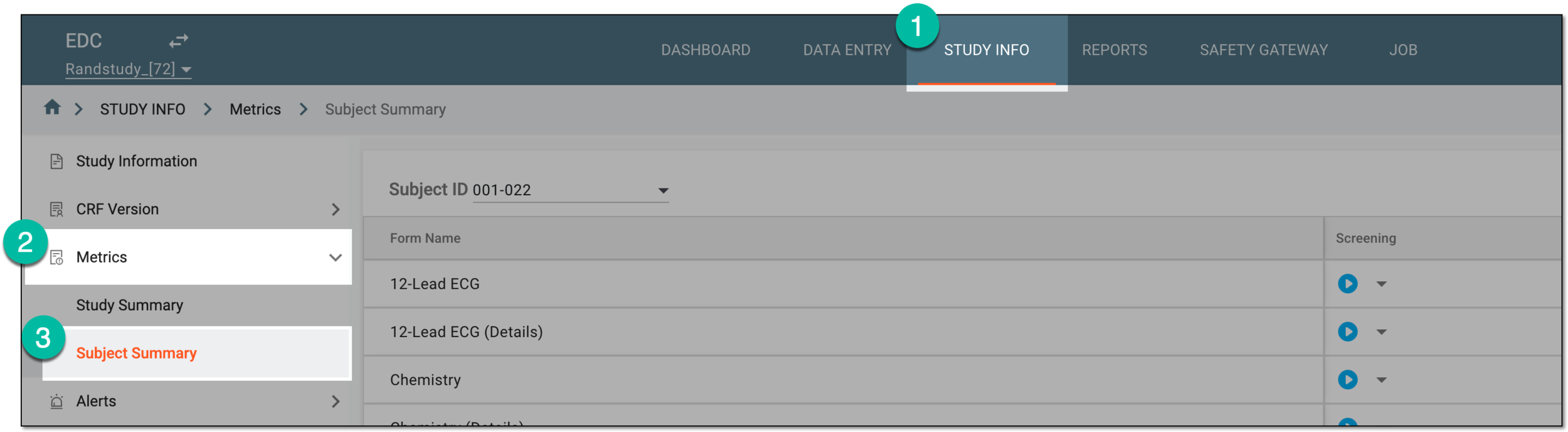 Figure 1. Accessing subject summary
-
On the page that opens, from the Subject ID filter, select the subject whose visit and form metrics you want to access.
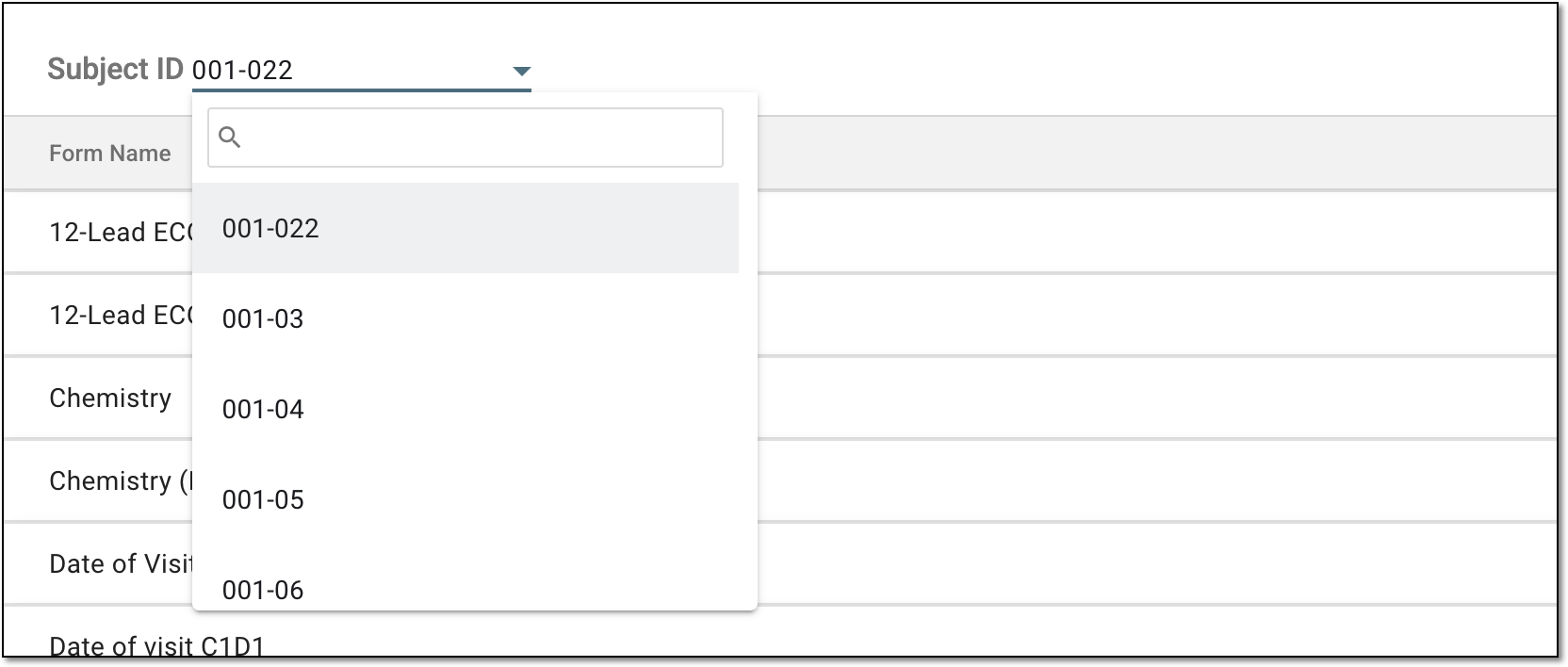 Figure 2. Selecting subject to show metrics
-
In the table that appears, analyze the statistics on all visits and forms of the subject, their statuses and review progress.
Tip
Hover over the status icon to see its legend or address the icon list section of the Quick panel for more information on all the icons you see in EDC.
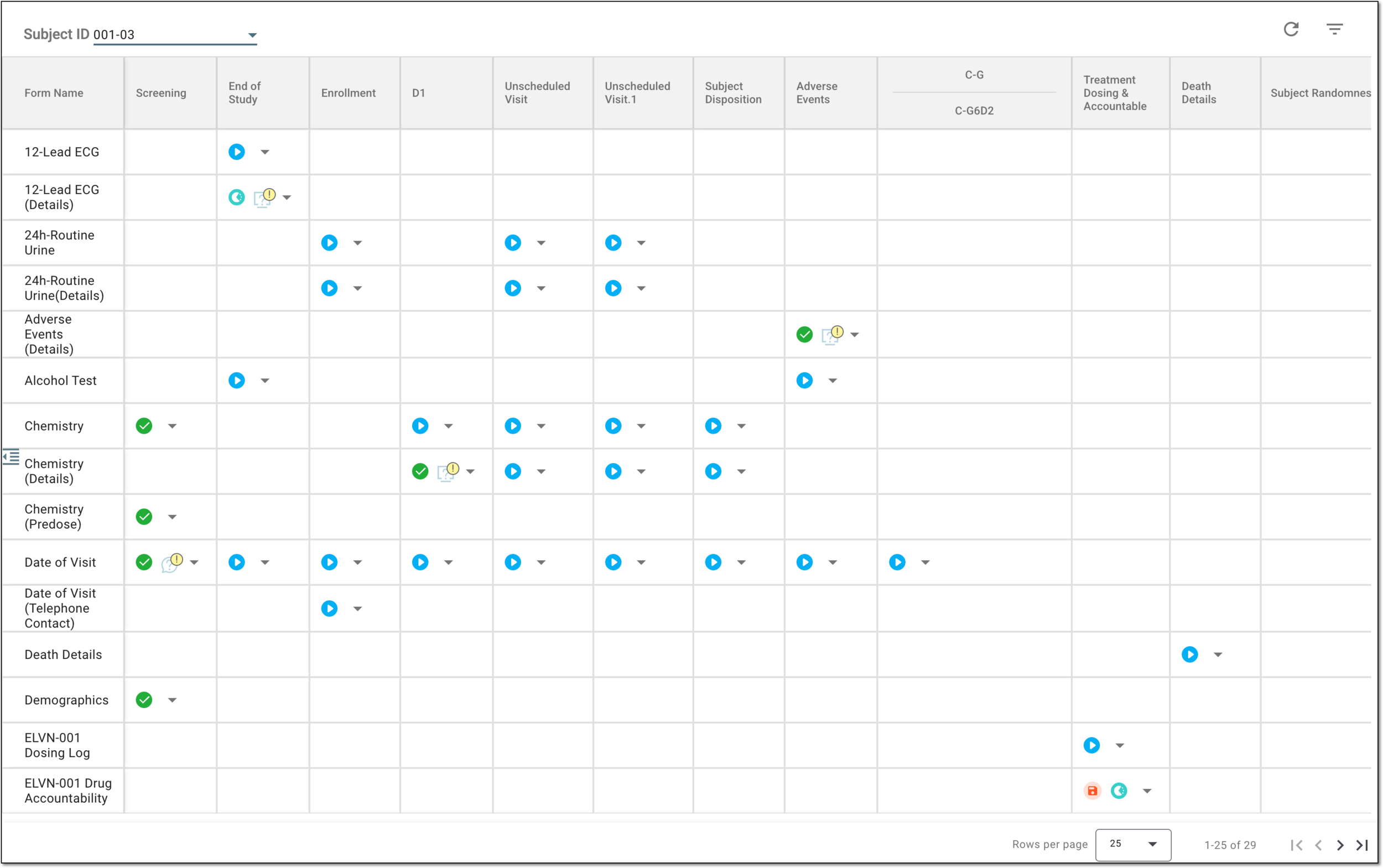 Figure 3. Analyzing subject summary metrics
Once you analyzed the current subject metrics, you can change form statuses or activate/inactivate forms if required.