Activate/Inactivate form from subject metrics
The functionality to activate or inactivate case report forms (CRFs) helps you manage the data entry and amendment process by temporarily making some forms unavailable for users and then enabling data entry again as per your business scenario.
In the EDC app, with the Metrics functionality, you can activate or inactivate the form within a particular visit.
Important
The activate and inactivate features are only available for the forms within the visits with statuses Initial, Incomplete, or Completed.
-
In the EDC application header, select the STUDY INFO tab.
-
On the page that opens, in the left pane, select Metrics > Subject Summary.
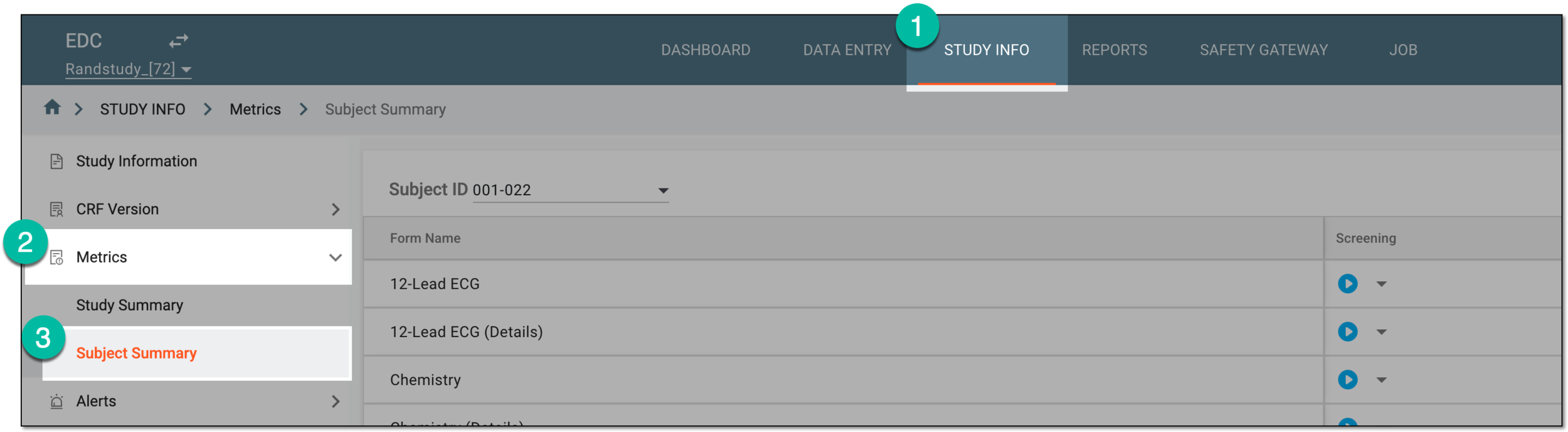 Figure 1. Accessing subject summary
-
On the page that opens, from the Subject ID filter, select the subject whose visit and form metrics you want to access.
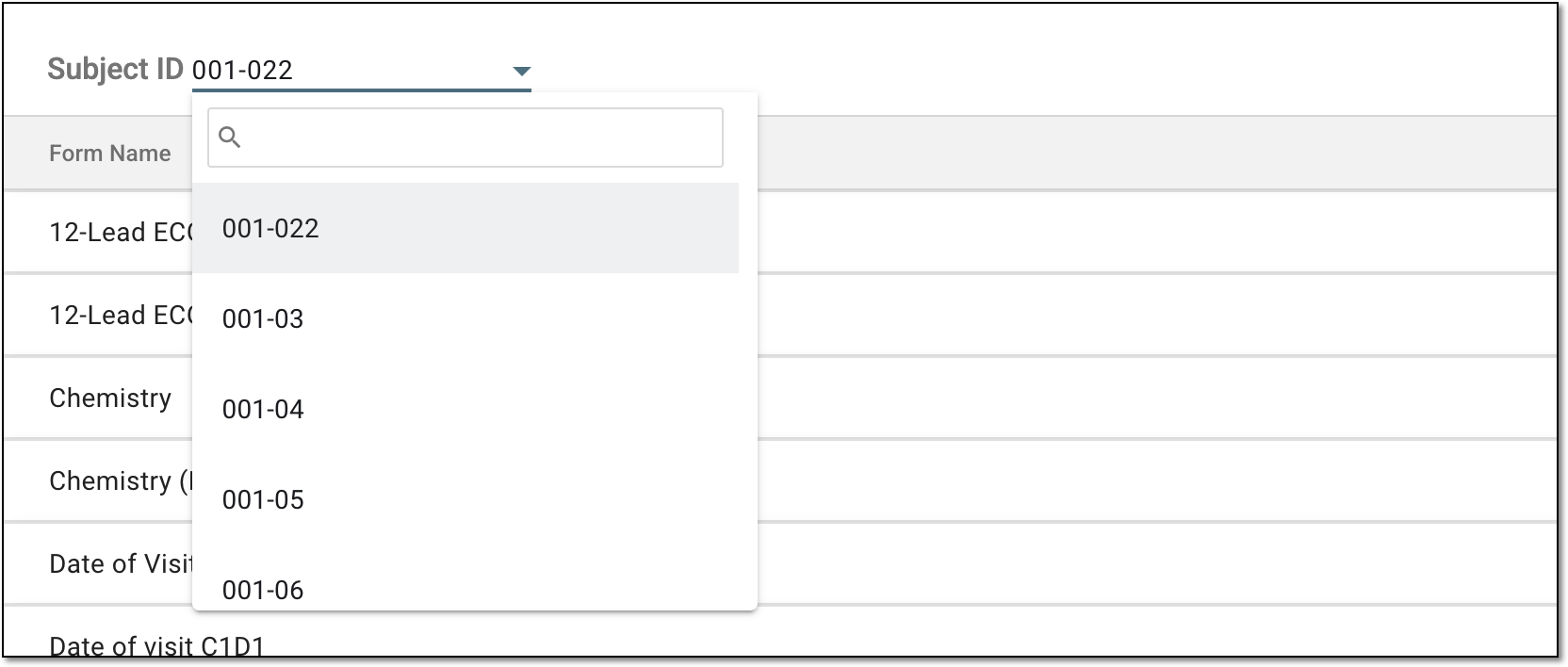 Figure 2. Selecting subject to show metrics
-
In the table that appears, locate the visit and its form that you want to activate or inactivate.
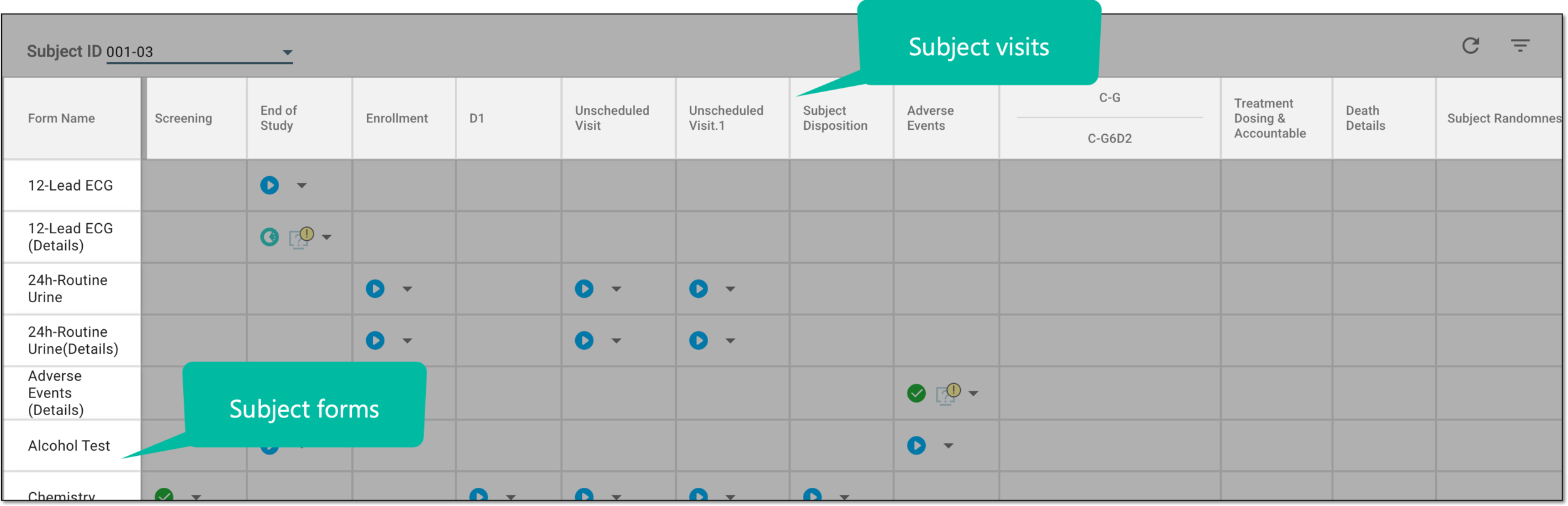 Figure 3. Locating subject visits and forms
-
Select the form status and from the dropdown menu that appears, select Activate
 or Inactivate
  .
. Figure 4. Activating and inactivating form
Tip
You can select Go to CRF
 to go and review the form data before changing the
status.
to go and review the form data before changing the
status. -
In the Reason dialog that appears, enter the reason for activating or inactivating the form. Then select
 to implement
the change.
to implement
the change.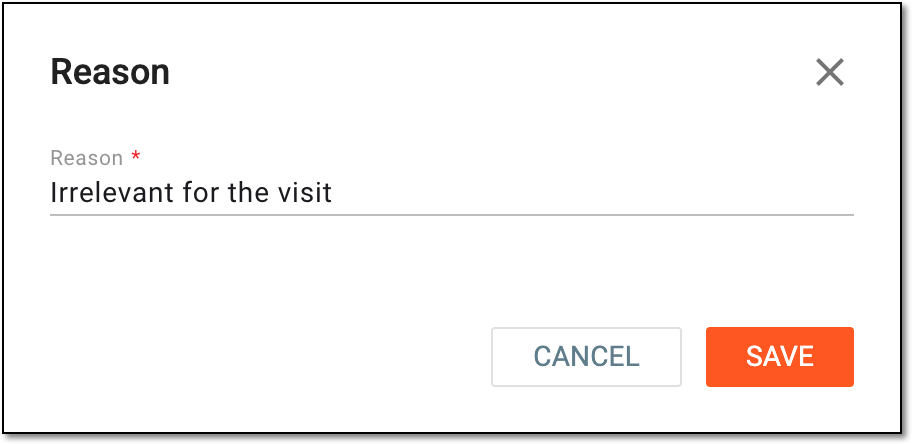 Figure 5. Providing reason for form inactivation
Once saved, the form is either activated or inactivated, depending on the action performed.