Change form status per visit from subject metrics
The status change means you can change the review status, softlock, or provide your signature for the forms within a specific visit before hardlocking the study. The review statuses available here depend on which stages of review are configured as required for your study data, such as data manager (DM), clinical research associate (CRA), principal investigator (PI), or other review stages.
In the EDC application, with the Metrics functionality, you can manage the statuses of your forms per subject visit.
Important
The actions availability and dependencies are configured for your study and sites under the Status Configuration functionality of EDC.
-
In the EDC application header, select the STUDY INFO tab.
-
On the page that opens, in the left pane, select Metrics > Subject Summary.
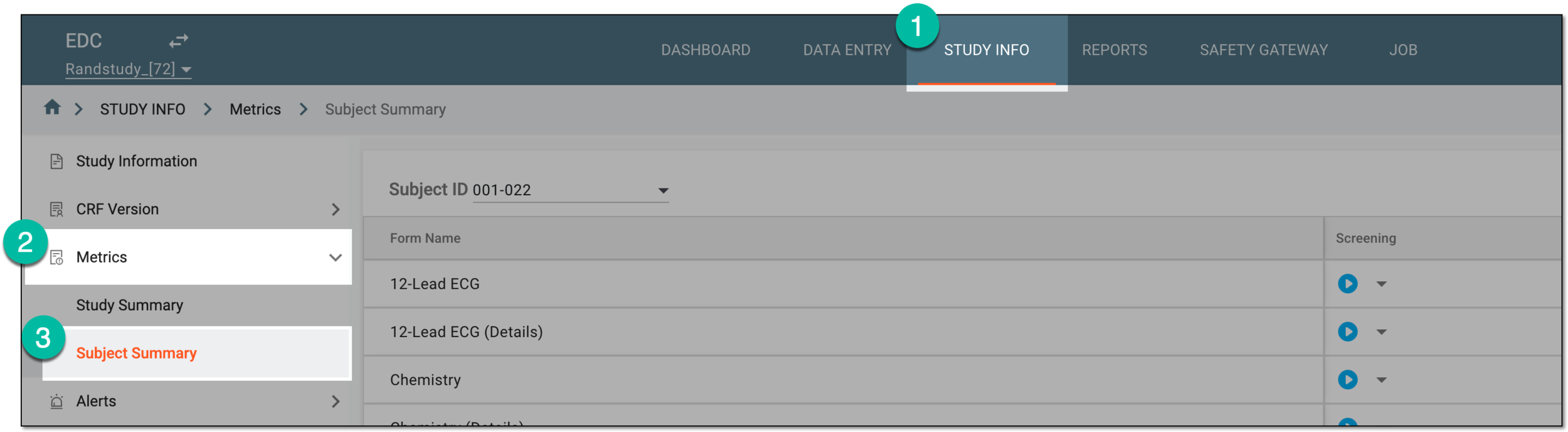 Figure 1. Accessing subject summary
-
On the page that opens, from the Subject ID filter, select the subject whose visit and form metrics you want to access.
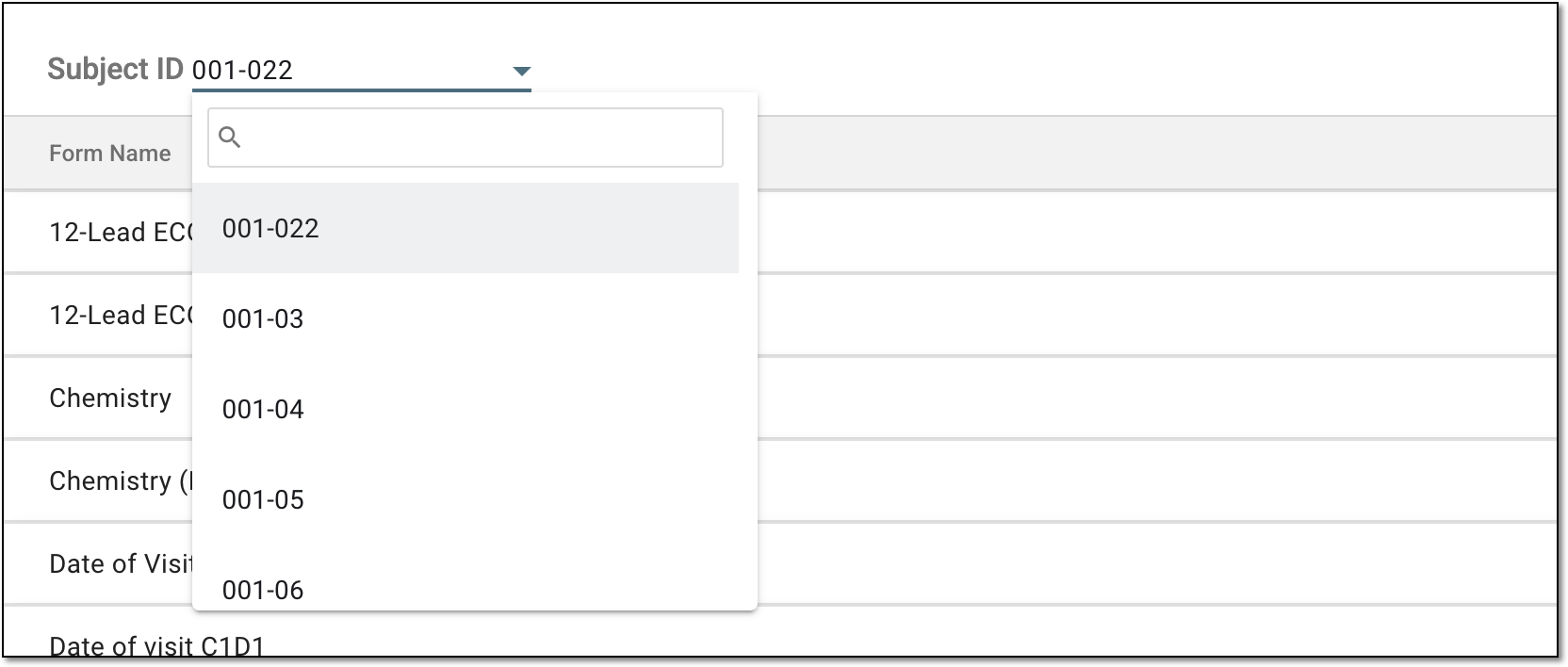 Figure 2. Selecting subject to show metrics
-
In the table that appears, locate the visit and its form for which you want to change the status.
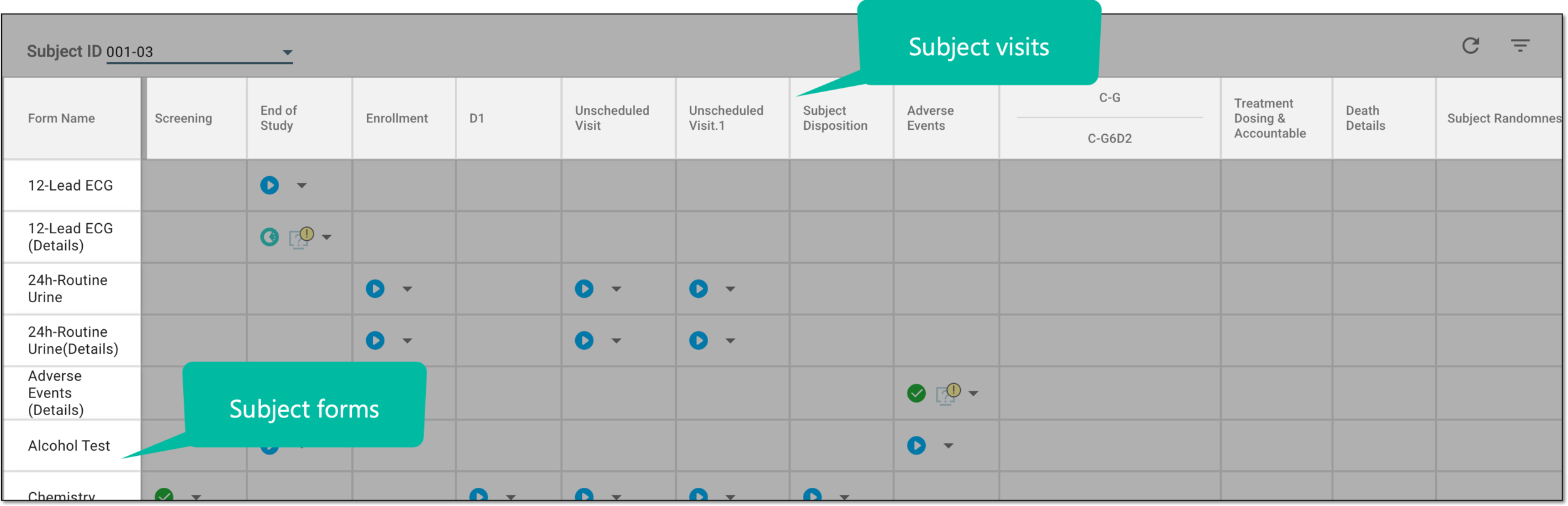 Figure 3. Locating subject visits and forms
-
Select the form status and from the dropdown menu that appears, select the needed one.
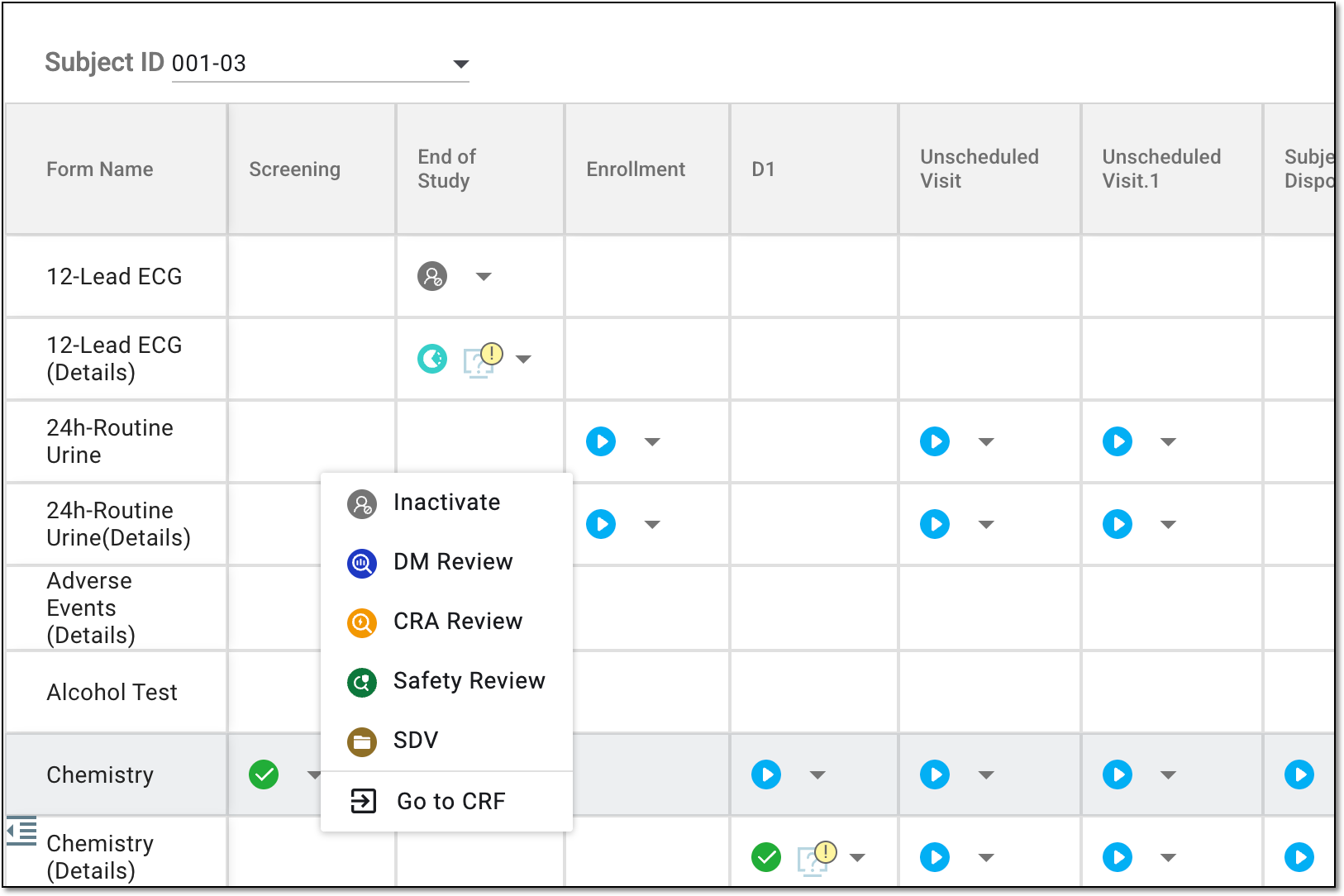 Figure 4. Changing form status
Tip
You can select Go to CRF
 to go and review the form data before changing the
status.
to go and review the form data before changing the
status.For activation and inactivation options, you have to provide the reason before the action can be applied. See more in the Activate/Inactivate visit from study metrics section.
Once done, the status of the form is changed.