Soft-lock/Unlock site
EDC is your clinical database for recording subject data collected in the course of your study at patient visits through case report forms (CRFs). Once all the data is entered into CRFs, it undergoes various reviews to ensure its accuracy, validity, compliance with established industry standards, and so on. Usually, a review cycle involves multiple stages, such as data manager (DM) review, clinical research associate (CRA) review, principal investigator (PI) review, safety review, and more.
In the EDC application, to ensure that data is not modified between different review stages, there is an option to soft-lock individual forms or an entire site, if all its forms are in a review cycle. Since the data that is soft-locked cannot be amended, and there can be occasions when some eligible changes are required, in EDC, there is an option to temporarily unlock a site.
Furthermore, when you configure study-level setting, you can set the conditions for the Softlock feature. These conditions ensure that the you can only soft-lock sites when all the conditions that you set are met. Users will not be able to soft-lock sites accidentally or without the predefined conditions, including required reviews and resolved queries.
Important
A site can only be soft-locked when all visits and forms within that particular site adhere to the conditions set for the Softlock feature.
The soft-lock functionality can be disabled for a site with no active subjects by managing the site-level settings.
-
In the EDC application header, select the DATA ENTRY tab.
-
On the site list page that opens, select the tile representing the site with which you want to work.
 Figure 1. Selecting site tile
-
On the Subject List page that opens, select
 to lock the unlocked site or
  to unlock the locked site.
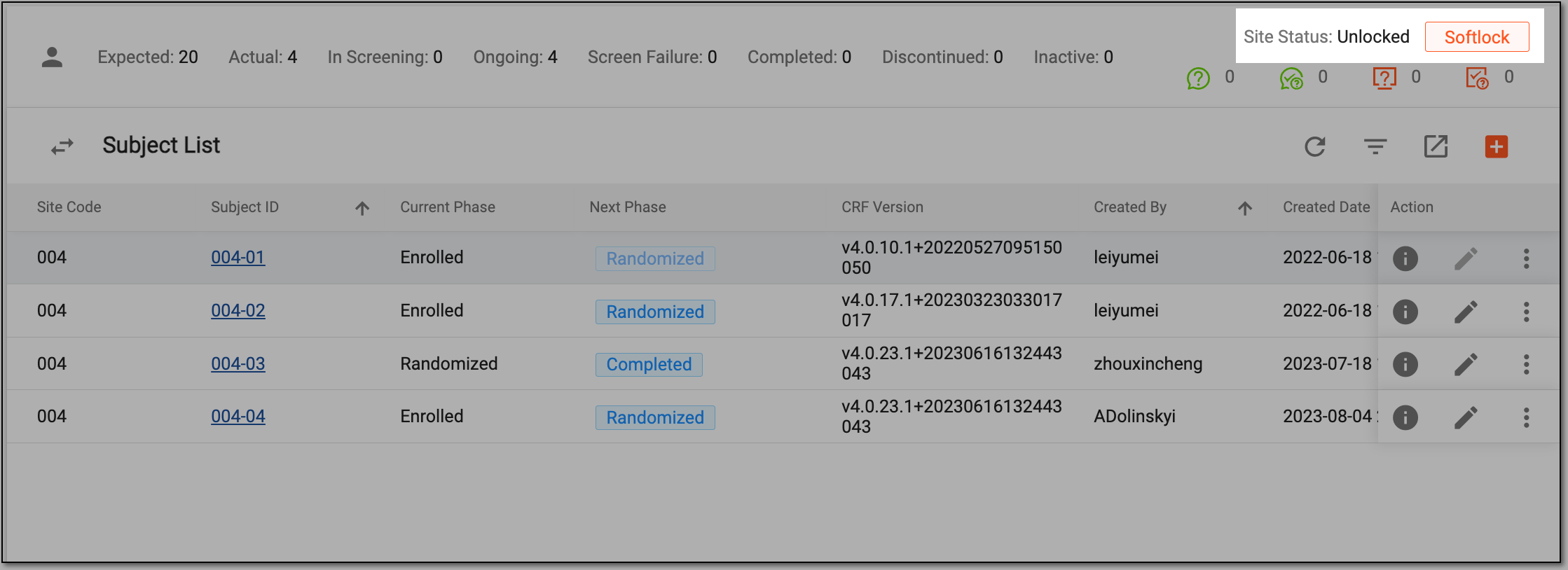 Figure 2. Soft-locking or unlocking a site
Important
If the site that you want to unlock is already signed, you need to unsign the site for the Unsoftlock option to become available.
-
In the confirmation dialog that appears, select
 to implement your changes.
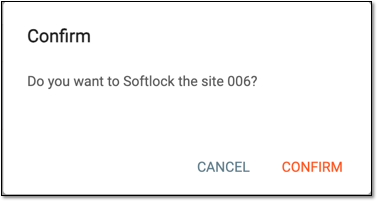 Figure 3. Confirming site soft-lock or unlock
Once confirmed, the site is either soft-locked or unlocked depending on your selected action.