Add record of protocol deviation
In CTMS, after you have created and associated the protocol deviation template with a study, site, or subject, you can start adding the records of the protocol deviations. Recording a deviation can be a requirement of the sponsor and is also necessary to avoid such deviations in the future, ensuring compliance with the study protocol and the safety of the subjects.
-
Access the study management page in one of the following ways:
-
In the CTMS application header, select the DASHBOARD tab and then select the study dashboard of your interest.
 Figure 1. Accessing study management from dashboard
-
In the CTMS application header, select the STUDY MANAGEMENT tab. Then from the Study Data List table, select the study name of your interest.
 Figure 2. Accessing study management from study data list
-
-
On the study page, in the left pane, expand Protocol Deviation and select Protocol Deviation Record.
-
On the page that opens, from the content panel, select the needed tab.
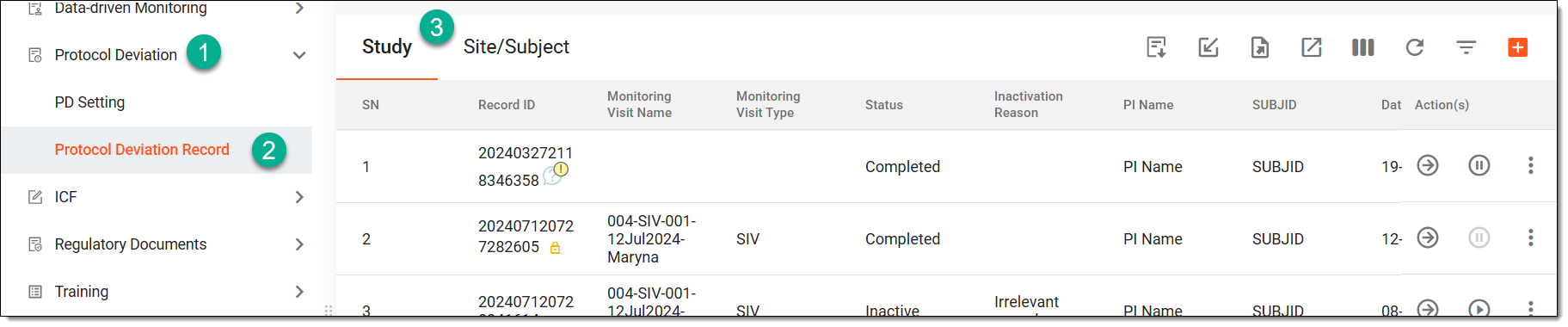 Figure 3. Accessing protocol deviation records
Tip
If the same protocol deviation template is associated with two or more entities—study, site, or subject—they are displayed in a single tab named through a slash, such as Study/Site, Study/Site/Subject, or else. Whereas, the entities associated with unique template forms are displayed in separate tabs, such as Study, Site, or Subject.
-
From the workspace toolbar, select one of the following:
-
Under the single entity tab— Study, Site, or Subject—select New Item
 to open the new protocol deviation form.
 -
Under the tab with multiple entities—such as Study/Site, Study/Site/Subject, or else—select New Item
and from the expanded menu, select Study, Site, or Subject as required to open
the new protocol deviation form. Figure 4. Selecting option to add record for different template-entity combinations
-
-
Based on the protocol deviation template you have associated with the selected entity, on the page that opens, fill in the template form.
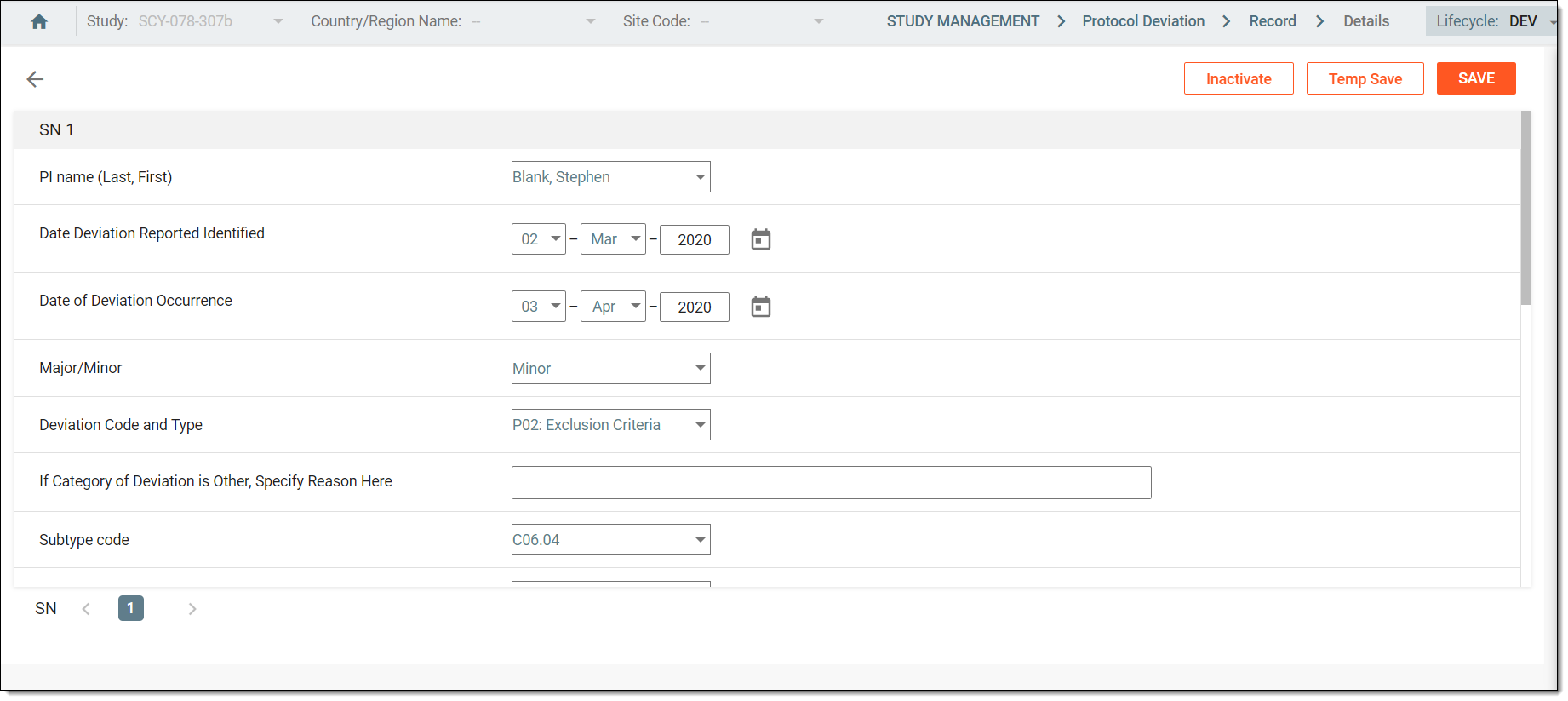 Figure 5. Filling protocol deviation template form
Important
SN or a serial number displayed beneath the form indicates the number of records added for the same entity using the same protocol deviation template. The serial number is increased for every new record you create.
 Figure 6. Creating new record for same entity
-
Once the settings are ready, perform any of the following actions as required:
-
SAVE. If you have completed the form, then select
 to
submit it.
to
submit it. -
TEMP SAVE. If you have partially completed the form and for some reason, you want to fill the rest of the form later, then select
 to save the information you have entered so far. Such records are saved with the Initial status. Later, whenever required, you can resume filling out the form by selecting Go
  next to the needed record from the Record page.
 -
INACTIVATE. If you want to inactivate the form because let us suppose that the reported deviation is not yet verified or there is some missing information, then you can select
 to inactivate the record. Later, from the same page, you can select
  to activate the record.
-
-
Upon saving, in the confirmation dialog that opens, select one of the following options:
-
Back to Record List: to return to the protocol deviation record page.
-
Create a New Record: to open a new blank PD form and add more records right away.
Select OK to proceed with the selected option.
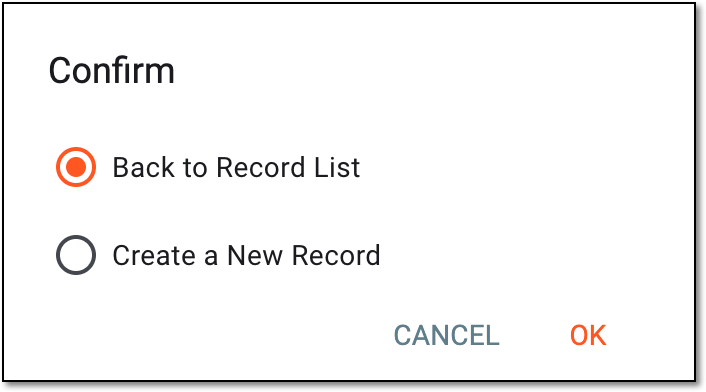 Figure 7. Confirming PD creation and selecting next action
-
Once the PD record is saved, it appears with the Completed status on the Record page.