PD record queries
In CTMS, whenever a protocol deviation occurs, you can record it by using a protocol deviation template. Recording a deviation is necessary for avoiding such deviation from occurring in the future, or it can be a requirement of the sponsor as well.
Once CRA, DM, or other user adds a protocol deviation record, the sponsor or monitor has to review this record. Upon review, there can be additional inquiries or clarifications needed from the user who created the record. Thus, the reviewer can open queries and request some assistance or clarification from the assignee—CRA, DM. The assignee has to review the data and either confirm its accuracy or update the values.
In CTMS, the PD record queries can be managed as explained in the following sections.
Once CRA, DM, or other user adds a protocol deviation record, the sponsor or monitor has to review this record. Upon review, there can be additional inquiries or clarifications needed from the user who created the record. Thus, the reviewer can open queries and request some assistance or clarification. This provides a controlled and traceable communication tool.
-
Access the study management page in one of the following ways:
-
In the CTMS application header, select the DASHBOARD tab and then select the study dashboard of your interest.
 Figure 1. Accessing study management from dashboard
-
In the CTMS application header, select the STUDY MANAGEMENT tab. Then from the Study Data List table, select the study name of your interest.
 Figure 2. Accessing study management from study data list
-
-
On the study page, in the left pane, expand Protocol Deviation and select Protocol Deviation Record.
-
On the page that opens, from the content panel, select the needed tab.
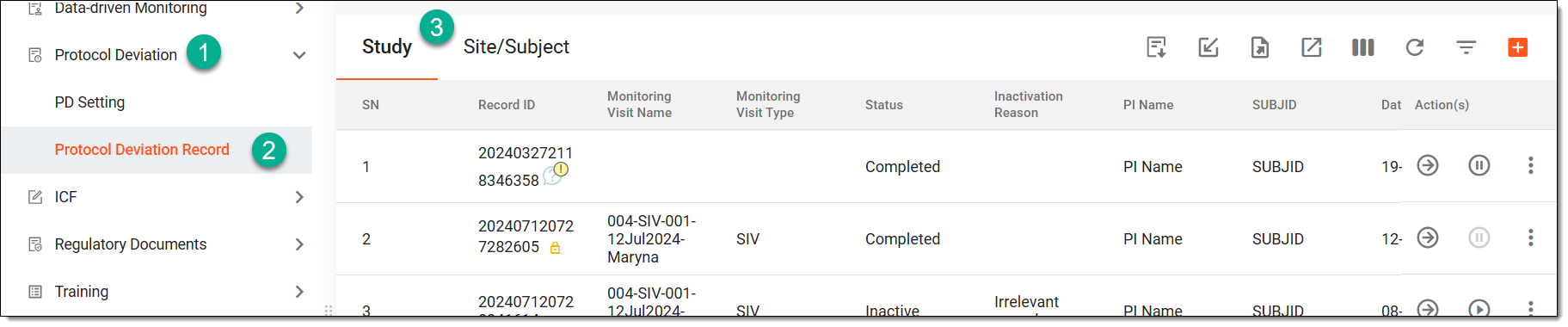 Figure 3. Accessing protocol deviation records
Tip
If the same protocol deviation template is associated with two or more entities—study, site, or subject—they are displayed in a single tab named through a slash, such as Study/Site, Study/Site/Subject, or else. Whereas, the entities associated with unique template forms are displayed in separate tabs, such as Study, Site, or Subject.
-
In the table, locate the record that has the Completed status, and next to it, from the Actions column, select Go
 .
.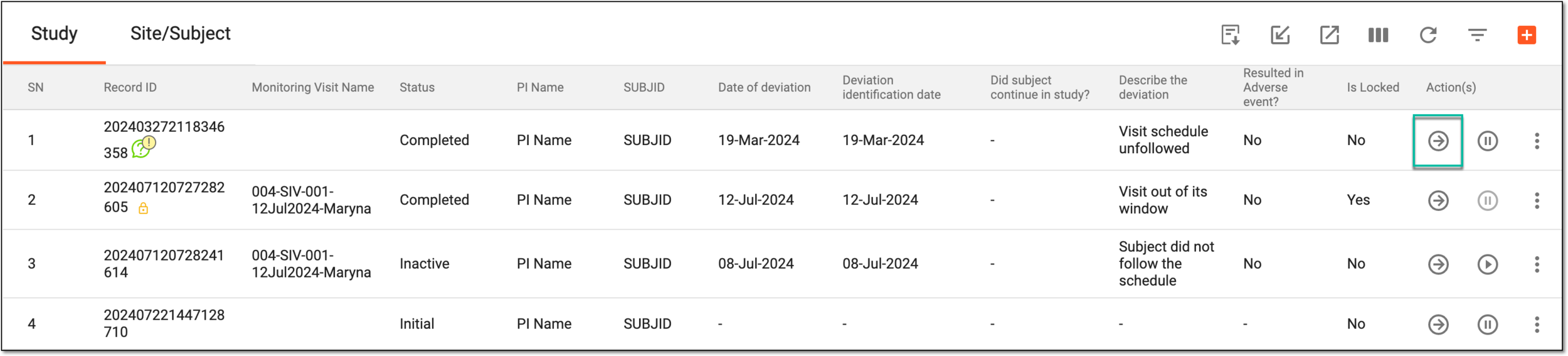 Figure 4. Accessing completed PD record form
-
In the record form that opens, locate the question or data item on which you want to open the query.
-
Next to the needed data item, from the Actions column, select
 and from the
dropdown menu, select Open Query
and from the
dropdown menu, select Open Query  .
.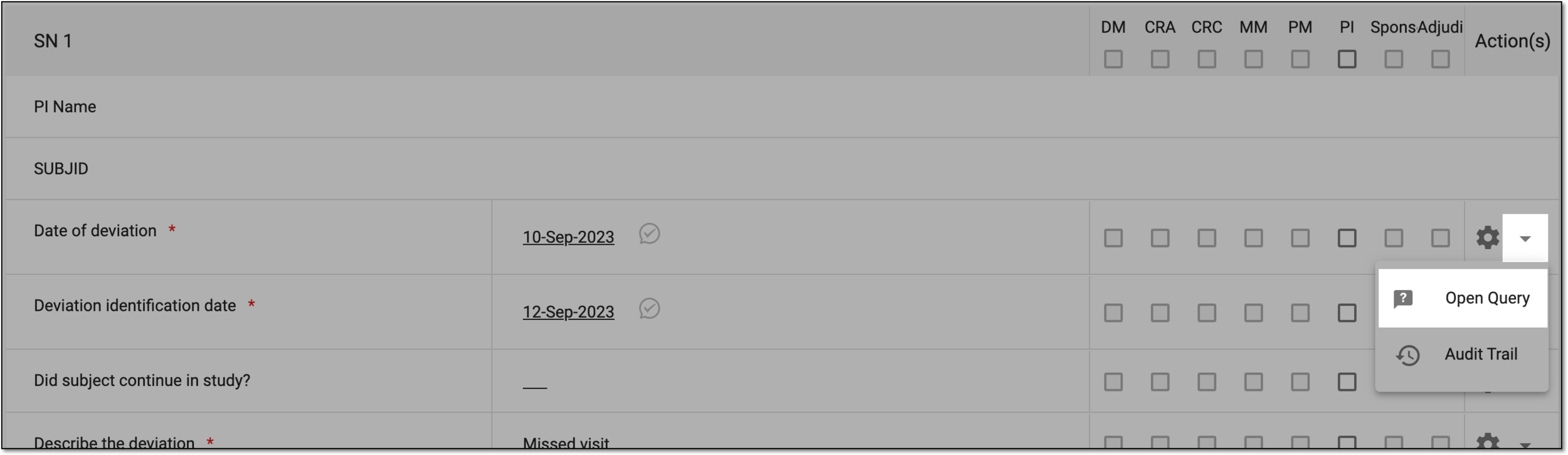 Figure 5. Selecting option to open query
-
In the Manual Query dialog that appears, enter the information as explained in the following table.
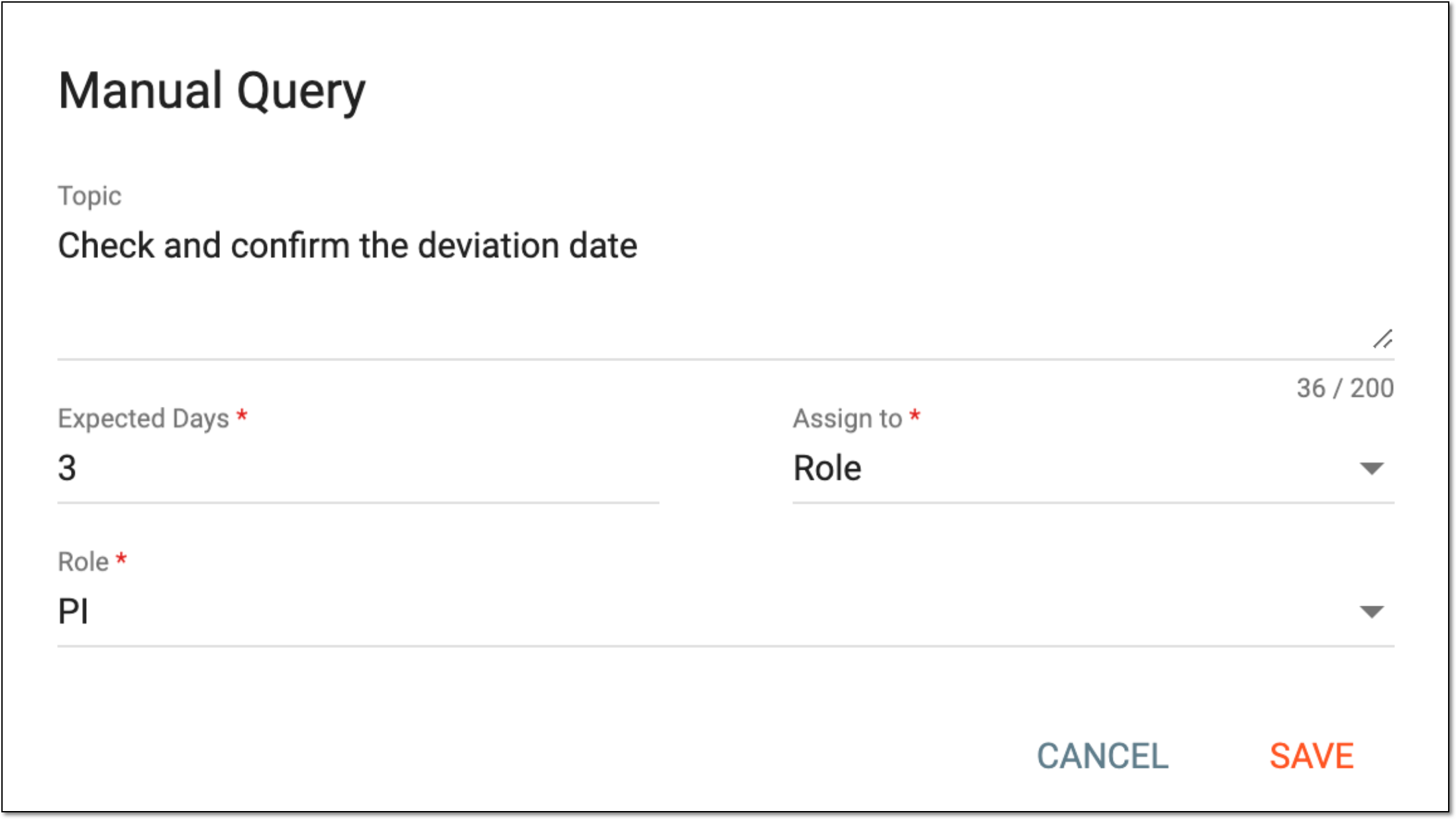 Figure 6. Entering query details
Tip
In the following table, mandatory elements are marked with an asterisk (*).
Element
Details
Topic
Enter the query you want to ask the designated personnel.
Expected Days*
Enter the number of days by which you are expecting a reply from the reviewer. Ideally, the reviewer should respond within the indicated number of days. However, if they do not and the query is not removed, the reviewer can still provide their response.
Assign to*
From the dropdown menu, select one of the following options:
-
Assignee: select this option if you want to assign the query to a specific user.
-
Role: select this option if you want to assign the query to a user role.
Assignee*/Role*
Select the user/user role to which you want to assign the query for review.
The name of the field varies depending on your selection in the Assign to field.
SAVE
Select
 to add the query.
CANCEL
Select
 to dismiss the operation.
 -
Once saved, next to the question/data item, the query icon appears  and the designated personnel is assigned the query. The reviewer can now access the
query via the My Work dashboard. You can select Back
and the designated personnel is assigned the query. The reviewer can now access the
query via the My Work dashboard. You can select Back  to return to the Record page.
In CTMS, once a sponsor or monitor opens a query for some protocol deviation record item, the assignee—CRA, DM, or other user—has to review the data and either confirm its accuracy or update the values. In any case, the assignee of the query finds the data element for which the query is opened as an editable field and has to save the data in order to resolve the issue.
-
Access the study management page in one of the following ways:
-
In the CTMS application header, select the DASHBOARD tab and then select the study dashboard of your interest.
Figure 1. Accessing study management from dashboard
-
In the CTMS application header, select the STUDY MANAGEMENT tab. Then from the Study Data List table, select the study name of your interest.
Figure 2. Accessing study management from study data list
-
-
On the page that opens, perform one of the following actions:
-
On the My Work dashboard, select the Queries tile to start working on queries assigned to you.
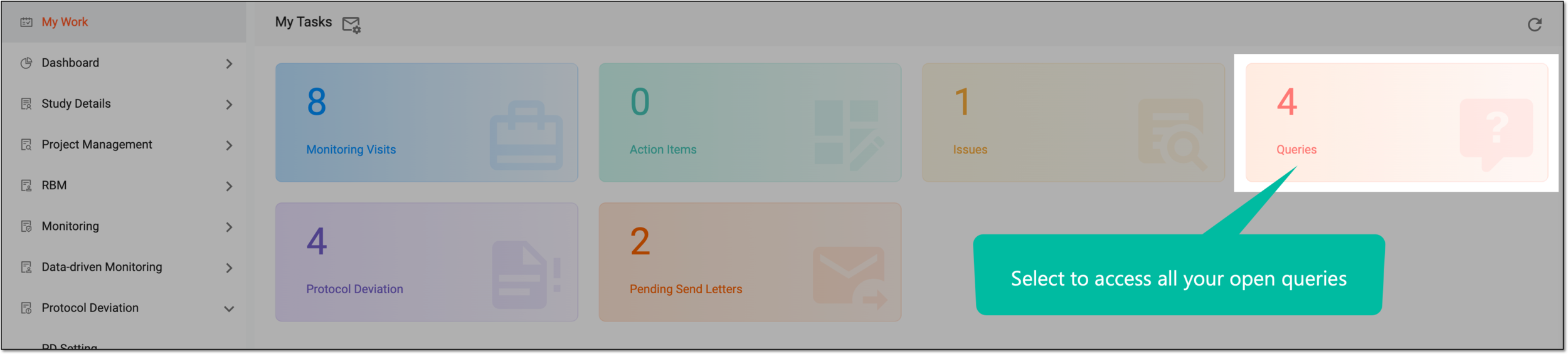 Figure 3. Accessing all your queries
-
In the left pane, select Protocol Deviation > Protocol Deviation Record. Then select the needed tab—Study, Site, Study/Site, or else—and from the list, locate the PD record with the query that you want to resolve, and from the Action(s) column next to it, select Go
.Figure 4. Accessing PD records list
Tip
If the same protocol deviation template is associated with two or more entities—study, site, or subject—they are displayed in a single slash-separated tab, such as Study/Site, Study/Site/Subject, or else. Whereas, the entities associated with unique template forms are displayed in separate tabs, such as Study, Site, or Subject.
-
-
In the record form that opens, for the needed data item, review the current value and fix it if required. If you change the data, provide the reason for it by selecting the existing ones—Source Documentation Error or Data Entry Error—or entering a custom reason.
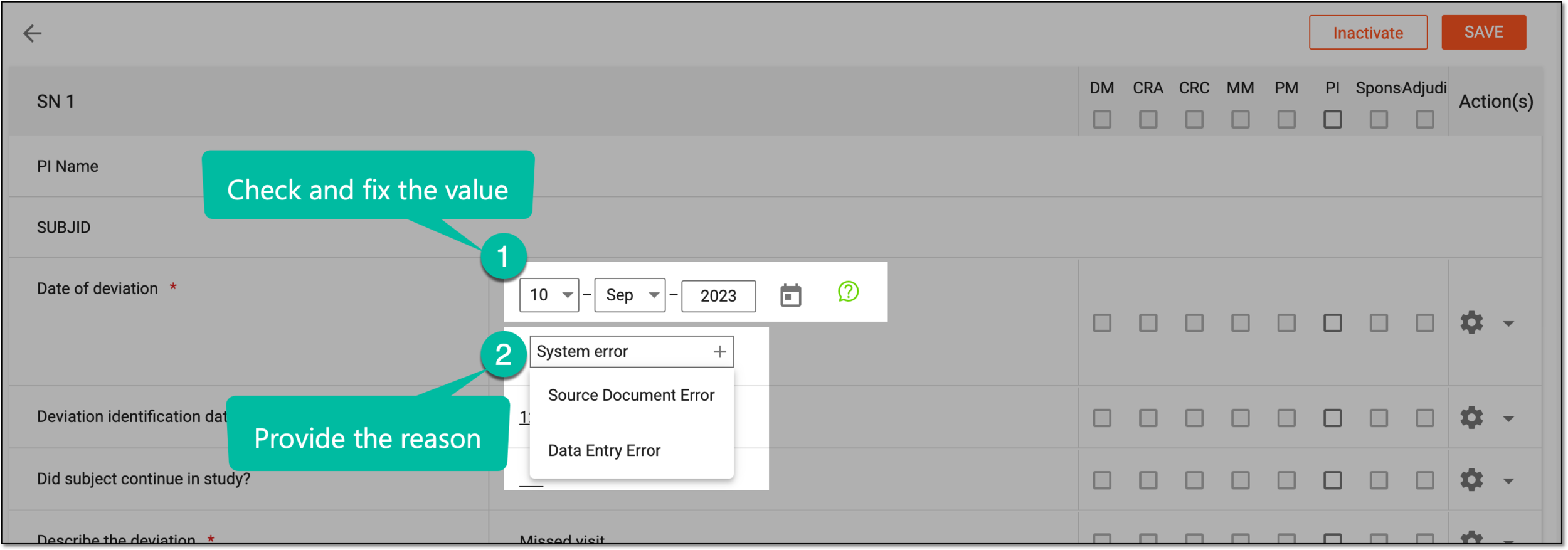 Figure 5. Fixing data with query and providing reason
-
Select
 to save the implemented changes.
Once saved, the protocol deviation form data is updated and may be considered resolved by you. The identification icon changes to the answered query  . To give more information on the query topic, you can also add a comment by replying to a query.
In CTMS, once a query is opened in some protocol deviation record, its assignee—CRA, DM, or another user—or the creator—sponsor or monitor—can add a reply to it. This might become useful if you—as a person who created or reviewed the query—need to communicate additional information or add some clarifications to the topic.
-
Access the study management page in one of the following ways:
-
In the CTMS application header, select the DASHBOARD tab and then select the study dashboard of your interest.
Figure 1. Accessing study management from dashboard
-
In the CTMS application header, select the STUDY MANAGEMENT tab. Then from the Study Data List table, select the study name of your interest.
Figure 2. Accessing study management from study data list
-
-
On the page that opens, perform one of the following actions:
-
On the My Work dashboard, select the Queries tile to start working on queries assigned to you.
Figure 3. Accessing all your queries
-
In the left pane, select Protocol Deviation > Protocol Deviation Record. Then select the needed tab—Study, Site, Study/Site, or else—and from the list, locate the PD record with the query to which you want to reply, and from the Action(s) column next to it, select Go
.Figure 4. Accessing PD records list
Tip
If the same protocol deviation template is associated with two or more entities—study, site, or subject—they are displayed in a single slash-separated tab, such as Study/Site, Study/Site/Subject, or else. Whereas, the entities associated with unique template forms are displayed in separate tabs, such as Study, Site, or Subject.
-
-
In the record form that opens, in the needed data item, next to a query, select Reply
 .
.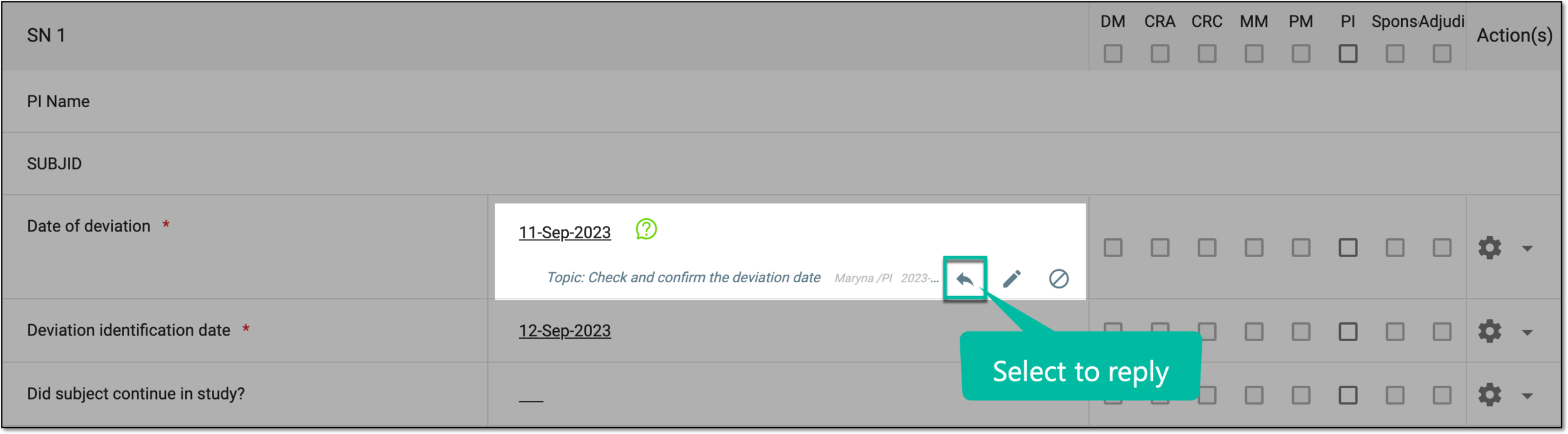 Figure 5. Selecting to reply
-
In the Reply field that appears, provide your comment and select
.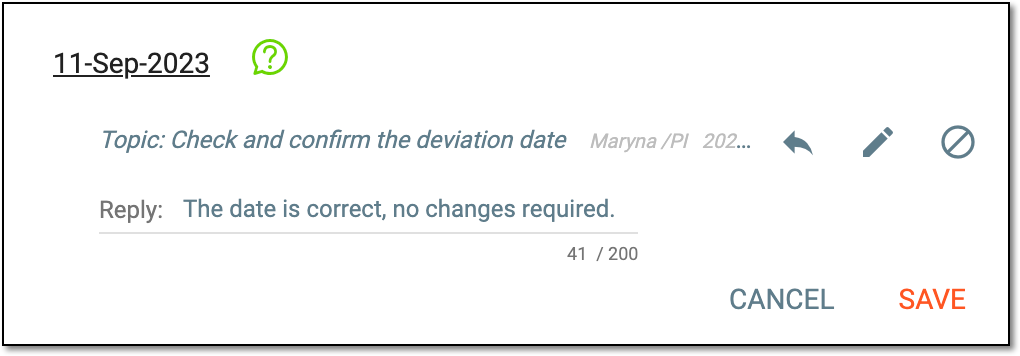 Figure 6. Replying to query
Once saved, the reply is added and visible to other users, and the identification icon changes to the answered query . You can add as
many replies to a query as needed to exhaust the topic.
In CTMS, once a query is opened in some protocol deviation record, it can be edited to change the needed details. This might become useful if you need to change the due date, replace the assignee, or edit the topic of your query.
-
Access the study management page in one of the following ways:
-
In the CTMS application header, select the DASHBOARD tab and then select the study dashboard of your interest.
Figure 1. Accessing study management from dashboard
-
In the CTMS application header, select the STUDY MANAGEMENT tab. Then from the Study Data List table, select the study name of your interest.
Figure 2. Accessing study management from study data list
-
-
On the page that opens, perform one of the following actions:
-
On the My Work dashboard, select the Queries tile to start working on queries assigned to you.
Figure 3. Accessing all your queries
-
In the left pane, select Protocol Deviation > Protocol Deviation Record. Then select the needed tab—Study, Site, Study/Site, or else—and from the list, locate the PD record with the query that you want to edit, and from the Action(s) column next to it, select Go
.Figure 4. Accessing PD records list
Tip
If the same protocol deviation template is associated with two or more entities—study, site, or subject—they are displayed in a single slash-separated tab, such as Study/Site, Study/Site/Subject, or else. Whereas, the entities associated with unique template forms are displayed in separate tabs, such as Study, Site, or Subject.
-
-
In the record form that opens, next to the needed data item, select My Open Manual Query
or My Answered Manual Query depending on whether you are editing the query that has not or has been
answered (resolved) by the assignee. -
In the Manual Query panel that appears, next to the query you want to update, select
 .
.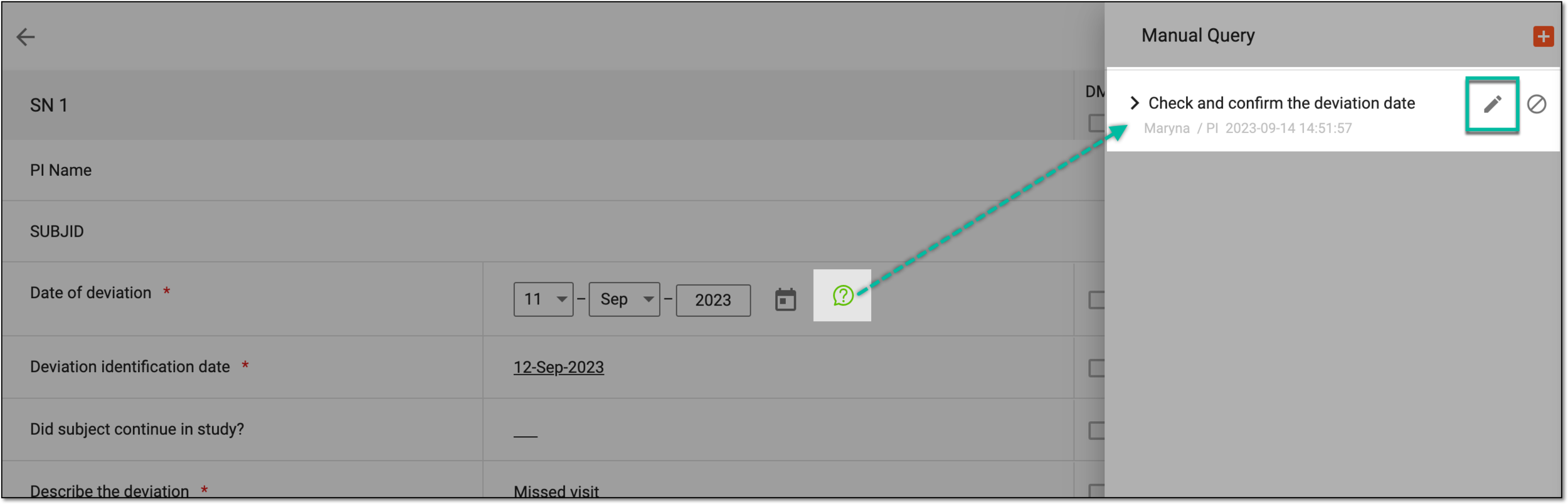 Figure 5. Selecting to edit query
-
In the Manual Query dialog that appears, update the fields as explained in the query opening instructions.
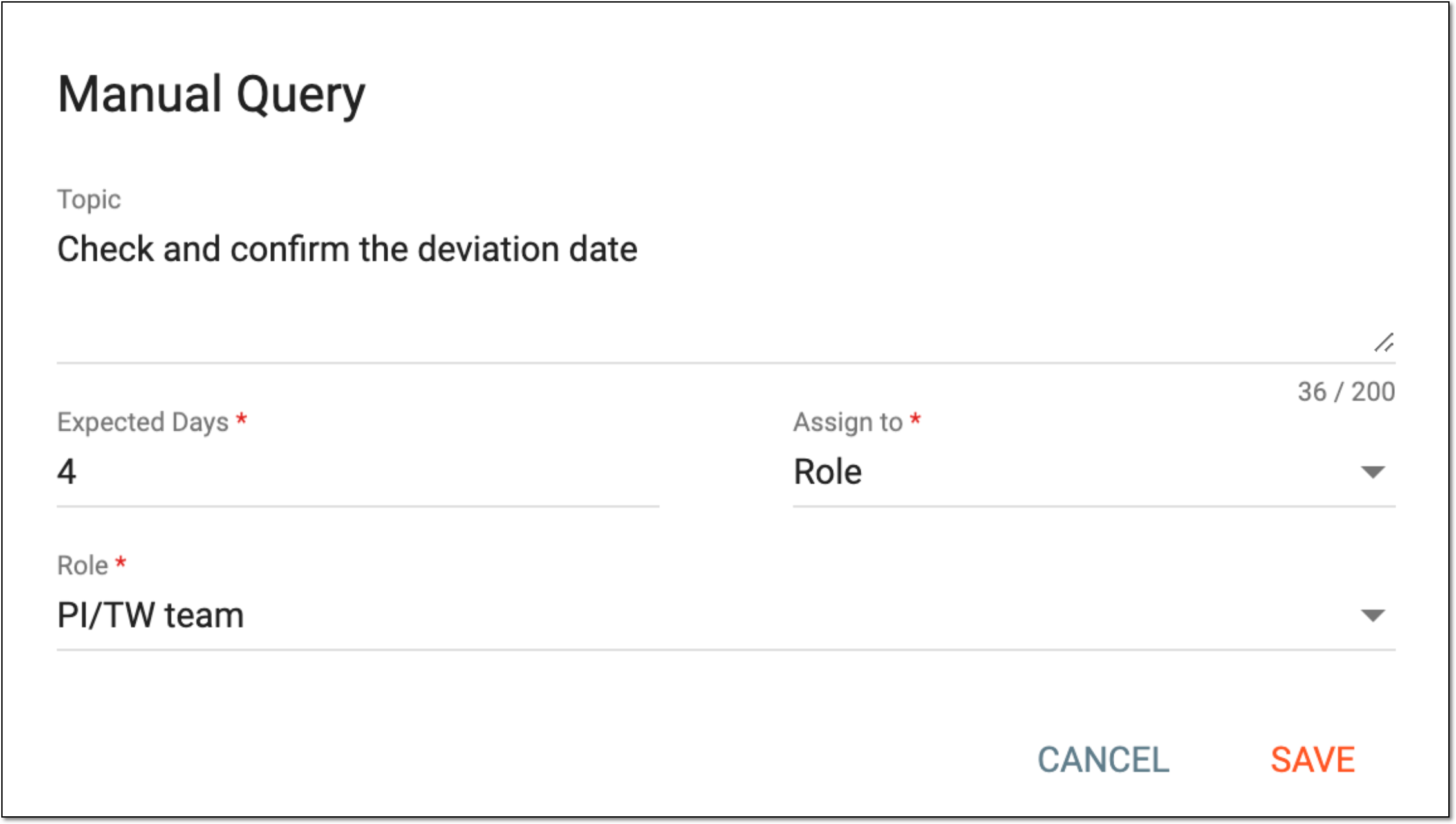 Figure 6. Editing query
-
Select
to save the implemented changes.
Once saved, the query is updated.
In CTMS, once a query is opened for some protocol deviation record, it requires the assignee's attention and must be resolved. Once resolved, the query remains open—yet answered—and must be closed.
-
Access the study management page in one of the following ways:
-
In the CTMS application header, select the DASHBOARD tab and then select the study dashboard of your interest.
Figure 1. Accessing study management from dashboard
-
In the CTMS application header, select the STUDY MANAGEMENT tab. Then from the Study Data List table, select the study name of your interest.
Figure 2. Accessing study management from study data list
-
-
On the page that opens, perform one of the following actions:
-
On the My Work dashboard, select the Queries tile to start working on queries assigned to you.
Figure 3. Accessing all your queries
-
In the left pane, select Protocol Deviation > Protocol Deviation Record. Then select the needed tab—Study, Site, Study/Site, or else—and from the list, locate the PD record with the query that you want to close, and from the Action(s) column next to it, select Go
.Figure 4. Accessing PD records list
Tip
If the same protocol deviation template is associated with two or more entities—study, site, or subject—they are displayed in a single slash-separated tab, such as Study/Site, Study/Site/Subject, or else. Whereas, the entities associated with unique template forms are displayed in separate tabs, such as Study, Site, or Subject.
-
-
In the record form that opens, next to the needed data item, select My Open Manual Query
or My Answered Manual Query depending on whether you are closing the query that has not or has been
answered (resolved) by the assignee.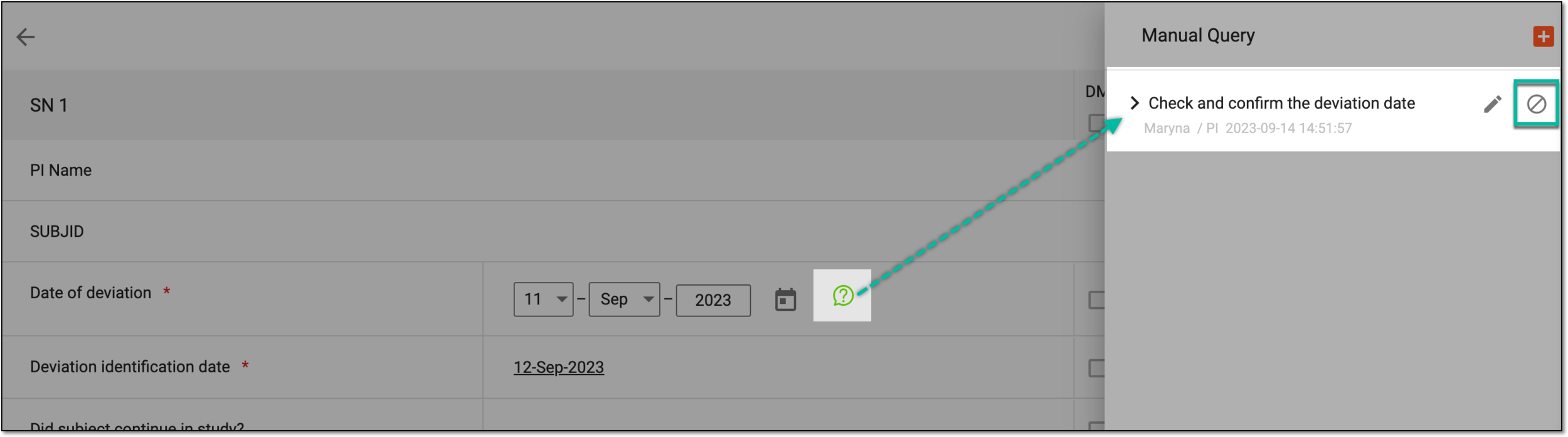 Figure 5. Closing query
-
In the confirmation dialog that appears, select
 to proceed with the query closure.
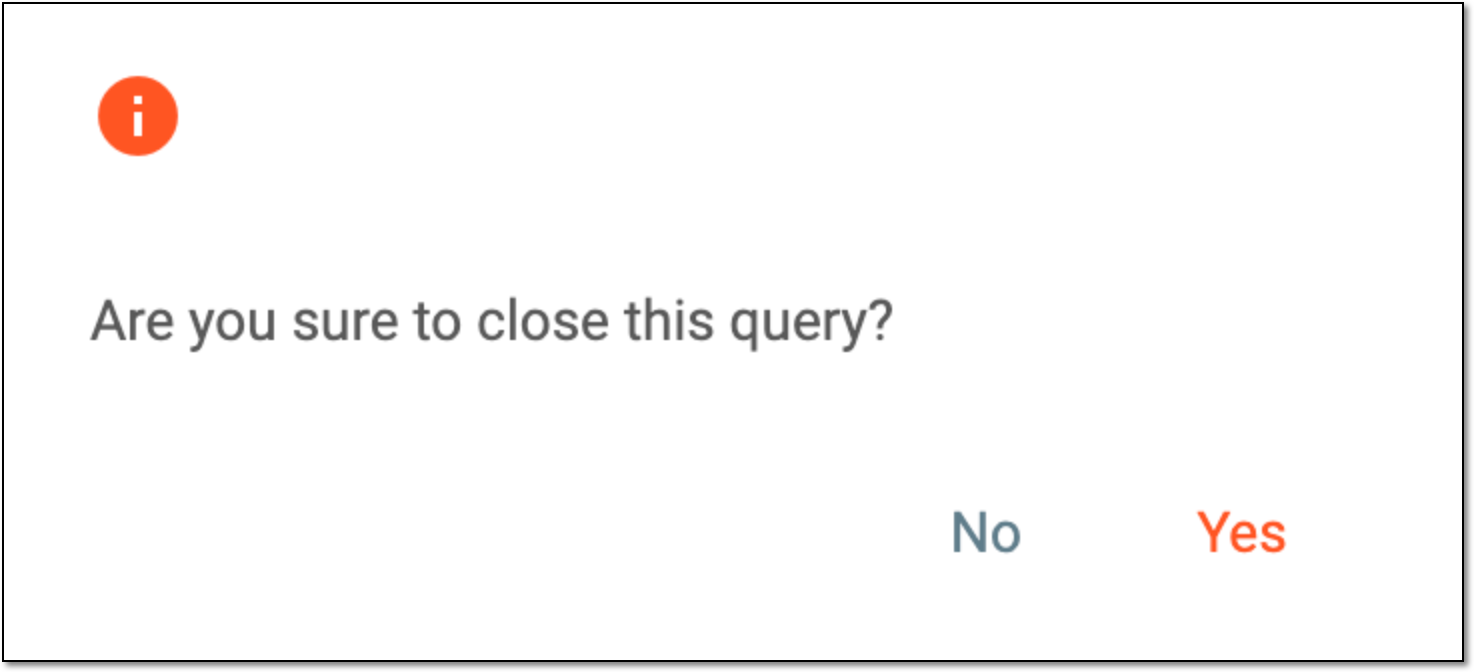 Figure 6. Confirming query closure
Once confirmed, the query is closed and the respective icon appears next to the data element.
 |