View audit trail on protocol deviation record
In CTMS, whenever a protocol deviation occurs, you can record it by using a protocol deviation template. Recording a deviation is necessary for avoiding such deviation from occurring in the future, or it can be a requirement of the sponsor as well.
Using the auditing functionality, you can view the changes done to the specific information added to the record. This may be necessary if you want to view who added a certain piece of information to the record, if there were any opened queries, what was the response to the query, and so on.
-
Access the study management page in one of the following ways:
-
In the CTMS application header, select the DASHBOARD tab and then select the study dashboard of your interest.
 Figure 1. Accessing study management from dashboard
-
In the CTMS application header, select the STUDY MANAGEMENT tab. Then from the Study Data List table, select the study name of your interest.
 Figure 2. Accessing study management from study data list
-
-
On the study page, in the left pane, expand Protocol Deviation and select Protocol Deviation Record.
-
On the page that opens, from the content panel, select the needed tab.
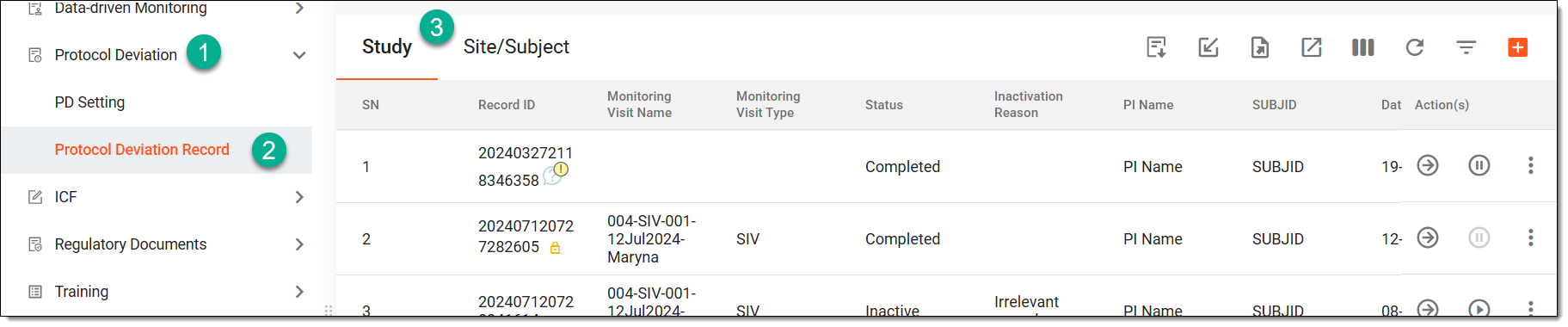 Figure 3. Accessing protocol deviation records
Tip
If the same protocol deviation template is associated with two or more entities—study, site, or subject—they are displayed in a single tab named through a slash, such as Study/Site, Study/Site/Subject, or else. Whereas, the entities associated with unique template forms are displayed in separate tabs, such as Study, Site, or Subject.
-
In the table, locate the record that has the Completed status, and next to it, from the Actions column, select Go
 .
.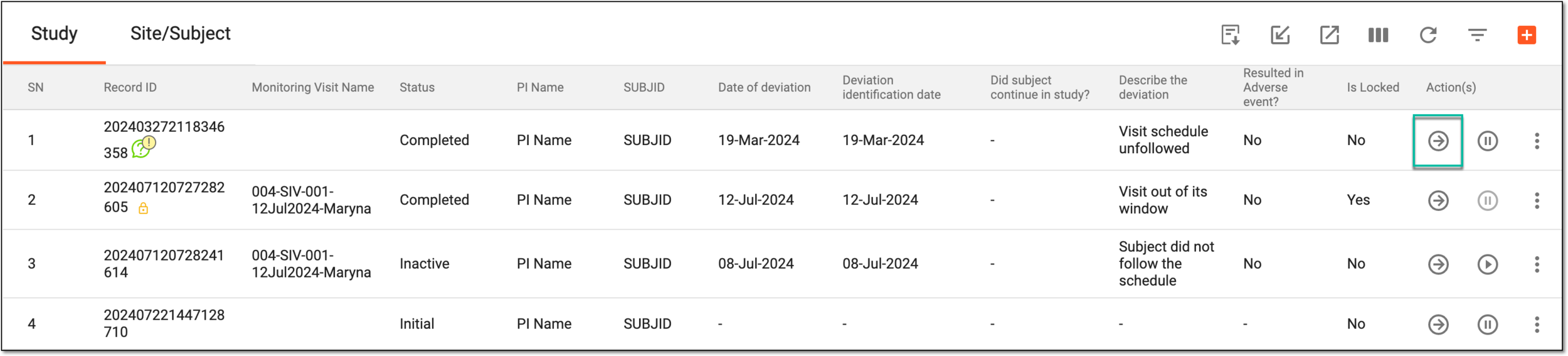 Figure 4. Accessing completed PD record form
-
In the record form that opens, locate the question or data item for which you want to view the operation history.
-
Next to the needed data item, from the Actions column, select
 > Audit Trail
  .
.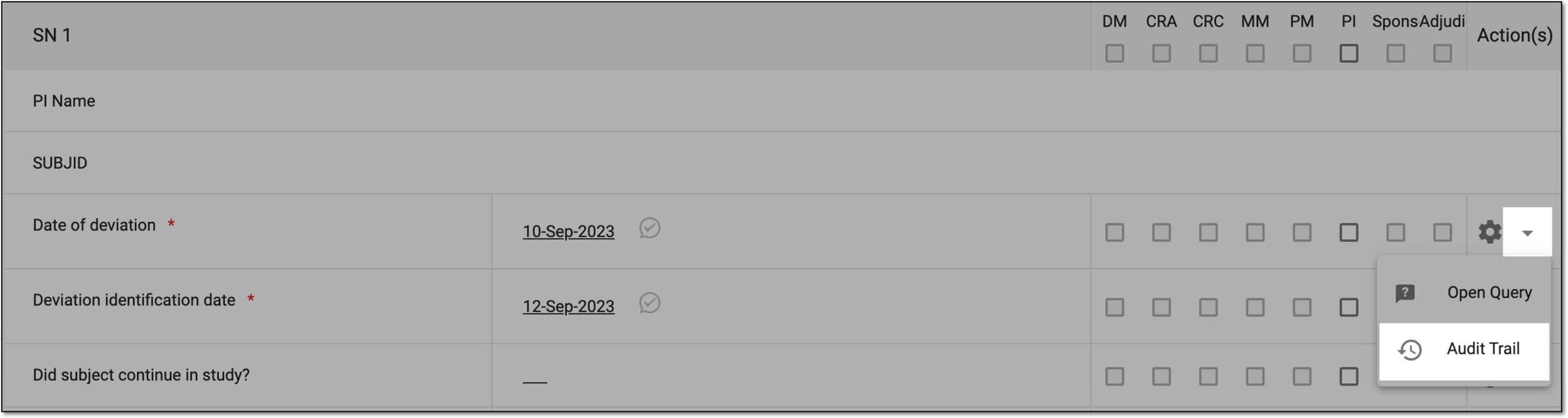 Figure 5. Selecting option to view operation history
-
In the Audit Trail dialog that appears, view the information as explained in the following table.
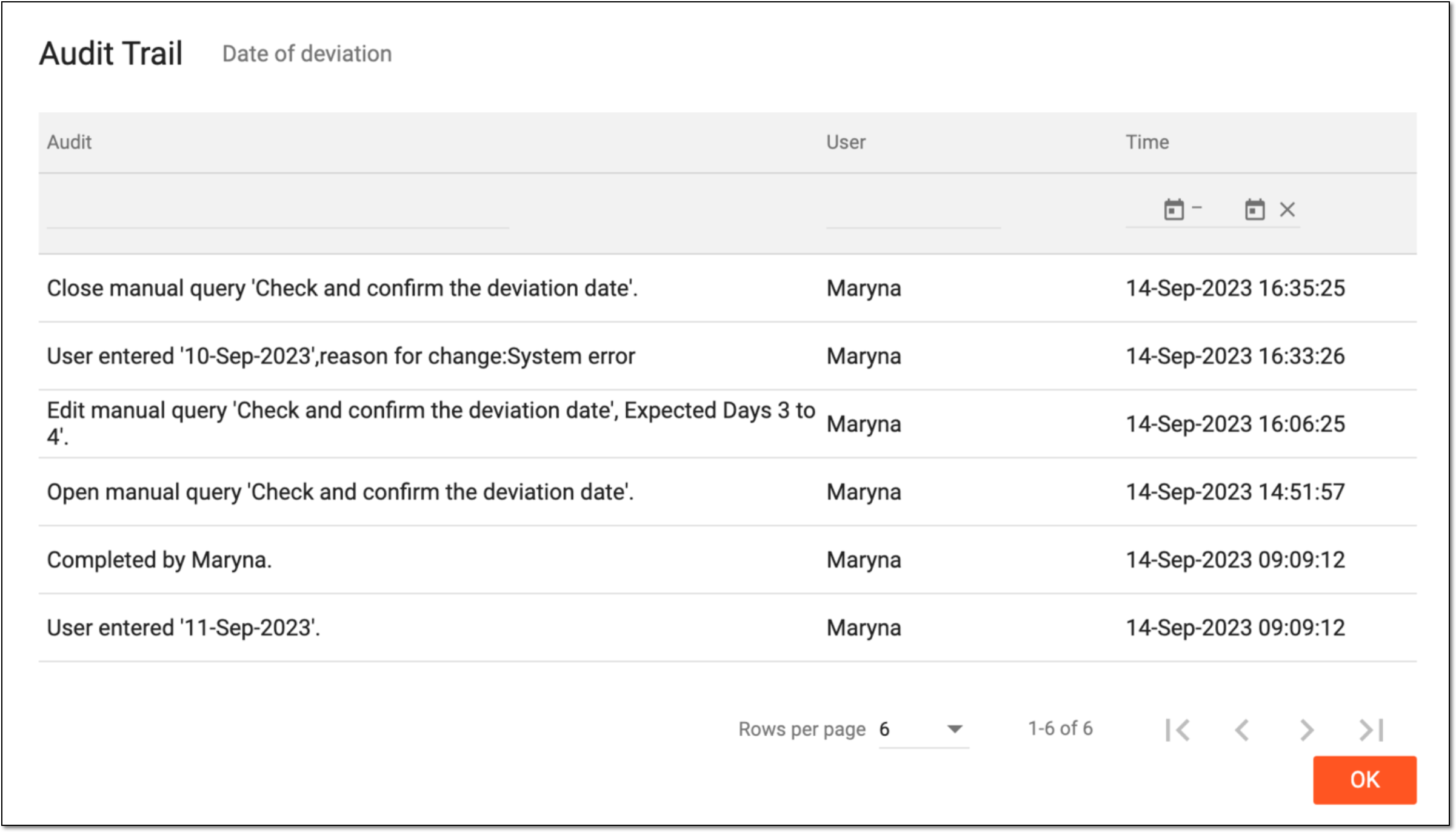 Figure 6. Entering query details
Element
Details
Audit
Represents the particular action performed on the information item.
User
Represents the user who performed the action.
Time
Represents the date and time at which the action is performed.
OK
Select
 to close the dialog.
Once closed, you are redirected to the record form. You can select Back  to return to the Record page.