Protocol deviation template creation
In CTMS, you can create a custom protocol deviation template that includes questions to capture information about the occurrence of a protocol deviation. Also, to add different types of questions in the protocol deviation template, you can choose the required data format type, such as label, text, date, radio button, and others, from a list of formats.
For example, you can create a template for the non-compliance with inclusion criteria of the subject and include a question inquiring about the date of the occurrence of the protocol deviation, such as "What was the protocol deviation date?" and select the date data type so that the person reporting the deviation provides a date in the answer field.
You can create a new protocol deviation template from scratch or by cloning the existing one as explained in the following sections.
In CTMS, you can create a protocol deviation template from scratch and add your own custom questions to inquire about the occurrence of a protocol deviation. This may be required if you need information on the protocol deviation (within a specific study) since this information is missing in the existing list of protocol deviation templates listed under the Protocol Deviation Template subtab of the Library tab.
-
In the CTMS application header, select the LIBRARY tab.
-
On the page that opens, from the left pane, select the Protocol Deviation Template subtab.
 Figure 1. Accessing protocol deviation templates
-
From the workspace toolbar of the PD Template List table, select New Item
 .
. -
In the New dialog that appears, add the details as explained in the following table.
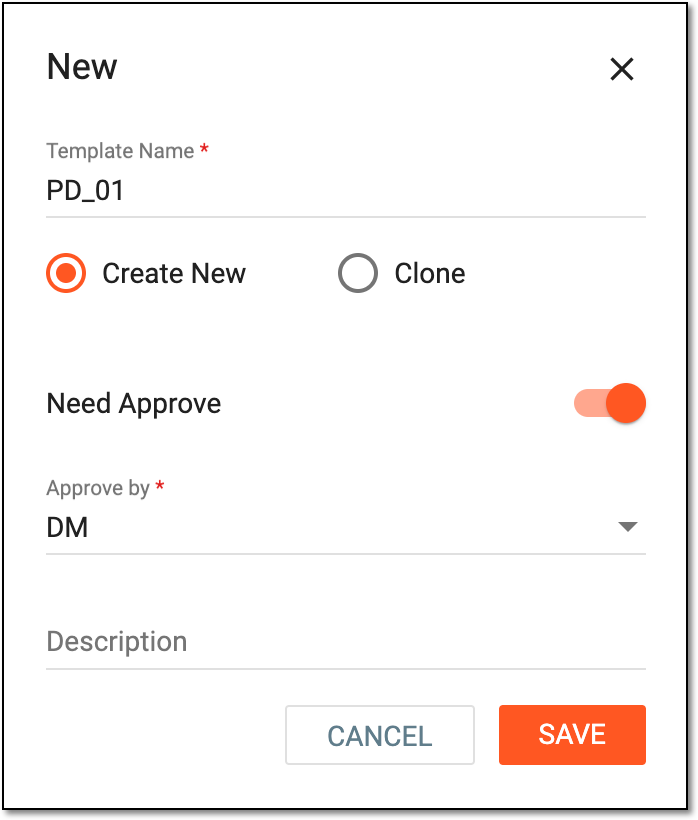 Figure 2. Creating new protocol deviation template
Tip
In the following table, mandatory elements are marked with an asterisk (*).
Element
Details
Template Name*
Represents the name of the protocol deviation template.
Create New
Select this radio button to create a protocol deviation template from scratch.
Need Approve
Turn the toggle on if you want designated personnel to review and approve your protocol deviation template before you can start using it for a study, subject, or site in the STUDY MANAGEMENT tab of CTMS.
Approve By*
If you have turned the Need Approve toggle on, then in this dropdown, select the user role to whom you want to assign the protocol deviation template for review and approval.
Description
Represents a brief description of the purpose of creating a protocol deviation template.
SAVE
Select
 to save your changes.
CANCEL
Select
 to discard your changes and return to the Protocol Deviation Template page.
Upon saving, the new protocol deviation template is created. The template appears in the PD Template List table with the Draft phase until you submit the protocol deviation template, and an Inactive status until you submit it, and then change the status if required.
You can now proceed with adding questions (data) in the template.
In CTMS, you can instantly create a new protocol deviation template by cloning an existing one and altering it as required. When you create a clone of an existing protocol deviation template, then all the questions (data) that you have added in the template are copied as well, and you do not have to re-add data in the template from scratch.
Rather, you can change some of the data as required. This may be useful if you want a protocol deviation template for a subject and a template for the subject's study that already exists in the system. So by cloning the template, you are duplicating the existing template with its configurations and saving time for the new template settings.
-
In the CTMS application header, select the LIBRARY tab.
-
On the page that opens, from the left pane, select the Protocol Deviation Template subtab.
Figure 1. Accessing protocol deviation templates
-
From the workspace toolbar of the PD Template List table, select New Item
 .
. -
In the New dialog that appears, add the details as explained in the following table.
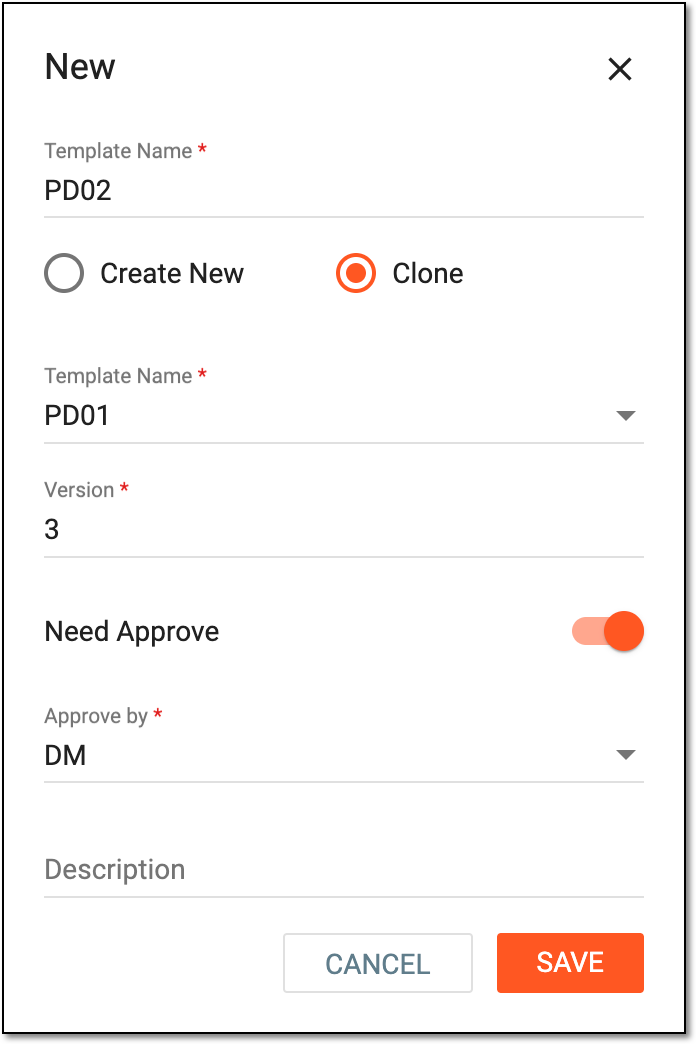 Figure 2. Creating clone of existing protocol deviation template
Tip
In the following table, mandatory elements are marked with an asterisk (*).
Element
Details
Template Name*
Represents the name of the protocol deviation template.
Clone
Select this option to create a protocol deviation template from cloning an existing one.
Template Name*
From the dropdown list, select an existing protocol deviation template that you want to clone to your new template.
Version*
Represents the latest version of the template you have selected for cloning.
Need Approve
Turn the toggle on if you want designated personnel to review and approve your protocol deviation template before you can start using it for a study, subject, or site in the STUDY MANAGEMENT tab of CTMS.
Approve By*
If you have turned the Need Approve toggle on, then in this dropdown, select the person(s) to whom you want to assign the protocol deviation template for review and approval.
Description
Represents a brief description of the purpose of creating a protocol deviation template.
SAVE
Select
 to save your changes.
CANCEL
Select
to discard your changes and return to the Protocol Deviation Template page.
Upon saving, the new protocol deviation template is saved, and it appears in the templates listed in the PD Template List table. You can now proceed with modifying questions (data) in the template.