Modify protocol deviation template data
In CTMS, you can modify the questions that you have added in the protocol deviation template form.
This may be helpful if you have cloned an existing template and you want to modify some questions as per your requirement or the questions currently added are not sufficient enough to acquire the complete details of the deviation, or there is an error in some question, or due to some other reason.
There are several modification options provided for you to alter a protocol deviation template as explained in the following sections.
You can edit a particular question in the protocol deviation template. This may be helpful if a specific question in the template requires modification in its text, data type, format, or so on.
-
In the CTMS application header, select the LIBRARY tab.
-
On the page that opens, from the left pane, select the Protocol Deviation Template subtab.
 Figure 1. Accessing protocol deviation templates
-
From the PD Template List table, select the template in which you want to modify the data.
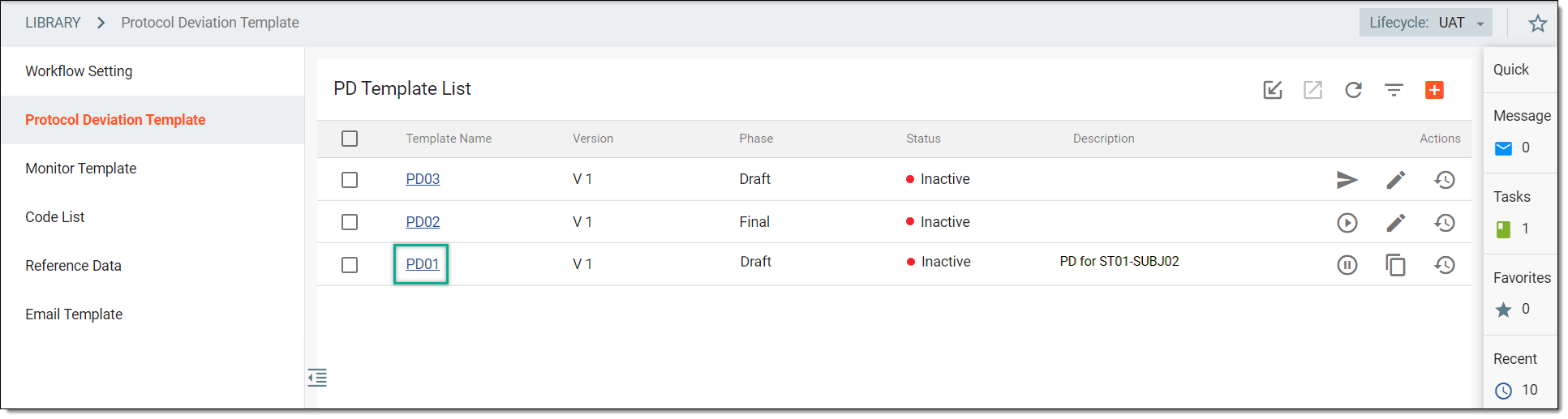 Figure 2. Selecting protocol deviation template
-
In the form that appears, locate the question that you want to edit. Then next to it, select More
 > Edit Item
  .
.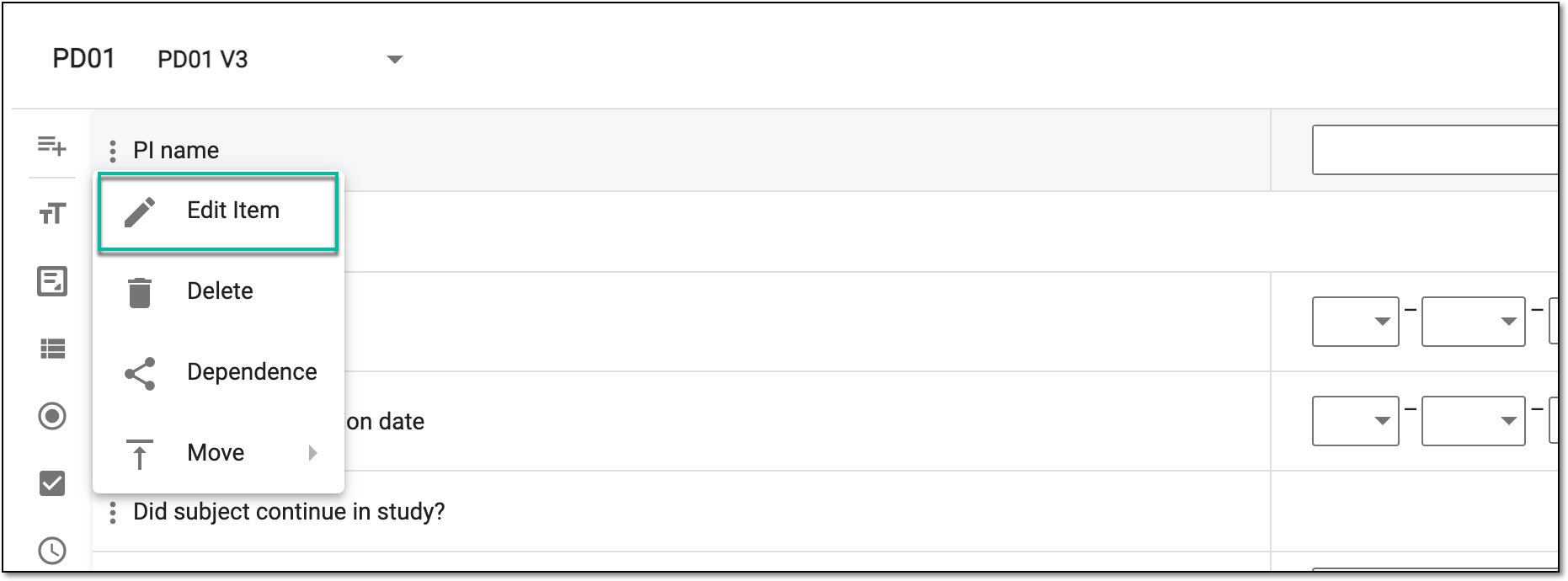 Figure 3. Selecting to edit question
-
In the panel that expands, modify the details of the questions as required and explained in the respective table of the Add questions to protocol deviation template section.
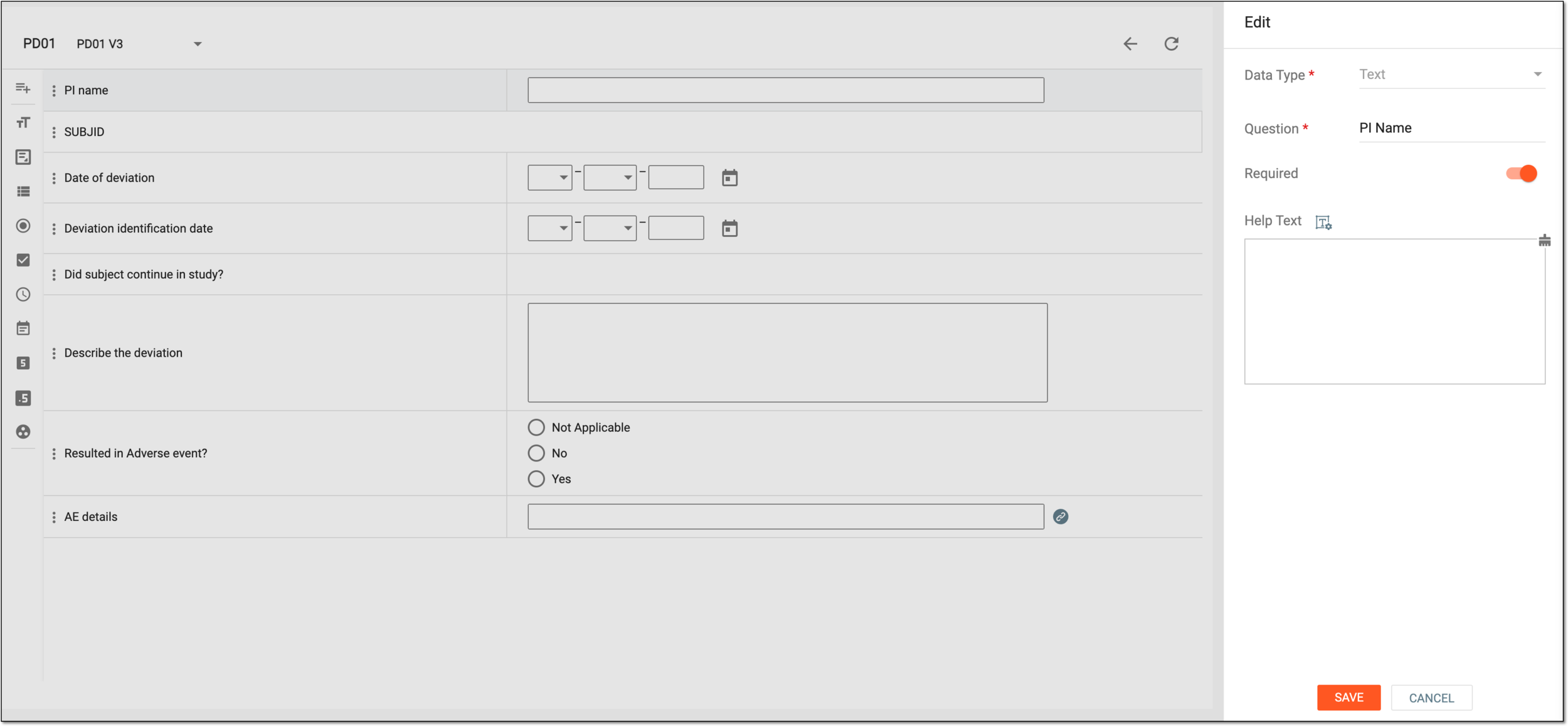 Figure 4. Editing question details
-
Select
 to save your changes.
Upon saving, the protocol deviation template question is updated.
You can set dependency rules between a particular question and the answer to another question in the protocol deviation template. This may be helpful if a specific question only should appear if the previous question is answered in a certain way.
For instance, if you want the AE details field to only appear in your form if the answer to the question Resulted in Adverse event? is Yes.
-
In the CTMS application header, select the LIBRARY tab.
-
On the page that opens, from the left pane, select the Protocol Deviation Template subtab.
Figure 1. Accessing protocol deviation templates
-
From the PD Template List table, select the template in which you want to modify the data.
Figure 2. Selecting protocol deviation template
-
On the Details page that appears, locate the question for which you want to set a dependency on another question item. Then next to it, select More
 > Dependence
  .
.Continuing our example, to make the AE details question dependent on Resulted in Adverse event? = Yes, we select the Dependence option for AE details.
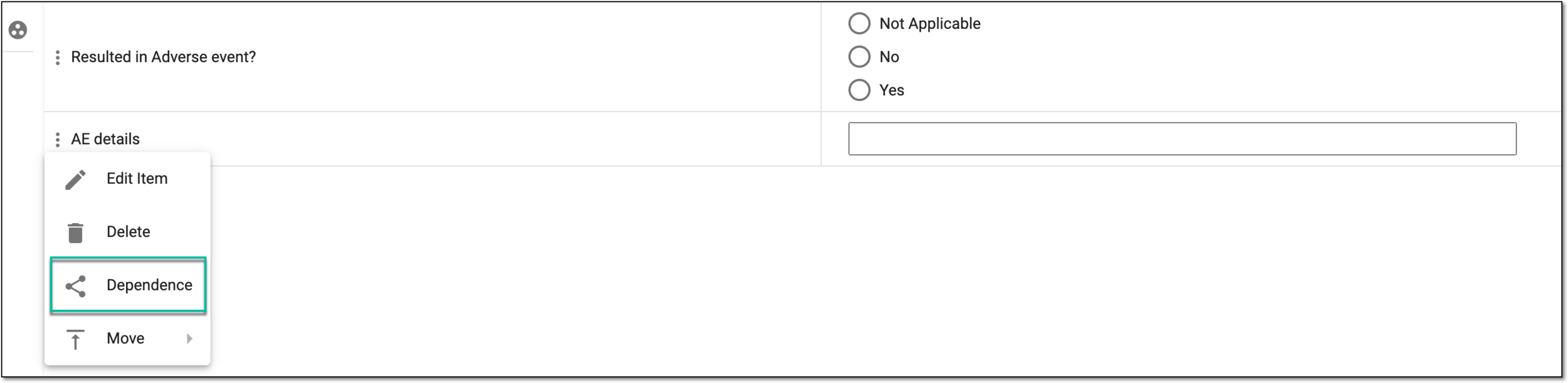 Figure 3. Selecting set dependency
-
In the Depemdence dialog that appears, from the tree, select the question to which you want to create the association. Then from the Define a Condition block, select the checkboxes next to the options that should trigger your dependency rule.
Continuing our example, select the checkbox next to Yes to complete the following dependency: if Resulted in Adverse event? = Yes, then the AE details question appears.
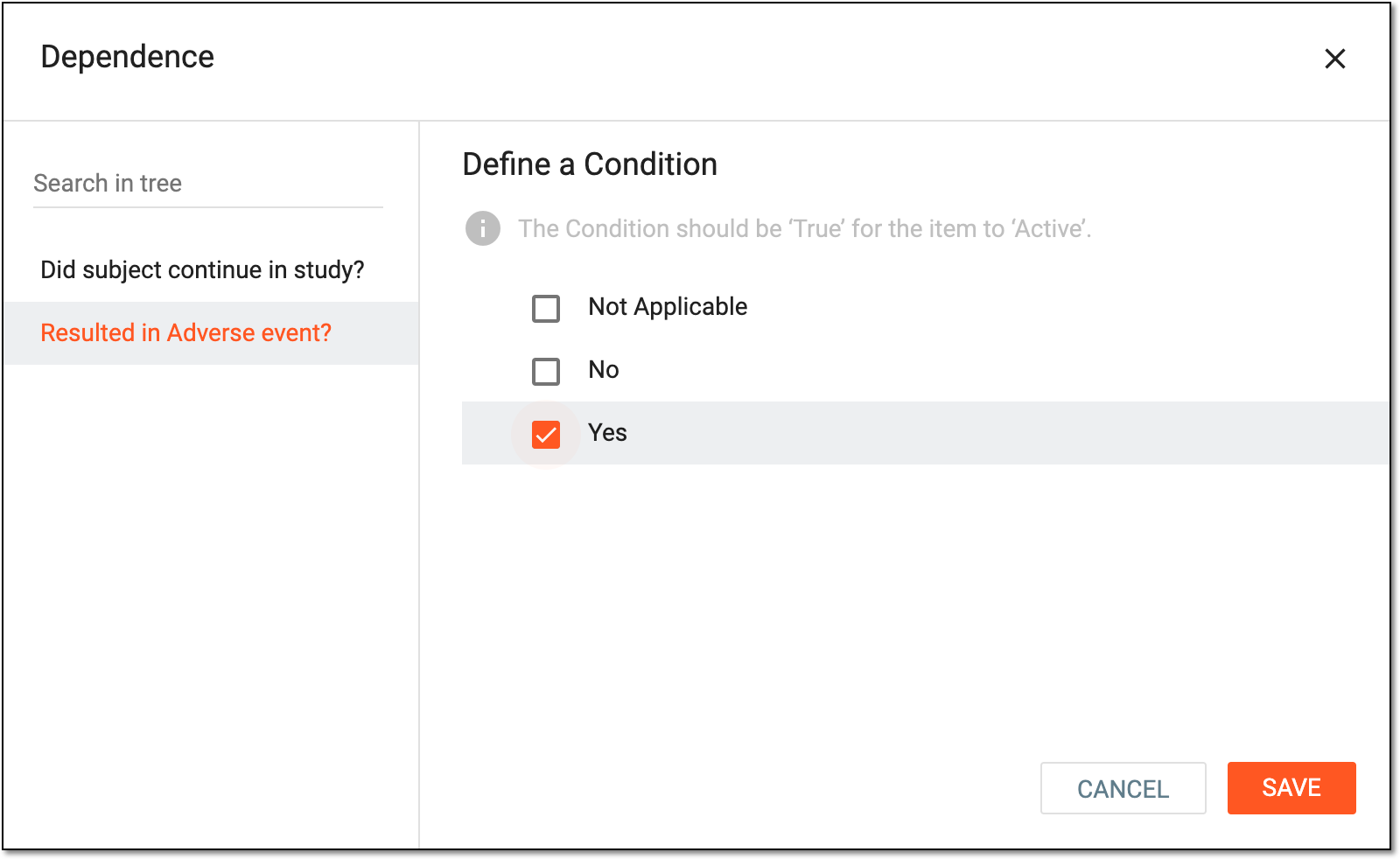 Figure 4. Setting question dependency
-
Select
to save your changes.
Upon saving, the dependency is set between the questions of the ICF tracking template.
Using this functionality, in the protocol deviation template, you can move a question to a specific location, such as if you want to place the deviation date before the deviation identification date, place the principal investigator's name before the subject name, and so on.
-
In the CTMS application header, select the LIBRARY tab.
-
On the page that opens, from the left pane, select the Protocol Deviation Template subtab.
Figure 1. Accessing protocol deviation templates
-
From the PD Template List table, select the template in which you want to modify the data.
Figure 2. Selecting protocol deviation template
-
On the Details page that appears, locate the question that you want to move. Then next to it, select More
> Move  .
. -
In the second dropdown menu that opens, select an option as explained in the following table.
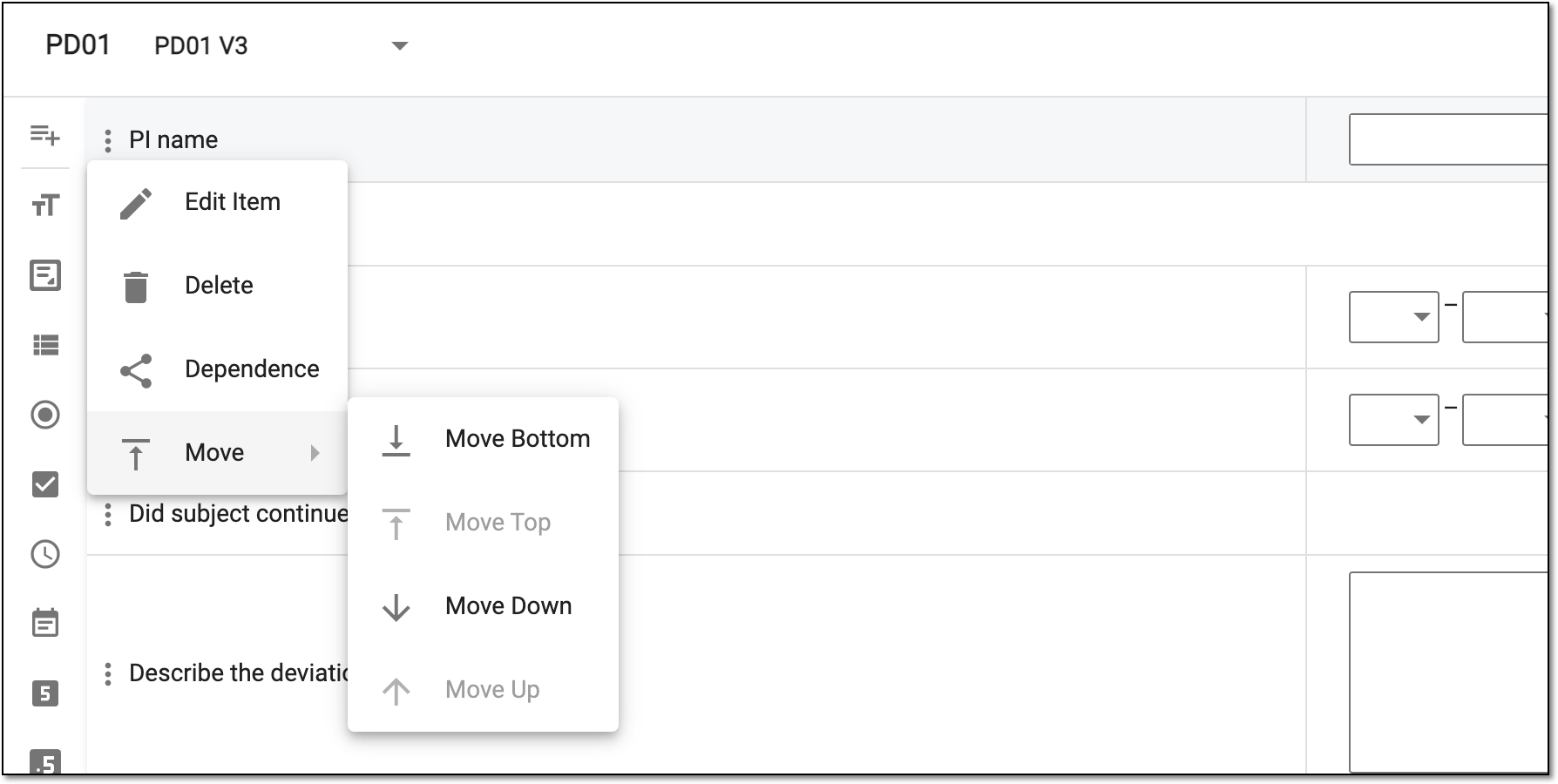 Figure 3. Selecting option to move question
Element
Details
Move Bottom

Select this option to move the selected item to the bottom of the protocol deviation template; that is, the question is placed at the end of the template form.
Move Top
Select this option to move the selected item to the top of the protocol deviation template; that is, the question becomes the first one in the template form.
Move Down

Select this option to move the selected question one place below its current position in the template.
Move Up

Select this option to move the selected question one place above its current position in the template.
Tip
Alternatively, you can move a question by dragging it to its required position.
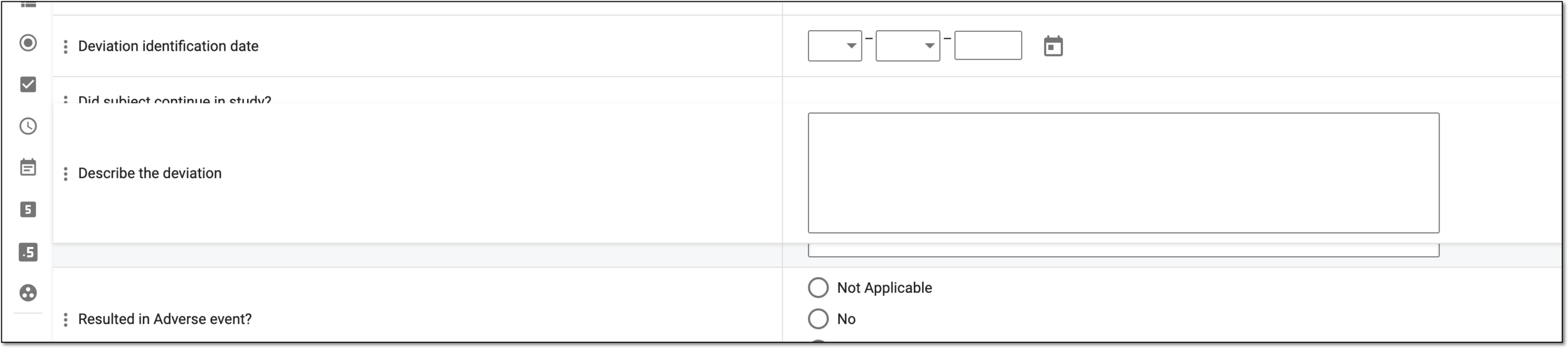 Figure 4. Moving question by dragging
After the needed movements, the question is moved to your required position in the protocol deviation template.
In CTMS, you can access the change history of a specific question within a protocol deviation template. You may want to view the history to analyze details of edits, such as who made the changes, what was modified, and when the updates occurred—supporting transparency and audit readiness.
-
In the CTMS application header, select the LIBRARY tab.
-
On the page that opens, from the left pane, select the Protocol Deviation Template subtab.
Figure 1. Accessing protocol deviation templates
-
From the PD Template List table, select the template in which you want to modify the data.
Figure 2. Selecting protocol deviation template
-
On the Details page that appears, locate the question that you want to analyze. Then next to it, select More
> Operation History  .
.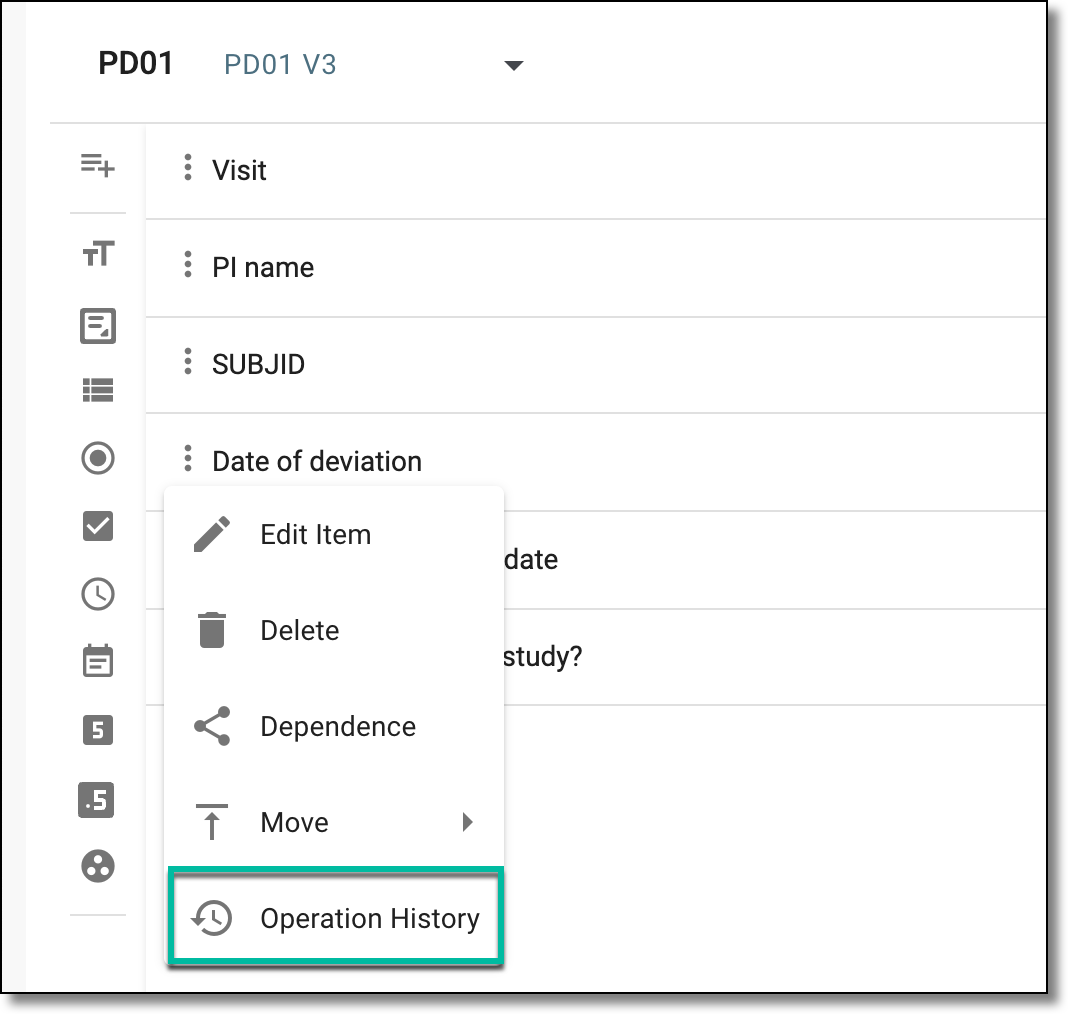 Figure 3. Accessing operation history of PD item
-
In the dialog that opens, analyze the details of the changes made to the item.
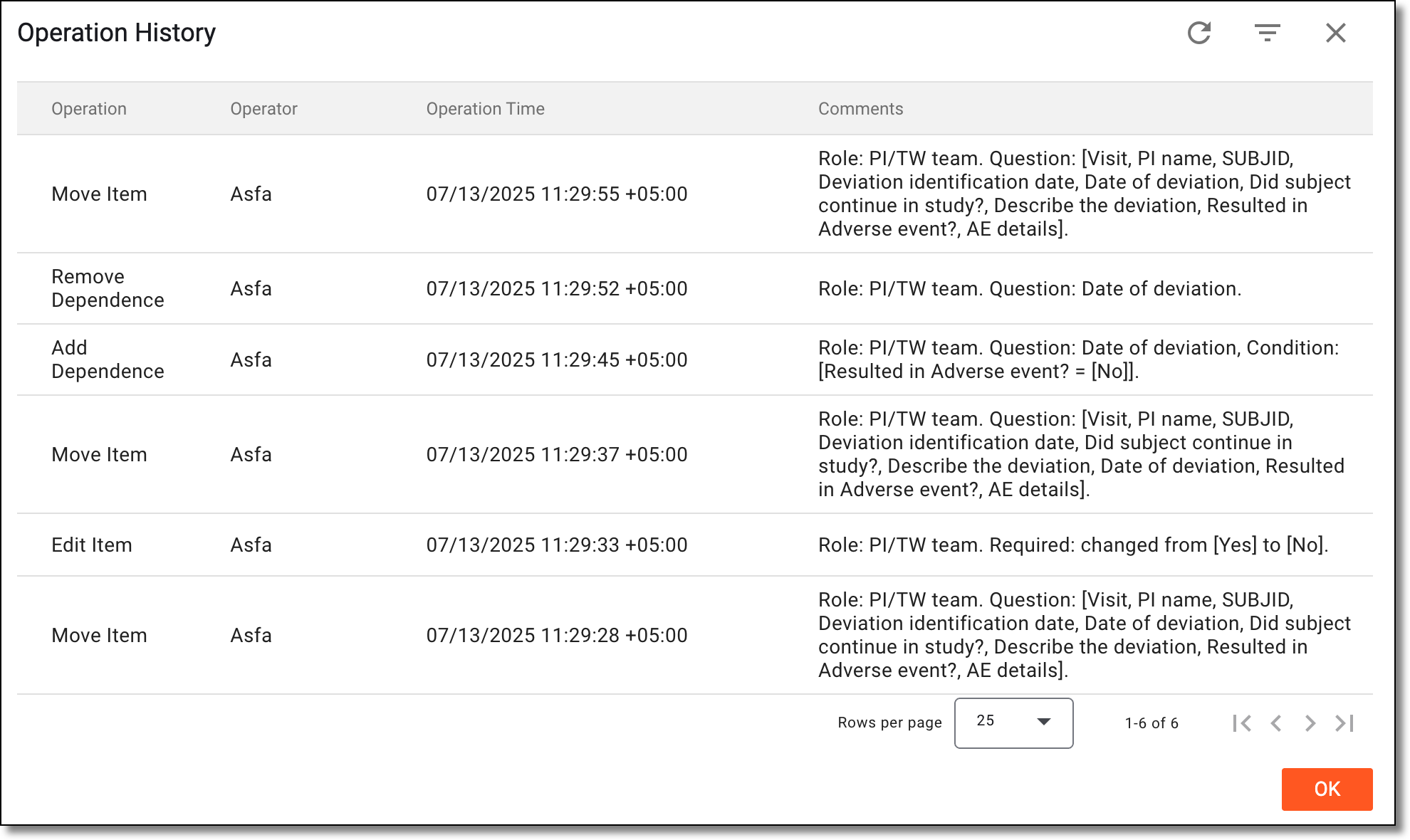 Figure 4. Analyzing operation history of PD item
Once you have analyzed the item's change history, select OK to close the dialog and return to the protocol deviation template form.
You can delete a specific question from a protocol deviation template if it is no longer required. This may be required if a question has some errors, it does not acquire relevant information, or due to some other reason.
-
In the CTMS application header, select the LIBRARY tab.
-
On the page that opens, from the left pane, select the Protocol Deviation Template subtab.
Figure 1. Accessing protocol deviation templates
-
From the PD Template List table, select the template in which you want to modify the data.
Figure 2. Selecting protocol deviation template
-
On the Details page that appears, locate the question you want to delete. Then next to it, select More
> Delete  .
.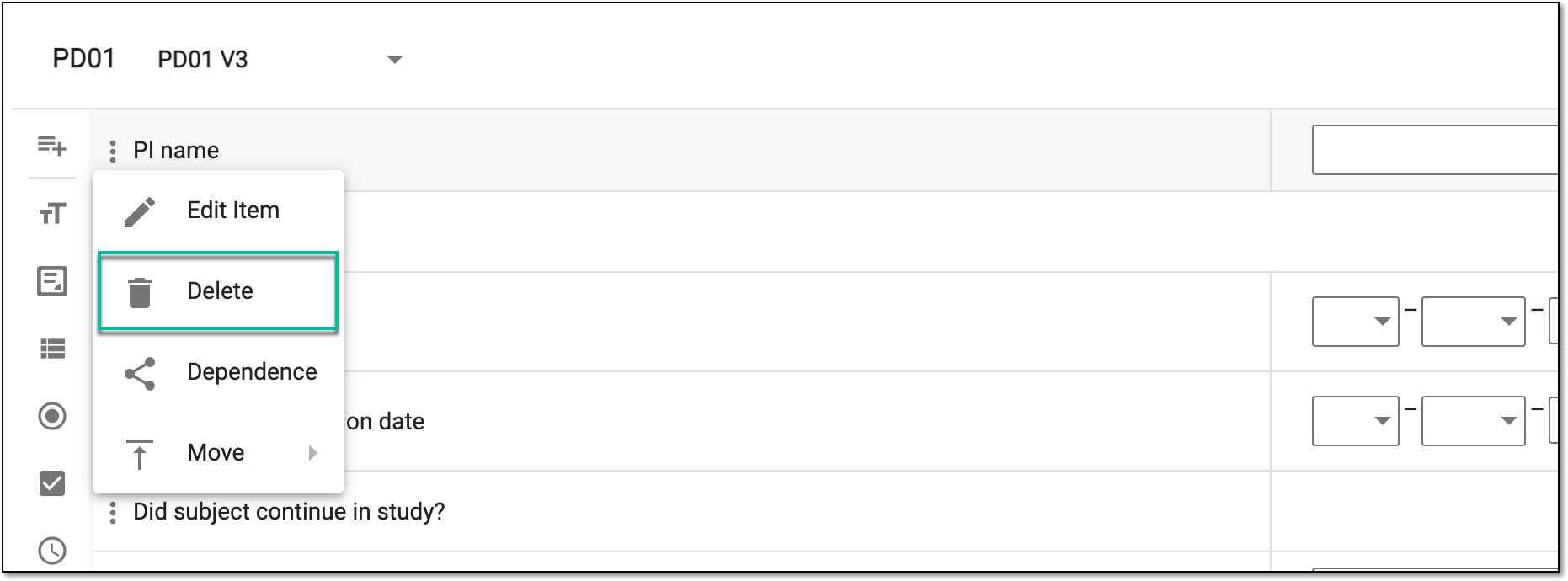 Figure 3. Deleting question
-
In the Delete Item dialog that appears, confirm the action by selecting
 .
.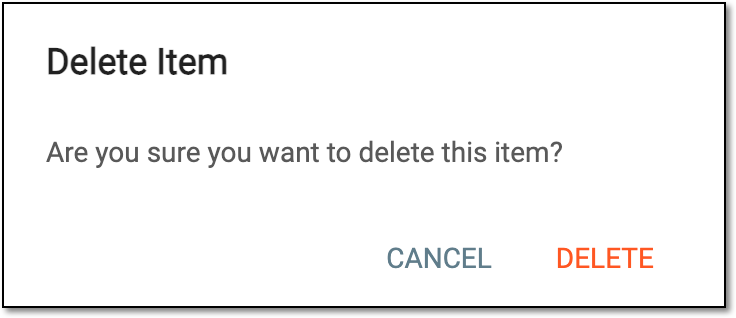 Figure 4. Confirming question deletion
Upon confirmation, the question is deleted from the protocol deviation template.