View CRF version history per subject
In eClinical, CRFs are designed and maintained in the Study Designer (SD) application and then populated to EDC for data entry. Each time there is a need to implement changes to the CRF, a new CRF version is created in SD. Then, in EDC, you can upgrade the CRF version for sites or subjects to keep the system up-to-date.
Keeping track of all the CRF versions throughout a trial is vital for compliance reasons. Thus, in EDC, you can view the history of the CRF version changes per each subject, who performed them, and when.
-
In the EDC application header, select the STUDY INFO tab.
-
On the page that opens, in the left pane, select CRF Version > Version Upgrade.
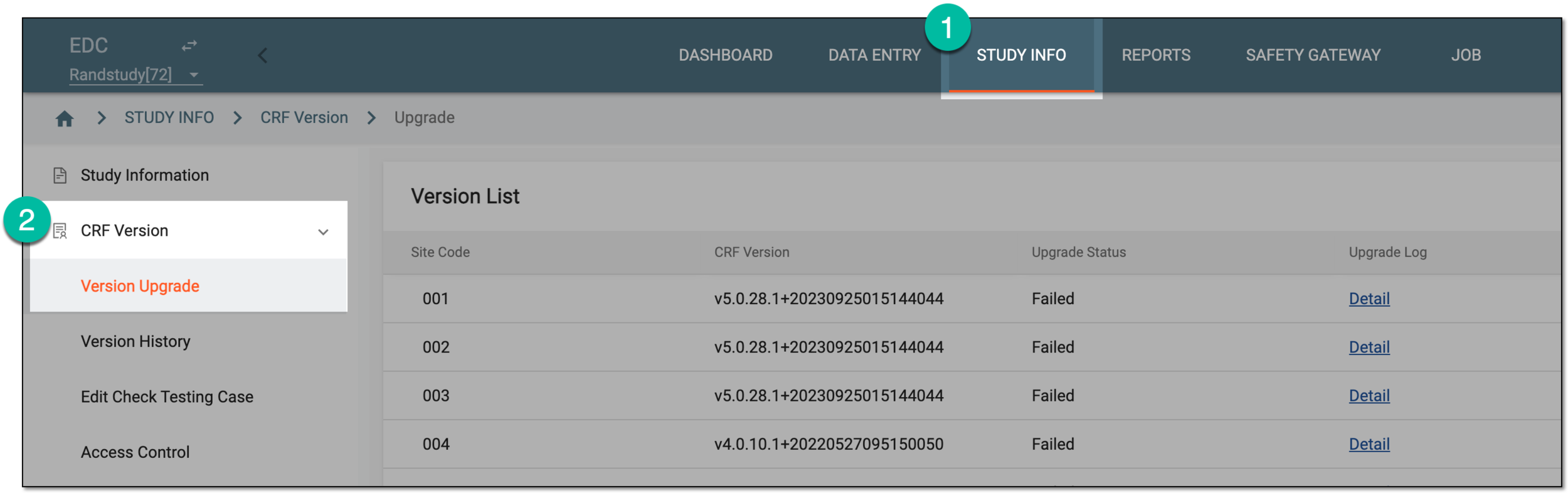 Figure 1. Accessing CRF version upgrade
-
In the Version List table that appears, locate the site to which the subject of your interest belongs. Then in the Action column next to it, select Subject Version
 .
.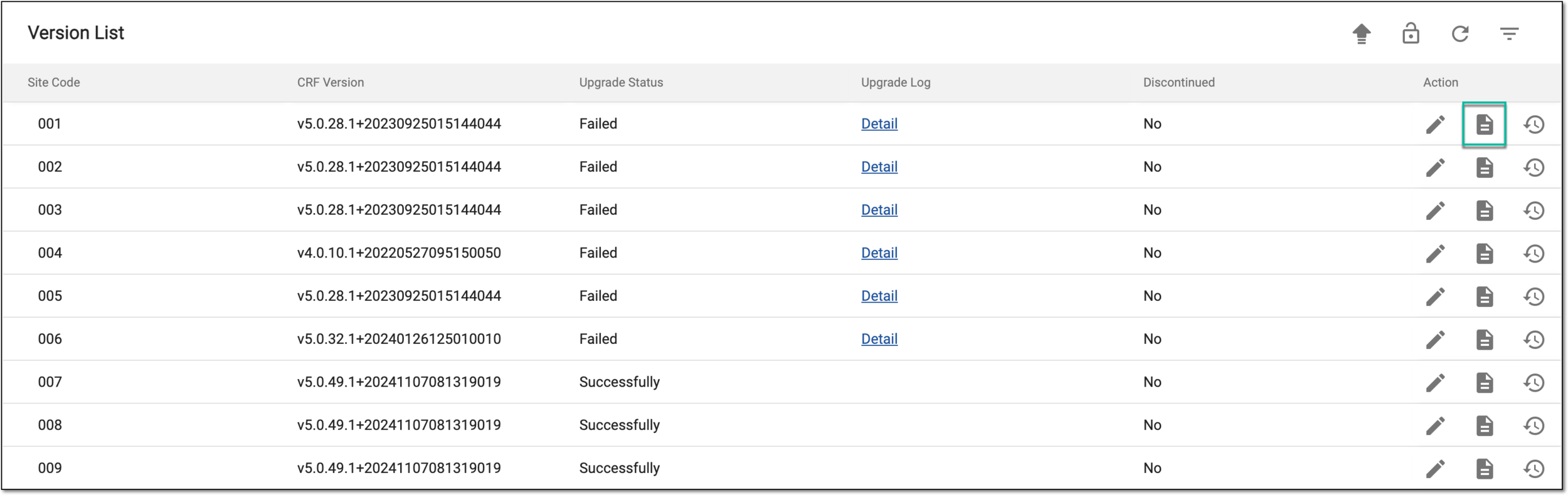 Figure 2. Opening CRF version list by subject
-
On the page that opens, in the table, locate the subject for which you want to view the CRF version history. Then in the Action column next to it, select History
 .
. Figure 3. Selecting to view subject CRF version history
-
In the Change History dialog that appears, view the CRF version change history as explained in the following table.
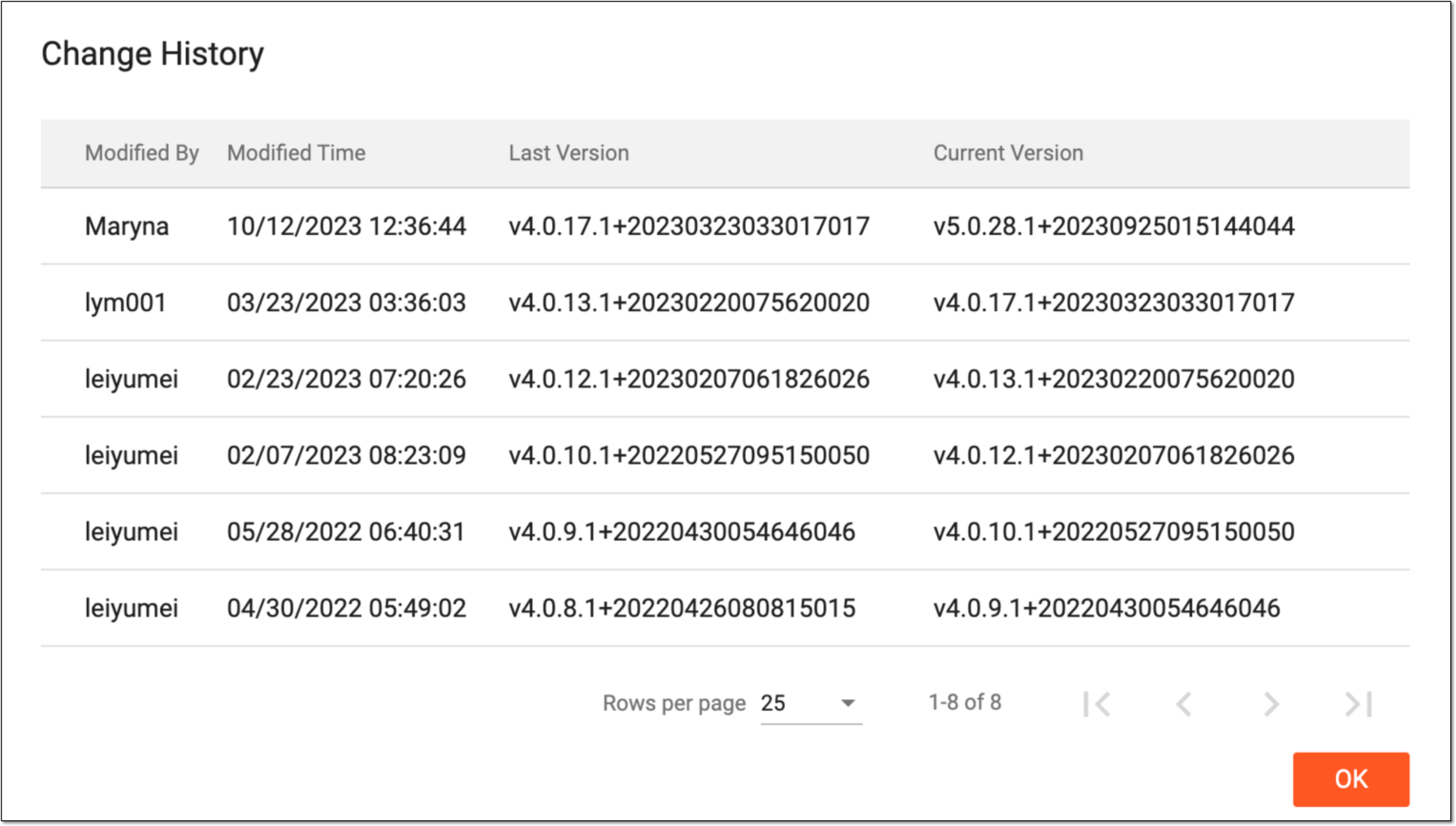 Figure 4. Viewing subject CRF version history
Column
Details
Modified By
Represents the name of the user who has performed the CRF version change.
Modified Time
Represents the date and time when the CRF version change has taken place.
Last Version
Represents the CRF version of the subject before the change has taken place.
Current Version
Represents the CRF version of the subject after the change has taken place.
OK
Select
 to close the dialog.
Once the version history of the subject has been studied, and OK is selected, the dialog is closed and you return to the Version List table.