Change CRF version per site
In eClinical, CRFs are designed and maintained in the Study Designer (SD) application and then populated to EDC for data entry. Each time there is a need to implement changes to the CRF, a new CRF version is created in SD. Then, in EDC, you can upgrade the CRF version for sites or subjects to keep the system up-to-date.
There might be a case when not all of your study sites are ready for a CRF version upgrade and thus, you can change the CRF version only for a particular site. This option might also be handy for the reversal of the CRFs at a particular site to one of the previous versions.
Important
You cannot change CRF versioning for a locked study. Unlock the study before upgrading the CRF version.
For the studies where the PI signature follows the independent setting and does not allow the data amendment once the CRF is signed, the signed CRFs are skipped upon the version upgrade.
-
In the EDC application header, select the STUDY INFO tab.
-
On the page that opens, in the left pane, select CRF Version > Version Upgrade.
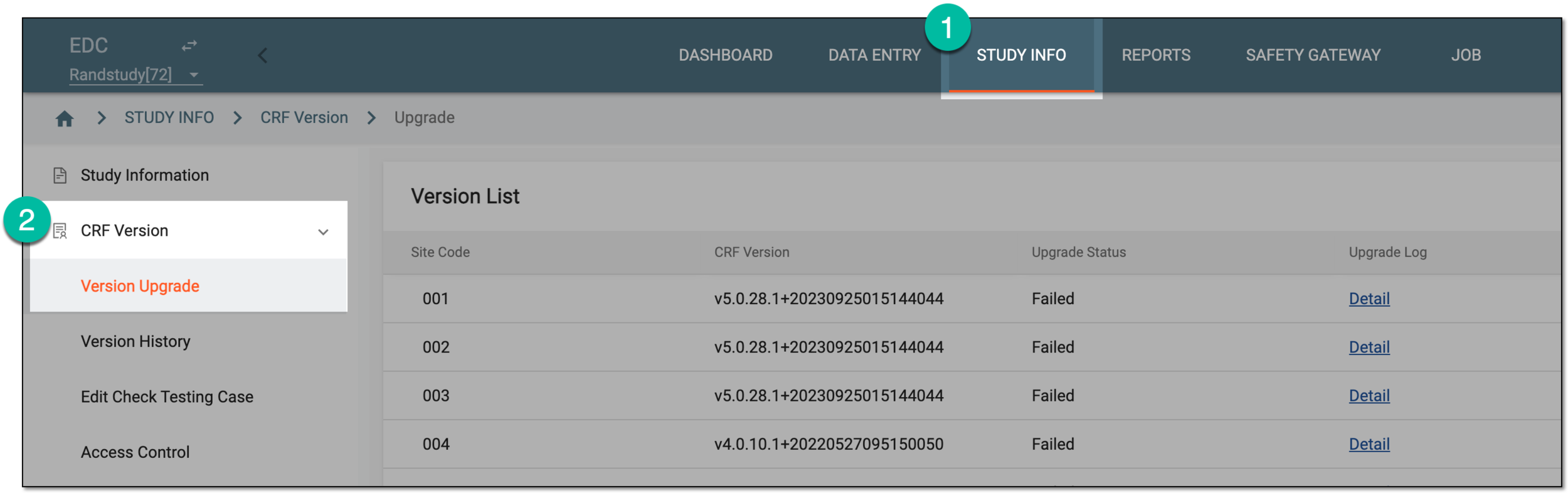 Figure 1. Accessing CRF version upgrade
-
In the Version List table that appears, locate the site whose CRF version you want to change. Then, in the Action column next to it, select Edit
 .
.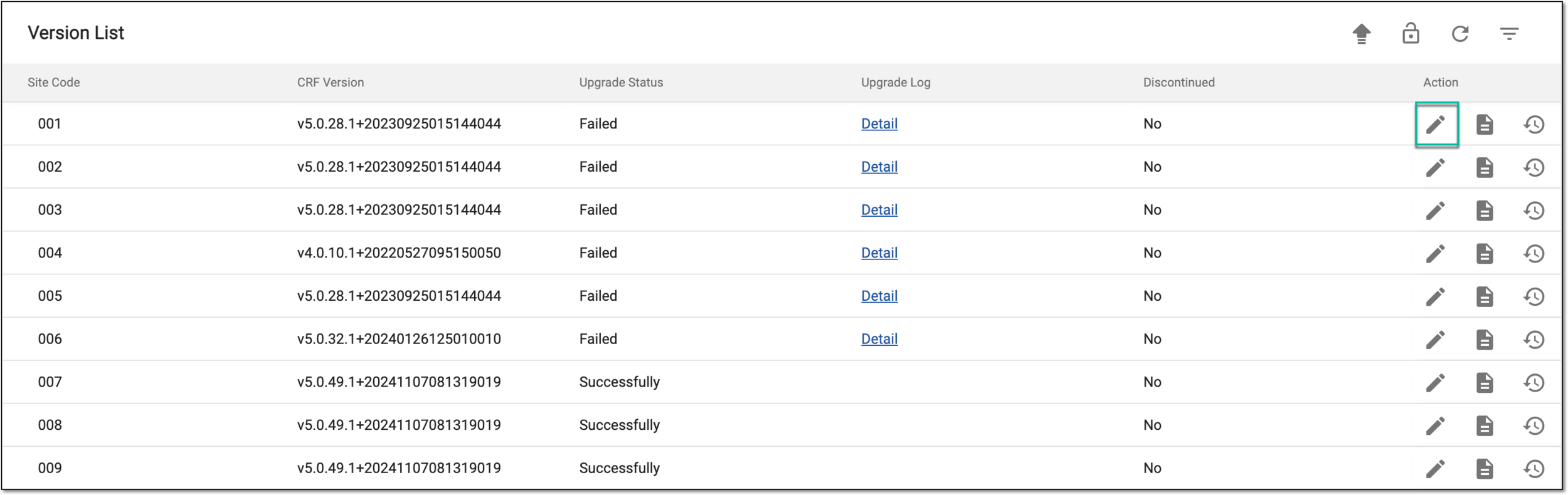 Figure 2. Selecting to change site CRF version
-
In the Change Version dialog that appears, find and select the CRF version that you want to establish for your site.
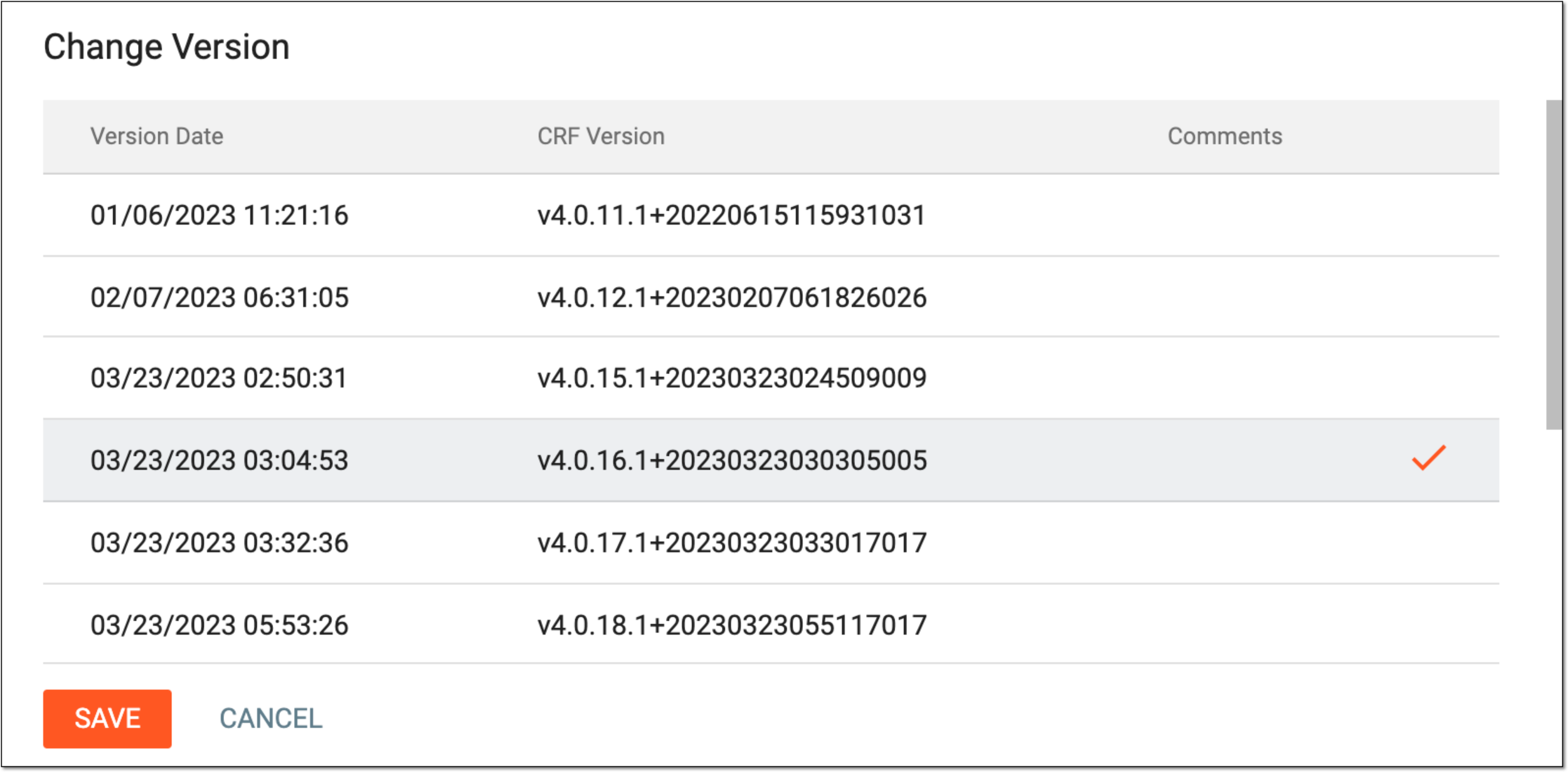 Figure 3. Changing site CRF version
-
Select
 to change the CRF version of the site to the selected one.
Upon saving, the CRF version of the site is changed to the one you have selected.