Record subject AE/SAE
The adverse event (AE) and serious adverse event (SAE) may happen in any clinical trial. Thus, the AE and SAE forms are present in almost all studies maintained via the EDC application.
In the EDC application, SAEs are tracked with log forms or header-details forms that have their unique logic. First, you need to record that the subject has had an adverse event and then specify whether it has been serious. Only when the SAE occurs, you can start tracking the initial and follow-up data on the matter.
For example, the subject reports severe fever and requires immediate hospitalization. Thus, filling out the AE form, stating that the occurrence is indeed an SAE (SAE = Yes). Then the initial SAE report has to be filled with all the data on the reported case. And each time new data (test results, subject complaints, new symptoms, or else) is reported, the follow-up form is created and filled.
-
In the EDC application header, select the DATA ENTRY tab.
-
On the site list page that opens, select the tile representing the site with which you want to work.
 Figure 1. Accessing site
-
In the Subject ID column, select the ID of a subject to open their visit overview.
 Figure 2. Locating your subject
-
On the Visit Overview page that opens, on the left, a panel with all subject visits is displayed. Locate the Adverse Events visit to open the forms associated with that visit.
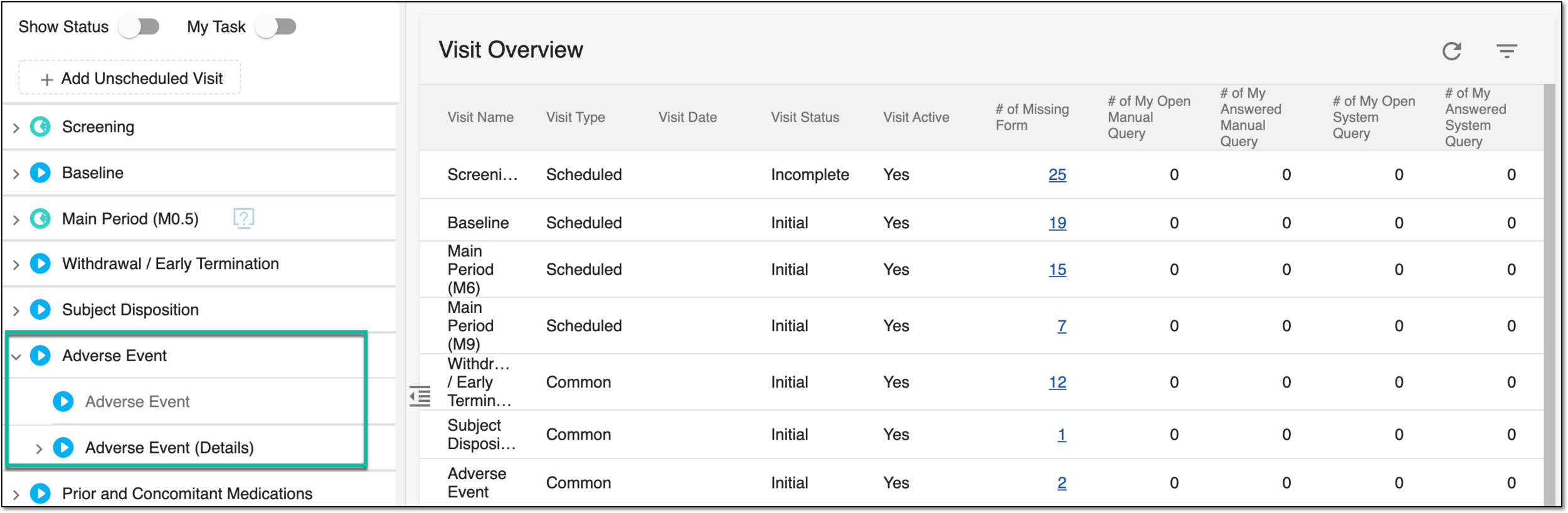 Figure 3. Locating adverse events visit and forms
-
In the Adverse Events form that opens, for the question, if the subject has experienced any AE, select the Yes option button and select Submit
 to start tracking the respective data.
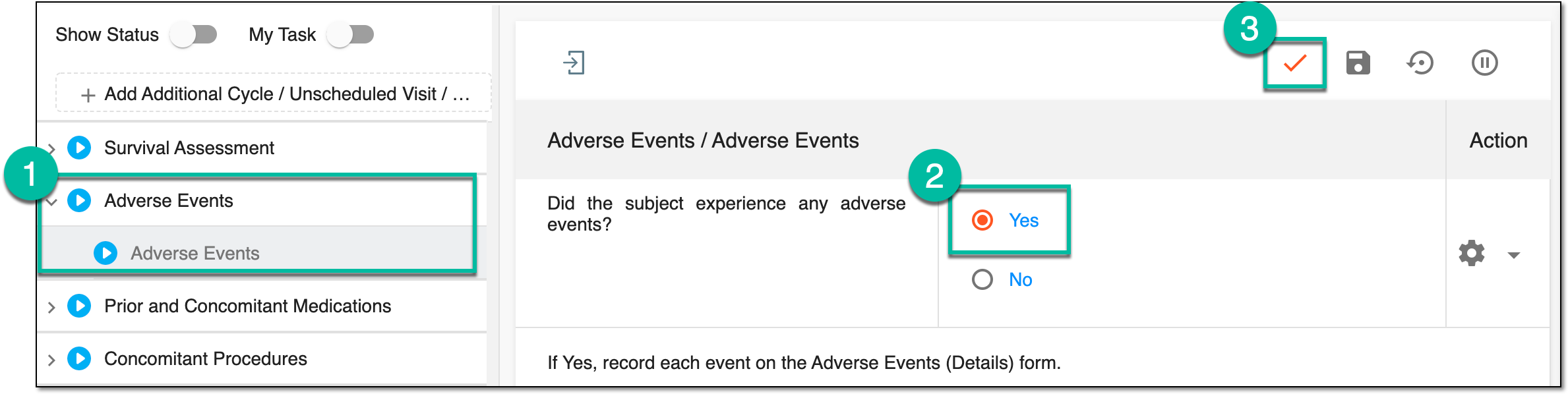 Figure 4. Starting to track subject AE data
-
Upon submission, in the resulting Adverse Events (Details) form that opens, fill in the data as per your specific case, and for the question about whether AE is serious (SAE) or not, select one of the following:
-
Yes: select this option if the AE event is serious (SAE), then select Submit
. -
No: select this option if the AE event is not serious (SAE), then select Submit
.
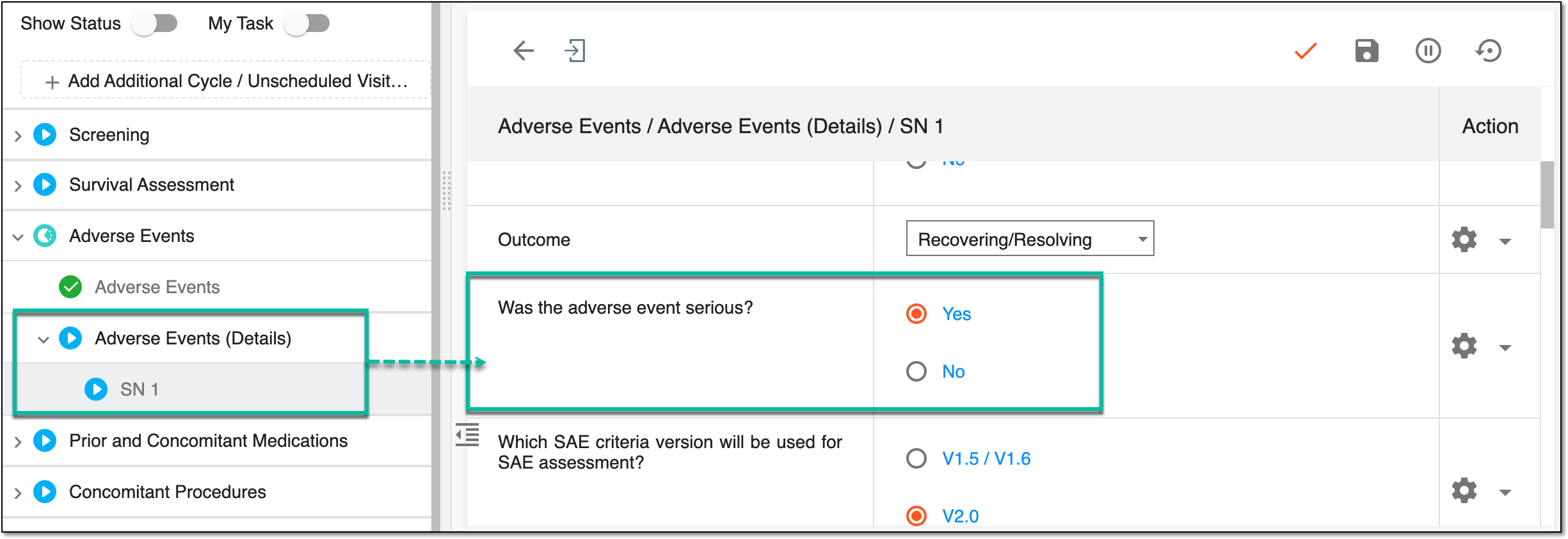 Figure 5. Starting to track subject SAE data
-
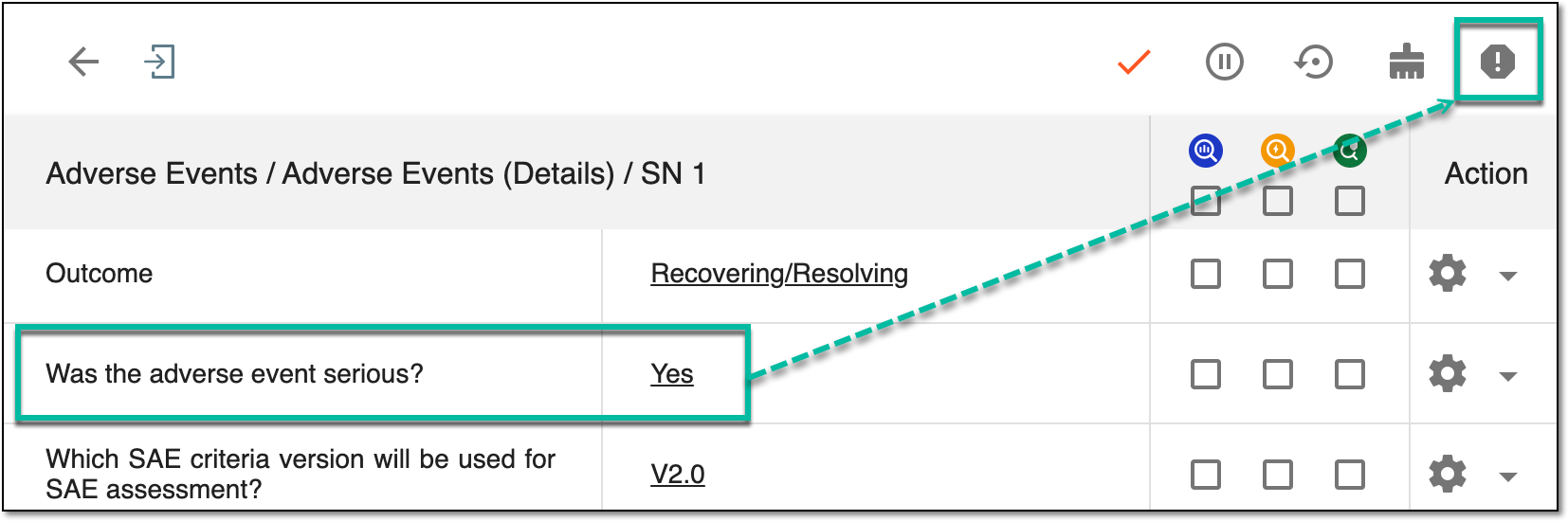
Upon submitting the form with SAE = Yes, on the top right of the contents panel, the Enter SAE form control  appears. You can now fill out the initial SAE report.
Important
Once the subject SAE record is submitted, the Enter SAE form
control appears only if the respective setting is activated under the STUDY INFO > SAE Form Define functionality.
Fill initial SAE record
When monitoring a subject in a clinical trial, you cannot overestimate the importance of tracking subject adverse events (AE) and especially serious adverse events (SAE). It is vital to monitor all changes and constantly update the collected data.
With the EDC application, you can submit the AE data and state the SAE occurrence, then record the initial SAE data and track all the updates using the follow-up forms.
Important
The Enter SAE form control with which you can access the initial
record creation appears only if the respective setting is activated under the STUDY INFO > SAE Form Define functionality.
-
In the EDC application header, select the DATA ENTRY tab.
-
On the site list page that opens, select the tile representing the site with which you want to work.
Figure 1. Accessing site
-
In the Subject ID column, select the ID of a subject to open their visit overview.
-
In the list of visits on the left, locate the Adverse Events visit > Adverse Events (Details) form submitted with SAE = Yes.
Tip
You can also fill out and submit the form stating that the occurrence is indeed an SAE, as explained in the previous section.
Figure 2. Changing SAE record
-
In the submitted Adverse Events (Details) form, on the top right of the contents panel, select Enter SAE
.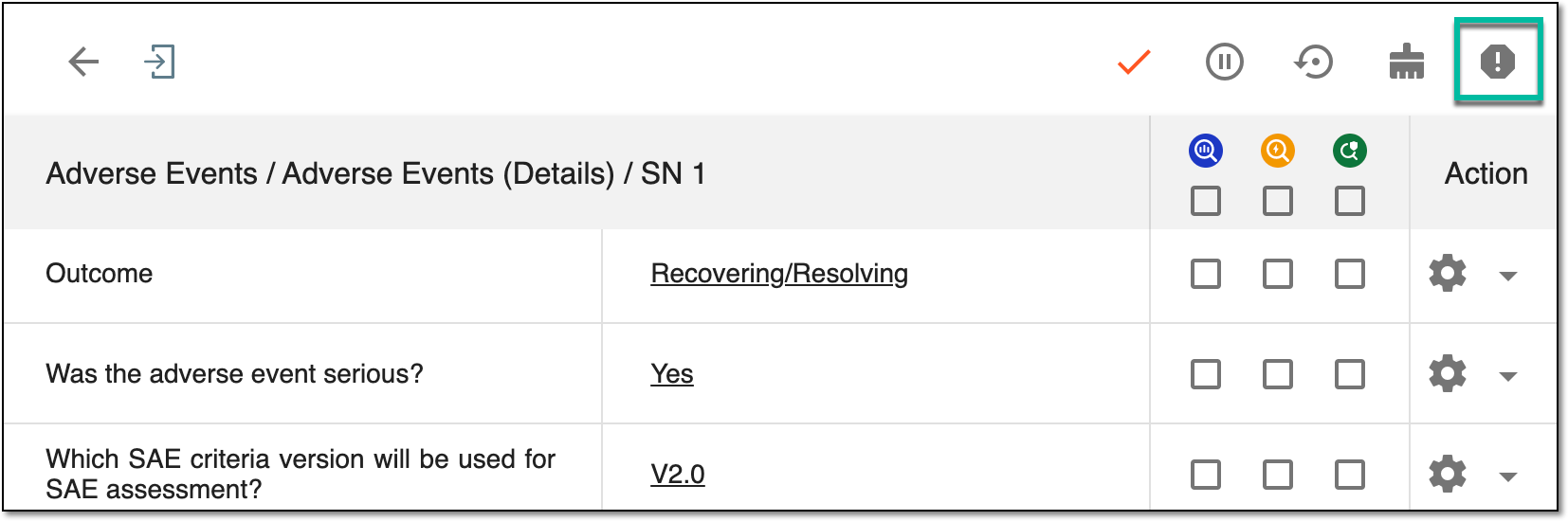 Figure 3. Accessing SAE initial form
Important
If the Enter SAE
form control is missing, most likely, the AE
has not been recorded as SAE. If you need to change the data and specify that it is indeed the SAE and you have permission to update the form, you can change the value for the respective question so that it states SAE = Yes. Alternatively, if you cannot amend the data, you can create the query and request to change the respective value. -
On the Initial form page that opens, enter the data for your SAE and related form by filling and saving the data for all tabs of the contents panel.
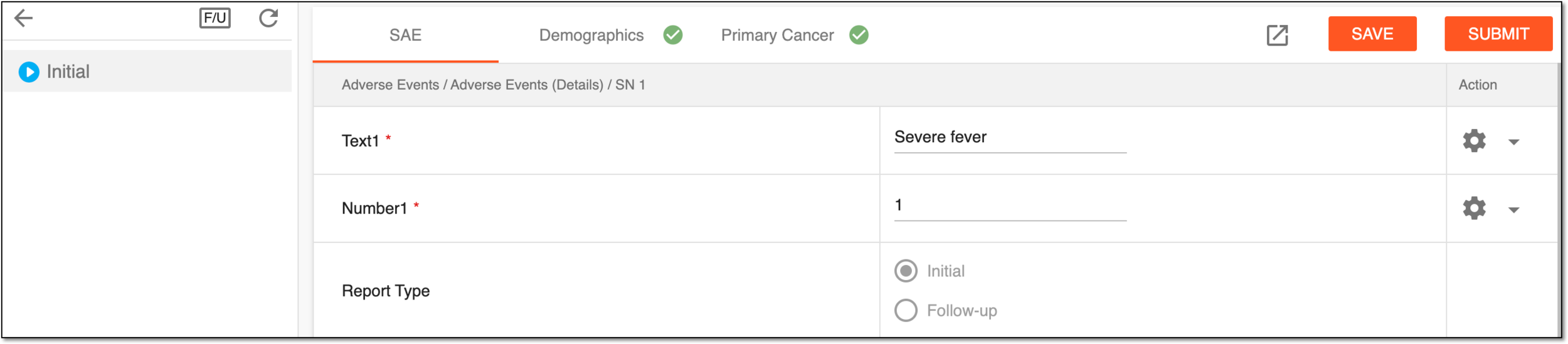 Figure 4. Filling initial SAE record
Tip
Upon saving the data for a related form, the respective icon
 displays next to its name.
 -
When all the required data is filled, select one of the following:
-
Select
 to temporarily save the implemented changes so as not to lose the entered
data while you are not ready to submit the form.
to temporarily save the implemented changes so as not to lose the entered
data while you are not ready to submit the form. -
Select
 to submit the data and send out the SAE record email to the
respective addressee.
to submit the data and send out the SAE record email to the
respective addressee.
-
Once the initial SAE record data is submitted, you can create and fill out follow-up record forms to keep track of the subject state dynamics. To close the
SAE form page and return to the Adverse Events (Details) form, on the top left, select Back  .
.
Once the SAE form is submitted, the entitled user can now sign the SAE form.
Important
There can be cases that the event seriousness can be changed in the AE form from Yes to No , and then the system logic for the SAE record is as follows:
-
The initial SAE record that is saved but not yet submitted is deleted from the system as redundant.
-
The initial SAE record that is already submitted remains in the system and can be traced via the SAE report.
Fill follow-up SAE record
When monitoring the subject state and especially tracking the serious adverse events (SAE), you might need to submit the record more than once to keep track of all the collected data changes.
With the EDC application, you can record the SAE occurrence, submit the initial SAE data, and then track all the updates using the follow-up forms. You can create as many follow-up records as needed for your specific case. Thus, you do not change the original data but add new updates and trace the complete cycle of the subject SAE.
Important
The Enter SAE form control with which you can access the follow-up
record creation appears only if the respective setting is activated under the STUDY INFO > SAE Form Define functionality.
-
In the EDC application header, select the DATA ENTRY tab.
-
On the site list page that opens, select the tile representing the site with which you want to work.
Figure 1. Accessing site
-
On the page that opens, in the list of visits and forms on the left, locate the Adverse Events > Adverse Events (Details) form.
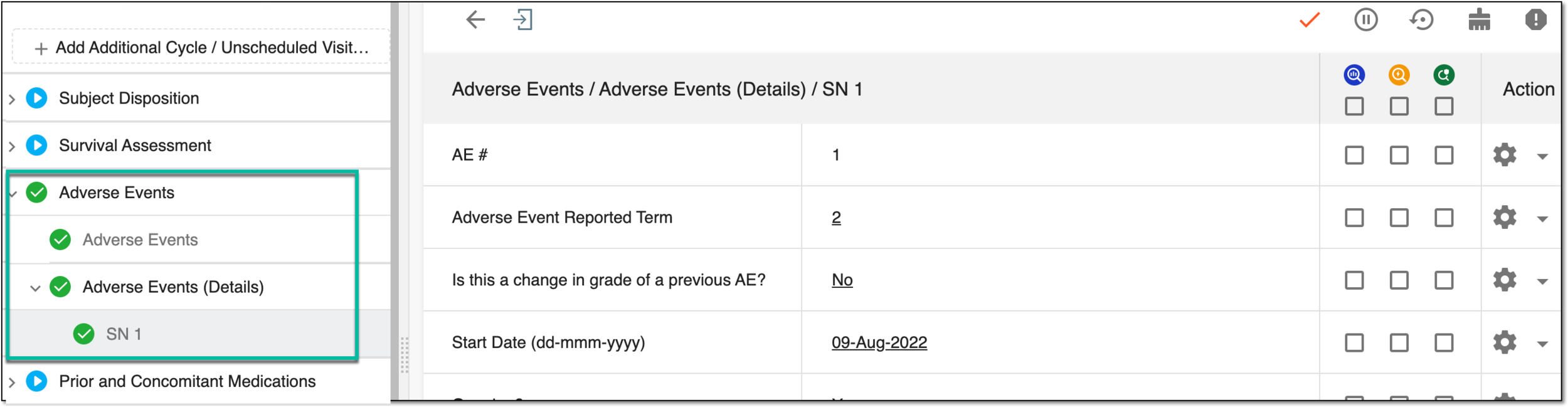 Figure 2. Locating Adverse Events (Details) form
-
On the contents panel that appears, on the top right, select the Enter SAE form control
.Figure 3. Accessing SAE forms
Important
If the Enter SAE
form control is missing, most likely, the AE
has not been recorded as SAE. If you need to change the data and specify that it is indeed the SAE and you have permission to update the form, you can change the value for the respective question so that it states SAE = Yes. Alternatively, if you cannot amend the data, you can create the query and request to change the respective value. -
On the page that opens, on the top left, select
 .
. -
In the resulting Follow-up dialog, select Report Date—the date of data collection—and select
 to generate the follow-up form.
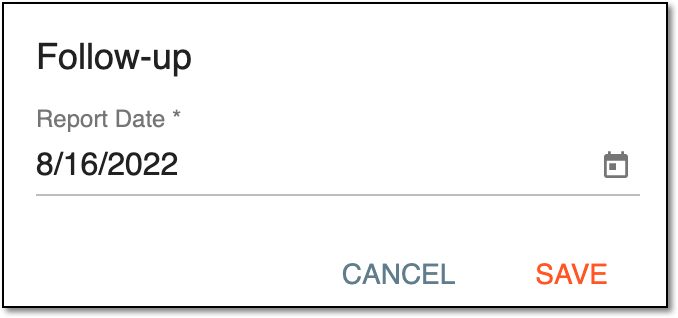 Figure 4. Selecting SAE follow-up report date
-
In the new follow-up form, the data from the previous record—initial or preceding follow-up—is duplicated and can be changed as per your current updates. Make sure to update the related form data if required.
-
When all the required data is filled, select
to save your changes or select to submit the data and send out the SAE record report to the respective addressee.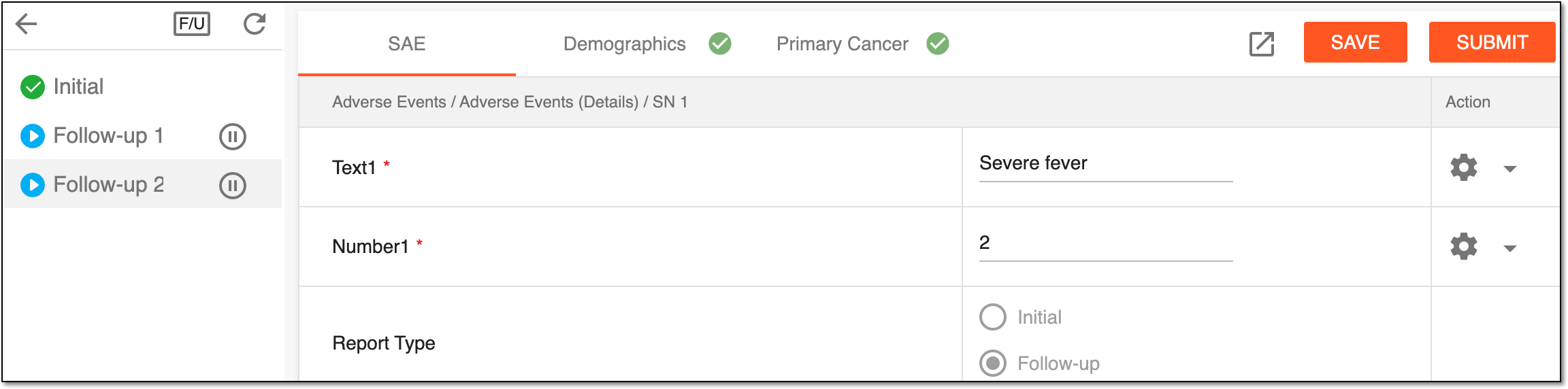 Figure 5. Filling follow-up form
Tip
To close the SAE form page and return to the Adverse Events (Details) form, on the top left, select Back
.
The follow-up SAE data is submitted, and the entitled user can now sign this SAE form.
Activate/Inactivate SAE record
When monitoring a subject in a clinical trial, you cannot overestimate the importance of tracking subject adverse events (AE) and especially serious adverse events (SAE). It is vital to monitor all changes and constantly update the collected data.
With the EDC application, you can submit the AE data and state the SAE occurrence, then record the initial SAE data and track all the updates using the follow-up forms.
The inactivation becomes handy if the previously reported AE is no longer considered serious, thus, no record keeping is mandatory for it, however, the deletion of such data is not an option due to compliance reasons. In such a case, the SAE record can be inactivated in the system.
However, if the event seriousness is revisited and reinstated, you can activate the SAE record again with no loss of previously recorded data.
-
In the EDC application header, select the DATA ENTRY tab.
-
On the site list page that opens, select the tile representing the site with which you want to work.
Figure 1. Accessing site
-
In the Subject ID column, select the ID of a subject to open their visit overview.
-
In the list of visits on the left, locate the Adverse Events visit > Adverse Events (Details) form submitted with SAE = Yes.
Figure 2. Changing SAE record
-
In the submitted Adverse Events (Details) form, on the top right of the contents panel, select Enter SAE
.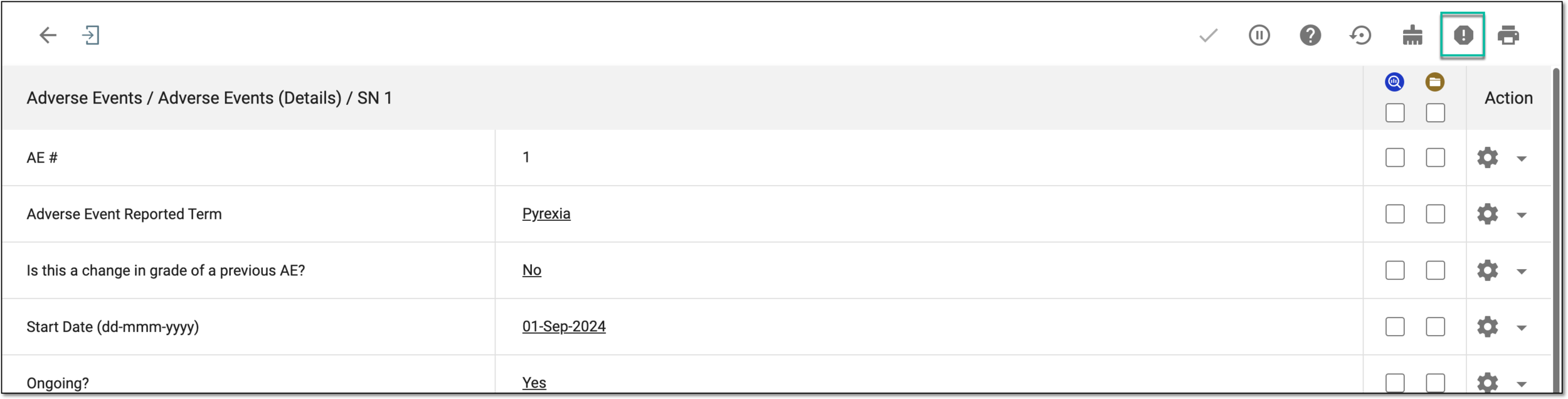 Figure 3. Accessing SAE records
Important
If the Enter SAE
form control is missing, most likely, the AE
has not been recorded as SAE. -
On the page that opens, in the SAE record list, locate the one that you need to make active or inactive and select Activate
 or Inactivate
  respectively.
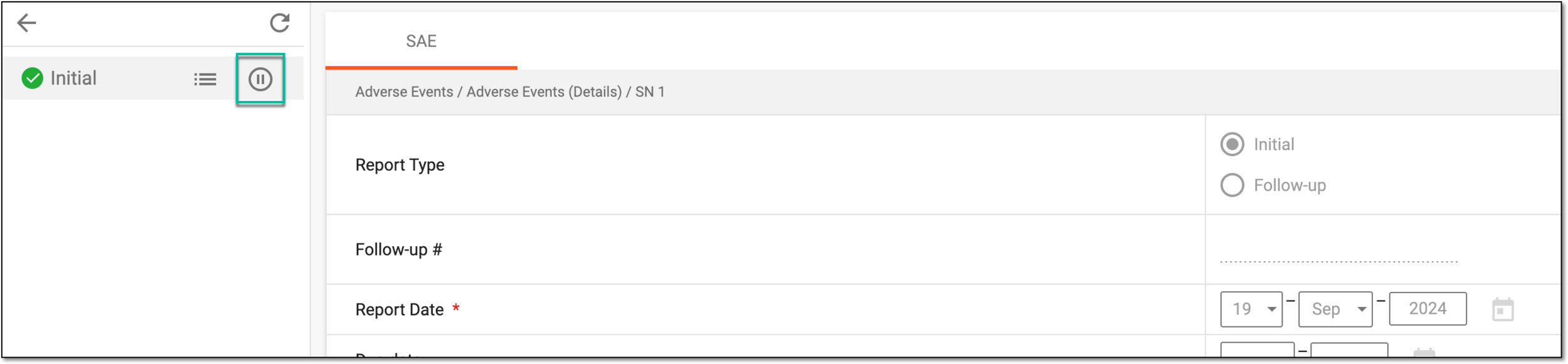 Figure 4. Inactivating SAE record
-
In the Reason dialog that appears, provide the reason for the SAE record activation or inactivation. Then select
to
proceed with your action.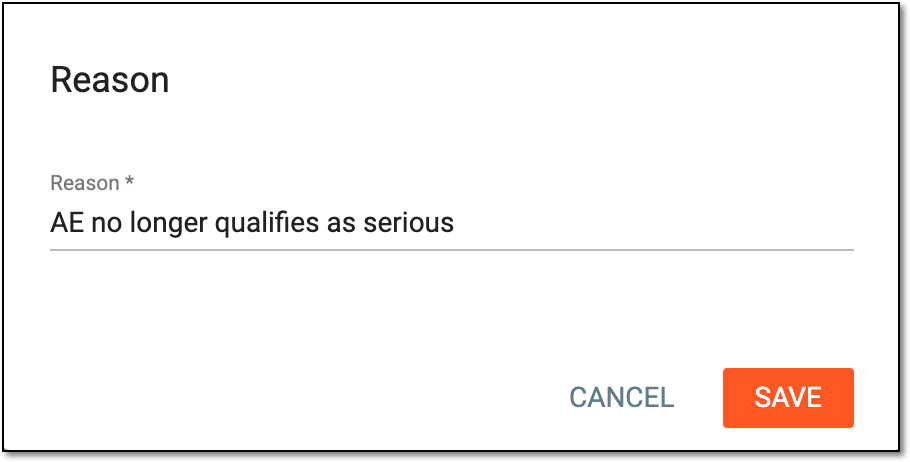 Figure 5. Providing SAE record inactivation reason
Upon saving, the SAE record is either activated or inactivated depending on your selection. If inactivated, the record is displayed as unavailable in the list.
 |
View SAE record audit trail
When monitoring a subject in a clinical trial, you cannot overestimate the importance of tracking subject adverse events (AE) and especially serious adverse events (SAE). It is vital to monitor all changes and constantly update the collected data.
With the EDC application, you can submit the AE data and state the SAE occurrence, then record the initial SAE data and track all the updates using the follow-up forms.
Then, for the initial and follow-up records, you can make amendments or inactivate and activate them. For compliance reasons, all such actions with the SAE records must be tracked to reconstruct the course of the events from the moment of creation to the submission to regulatory authorities. The actions with SAE records in EDC are traceable via the Audit Trail functionality.
-
In the EDC application header, select the DATA ENTRY tab.
-
On the site list page that opens, select the tile representing the site with which you want to work.
Figure 1. Accessing site
-
In the Subject ID column, select the ID of a subject to open their visit overview.
-
In the list of visits on the left, locate the Adverse Events visit > Adverse Events (Details) form submitted with SAE = Yes.
Figure 2. Changing SAE record
-
In the submitted Adverse Events (Details) form, on the top right of the contents panel, select Enter SAE
.Figure 3. Accessing SAE records
Important
If the Enter SAE
form control is missing, most likely, the AE
has not been recorded as SAE. -
On the page that opens, in the SAE record list, locate the one for which you want to audit the history of operations. Then next to it, select Audit Trail
 .
.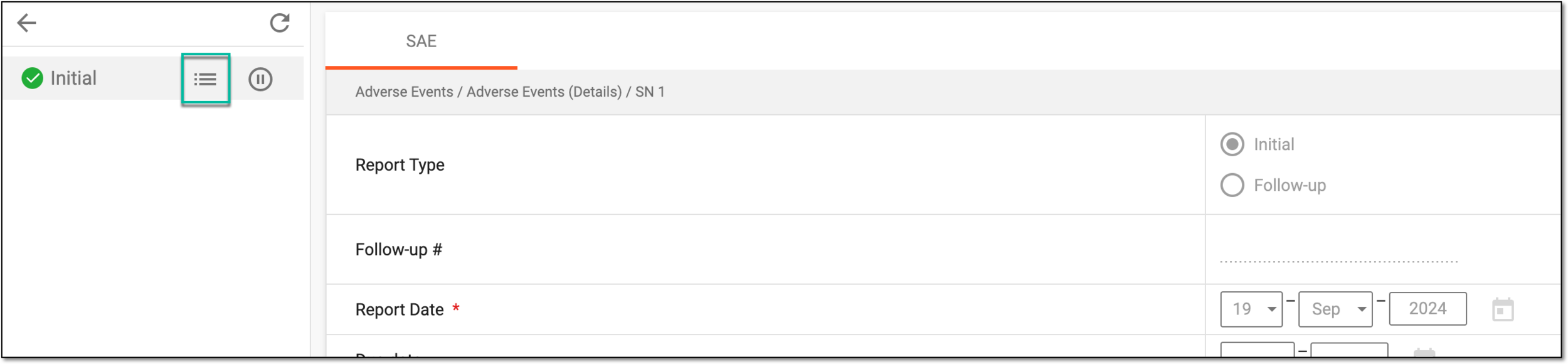 Figure 4. Accessing SAE record audit trail
-
In the Audit Trail dialog that appears, review the complete log of operations performed with the SAE record. Then select
 to close the dialog.
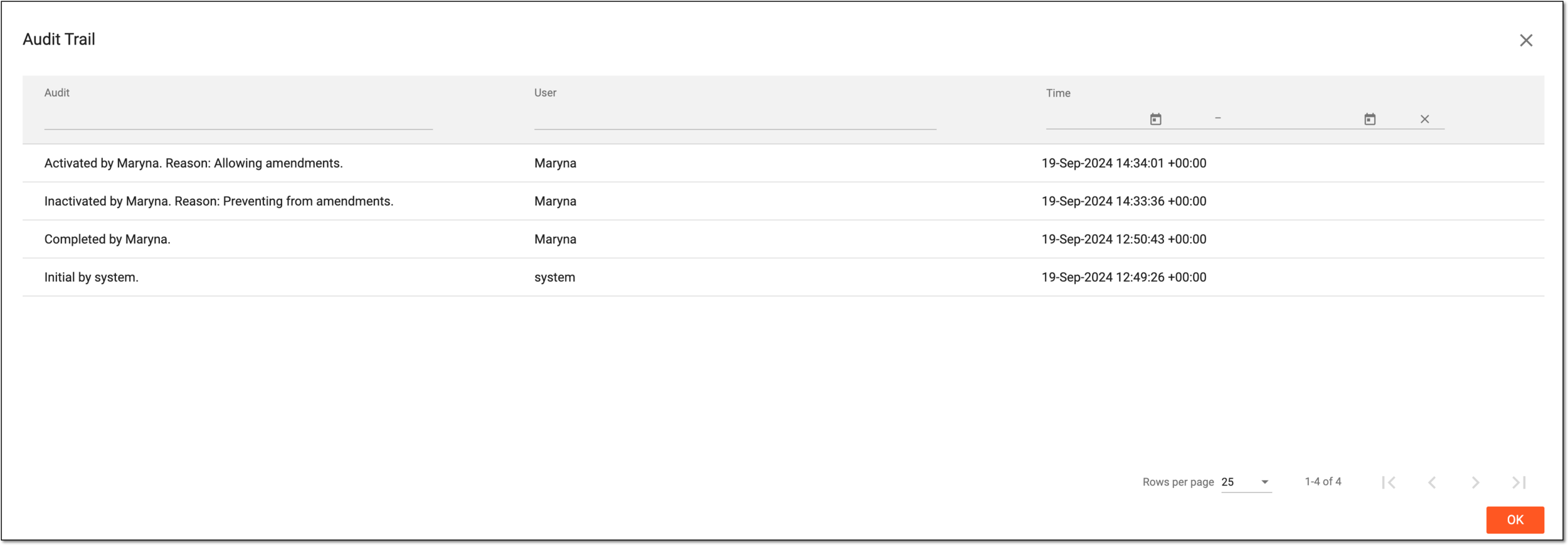 Figure 5. Viewing SAE record audit trail
You have viewed the complete log of operations performed with the SAE record. Once the dialog closes, you return to the SAE record page.
Export SAE report
When monitoring the subject state and especially tracking the serious adverse events (SAE), you might need to submit the SAE report data in another system, share it with respective authorities, or else.
In the EDC application, you can export the initial or follow-up SAE data as a DOC file and use it offline as per your business needs.
Important
The Enter SAE form control with which you can access SAE data
records appears only if the respective setting is activated under the STUDY INFO > SAE Form Define functionality.
-
In the EDC application header, select the DATA ENTRY tab.
-
On the site list page that opens, select the tile representing the site with which you want to work.
Figure 1. Accessing site
-
On the page that opens, in the list of visits and forms on the left, locate the Adverse Events > Adverse Events (Details) form.
-
In the contents panel that appears, on the top right, select Enter SAE
.Figure 2. Accessing SAE forms
-
On the page that opens, in the left pane, select the SAE form of your interest.
-
In the contents panel, on the top right, select Export SAE Report
 and follow the prompts to save the file on your local
machine.
and follow the prompts to save the file on your local
machine.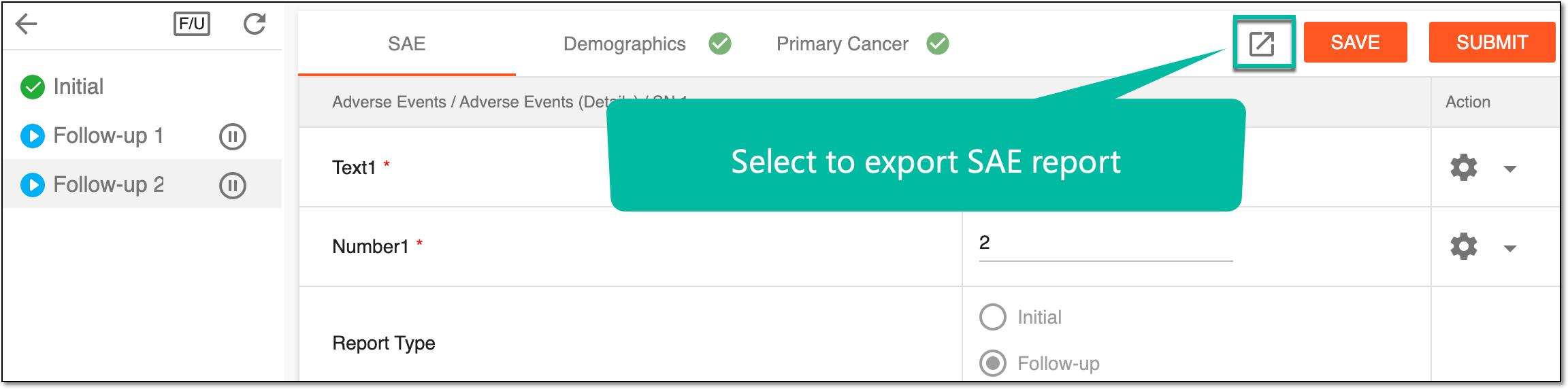 Figure 3. Exporting SAE report
Upon saving, the DOC file is downloaded to your local machine and you can use it as per your needs.