View SAE report
SAE report comprises information related to the adverse event (AE) and serious adverse event (SAE) occurrences during a clinical trial. This information is pulled from the SAE forms completed under the DATA ENTRY tab of the EDC application. Having the full SAE report is vital for the FDA approval process.
-
In the EDC application header, select the STUDY INFO tab.
-
On the page that opens, in the left pane, select the SAE > SAE Report subtab.
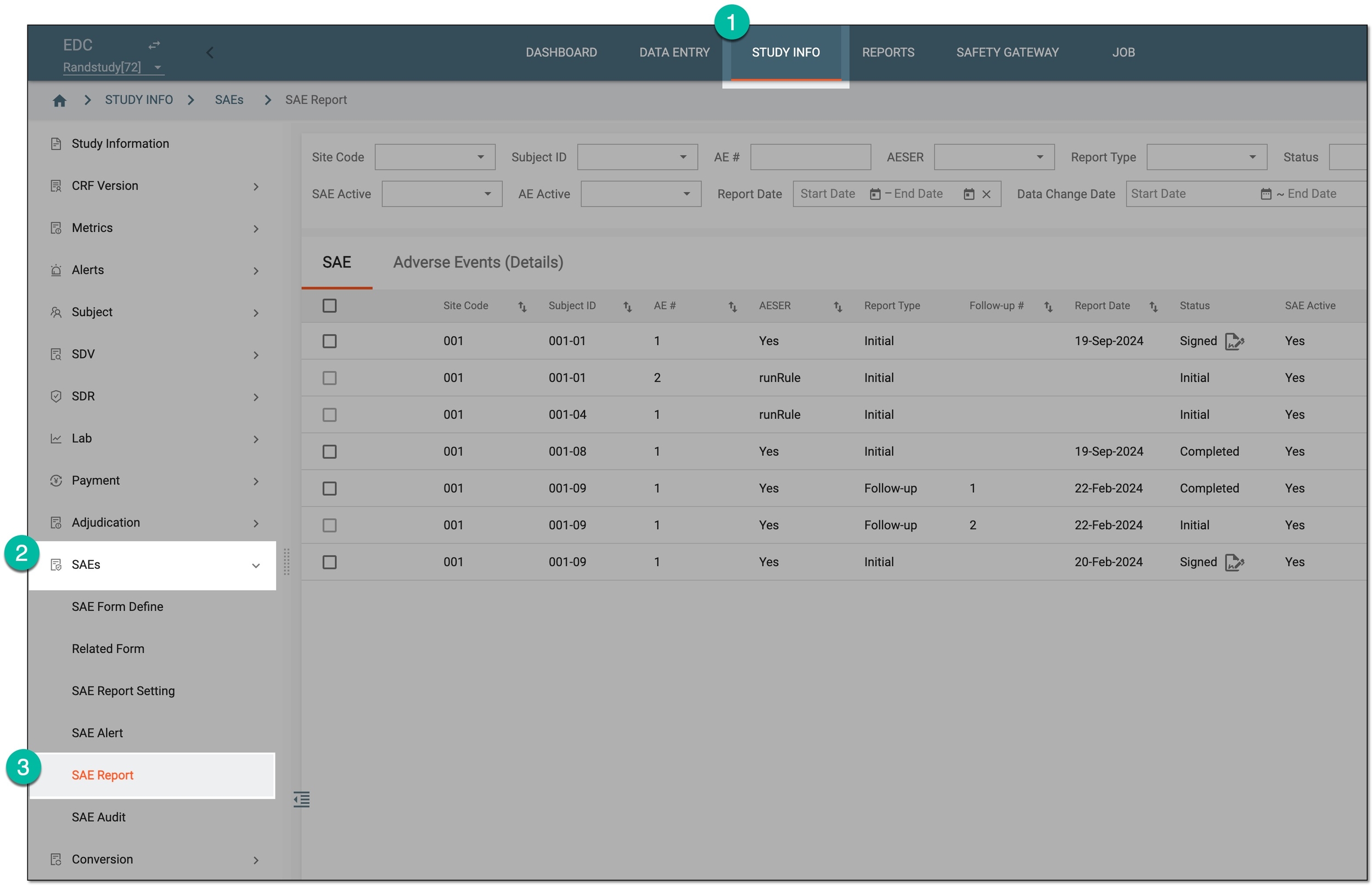 Figure 1. Accessing SAE report
-
On the SAE Report page that opens, in the filter block at the top, select the preferred options to generate the report according to your current business needs. You can find the description of the available search options in the following table.
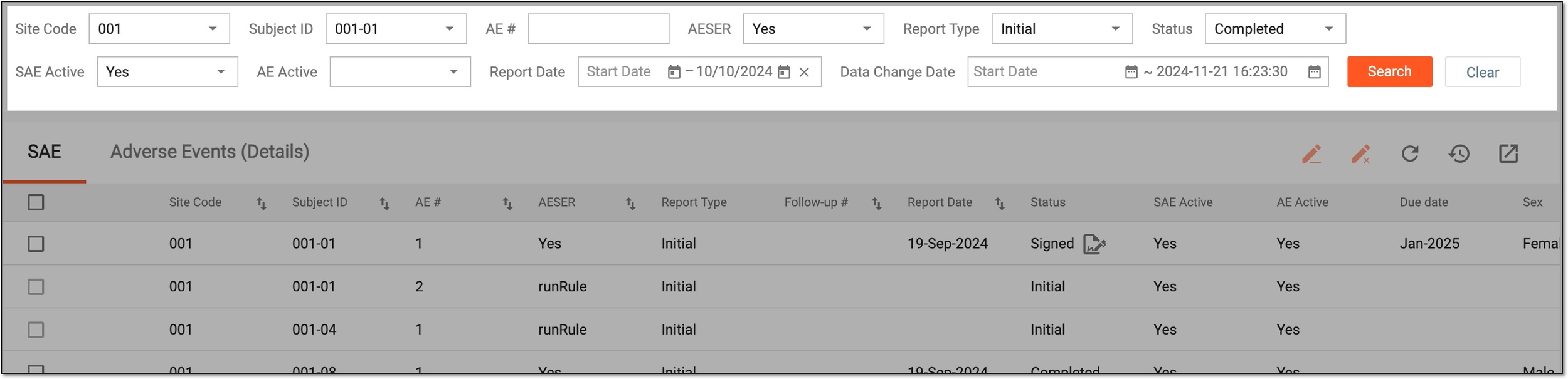 Figure 2. Selecting SAE report search parameters
Element
Details
Site Code
Select the site code to view the report on all adverse event records for subjects registered at that site.
Subject ID
Select the subject ID to view the report on the adverse event records for that subject.
If before selecting the subject ID you have already specified the site code filter, the dropdown list only includes the subjects registered at that site. If no site code has been selected, the list has all the subjects of your study.
AE#
Enter the number of the adverse event form in the EDC system to search for a specific form and its related records.
AESER
Select one of the following:
-
Yes: search for the adverse event forms in which the occurrence is stated as SAE.
-
No: search for the adverse event forms in which the occurrence is stated as not serious.
This becomes helpful for the SAE records that were inactivated when the adverse event was reinstated as not serious. However, the inactive SAE records are still traceable in this report for compliance.
Report Type
Select the type of the SAE record:
-
Initial: search for the first records of the SAEs.
-
Follow-up: search for the follow-up records of the SAEs.
If before selecting the report type you have already selected a site code/subject ID, the report only includes the initial or follow-up data on the SAE(s) of that site/subject. If no site/subject has been selected, the report includes all the initial/follow-up SAE records of your study.
Status
Select the status of the SAE record:
-
Initial: search for the records whose completion was initiated under the DATA ENTRY tab but not yet submitted.
-
Completed: search for the records that were completed with data and submitted under the DATA ENTRY tab.
-
Signed: search for the completed records that were already signed by the personnel in charge of AE/SAE validation.
SAE Active
Select one of the following:
-
Yes: search for the SAE records that are active in the EDC system.
-
No: search the SAE records that are inactivated in the EDC system.
AE Active
Select one of the following:
-
Yes: search for the AE forms that are active in the EDC system.
-
No: search the AE forms that are inactivated in the EDC system.
Report Date
Select the start and end date to view the report on adverse events recorded within the specific period.
If prior to selecting the dates you have already selected a site code/subject ID, the report only includes the SAE data of that site/subject. If no site/subject has been selected, the report includes all the SAE records of your study within the specified period.
Data Change Date
Select the start and end date to view the report on adverse events records that have been updated within the specific period.
If prior to selecting the dates you have already selected a site code/subject ID, the report only includes the SAE data of that site/subject. If no site/subject has been selected, the report includes all the updated SAE records of your study within the specified period.
Search
Select
 to apply the selected filtering and generate the report.
Clear
Select
 to clear all the selected filtering and start over.
 -
-
In the resulting report, switch between the tabs to view the details on the AEs, SAEs, and all the related forms data.
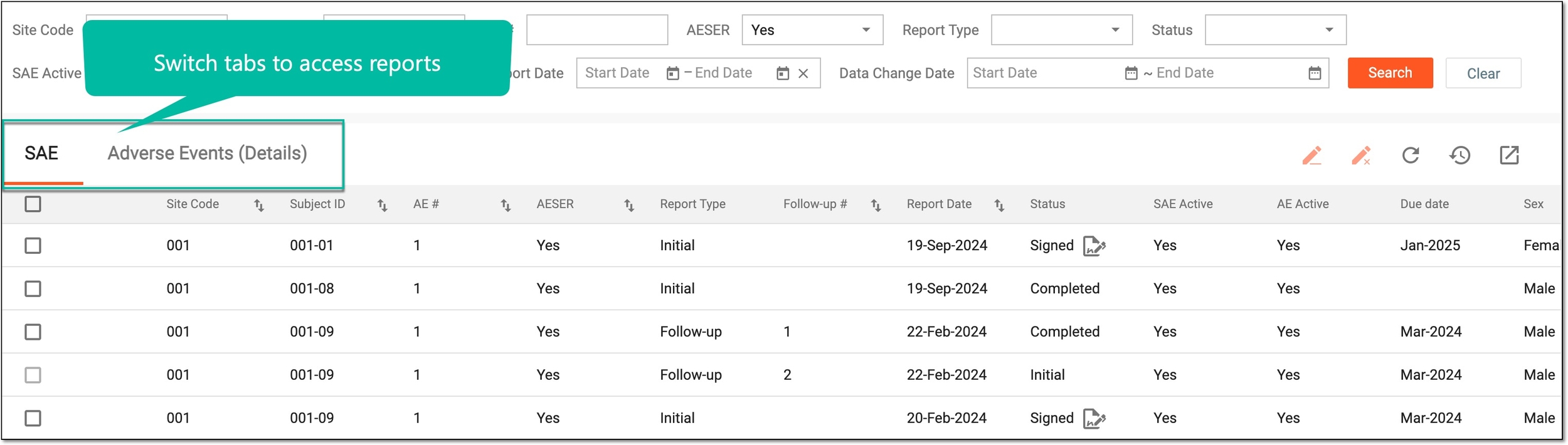 Figure 3. Reviewing SAE reports
You have studied the details of the AE-related forms in EDC.