Sign/Unsign SAE records from report
The adverse event (AE) and serious adverse event (SAE) may happen in any clinical trial. Thus, the AE and SAE forms are present in almost all studies maintained via the EDC application.
Once the SAE data is recorded in EDC, the review and approval mechanism is initiated for the personnel in charge to validate the completeness, accuracy, compliance, and other important aspects of the SAE record. Thus, the user in charge has to sign the SAE record to comply with safety requirements. In EDC, this can be done for multiple forms at once via the SAE report.
Important
Only the SAE forms in the Completed status can be signed because you cannot validate the record that is not yet submitted.
-
In the EDC application header, select the STUDY INFO tab.
-
On the page that opens, in the left pane, select the SAE > SAE Report subtab.
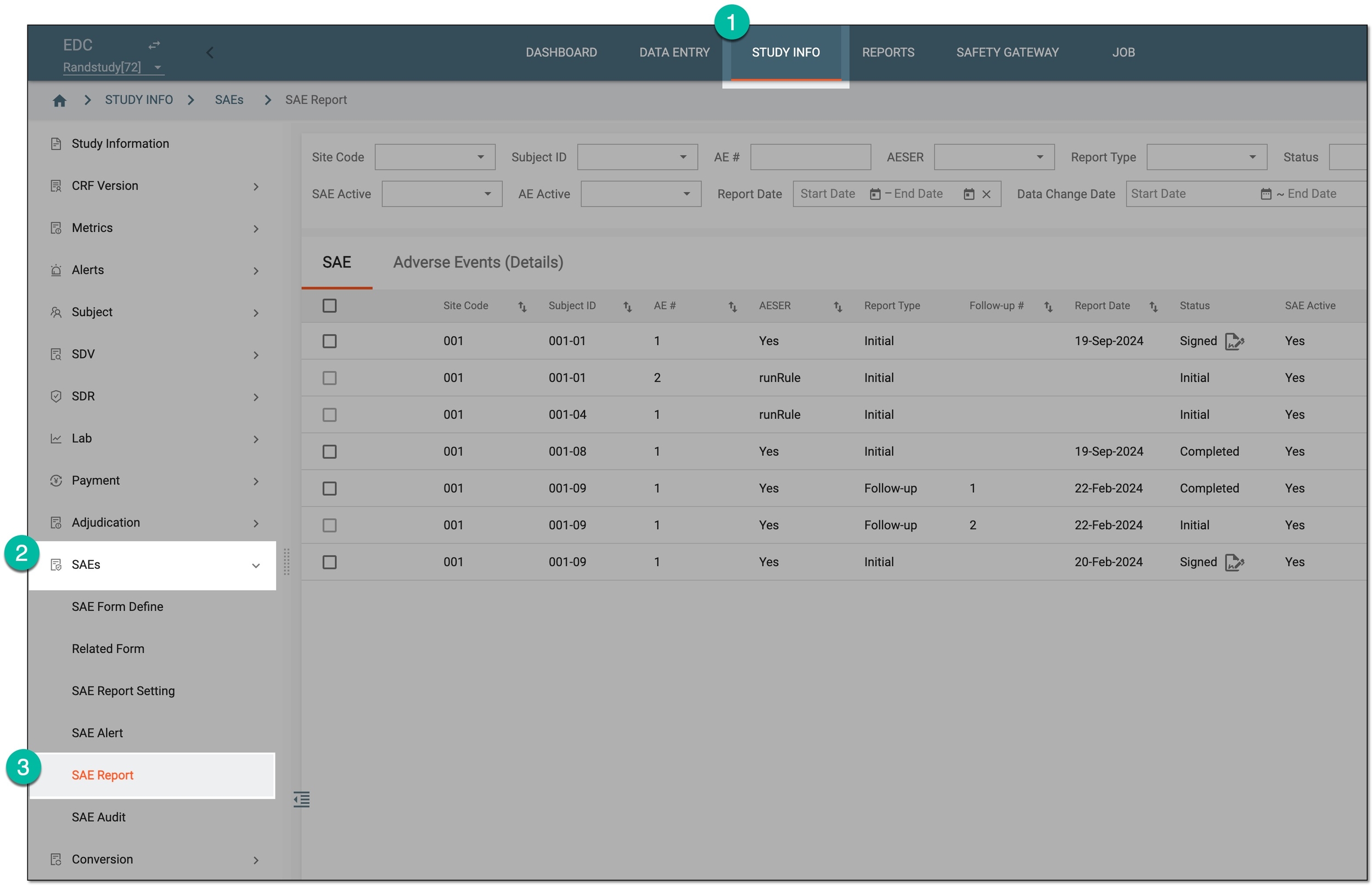 Figure 1. Accessing SAE report
-
On the SAE Report page that opens, in the filter block at the top, select the preferred options to generate the report on the forms applicable for your signature.
Tip
You can find the description of the available search options in the table of the View SAE report section.
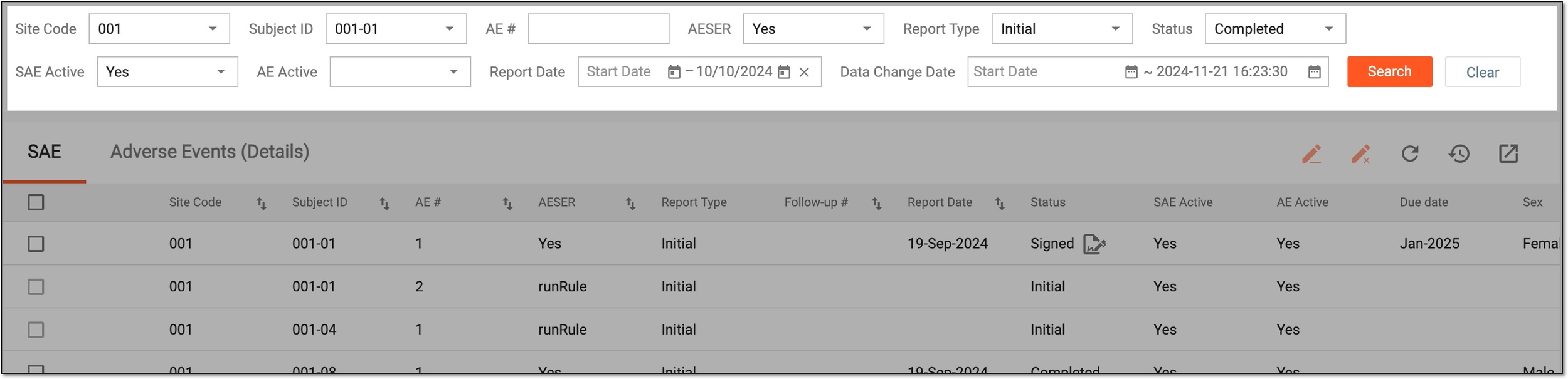 Figure 2. Selecting SAE report search parameters
-
In the resulting report, sign or unsign the SAE forms of your interest as follows.
-
In the Enter User Signing Password Information dialog appears, complete the fields as explained in the following table.
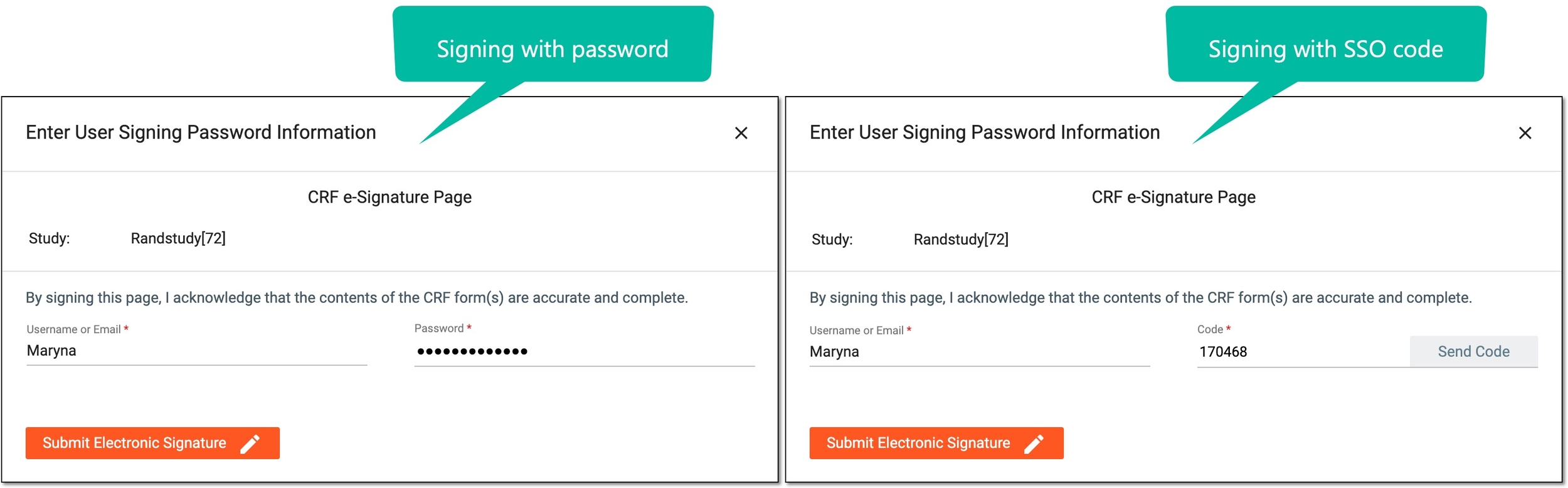 Figure 5. Providing electronic signature credentials for SAE
Tip
In the following table, mandatory elements are marked with an asterisk (*).
Element
Details
Username or Email*
Enter your username or email that you use to log in to the eClinical applications.
Send Code
Select
 to send the temporary PIN code to your email for which the SSO method is configured.
The button is only available if you use the authorization method via SSO.Code*
Enter the temporary PIN code that you received via email.
The field is only available if you use the authorization method via SSO.Password*
Enter the password that you use to log in to the eClinical applications.
The field is only available if you use the authorization method by providing your login and password.Submit Electronic Signature
Select
 to confirm your action with your signature and save the implemented changes.
Select this icon to discard your action, close the dialog, and return to the Study Summary page.

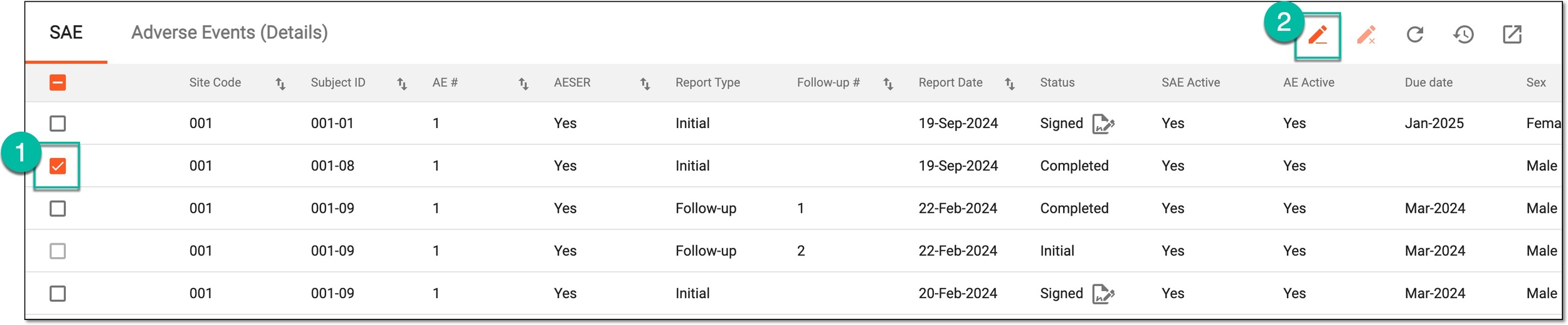

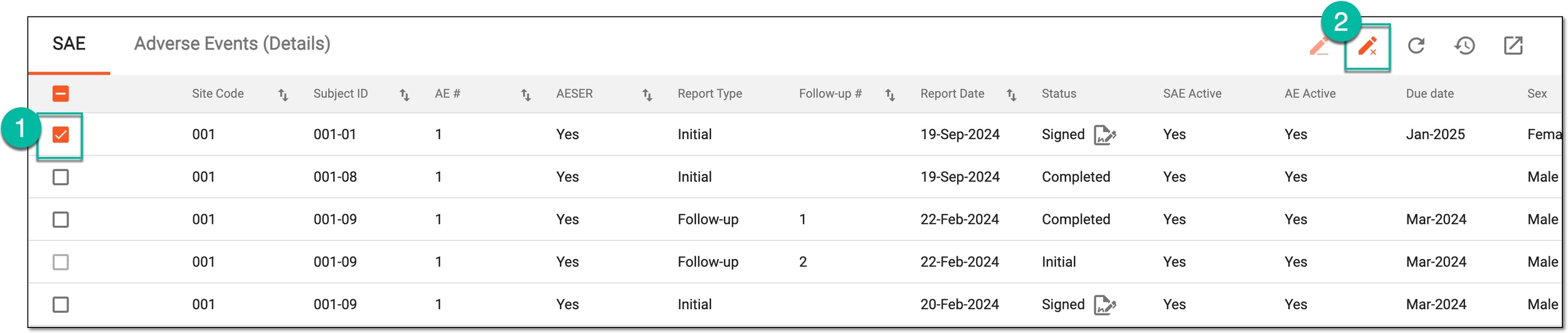
Once the credentials are submitted, the SAE form is signed or unsigned depending on your performed action.
Tip
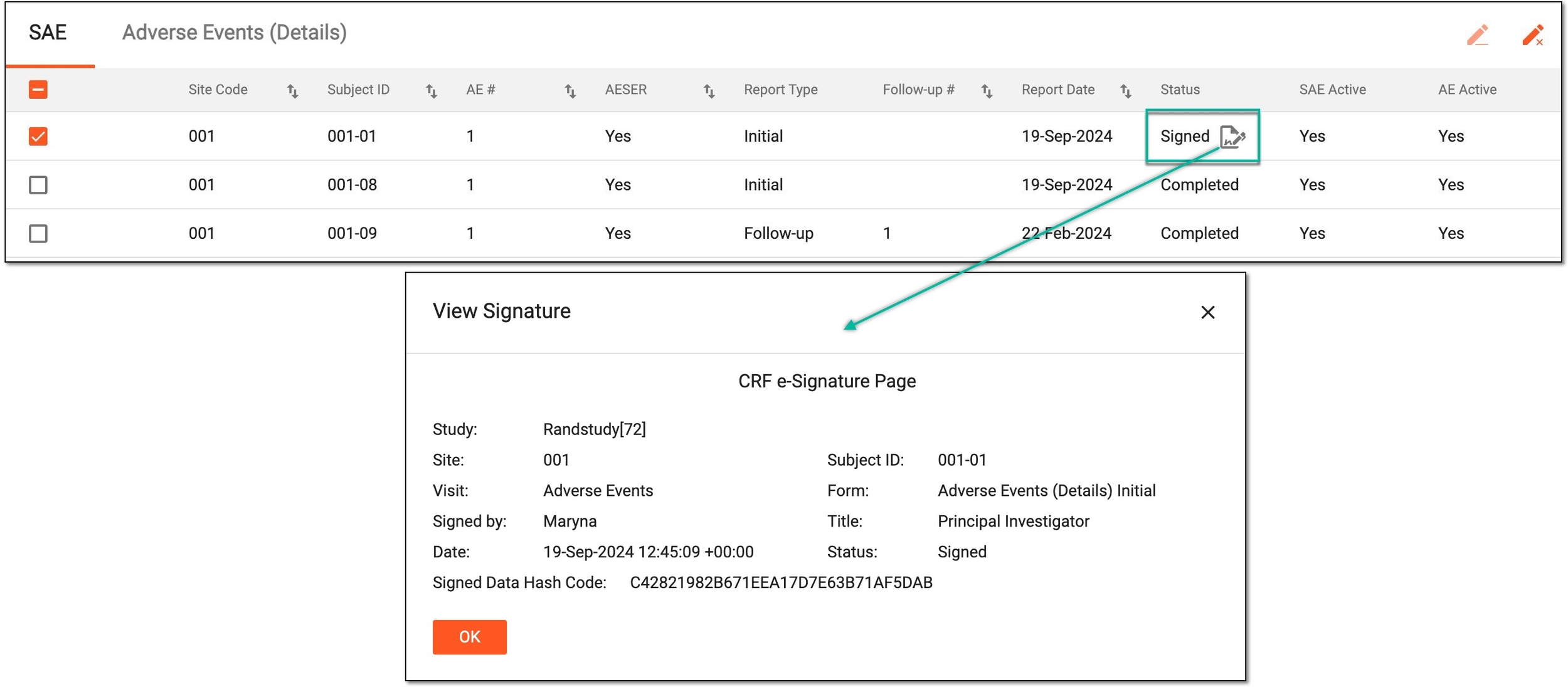
For a signed form, it is possible to review the signature details. For this, next to the respective form status, select View Signature  .
.