View SAE alert history
In the EDC application, you can set SAE alerts to track and timely react to a serious adverse event (SAE) occurrence. The alerts are sent to selected recipients who would benefit from being apprised of this information.
Under the SAE Alert History subtab, you can track the history of the actions performed with the SAE alert. For example, if it has been modified, when and by whom, when the alert has been triggered, and much more.
-
In the EDC application header, select the STUDY INFO tab.
-
On the page that opens, in the left pane, select the SAE > SAE Alerts subtab.
-
On the page that opens, on the contents panel, select the SAE Alert History subtab.
-
In the table grid that appears, you can view a list of actions that were performed on the alert. Find the details of the table columns in the following table.
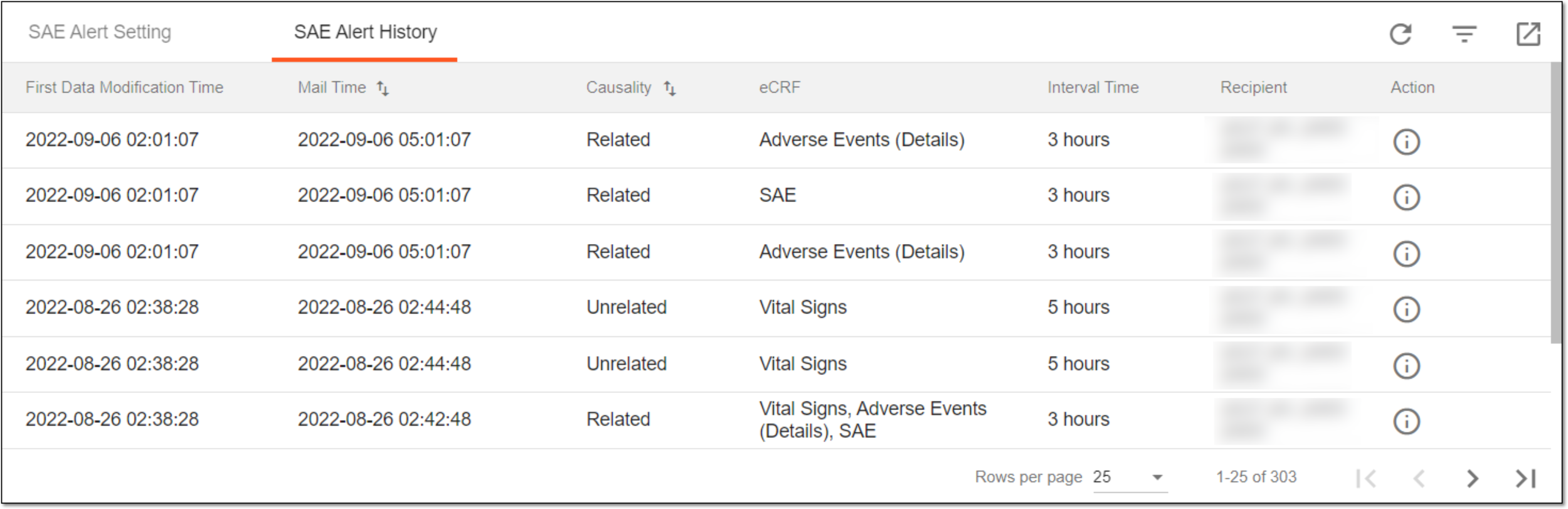 Figure 1. SAE alert history
Column name
Details
First Data Modification Time
Represents the date and time when of the alert's first update. For example, if someone has made the edits for the first time since the alert setup and changed the interval time, this column shows the date and time of the modification.
Mail Time
Represents the date and time when the alert email has been sent.
Causality
Represents if the causality is related or unrelated to the study.
eCRF
Represents for which type of an eCRF the alert has been created. For example, SAE, Vital Signs, Adverse Event (Details), or else.
Interval Time
Represents the interval (in hours) with which the alert is sent out.
Recipient
Represents the recipient(s) of the alert email. The recipient can be a single user or a user group based on the setting upon alert creation.
Once the history is studied, now you can perform the following actions:
-
View the detailed alert information by selecting Info
 .
. -
Export the alert history data by selecting Export
 and downloading the XLSX file to your local machine.