Copy SAE alert setting between lifecycles
In the EDC application, you can set SAE alerts to track and timely react to a serious adverse event (SAE) occurrence. The alerts are sent to selected recipients who would benefit from being apprised of this information.
In EDC, you can copy your configured SAE alert settings between different lifecycles—from development (DEV) to testing (UAT) and production (PROD). This saves time on configuring the same details over and over again when setting up a new environment.
Important
You must have the same current CRF version in both environments to be able to copy the configurations.
-
From the EDC application toolbar, select the UAT or PROD lifecycle and the necessary role.
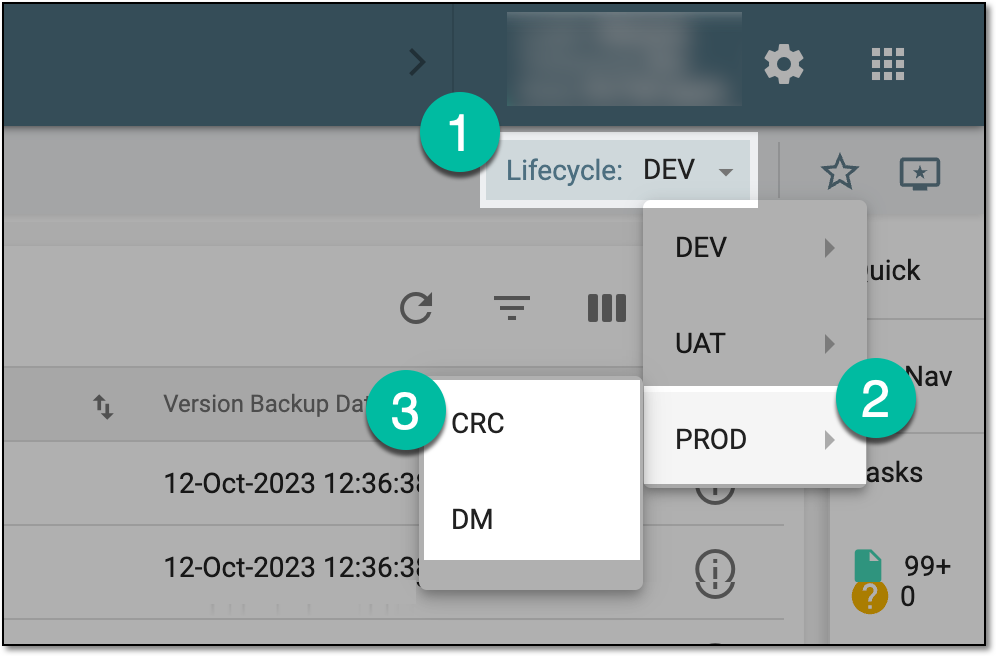 Figure 1. Accessing PROD lifecycle
-
In the EDC application header, select the STUDY INFO tab.
-
On the page that opens, in the left pane, select SAE > SAE Alerts.
-
On the SAE Alert page that opens, from the workspace toolbar, select Copy Configuration from
 .
 Figure 2. Selecting option to copy SAE alert setting
-
In the Copy Configuration from dialog that opens, select the lifecycle from which you want to copy the alert configuration. For UAT, only the DEV lifecycle can be selected; for PROD, either DEV or UAT can be selected. Then select SAVE.
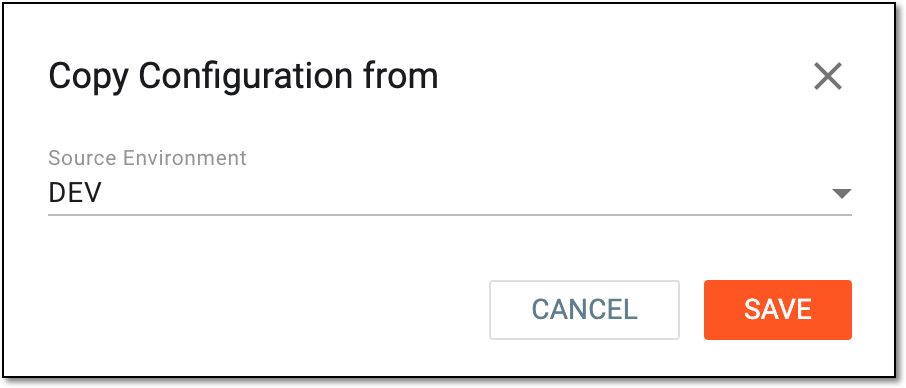 Figure 3. Selecting lifecycle to copy SAE alert setting
-
In the confirmation dialog that opens, select CONFIRM to acknowledge that you understand that the current unsaved form values are going to be overwritten.
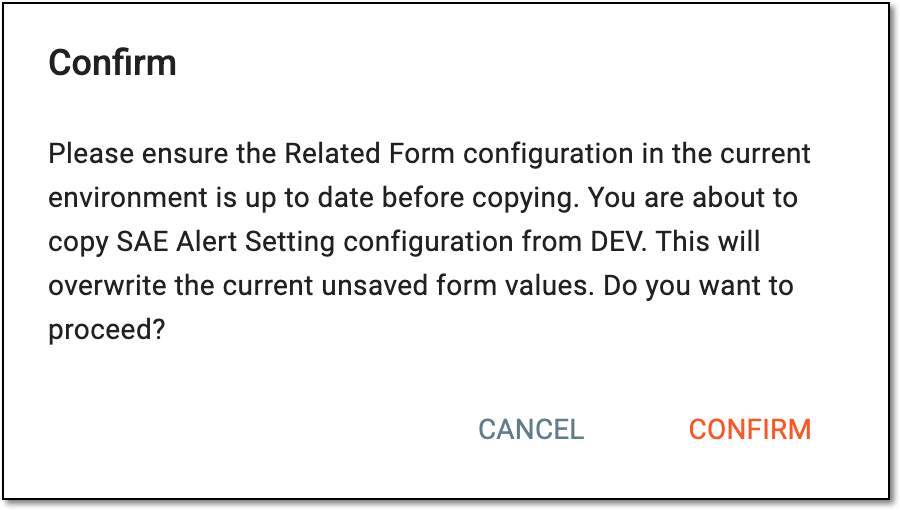 Figure 4. Confirming copying SAE alert setting
-
Once confirmed, the SAE alert settings are copied from the selected environment except for the recipient details. You can now adjust the SAE alert settings similar to how it is explained in the Set up SAE alert section. Then select
 .
Once saved, the settings are used to generate SAE alerts and send them to the recipients. The resulting email includes the exact date and time of the SAE record as well as an attached file with the necessary SAE details.