Define SAE form trigger
A serious adverse event (SAE) refers to any untoward medical occurrence that results in death, is life-threatening, requires hospitalization, results in persistent disability, or is a congenital anomaly or birth defect. SAEs are critical events that must be reported promptly to regulatory authorities, ethics committees, and other stakeholders involved in the clinical trial.
When an SAE occurs, it must be documented with a description of its nature, severity, timing, and any actions taken in response. This documentation is typically done through a Serious Adverse Events form. The EDC application has the functionality to configure conditions or thresholds that trigger the creation of the SAE form where the necessary information can be entered promptly.
-
In the EDC application header, select the STUDY INFO tab.
-
On the page that opens, in the left pane, select SAE > SAE Form Define.
-
On the SAE Form Define page that opens, from the workspace toolbar, select
 to open SAE form trigger settings.
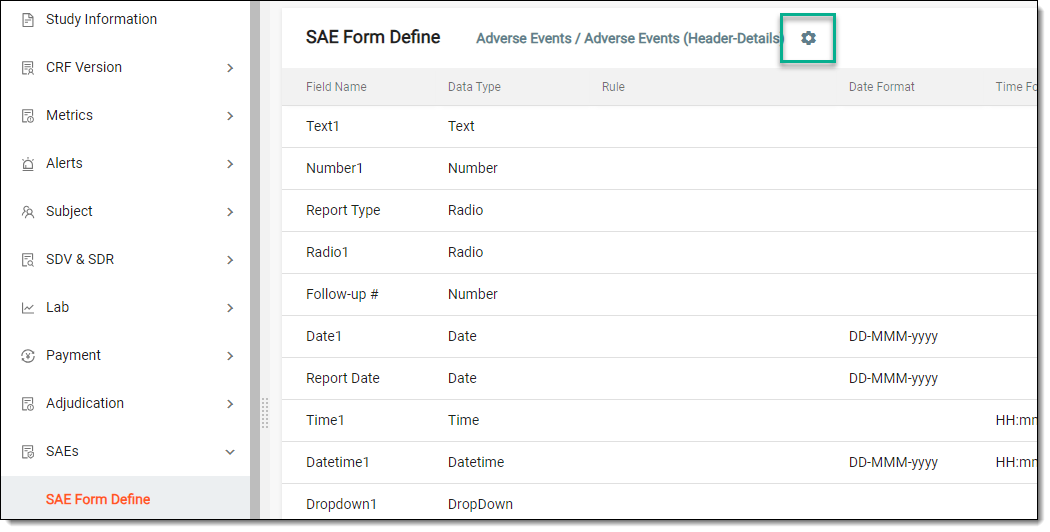 Figure 1. Selecting SAE trigger settings
-
In the Setting dialog that opens, define SAE settings as explained in the following table.
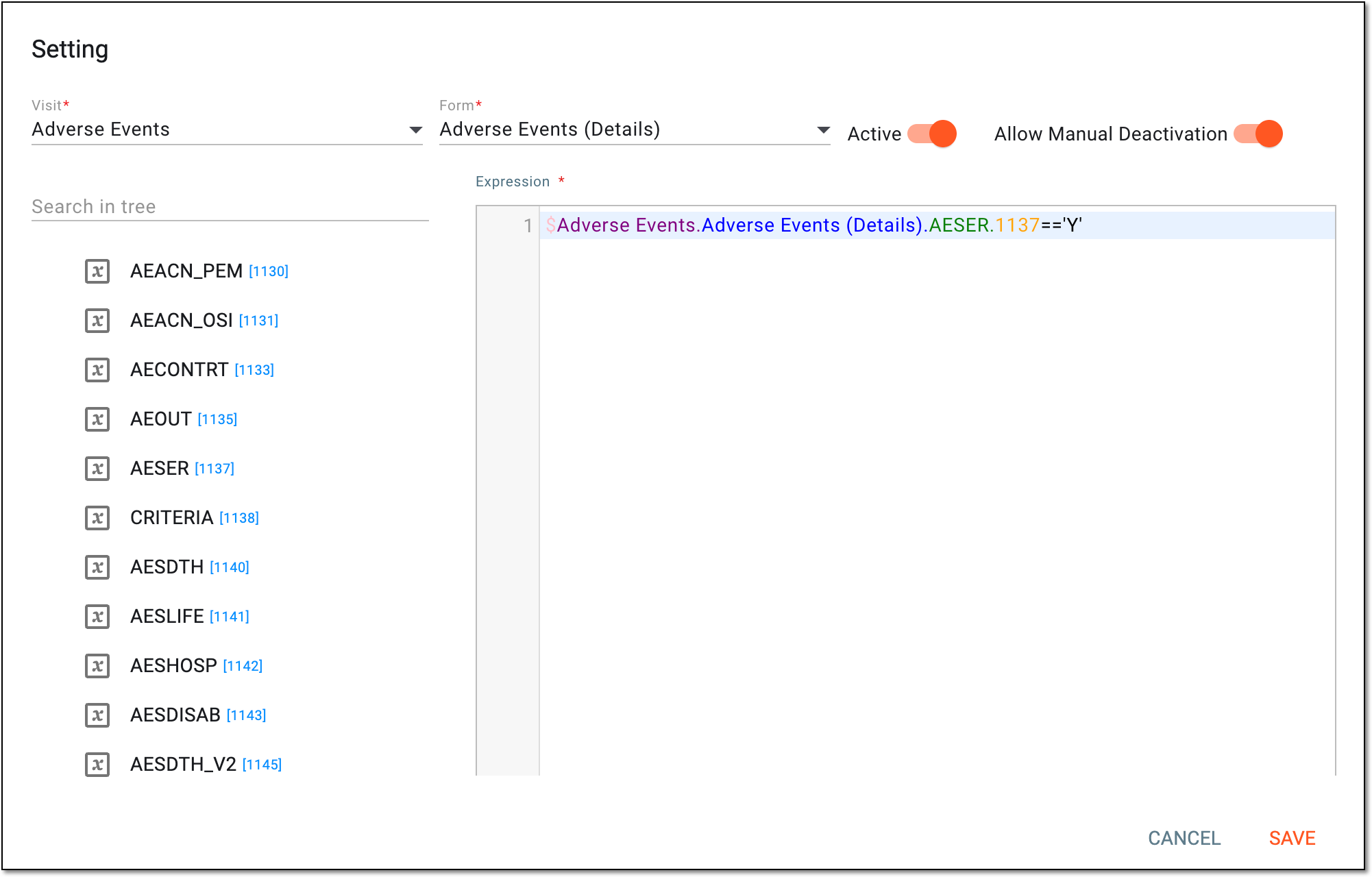 Figure 2. Defining SAE form trigger setting
Element
Details
Visit
Select the visit whose form you want to set as a trigger for the SAE form.
Form
Select the form that you want to set as a trigger for the SAE form.
A form of any type can be used for configuring a trigger condition for SAE form generation.Expression
Enter the triggering condition for the SAE form to appear for data entry in EDC. You can select and drag variables associated with the selected form from the tree to the Expression block to be used for a condition.
For example, you can use the AESER variable from the Adverse Details form. If a trigger is configured as described in the figure, the SAE form appears every time a response to the question "Was the AE serious?" is recorded as "Yes" on the Adverse Details form.
Active
Set up as follows:
-
Turn on the toggle to make the SAE form trigger condition active and applied to the data entry processes in EDC.
-
Turn off the toggle to deactivate the condition if you want to temporarily withhold it from triggering new SAE forms.
Allow Manual Deactivation
Set up as follows:
-
Turn on the toggle to allow users manually deactivate the SAE forms autogenerated according to the set trigger condition.
-
Turn off the toggle to restrict users from manually deactivate the SAE forms autogenerated according to the set trigger condition.
SAVE
Select
 to apply the setting.
CANCEL
Select
 to discard the changes, close the dialog, and return to the SAE Form Define page.
 -
Once saved, the SAE form trigger condition is defined. You can now add fields to the SAE form.