Add new field to SAE form
In the EDC application, the maintenance of the serious adverse event (SAE) forms occurs under the STUDY INFO > SAE Form Define subtab. Here you add fields to the form if you want to collect additional data about the subject's SAE.
-
In the EDC application header, select the STUDY INFO tab.
-
On the page that opens, in the left pane, select SAE > SAE Form Define.
-
On the SAE Form Define page that opens, above the table, select New SAE Field
 .
. -
In the New dialog that opens, complete the fields as shown in the figure and explained in the following table.
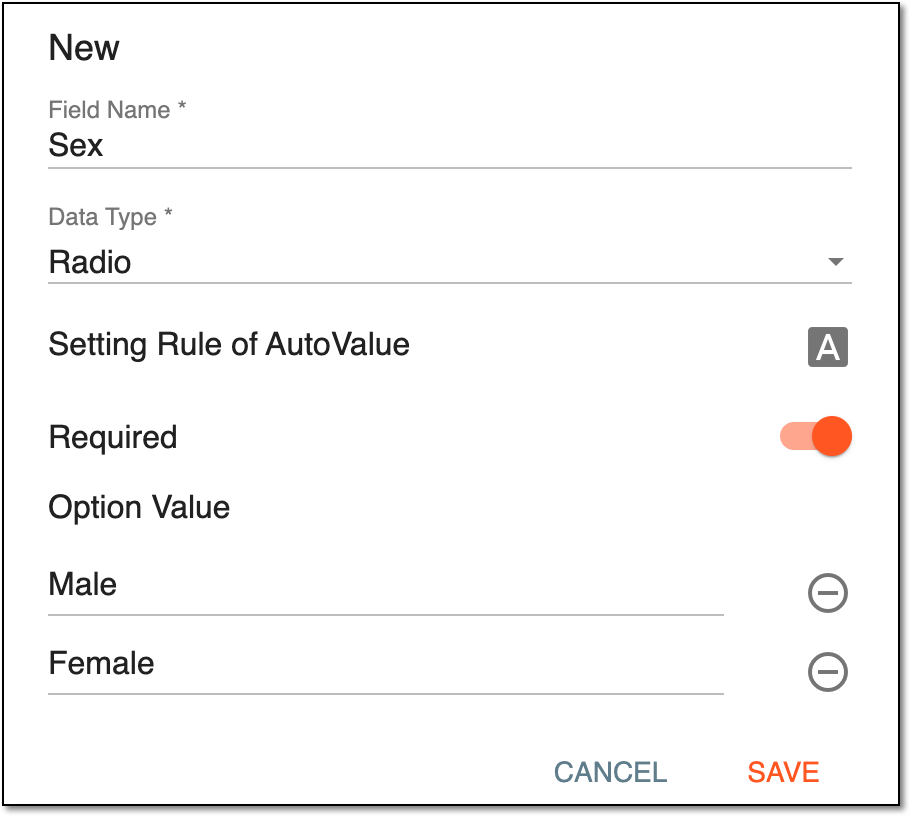 Figure 1. Adding new fields to SAE form
Tip
In the following table, mandatory elements are marked with an asterisk (*).
Element
Details
Field Name*
Enter the name of the field you want to add to the SAE form.
Data Type*
From the dropdown list, select the data type relevant to the data you expect to be collected for this field: text, number, dropdown, checkbox, or else.
Setting Rule of AutoValue
Select
 to set up the rules according to which the field will be automatically filled with a specific value. Upon selecting, the Setting Rule of
AutoValue dialog opens. From the tree on the left, select the items to form the expression representing the parameters of the field autofilling.
to set up the rules according to which the field will be automatically filled with a specific value. Upon selecting, the Setting Rule of
AutoValue dialog opens. From the tree on the left, select the items to form the expression representing the parameters of the field autofilling.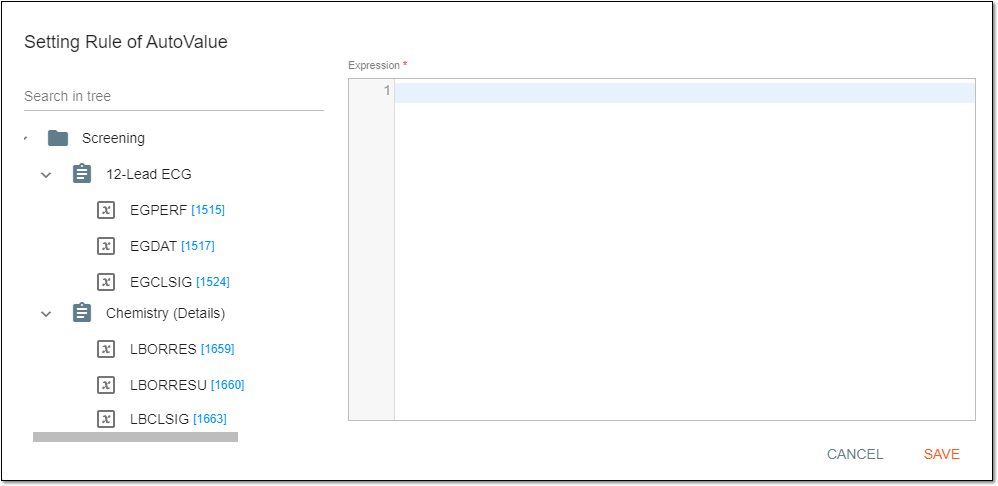 Figure 2. Setting rules for field auto-filling
Select
 to implement the changes or select
  to discard the changes and return to the New dialog.
Required
-
Turn this toggle on to make this field mandatory for completion during data collection.
-
Turn this toggle off if to make this field optional for completion during data collection.
Option Value
This field is only available if for the Data Type field you have selected the Radio, DropDown, or Checkbox value.
In this field(s), enter the values, one of which can be selected to complete this field upon data entry. Select
 to remove an extra field(s).
Date Format*
This field is only available if for the Data Type field you have selected the Date or DateTime value.
From the dropdown list, select one of the available date formats so that upon data entry, the date always follows the required standard.
Time Format*
This field is only available if for the Data Type field you have selected the Time or DateTime value.
From the dropdown list, select one of the available time formats so that upon data entry, the time always follows the required standard.
SAVE
Select
to implement the changes.CANCEL
Select
to discard the changes and return to the SAE Form Define page. -
Upon saving, the field is added to the SAE form and appears in the SAE Form Define table. You can also edit the SAE form fields.