Edit SAE form field
In the EDC application, the maintenance of the serious adverse event (SAE) forms occurs under the STUDY INFO > SAE Form Define subtab. Here you can add fields to the form as well as edit the existing ones.
-
In the EDC application header, select the STUDY INFO tab.
-
On the page that opens, in the left pane, select SAE > SAE Form Define.
-
In the SAE Form Define table that appears, locate the field of your interest and in the Actions column next to it, select Edit
 .
. -
In the Edit dialog that opens, update the elements as explained in the New SAE form field dialog elements table of the Add new field to SAE form section.
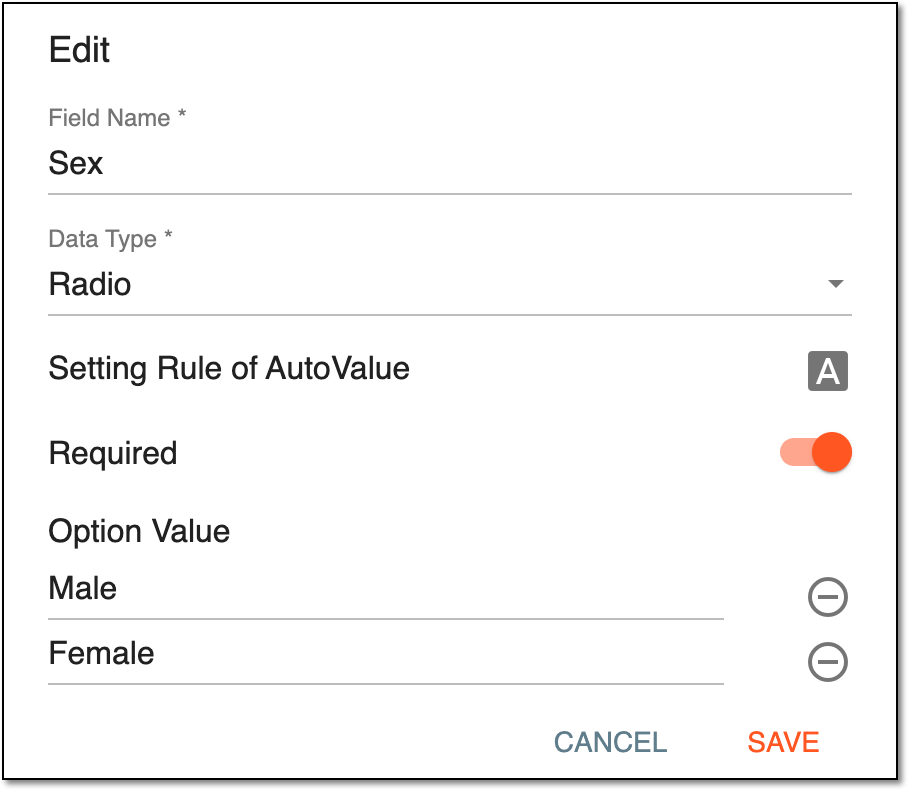 Figure 1. Editing SAE form field
-
Select
 to implement the changes.
Upon saving, the field is updated. You can also activate/inactivate the SAE form fields.