Enter data into header detail form
EDC is your clinical database for recording subject data collected in a study. You must enter the subject data into the respective forms by yourself using EDC.
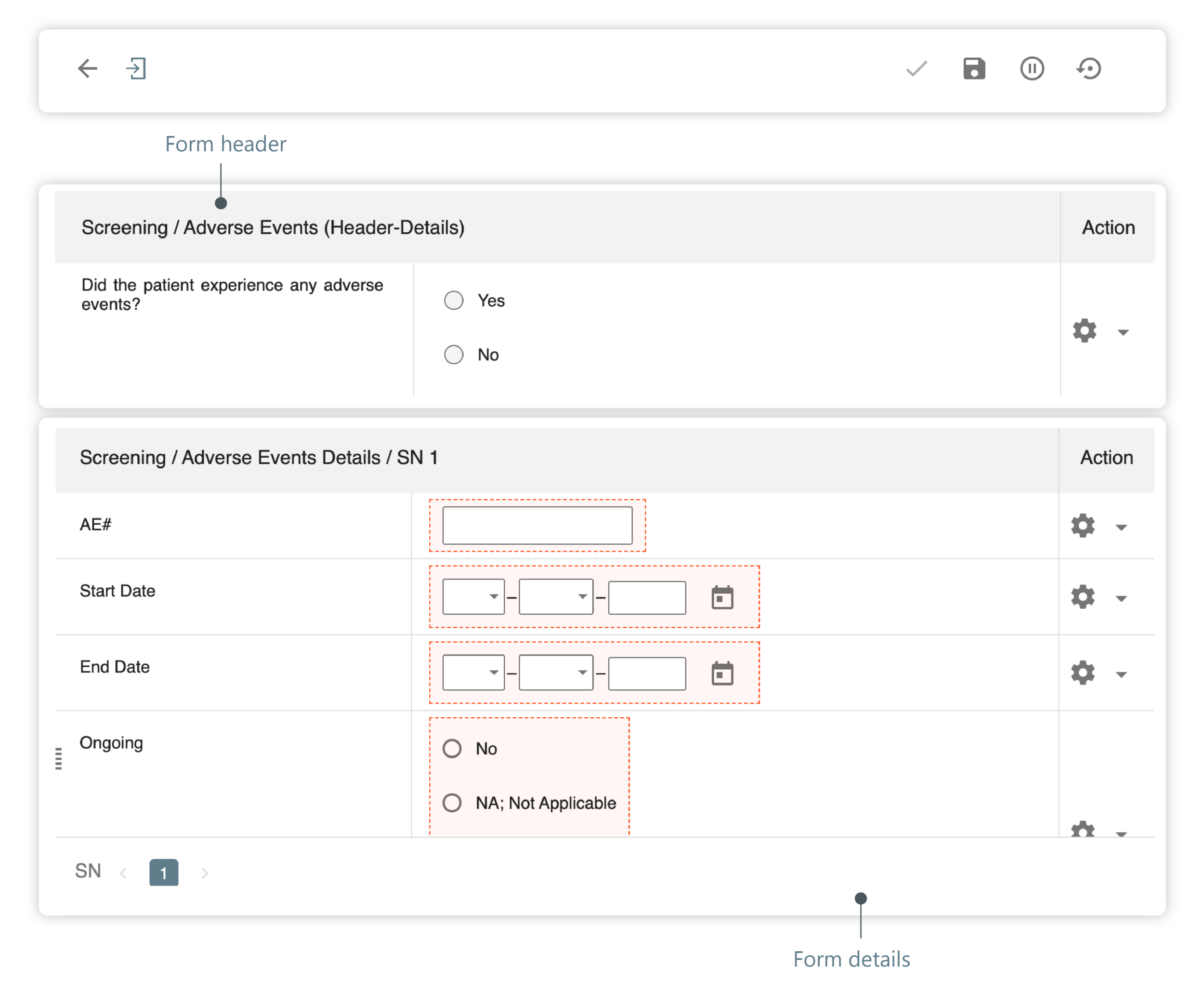
Header detail forms are the forms that are used when there is a relationship between the information in the header (the fields above the grid or log lines) and the information in the detail area (the grid or log lines themselves).
-
In the EDC application header, select the DATA ENTRY tab.
-
On the Site List page that opens, select the tile representing the site you want to work with.
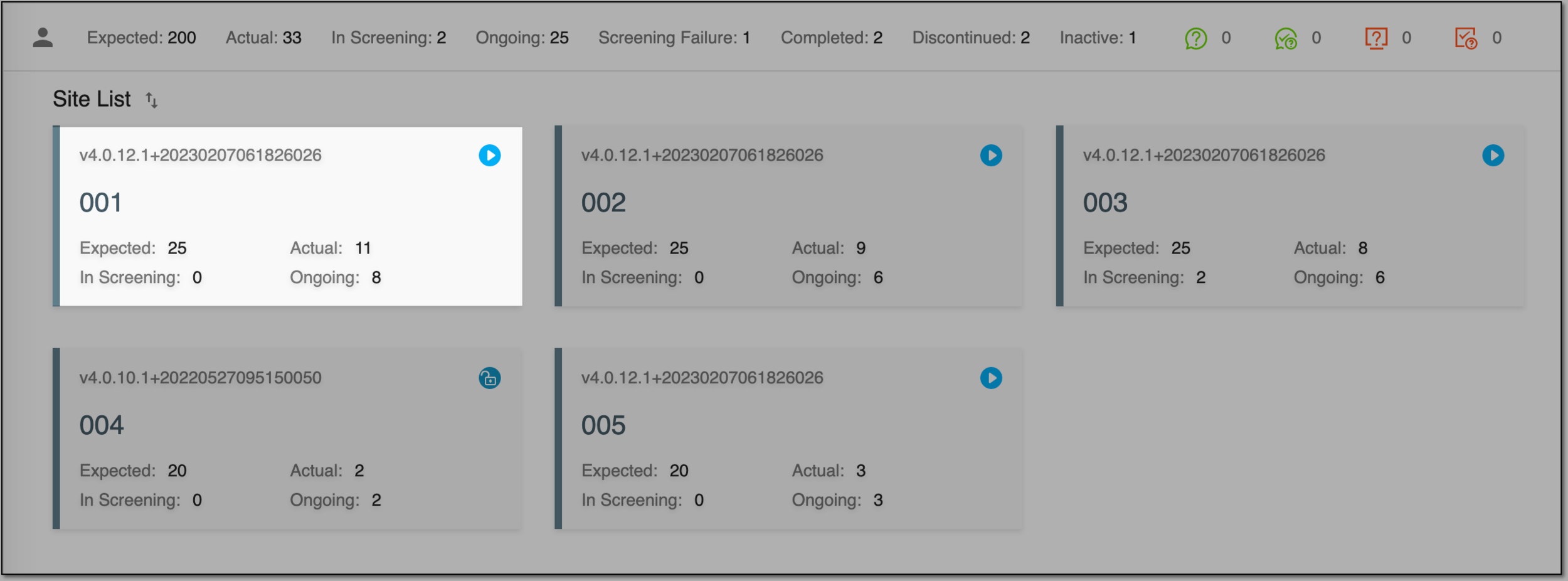 Figure 2. Selecting site to work with
-
In the Subject ID column, select the ID of a subject to open their Visit Overview page and start entering the data.
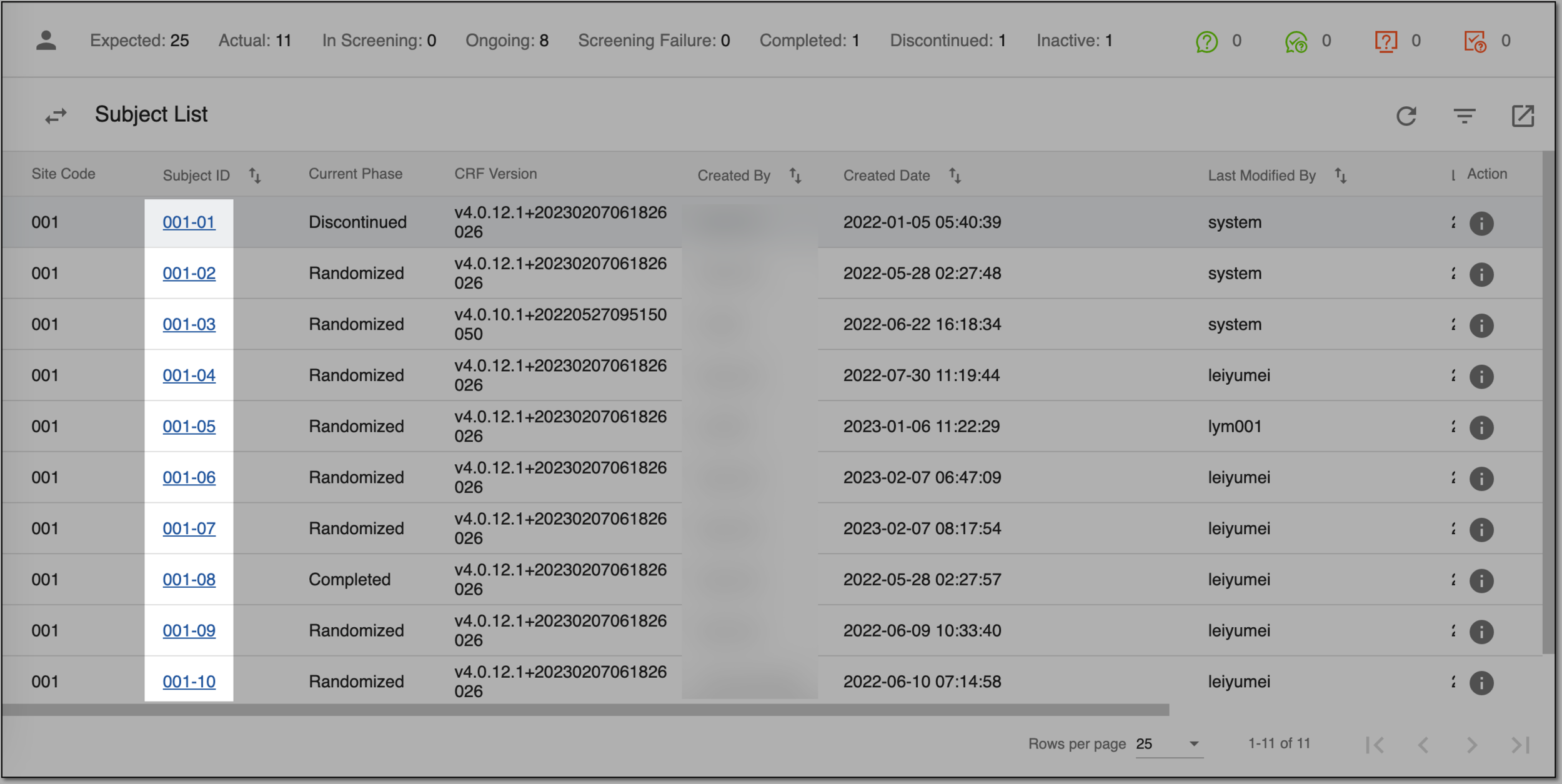 Figure 3. Locating your subject
-
On the Visit Overview page that opens, on the left, a panel with all subject visits is displayed. Expand the needed visit to open the forms associated with that visit.
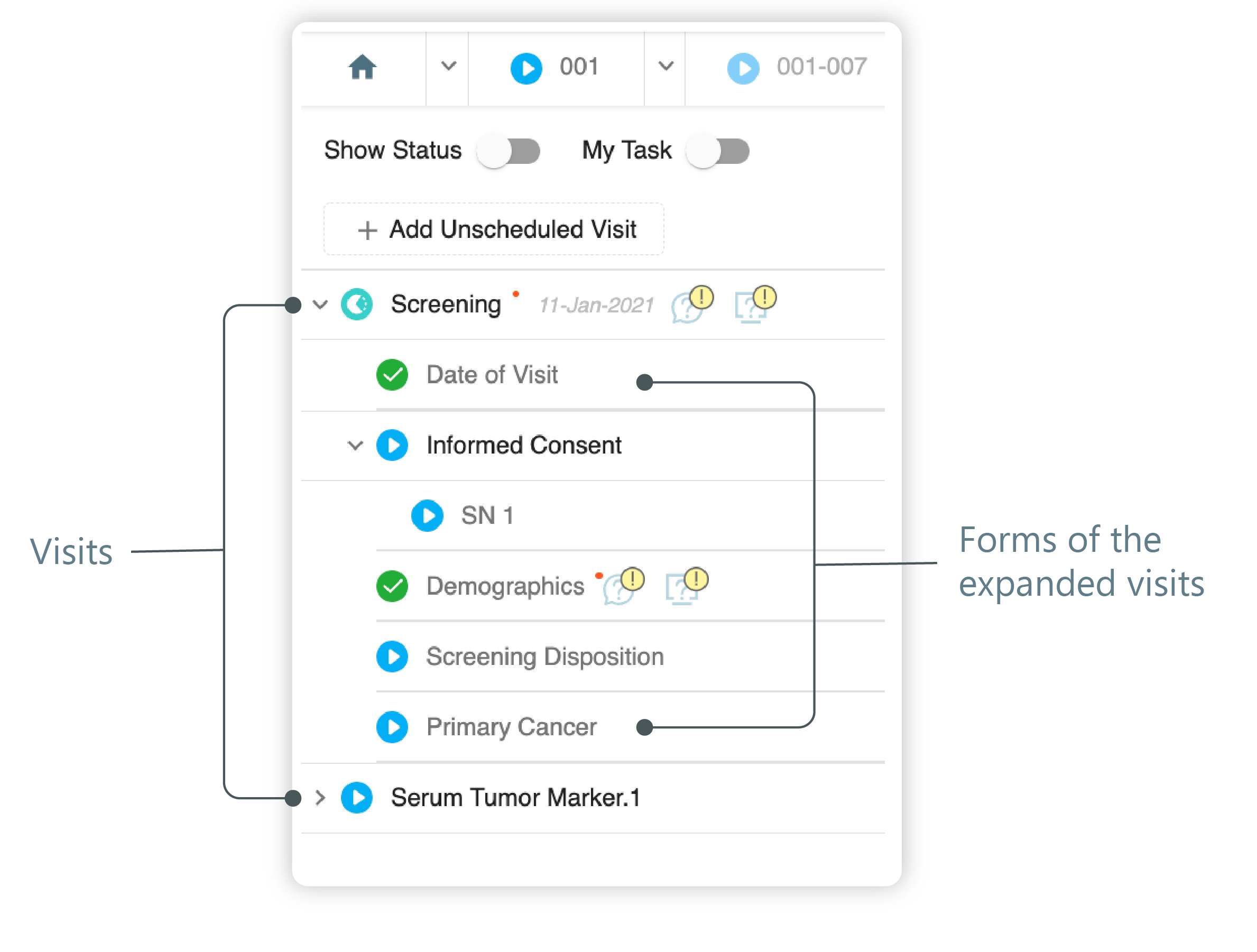 Figure 4. Panel with visits and their forms
-
Select the header detail form in which you want to enter data by clicking it.
-
In the contents panel, the form opens. Use your source documents to fill in the data. Select Submit
 or refer to the
following table for more information on the available form controls.
or refer to the
following table for more information on the available form controls.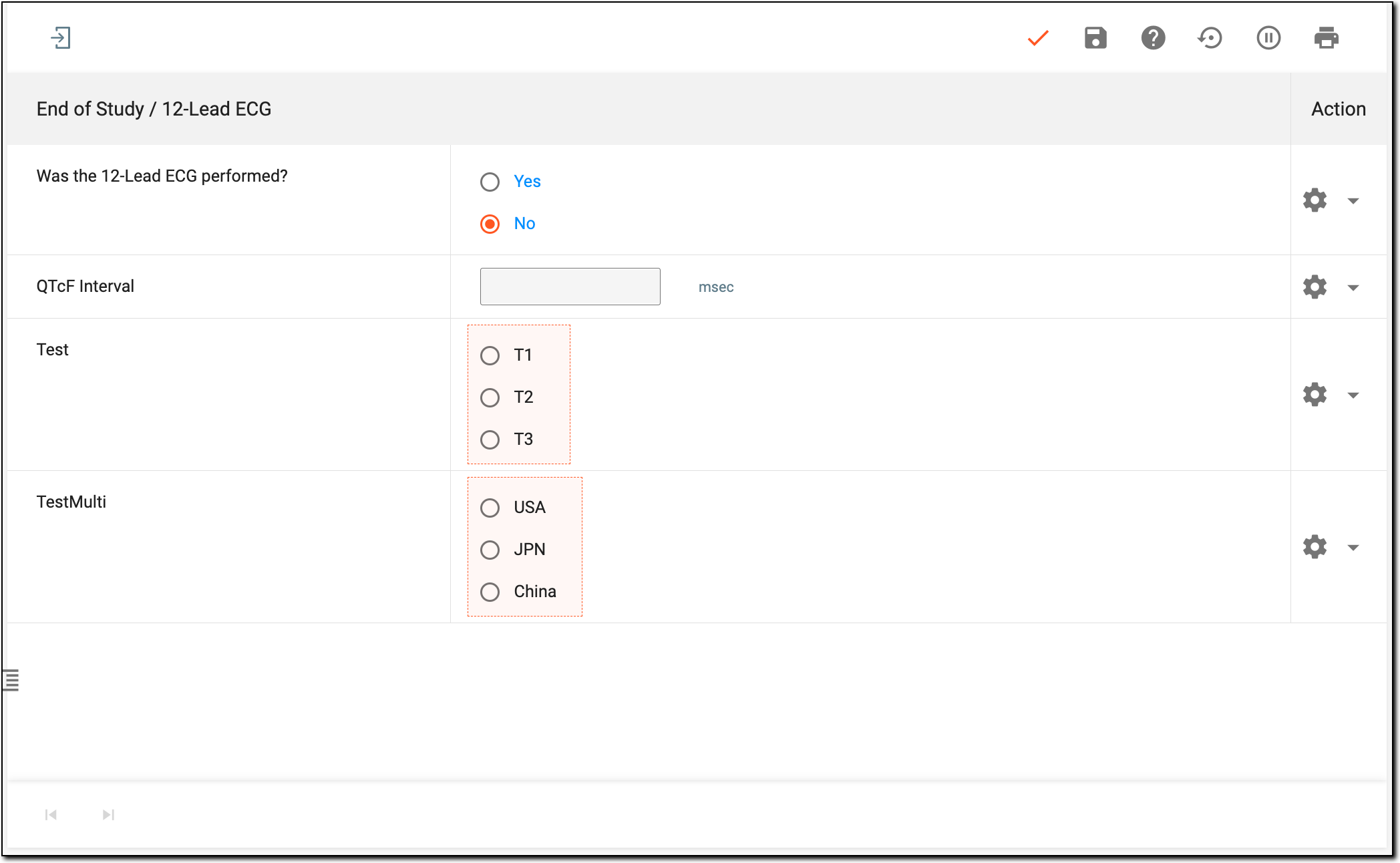 Figure 5. Header detail form controls
Element
Details
Back
Select
 to activate the header of the form and enter the data in it (this will also bring you back to the page with all the other forms).
Detail
Select
 to open the details part of the form in the full-screen mode and fill it out.
Submit
Select
to submit your entry to the database. Once submitted, the action cannot be undone.Draft
Select
 to save your entry as a draft if you want to enter the rest of the data later.
Inactivate
Select
 to inactivate the entire form (inactive forms cannot be used for data collection).
Restore
Select
 to clear all data entered into the form and return the form to its initial state.
If selected, in the Confirm dialog that opens, select Yes to proceed with the data deletion or select No to cancel the data deletion.
Actions

From this panel, next to each field of the form, there are several additional options you can perform.
Open Query
Select
 to create a query if you find inaccurate or missing form data.
Audit Trail
Select
 to view the history
of actions made to the form field in a descriptive format.
to view the history
of actions made to the form field in a descriptive format.Change History
Select
 to view the log of changes made to the form field in a structured format.
Preview and print subject PDF
Select
 to preview and print
the content of the form in PDF format.
to preview and print
the content of the form in PDF format.
Once the form details have been completed properly, proceed with other forms in a similar manner reproducing steps 1-6.
Tip
If you need to create multiple sequence numbers for the same form (let us say you need to record another adverse event for the same subject), above the header details, select  and enter the needed data.