Enter data into eDiary form
As your clinical database for recording subject data collected in your study, in EDC, you enter the subject data into the respective forms.
eDiary forms are the forms that are usually filled in by subjects through the course of a clinical trial. In some cases, when subjects forget to fill in the eDiary forms for some period of time, study team members can do it in EDC. It may also occur that some eDiary forms are missing so study team members can add them manually to enter the missing subject data for specific dates.
-
In the EDC application header, select the DATA ENTRY tab.
-
On the site list page that opens, select the tile representing the site with which you want to work.
 Figure 1. Accessing site
-
In the Subject ID column, select the ID of a subject to open their visit overview.
 Figure 2. Selecting subject
-
In the subject visit tree of the page that opens, expand the needed visit to select the required form.
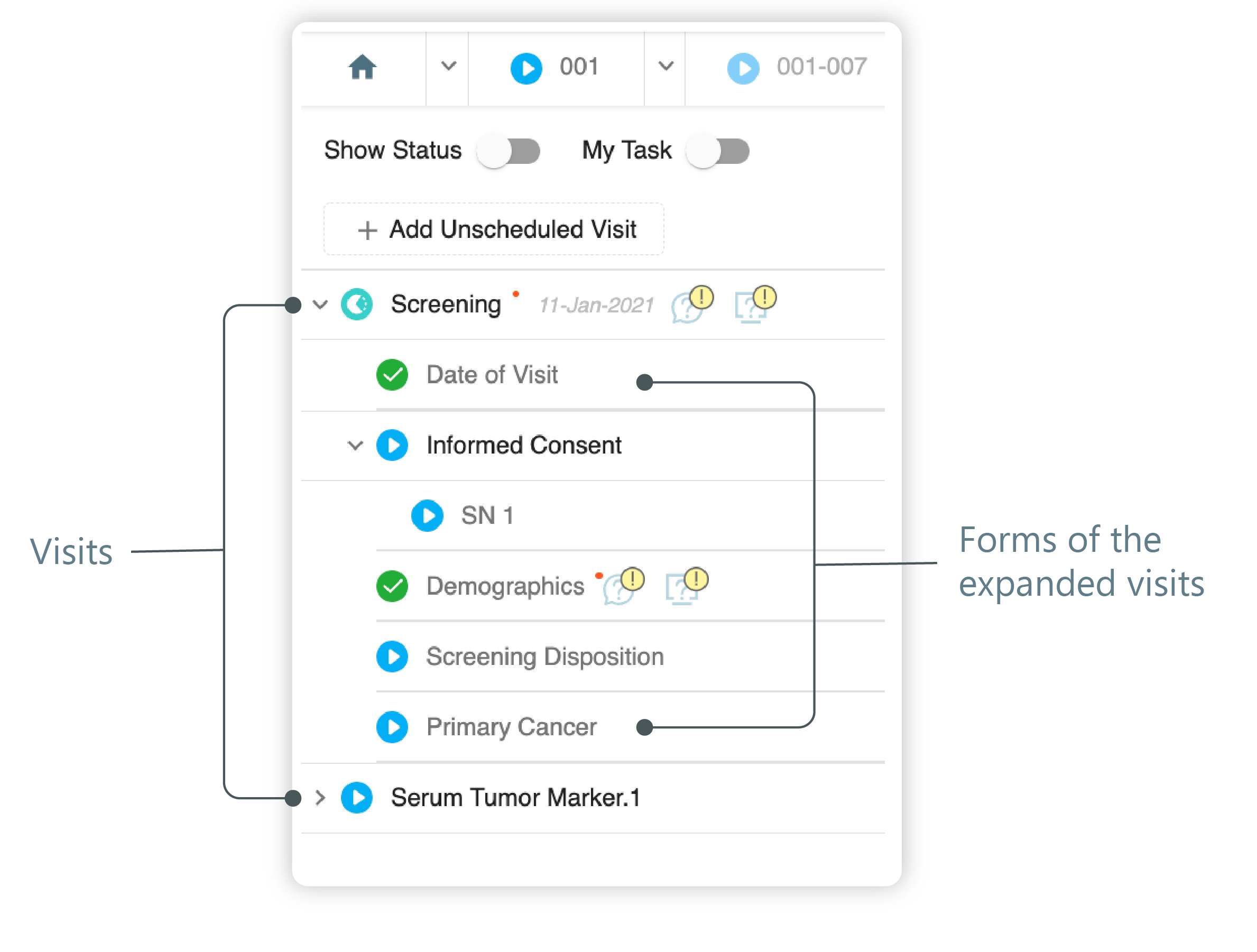 Figure 3. Left panel. Visits and their forms
-
Select the form in which you want to enter data by selecting it.
-
In the contents panel, the form opens. Use the subject's data to fill in this form. Select Submit
 or refer to the
following table for more information on the available form controls.
or refer to the
following table for more information on the available form controls.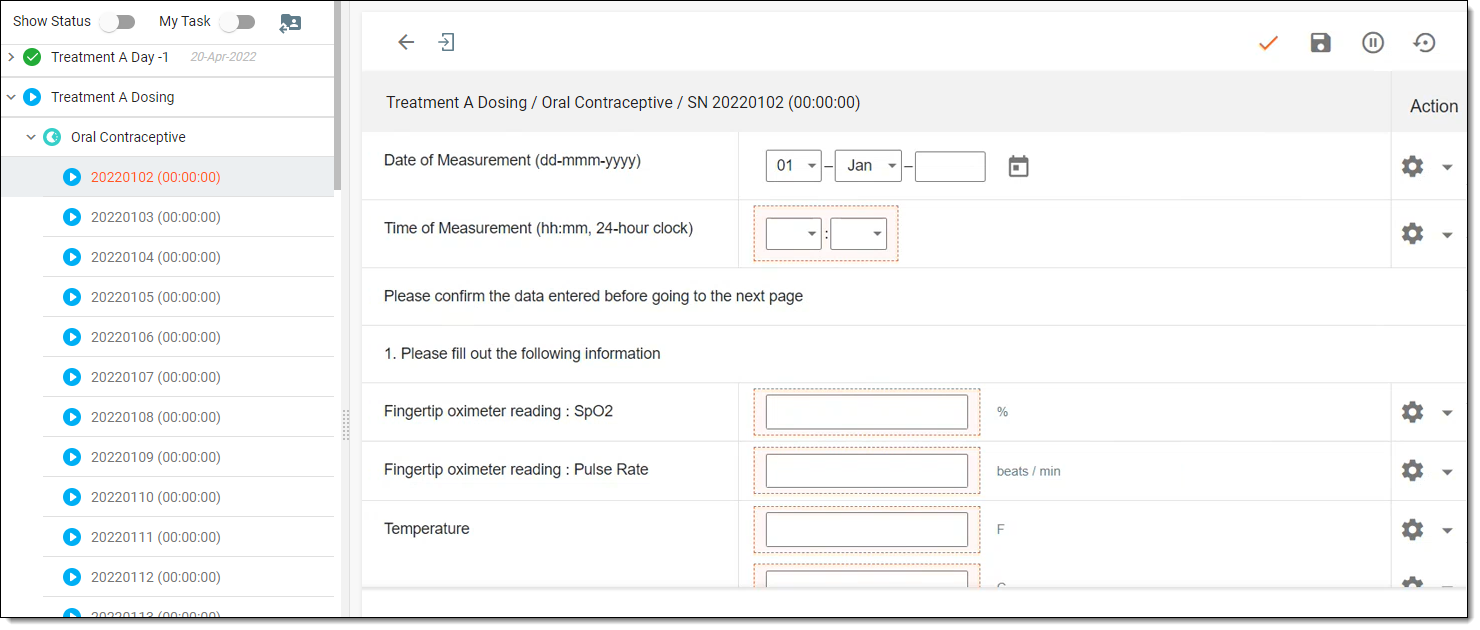 Figure 4. Filling in eDiary form
Element
Details
Back
Select
 to return to the form page with all the logs.
Detail
Select
 to hide the left panel.
Submit
Select
to submit your entry to the database. Once submitted, the action cannot be undone.Draft
Select
 to save your entry as a draft. You will have to enter the rest of the data later.
Inactivate
Select
 to inactivate the entire form.
Restore
Select
 to clear all data entered into the form and return the form to its initial state.
If selected, in the Confirm dialog that opens, select Yes to proceed with the data deletion or select No to cancel the data deletion.
Actions

From this panel, next to each field of the form, there are several additional options you can perform.
Open Query
Select
 to create a query if you find inaccurate or missing form data.
Audit Trail
Select
 to view the history of actions made to the form field.
Change History
Select
 to view the history of changes made to the form field.
Preview and print subject PDF
Select
 to preview and print
the content of the form in PDF format.
to preview and print
the content of the form in PDF format. -
Once your data is entered and submitted, you are returned to the eDiary page. The actions you can perform from here are provided in the preceding table.
Once the form details have been completed properly, proceed with other forms in a similar manner reproducing steps 1-6.
Add eDiary form manually
An eDiary form is a form usually filled in by the subject via their mobile device using the eDiary app throughout the course of a clinical trial. In some cases, the site team can add the eDiary forms manually in EDC, for instance, if the subject had no access to the internet and submitted their unscheduled visit records in a paper form, and the site personnel have to enter the data into the system retroactively.
Important
Bear in mind, that you cannot add an eDiary form for a date that has already been added previously.
You can add eDiary forms only during the time period configured on a form level.
-
In the EDC application header, select the DATA ENTRY tab.
-
On the site list page that opens, select the tile representing the site you want to work with.
Figure 1. Viewing site tile
-
In the Subject ID column, select the ID of a subject to open their Subject Visit Overview page.
Figure 2. Locating your subject
-
On the Subject Visit Overview page that opens, from the visit and form tree, select the visit to which you want to add a new eDiary form.
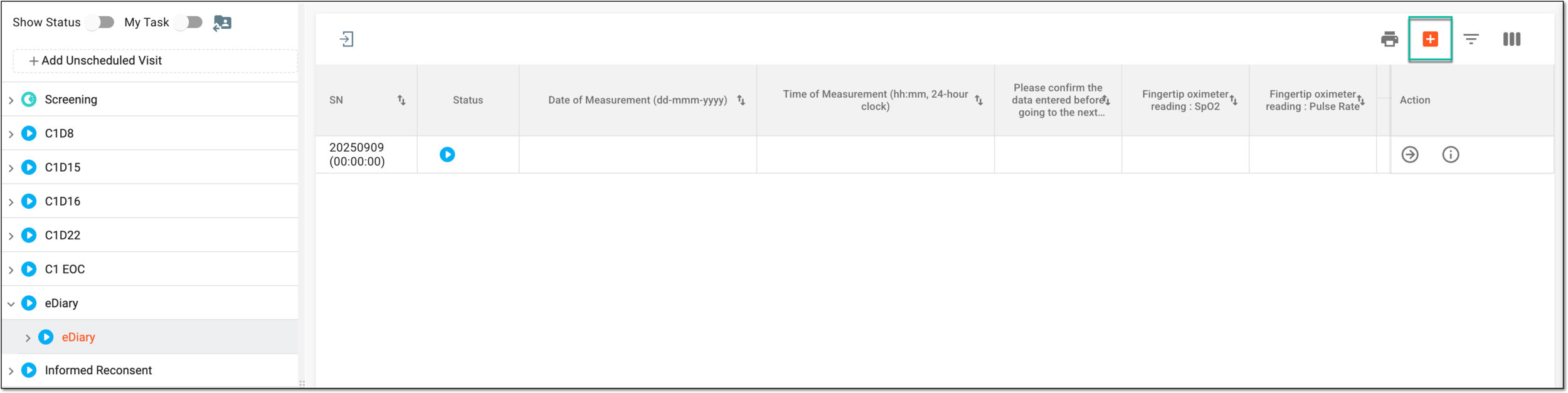 Figure 3. Selecting visit
-
From the workspace toolbar of the page that opens, select Add eDiary
 .
. -
In the Add eDiary dialog that appears, select the needed details as explained in the following table.
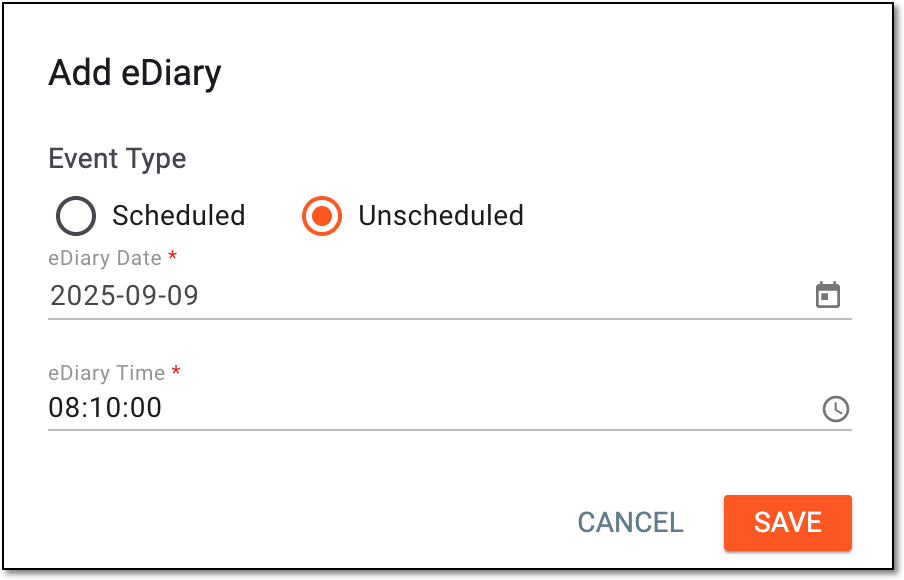 Figure 4. Adding eDiary form
Tip
In the following table, mandatory elements are marked with an asterisk (*).
Element
Details
Event Type
Select one of the following:
-
Scheduled: to add an eDiary record for a scheduled event occurring according to the subject's treatment plan.
-
Unscheduled: to add an eDiary record for an unplanned event that must be documented.
This option is only available if on form level, it is configured to allow adding unscheduled events to
                                          eDiary.
eDiary Date*
Select the field and in the pop-up window that appears, select the actual date of the eDiary form completion that might differ from the date of entering this record into EDC.
You cannot select a date greater than the current date to prevent adding the eDiary records that have not been completed yet.Since the eDiary date and time values become the eDiary record sequence number and serve as its unique identifier, you cannot have a duplicated combination of date and time for different records.eDiary Time*
Select the field and in the pop-up window that appears, select the hours, minutes, and seconds to set the specific time of the actual eDiary form completion that might differ from the time of entering this record into EDC.
This option is only available if you select the Unscheduled event
                                    type.
Since the eDiary date and time values become the eDiary record sequence number and serve as its unique identifier, you cannot have a duplicated combination of date and time for different records.SAVE
Select
 to implement the changes.
CANCEL
Select
 to discard the changes without saving and return to e
 -
Once saved, the eDiary form is added to the visit. You can now enter data into this form.