Preview and print subject form
Forms (CRFs) are mechanisms that you use to collect study data. You use forms to enter, correct, or update data for the subject visit. From the forms page, you have the option to preview and print a particular subject form in PDF format. This feature becomes handy when you need the CRF details to use them outside the EDC system.
-
In the EDC application header, select the DATA ENTRY tab.
-
On the site list page that opens, select the tile representing the site with which you want to work.
 Figure 1. Selecting site tile
-
In the Subject ID column, next to the needed subject, select the link representing the subject whose data you want to preview and print.
 Figure 2. Selecting subject
-
In the subject visit tree of the page that opens, expand the needed visit that contains the form you want to access.
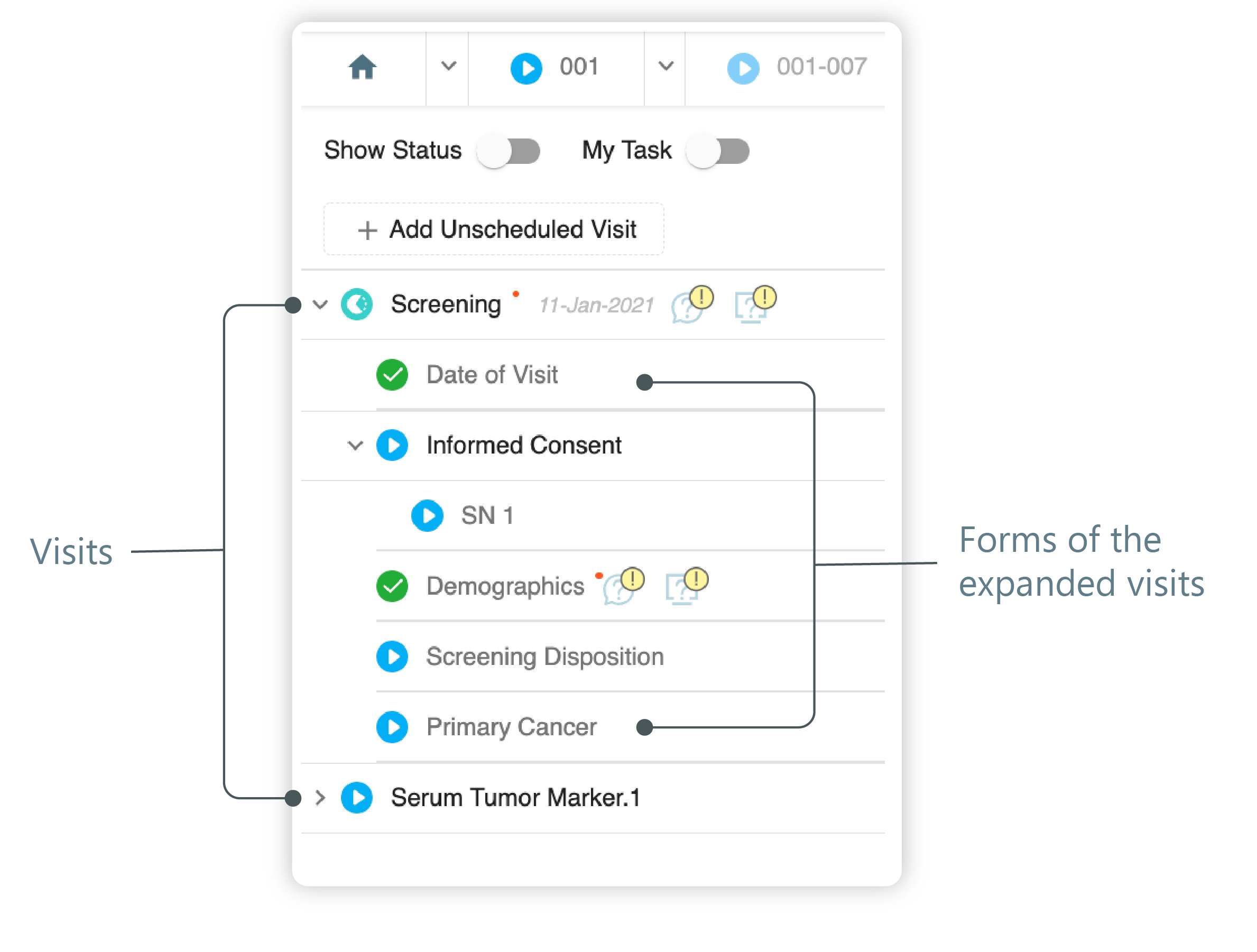 Figure 3. Left panel. Visits and their forms
-
From the list of forms that expands, select the needed form you want to preview and print.
-
On the form page that appears, from the workspace toolbar, select Preview and print subject PDF
 .
.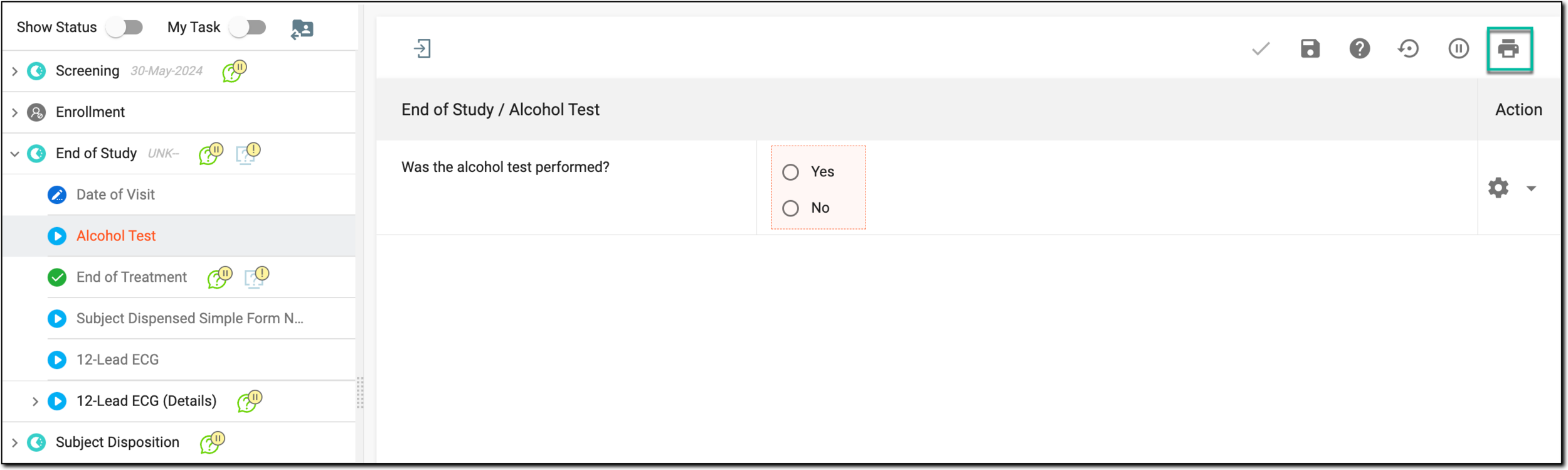 Figure 4. Selecting to preview and print subject PDF
-
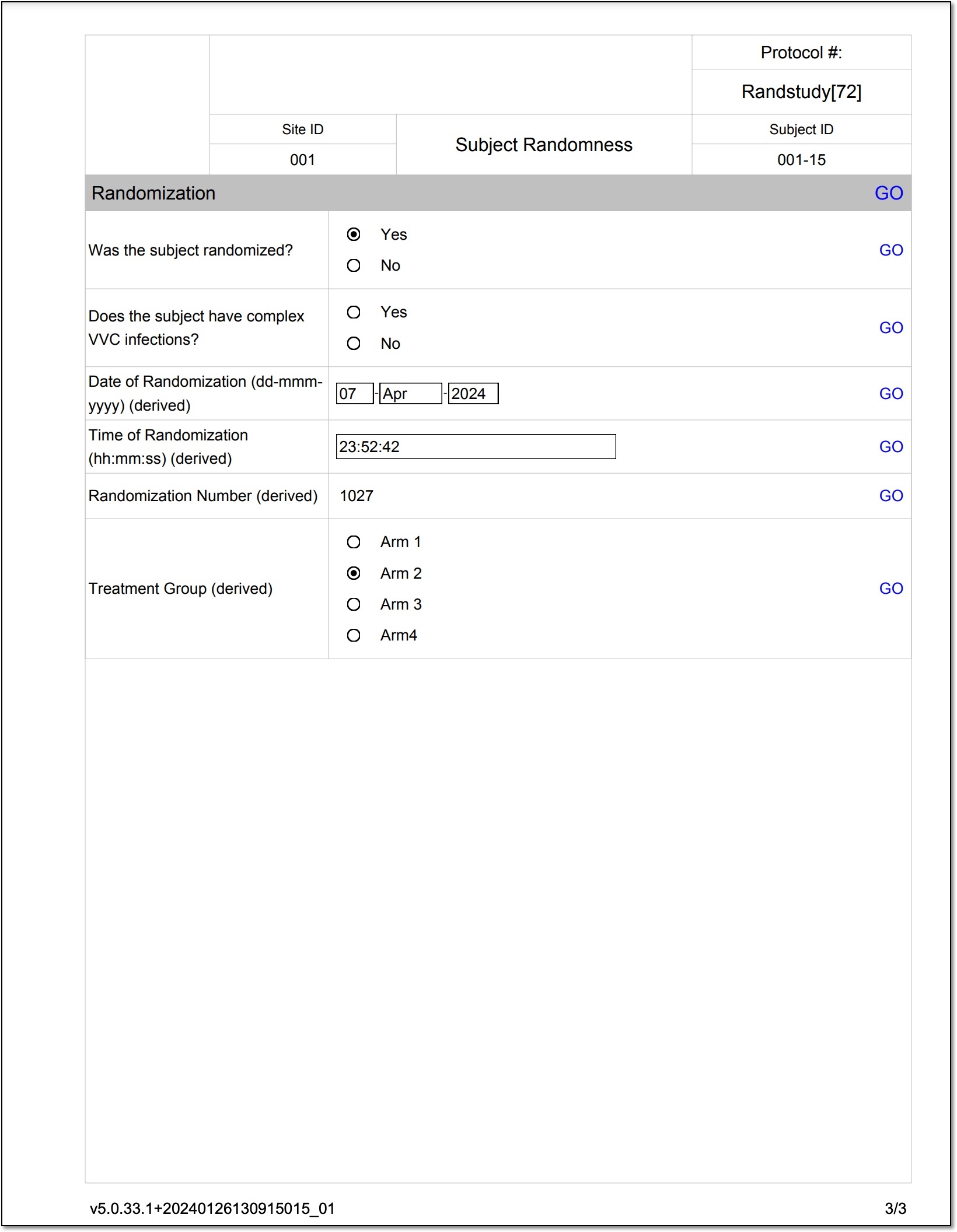
In the new browser tab that opens, view the details of the generated PDF file of the selected form.
-
After reviewing the details, from the browser toolbar, select Print to print the generated PDF.
You have previewed and printed the PDF file with the details of the selected form.
 |
Tip
The GO option that allows you to open the needed form in EDC from the printed PDF is only available for active CRF fields. For the disabled fields, the GO option is not present in the PDF file.