eDiary management
eDiary is an eClinical application suitable for iOS and Android devices designed to help collect data directly from subjects. During a clinical trial, subjects are unlikely to come to visits every day to fill out a simple form. So the simplest solution is to give subjects the devices with eDiary installed so that they can complete forms by themselves at any given time or place to maintain a more detailed picture of their condition, reaction to the studied drug, and so on.
With eDiary, the subject fills out certain forms every day or at predetermined intervals of time. The site personnel can also be involved in eDiary form completion if the study requires such a scenario to ensure the complete picture of the subjects' health from their own and professional perspectives. There can be two kinds of forms:
-
eDiary forms completed by subjects at home.
-
ePro forms filled out by doctors and other health professionals at sites.
The parameters of all forms and settings of the application are defined according to the sponsor's requirements. These configurations are done by the EDETEK staff (usually, data managers) upon sponsor's request and can be accessed by the study personnel for reference or amendment.
Tip
To access and configure eDiary settings at the global and form level, you need to have respective permissions granted to your user role via ADMIN.
In the following sections, you can learn how to configure the settings for eDiary from EDC at the global and form level.
Configuring eDiary at the global level means that all the configurations apply to all the study CRFs available to the subjects in the application.
-
In the EDC application header, select the STUDY INFO tab.
-
On the page that opens, in the left pane, select eDiary > eDiary Setting.
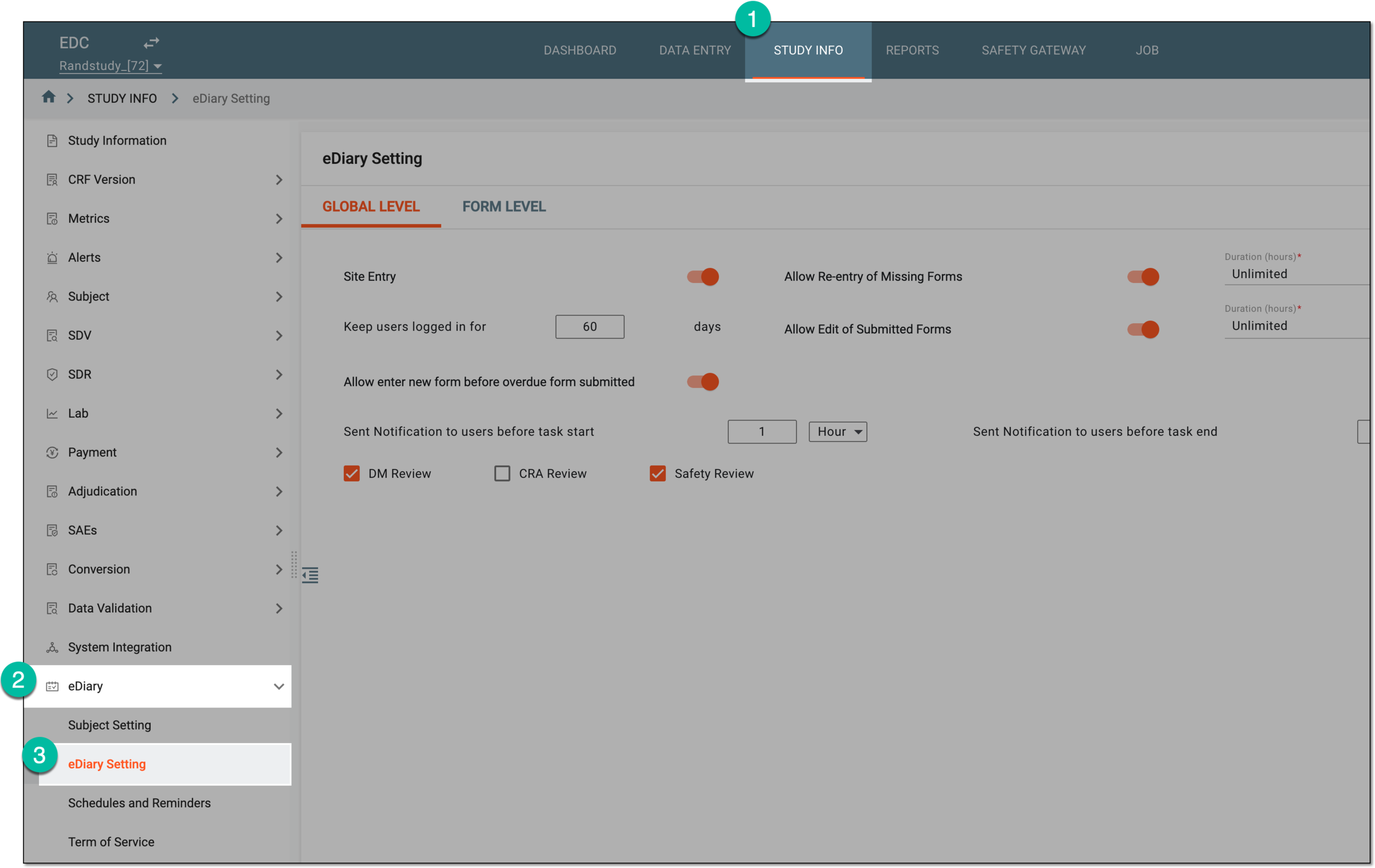 Figure 1. Accessing eDiary settings
-
On the eDiary Setting page that opens, under the GLOBAL LEVEL tab, update the eDiary application settings as explained in the following table.
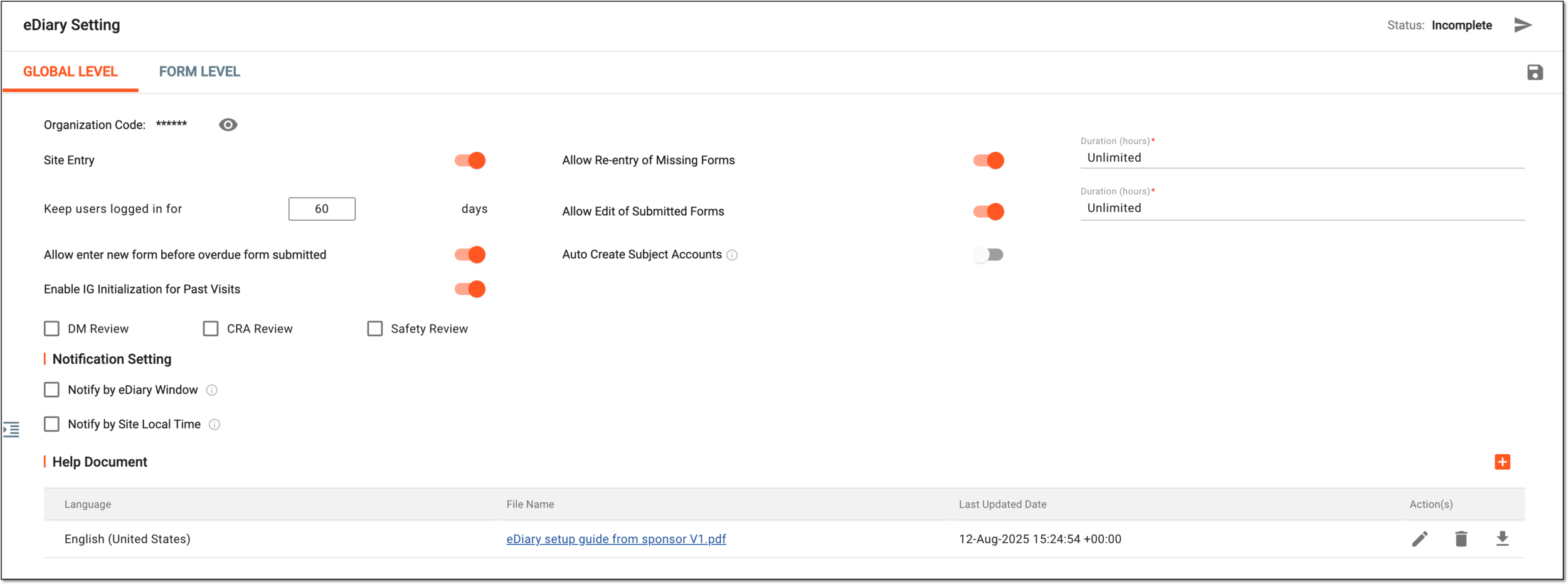 Figure 2. Configuring eDiary settings at global level
Element
Details
Organization Code
Represents the unique code for the study personnel to copy and use to register their ePro devices intended for on-site data entry.
Select
 or
or  to reveal or disguise the code, respectively.
Site Entry
Turn this toggle on to allow the site representatives to enter data in the eDiary application.
Allow Re-entry of Missing Forms
Use the toggle to control the reentry of forms as follows:
-
Turn this toggle on to allow subjects to enter data in forms that have been missed within the predefined completion window (period).
-
If turned off, subjects can no longer enter data in the form they have missed as soon as the form completion window expires.
Duration (hours)
Select either the Unlimited option or enter the number of hours during which the reentry of missing forms is available in the eDiary application.
Keep users logged in for __ days
Enter the number of days during which the subject users can be kept logged in to the eDiary application without being automatically logged out.
Allow Edit of Submitted Form
Use the toggle to control the editing of submitted forms as follows:
-
Turn this toggle on if you want to allow eDiary users to edit form data after submission.
-
Turn this toggle off to prohibit editing of the form data upon submission.
Duration (hours)
Select either the Unlimited option or enter the number of hours during which the update of submitted forms is still possible in the eDiary application.
Allow enter new form before overdue form submitted
Use the toggle to control the form entry as follows:
-
Turn this toggle on if you want to permit access to fill out a new form, even if any previously filled form has passed the submission due date.
-
Turn this toggle off if you do not want to allow filling out a new form if the submission of a previously filled form is pending whose due date has passed.
Auto Create Subject accounts
Use the toggle to control the subject account autocreation as follows:
-
Turn this toggle on to automatically create a new eDiary account for each subject registered or synchronized to EDC. This is helpful when every subject of the study has to fill eDiary forms and thus, you can save time on manual account creation.
-
Turn the toggle off if you prefer to create eDiary accounts manually for individual subjects.
Enable IG Initialization for Past Visits
Use the toggle to control the form generation as follows:
-
If turned on, if the subject transfers to the new protocol version or the eDiary settings change, the system generates all the eDiary forms for visits—the ones scheduled before and after the transition or change date.
-
If turned off, once the subject transfers to the new protocol version or the eDiary settings change, the system only generates eDiary forms for visits after the transition or change date.
Review options
Select the checkboxes next to review options you want to enable for the forms completed via the eDiary application. It can be a data manager (DM) review, clinical research associate (CRA) review, or safety review.
eDiary Card Color
Select the color next to each form completion priority—Priority 1, Priority 2, and Priority 3—to color-code the eDiary forms for easy navigation and usability according to your study requirements. These colors will be used as the form's background in the eDiary app according to its priority set at the form level.
Notification Setting
Notify by eDiary Window
Select this checkbox if you want the system to sent out notification to the eDiary users before each form completion window starts.
Leave the checkbox cleared if you do not need to set up notifications for all eDiary forms at the global level. In this case, you can opt to configure notifications at the form level.
Send notification to users
Select one of the following:
-
before: to notify the users prior to the visit window start or end to help them plan their form completion in advance, or finish the completion on time.
-
after: to notify the users after the visit window starts or ends, to help them complete their forms on time, or let them know that the form completion is overdue.
-
at: to notify the users at the exact time of the visit window start or end to get to their form completion on time, or let them know that the form completion period is over.
For this value, you do not specify window start by and window end by as redundant.
This setting is only available if the Notify by eDiary Window checkbox is selected.window start by
Enter the number and then select the time unit—Hour or Minute—to state the period of time before or after the visit window starts to send the notification to the user.
For instance, set the Send notification to users to before, and then the window start by to 1 Hour. The user will be notified one hour before the visit window starts to let them know they can start entering their respective data shortly.
This setting is only available if the Notify by eDiary Window checkbox is selected.window end by
Enter the number and then select the time unit—Hour or Minute—to state the period of time before or after the visit window ends to send the notification to the user.
For instance, set the Send notification to users to before, and then the window end by to 2 Hour. The user will be notified two hours before the visit window ends to let them know they can still enter data before the visit forms become overdue.
This setting is only available if the Notify by eDiary Window checkbox is selected.Notify by Site Local Time
Select this checkbox and then select the clock symbol to choose the specific time. This way, the system sends the notification to the eDiary users daily at the set time according to the time zone of the site where the user belongs.
This setting is only available if the Notify by eDiary Window checkbox is selected.Save
Select
 to preserve settings but not yet execute them into the eDiary application. For example, if you anticipate changes or want to set up some fields
later.
to preserve settings but not yet execute them into the eDiary application. For example, if you anticipate changes or want to set up some fields
later.Submit
Select
 to apply settings to the eDiary application.
Help Document
New Item
Select
 to open the Upload Help Document
dialog and attach the useful documentation in PDF for eDiary configuration. You also need to select the language of the file you upload. It is possible to upload as many help documents as needed.
to open the Upload Help Document
dialog and attach the useful documentation in PDF for eDiary configuration. You also need to select the language of the file you upload. It is possible to upload as many help documents as needed.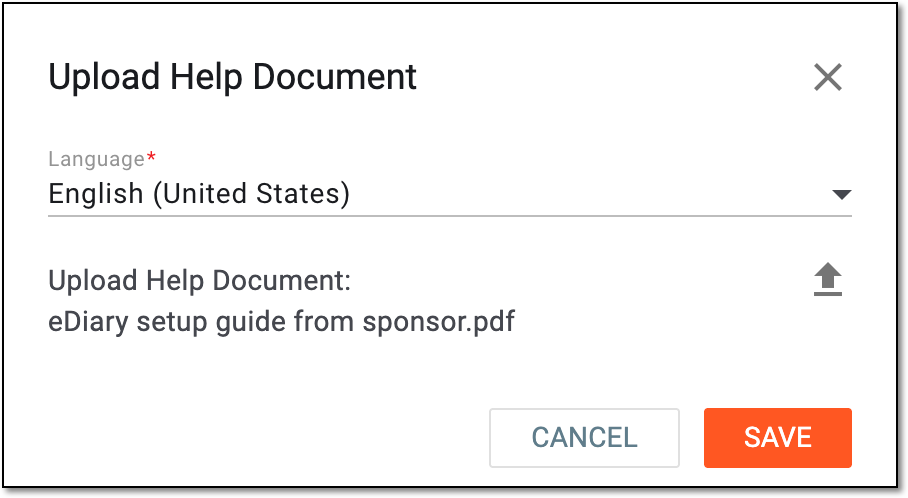 Figure 3. Uploading help document for eDiary
Language
Represents the language of the help document selected upon upload.
File Name
Represents the name of the file that once clicked, opens the file content preview in the new browser tab.
Last Updated Date
Represents the date, time, and time zone indicator when the file was last edited.
Edit
Select
 next to the help document of your interest to open the Upload Help Document dialog and reupload the help
document. Upon reupload, the language selection cannot be changed. This feature is helpful if you need to update the file version or else.
next to the help document of your interest to open the Upload Help Document dialog and reupload the help
document. Upon reupload, the language selection cannot be changed. This feature is helpful if you need to update the file version or else.Delete
Select
 next to the help document of your interest to remove it from the system. In the dialog that appears, select DELETE to confirm your action.
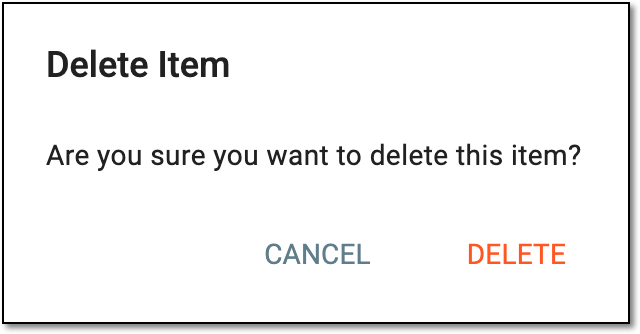 Figure 4. Confirming help document deletion
Download
Select
 next to the help document of your interest to download it to your computer
 -
Upon submission, the implemented settings become effective for the eDiary application of your study.
Important
As soon as the eDiary settings are submitted, you can no longer edit any of the fields. Select Unsubmit  to make changes to the current settings.
Configuring eDiary at the form level means that all the configurations apply only to the specific selected CRF. The form-level setting always overwrites the study-level setting for the CRF, while all the forms that have no specific form-level settings follow the global ones.
For instance, if you prohibit editing the submitted forms at the study level but allow for a single form, then that one form can be edited upon submission, while others cannot.
-
In the EDC application header, select the STUDY INFO tab.
-
On the page that opens, in the left pane, select eDiary > eDiary Setting.
Figure 1. Accessing eDiary settings
-
On the eDiary Setting page that opens, select the FORM LEVEL tab.
-
In the hierarchy tree that appears on the left, select the CRF that you want to set up and in the form on the right, perform the configurations as explained in the following table.
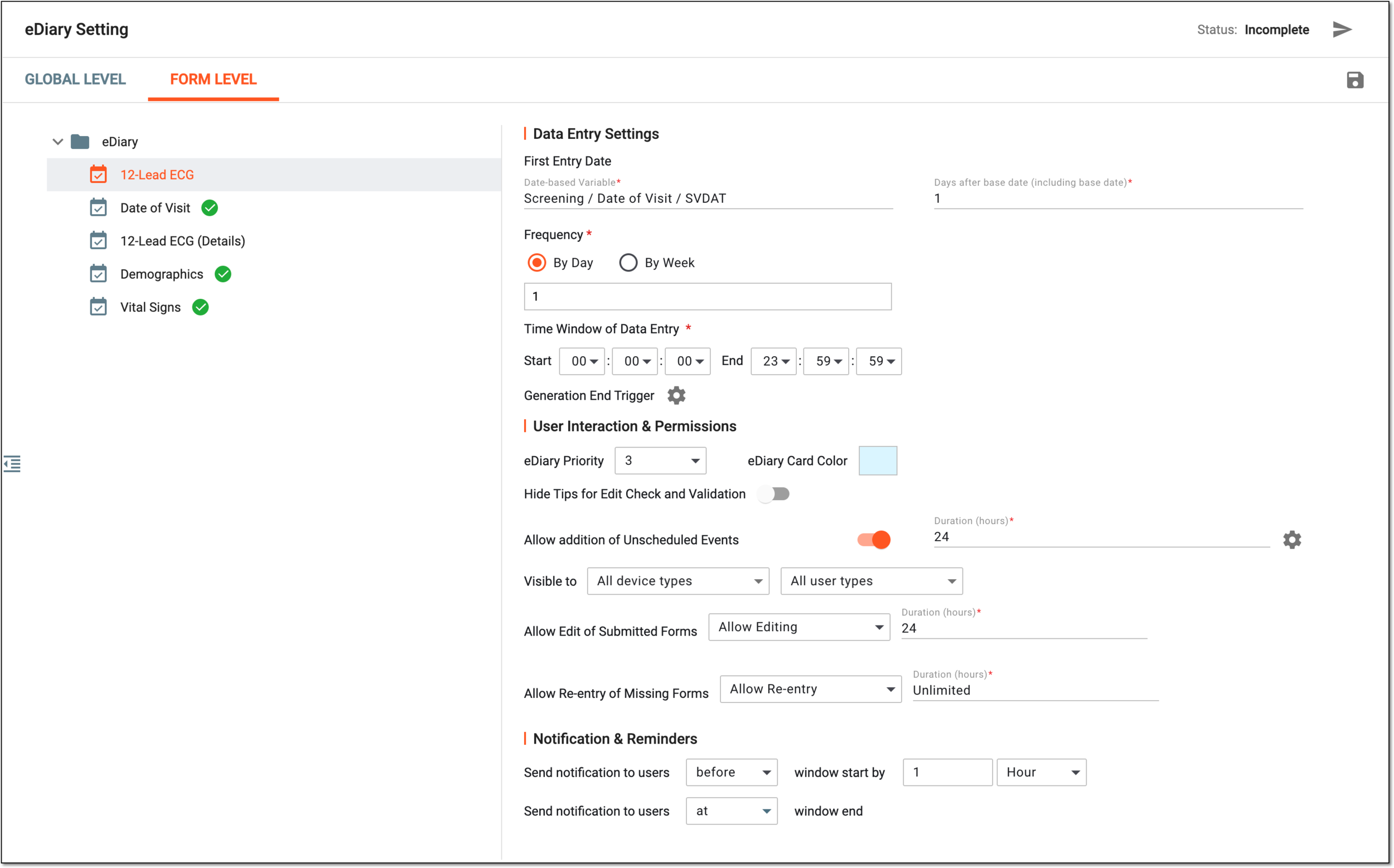 Figure 2. Configuring eDiary at form level
Tip
In the following table, mandatory elements are marked with an asterisk (*).
Element
Details
Data Entry Settings
First Entry Date
Date-based Variable*
Select the date variable of the specific form associated with the visit, the value of which becomes the baseline date for the eDiary form generation.
For example, when the date is entered into the SVDAT variable of the Date of Visit form associated with the Screening visit, on that date, the system starts generating the eDiary forms for the subject to complete.
Days after base date (including base date)*
Enter the number of days after the baseline date (configured via Date-based Variable) to postpone the eDiary form generation for a certain period. You can enter "0" to generate the eDiary forms on the same day as the date variable.
For example, you want the system to start generating the eDiary forms for the subject five days after the date (SVDAT) entered into the Date of Visit form. You enter "5" into this field and the eDairy forms start generating once the following is true:
Current date = SVDAT + 5 days
Frequency*
Configure how frequent the eDiary forms must be generated as follows.
Select By Day to generate the eDiary forms daily. In the field below, enter the number or sequence of days to outline the period of form generation.
For instance, enter "3" to generate a new form every day for three days; enter "1,3,5" to generate a new form on the first, third, and fifth day after the baseline date; enter "1-5" to generate a new form each day from day one to day five.
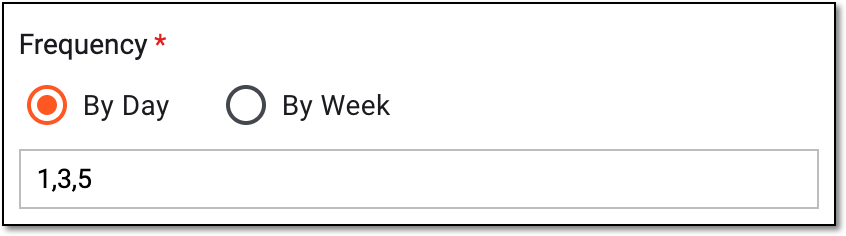 Figure 3. Setting form generation frequency by day
Time Window of Data Entry*
Select the time slot within which the data entry must occur on a regular basis. For example, if you need the subjects to complete the form in the morning, set up the time window between 06:00:00 (6 am) and 8:00:00 (8 am).
A notification is sent to the user on their mobile devices before the deadline for data entry. The task ending time is defined at the form level, whereas the notification timing, set in minutes or hours, is configured at the global level.Generation End Trigger
Select
 and in the resulting dialog, configure the expression that, once true, ceases further generation of the selected eDiary form
for the subject.
and in the resulting dialog, configure the expression that, once true, ceases further generation of the selected eDiary form
for the subject.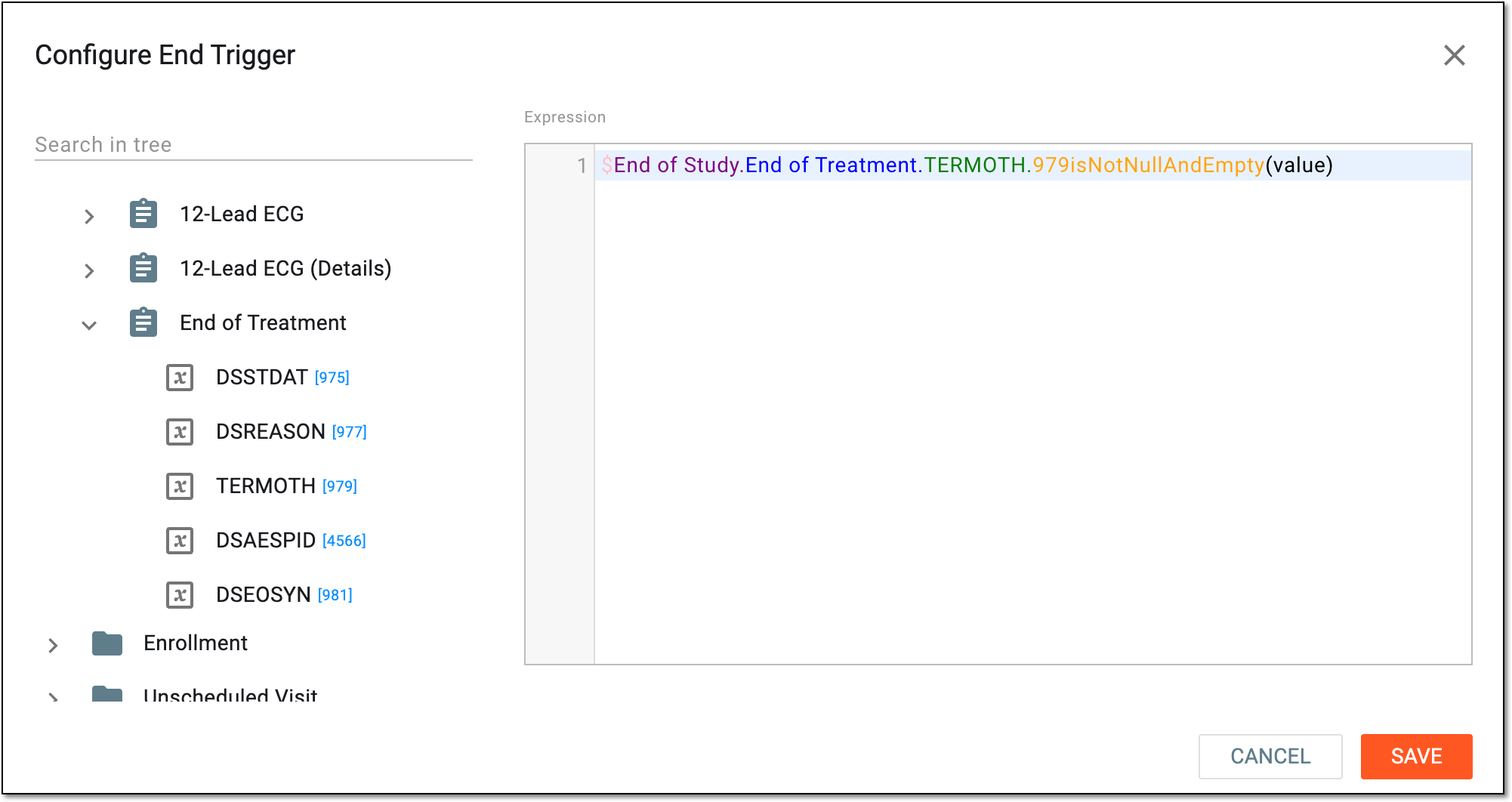 Figure 5. Configuring expression to cease form generation
User Interaction & Permissions
eDiary Priority
Select the level (1, 2, or 3, where 1 is the highest) to rank the form completion priority for the user. Thus, the forms of the priority level 1 must be completed in the app before the forms of priority 2, and the priority 3 forms are completed last.
If no value is selected for the form and there are other forms with set priority, the one with the blank value is considered the lowest priority. However, if no forms are prioritized in eDiary, all the forms are of the same priority.
This setting is paired with eDiary Card Color for visual enhancement.
eDiary Card Color
Represents the color that is used as the form's background in the eDiary app according to its set priority. Such color-coding visually highlights the prioritized forms for easy navigation and usability.
The color of each priority level is configured at the global level setting of eDiary.Hide Tips for Edit Check and Validation
Use the toggle to control the form tooltips as follows:
-
Turn this toggle on to hide additional messages, help text, and tooltips from the user entering data into the form, for instance, some validation-related text like "The field is mandatory for completion" or else.
-
Turn this toggle off to show all additional messages, help text, and tooltips to the user entering data into the form.
Allow addition of Unscheduled Events
Use the toggle to control the addition of unscheduled events as follows:
-
Turn this toggle on to allow the subject to add extra (unscheduled) events to the eDiary to track some additional activities, symptoms, or else. These include events that are not planned or appear suddenly, for instance, when patient's health records are immediately required due to a certain emergency.
-
If turned off, the subject can only complete the predefined set of forms.
Visible to
Select one of the available options in both fields as follows:
Allow Edit of Submitted Forms
Select one of the following:
-
Inherit from Study: to follow the editing permission setting of the global (study) level.
-
Allow Editing: to permit eDiary users to edit form data after submission.
-
Disallow Editing: to prohibit editing of the form data upon submission.
Allow Re-entry of Missing Forms
Select one of the following:
-
Inherit from Study: to follow the reentry permission setting of the global (study) level.
-
Allow Editing: to permit eDiary users to enter data in forms that have been missed within the predefined completion window (period).
-
Disallow Editing: to prohibit eDiary users to enter data in the form they have missed as soon as the form completion window expires.
Duration (hours)*
Select either the Unlimited option or enter the number of hours during which the update of submitted forms is still possible in the eDiary application.
This field is only available if Allow Edit of Submitted Forms is set to Allow
                                        Editing.
Notification & Reminders
Send notification to users
Select one of the following:
-
before: to notify the users prior to the visit window start or end to help them plan their form completion in advance, or finish the completion on time.
-
after: to notify the users after the visit window starts or ends, to help them complete their forms on time, or let them know that the form completion is overdue.
-
at: to notify the users at the exact time of the visit window start or end to get to their form completion on time, or let them know that the form completion period is over.
For this value, you do not specify window start by and window end by as redundant.
window start by
Enter the number and then select the time unit—Hour or Minute—to state the period of time before or after the visit window starts to send the notification to the user.
For instance, set Send notification to users to before, and then window start by to 1 Hour. The user will be notified one hour before the visit window starts to let them know they can start entering their respective data shortly.
window end by
Enter the number and then select the time unit—Hour or Minute—to state the period of time before or after the visit window ends to send the notification to the user.
For instance, set Send notification to users to before, and then window end by to 2 Hour. The user will be notified two hours before the visit window ends to let them know they can still enter data before the visit forms become overdue.
Save
Select
 to preserve the implemented settings but not yet execute them into the
eDiary system, for example, if you anticipate changes or want to set up some fields later.
to preserve the implemented settings but not yet execute them into the
eDiary system, for example, if you anticipate changes or want to set up some fields later.Submit
Select
to submit the implemented settings and execute them into the eDiary
system. -
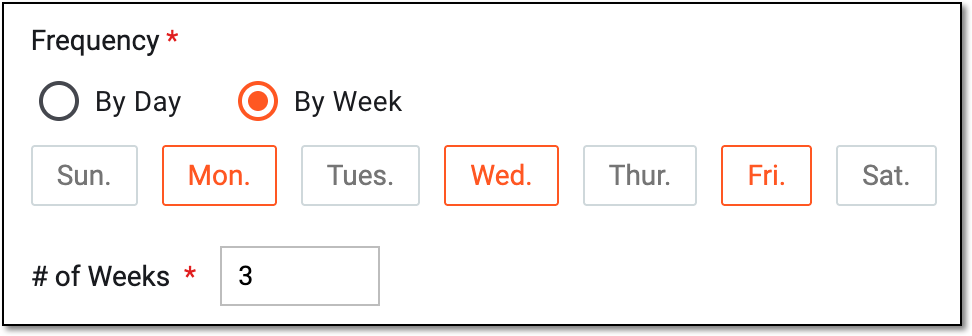
Upon submission, the implemented settings become effective for the selected forms of the eDiary application.
Important
As soon as the eDiary settings are submitted, you can no longer edit any of the fields. Select Unsubmit to make changes to the current settings.