eDiary subject setting
eDiary is an eClinical application suitable for iOS and Android devices designed to help collect data directly from subjects. During a clinical trial, subjects are unlikely to come to visits every day to fill out a simple form. So the simplest solution is to give subjects the devices with eDiary installed so that they can complete forms by themselves at any given time or place to maintain a more detailed picture of their condition, reaction to the studied drug, and so on.
In the following sections, you can learn how to handle subject accounts for eDiary in EDC.
eDiary is an eClinical application suitable for iOS and Android devices designed to help collect data directly from subjects. During a clinical trial, subjects are unlikely to come to visits every day to fill out a simple form. So the simplest solution is to give subjects the devices with eDiary installed so that they can complete forms by themselves at any given time or place to maintain a more detailed picture of their condition, reaction to the studied drug, and so on.
The eDiary completion can occur in multiple languages in international studies; thus, it becomes necessary to outline which languages are available to users based on their location. This helps to standardize data collection and avoid accidental language selection by users.
Important
Before enabling eDiary language settings, ensure that the needed eDiary languages are preset in SD.
-
In the EDC application header, select the STUDY INFO tab.
-
On the page that opens, in the left pane, select eDiary > Subject Setting.
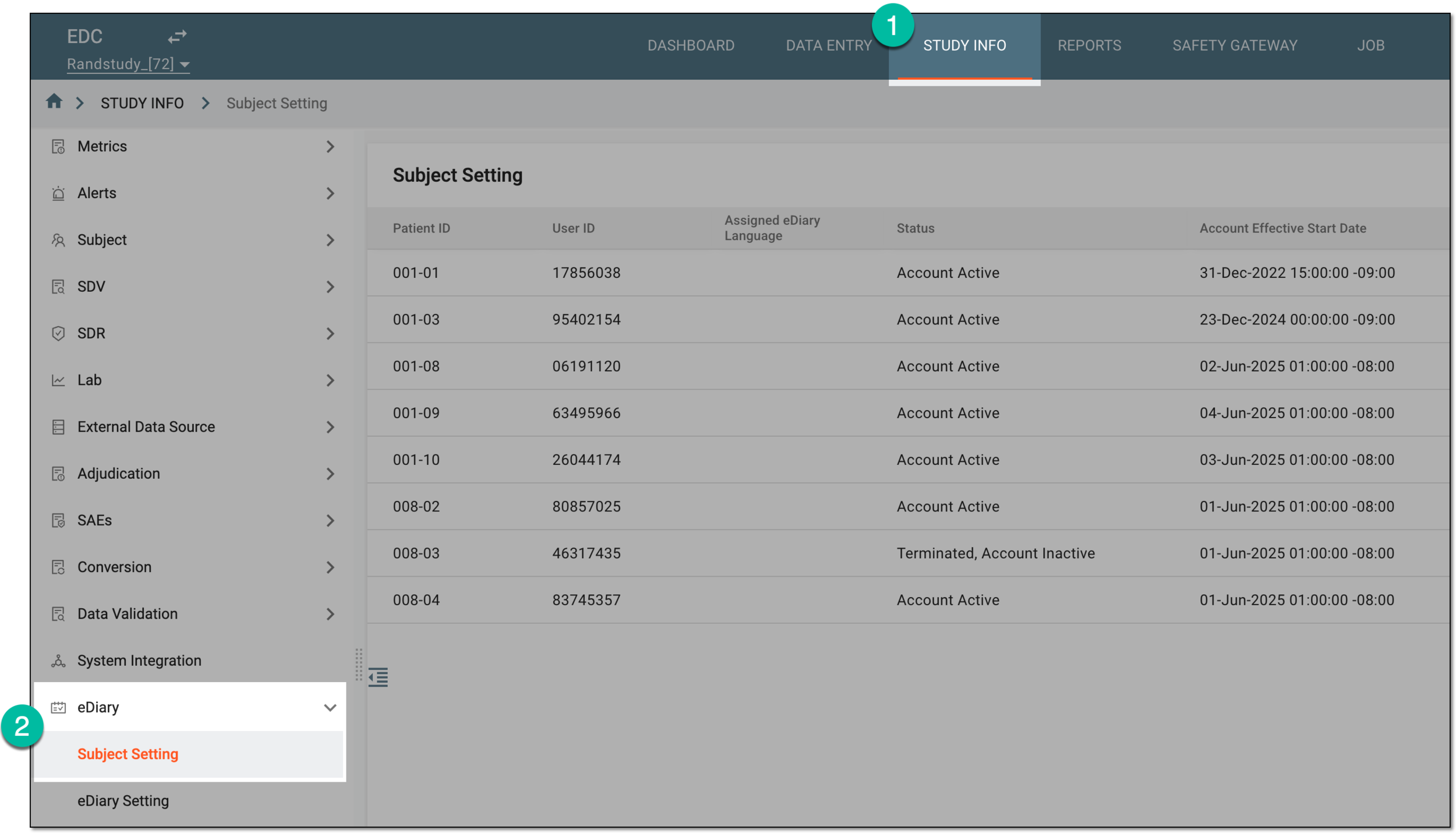 Figure 1. Accessing eDiary subject setting
-
From the workspace toolbar of the Subject Setting page, select eDiary Language Setting
 .
. Figure 2. Accessing language settings for eDiary accounts
-
In the eDiary Language Setting dialog that opens, do one of the following:
-
Turn on the Enable Country Language Mapping toggle and in the fields below, select the languages you want to make available to users of the eDiary app in the respective countries. In this case, when adding or editing the eDiary account for subjects, you can only select the languages set for the country of the subject's site location.
-
Turn off the Enable Country Language Mapping toggle to not restrict language selection by country. In this case, all the eDiary languages preset in SD are available when selecting the language of the subject account.
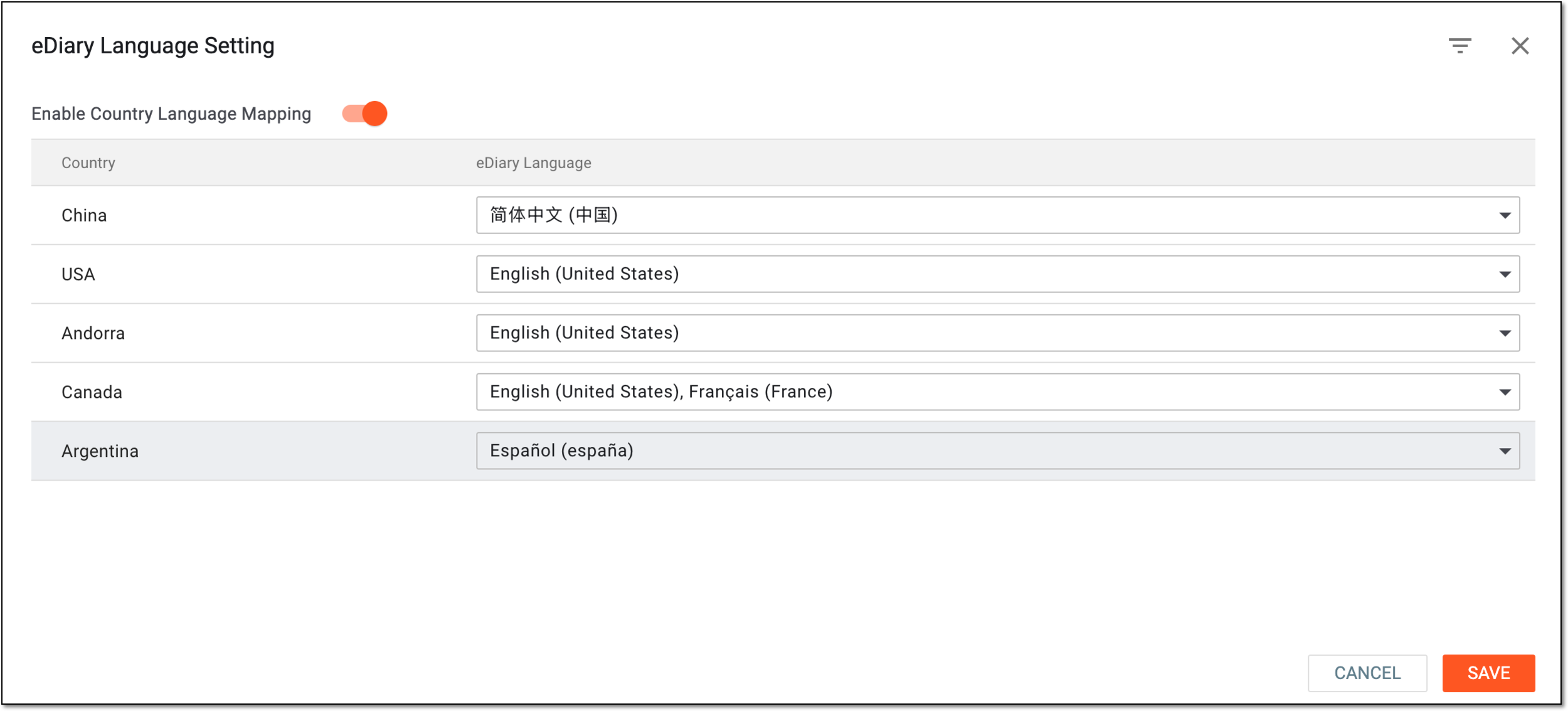 Figure 3. Enabling eDiary language setting by country
-
-
Select
 to implement the changes.
Once saved, based on your performed action, the eDiary language settings are enabled or disabled.
For the subject to start completing the eDiary regularly, you need to create an account for them. Usually, this is taken care of by the clinical research coordinator (CRC) who works with subjects.
-
In the EDC application header, select the STUDY INFO tab.
-
On the page that opens, in the left pane, select eDiary > Subject Setting.
Figure 1. Accessing eDiary subject setting
-
On the Subject Setting page that opens, from the workspace toolbar, select New Item
 .
. Figure 2. Selecting option to add new subject account
-
In the New Item dialog that opens, provide details as explained in the following table.
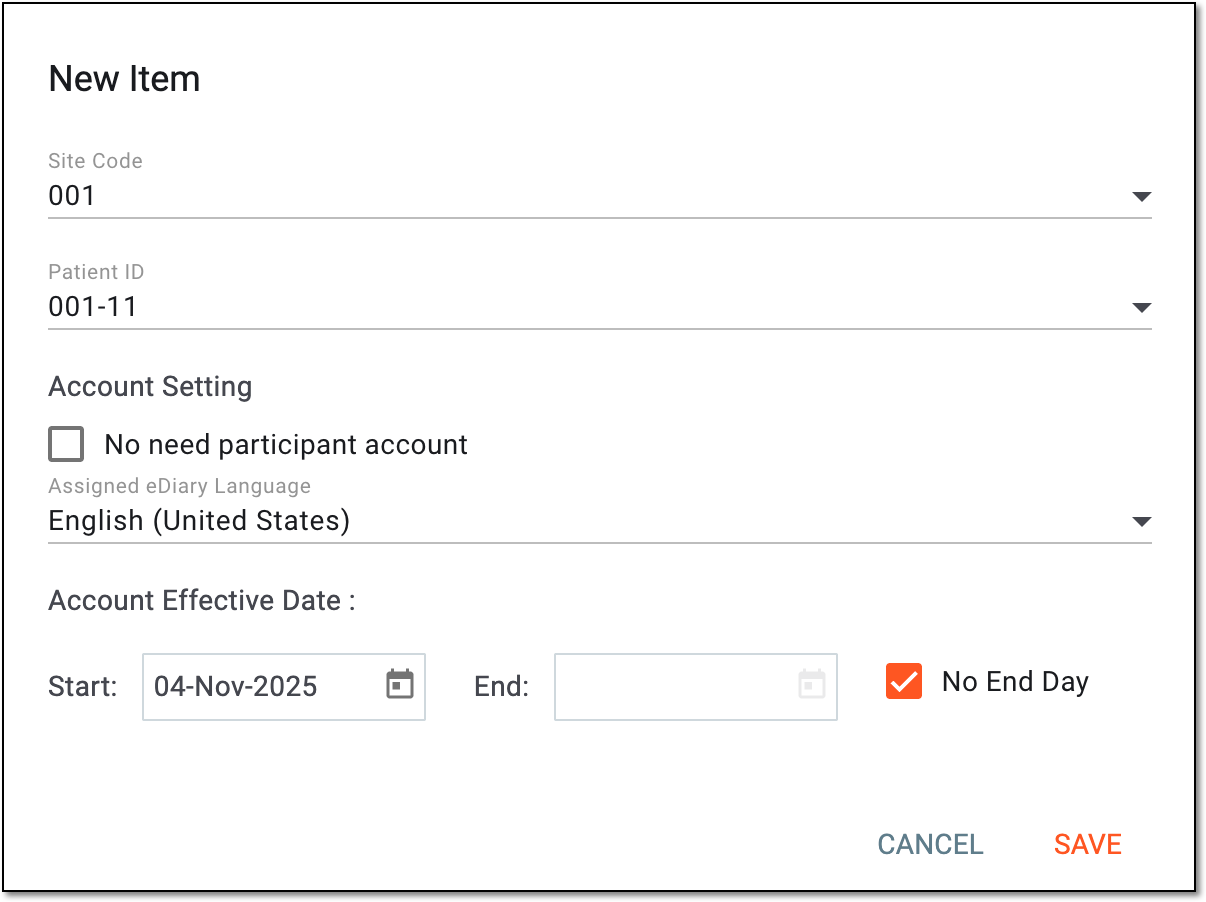 Figure 3. Configuring new subject account
Element
Details
Site Code
Select the unique identifier of the site where belongs the subject whose eDiary account you want to create.
[Unique ID Label]
Select the unique identifier of the subject whose eDiary account you want to create. The list of IDs here depends on the previously chosen site.
The name of this field depends on the unique ID configurations of your study in IWRS.Account Setting
No need participant account
Select this checkbox if you do not need to create the eDiary account for the study subject (participant) as their data entry is covered by the caregiver.
If cleared, it is possible to create the subject account and then create the caregiver accounts for it, if needed.
Assigned eDiary language
Select the language of eDiary app interface and data entry for the subject. If selected, this becomes the only language available for this eDiary account in the app; the language cannot be changed via the eDiary app settings by the user.
If no language is selected, the user can select the available languages in the eDiary app settings.
The languages available here depend on the eDiary language to country mapping. The eDiary languages are preset in SD.Account Effective Date
Start
Select
 to specify the date of the subject eDiary account activation. This date indicates when the created user can
start entering data into the forms of the application.
to specify the date of the subject eDiary account activation. This date indicates when the created user can
start entering data into the forms of the application.End
Select
to specify the date of the subject eDiary account deactivation. This date indicates when the user stops
having access to the application and can no longer enter data into the forms.If the end date is indicated and reached, the eDiary account becomes inactive, meaning it cannot be updated or reactivated.No End Day
Select this checkbox if the eDiary account does not need to have the end date. If cleared, the end date must be specified.
If this checkbox is selected, the End field becomes inactive.SAVE
Select
 to create the eDiary account for a subject.
CANCEL
Select
 to discard the account creation.
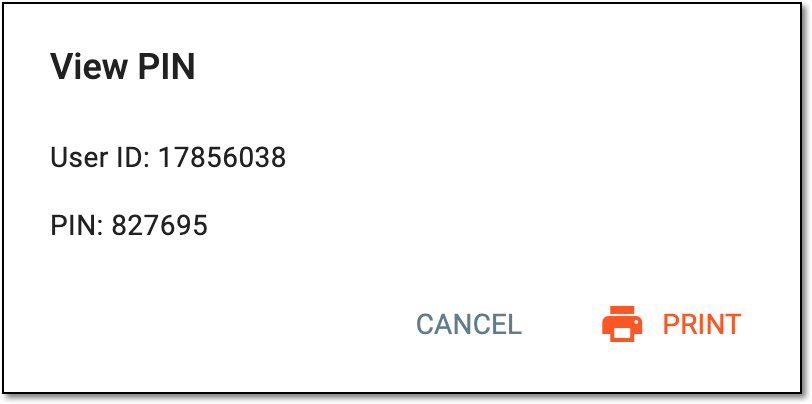
Upon saving, the eDiary account is created for the subject. In the View PIN dialog that appears, you can see the PIN code created by the system for the new subject account login; copy the details to share them with the subject.
 |
Tip
Select  to open the user ID and PIN details in the new browser tab as the PDF file and further save it to your
computer if needed.
to open the user ID and PIN details in the new browser tab as the PDF file and further save it to your
computer if needed.
When the eDiary account is created for a subject, the details of this account can be modified to adjust to the changing study requirements or subject's needs. For instance, you can update the effective dates that indicate when the account is available in the eDiary application, or you can change the account language.
The editing functionality also can be used to add the subject account that was not previously created, as only the caregiver was in charge of data entry. This can happen if, for instance, the subject is a child and has only reached the age to provide their own data, or if the subject was too sick but gained the capacity to fill out the eDiary.
Important
You can update the eDiary account details only if the deactivation date is not reached and the account has the Active status.
-
In the EDC application header, select the STUDY INFO tab.
-
On the page that opens, in the left pane, select eDiary > Subject Setting.
Figure 1. Accessing eDiary subject setting
-
In the Subject Setting table that appears, next to the needed eDiary subject account, select More
 > Edit
  .
.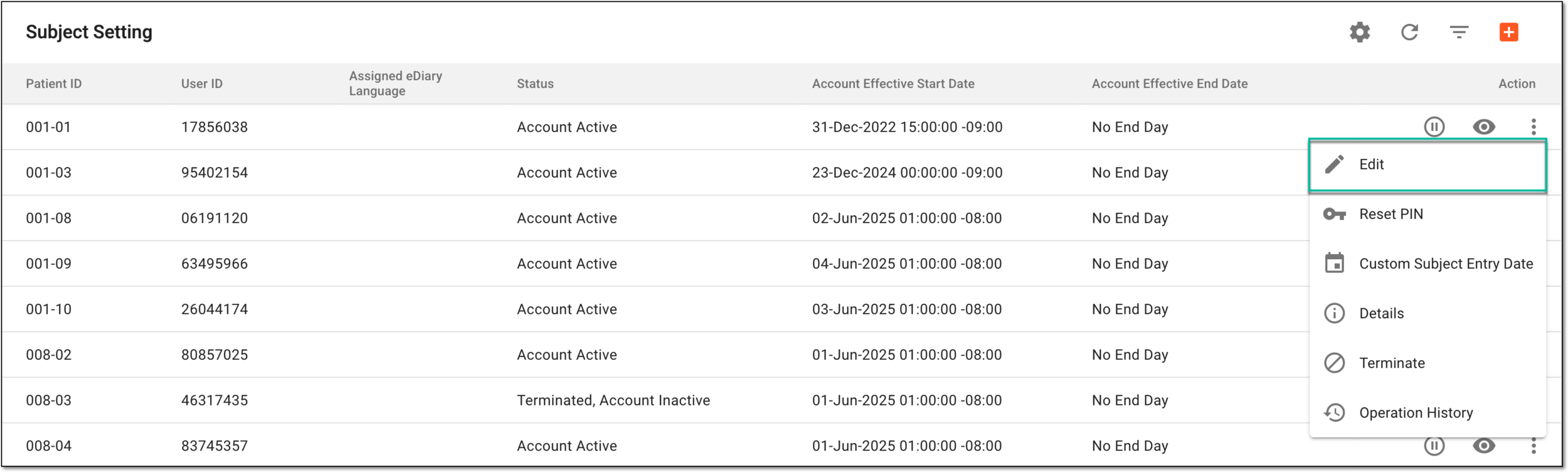 Figure 2. Selecting option to edit eDiary account details
-
In the Edit Item dialog that appears, update the details of the eDiary subject account as follows.
Important
This procedure is only available for accounts with the No need participant account checkbox cleared upon creation.
In the Edit Item dialog, update the account effective dates or language. If needed, refer to additional instructions on these fields in the table of the Add eDiary account for subject section.
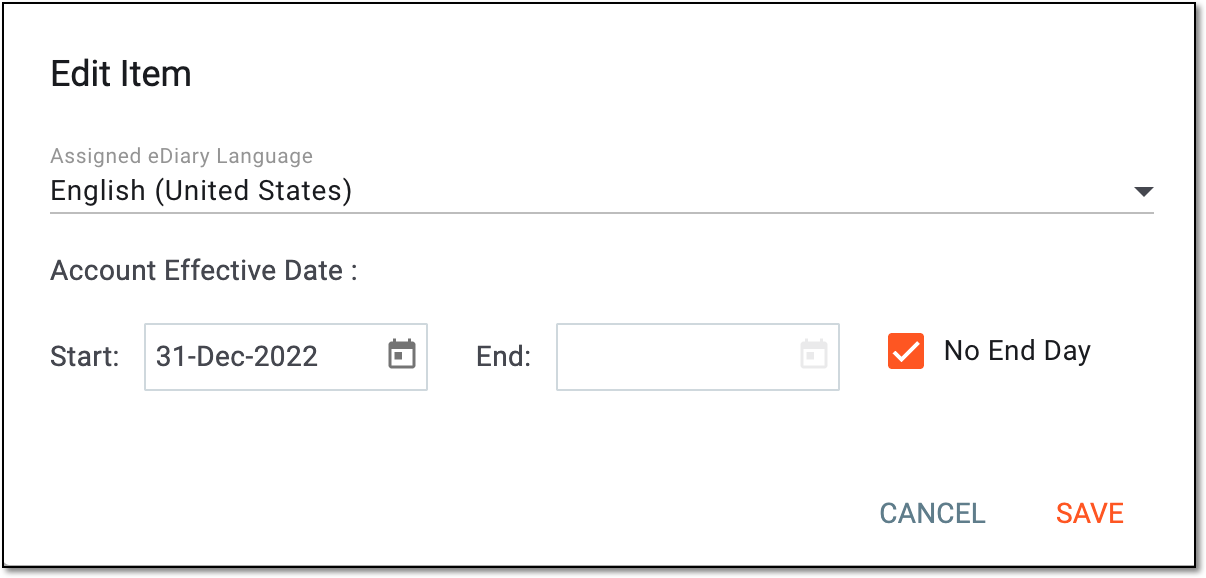 Figure 3. Updating eDiary account details
Important
This procedure is only available for accounts with the No need participant account checkbox selected upon creation.
-
In the Edit Item dialog, clear the No need participant account checkbox.
-
In the respective fields that become available, enter the account effective dates and select the language. If needed, refer to additional instructions on these fields in the table of the Add eDiary account for subject section.
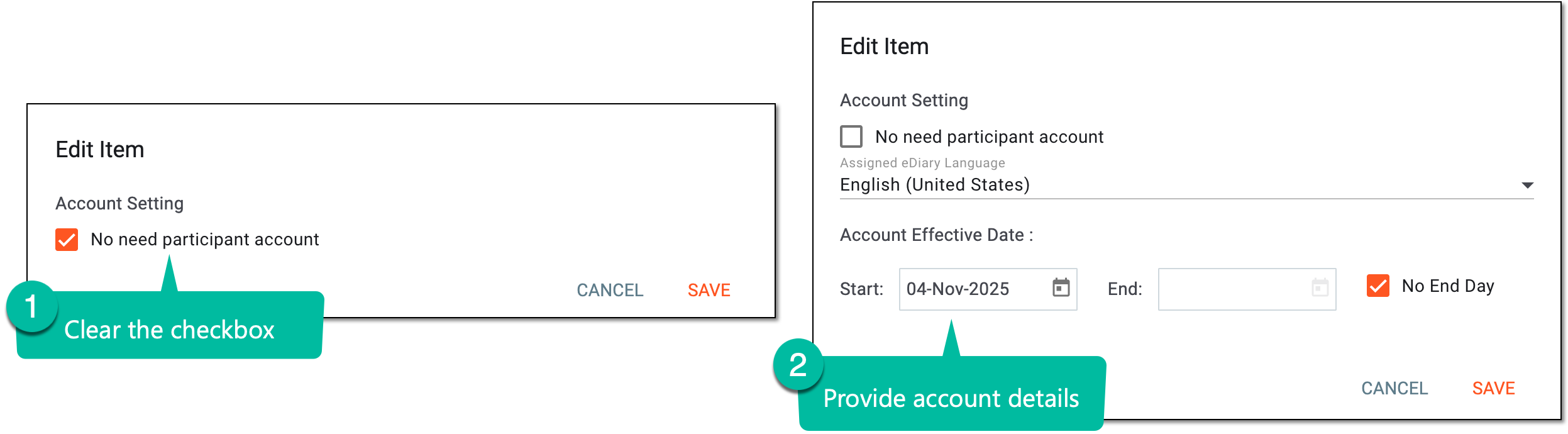 Figure 4. Adding subject account details
-
-
Select
to apply the changes.
Once saved, the effective dates of the eDiary subject account are updated.
For the subject to be able to complete the eDiary regularly, their account must be active. In the EDC application, you can activate and inactivate the subjects' accounts as per your business needs.
Important
You can activate or inactivate eDiary subject accounts only if they have already been activated by the subject on their device and have not yet reached the deactivation date.
-
In the EDC application header, select the STUDY INFO tab.
-
On the page that opens, in the left pane, select eDiary > Subject Setting.
Figure 1. Accessing eDiary subject setting
-
On the Subject Setting page that opens, select one of the following:
-
Activate
 : to make the eDiary account active and accessible for the subject from their device with their
credentials.
: to make the eDiary account active and accessible for the subject from their device with their
credentials. -
Inactivate
 : to deactivate the eDiary account and make it unavailable for the subject to log in.
 Figure 2. Activating and inactivating eDiary subject account
-
Once selected, the eDiary subject account is either activated or inactivated based on the performed action.
There can be cases, when the subject loses their PIN code and cannot access their eDiary account for data entry. For such and other similar situation, in EDC, you can view subject's PIN code and print it along with other useful account details to share it with the person.
-
In the EDC application header, select the STUDY INFO tab.
-
On the page that opens, in the left pane, select eDiary > Subject Setting.
Figure 1. Accessing eDiary subject setting
-
In the Subject Setting table that opens, locate the subject for whom you want to view their PIN. Then in the Action column, select View PIN
 .
. Figure 2. Accessing eDiary account PIN and user details
-
In the View PIN dialog, you can view and copy user ID and PIN details. To open the user ID and PIN details in the new browser tab as the PDF file, select
.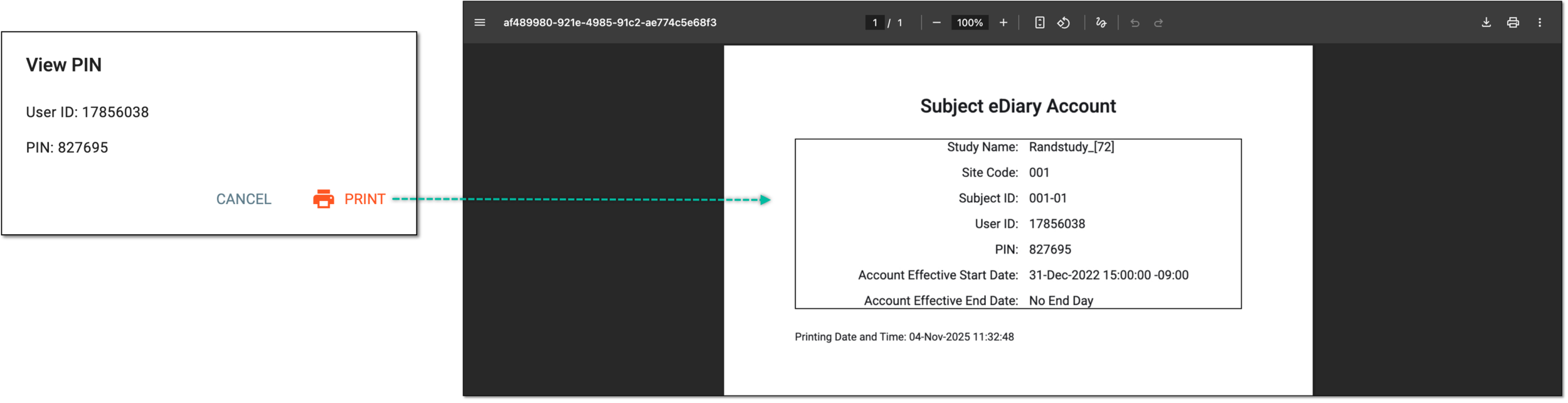 Figure 3. Printing user ID and PIN
You have accessed the user and PIN details for the eDiary account.
While maintaining the eDiary forms, the subject can lose their credentials which can lead to their incapability to enter the data on time. To avoid any problems, you can reset the subject's PIN (password) directly from the EDC application.
-
In the EDC application header, select the STUDY INFO tab.
-
On the page that opens, in the left pane, select eDiary > Subject Setting.
Figure 1. Accessing eDiary subject setting
-
On the Subject Setting page that opens, locate the subject of your interest and in the Actions column next to it, select More
> Reset PIN  .
.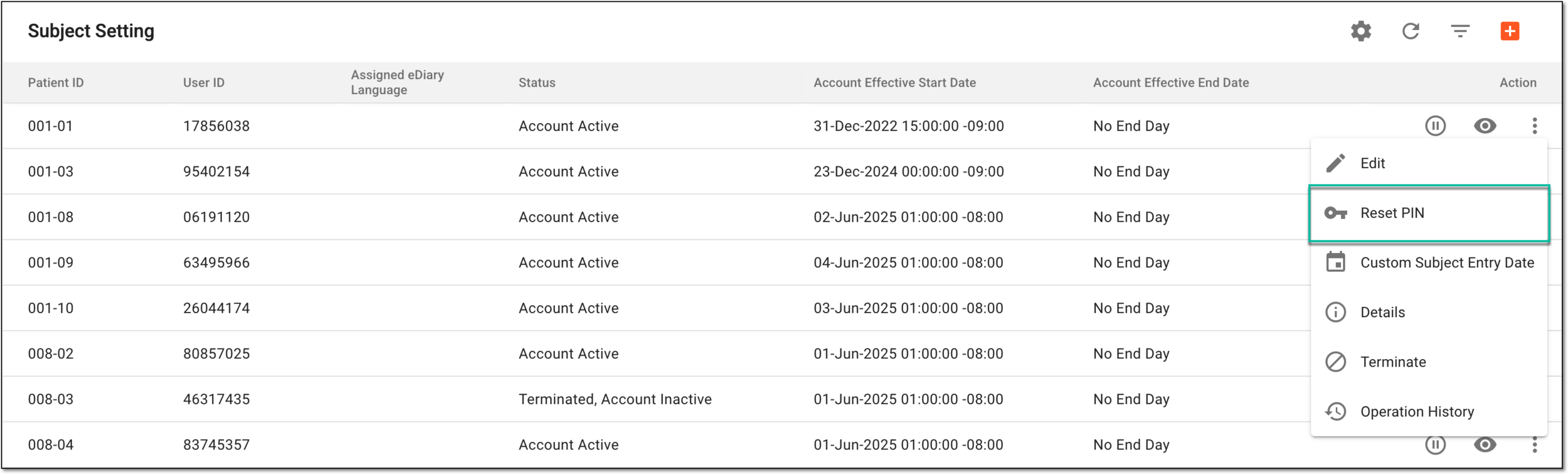 Figure 2. Locating subject PIN reset option
-
In the confirmation dialog that appears, select
 to proceed with the PIN reset.
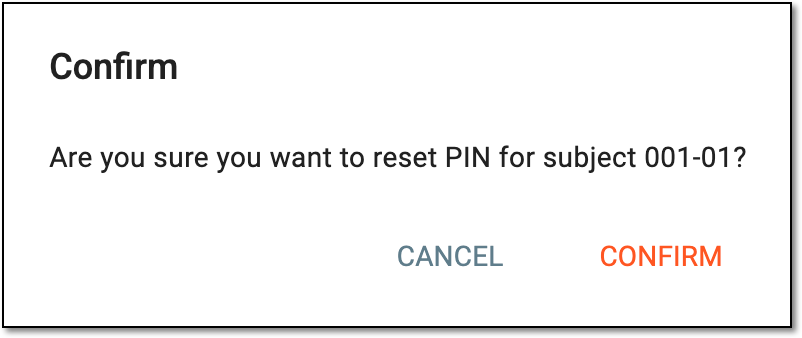 Figure 3. Confirming eDiary PIN reset
-
In the PIN/Reset PIN dialog that opens, view the new subject's password and communicate it to them.
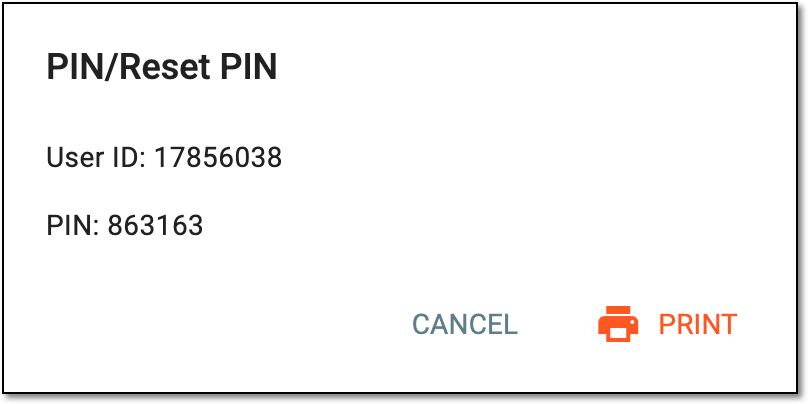 Figure 4. Resetting subject PIN
Tip
Select
to open the user ID and PIN details in the new browser tab as the PDF file and further save it to your
computer if needed.
Now the PIN is reset and you can share it with the subject for them to log in to their account.
For subjects who already have their eDiary account, when circumstances change, the clinical research coordinator (CRC), who works with the subjects or another user in charge, can terminate the accounts from EDC to prevent subjects from using them.
Account termination means that from the stated date on, the EDC system stops generating new forms for the subject to fill in with data. This can be helpful, for instance, when the subject is discontinued from the study and is no longer eligible for data collection.
Important
The eDiary account termination is reversible, you can cancel the termination and reinstate the account if needed.
-
In the EDC application header, select the STUDY INFO tab.
-
On the page that opens, in the left pane, select eDiary > Subject Setting.
Figure 1. Accessing eDiary subject setting
-
In the Subject Setting table that opens, locate the subject with the Account Active status for whom you want to terminate the eDiary account.
-
Then in the Action column, select More
> Terminate  .
.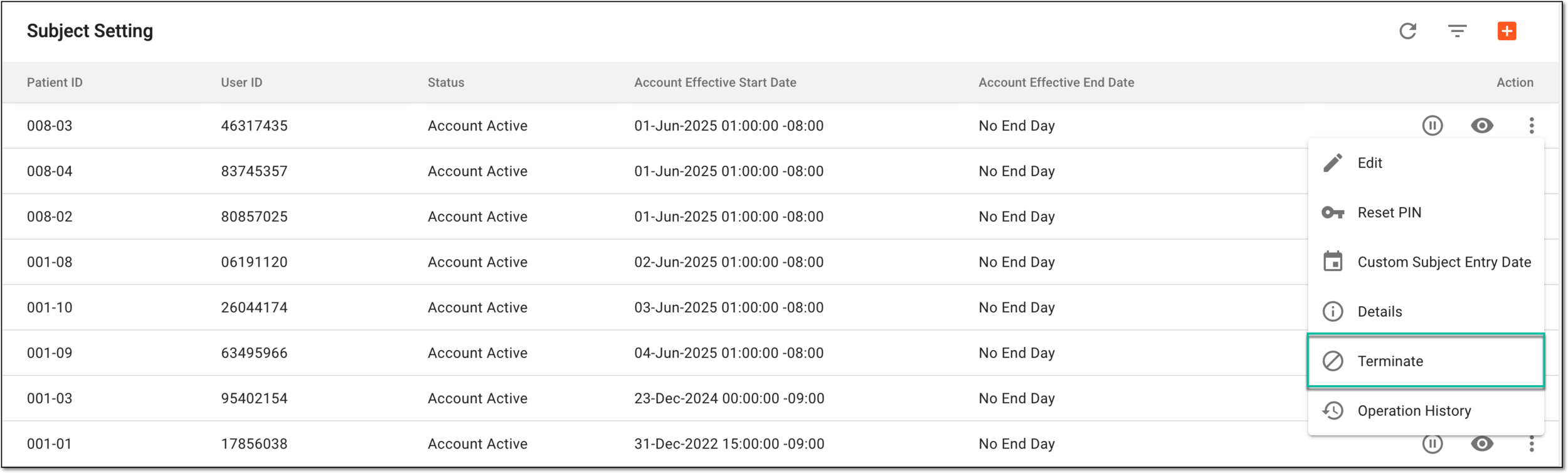 Figure 2. Selecting option to terminate eDiary account for subject
-
In the Terminate dialog that appears, complete the details as explained in the following table.
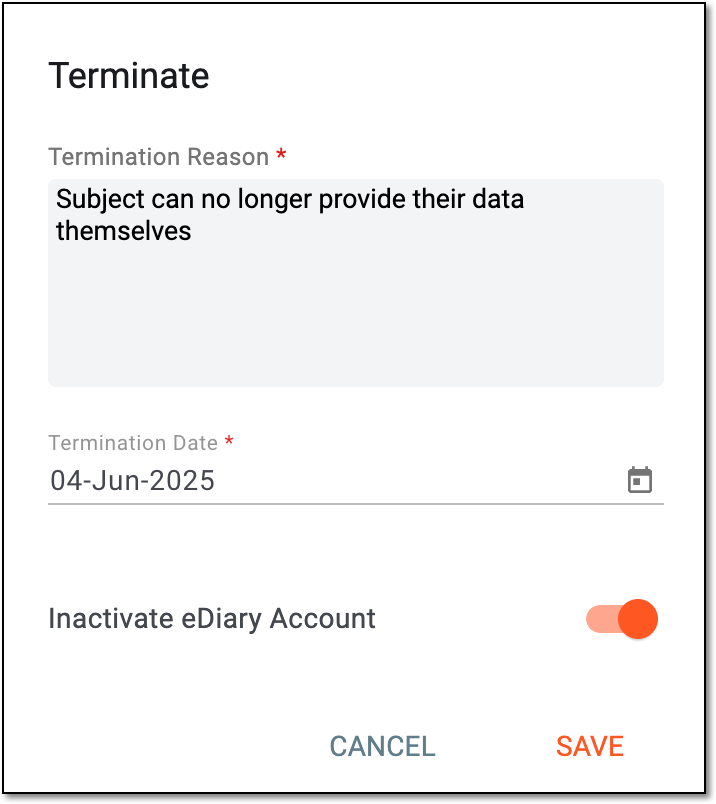 Figure 3. Terminating eDiary account for subject
Tip
In the following table, mandatory elements are marked with an asterisk (*).
Element
Details
Termination Reason*
Enter the reason for the subject account termination to ensure the action is valid.
Termination Date*
Enter the actual date of user account termination when EDC must stop generating new forms for the subject to complete. The date can be different from the current date as long as it complies with the following logic:
The termination date is less than or equal to the current date.
If you terminate the account retroactively, then all the data entered and submitted via eDiary between the termination date and the current date is retained, so there is no data loss. However, the system automatically disables all the CRFs with data entered
                                        but not submitted for the period from the termination date to the current date.
Inactivate eDiary Account
Set this parameter as follows:
-
Turn on the toggle to prevent the subject from logging in to the eDiary application with their credentials starting on the termination date.
-
Turn off the toggle if you want the subject to be able to log in to eDiary even though there will be no forms for them to fill.
SAVE
Select
to implement the changes.CANCEL
Select
to discard the changes without saving, close the dialog, and return to the Subject
Setting page. -
Once saved, the subject's eDiary account is terminated.
For subjects who already have their eDiary account, to adjust to the changing circumstances, the clinical research coordinator (CRC) who works with the subjects or another user in charge can terminate the accounts from EDC to prevent subjects from using them or cancel the termination and reinstate the account if needed. This can be helpful, for instance, when the subject is discontinued from the study but then is reinstated to continue their treatment and data collection.
-
In the EDC application header, select the STUDY INFO tab.
-
On the page that opens, in the left pane, select eDiary > Subject Setting.
Figure 1. Accessing eDiary subject setting
-
In the Subject Setting table that opens, locate the subject with the Terminated, Account Inactive or Terminated, Account Active status for whom you want to reinstate the eDiary account. Then in the Action column, select More
> Cancel Termination  .
.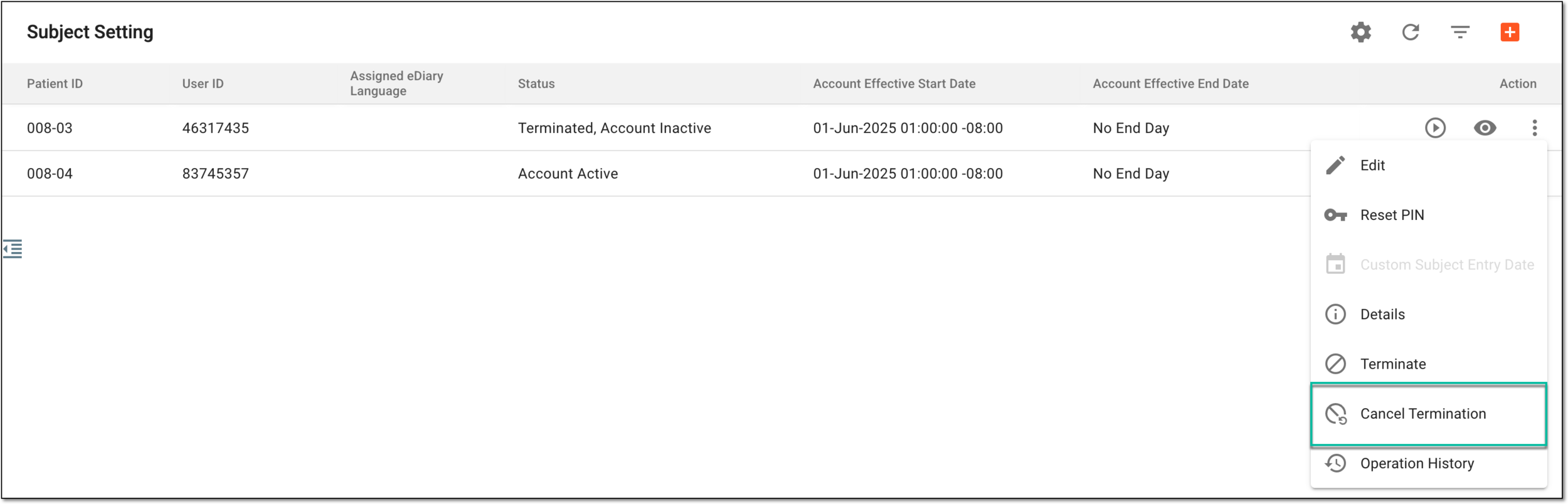 Figure 2. Selecting option to cancel termination
-
In the Cancel Termination dialog that appears, complete the details as explained in the following table.
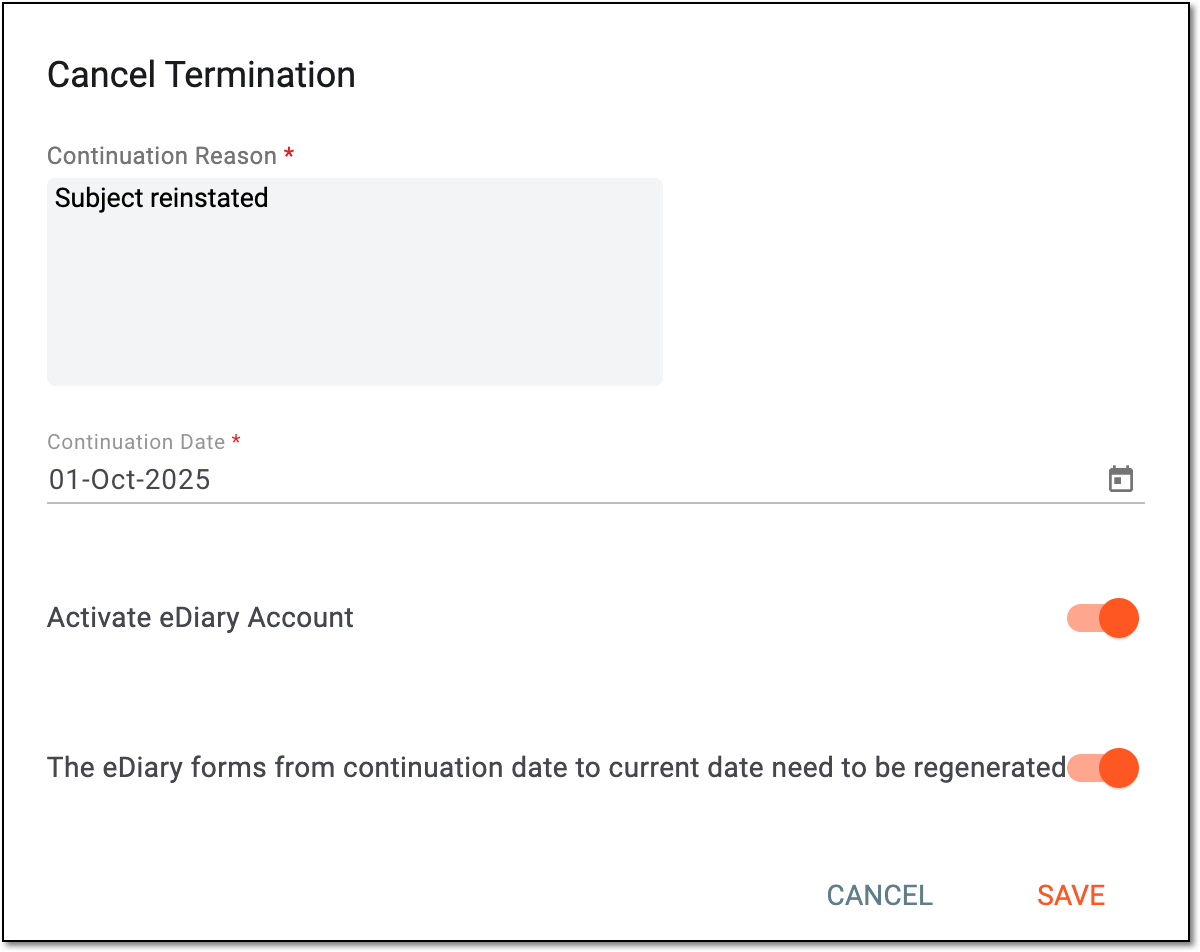 Figure 3. Canceling termination of eDiary account for subject
Tip
In the following table, mandatory elements are marked with an asterisk (*).
Element
Details
Continuation Reason*
Enter the reason for reinstating the subject account to ensure the action is valid.
Continuation Date*
Enter the actual date of user account reinstatement when EDC must start generating new forms for the subject to complete. This date can be different from the current date as long as it complies with the following logic:
The continuation date is greater than or equal to the termination date and less than or equal to the current date.
If you reinstate the account retroactively, the system generates all the forms between the continuation date and the current date for the subject to complete.Activate eDiary Account
Set this parameter as follows:
-
Turn on the toggle to allow the subject to log in to the eDiary application with their credentials starting on the continuation date.
-
Turn off the toggle to prevent the subject from logging in to eDiary even though their account is reinstated and there are new forms for them to fill. This can be helpful, for instance, if you want to allow subject access later due to some adjustments that need to be done to their forms.
The eDiary forms from continuation date to current date need to be regenerated
Set this parameter as follows:
-
Turn on the toggle to enable the EDC system to generate all the forms intended for eDiary completion by the subject from the actual date of account continuation to the current date. This can be helpful, for instance, if you are reinstating the account later than the subject has rejoined the study and you want them to be able to complete the forms they've missed.
-
Turn off the toggle not to generate any forms for the subject other than those intended for completion starting on the actual date of account continuation.
SAVE
Select
to implement the changes.CANCEL
Select
to discard the changes without saving, close the dialog, and return to the Subject
Setting page. -
Once saved, the subject's eDiary account is reinstated.
Once the eDiary account is created for the subject, there can be many different actions performed that affect the account settings and thus, the data collection process. For compliance, all such actions must be traceable, and in EDC, you can reconstruct the course of events for each subject's eDiary account settings via the operation history.
-
In the EDC application header, select the STUDY INFO tab.
-
On the page that opens, in the left pane, select eDiary > Subject Setting.
Figure 1. Accessing eDiary subject setting
-
In the Subject Setting table that opens, locate the subject for whom you want to review the operation history. Then in the Action column, select More
> Operation History  .
.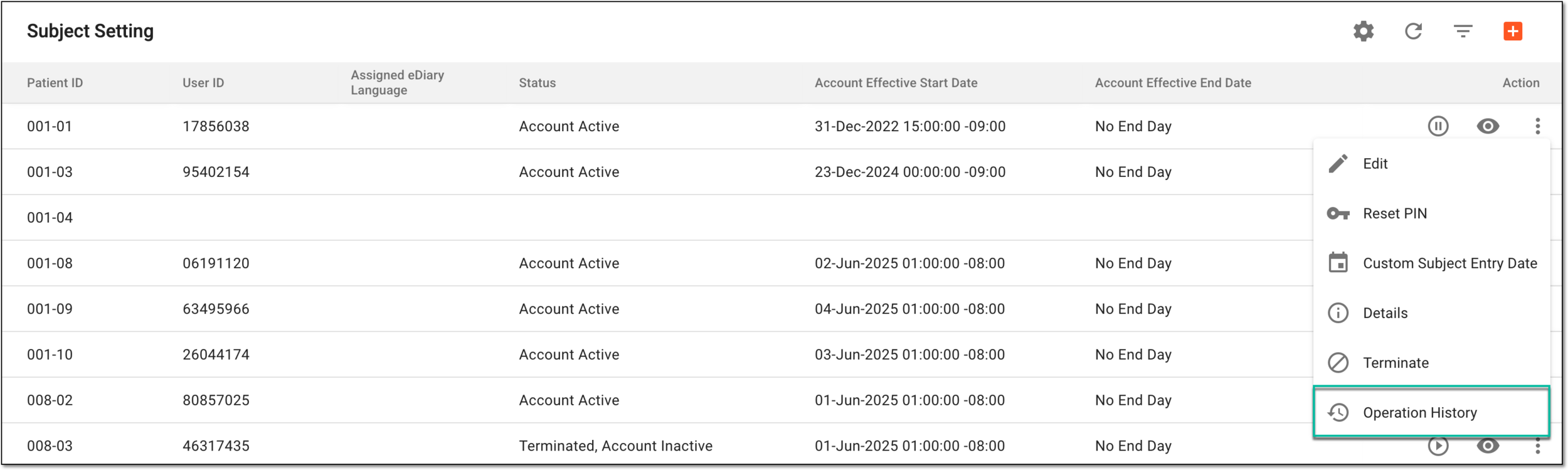 Figure 2. Accessing operation history of eDiary subject account
-
In the Operation History dialog that appears, review all the actions performed with the subject eDiary account from its creation up to date.
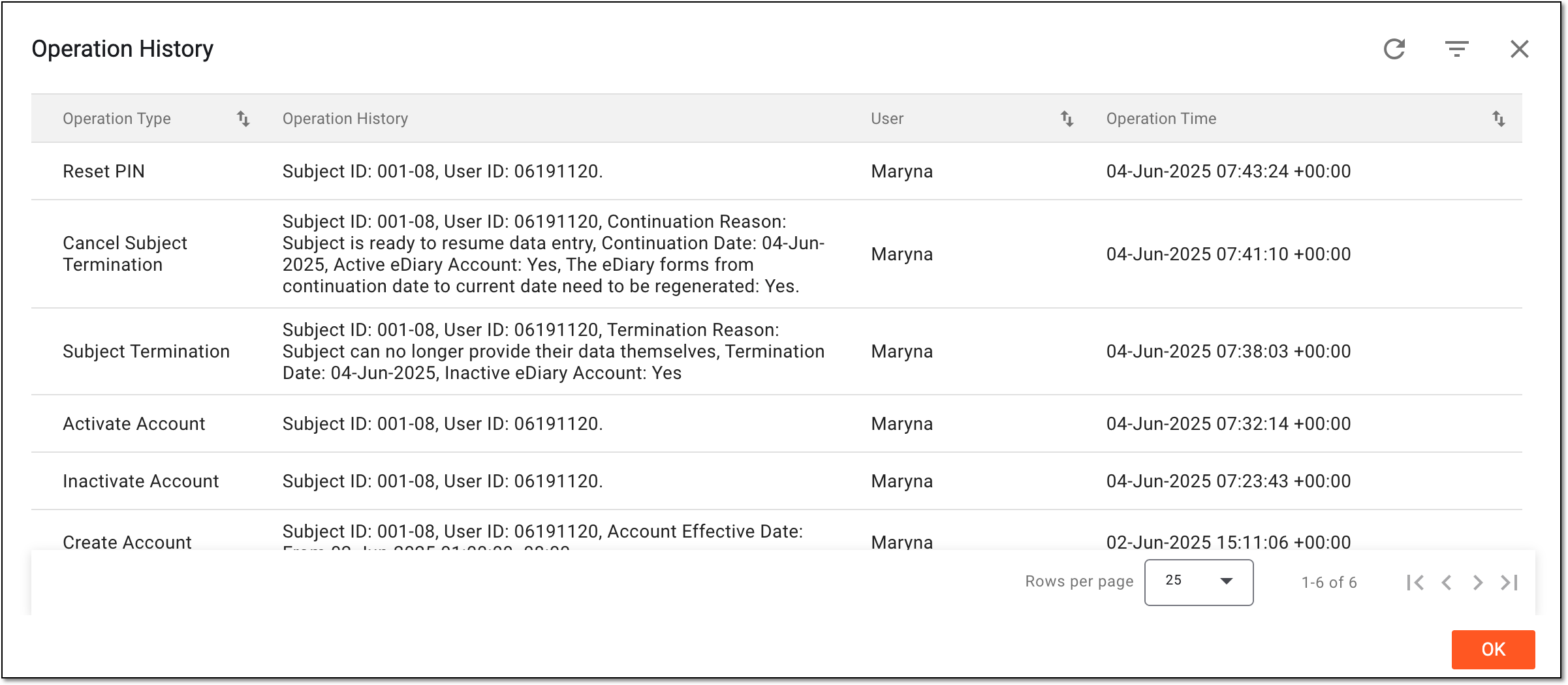 Figure 3. Analyzing operation history of eDiary subject account
You have reviewed the eDiary setting operation history per subject.