Caregiver account management for eDiary
In relation to a clinical trial, a caregiver is a person who represents the interests of the study subject and helps them with their study-related activities that they cannot manage themselves. The caregiver may be a person legally in charge of the vulnerable populations (children, elderly, severely ill patients, and so on) or informants who help collect data on the subject's conditions throughout the trial.
Since eDiary completion is mostly the subject's responsibility, if a subject is incapable of completing it due to their health condition, age restrictions, or other reasons, you can create a caregiver's account to fill out the eDiary instead. Another case is when the subject and the caregiver are both in charge of entering data into eDiary to provide more comprehensive details on the subject's condition. This is achieved by creating both subjects' and caregivers' eDiary accounts with their respective forms to complete.
In the following sections, you can learn how to handle caregiver's account for eDiary in EDC.
In EDC, you can create eDiary accounts for caregivers to provide them with a way to enter data into the app along with or instead of the subject in their care. You can also create a list of roles that define the relation between the caregiver and the subject, and then assign these roles to caregivers' accounts. This helps distinguish between the different data entry sources in case one caregiver has multiple subjects in their care, or there are a few caregivers for the subject.
-
In the EDC application header, select the STUDY INFO tab.
-
On the page that opens, in the left pane, select eDiary > Caregiver.
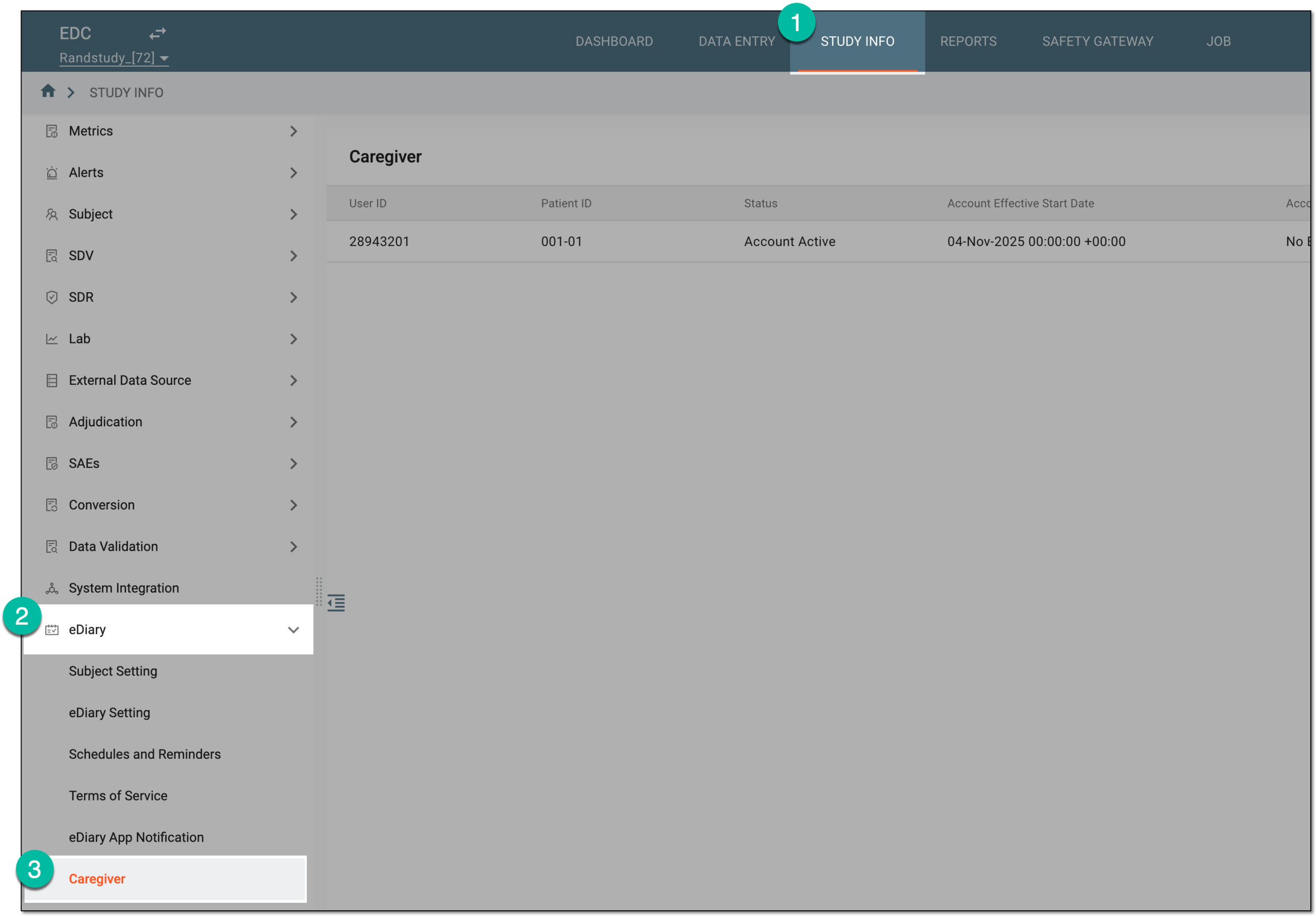 Figure 1. Accessing caregiver account management for eDiary
-
From the workspace toolbar of the Caregiver page, select Setting
 .
. Figure 2. Accessing caregiver role configuration
-
In the Setting dialog that appears, configure the caregiver roles as explained in the following table.
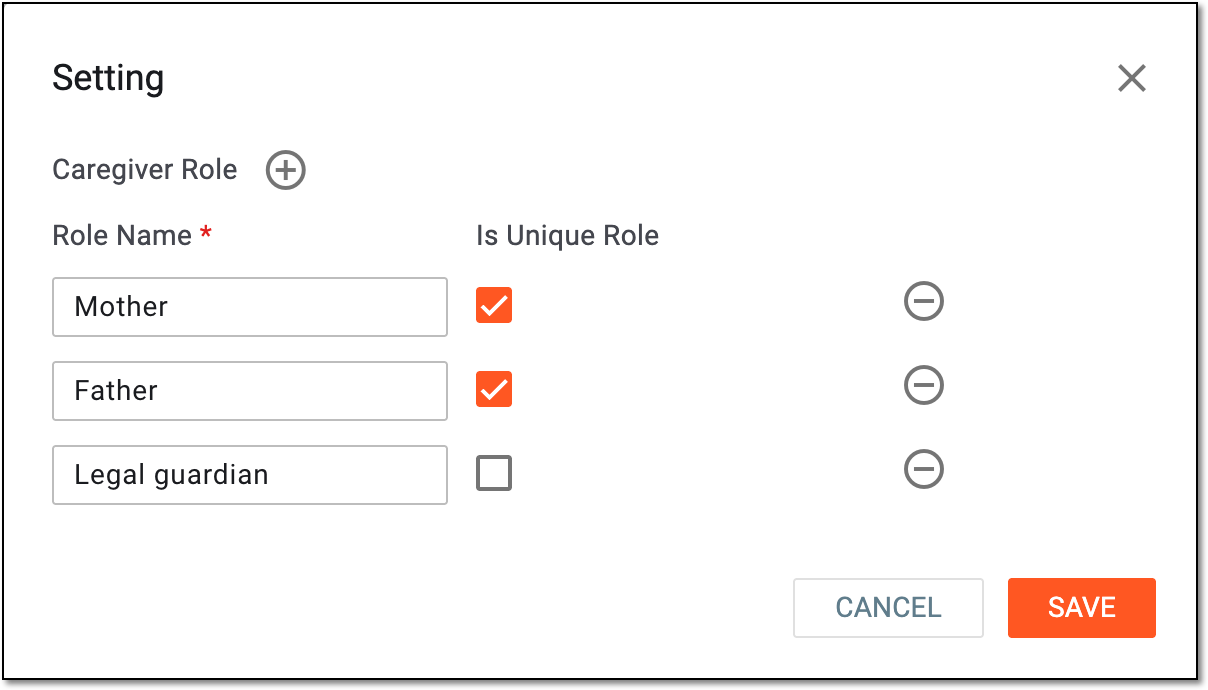 Figure 3. Configuring caregiver roles
Element
Details
Caregiver Role
Select
 to add a new row for a caregiver role configuration. You can add as many roles as needed for the study.
Role Name*
Enter the name of the caregiver role that defines their relation to the study subject, such as mother, father, legal guardian, or else.
Is Unique Role
Select this checkbox if there can be only one caregiver of the role for the subject. If cleared, there can be multiple caregivers of the same role for one sbject.
For instance, the mother role can be unique for the child; however, there can be multiple legal guardians for the same child.

Select the minus symbol next to any row to delete it from the list of caregiver roles configured for the study.
SAVE
Select
 to implement the changes.
CANCEL
Select
 to discard the changes without saving, close the dialog, and return to the Caregiver page.
Once saved, the caregiver roles are set for the study. You can repeat this procedure in case you need to update the list of roles to suit your business or legal requirements.
In EDC, you can create eDiary accounts for caregivers to provide them with the way to enter data into the app along with or instead of the subject in their care. One subject can have multiple caregivers and one caregiver can have multiple subjects in their supervision. However, you cannot create a caregiver without adding their subject's account first.
-
In the EDC application header, select the STUDY INFO tab.
-
On the page that opens, in the left pane, select eDiary > Caregiver.
Figure 1. Accessing caregiver account management for eDiary
-
From the workspace toolbar of the Caregiver page, select New Item
 .
. Figure 2. Selecting to add new caregiver account for eDiary
-
In the New Item dialog that opens, provide details as explained in the following table.
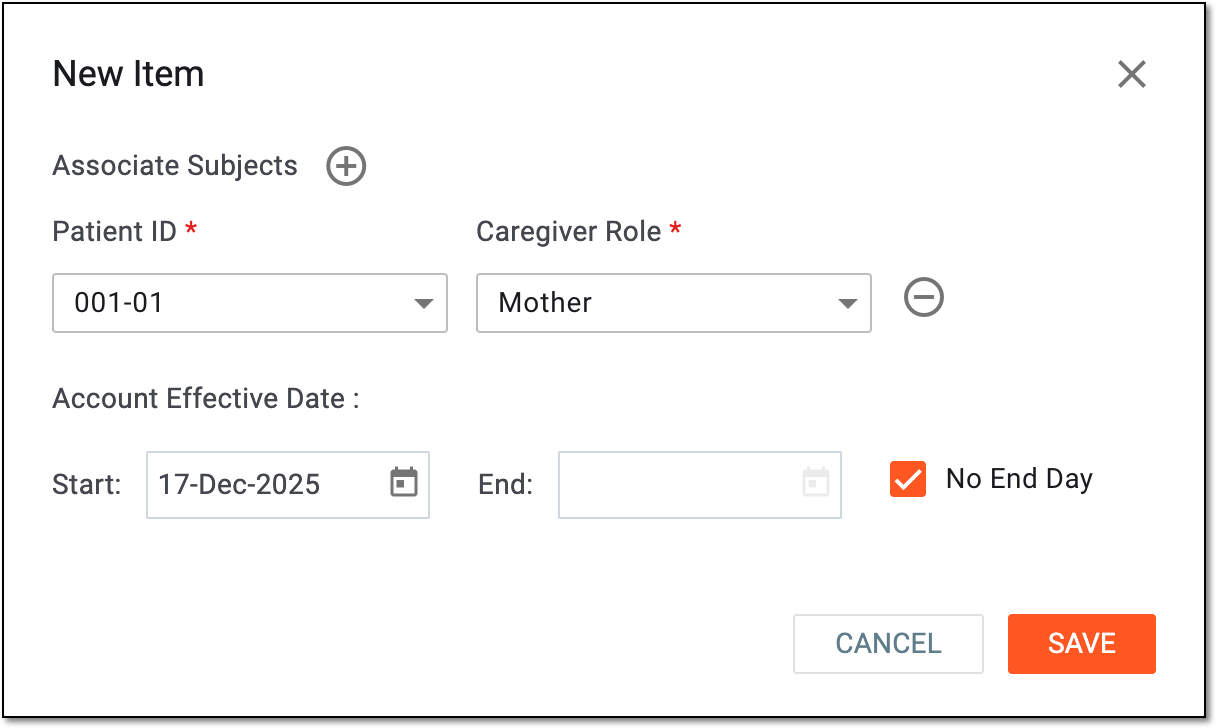 Figure 3. Configuring new caregiver account
Element
Details
Associate Subjects
Select
to enable the [Unique ID Label] and Caregiver Role fields and specify the connection of the caregiver to a certain study subject. Otherwise, the fields remain disabled and you only create the caregiver's account
with no association to the subject.[Unique ID Label]*
Select the unique identifier of the subject whose caregiver's eDiary account you want to create. You can select multiple subjects.
The field is disabled and does not require data entry unless the Associate Subject option is
                                        selected.
The name of this field depends on the unique ID configurations of your study in IWRS.Caregiver Role*
Select one of the preconfigured roles that defines the caregiver's relation to the study subject, such as mother, father, legal guardian, or else.
The field is disabled and does not require data entry unless the Associate Subject option is
                                        selected.
When creating multiple caregiver accounts for the same subject, you cannot select the unique role more than once. In a case of a duplicate, the system will prompt you with an error.Account Effective Date
Start
Select
 to specify the date of the caregiver eDiary account activation. This date indicates when the created user
can start entering data into the forms of the application.
to specify the date of the caregiver eDiary account activation. This date indicates when the created user
can start entering data into the forms of the application.End
Select
to specify the date of the caregiver eDiary account deactivation. This date indicates when the user stops
having access to the application and can no longer enter data into the forms.If the end date is indicated and reached, the eDiary account becomes inactive, meaning it cannot be updated or reactivated.No End Day
Select this checkbox if the eDiary account does not need to have the end date. If cleared, the end date must be specified.
If this checkbox is selected, the End field becomes inactive.SAVE
Select
to implement the changes.CANCEL
Select
to discard the account creation.
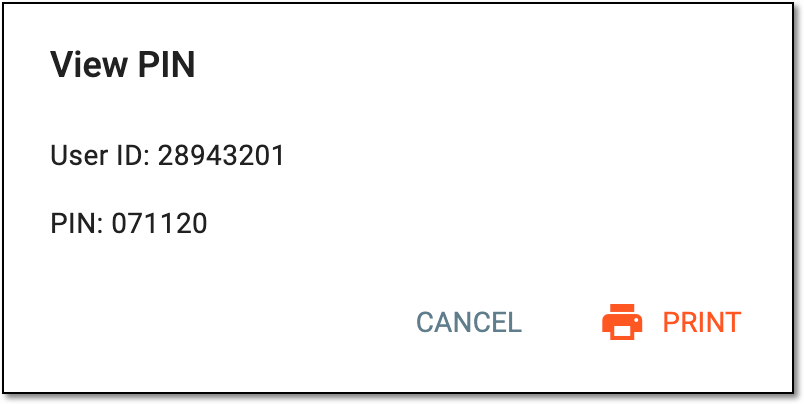
Upon saving, the eDiary account is created for the caregiver. In the View PIN dialog that appears, you can see the PIN code created by the system for the new subject account login; copy the details to share them with the user.
 |
Tip
Select  to open the user ID and PIN details in the new browser tab as the PDF file and further save it to your
computer if needed.
to open the user ID and PIN details in the new browser tab as the PDF file and further save it to your
computer if needed.
In EDC, you can update the eDiary accounts for caregivers to provide their most recent settings according to the study requirements. Thus, you can update the account's effective dates or subjects in the caregiver's charge.
-
In the EDC application header, select the STUDY INFO tab.
-
On the page that opens, in the left pane, select eDiary > Caregiver.
Figure 1. Accessing caregiver account management for eDiary
-
In the Caregiver table that appears, next to the needed eDiary account, select More
 > Edit
  .
. Figure 2. Selecting option to edit eDiary account for caregiver
-
In the Edit Item dialog that appears, update the details of the caregiver's eDiary account as needed. These details are identical to those explained in the table of the Add eDiary account for caregiver section.
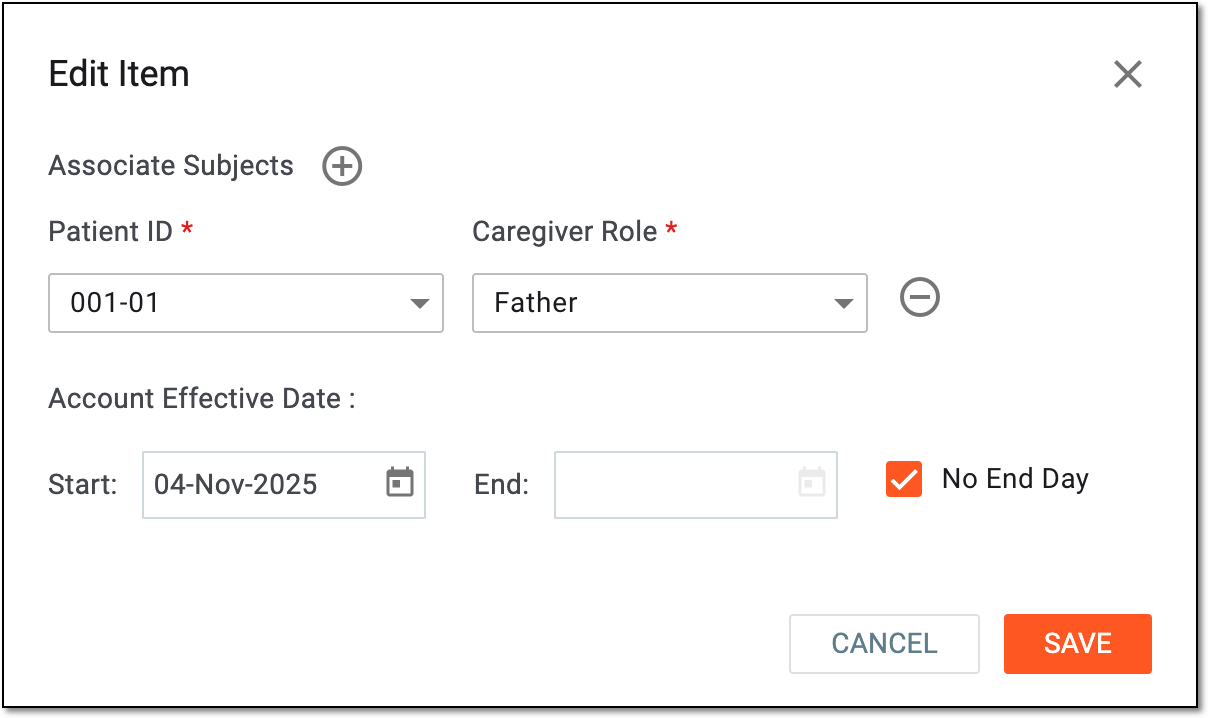 Figure 3. Editing eDiary account for caregiver
-
Select
to implement the changes.
Once saved, the caregiver's account is updated.
For the caregiver to be able to complete the eDiary regularly, their account must be active. In the EDC application, you can activate and inactivate the caregivers' accounts as per your business needs.
-
In the EDC application header, select the STUDY INFO tab.
-
On the page that opens, in the left pane, select eDiary > Caregiver.
Figure 1. Accessing caregiver account management for eDiary
-
In the Caregiver table that appears, next to the needed eDiary account, select one of the following:
-
Activate
 : to make the eDiary account active and accessible for the caregiver from their device with their
credentials.
: to make the eDiary account active and accessible for the caregiver from their device with their
credentials. -
Inactivate
 : to deactivate the eDiary account and make it unavailable for the caregiver to log in.
 Figure 2. Activating or inactivating eDiary account for caregiver
-
Once selected, the eDiary account of the caregiver is either activated or inactivated based on the performed action.
There can be cases when the caregiver user loses their PIN code and cannot access their eDiary account for data entry. For such and other similar situations, in EDC, you can view the caregiver's PIN code and print it along with other useful account details to share with the person.
-
In the EDC application header, select the STUDY INFO tab.
-
On the page that opens, in the left pane, select eDiary > Caregiver.
Figure 1. Accessing caregiver account management for eDiary
-
In the Caregiver table that opens, locate the account for which you want to access PIN. Then in the Action column, select View PIN
 .
. Figure 2. Accessing caregiver account PIN and user details
-
In the View PIN dialog, you can view and copy user ID and PIN details. To open the user ID and PIN details in the new browser tab as the PDF file, select
.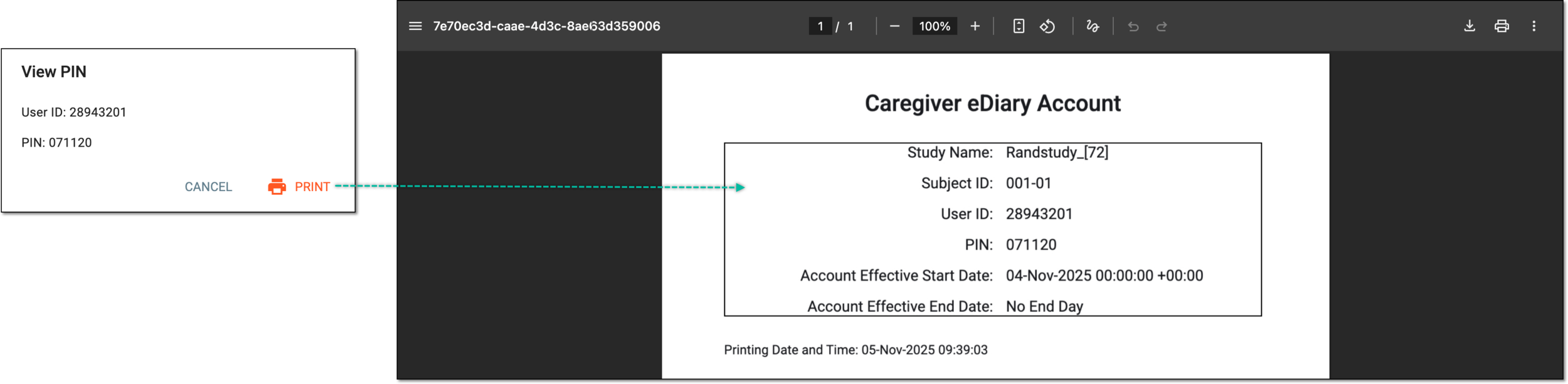 Figure 3. Printing user ID and PIN
You have accessed the user and PIN details for the caregiver's eDiary account.
While maintaining the eDiary forms, the caregiver can lose their credentials which can lead to their incapability to enter the data on time. To avoid any problems, you can reset the caregiver's PIN (password) directly from the EDC application.
-
In the EDC application header, select the STUDY INFO tab.
-
On the page that opens, in the left pane, select eDiary > Caregiver.
Figure 1. Accessing caregiver account management for eDiary
-
In the Caregiver table that appears, next to the needed eDiary account, select More
> Reset PIN  .
. Figure 2. Selecting option to reset account PIN for caregiver
-
In the confirmation dialog that appears, select
 to proceed with the PIN reset.
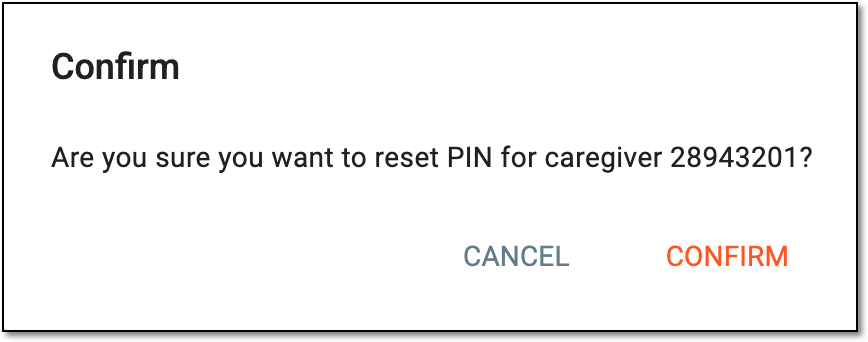 Figure 3. Confirming caregiver account PIN reset
-
In the PIN/Reset PIN dialog that opens, view the new subject's password and communicate it to them.
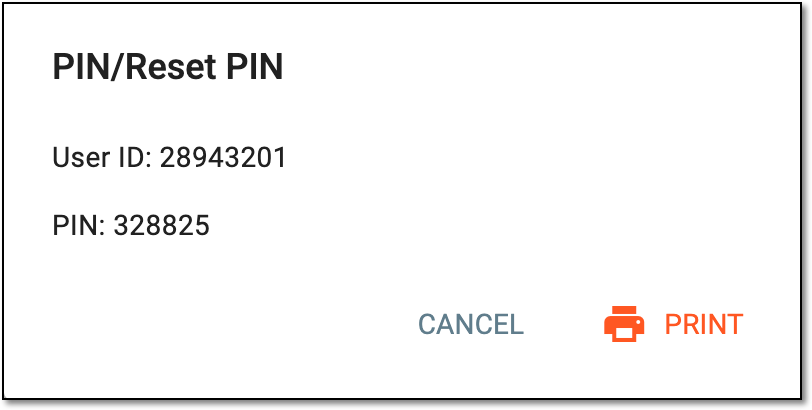 Figure 4. Resetting caregiver account PIN
Tip
Select
to open the user ID and PIN details in the new browser tab as the PDF file and further save it to your
computer if needed.
Now the PIN is reset, and you can share it with the caregiver for them to log in to their account.
Once the eDiary account is created for the caregiver, there can be many different actions performed that affect the account settings and thus, the data collection process. For compliance, all such actions must be traceable, and in EDC, you can reconstruct the course of events for each caregiver's eDiary account settings via the operation history.
-
In the EDC application header, select the STUDY INFO tab.
-
On the page that opens, in the left pane, select eDiary > Caregiver.
Figure 1. Accessing caregiver account management for eDiary
-
In the Caregiver table that appears, next to the needed eDiary account, select More
> Operation History  .
. Figure 2. Accessing operation history of caregiver eDiary account
-
In the Operation History dialog that opens, analyze the details of all the actions performed with the caregiver eDiary account from its creation and up to date.
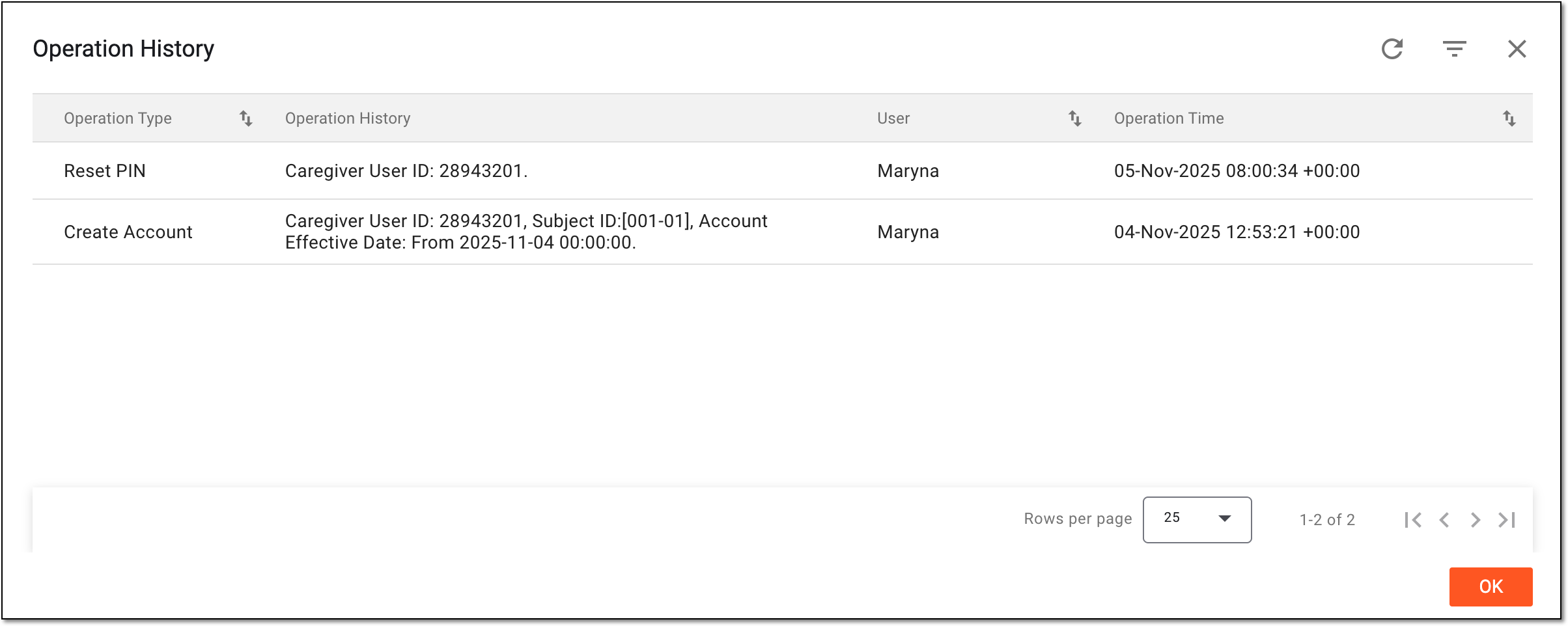 Figure 3. Analyzing operation history for caregiver eDiary account
You have analyzed the operation history for the caregiver eDiary account. You can now select OK to close the dialog and return to the Caregiver page.