eDiary app notifications
In EDC, you can set up messages—push notifications and banners—to be received by the eDiary users in their mobile app. These messages are used to share important news, reminders, and otherwise communicate with the target audience.
In EDC, you can add notifications (push notifications and banners) to be received by the eDiary users in their mobile app.
-
In the EDC application header, select the STUDY INFO tab.
-
On the page that opens, in the left pane, select eDiary > eDiary App Notification.
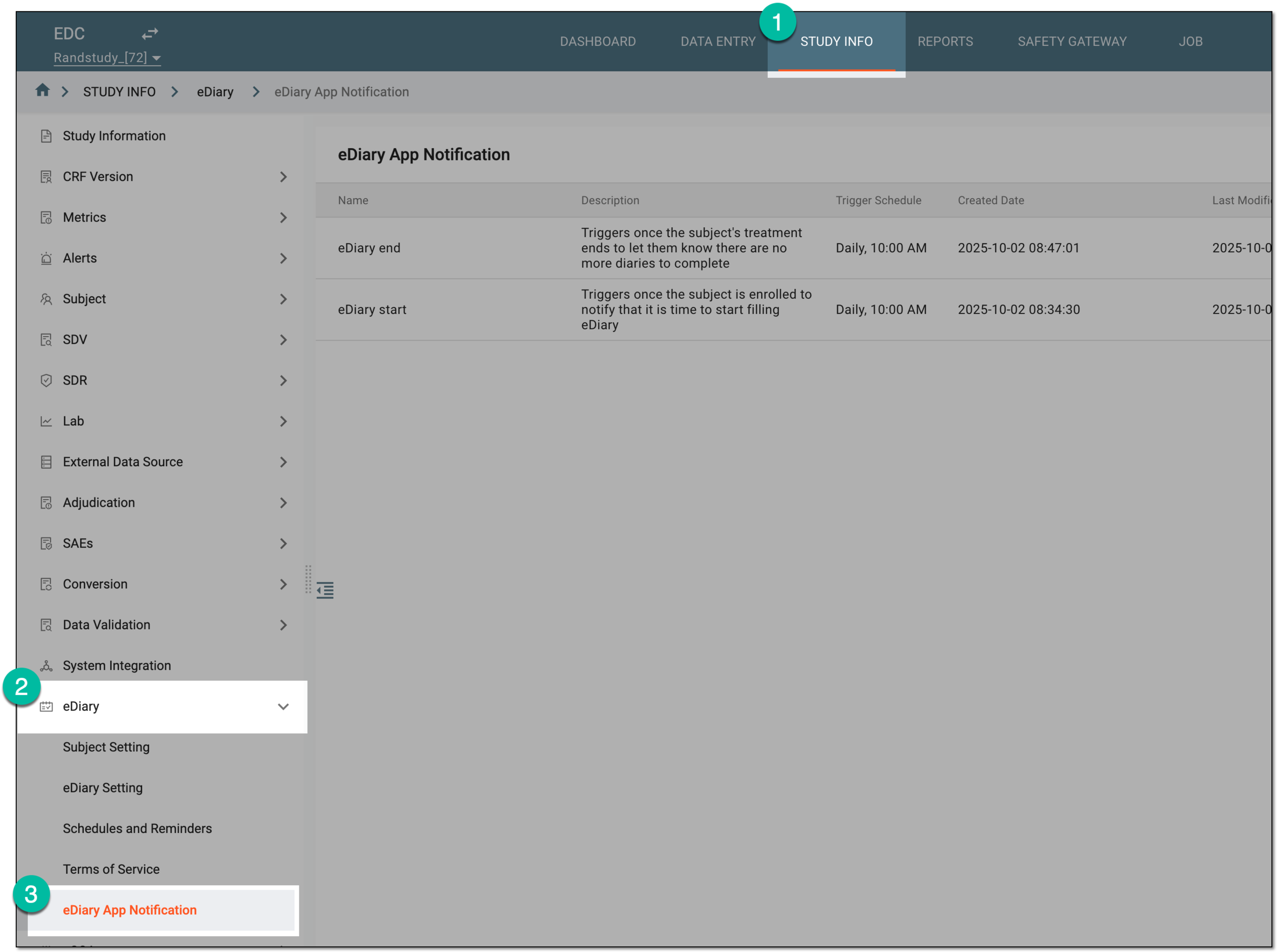 Figure 1. Accessing eDiary app notifications
-
On the eDiary App Notification page that opens, from the workspace toolbar, select New Item
 .
. Figure 2. Selecting option to add eDiary app notification
-
In the form that opens, configure the eDiary notification details as explained in the following table.
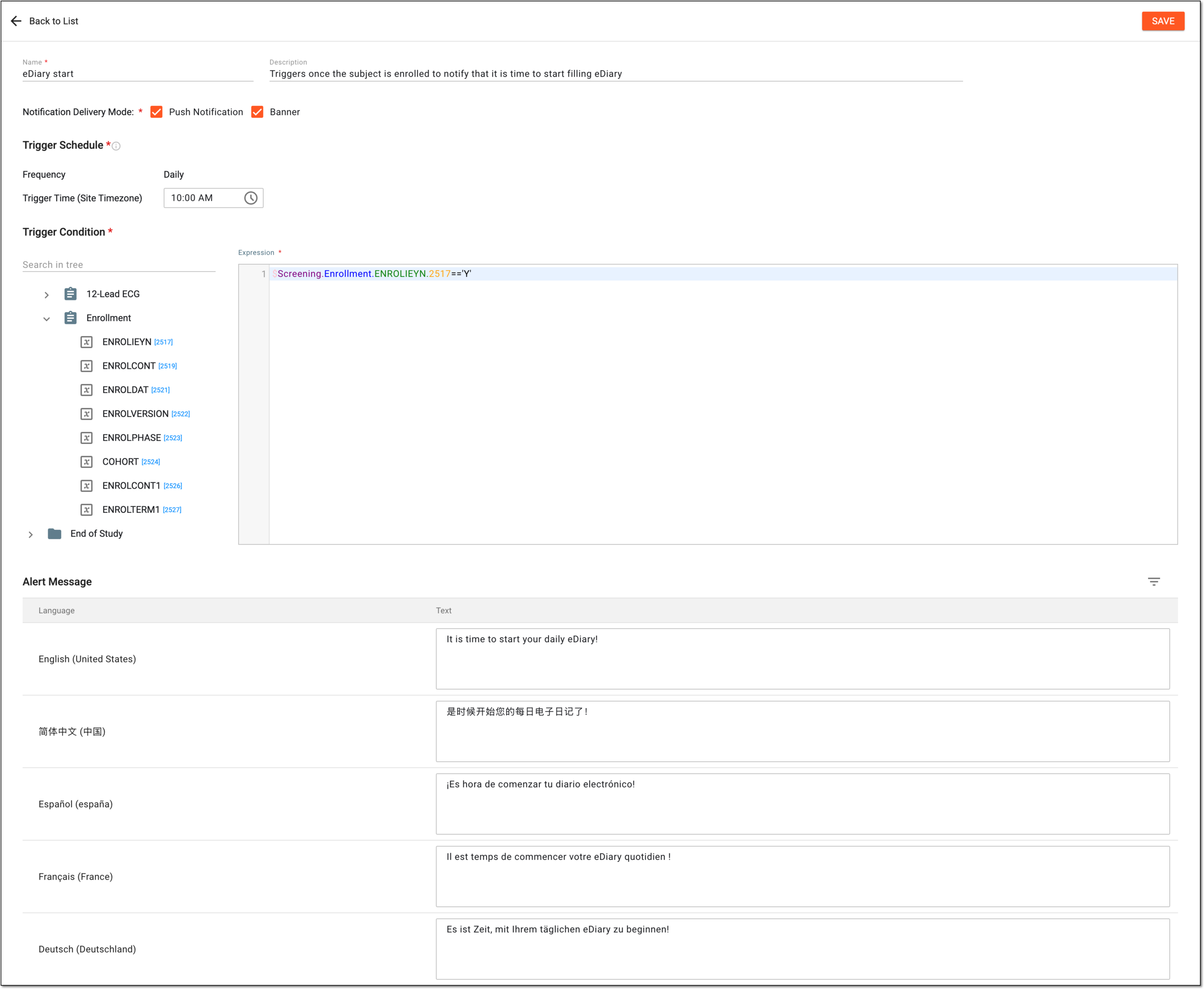 Figure 3. Configuring eDiary notification details
Tip
In the following table, mandatory elements are marked with an asterisk (*).
Element
Details
Name*
Enter a descriptive name for your notification to outline its purpose.
Description
Add additional details about the notifications to help EDC users understand its purpose.
Notification Delivery Mode*
Select one or both of the following:
-
Push Notification: to set the external (out-of-app) notification on the users' devices. To ensure the user receives such a notification, their device settings must allow push notifications from the eDiary app.
-
Banner: to set internal (in-app) notification that appears at the top of the device screen when opening or using the eDiary app.
Trigger Schedule*
Frequency
Represents the rate of occurrence for the system check. If the trigger condition is met, the notification is sent accordingly.
For now, only Daily is supported.Trigger Time (Site Timezone)
Select the time when the notification must be sent to the users. The time zone is automatically pulled from the site where the app user is registered.
Trigger Condition*
In the Expression box, configure the rule to outline the condition that once met, the system sends notification to the eDiary user.
You can use the following entry options when designing an expression:
-
Press Shift + @ to automatically prompt functions.
-
Press Shift + # to automatically prompt conditions.
-
Press Shift + $ to automatically prompt the list of visits, then forms, and then variables to select for the expression.
-
From the tree panel, select and drag the necessary variable to use it in the expression configuration.
Alert Message
Next to the needed language on the left, enter the notification text on the right.
The system checks the user's eDiary app language and matches the notification they receive accordingly.
SAVE
Select
 to implement the changes.
 -
Once saved, the new notification is added and activated. It starts triggering for eDiary users as set.
Tip
If you want to postpone notification triggering, consider inactivating it until ready to be sent.
In EDC, you can add notifications (push notifications and banners) to be received by the eDiary users in their mobile app.
Whenever required, you can update the notification settings as needed.
-
In the EDC application header, select the STUDY INFO tab.
-
On the page that opens, in the left pane, select eDiary > eDiary App Notification.
Figure 1. Accessing eDiary app notifications
-
On the eDiary App Notification page that opens, locate the notification that you want to update. Then from the Action(s) column next to it, select Edit
 .
. Figure 2. Selecting option to edit eDiary app notification
-
In the form that opens, update the eDiary notification details as needed. These details are identical to those explained in the table of the Add eDiary app notification section.
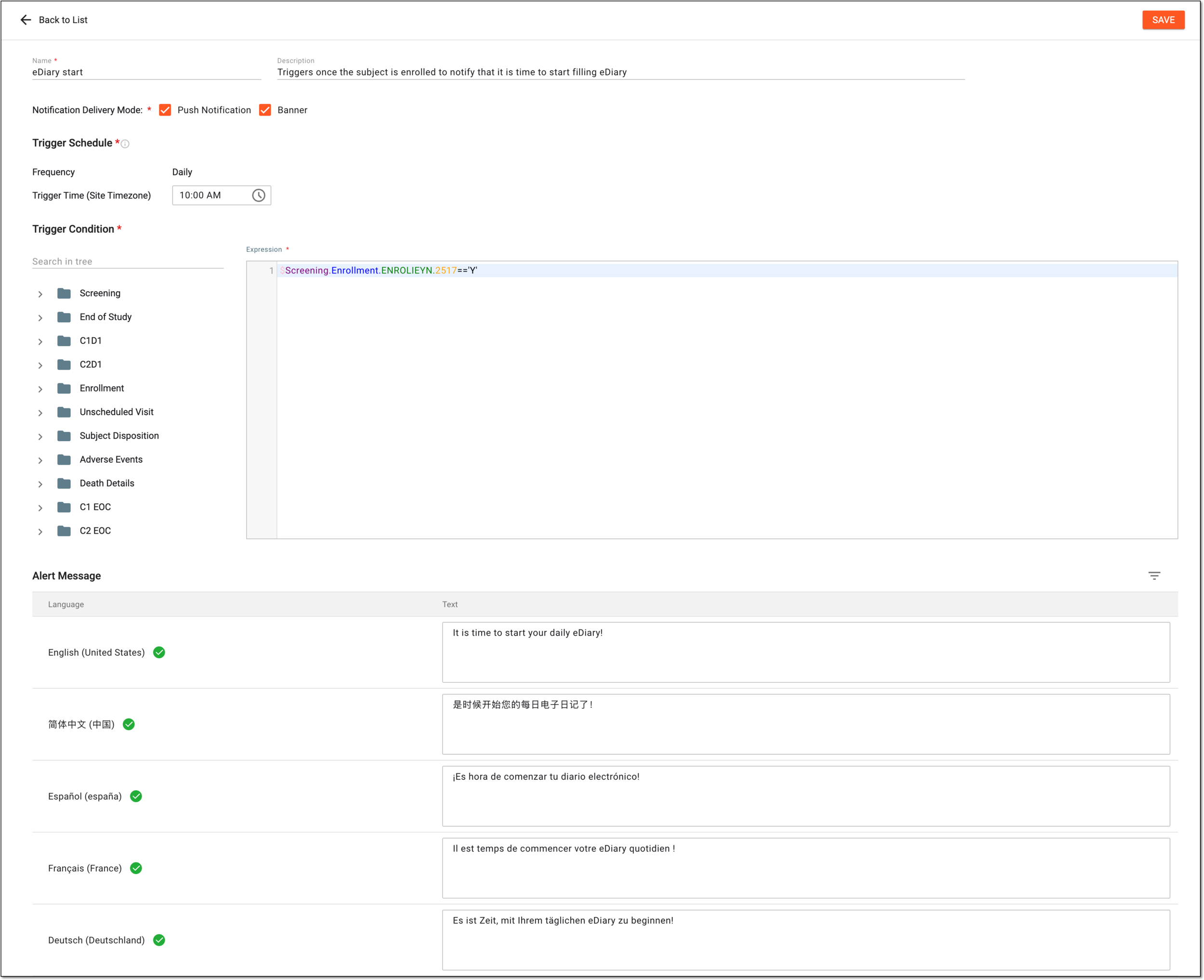 Figure 3. Editing eDiary notification details
-
Select
to implement the changes.
Once saved, the eDiary notification is updated.
In EDC, you can add notifications (push notifications and banners) to be received by the eDiary users in their mobile app.
Whenever you need to temporarily pause the notification from being sent to eDiary users, you can inactivate it. Then, once needed again, activate the notification to trigger as set.
-
In the EDC application header, select the STUDY INFO tab.
-
On the page that opens, in the left pane, select eDiary > eDiary App Notification.
Figure 1. Accessing eDiary app notifications
-
On the eDiary App Notification page that opens, locate the notification of your interest. Then from the Action(s) column next to it, select Activate
 to make the notification active and trigger as set or Inactivate
  to pause the notification triggering.
 Figure 2. Selecting options to activate or inactivate eDiary app notification
Once done, the eDiary app notification is activated or inactivated based on your performed action.
In EDC, you can add notifications (push notifications and banners) to be received by the eDiary users in their mobile app.
Whenever required, you can delete the obsolete notifications from the system to keep the list up-to-date.
-
In the EDC application header, select the STUDY INFO tab.
-
On the page that opens, in the left pane, select eDiary > eDiary App Notification.
Figure 1. Accessing eDiary app notifications
-
On the eDiary App Notification page that opens, locate the notification that you want to remove. Then from the Action(s) column next to it, select Delete
. Figure 2. Deleting eDiary app notification
-
In the confirmation dialog, select
 to proceed with deletion.
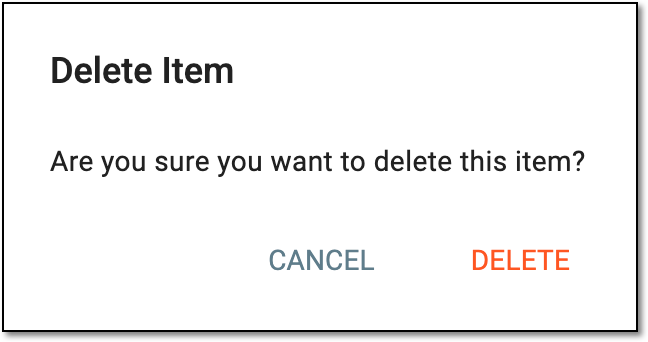 Figure 3. Confirming eDiary app notification deletion
Upon confirmation, the eDiary app notification is deleted.