Configuring policies and agreements for eDiary
In EDC, you can introduce a list of the needed policies and agreements for the users to accept via the eDiary mobile app. When setting up eDiary for a study, there are some preconfigured policies in the system that you can amend, and you can add custom policies to suit your business and regulatory needs. Each policy can be configured and maintained individually, for instance, by setting up versioning and languages, activating or inactivating certain documents, and so on. Learn more about the policies and agreements configuration and management in the following sections.
By adding your custom policies and agreements in EDC, you create a list of all the needed documents for the eDiary users to acknowledge and agree to in the app for legal and regulatory purposes.
-
In the EDC application header, select the STUDY INFO tab.
-
On the page that opens, in the left pane, select eDiary > Policies & Agreements.
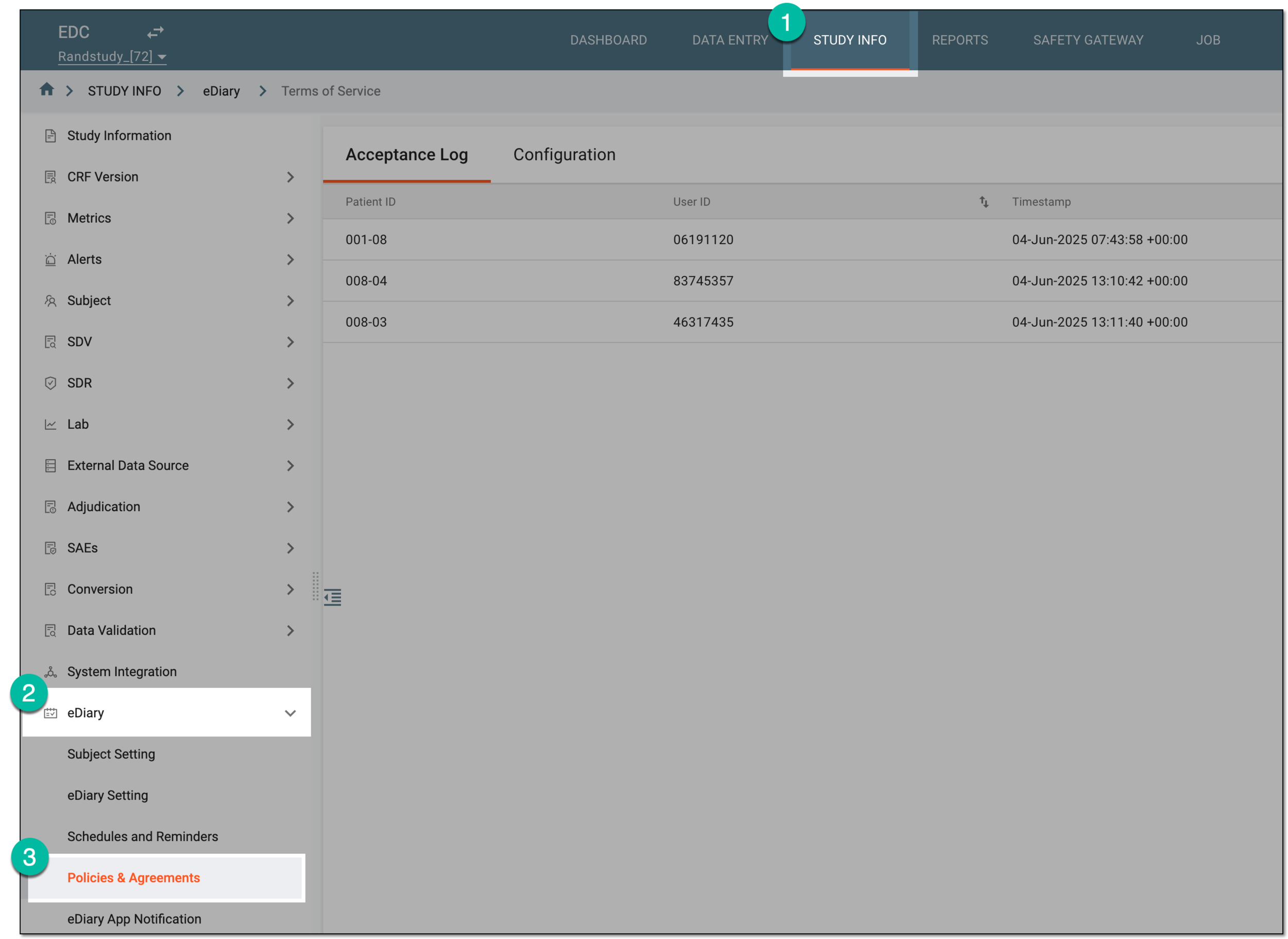 Figure 1. Accessing eDiary policies and agreements
-
On the page that opens, select the Configuration tab. Then from the Policy List workspace toolbar, select New Item
 .
. Figure 2. Selecting option to add new policy configuration
-
In the New dialog that appears, enter the name for the policy you are adding. Then select
 .
.Tip
The name entered here defines the policy category in EDC; it is not displayed in eDiary to the app users. The user-facing name of the policy is added when defining the policy content in respective languages.
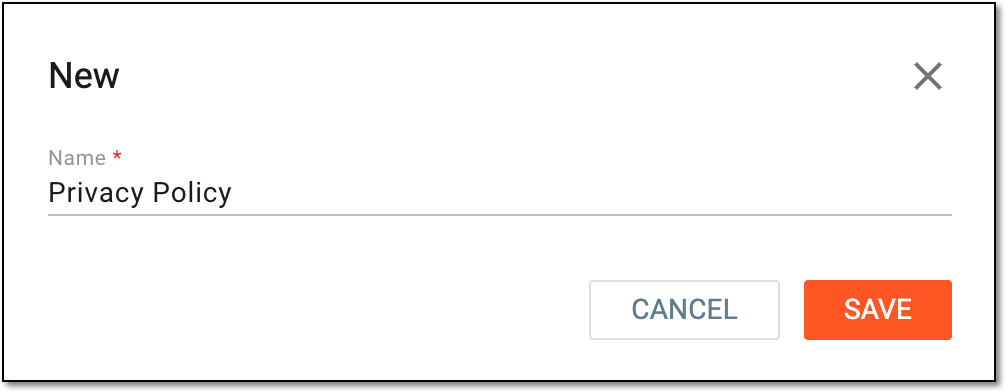 Figure 3. Adding new policy configuration
Once saved, the new policy is added to the list. You can now define the policy content and activate the policy to become available in eDiary.
Once a new policy or agreement is added, you can start configuring its content from scratch. You can also update the contents of the existing policies—either custom ones or preconfigured for you in the system. The preconfigured policies are Term of Service and Privacy, which are most common for all sponsors using the eDiary app. Amending the contents of the policies keeps them true to the regulatory or business requirements in the course of the clinical trial.
The languages available for each of the preconfigured or customarily added policies are defined by the translation languages applied to eDiary in SD. The default versions of the Term of Service and Privacy policies are ready-made in English and Japanese; for other languages, you can request the translation individually from the EDETEK team or enter the contents yourself.
For instance, if you use English and Japanese as your study languages, then, once you start configuring eDiary for a new study, the Term of Service and Privacy policy contents in these two languages appear for you by default. You can use them as they are or amend them as needed.
However, if we assume that your languages are English and Spanish, then the Term of Service and Privacy policy contents in English are ready for you, and the Spanish version must be either requested from the EDETEK team or defined by your study representative, as explained in the following procedure.
-
In the EDC application header, select the STUDY INFO tab.
-
On the page that opens, in the left pane, select eDiary > Policies & Agreements.
Figure 1. Accessing eDiary policies and agreements
-
On the page that opens, select the Configuration tab. Then in the Policy List block, select the needed policy or agreement to open its details in the Policy Setting: [Policy name] block.
 Figure 2. Selecting policy to access settings
-
In the Policy Setting: [Policy name] block, next to the policy setting in the needed language, select Edit
 .
. Figure 3. Selecting option to define policy settings
-
In the Update dialog that opens, define the eDiary policy setting as explained in the following table.
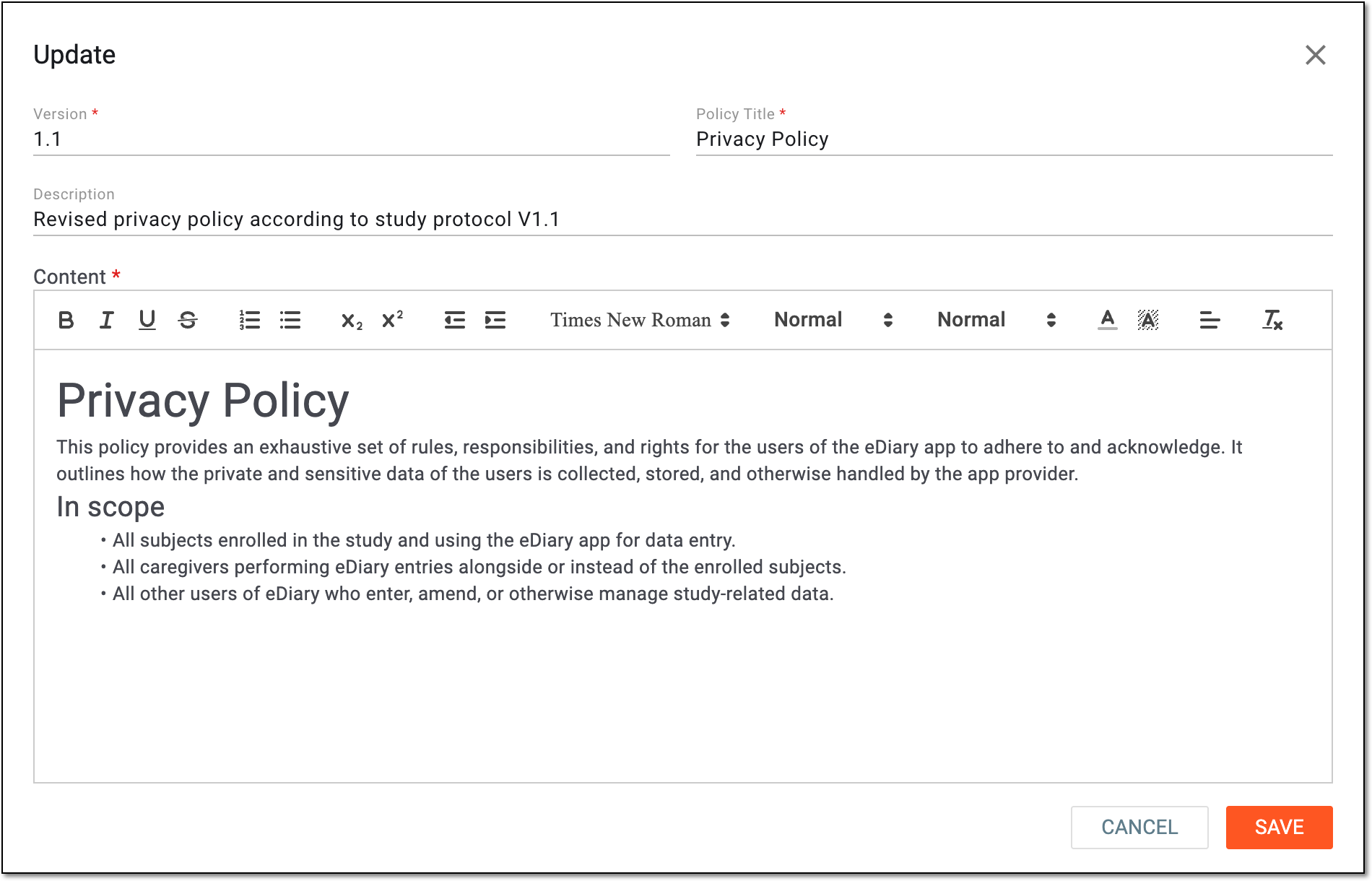 Figure 4. Defining eDiary policy settings
Tip
In the following table, mandatory elements are marked with an asterisk (*).
Element
Details
Version*
Enter the version identifier for the policy content you configure. Keeping track of versions for all changes applied to the policy is required for compliance and traceability reasons.
For the preconfigured policies, the default version is V0.Policy Name*
Enter the name of the policy that will be displayed in the eDiary app to its users.
Description
Enter any auxiliary details to help EDC users to distinguish the intent for the certain setting or its version. This description is only available in EDC for informative reasons; it does not appear in eDiary.
Content*
Enter the content text of the policy that the user will need to read and accept in the eDiary app. Use rich text tools to format the text as needed.
SAVE
Select
to implement the changes.CANCEL
Select
 to discard the changes without saving.
Once saved, the policy content is configured and becomes available in eDiary for users' acknowledgement immediately if the respective policy is activated. If inactive, the updates will become available for users immediately upon activation.
All the changes applied are recorded and can be analyzed in the operation history for traceability.
In EDC, you can define eDiary policies and agreements for the app users to read and accept for legal or business purposes.
In the course of a clinical trial, various modifications can be made to the eDiary policies and agreements, and it is vital to keep record of such changes for compliance and traceability reasons. The operation history provides an exhaustive, structured log of events, helping you trace what they were, who performed them, and when.
-
In the EDC application header, select the STUDY INFO tab.
-
On the page that opens, in the left pane, select eDiary > Policies & Agreements.
Figure 1. Accessing eDiary policies and agreements
-
On the page that opens, select the Configuration tab. Then in the Policy List block, select the needed policy or agreement to open its details in the Policy Setting: [Policy name] block.
Figure 2. Selecting policy to access settings
-
In the Policy Setting: [Policy name] block, next to the policy setting in the needed language, select History
 .
. Figure 3. Accessing operation history for policy settings
-
In the History dialog that opens, analyze the details of all the actions performed with the policy setting from its creation and up to date.
Tip
Select View
 next to any of the history records to preview the contents of the pertaining policy
version in a new dialog.
next to any of the history records to preview the contents of the pertaining policy
version in a new dialog.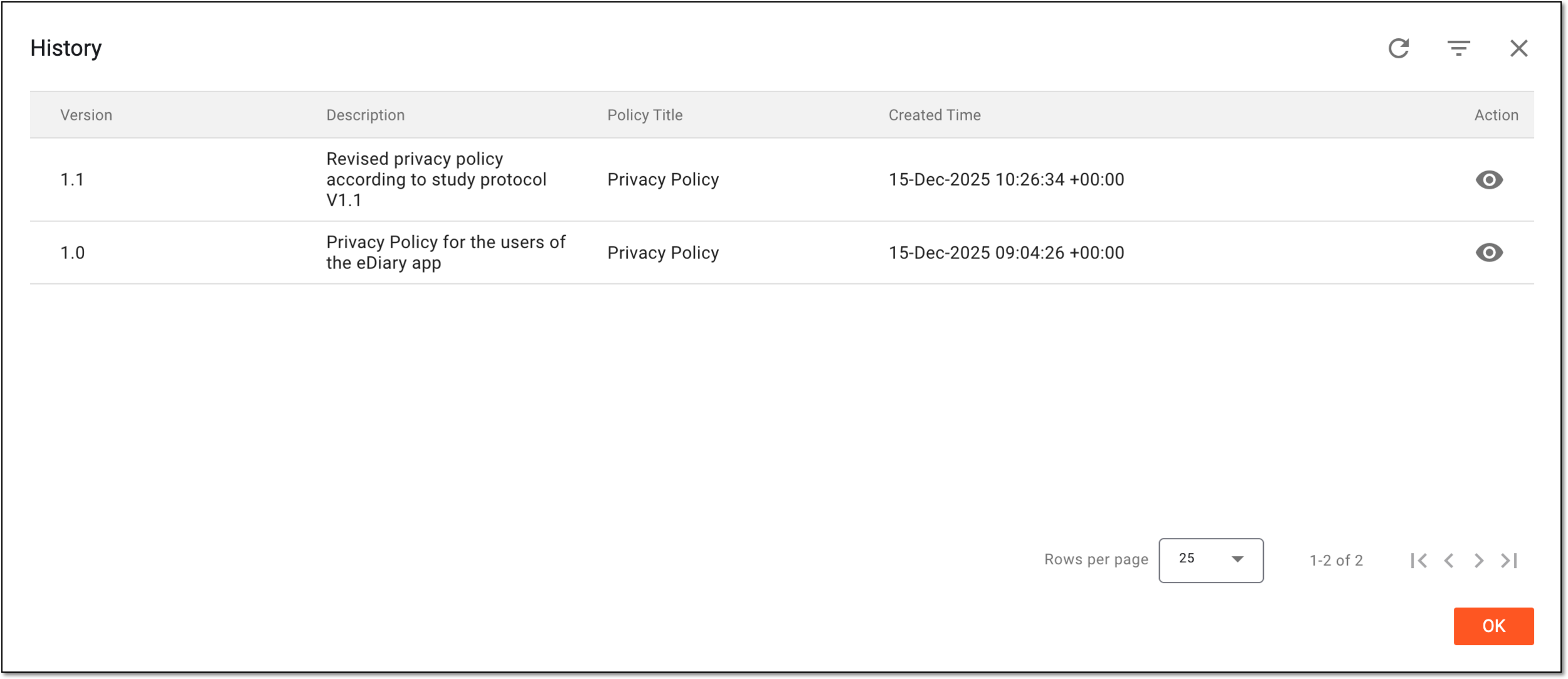 Figure 4. Analyzing operation history for policy setting
You have analyzed the operation history for the eDiary policy setting. You can now select OK to close the dialog and return to the policy configuration page.
By adding policies and agreements, you create a list of all the needed documents for the eDiary users to acknowledge and accept in the app for legal and regulatory purposes. All the policies that are manually added or preconfigured for you in the system are inactive by default, and thus, they do not appear in the eDiary app. For the policy to become available in eDiary, it must be activated in EDC. This ensures that you can maintain the list of policies relevant to the users by activating them, and withdrawing those that are not needed by inactivating them.
-
In the EDC application header, select the STUDY INFO tab.
-
On the page that opens, in the left pane, select eDiary > Policies & Agreements.
Figure 1. Accessing eDiary policies and agreements
-
On the page that opens, select the Configuration tab. Then in the Policy List block, locate the policy of your interest and next to it, select one of the following:
-
Activate
 : to make the policy available in the eDiary app for users to read and accept.
 -
Inactivate
 : to withdraw the policy from the eDiary app if it is currently irrelevant.
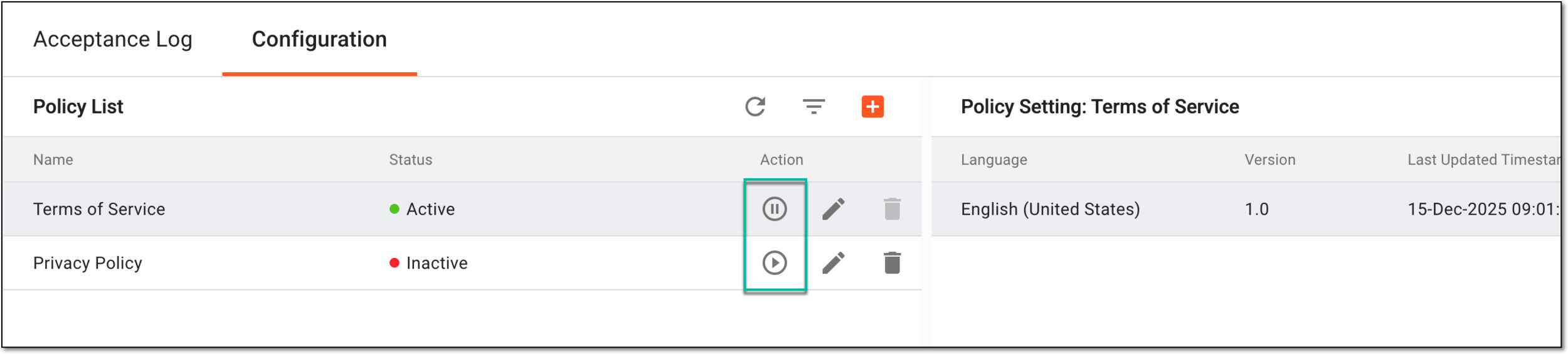 Figure 2. Locating activation and inactivation options
-
Once selected, the policy either becomes active or inactive based on your action.
In EDC, you can rename any of the previously added eDiary policies and agreements or those preconfigured in the system by default to suit your business and legal requirements.
-
In the EDC application header, select the STUDY INFO tab.
-
On the page that opens, in the left pane, select eDiary > Policies & Agreements.
Figure 1. Accessing eDiary policies and agreements
-
On the page that opens, select the Configuration tab. Then in the Policy List block, locate the policy of your interest and next to it, select Edit
 .
.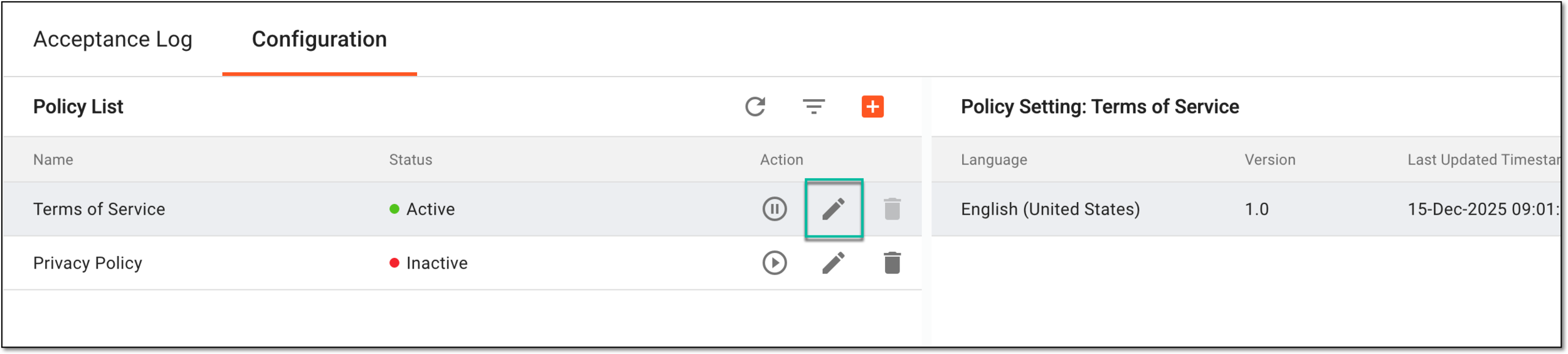 Figure 2. Selecting option to edit policy name
-
In the Edit dialog that appears, update the name for the policy as needed. Then select
.Tip
The name entered here defines the policy category in EDC; it is not displayed in eDiary to the app users. The user-facing name of the policy is added when defining the policy content in respective languages.
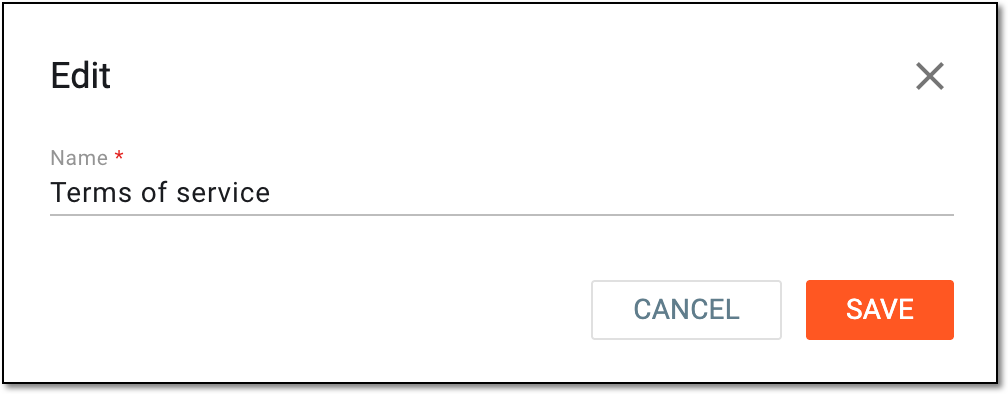 Figure 3. Editing policy name
Once saved, the policy is renamed. You can also redefine the content for the updated policy if needed.
In EDC, you can delete any of the previously added eDiary policies and agreements or those preconfigured for you in the system by default if they become irrelevant based on your changing business and legal requirements.
Important
You need to inactivate the policy before deletion. This provides an additional tier of scrutiny to prevent unintended actions.
-
In the EDC application header, select the STUDY INFO tab.
-
On the page that opens, in the left pane, select eDiary > Policies & Agreements.
Figure 1. Accessing eDiary policies and agreements
-
On the page that opens, select the Configuration tab. Then in the Policy List block, locate the inactive policy you want to remove and next to it, select Delete
 .
.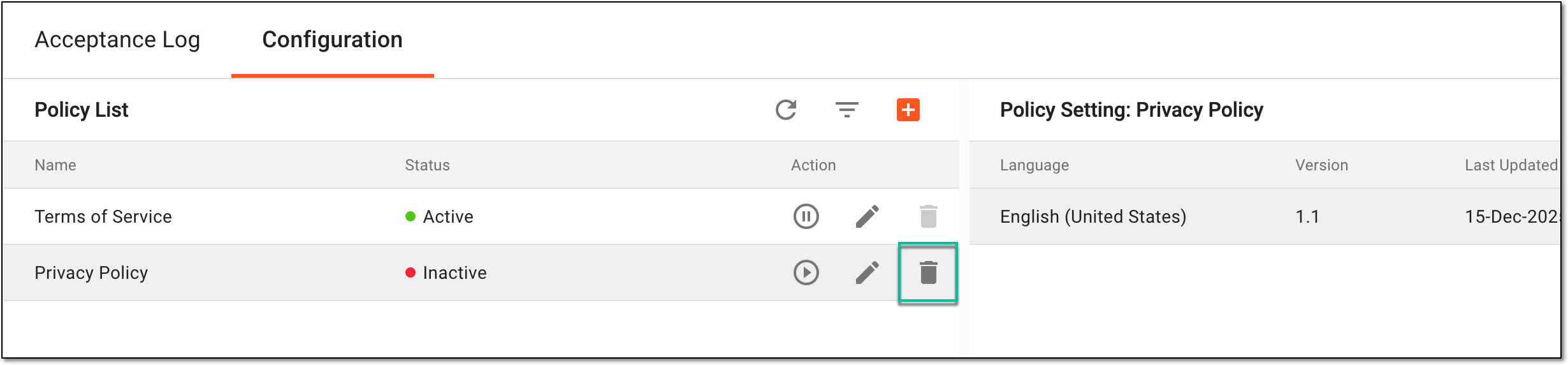 Figure 2. Deleting eDiary policy
-
In the confirmation dialog that opens, select
 to proceed with your action.
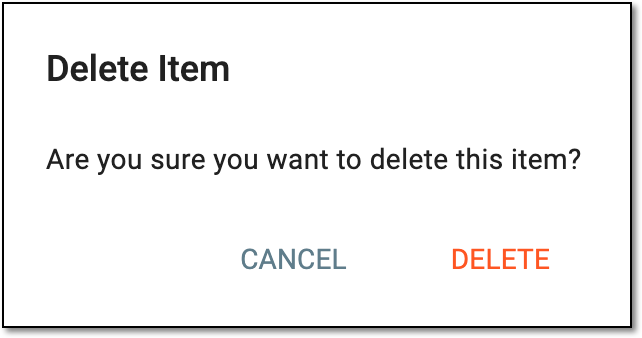 Figure 3. Confirming policy deletion
Once confirmed, the eDiary policy is deleted from the EDC system and is no longer available to users in the eDiary app.