Analyze noncompliance report for eCOA and eDiary
In EDC, you can access the noncompliance report to analyze the statistics of data collection via the eCOA and eDiary mobile applications. This report provides a structured analysis of events noncompliant with study requirements, such as missed data entries, recorded breaches of treatment requirements, and so on.
Important
The noncompliance criteria are configured via the Alert > Non-Compliance functionality. The Non-Compliance Report data are based entirely on those configured criteria.
Analyzing these statistics, you can assess subject adherence to the study protocol and procedures expected of them.
-
In the EDC application header, select the REPORTS tab.
-
From the left pane of the page that opens, select eCOA and eDiary Report > Non-Compliance Report.
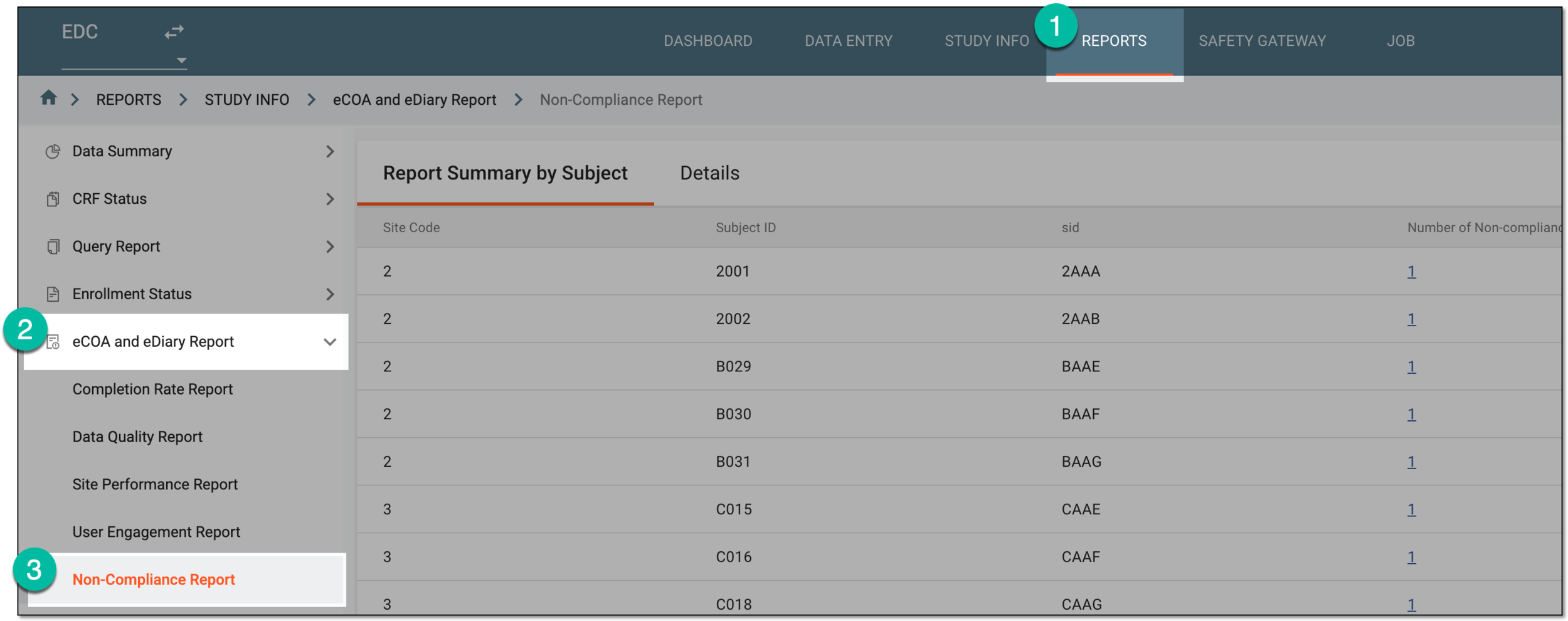 Figure 1. Accessing noncompliance report
-
In the Report Summary by Subject table that appears, analyze the data as explained in the following table.
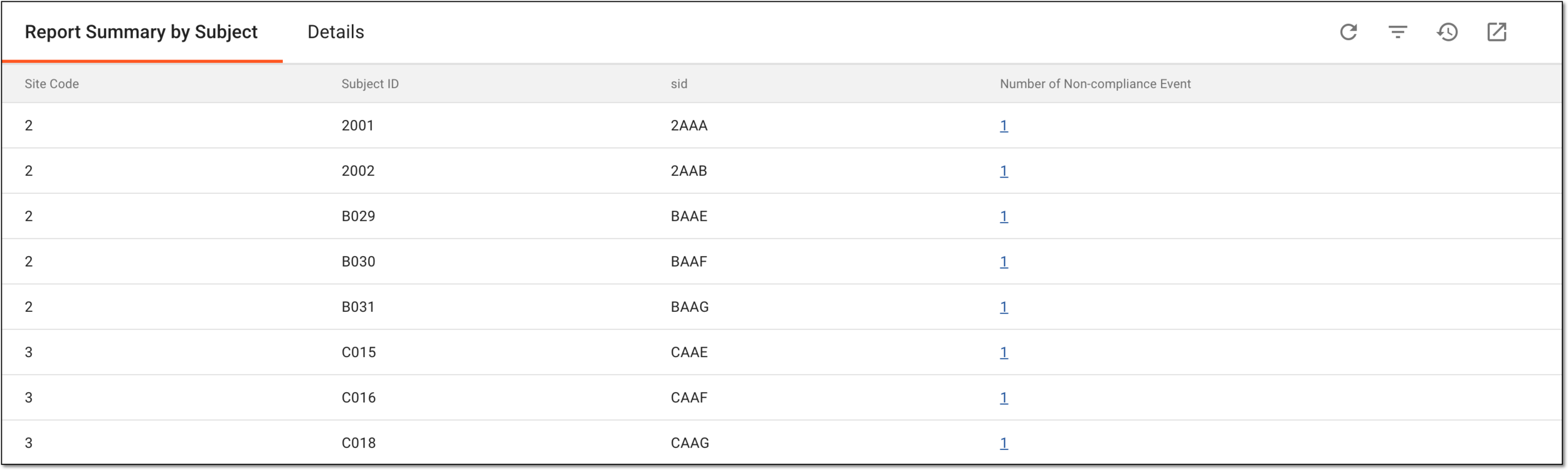 Figure 2. Analyzing noncompliance report summary by subject
Column
Details
Site Code
Represents the site code of the subject whose noncompliance is depicted.
[Unique ID Label]
Represents the unique identifier of the subject whose noncompliance statistics is depicted.
The column name depends on the unique ID label configuration of your study in IWRS.sid
Represents the unique identifier of the mobile app user assigned to them when creating account in eCOA or eDiary. This ID helps detect the user who entered data to the mobile app.
Number of Non-compliance Event
Represents the total count of noncompliant occurrences of the subject. This number includes all historical noncompliance events, even if they have been resolved by now.
For instance, if the subject missed filling out the CRF on time, their number of noncompliant events becomes one, and when they complete the form, it does not become zero but remains one. All the next noncompliant events are summed up regardless of being resolved or not.
Select the number of events for the subject to analyze detailed noncompliance statistics under the Details tab.
-
On the contents panel, select the Details tab. In the table that appears, analyze the detailed statistics of noncompliant events of the subjects as explained in the following table.
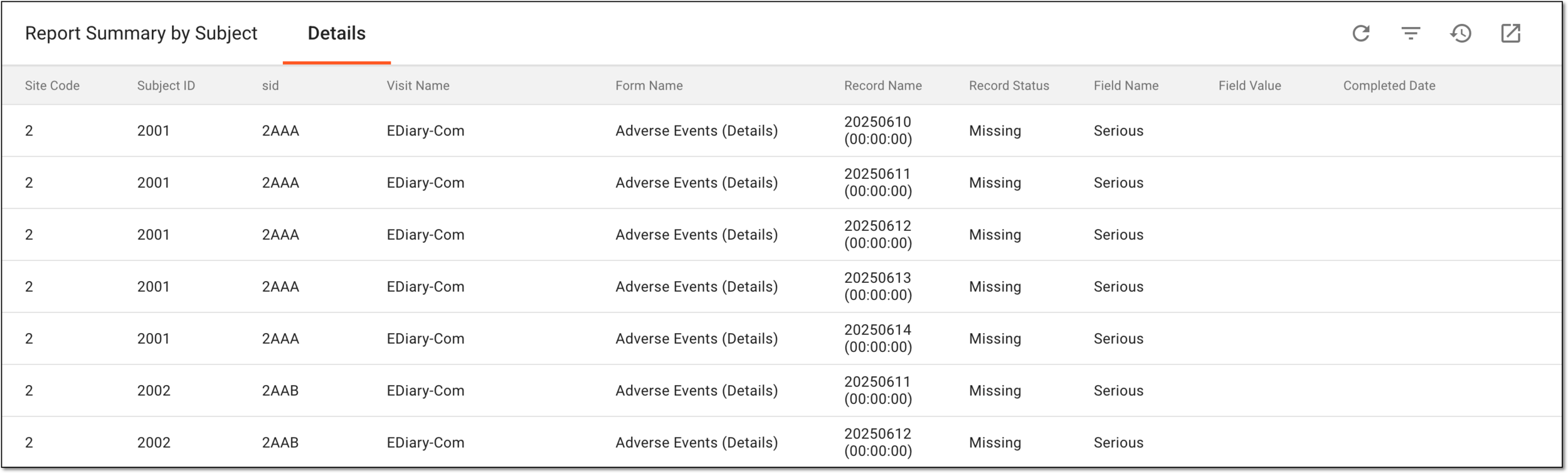 Figure 3. Analyzing detailed statistics of noncompliant events of subjects
Tip
The table is filtered by subject if you access it by selecting the Number of Non-compliance Event value in the Report Summary by Subject table.
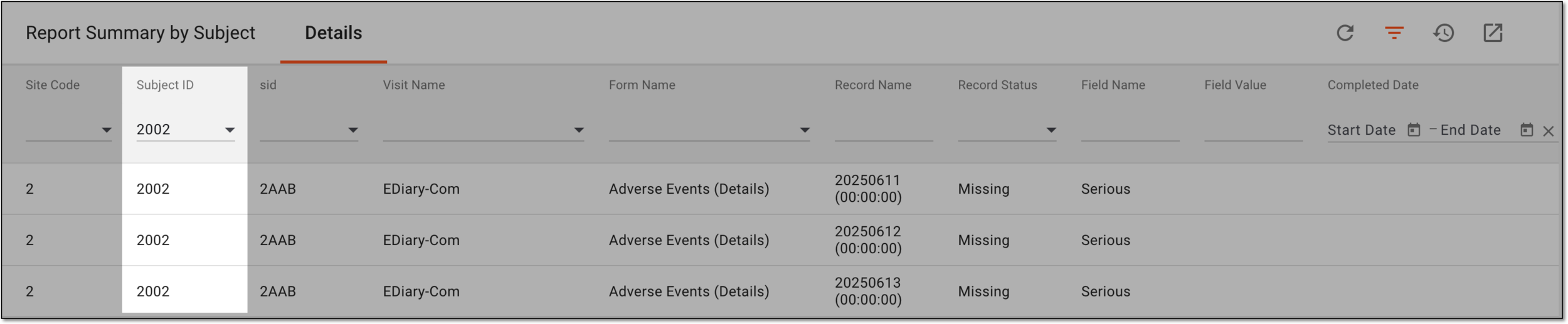 Figure 4. Filtering detailed noncompliance report by subject
Column
Details
Site Code
Represents the site code of the subject whose noncompliance statistics is depicted.
[Unique ID Label]
Represents the unique identifier of the subject whose noncompliance statistics is depicted.
The column name depends on the unique ID label configuration of your study in IWRS.sid
Represents the unique identifier of the mobile app user assigned to them when creating account in eCOA or eDiary. This ID helps detect the user who entered data to the mobile app.
Visit Name
Represents the name of the visit for which the noncompliant event—such as missed data entry—occurred.
Form Name
Represents the name of the CRF for which the noncompliant event occurred.
Record Name
Represents the name of the CRF record for which the noncompliant event occurred.
Record Status
Represents the current status of the CRF record:
-
Missing: the record has no data and it causes noncompliance issue.
-
Completed: the data is recorded, however, the stated value falls under the noncompliance category.
For instance, to fulfill the compliance requirements, the subject has to take a daily dose of medicine and make a record of it in the respective CRF via the mobile app. If the record is missing, it counts as noncompliance, and if the record is completed but states that the medicine is not taken, it is also noncompliant with study requirements.
Field Name
Represents the name of the field that was not completed with data or the answer is noncompliant.
Field Value
Represents the value entered to the CRF field once it is completed—compliant or not. The value is absent in this column if the record status is Missing.
Completed Date
Represents the date, time, and time zone indicator when the CRF field was completed with data.
Last Compliance Date
Represents the date, time, and time zone indicator when the CRF field was completed with data or its value is changed to the compliant one and the noncompliance issue is resolved.
Gap (Days)
Represents the number of days between the scheduled date for CRF completion and the actual data entry date.
-
Once you have analyzed the noncompliance report for the study, you can also export the report for offline access if needed.