Report management
In a clinical trial, data capture is one of the most vital and sensitive procedures. Every entry, amendment, or any other action with data has to be accounted for and trackable at all times to ensure the clarity and authenticity of all the data collected during the clinical trial. Also, tracking the user activity to ensure legitimacy and prevent any intended or unintended data corruption is of vital importance.
With EDC reports, you can keep track of all the user activity and data amendments occurring across the system.
As soon as the study goes live, the reports are used frequently and by different user roles as a source of information, a control tool, a tracking system, and for other purposes.
In EDC, you can find a comprehensive system of reports to track and control all the data and processes occurring in the system:
-
Data Summary: this group of reports represents exhaustive details on the raw data, CRF data entries, data analysis, and metrics, as well as a user action log.
-
CRF Status: this group of reports provides comprehensive information on CRFs, namely, the status of forms and their items, statistics of subject visits, stages of form completion, and so on.
-
Query Report: this group of reports provides complete and systematized information on all the queries (system and manual) opened and handled within the EDC system.
-
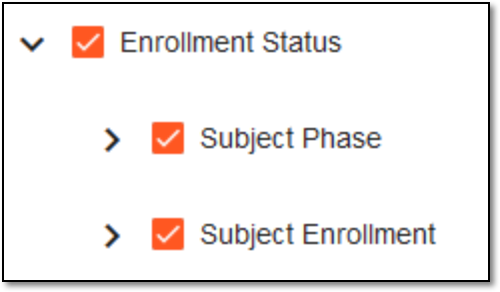
Enrollment Status: this group of reports gives you a graphic vision of the up-to-date subject phase statistics in a course of a clinical trial (per study/sites), as well as subject enrollment details.
-
On-Demand Report: this feature provides an opportunity to configure custom reports, for instance, Clean Patient Tracker.
Important
Due to the sensitivity of the clinical trial data, access to the EDC reports is permission-based. All permissions are configured via the ADMIN application and for the reports, they correspond to the report names. For example, to access the Enrollment Status group of reports, you have to be granted Enrollment Status permissions.
 |
You can also export the reports to further use them as per your business needs. In EDC, exporting most reports is a two-step process:
-
Export the report so that the task is added to the queue and the file gets generated.
-
Download the generated file with your report version from the Export History page.